

Search.InstallMac.com is a browser hijacker, which is promoted via other free downloads, and once installed it will change your browser homepage and default search engine to Search.InstallMac.com
![[Image: Search.installmac.com hijack]](http://malwaretips.com/blogs/wp-content/uploads/2013/08/search-installmac-hijack.png "Search.installmac.com hijack")
Search.InstallMac.com homepage got on your computer after you have installed a freeware software (video recording/streaming, download-managers or PDF creators) that had bundled into their installation this browser hijacker.
For example, when you install VPlay, you will also agree to change your browser homepage and default search engine to Search.InstallMac.com.
However when you uninstall VPlay from your computer, your web browser’s default settings will not be restored. This means that you’ll have to remove Search.InstallMac.com homepage from your favorite web browser manually.
You should always pay attention when installing software because often, a software installer includes optional installs, such as this Search.InstallMac.com browser hijacker. Be very careful what you agree to install.
Always opt for the custom installation and deselect anything that is not familiar, especially optional software that you never wanted to download and install in the first place. It goes without saying that you should not install software that you don’t trust.
How to remove Search.InstallMac.com from Apple Mac OS X (Removal Guide)
This page is a comprehensive guide, which will remove Search.InstallMac.com browser hijacker, and any other adware program that may have been installed on your Apple Mac OS X.
Please perform all the steps in the correct order. If you have any questions or doubt at any point, STOP and ask for our assistance.
STEP 1: Remove Search.InstallMac.com from Safari, Google Chrome and Firefox
(Optional) STEP 2: Remove Search.InstallMac.com with AdwareMedic
Remove “Search.InstallMac.com” from MAC OS X
STEP 1: Remove “Search.InstallMac.com” from Safari, Google Chrome and Firefox
Remove from Safari (Mac OS X)
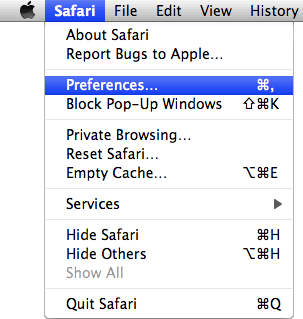
- From the Safari menu, select “Preferences“.
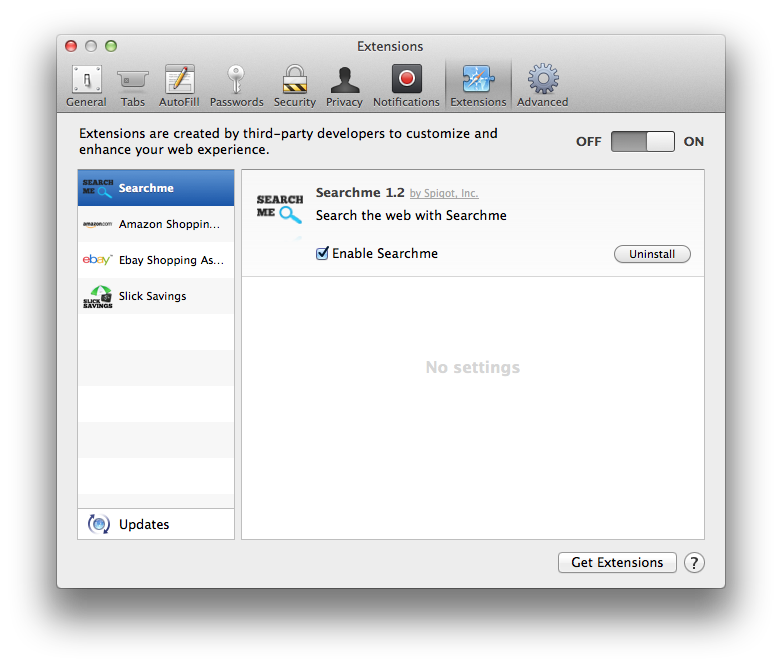
In the Safari Preferences window, click the “Extensions” tab. Find the “Search.InstallMac.com” plugin, then click on the “Uninstall” button. This infection can add more than one extension, it is recommended that you remove all unknown extensions from Safari.
Known malicious extensions: MacSaver, MacVX (and variants like MacVaX), MacCaptain, MacPriceCut, SaveOnMac, Mac Global Deals or MacDeals, MacSter, MacXcoupon, Shop Brain (or variants like SShoP Braaiin), PalMall, MacShop, MacSmart, News Ticker Remover, Shopper Helper Pro, Photo Zoom, Best YouTube Downloader, ArcadeYum, Extended protection, Video download helper, FlashFree or GoldenBoy.
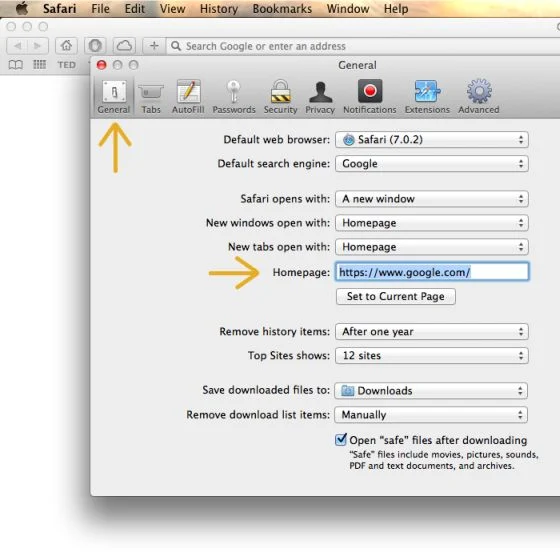
- Next, select “Preferences“, go to the “General” tab and change the “Default Search Engine” to Google. Then, in the “General” tab, find the “Home Page” and change it to “google.com”.


Remove from Chrome (Mac OS X)
- Click on Chrome’s main menu button, represented by three horizontal lines (
![[Image: Chrome's main menu button]](https://malwaretips.com/blogs/wp-content/uploads/mwt-media/c9/c964c619bc5156a269efadd7f08e8f02f7238a9b5062d5d27881889bd94b5755/889f99da68d5e9ef76c7db38ab873d8a2cf3843d646d3f5254663ded586b8dbc-29.webp "Google Chrome's main menu button") ) .When the drop-down menu appears, select the option labeled Settings.
) .When the drop-down menu appears, select the option labeled Settings.
![[Image: Click on Settings button]](https://malwaretips.com/blogs/wp-content/uploads/mwt-media/5e/5ea2f1059be6ed3e11ee9cf08dc94713740dc26bfcd11789733094e25c90e743/254f3b1ecb384cf22ce749a4f33efba0dce5ca8cba853f203a5a7f7bcd77f28b-276.webp "Click on Settings button")
- Chrome’s Settings should now be displayed in a new tab or window, depending on your configuration. Next, scroll to the bottom of the page and click on the Show advanced settings link (as seen in the below example).
![[Image: Click on Show advanced settings link]](https://malwaretips.com/blogs/wp-content/uploads/mwt-media/68/681f26c5c653c4d7087e7cf1600104a7d5e001d7b34c12e0a375806a8d4b35e8/2067845a65f5a3661693478d046067debe5fd33fcb8b1c025d26469ecd2331a4-448.webp "Click on Show advanced settings link")
- Chrome’s advanced Settings should now be displayed. Scroll down until the Reset browser settings section is visible, as shown in the example below. Next, click on the Reset browser settings button.
![[Image: Click on Reset browser button]](https://malwaretips.com/blogs/wp-content/uploads/mwt-media/15/15ef3fb571705e57b5f7dff0a3153b144f8d683478ad0223b548b07555b95497/6d77f46e648414bd0b55d22938b9194aa2a42e3717275959746fee7b6830550c-472.webp "Click on Reset browser button")
- A confirmation dialog should now be displayed, detailing the components that will be restored to their default state should you continue on with the reset process. To complete the restoration process, click on the Reset button.
![[Image: Click on Reset button to restore Chrome to default settings]](https://malwaretips.com/blogs/wp-content/uploads/mwt-media/22/22d431cf86304871f975fe19d630c15c27739e9e08353d44cc8403c0573f2a88/49d11797ef1fd3e76e367ae85bed895954c33a5e59e1046e9d847374ea3f7b05-487.webp "Click on Reset button to restore Chrome to default settings")
Remove from Firefox (Mac OS X)
- In the Firefox’s address bar type: about:support, then click on Enter.
- Click the “Reset Firefox” button in the upper-right corner of the “Troubleshooting Information” page.
![[Image: Reset Firefox to its default settings]](https://malwaretips.com/blogs/wp-content/uploads/mwt-media/7d/7d883ce34b7764cda37ce1caaebdc073fad6c3fc52adaab0f1fab956db3e5ea5/e938c9827fe07f63510e50f578c2e8036a3b007863a6218e7d81d54118999f86-641.webp "Reset Firefox to its default settings")
- To continue, click on the “Reset Firefox” button in the new confirmation window that opens.
![[Image: Click on the Reset Firefox button]](https://malwaretips.com/blogs/wp-content/uploads/mwt-media/b8/b81be351ca30b4f1bcfa5ee64d9190ff5ee41299f4a0507e1f8a2f9df73bd8df/9a5295f266ea438527893d22e732f6b42004850b1681e5cb08cd93585a2d44b8-365.webp "'Click")
- Firefox will close itself and will revert to its default settings. When it’s done, a window will list the information that was imported. Click on the “Finish“.
(OPTIONAL) STEP 2: Remove Search.InstallMac.com virus with AdwareMedic
If you are still experiencing issues with the Search.InstallMac.com redirect in Safari, Firefox or Chrome, we will need to scan your Mac OS X for malware. This step needs to be performed only if your issues have not been solved by the previous steps.
- You can download AdwareMedic from the below link:
Download AdwareMedicOpens the download page in a new tab. - One you have downloaded AdwareMedic, please perform a scan as see in the below video:

Join the discussion
42 commentsShare your experience or ask a question about this article.
Your progress
Did these steps help?
Let us know how the guide worked for you.
Describe what you see and the step you reached. Keep passwords and other private information out.
Discussion
Thanks for this tip!! It honestly worked and I didn’t lose my Bookmarks! Don’t download anything folks because it will just add to your problems when this simple reset does it all!!!
This was incredibly helpful and solved my issue. Thank you so much!
Thanks dude that´s the only useful new that i found!
This was SO helpful and simple! I just deleted the extension and the problem was fixed :) WOOP WOOP
Whew! Thanks! I didn’t download either of the programs you suggested, just uninstalled extensions I didn’t want. I was so annoyed and now am HAPPY!
Thank you!!!
Just go to safari<preferences<extensions and then delete the unibar search or search.me I'm not sure which it was.
Words cannot express how grateful I am for this tip. You guys are awesome!
Awesome thank you! I’ll have to watch out the next time my fiancee says she wants to download a cute island ppt theme
YAY!!!!! THANK YOU SOOOO MUCH!!! That is the 2nd time that happened and I get so frustrated…..I HATE bong!…..I mean Bing:-)
This helped! Thanks so much!
Thank you! I share the same sense of gratitude as most of those who posted before me. Glad you posted this. Keep this up!
THANK YOU THANK YOU THANK YOU!!!! I was worried that I was going to put another virus on my computer when I installed this, but it worked! INSTALL MAC IS GONE YAYYY!
Thank you. I removed it from Safari, but sometimes it still appears on chrome. How can I remove it from chrome? I’ve tried the preference, default homepage search engine stuff but I still see the install.mac appear on chrome for me.
Help?
Thank you.
You are my savior
thank you so much! that dumb thing has been on my computer for like over a month, and now its gone! woohoo! you’re such an awesome dude!
You’re a saint dude! Thank you, thank you, thank you!
thank yu so much…
Lind
Thank you so much, I am so grateful for such an easy way to do it. You are awesome, thanks for making my day. You saved me from taking a trip to apple store.
Hi Stelian,
A very big thank you – I’ve just removed this s*** from my system, thanks to you…