

WebSearch Toolbar is a browser hijacker, which is promoted via other free downloads, and once installed it will add the WebSearch Toolbar, change your browser homepage to websearch.com, and set your default search engine to search.yahoo.com.
![[Image: WebSearch Toolbar virus]](http://malwaretips.com/blogs/wp-content/uploads/2014/04/websearch-toolbar-virus.jpg "WebSearch Toolbar")
The WebSearch.com will display advertisements and sponsored links in your search results, and may collect search terms from your search queries. The WebSearch Toolbar infection is used to boost advertising revenue, as in the use of blackhat SEO, to inflate a site’s page ranking in search results.
The WebSearch Toolbar it’s technically not a virus, but it does exhibit plenty of malicious traits, such as rootkit capabilities to hook deep into the operating system, browser hijacking, and in general just interfering with the user experience. The industry generally refers to it as a “PUP,” or potentially unwanted program.
WebSearch Toolbar got on your computer after you have installed a freeware software (video recording/streaming, download-managers or PDF creators) that had bundled into their installation this browser hijacker. This browser hijacker is also bundled within the custom installer on many download sites (examples: CNET, Brothersoft or Softonic), so if you have downloaded a software from these websites, chances are that WebSearch Toolbar was installed during the software setup process.
Very often users have no idea where did it come from, so it’s not surprising at all that most of them assume that the WebSearch Toolbar is a virus.
For example, when you install YT Downloader HD, you will also agree to change your browser homepage to websearch.com, set your default search engine to search.yahoo.com, and install the WebSearch Toolbar.
However when you uninstall YT Downloader HD from your computer, your web browser’s default settings will not be restored. This means that you’ll have to remove WebSearch Toolbar and websearch.com from your favorite web browser manually.
You should always pay attention when installing software because often, a software installer includes optional installs, such as this WebSearch Toolbar. Be very careful what you agree to install.
Always opt for the custom installation and deselect anything that is not familiar, especially optional software that you never wanted to download and install in the first place. It goes without saying that you should not install software that you don’t trust.
How to remove WebSearch Toolbar (Virus Removal Guide)
This page is a comprehensive guide, which will remove WebSearch Toolbar from Internet Explorer, Firefox and Google Chrome.
Please perform all the steps in the correct order. If you have any questions or doubt at any point, STOP and ask for our assistance.
STEP 1: Uninstall WebSearch Toolbar programs from your computer
STEP 2: Remove WebSearch Toolbar and WebSearch.com from Internet Explorer, Firefox and Chrome
STEP 3: Remove WebSearch Toolbar browser hijacker with AdwCleaner
STEP 4: Remove WebSearch Toolbar virus with Malwarebytes Anti-Malware Free
STEP 5: Double-check for the WebSearch Toolbar infection with HitmanPro
STEP 1 : Uninstall WebSearch Toolbar program from your computer
In this first step, we will try to identify and remove any malicious program that might be installed on your computer.
- To uninstall WebSearch Toolbar program from Windows XP, Windows Vista or Windows 7, click the “Start” button, then click on the “Control Panel” menu option.
![[Image: Control Panel in Windows Start Menu]](//malwaretips.com/blogs/wp-content/uploads/2014/01/windows-start-menu-control-panel.jpg "Control Panel in Windows Start Menu")
If you are using Windows 8, simply drag your mouse pointer to the right edge of the screen, select Search from the list and search for “control panel” .Or you can right-click on a bottom left hot corner (formerly known as the Start button) and select Control Panel from there.
![[Image: Control Panel in Windows 8]](//malwaretips.com/blogs/wp-content/uploads/2014/01/control-panel-windows-8.jpg "Type Control Panel in Windows 8 search box")
- When the “Control Panel” window opens click on the “Uninstall a program” option under “Programs” category. This option is shown by the arrow in the image below. If you are using the “Classic View” of the Control Panel, then you would double-click on the “Programs and Features” icon instead.
![[Image: Uninstall a program]](//malwaretips.com/blogs/wp-content/uploads/2013/03/uninstall-a-program-windows.jpg "Click on Uninstall a program")
- When the “Programs and Features” or the “Uninstall a Program” screen is displayed, scroll through the list of currently installed programs and uninstall WebSearch Toolbar for IE,WebSearch Toolbar for Firefox, WebSearch Toolbar for Chrome and any other recently installed or unknown programs from your computer.
![[Image: Uninstall WebSearch Toolbar from Windows]](//malwaretips.com/blogs/wp-content/uploads/2014/04/WebSearch-toolbar-uninstall.jpg "Uninstall WebSearch Toolbar from Windows")
Depending on what program has installed the WebSearch Toolbar, the above program may have a different name or not be installed on your computer. If you cannot find any unwanted or unknown programs on your machine, then you can proceed with the next step.
![[Image: Control Panel in Windows Start Menu]](http://malwaretips.com/blogs/wp-content/uploads/2014/01/windows-start-menu-control-panel.jpg "Control Panel in Windows Start Menu")
![[Image: Control Panel in Windows 8]](http://malwaretips.com/blogs/wp-content/uploads/2014/01/control-panel-windows-8.jpg "Type Control Panel in Windows 8 search box")
![[Image: Uninstall a program]](http://malwaretips.com/blogs/wp-content/uploads/2013/03/uninstall-a-program-windows.jpg "Click on Uninstall a program")
![[Image: Uninstall WebSearch Toolbar from Windows]](http://malwaretips.com/blogs/wp-content/uploads/2014/04/WebSearch-toolbar-uninstall.jpg "Uninstall WebSearch Toolbar from Windows")
If you are having issues while trying to uninstall the WebSearch Toolbar, you can use Revo Uninstaller to completely remove this unwanted program from your machine.
STEP 2 : Remove WebSearch Toolbar and WebSearch.com from Internet Explorer, Firefox and Chrome
Remove WebSearch Toolbar and WebSearch.com from Internet Explorer
You can reset Internet Explorer settings to return them to the state they were in when Internet Explorer was first installed on your PC.
- Open Internet Explorer, click on the “gear icon”
![[Image: icongear.jpg]](//malwaretips.com/images/removalguide/icongear.jpg "Remove WebSearch Toolbar and WebSearch.com (Removal Guide) 1") in the upper right part of your browser, then click again on Internet Options.
in the upper right part of your browser, then click again on Internet Options.
![[Image: Internet Options in Internet Explorer]](//malwaretips.com/blogs/wp-content/uploads/2014/03/Internet-Options-Internet-Explorer.jpg "Click on the Gear Icon then on Internet Options")
- In the “Internet Options” dialog box, click on the “Advanced” tab, then click on the “Reset” button.
![[Image: Reset Internet Explorer]](//malwaretips.com/blogs/wp-content/uploads/2014/03/Reset-Internet-Explorer.jpg "In the Advanced tab click on the Reset button")
- In the “Reset Internet Explorer settings” section, select the “Delete personal settings” check box, then click on “Reset” button.
![[Image: Reset Internet Explorer to its default settings]](//malwaretips.com/blogs/wp-content/uploads/2014/03/reset-button-Internet-Explorer.jpg "Click on the Reset button to revert IE to its default settings")
- When Internet Explorer has completed its task, click on the “Close” button in the confirmation dialogue box. You will now need to close your browser, and then you can open Internet Explorer again.
![[Image Reset Internet Explorer settings]](//malwaretips.com/blogs/wp-content/uploads/2014/03/Close-button-Reset.jpg "Click on the Close button")
![[Image: icongear.jpg]](http://malwaretips.com/images/removalguide/icongear.jpg "Remove WebSearch Toolbar and WebSearch.com (Removal Guide) 1") in the upper right part of your browser, then click again on Internet Options.
in the upper right part of your browser, then click again on Internet Options.![[Image: Internet Options in Internet Explorer]](http://malwaretips.com/blogs/wp-content/uploads/2014/03/Internet-Options-Internet-Explorer.jpg "Click on the Gear Icon then on Internet Options")
![[Image: Reset Internet Explorer]](http://malwaretips.com/blogs/wp-content/uploads/2014/03/Reset-Internet-Explorer.jpg "In the Advanced tab click on the Reset button")
![[Image: Reset Internet Explorer to its default settings]](http://malwaretips.com/blogs/wp-content/uploads/2014/03/reset-button-Internet-Explorer.jpg "Click on the Reset button to revert IE to its default settings")
![[Image Reset Internet Explorer settings]](http://malwaretips.com/blogs/wp-content/uploads/2014/03/Close-button-Reset.jpg "Click on the Close button")
Remove WebSearch Toolbar and WebSearch.com from Mozilla Firefox
If you’re having problems with Firefox, resetting it can help. The reset feature fixes many issues by restoring Firefox to its factory default state while saving your essential information like bookmarks, passwords, web form auto-fill information, browsing history and open tabs.
- In the upper-right corner of the Firefox window, click the Firefox menu button (
![[Image: Firefox Menu button]](//malwaretips.com/blogs/wp-content/uploads/2014/04/Firefox-menu-button.png "Firefox Menu button") ), the click on the “Help” (
), the click on the “Help” (![[Image: Firefox Help button]](//malwaretips.com/blogs/wp-content/uploads/2014/04/Firefox-Help.png "Firefox Help button") ) button.
) button.
![[Image: Click on the Menu button then Help]](//malwaretips.com/blogs/wp-content/uploads/2014/04/Firefox-Help-button.jpg "Click on the Menu button then question mark button")
- From the Help menu, choose Troubleshooting Information.
![[Image: Troubleshooting Information in Firefox]](//malwaretips.com/blogs/wp-content/uploads/2014/04/Firefox-Troubleshooting-Information.jpg "Troubleshooting Information in Firefox")
- Click the “Reset Firefox” button in the upper-right corner of the “Troubleshooting Information” page.
![[Image: Reset Firefox to its default settings]](//malwaretips.com/blogs/wp-content/uploads/2014/04/Reset-Firefox-button.jpg "Reset Firefox to its default settings")
- To continue, click on the “Reset Firefox” button in the new confirmation window that opens.
![[Image: Click on the Reset Firefox button]](//malwaretips.com/blogs/wp-content/uploads/2014/04/Reset-Firefox-to-default-settings.jpg "Click on the Reset Firefox button")
- Firefox will close itself and will revert to its default settings. When it’s done, a window will list the information that was imported. Click on the “Finish“.
![[Image: Firefox Menu button]](http://malwaretips.com/blogs/wp-content/uploads/2014/04/Firefox-menu-button.png "Firefox Menu button") ), the click on the “Help” (
), the click on the “Help” (![[Image: Firefox Help button]](http://malwaretips.com/blogs/wp-content/uploads/2014/04/Firefox-Help.png "Firefox Help button") ) button.
) button.![[Image: Click on the Menu button then Help]](http://malwaretips.com/blogs/wp-content/uploads/2014/04/Firefox-Help-button.jpg "Click on the Menu button then question mark button")
![[Image: Troubleshooting Information in Firefox]](http://malwaretips.com/blogs/wp-content/uploads/2014/04/Firefox-Troubleshooting-Information.jpg "Troubleshooting Information in Firefox")
![[Image: Reset Firefox to its default settings]](http://malwaretips.com/blogs/wp-content/uploads/2014/04/Reset-Firefox-button.jpg "Reset Firefox to its default settings")
![[Image: Click on the Reset Firefox button]](http://malwaretips.com/blogs/wp-content/uploads/2014/04/Reset-Firefox-to-default-settings.jpg "Click on the Reset Firefox button")
Note: Your old Firefox profile will be placed on your desktop in a folder named “Old Firefox Data“. If the reset didn’t fix your problem you can restore some of the information not saved by copying files to the new profile that was created. If you don’t need this folder any longer, you should delete it as it contains sensitive information.
Remove WebSearch Toolbar and WebSearch.com from Google Chrome
In some cases, programs that you install can change your Chrome settings without your knowledge. You may see additional extensions and toolbars or a different search engine. Resetting your browser settings will reset the unwanted changes caused by installing other programs. However, your saved bookmarks and passwords will not be cleared or changed.
- Click on Chrome’s main menu button, represented by three horizontal lines (
![[Image: Chrome's main menu button]](//malwaretips.com/blogs/wp-content/uploads/2014/02/reset-Chrome-button.png "Google Chrome's main menu button") ) .When the drop-down menu appears, select the option labeled “Settings“.
) .When the drop-down menu appears, select the option labeled “Settings“.
![[Image: Click on Settings button]](//malwaretips.com/blogs/wp-content/uploads/2014/02/Reset-Chrome-Settings-1.jpg "Click on Settings button")
- Chrome’s Settings should now be displayed in a new tab or window, depending on your configuration. Next, scroll to the bottom of the page and click on the “Show advanced settings” link (as seen in the below example).
![[Image: Click on Show advanced settings link]](//malwaretips.com/blogs/wp-content/uploads/2014/02/Reset-Chrome-Settings-2.jpg "Click on Show advanced settings link")
- Chrome’s advanced Settings should now be displayed. Scroll down until the “Reset browser settings” section is visible, as shown in the example below. Next, click on the “Reset browser” settings button.
![[Image: Click on Reset browser button]](//malwaretips.com/blogs/wp-content/uploads/2014/02/Reset-Chrome-Settings-3.jpg "Click on Reset browser button")
- A confirmation dialog should now be displayed, detailing the components that will be restored to their default state should you continue on with the reset process. To complete the restoration process, click on the “Reset” button.
![[Image: Click on Reset button to restore Chrome to default settings]](//malwaretips.com/blogs/wp-content/uploads/2014/02/Reset-Chrome-Settings-4.jpg "Click on Reset button to restore Chrome to default settings")
![[Image: Chrome's main menu button]](http://malwaretips.com/blogs/wp-content/uploads/2014/02/reset-Chrome-button.png "Google Chrome's main menu button") ) .When the drop-down menu appears, select the option labeled “Settings“.
) .When the drop-down menu appears, select the option labeled “Settings“.![[Image: Click on Settings button]](http://malwaretips.com/blogs/wp-content/uploads/2014/02/Reset-Chrome-Settings-1.jpg "Click on Settings button")
![[Image: Click on Show advanced settings link]](http://malwaretips.com/blogs/wp-content/uploads/2014/02/Reset-Chrome-Settings-2.jpg "Click on Show advanced settings link")
![[Image: Click on Reset browser button]](http://malwaretips.com/blogs/wp-content/uploads/2014/02/Reset-Chrome-Settings-3.jpg "Click on Reset browser button")
![[Image: Click on Reset button to restore Chrome to default settings]](http://malwaretips.com/blogs/wp-content/uploads/2014/02/Reset-Chrome-Settings-4.jpg "Click on Reset button to restore Chrome to default settings")
STEP 3: Remove WebSearch Toolbar and WebSearch.com with AdwCleaner
The AdwCleaner utility will scan your computer and web browser for the WebSearch Toolbar malicious files, browser extensions and registry keys, that may have been installed on your computer without your knowledge.
- You can download AdwCleaner utility from the below link.
Download AdwCleanerFree official download. Nothing to install. - Before starting AdwCleaner, close all open programs and internet browsers, then double-click on the AdwCleaner icon.
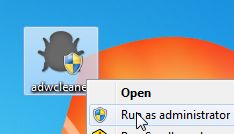
If Windows prompts you as to whether or not you wish to run AdwCleaner, please allow it to run. - When the AdwCleaner program will open, click on the “Scan” button as shown below.
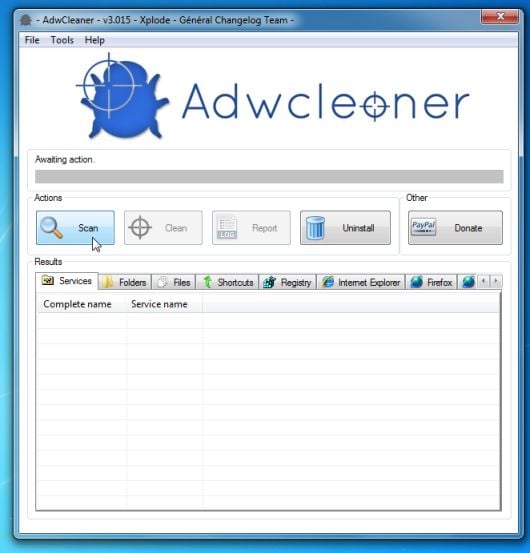
AdwCleaner will now start to search for the WebSearch Toolbar malicious files that may be installed on your computer. - To remove the WebSearch Toolbar malicious files that were detected in the previous step, please click on the “Clean” button.
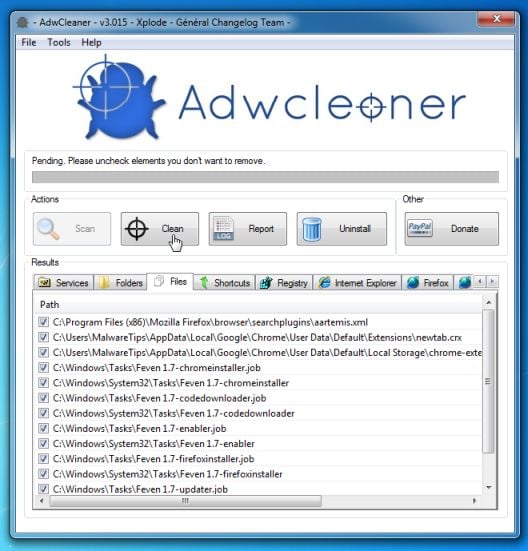
- AdwCleaner will now prompt you to save any open files or data as the program will need to reboot the computer. Please do so and then click on the OK button. AdwCleaner will now delete all detected adware from your computer. When it is done it will display an alert that explains what PUPs (Potentially Unwanted Programs) and Adware are.Please read through this information and then press the OK button. You will now be presented with an alert that states AdwCleaner needs to reboot your computer.
Please click on the OK button to allow AdwCleaner reboot your computer.



STEP 4: Remove WebSearch Toolbar virus from with Malwarebytes Anti-Malware Free
Malwarebytes Anti-Malware Free uses industry-leading technology to detect and remove all traces of malware, including worms, Trojans, rootkits, rogues, dialers, spyware, and more.
It is important to note that Malwarebytes Anti-Malware works well and should run alongside antivirus software without conflicts.
- You can download download Malwarebytes Anti-Malware from the below link.
Download MalwarebytesFree official installer. Your download starts right away. - Once downloaded, close all programs, then double-click on the icon on your desktop named “mbam-setup-consumer-2.00.xx” to start the installation of Malwarebytes Anti-Malware.
![[Image: Malwarebytes Anti-Malware setup program]](//malwaretips.com/blogs/wp-content/uploads/2014/02/Malwarebytes-Anti-Malware-Setup.jpg "Malwarebytes Anti-Malware setup program")
 You may be presented with a User Account Control dialog asking you if you want to run this file. If this happens, you should click “Yes” to continue with the installation.
 - When the installation begins, you will see the Malwarebytes Anti-Malware Setup Wizard which will guide you through the installation process.
![[Image: Malwarebytes Anti-Malware Setup Wizard]](//malwaretips.com/blogs/wp-content/uploads/2014/02/malwarebytes-anti-malware-2-0-installation.jpg "Malwarebytes Anti-Malware Setup Wizard")
To install Malwarebytes Anti-Malware on your machine, keep following the prompts by clicking the “Next” button.
![[Image: Malwarebytes Anti-Malware Final Setup Screen]](//malwaretips.com/blogs/wp-content/uploads/2014/02/malwarebytes-anti-malware-2-0-final-screen.jpg "Malwarebytes Anti-Malware Final Setup Screen")
- Once installed, Malwarebytes Anti-Malware will automatically start and you will see a message stating that you should update the program, and that a scan has never been run on your system. To start a system scan you can click on the “Fix Now” button.
![[Image: Click on the Fix Now button to start a scan]](//malwaretips.com/blogs/wp-content/uploads/2014/02/malwarebytes-anti-malware-fix-now.jpg "Remove WebSearch Toolbar and WebSearch.com (Removal Guide) 2")
Alternatively, you can click on the “Scan” tab and select “Threat Scan“, then click on the “Scan Now” button.
![[Image: Malwarebytes Anti-Malware Threat Scan]](//malwaretips.com/blogs/wp-content/uploads/2014/02/malwarebytes-anti-malware-threat-scan-option.jpg "Malwarebytes Anti-Malware Threat Scan")
- Malwarebytes Anti-Malware will now check for updates, and if there are any, you will need to click on the “Update Now” button.
![[Image: Click on Update Now to update Malwarebytes Anti-Malware]](//malwaretips.com/blogs/wp-content/uploads/2014/02/malwarebytes-anti-malware-2-0-update-now.jpg "Click on Update Now to update Malwarebytes Anti-Malware")
- Malwarebytes Anti-Malware will now start scanning your computer for the WebSearch Toolbar virus. When Malwarebytes Anti-Malware is scanning it will look like the image below.
![[Image: Malwarebytes Anti-Malware while performing a scan]](//malwaretips.com/blogs/wp-content/uploads/2014/02/malwarebytes-anti-malware-scan.jpg "Malwarebytes Anti-Malware while performing a scan")
- When the scan has completed, you will now be presented with a screen showing you the malware infections that Malwarebytes’ Anti-Malware has detected. To remove the malicious programs that Malwarebytes Anti-malware has found, click on the “Quarantine All” button, and then click on the “Apply Now” button.
![[Image: Remove the malware that Malwarebytes Anti-Malware has found]](//malwaretips.com/blogs/wp-content/uploads/2014/02/malwarebytes-anti-malware-potential-threat-detected.jpg "Remove the malware that Malwarebytes Anti-Malware has detected")
Please note that the infections found may be different than what is shown in the image. - Malwarebytes Anti-Malware will now quarantine all the malicious files and registry keys that it has found. When removing the files, Malwarebytes Anti-Malware may require a reboot in order to remove some of them. If it displays a message stating that it needs to reboot your computer, please allow it to do so.
![[Image: Malwarebytes Anti-Malware while removing viruses]](//malwaretips.com/blogs/wp-content/uploads/2014/02/malwarebytes-anti-malware-remove-virus.jpg "Malwarebytes Anti-Malware asking to reboot your computer")
After your computer will restart, you should open Malwarebytes Anti-Malware and perform another “Threat Scan” scan to verify that there are no remaining threats
![[Image: Malwarebytes Anti-Malware setup program]](http://malwaretips.com/blogs/wp-content/uploads/2014/02/Malwarebytes-Anti-Malware-Setup.jpg "Malwarebytes Anti-Malware setup program")
 You may be presented with a User Account Control dialog asking you if you want to run this file. If this happens, you should click “Yes” to continue with the installation.
![[Image: Malwarebytes Anti-Malware Setup Wizard]](http://malwaretips.com/blogs/wp-content/uploads/2014/02/malwarebytes-anti-malware-2-0-installation.jpg "Malwarebytes Anti-Malware Setup Wizard")
![[Image: Malwarebytes Anti-Malware Final Setup Screen]](http://malwaretips.com/blogs/wp-content/uploads/2014/02/malwarebytes-anti-malware-2-0-final-screen.jpg "Malwarebytes Anti-Malware Final Setup Screen")
![[Image: Click on the Fix Now button to start a scan]](http://malwaretips.com/blogs/wp-content/uploads/2014/02/malwarebytes-anti-malware-fix-now.jpg "Remove WebSearch Toolbar and WebSearch.com (Removal Guide) 2")
![[Image: Malwarebytes Anti-Malware Threat Scan]](http://malwaretips.com/blogs/wp-content/uploads/2014/02/malwarebytes-anti-malware-threat-scan-option.jpg "Malwarebytes Anti-Malware Threat Scan")
![[Image: Click on Update Now to update Malwarebytes Anti-Malware]](http://malwaretips.com/blogs/wp-content/uploads/2014/02/malwarebytes-anti-malware-2-0-update-now.jpg "Click on Update Now to update Malwarebytes Anti-Malware")
![[Image: Malwarebytes Anti-Malware while performing a scan]](http://malwaretips.com/blogs/wp-content/uploads/2014/02/malwarebytes-anti-malware-scan.jpg "Malwarebytes Anti-Malware while performing a scan")
![[Image: Remove the malware that Malwarebytes Anti-Malware has found]](http://malwaretips.com/blogs/wp-content/uploads/2014/02/malwarebytes-anti-malware-potential-threat-detected.jpg "Remove the malware that Malwarebytes Anti-Malware has detected")
![[Image: Malwarebytes Anti-Malware while removing viruses]](http://malwaretips.com/blogs/wp-content/uploads/2014/02/malwarebytes-anti-malware-remove-virus.jpg "Malwarebytes Anti-Malware asking to reboot your computer")
STEP 5: Double-check for the WebSearch Toolbar infection with HitmanPro
HitmanPro is a second opinion scanner, designed to rescue your computer from malware (viruses, trojans, rootkits, etc.) that have infected your computer despite all the security measures you have taken (such as anti virus software, firewalls, etc.). HitmanPro is designed to work alongside existing security programs without any conflicts. It scans the computer quickly (less than 5 minutes) and does not slow down the computer.
- You can download HitmanPro from the below link:
Download HitmanProOfficial Sophos download. Free scan, free 30-day trial to remove threats. - Double-click on the file named “HitmanPro.exe” (for 32-bit versions of Windows) or “HitmanPro_x64.exe” (for 64-bit versions of Windows). When the program starts you will be presented with the start screen as shown below.
![[Image: HitmanPro start-up screen]](//malwaretips.com/blogs/wp-content/uploads/2014/03/hitmanpro-install.jpg "HitmanPro startup screen (Click Next)")
Click on the “Next” button, to install HitmanPro on your computer.
![[Image: HitmanPro setup options]](//malwaretips.com/blogs/wp-content/uploads/2014/03/hitmapro-start-scan.jpg "HitmanPro installation options (Click Next)")
- HitmanPro will now begin to scan your computer for WebSearch Toolbar malicious files.
![[Image: HitmanPro scanning for malware]](//malwaretips.com/blogs/wp-content/uploads/2014/03/hitmanpro-scanning.jpg "HitmanPro scanning for WebSearch Toolbar pop-up virus")
- When it has finished it will display a list of all the malware that the program found as shown in the image below. Click on the “Next” button, to remove WebSearch Toolbar virus.
![[Image: HitmanPro scan results]](//malwaretips.com/blogs/wp-content/uploads/2014/03/hitmanpro-scan-results.jpg "HitmanPro scan results (Click Next)")
- Click on the “Activate free license” button to begin the free 30 days trial, and remove all the malicious files from your computer.
![[Image: HitmanPro Activate Free License]](//malwaretips.com/blogs/wp-content/uploads/2014/03/hitmanpro-activation.jpg "Click on the Activate free license button")
![[Image: HitmanPro start-up screen]](http://malwaretips.com/blogs/wp-content/uploads/2014/03/hitmanpro-install.jpg "HitmanPro startup screen (Click Next)")
![[Image: HitmanPro setup options]](http://malwaretips.com/blogs/wp-content/uploads/2014/03/hitmapro-start-scan.jpg "HitmanPro installation options (Click Next)")
![[Image: HitmanPro scanning for malware]](http://malwaretips.com/blogs/wp-content/uploads/2014/03/hitmanpro-scanning.jpg "HitmanPro scanning for WebSearch Toolbar pop-up virus")
![[Image: HitmanPro scan results]](http://malwaretips.com/blogs/wp-content/uploads/2014/03/hitmanpro-scan-results.jpg "HitmanPro scan results (Click Next)")
![[Image: HitmanPro Activate Free License]](http://malwaretips.com/blogs/wp-content/uploads/2014/03/hitmanpro-activation.jpg "Click on the Activate free license button")
Your computer should now be free of the WebSearch Toolbar infection. If your current anti-virus solution let this infection through, you may want to consider purchasing the Premium version of Malwarebytes Anti-Malware to protect against these types of threats in the future, and perform regular computer scans with HitmanPro.
If you are still experiencing problems while trying to remove WebSearch Toolbar from your machine, please start a new thread in our Malware Removal Assistance forum.









thanks man
Many thanks for real, you help me so much! Before that I work really nervous on my computer and I lost hope that someday I’ll remove this shits. After I follow your steps and download all this removal softwares malwares is in story for me!
Thank you!
This is really helpful! Thanks so much!!
Thanks!!
Thank you
wow can’t believe how easy it was thankyou!
This post really do helped me! Oh God, thank you so much! :)
This was an excellent and really helpful post – thanks so much
fantastic , I cant believe how easy it was to remove websearch using your software. thank you so much, you are a legend
Yes !!! now I was free from …
” WebSearch Toolbar “. and i use AdwCleaner, very simple but it’s great. Thanks
Thank you very much! I am so happy websearch has been remove .
Thank you guys
helped me a lot!!
<3333333
works with hit pro ! thanks dude !!
come visit my blog http://lovelynemo.blogspot.com
Thank you. Helped me a lot. God bless you.