

The usual way of turning User Account Control off described on blogs is by dropping the slider in UAC Settings to Never notify. This turns UAC off completely and it has a couple of disadvantages. Windows 7 users have a better way to get rid of the prompts they perceive as annoyances.
First of all, you should know that besides displaying the elevation prompts, UAC is responsible for a couple of other security-related settings:
- File system and registry virtualization;
- Protected Mode in Internet Explorer.
Some applications store settings or user data in areas of the registry or file system that are meant to be used only by the system. This is an unnecessary use of administrative rights and a security risk. File system and registry virtualization diverts attempts to write to the system locations to the ones in user locations while keeping application compatibility. Turning off UAC disables file system and registry virtualization. As a side effect some applications might not work and for others you will loose existing settings.
IE’s Protected Mode is tightly related to virtualization and it is designed to protect the computer by restricting the parts of the system that code running in the IE process can affect. If a malicious web page exploits a bug in IE or an IE plug-in, that code will not be able to do damage to the system. Turning off UAC results in the loss of Protected Mode in IE and it is a significant security disadvantage.
The recommended way of getting rid of the prompts is to disable them while keeping other UAC features on. Actually this method only affects administrators running in admin approval mode (the account created during Windows 7 setup that you are probably using right now is such an account), the behavior of UAC on standard accounts remains the same.
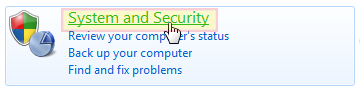
- Open your Control Panel and click on the System and Security link;
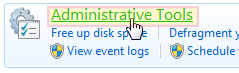
- Click on Administrative Tools link;
- Double click on Local Security Policy icon;
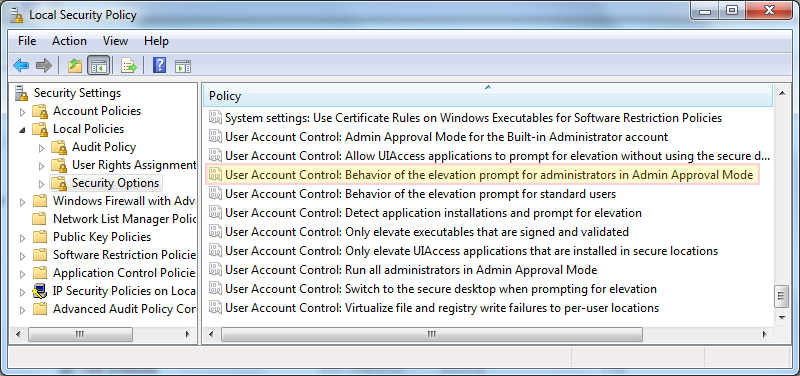
- Once Local Security Policy window appears navigate to Security Settings > Local Settings > Security Options.
You will be presented with a long list of settings and among them 10 are related to User Account Control. The setting we need is called User Account Control: Behavior of the elevation prompt for administrators in Admin Approval Mode. Double click on it and a window allowing you to customize this setting appears.
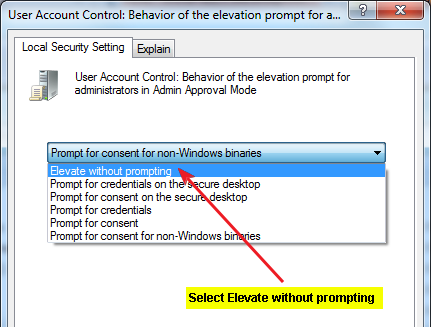
- On the Local Security Setting tab change the drop-down box to Elevate without prompting;
- Click Apply and close all windows.

The changes take place immediateley, now you won’t receive the elevation prompts on your administrator acount.
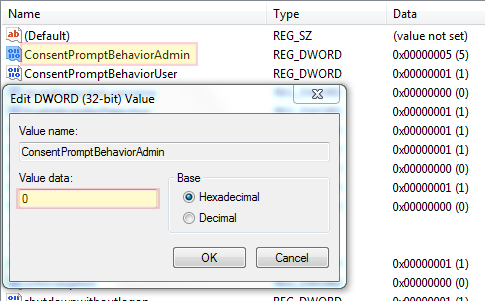
Note for Windows 7 Home users: The Local Security Policy is only available for Windows 7 Professional and higher versions but you should still be able to change the above setting using the Windows registry.
- On the start menu search for “regedit.exe” and type Enter on your keyboard to open the Registry Editor. Using the tree structure navigate to:
HKEY_LOCAL_MACHINE\SOFTWARE\Microsoft\Windows\CurrentVersion\Policies\System
- You need to change the value ConsentPromptBehaviorAdmin . Double-click on it and in the window that opens enter a value data of 0 (zero).
- Click OK and close the Registry Editor.
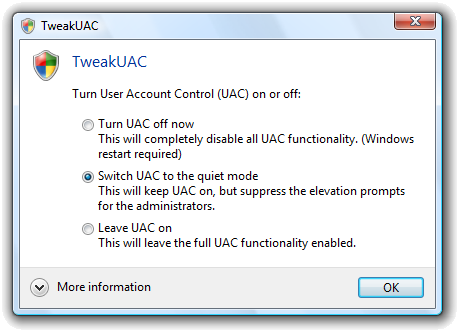
A software tool that does it for you
Tweak UAC is a free software tool that you can use to quickly achieve the same result. Just make sure you select “Switch UAC to silent mode”.
Fell free to comment and subscribe. We also have a forum and would like you as a member. We will appreciate it.

Thanks!
Correction:
On Windows 7, “ConsentPromptBehaviorAdmin” should be under:
HKEY_LOCAL_MACHINE\SOFTWARE\Microsoft\Windows\CurrentVersion\Policies\System
Good article:D
Very good and informative article!
Thank you! Glad you like it.