
If Safari is slow, keeps redirecting you to unwanted pages, or behaves unpredictably, resetting it to the default settings can often fix the issue. Resetting Safari restores the browser to its original configuration, removing unwanted extensions, cookies, and cached data that could be causing problems. It can also help eliminate adware or malicious scripts that may have altered your browser settings.
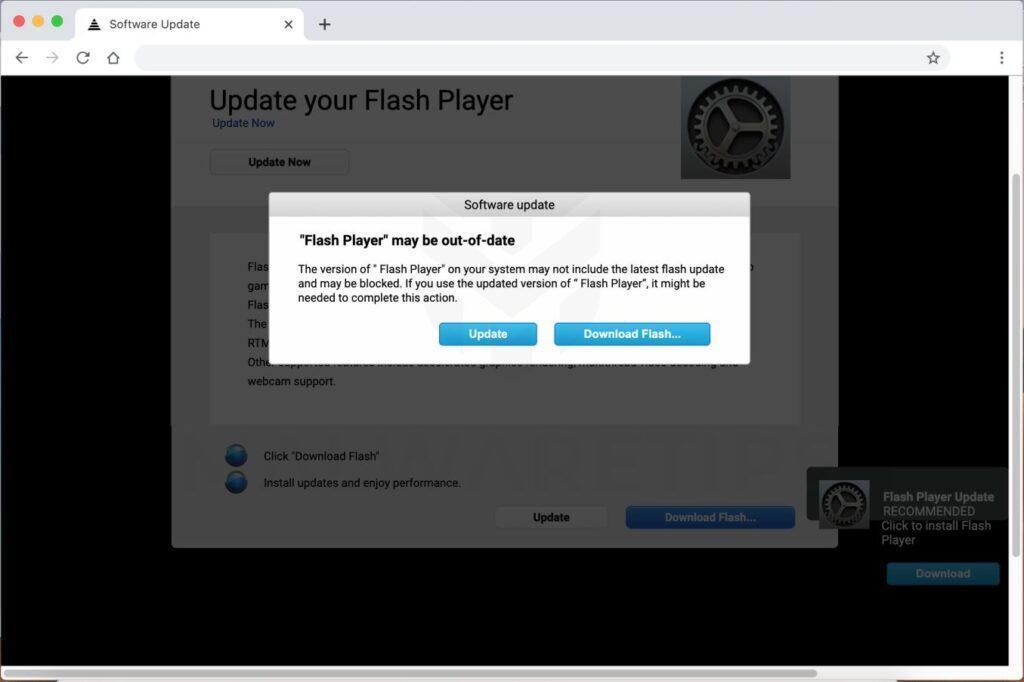
Unlike Chrome or Firefox, Safari doesn’t include a built-in “Reset” option. However, you can restore Safari to its factory defaults by manually clearing browsing data, cookies, cache, and other stored information. This process removes tracking data, resets preferences, and often resolves browser performance issues. Below, you’ll learn how to reset Safari safely on both Mac and iOS devices.
How to Reset Safari to Default Settings (Mac Guide)
Before resetting Safari, make sure to back up any important bookmarks. To do this, open Safari, click the File tab in the top menu bar, select Export Bookmarks, and save the file to your desktop or preferred location. This ensures you won’t lose your saved sites during the reset.
To reset Safari on a Mac, you can either use the browser’s settings or perform a deeper reset through the Terminal app. If you’re using Safari on an iPhone or iPad, tap the iOS tab for step-by-step instructions.
Reset Safari for Mac via Settings
-
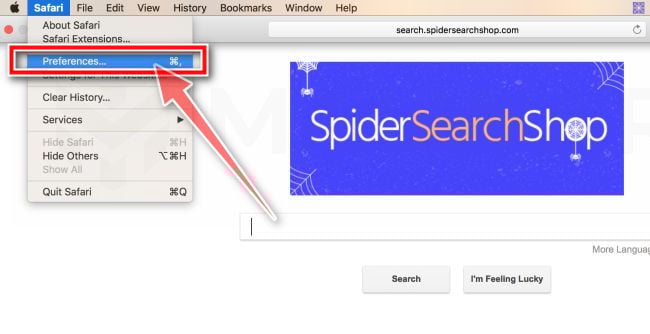
Go to Safari’s “Preferences”.
On the menu bar, click the “Safari” menu and select “Preferences”.

-
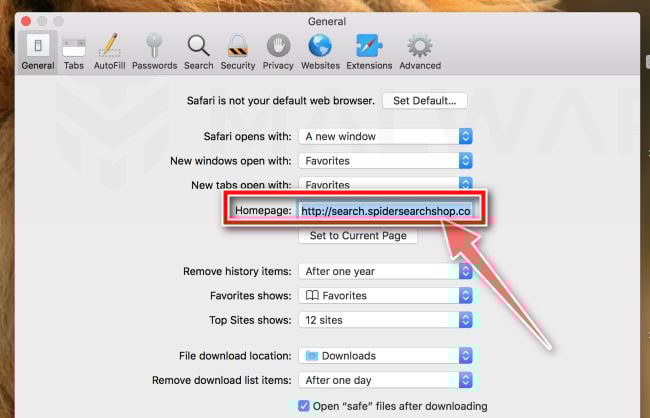
Check Homepage.
This will open a new window with your Safari preferences, opened to the “General” tab. Some browser hijackers may change your default homepage, so in the Homepage field make sure it’s a web page you want to use as your start-up page.

-
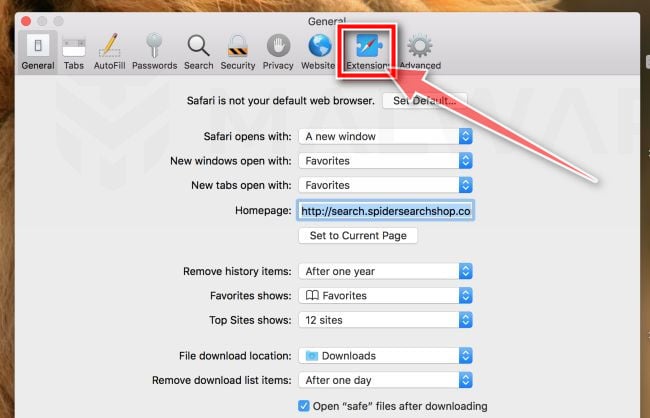
Click “Extensions”
Next, click on the “Extensions” tab.
-
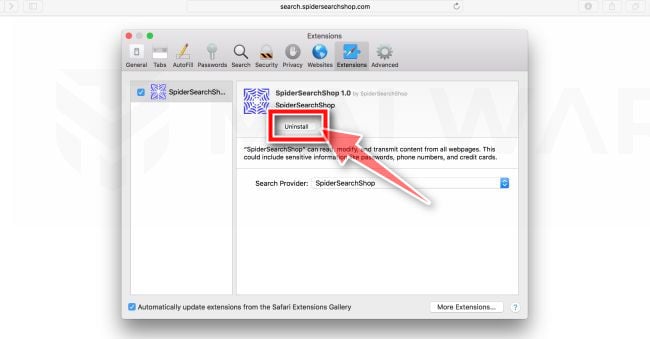
Find and uninstall malicious extensions.
The “Extensions” screen will be displayed with a list of all the extensions installed on Safari. Look out for any suspicious browser extension that could be behind all the drama – anything you don’t remember downloading or that doesn’t sound like a genuine extension. By default, there are no extensions installed on Safari so it’s safe to remove an extension

-
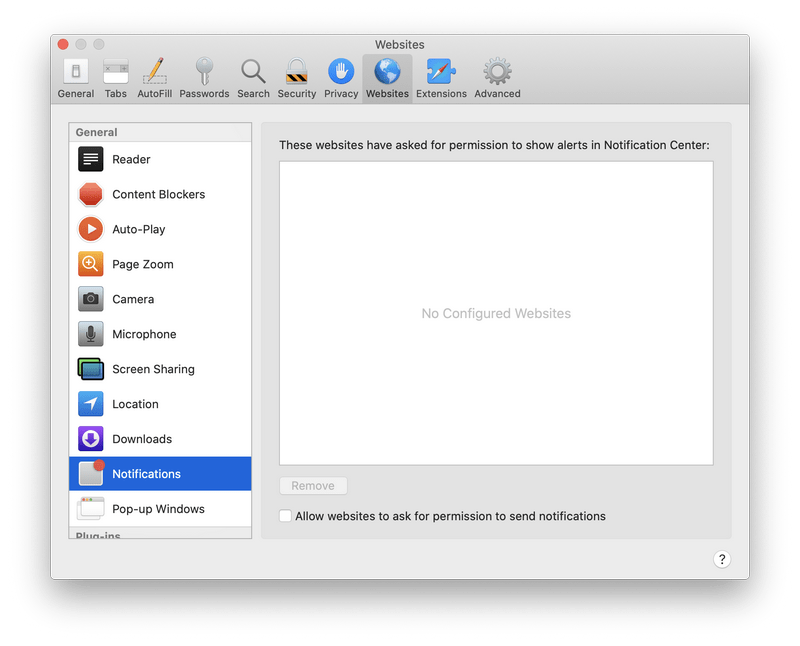
Remove spam notifications ads
Click Preferences, click Websites, then click Notifications. Deselect “Allow websites to ask for permission to send push notifications”.

-
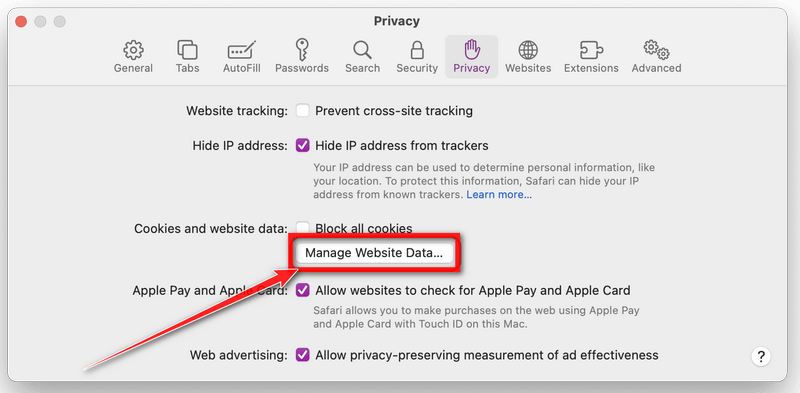
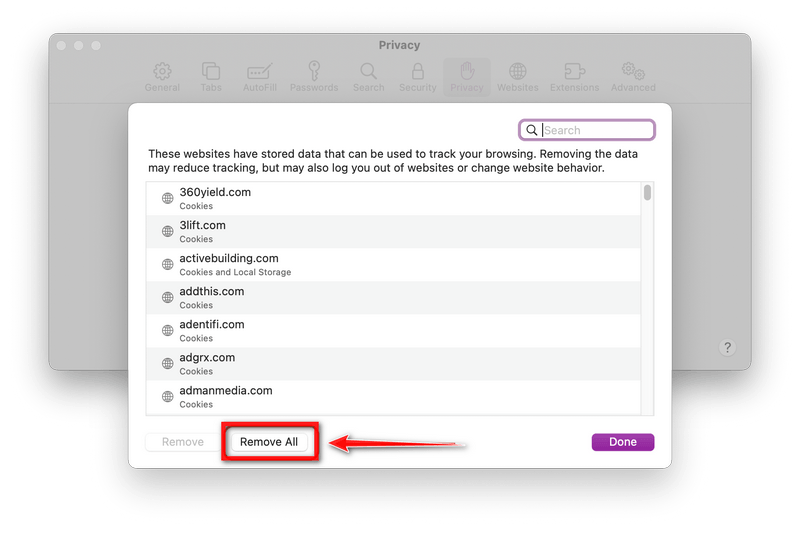
Remove all data stored by websites on your computer.
In the Safari menu, choose “Preferences…”, select “Privacy” at the top of the new window that appears, and then click the “Manage Website Data” button.

In the next dialog box, click “Remove All“. It will ask you if you are sure you want to remove all data stored by websites on your computer. Select “Remove Now” to clear data that could be used to track your browsing.

-
Empty Safari Caches.
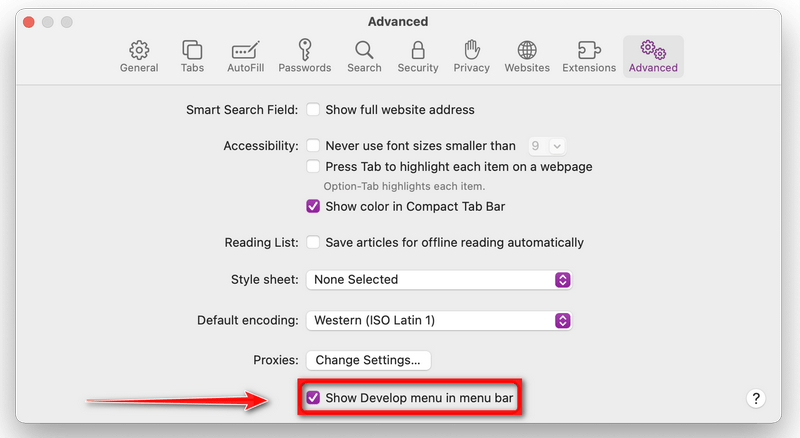
From your Safari menu bar, click Safari and select Preferences, then select the Advanced tab. Enable the checkbox to “Show Develop menu in menu bar“.

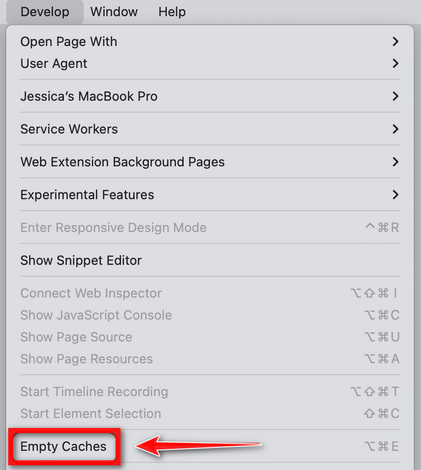
From the menu bar select Develop, then click on Empty Caches as seen in the image below.

Reset Safari for Mac via Terminal
- Open the Terminal app (press Cmd + Space and type “Terminal”).
- Open the Apple menu in the top-left corner, click Force Quit, and select Safari to close it completely.
- Type each of the following commands, one at a time, pressing Enter after each line. When prompted, type y to confirm deletion.
mv ~/Library/Safari ~/Desktop/Safari-`date +%Y%m%d%H%M%S`; rm -Rf ~/Library/Cache/*; rm -Rf ~/Library/Caches/Apple\ -\ Safari\ -\ Safari\ Extensions\ Gallery; rm -Rf ~/Library/Caches/Metadata/Safari; rm -Rf ~/Library/Caches/com.apple.Safari; rm -Rf ~/Library/Caches/com.apple.WebKit.PluginProcess; rm -Rf ~/Library/Cookies/*; rm -Rf ~/Library/Cookies/Cookies.binarycookies; rm -Rf ~/Library/Preferences/Apple\ -\ Safari\ -\ Safari\ Extensions\ Gallery; rm -Rf ~/Library/Preferences/com.apple.Safari.LSSharedFileList.plist; rm -Rf ~/Library/Preferences/com.apple.Safari.RSS.plist; rm -Rf ~/Library/Preferences/com.apple.Safari.plist; rm -Rf ~/Library/Preferences/com.apple.WebFoundation.plist; rm -Rf ~/Library/Preferences/com.apple.WebKit.PluginHost.plist; rm -Rf ~/Library/Preferences/com.apple.WebKit.PluginProcess.plist; rm -Rf ~/Library/PubSub/Database; rm -Rf ~/Library/Safari/*; rm -Rf ~/Library/Safari/Bookmarks.plist; rm -Rf ~/Library/Saved\ Application\ State/com.apple.Safari.savedState; Reset Safari for iOS (iPhone or iPad)
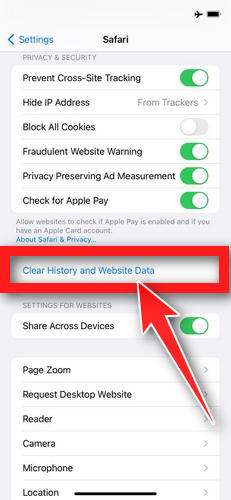
If you’re using Safari on iPhone or iPad, you can reset it using the built-in Clear History and Website Data option. This removes browsing history, cookies, and cached files, restoring Safari’s performance and privacy.
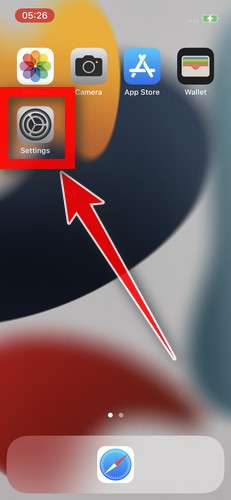
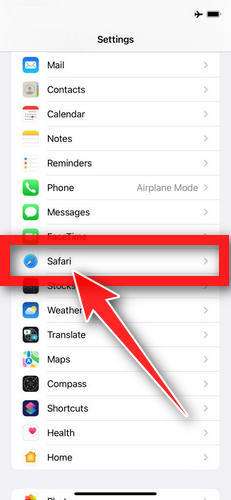
- Open the Settings app.

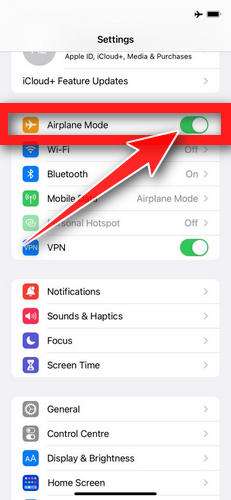
- Toggle on Airplane Mode to disconnect from the internet while resetting.
- Scroll down and tap Safari.
- Tap Clear History and Website Data.
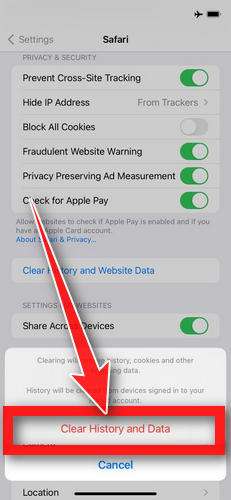
- Confirm by tapping Clear History and Data when prompted.
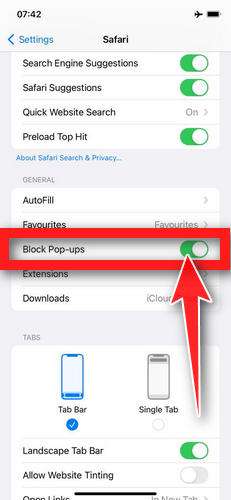
- While in Safari settings, make sure Block Pop-ups and Fraudulent Website Warning are enabled.
That’s it! Safari has now been reset to its default settings. To protect your privacy and prevent intrusive ads, consider installing an ad blocker such as AdGuard [recommended].
If Safari continues to behave abnormally after resetting, the issue may be caused by adware or unwanted software on your device. Try the following next steps:
- Run a full system scan with Malwarebytes Free.
- Ask for expert assistance in our Malware Removal Help forum.