

If you are a PNC Bank customer, you may have received a text message that claims there is an issue with your account and asks you to call a phone number or click a link. Beware: this is a phishing scam that aims to steal your personal and financial information. In this article, we will explain what this scam is, how to spot it, and what to do if you have fallen victim to it.
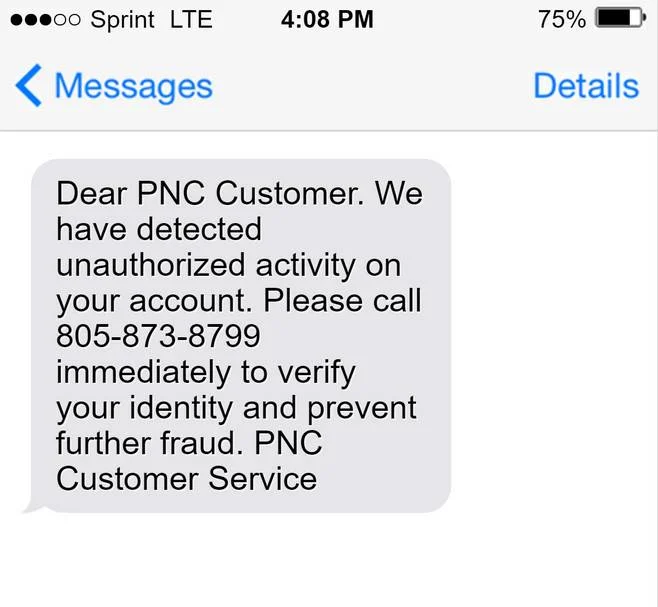
What is it PNC Bank text message scam?
The PNC Bank text message scam is a type of phishing attack that uses fake texts to trick recipients into contacting fraudsters who pretend to be PNC customer service representatives. The fraudsters then ask for sensitive information such as account numbers, passwords, PINs, Social Security numbers, or credit card details. The fraudsters may also direct recipients to malicious websites that ask for similar information or install malware on their devices.
The scam texts may vary in their wording, but they usually create a sense of urgency or alarm by claiming that there is an unauthorized activity, a security breach, a locked account, or a verification issue with the recipient’s PNC account. The texts may also use spoofed phone numbers or links that look like they belong to PNC, but actually lead to fake websites or phone lines.
The goal of the scammers is to use the stolen information to access the victim’s bank account, make fraudulent transactions, commit identity theft, or sell the information to other criminals.
How to spot the PNC Bank text message scam?
There are some red flags that can help you identify a scam text from PNC Bank:
- The text is unsolicited and unexpected. PNC Bank will never initiate contact with you via text message unless you have signed up for their text banking service or have requested a one-time verification code.
- The text asks you to provide personal or financial information via text message, phone call, or website. PNC Bank will never ask you for such information through these channels. They will only ask you to verify your identity when you contact them directly using their official phone number or website.
- The text creates a sense of urgency or pressure by stating that your account is locked, compromised, or in need of verification. PNC Bank will never threaten you with consequences or demand immediate action from you via text message.
- The text contains misspellings, grammatical errors, or unprofessional language. PNC Bank will always use proper spelling, grammar, and tone in their communications with you.
- The text includes a phone number or a link that does not match PNC Bank’s official contact information. You can find PNC Bank’s legitimate phone number and website on your bank statement, debit card, online banking portal, or their official website at www.pnc.com.
What to do if you have fallen victim to PNC Bank text message scam?
If you have responded to a scam text from PNC Bank and have provided your personal or financial information to the fraudsters, here are some steps you should take immediately:
- Contact PNC Bank for help. Their legitimate customer service telephone number is: 1 (412) 803-7711 or you can go to PNC’s website at www.pnc.com/en/customer-service.html for contact details. Inform them of the scam and ask them to secure your account and monitor it for any suspicious activity.
- Change your passwords and PINs for your online banking and other accounts that may be affected by the scam. Use strong and unique passwords that are not easy to guess or crack.
- Review your financial statements and online transaction activity regularly. If you notice any unauthorized charges or transfers on your account, report them to PNC Bank as soon as possible.
- Check your credit report for any signs of identity theft. You can request one free copy of your credit report every 12 months from each of the three credit bureaus at www.annualcreditreport.com. If you find any errors or fraudulent accounts on your report, dispute them with the credit bureau and place a fraud alert on your credit profile.
- Report the scam text to PNC Bank and the authorities. You can forward the scam text to abuse@pnc.com so that they can document it and take action against the scammers. You can also file a complaint with the Federal Trade Commission (FTC) at www.ftc.gov/complaint or call 1-877-FTC-HELP (1-877-382-4357).
Check if you’re device is infected with malware
The PNC Bank text message scam may redirect to malicious sites that contain malware. If you suspect your device might be infected with malware, you can run a free scan with Malwarebytes.
Malwarebytes runs on Windows, Mac, and Android. Click the tab below for the device you want to scan, then follow the steps to remove any malware it finds.
Scan Your Computer with Malwarebytes for Windows
Malwarebytes is one of the most popular and trusted anti-malware tools for Windows — and it’s completely free for removing infections. It catches threats that many antivirus programs miss, including adware, browser hijackers, and trojans. Follow the steps below to scan and clean your PC in just a few minutes.
Download Malwarebytes
Click the button below to download the latest version of Malwarebytes for Windows from the official source. The free version is all you need — it will scan your computer and remove adware, browser hijackers, and other malicious software at no cost.
Download MalwarebytesOfficial installer for Windows 11 and 10. Your download starts right away.Want real-time protection? See Malwarebytes Premium Malwarebytes Free for WindowsScans and removes malware at no cost
-
Install Malwarebytes
When the download finishes, open your Downloads folder and double-click the MBSetup file. If Windows shows a User Account Control pop-up, click “Yes” to allow the installation.

Follow the On-Screen Prompts to Install Malwarebytes
The setup wizard will walk you through a few quick screens:
-
Choose where you’re installing the program — “Personal Computer” or “Work Computer” — then click Next.

-
Malwarebytes will now install on your device. This usually takes under a minute.

-
When installation is complete, the “Welcome to Malwarebytes” screen will open automatically.

-
On the final screen, click Open Malwarebytes to launch the program.

-
Enable “Scan for Rootkits”
Before scanning, turn on rootkit detection so Malwarebytes can find even the most hidden threats. Click the Settings gear icon on the left side of the screen.

In the settings menu, find “Scan for rootkits” and click the toggle so it turns blue.

Done? Click “Dashboard” in the left pane to return to the main screen.
Start the Scan
Click the blue Scan button. Malwarebytes will automatically update its virus database and start checking your computer for malware.

-
Wait for the Scan to Finish
The scan checks your entire system for browser hijackers and other malicious programs, so it can take 5 to 20 minutes depending on your computer. Feel free to do something else — just check back occasionally to see the progress.

-
Quarantine the Detected Threats
When the scan is done, you’ll see a list of everything Malwarebytes found — malware, adware, and potentially unwanted programs. Click the “Quarantine” button to remove all of them at once.

Malwarebytes will now remove the malicious files and registry entries and move them safely into quarantine.

-
Restart Your Computer
Some threats can only be fully removed after a reboot. If Malwarebytes asks you to restart, click Yes. Once you’re logged back in, Malwarebytes has finished removing the threats it found.

That’s it — your Windows computer is now free of trojans, adware, browser hijackers, and other malware.
If you are still having problems with your computer after completing these instructions, then please follow one of the steps:
- Run a computer scan with ESET Online Scanner
- Ask for help in our Windows Malware Removal Help & Support forum.
Scan Your Mac with Malwarebytes for Mac
Malwarebytes for Mac is a free on-demand scanner that removes the malware other security software tends to miss — adware, browser hijackers, and unwanted programs included. Cleaning an infected Mac with Malwarebytes has always been completely free, and it’s our go-to recommendation. Follow the steps below to scan and clean your Mac in just a few minutes.
-
Download Malwarebytes for Mac
Click the button below to download the latest version of Malwarebytes for Mac.
Download MalwarebytesOfficial installer for macOS. Your download starts right away.Want real-time protection? See Malwarebytes PremiumMalwarebytes Free for MacScans and removes malware at no cost -
Open the Malwarebytes setup file
When the download finishes, open your Downloads folder and double-click the setup file to begin the installation.

-
Follow the On-Screen Prompts to Install Malwarebytes
The Malwarebytes for Mac Installer will guide you through a few quick screens. Click “Continue” and keep following the prompts until the installation completes.



When the installation is complete, Malwarebytes opens to the Welcome to Malwarebytes screen. Click “Get started“.
-
Select “Personal Computer” or “Work Computer”
Malwarebytes will ask what type of computer you’re installing it on. Click either Personal Computer or Work Computer, whichever applies.

-
Start the Scan
Click the “Scan” button. Malwarebytes will automatically update its detection database and begin checking your Mac for malware.

-
Wait for the Scan to Finish
Malwarebytes will scan your Mac for adware, browser hijackers, and other malicious programs. This can take a few minutes, so feel free to do something else — just check back occasionally to see the progress.

-
Quarantine the Detected Threats
When the scan is done, you’ll see a list of everything Malwarebytes found. Click the “Quarantine” button to remove all the threats at once.

-
Restart Your Mac
Malwarebytes will now remove all the malicious files it found. Some threats can only be fully removed after a reboot — if Malwarebytes asks you to restart, allow it. Once you’re logged back in, your Mac is clean.

That’s it — your Mac is now free of adware, browser hijackers, and other malware.
If you are still experiencing problems while trying to remove a malicious program from your computer, please ask for help in our Mac Malware Removal Help & Support forum.
Scan Your Phone with Malwarebytes for Android
Malwarebytes for Android automatically detects and removes dangerous threats like malware and ransomware so you don’t have to worry about your most-used device being compromised. Aggressive detection of adware and potentially unwanted programs keeps your Android phone or tablet running smooth.
-
Download Malwarebytes for Android.
You can download Malwarebytes for Android by clicking the link below.
Get Malwarebytes for AndroidOpens Google Play in a new tab.Want real-time protection? See Malwarebytes Premium for AndroidMalwarebytes for AndroidScans your phone and removes malware at no cost -
Install Malwarebytes for Android on your phone.
In the Google Play Store, tap “Install” to install Malwarebytes for Android on your device.

When the installation process has finished, tap “Open” to begin using Malwarebytes for Android. You can also open Malwarebytes by tapping on its icon in your phone menu or home screen.

-
Follow the on-screen prompts to complete the setup process
When Malwarebytes will open, you will see the Malwarebytes Setup Wizard which will guide you through a series of permissions and other setup options.
This is the first of two screens that explain the difference between the Premium and Free versions. Swipe this screen to continue.
Tap on “Got it” to proceed to the next step.
Malwarebytes for Android will now ask for a set of permissions that are required to scan your device and protect it from malware. Tap on “Give permission” to continue.
Tap on “Allow” to permit Malwarebytes to access the files on your phone.
-
Update database and run a scan with Malwarebytes for Android
You will now be prompted to update the Malwarebytes database and run a full system scan.

Click on “Update database” to update the Malwarebytes for Android definitions to the latest version, then click on “Run full scan” to perform a system scan.

-
Wait for the Malwarebytes scan to complete.
Malwarebytes will now start scanning your phone for adware and other malicious apps. This process can take a few minutes, so we suggest you do something else and periodically check on the status of the scan to see when it is finished.

-
Click on “Remove Selected”.
When the scan has been completed, you will be presented with a screen showing the malware infections that Malwarebytes for Android has detected. To remove the malicious apps that Malwarebytes has found, tap on the “Remove Selected” button.

-
Restart your phone.
Malwarebytes for Android will now remove all the malicious apps that it has found. To complete the malware removal process, Malwarebytes may ask you to restart your device.
That’s it — your Android device is now free of malicious apps, adware, and browser redirects.
If you are still having problems with your phone after completing these instructions, then please follow one of the steps:
- Restore your phone to factory settings by going to Settings > General management > Reset > Factory data reset.
- Ask for help in our Mobile Malware Removal Help & Support forum.

Join the discussion
0 commentsShare your experience or ask a question about this article.
Discussion
Start the conversation
Have a question or something useful to share? Add the first comment.