

American Express is one of the largest and most well-known credit card providers in the world. Millions of consumers and businesses trust American Express and rely on their credit cards for convenient and secure purchases. Unfortunately, the trusted reputation of American Express makes it a prime target for scammers seeking to steal personal and financial information through deceptive phishing emails.
One prevalent scam involves a fake email that claims to be from American Express, informing recipients that their account has been temporarily suspended and requires immediate validation to restore access. Known as the “Account Validation Required” email scam, this cunning ploy aims to trick unwary recipients into divulging sensitive login credentials and personal data.
In this comprehensive guide, we will uncover everything you need to know about recognizing and avoiding the “Account Validation Required” American Express phishing scam.
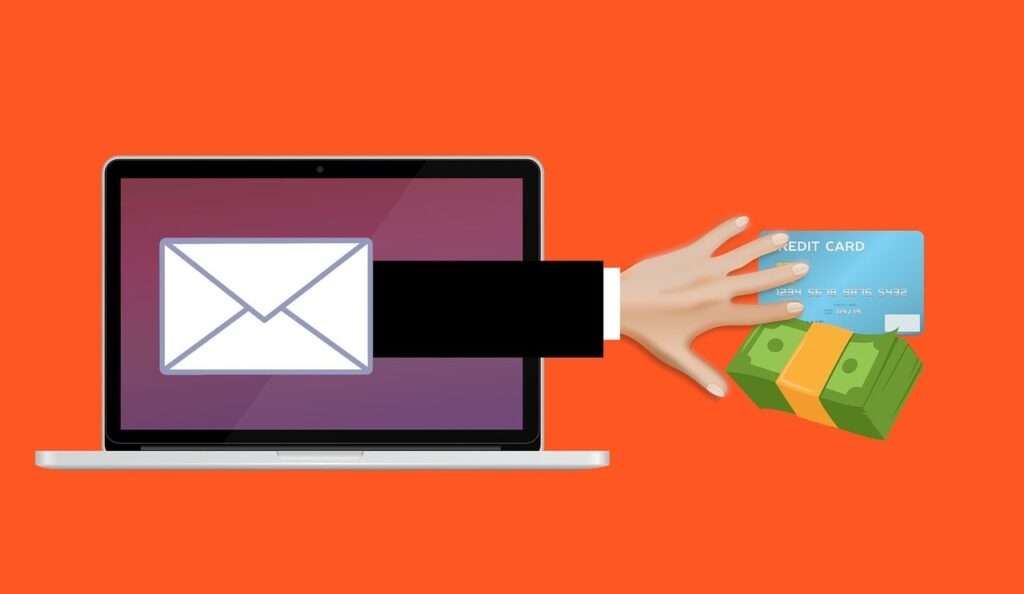
Overview of the American Express “Account Validation Required” Email Scam
The “Account Validation Required” phishing scam is one of the more insidious and devious attempts to steal personal information by impersonating American Express. Here are the key characteristics that define this scam:
- Appears to originate from American Express – The scam email is made to look like official correspondence from American Express. It uses American Express branding and logos and claims to come from an @americanexpress.com email address.
- Notifies of account suspension – The email states that the recipient’s American Express account has been temporarily suspended due to “unusual activity” or for “security reasons”.
- Requests identity verification – The recipient is prompted to verify their account ownership by clicking a link or opening an attached document. This leads to a fake login page designed to steal account credentials.
- Creates urgency – The email stresses urgent action, stating that the account will remain suspended until the requested verification steps are completed. This pressures recipients to click links and provide data without thinking.
- May include attachment – Some versions attach a fake “verification document” that leads to a phishing site when opened. The attached file uses names like “American Express Verification Form.pdf” to appear legitimate.
- Directs to fake login page – Whether via embedded links or an attachment, the goal is to direct victims to a convincingly real American Express login page controlled by the scammers to capture entered account credentials.
Well-designed versions of this scam can be very difficult for the average person to distinguish from genuine correspondence. However, a trained eye can spot certain red flags that give away the phishing attempt.
How the American Express “Account Validation” Scam Works
Equipped with an understanding of the characteristics of this scam, it’s important to know precisely how the phishing scheme works and tricks unsuspecting victims. Here is a step-by-step breakdown:
Step 1: Victim Receives the Scam Email
The scam starts with an American Express cardholder receiving an unsolicited email with an urgent warning about account suspension. The deceptive email is crafted to generate fear and uncertainty, motivating the recipient to take immediate action to regain account access.
The email may be personally addressed to the victim and contain partial account details harvested from previous data breaches to seem authentic. The content informs the recipient that recent suspicious activity has triggered a security suspension on their account.
restoration of account access hinges on completing the “verification process” by clicking the link or attached document provided. The email creates urgency by stating that the account will remain locked until verification is finished.
Step 2: Victim Interacts With Link or Attachment
Convinced by the urgent call to action, the email recipient clicks the link or opens the attached fake verification document embedded in the scam message. The link leads to a phishing site masquerading as the official American Express login page. The attachment likewise opens a mock login page in the web browser.
In some cases, the link or attachment payload may download malware onto the victim’s device for additional forms of fraud. But the main agenda is tricking the victim into entering their account credentials.
Step 3: Victim Attempts to Login on Phishing Page
The phishing site mirrors the authentic American Express login portal, appearing visually identical in design and branding. Without realizing they are on a fraudulent page controlled by criminals, victims attempt to login using their existing username and password.
Some phishing kits even display fake error messages if an incorrect password is entered, further deceiving users into believing the page is legitimate.
Step 4: Scammers Steal and Use Login Credentials
When victims enter valid login credentials into the phishing site login form, the account details are captured and transmitted to the scammers. Their phishing kit instantly records submitted data and may even mimic a real user dashboard to avoid rousing suspicion after capturing the sensitive information.
With the stolen account username and password, the fraudsters can now directly access the victim’s real American Express account and personal information. They can view statements, steal loyalty points, make fraudulent purchases, change account details, and leverage the compromised account for identity theft.
Step 5: Account and Identity Compromised
Once scammers breach the account, they have an open door to exploit the victim’s identity and make unauthorized transactions using the account. They may reroute statements to hide fraudulent activity, update contact info to maintain control, and siphon account points or funds.
The victim remains unaware until unauthorized charges begin to show up. By this time, significant financial damage may have already occurred. Stolen account credentials can also fuel wider identity theft by providing scammers with key personal details like SSN, date of birth, address, and more.
This demonstrates why it is critical never to interact with unsolicited emails requesting financial information or directing to login pages. The consequences of having an American Express or other financial account compromised can be severe.
Warning Signs of the Fake American Express Email Scam
While clever social engineering and design makes many phishing emails appear legitimate, there are often small indicators that reveal their fraudulent nature upon close inspection.
Here are some subtle warning signs to recognize within an “Account Validation Required” scam email that should prompt immediate deletion:
- Generic greeting – Real American Express emails address customers by name, while scams often use generic greetings like “Dear cardmember”.
- Spelling/grammatical errors – Phishing emails may contain misspellings, awkward syntax, or poor grammar.
- Strange email address – The “from” address may include misspellings of American Express or unverified domain extensions.
- Sense of urgency – Aggressive claims that your account is compromised and the clock is ticking to restore it are manipulative red flags.
- ** Requests sensitive data** – American Express would never ask for your full account number, password, SSN, or other private details via email.
- Threats account suspension – Language stating your account has been frozen is deceptive, as American Express would provide advance notice.
- Attachment included – American Express would never email account forms or worksheets as attachments from @americanexpress.com.
- Link mismatched – If you hover over any embedded links, the web address should match AmericanExpress.com exactly.
No matter how legitimate a suspect email appears, always login directly through the real American Express website and contact customer service before clicking any links or providing personal data.
What to Do If You Are Victimized by the Scam
If you mistakenly interacted with one of these phishing emails and supplied account credentials or other information, immediate action is required to secure your accounts and identity. Here are the key steps to take right away:
Step 1: Alert American Express
Your first call should be to American Express customer service at the number on the back of your physical credit card. Inform them that you interacted with a phishing scam and suspect your account is compromised. They will walk through fraud prevention measures.
Ask to reset all account passwords, update contact info to lock out scammers, unregister any linked bank accounts, remove authorized users if applicable, and issue new card numbers. Enable every security feature available on your account.
Step 2: Contact Banks and Monitor Accounts
Since scammers may have accessed linked financial accounts, contact your bank and any other connected institutions to warn them of possible fraud. Closely monitor all your financial accounts for unauthorized activity and report any suspicious transactions.
Consider placing temporary holds on accounts to block fraudulent purchases. Request new card and account numbers from banks to prevent additional misuse of compromised data.
Step 3: Run Credit Reports
One of the worst potential outcomes of the scam is identity theft. Run credit reports using AnnualCreditReport.com to identify any accounts fraudulently opened in your name using stolen info.
Report any suspicious entries to the credit bureaus. Place credit freezes on your files with Equifax, Experian and TransUnion to lock down your credit from identity theft.
Step 4: Update Passwords
Rapidly change passwords on every online account, prioritizing financial sites and accounts with similar login credentials to American Express. Assume the stolen password is compromised across any sites where it was reused.
Enable two-factor authentication wherever possible for enhanced account security going forward. Never reuse old passwords.
Step 5: Watch for Suspicious Activity
Carefully scrutinize account statements, benefit notices, explanation of benefits, bills and credit reports for any transactions, claims or entries resulting from misuse of your stolen identity. Report any suspicious finds to the relevant institutions’ fraud departments immediately.
Be extra vigilant for next 12-24 months for signs of fraudulent accounts or activity as identity thieves exploit stolen data. The more swiftly you identify fraud, the less damage incurred.
Falling victim to a phishing scam is stressful, but acting quickly can significantly reduce the resulting harm. Keep a close eye out for further deceptive communiques going forward and avoid interacting with anything unsolicited requesting financial data.
How to Avoid Falling Victim to the American Express Phishing Scam
Once you understand the inner workings and potential damages of the “Account Validation” phishing scam, you are armed with the knowledge to evade it. Here are proactive measures everyone should take to deter becoming a victim:
- Avoid unsolicited links/attachments – Do not click or download anything embedded in an email unless you specifically requested the content from a trusted sender.
- Verify the source – Check the sender’s email address, company name spellings, domain, and contact info before engaging email content.
- Contact companies directly – Never call a number or visit a site provided within an email. Locate legitimate contact info and log in directly.
- Beware pressure tactics – Disregard urgent claims designed to prompt hasty action or cloud judgment about email legitimacy.
- Guard credentials – Never disclose your password, account numbers, SSN or other sensitive data via email, forms or phone.
- Use multifactor authentication – Enabling MFA adds an extra layer of security, requiring two steps to login even if credentials are stolen.
- Install anti-phishing tools – Software like email spam filters and browser extensions can detect and halt phishing attempts.
- Keep software updated – Maintain up-to-date operating systems, security software, browsers and apps to avoid vulnerabilities.
- Monitor accounts frequently – Routinely check statements and credit reports for any unauthorized access or transactions.
Advance preparation is your best defense against the American Express phishing scam. But even with utmost caution, it’s possible a phishing attempt may slip through. In such cases, remaining calm and taking swift action to thwart fraud is key to damage control.
Is Your Device Infected? Run a Free Malware Scan
Slow performance, constant pop-ups, or strange behavior? These are classic signs of a malware infection. The fastest way to find out is to scan your device with Malwarebytes Free — one of the most trusted malware removal tools available.
The free version detects and removes the most common threats, including:
- Adware — the cause of those annoying pop-ups
- Browser hijackers — unwanted redirects and changed homepages
- Trojans and spyware — hidden programs stealing your data
- Potentially unwanted programs (PUPs) — software you never asked for
👉 Select your device below — Windows, Mac, or Android — then follow the simple steps to download Malwarebytes, scan your system, and remove any threats it finds. The scan usually takes 5 to 20 minutes.
Run a Malware Scan with Malwarebytes for Windows
Malwarebytes is one of the most popular and trusted anti-malware tools for Windows — and it’s completely free for removing infections. It catches threats that many antivirus programs miss, including adware, browser hijackers, and trojans. Follow the steps below to scan and clean your PC in just a few minutes.
Download Malwarebytes
Click the button below to download the latest version of Malwarebytes for Windows from the official source. The free version is all you need — it will scan your computer and remove adware, browser hijackers, and other malicious software at no cost.
Download MalwarebytesOfficial installer for Windows 11 and 10. Your download starts right away.Want real-time protection? See Malwarebytes Premium Malwarebytes Free for WindowsScans and removes malware at no cost
-
Install Malwarebytes
When the download finishes, open your Downloads folder and double-click the MBSetup file. If Windows shows a User Account Control pop-up, click “Yes” to allow the installation.

Follow the On-Screen Prompts to Install Malwarebytes
The setup wizard will walk you through a few quick screens:
-
Choose where you’re installing the program — “Personal Computer” or “Work Computer” — then click Next.

-
Malwarebytes will now install on your device. This usually takes under a minute.

-
When installation is complete, the “Welcome to Malwarebytes” screen will open automatically.

-
On the final screen, click Open Malwarebytes to launch the program.

-
Enable “Scan for Rootkits”
Before scanning, turn on rootkit detection so Malwarebytes can find even the most hidden threats. Click the Settings gear icon on the left side of the screen.

In the settings menu, find “Scan for rootkits” and click the toggle so it turns blue.

Done? Click “Dashboard” in the left pane to return to the main screen.
Start the Scan
Click the blue Scan button. Malwarebytes will automatically update its virus database and start checking your computer for malware.

-
Wait for the Scan to Finish
The scan checks your entire system for browser hijackers and other malicious programs, so it can take 5 to 20 minutes depending on your computer. Feel free to do something else — just check back occasionally to see the progress.

-
Quarantine the Detected Threats
When the scan is done, you’ll see a list of everything Malwarebytes found — malware, adware, and potentially unwanted programs. Click the “Quarantine” button to remove all of them at once.

Malwarebytes will now remove the malicious files and registry entries and move them safely into quarantine.

-
Restart Your Computer
Some threats can only be fully removed after a reboot. If Malwarebytes asks you to restart, click Yes. Once you’re logged back in, Malwarebytes has finished removing the threats it found.

That’s it — your Windows PC is now clean of trojans, adware, and other malware, and should be back to running smoothly.
If you are still having problems with your computer after completing these instructions, then please follow one of the steps:
- Run a computer scan with ESET Online Scanner
- Ask for help in our Windows Malware Removal Help & Support forum.
Run a Malware Scan with Malwarebytes for Mac
Malwarebytes for Mac is a free on-demand scanner that removes the malware other security software tends to miss — adware, browser hijackers, and unwanted programs included. Cleaning an infected Mac with Malwarebytes has always been completely free, and it’s our go-to recommendation. Follow the steps below to scan and clean your Mac in just a few minutes.
-
Download Malwarebytes for Mac
Click the button below to download the latest version of Malwarebytes for Mac.
Download MalwarebytesOfficial installer for macOS. Your download starts right away.Want real-time protection? See Malwarebytes PremiumMalwarebytes Free for MacScans and removes malware at no cost -
Open the Malwarebytes setup file
When the download finishes, open your Downloads folder and double-click the setup file to begin the installation.

-
Follow the On-Screen Prompts to Install Malwarebytes
The Malwarebytes for Mac Installer will guide you through a few quick screens. Click “Continue” and keep following the prompts until the installation completes.



When the installation is complete, Malwarebytes opens to the Welcome to Malwarebytes screen. Click “Get started“.
-
Select “Personal Computer” or “Work Computer”
Malwarebytes will ask what type of computer you’re installing it on. Click either Personal Computer or Work Computer, whichever applies.

-
Start the Scan
Click the “Scan” button. Malwarebytes will automatically update its detection database and begin checking your Mac for malware.

-
Wait for the Scan to Finish
Malwarebytes will scan your Mac for adware, browser hijackers, and other malicious programs. This can take a few minutes, so feel free to do something else — just check back occasionally to see the progress.

-
Quarantine the Detected Threats
When the scan is done, you’ll see a list of everything Malwarebytes found. Click the “Quarantine” button to remove all the threats at once.

-
Restart Your Mac
Malwarebytes will now remove all the malicious files it found. Some threats can only be fully removed after a reboot — if Malwarebytes asks you to restart, allow it. Once you’re logged back in, your Mac is clean.

That’s it — your Mac is now free of adware, rogue browser extensions, and other potentially harmful software.
If you are still experiencing problems while trying to remove a malicious program from your computer, please ask for help in our Mac Malware Removal Help & Support forum.
Run a Malware Scan with Malwarebytes for Android
Malwarebytes for Android automatically detects and removes dangerous threats like malware and ransomware so you don’t have to worry about your most-used device being compromised. Aggressive detection of adware and potentially unwanted programs keeps your Android phone or tablet running smooth.
-
Download Malwarebytes for Android.
You can download Malwarebytes for Android by clicking the link below.
Get Malwarebytes for AndroidOpens Google Play in a new tab.Want real-time protection? See Malwarebytes Premium for AndroidMalwarebytes for AndroidScans your phone and removes malware at no cost -
Install Malwarebytes for Android on your phone.
In the Google Play Store, tap “Install” to install Malwarebytes for Android on your device.

When the installation process has finished, tap “Open” to begin using Malwarebytes for Android. You can also open Malwarebytes by tapping on its icon in your phone menu or home screen.

-
Follow the on-screen prompts to complete the setup process
When Malwarebytes will open, you will see the Malwarebytes Setup Wizard which will guide you through a series of permissions and other setup options.
This is the first of two screens that explain the difference between the Premium and Free versions. Swipe this screen to continue.
Tap on “Got it” to proceed to the next step.
Malwarebytes for Android will now ask for a set of permissions that are required to scan your device and protect it from malware. Tap on “Give permission” to continue.
Tap on “Allow” to permit Malwarebytes to access the files on your phone.
-
Update database and run a scan with Malwarebytes for Android
You will now be prompted to update the Malwarebytes database and run a full system scan.

Click on “Update database” to update the Malwarebytes for Android definitions to the latest version, then click on “Run full scan” to perform a system scan.

-
Wait for the Malwarebytes scan to complete.
Malwarebytes will now start scanning your phone for adware and other malicious apps. This process can take a few minutes, so we suggest you do something else and periodically check on the status of the scan to see when it is finished.

-
Click on “Remove Selected”.
When the scan has been completed, you will be presented with a screen showing the malware infections that Malwarebytes for Android has detected. To remove the malicious apps that Malwarebytes has found, tap on the “Remove Selected” button.

-
Restart your phone.
Malwarebytes for Android will now remove all the malicious apps that it has found. To complete the malware removal process, Malwarebytes may ask you to restart your device.
That’s it — your Android phone is now clean — no more malicious apps, adware, or browser redirects.
If you are still having problems with your phone after completing these instructions, then please follow one of the steps:
- Restore your phone to factory settings by going to Settings > General management > Reset > Factory data reset.
- Ask for help in our Mobile Malware Removal Help & Support forum.
Stay Protected: Block Ads and Malicious Sites
Now that your device is clean, keep it that way. Most infections start with a malicious ad or a fake download button — so blocking them at the source is your best defense.
We recommend AdGuard, which blocks malicious ads, phishing pages, and dangerous redirects before they can reach you.
👉 Download AdGuard and browse safely
Frequently Asked Questions (FAQ)
What is the American Express “Account Validation” phishing scam?
This is a fraudulent email scheme where scammers impersonate American Express and claim your account requires urgent validation due to suspicious activity. The email provides a link/attachment to a fake login page to steal your credentials.
How do I recognize the scam email?
Warning signs include generic greetings, poor grammar/spelling, urgent threats to suspend your account, requests for sensitive information, mismatched links, and unexpected attachments.
What happens if I enter my account information on the phishing page?
The criminals capture your login credentials and gain access to your American Express account, enabling them to steal points, make fraudulent purchases, and leverage your personal/financial data for identity theft.
I got scammed – what should I do now?
Immediately contact American Express to secure your account and banks to monitor for fraud. Check credit reports for misuse of identity and freeze your credit files. Change passwords on all accounts and enable enhanced security like MFA. Watch accounts closely for unauthorized access.
How can I avoid falling victim to this scam?
Avoid clicking links/attachments in unsolicited emails. Verify the source directly with companies before providing info. Never disclose passwords or financial data via email. Use anti-phishing tools and keep devices/software updated.
Can I tell if an email is really from American Express?
Go directly to the official website or use contact info on your card to call. Warning signs of phishing include pressure tactics, account threats, requested sensitive data, and incorrect links/logos/addresses.
What happens if I enter the wrong password on the phishing page?
The criminals have designed the fake login portal to mirror the real American Express site. Some phishing kits display convincing error messages if the wrong password is entered to trick you into re-entering it.
Is it ever legitimate for American Express to email customers asking for account information?
No, American Express has stated they will never send unsolicited emails or texts requesting your confidential account details. Any such requests via email are deceptive phishing scams, no matter how real they appear.
Can I get my money back if the scammers make unauthorized transactions?
If you act quickly, American Express has policies to reimburse fraudulent transactions and restore stolen rewards points. But the sooner you report unauthorized account activity, the better protected you will be.
The Bottom Line
The “Account Validation Required” phishing scam targeting American Express cardholders serves as a sobering reminder of why we must remain vigilant against email-based social engineering. This deceptive ploy aims to weaponize the trusted reputation of an established financial institution to trick customers into handing over account access to criminals.
By understanding the psychological triggers and technical tricks these scams employ, we can recognize the telltale signs of phishing and avoid being deceived. But no one is completely immune from occasional lapses in judgment. Should a scam succeed in duping you, promptly contacting companies to lock down accounts can significantly mitigate financial and identity theft harms.
Going forward, implementing ongoing safeguards like multifactor authentication and credit freezes helps minimize vulnerability to phishing and fraud. As long as we take care to verify emailed requests for our personal data, we can keep our accounts and identities protected from compromise through devious digital scams.

Join the discussion
2 commentsShare your experience or ask a question about this article.
Discussion
Scams can also originate from a letter received in the US mail asking you to “verify your account due to inactivity” for a period of time.
The scammer asks you to send a verification code they provide by text.
This scam may involve an account with the Amex bank instead of a credit card. Be careful!
In reply to Dean
Thank you, Dean. A letter arriving through the mail should still be verified independently. Contact the bank using its official app, website, or the number on an existing statement, rather than the contact details in an unexpected letter. Do not pass a one-time security code to someone who contacts you and asks for it.