


Portalsepeti is a browser hijacker, which is promoted via other free downloads, and once installed it will change your browser homepage to portalsepeti.com and default search engine to search.portalsepeti.com.
This in itself is not considered malicious as there are many legitimate programs that change these settings as well. What is considered malicious, though, is that it will also append the argument http://portalsepeti.com to random Windows shortcuts on your desktop and your Windows Start Menu.
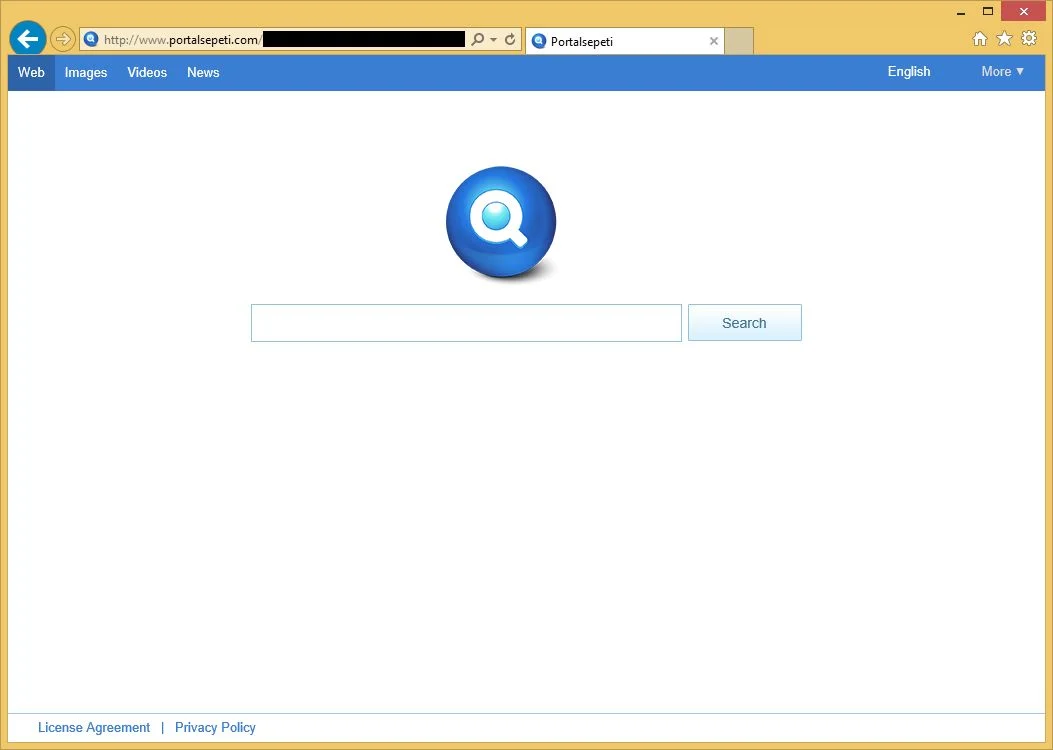
The PortalSepeti.com homepage will display advertisements and sponsored links in your search results, and may collect search terms from your search queries. The PortalSepeti.com hijack is used to boost advertising revenue, as in the use of blackhat SEO, to inflate a site’s page ranking in search results.
PortalSepeti it’s technically not a virus, but it does exhibit plenty of malicious traits, such as rootkit capabilities to hook deep into the operating system, browser hijacking, and in general just interfering with the user experience. The industry generally refers to it as a “PUP,” or potentially unwanted program.
PortalSepeti is an ad-supported (users may see additional banner, search, pop-up, pop-under, interstitial and in-text link advertisements) cross web browser plugin for Internet Explorer (BHO) and Firefox/Chrome (plugin) and distributed through various monetization platforms during installation. The browser extension includes various features that will modify the default or custom settings of the browser including the home page, search settings and in some cases will modify Internet Explorer’s load time threshold, place a lock file within Firefox to prevent competing software from changing its settings as well as disable the browser’s Content Security Policy in order to allow for cross site scripting of the plugin.
PortalSepeti homepage got on your computer after you have installed a freeware software (video recording/streaming, download-managers or PDF creators) that had bundled into their installation this browser hijacker.
For example, when you install VPlay, you will also agree to change your browser homepage to PortalSepeti.com and default search engine to search.portalsepeti.com
However when you uninstall VPlay from your computer, your web browser’s default settings will not be restored. This means that you’ll have to remove PortalSepeti.com homepage from your favorite web browser manually.
You should always pay attention when installing software because often, a software installer includes optional installs, such as this PortalSepeti.com browser hijacker. Be very careful what you agree to install.
Always opt for the custom installation and deselect anything that is not familiar, especially optional software that you never wanted to download and install in the first place. It goes without saying that you should not install software that you don’t trust.
How to remove Portalsepeti.com (Virus Removal Guide)
This page is a comprehensive guide, which will remove Portalsepeti.com from your Internet Explorer, Firefox and Google Chrome.
Please perform all the steps in the correct order. If you have any questions or doubt at any point, STOP and ask for our assistance.
STEP 1: Remove Portalsepeti.com browser hijacker from your computer with AdwCleaner
STEP 2: Clean up the various Windows shortcuts that have been hijacked by Portalsepeti.com virus
STEP 3: Remove Portalsepeti.com malicious files with Malwarebytes Anti-Malware Free
STEP 4: Double-check for the Portalsepeti.com infection with HitmanPro
STEP 1: Remove Portalsepeti.com browser hijacker with AdwCleaner
The AdwCleaner utility will scan your computer and web browser for malicious files, adware browser extensions and registry keys, that may have been installed on your computer without your knowledge.
- You can download AdwCleaner utility from the below link.
Download AdwCleanerFree official download. Nothing to install. - Before starting AdwCleaner, close all open programs and internet browsers, then double-click on the AdwCleaner icon.

If Windows prompts you as to whether or not you wish to run AdwCleaner, please allow it to run. - When the AdwCleaner program will open, click on the “Scan” button as shown below.
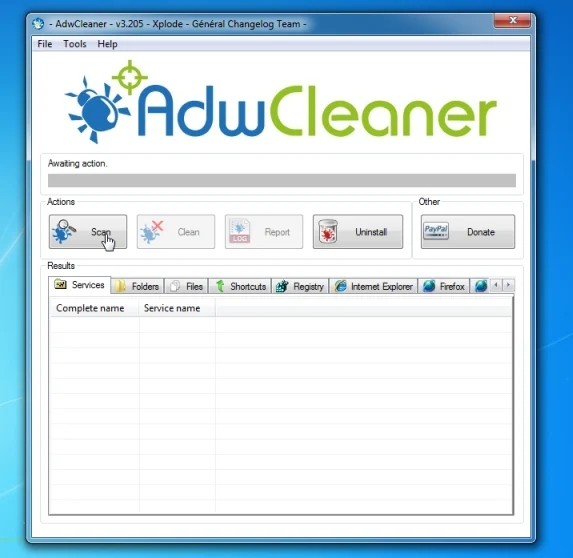
AdwCleaner will now start to search for the “Portalsepeti.com” malicious files that may be installed on your computer. - To remove the “Portalsepeti.com” malicious files that were detected in the previous step, please click on the “Clean” button.
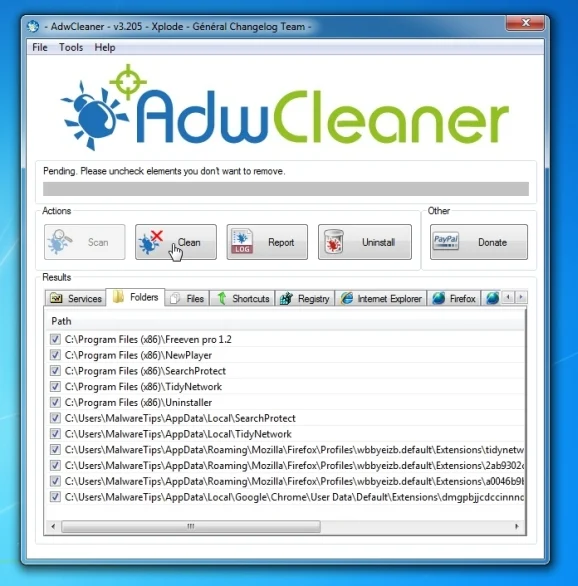
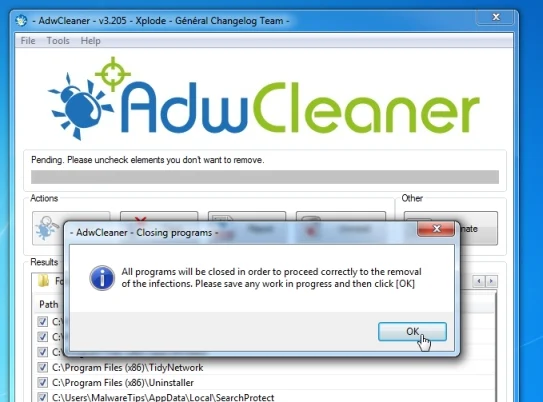
- AdwCleaner will now prompt you to save any open files or documents, as the program will need to reboot the computer. Please do so and then click on the OK button.
STEP 2: Clean up the various Windows shortcuts that have been hijacked by Portalsepeti.com virus
This infection has hijacked your browser shortcuts, so in this step we will need to manually clean them by removing the Portalsepeti.com argument.
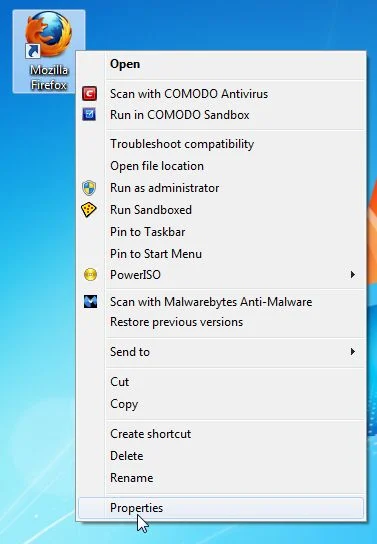
- Search for your browser shortcut (Desktop, Taskbar or Start Menu Shortcut), then right click on it and select Properties.
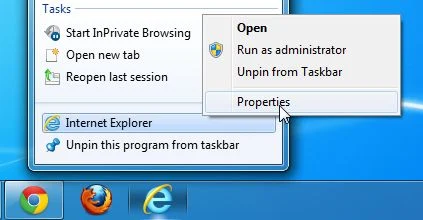
To view the Properties menu for the browser shortcuts pinned to your Task Bar, right-click on the browser shortcut from the Taskbar, then right-click again on the browser icon as see in the below image. Alternatively, you can just Unpin the browser shortcut from your task bar, then you can add it back after you have removed the “Portalsepeti.com” argument from the original browser shortcut.
- In the Shortcut tab, in the Target field, remove the http://Portalsepeti.com argument. Basically, there should be only the path to browser executable file. Nothing more.
These are the default shortcut path that should be in your Target box, if the Portalsepeti.com argument is there, then you should remove it.If you are using this browser: In the Target field you should have: Internet Explorer “C:\Program Files\Internet Explorer\iexplore.exe” Chrome “C:\Program Files\Google\Chrome\Application\chrome.exe” for Windows 32 bit OR “C:\Program Files (x86)\Google\Chrome\Application\chrome.exe” for Windows 64-bit Firefox “C:\Program Files\Mozilla Firefox\firefox.exe” for Windows 32-bit OR “C:\Program Files (x86)\Mozilla Firefox\firefox.exe” for Windows 64-bit 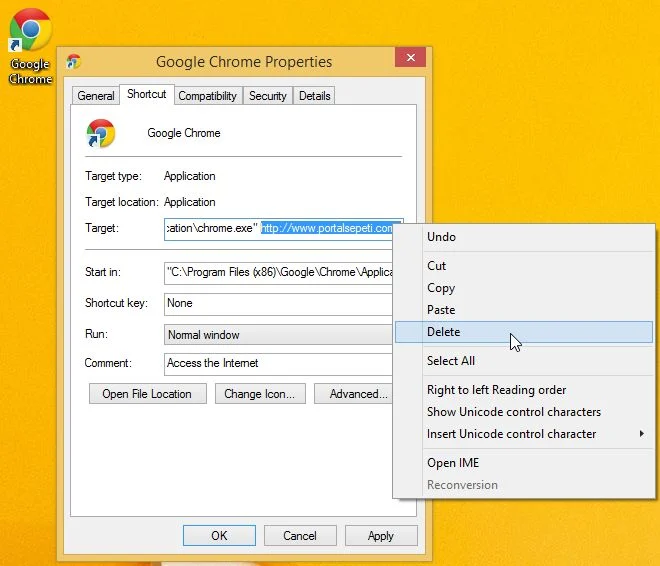
STEP 3: Remove Portalsepeti.com virus from your computer with Malwarebytes Anti-Malware Free
Malwarebytes Anti-Malware Free uses industry-leading technology to detect and remove all traces of malware, including worms, Trojans, rootkits, rogues, dialers, spyware, and more.
It is important to note that Malwarebytes Anti-Malware works well and should run alongside antivirus software without conflicts.
- You can download download Malwarebytes Anti-Malware from the below link.
Download MalwarebytesFree official installer. Your download starts right away. - Once downloaded, close all programs, then double-click on the icon on your desktop named “mbam-setup-consumer-2.00.xx” to start the installation of Malwarebytes Anti-Malware.
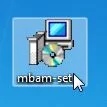
 You may be presented with a User Account Control dialog asking you if you want to run this file. If this happens, you should click “Yes” to continue with the installation.
- When the installation begins, you will see the Malwarebytes Anti-Malware Setup Wizard which will guide you through the installation process.
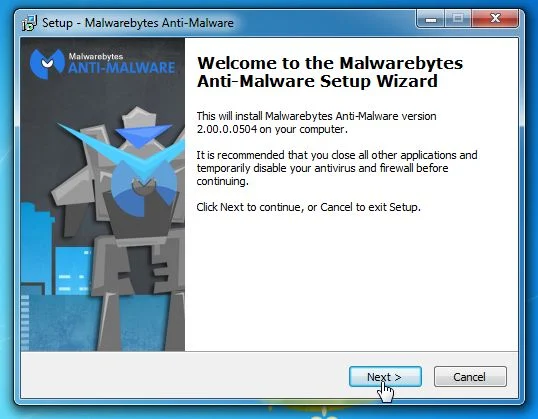
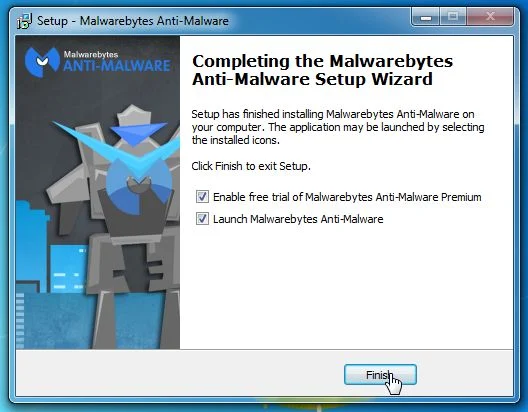
To install Malwarebytes Anti-Malware on your machine, keep following the prompts by clicking the “Next” button.
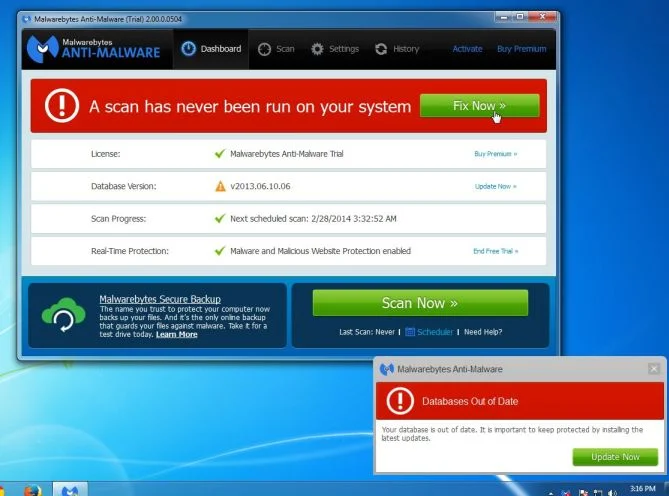
- Once installed, Malwarebytes Anti-Malware will automatically start and you will see a message stating that you should update the program, and that a scan has never been run on your system. To start a system scan you can click on the “Fix Now” button.
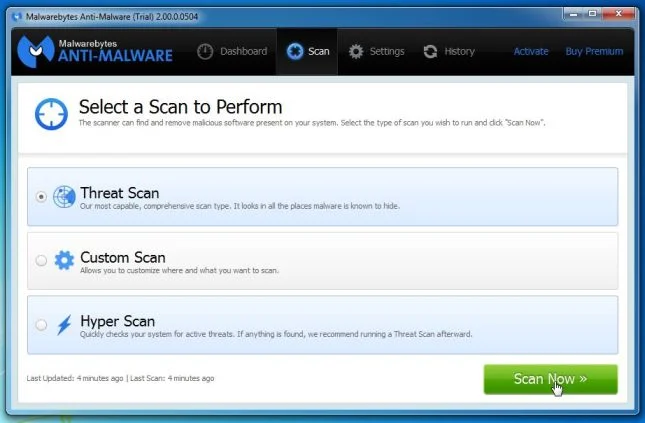
Alternatively, you can click on the “Scan” tab and select “Threat Scan“, then click on the “Scan Now” button.
- Malwarebytes Anti-Malware will now check for updates, and if there are any, you will need to click on the “Update Now” button.
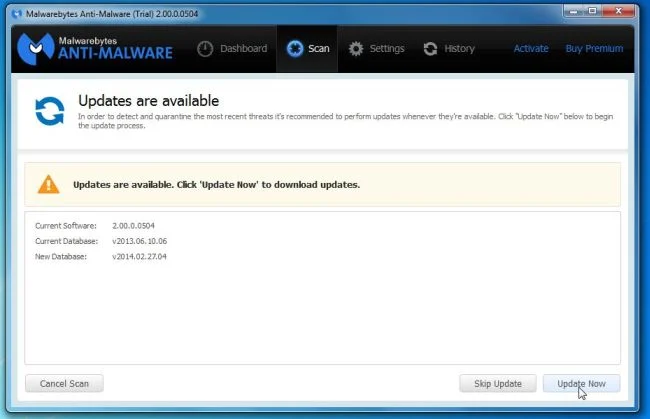
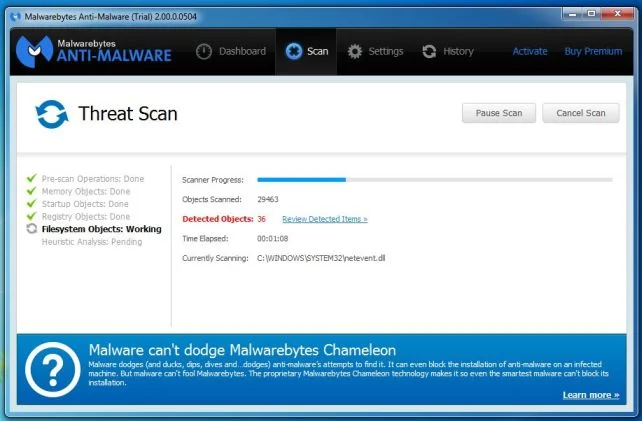
- Malwarebytes Anti-Malware will now start scanning your computer for the Portalsepeti.com virus. When Malwarebytes Anti-Malware is scanning it will look like the image below.
- When the scan has completed, you will now be presented with a screen showing you the malware infections that Malwarebytes’ Anti-Malware has detected. To remove the malicious programs that Malwarebytes Anti-malware has found, click on the “Quarantine All” button, and then click on the “Apply Now” button.
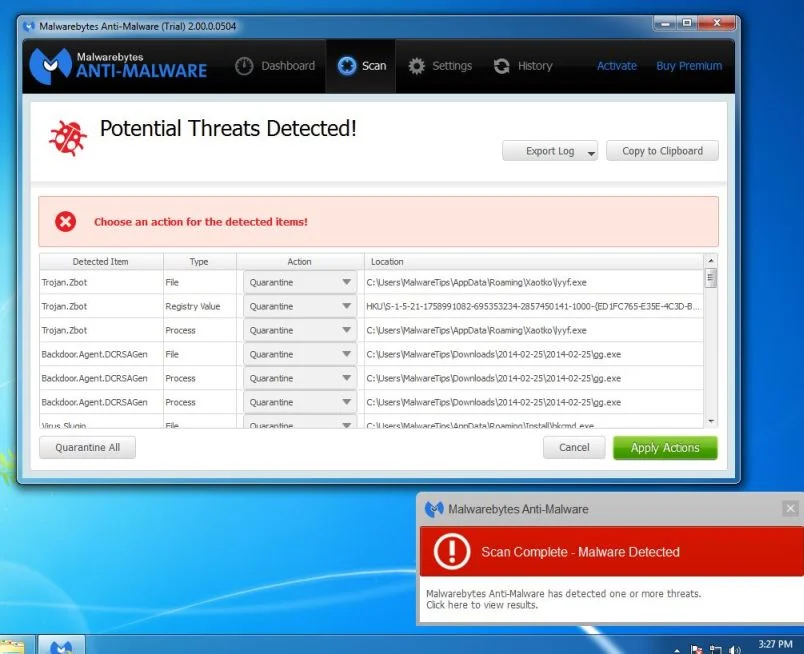
Please note that the infections found may be different than what is shown in the image. - Malwarebytes Anti-Malware will now quarantine all the malicious files and registry keys that it has found. When removing the files, Malwarebytes Anti-Malware may require a reboot in order to remove some of them. If it displays a message stating that it needs to reboot your computer, please allow it to do so.
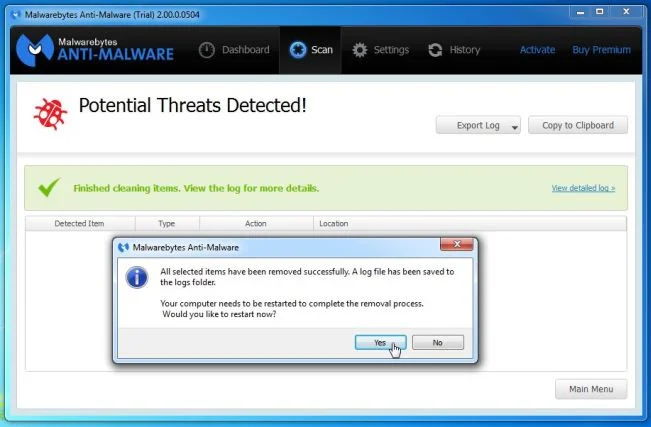
After your computer will restart, you should open Malwarebytes Anti-Malware and perform another “Threat Scan” scan to verify that there are no remaining threats
STEP 4: Double check for the Portalsepeti.com infection with HitmanPro
HitmanPro is a second opinion scanner, designed to rescue your computer from malware (viruses, trojans, rootkits, etc.) that have infected your computer despite all the security measures you have taken (such as anti virus software, firewalls, etc.). HitmanPro is designed to work alongside existing security programs without any conflicts. It scans the computer quickly (less than 5 minutes) and does not slow down the computer.
- You can download HitmanPro from the below link:
Download HitmanProOfficial Sophos download. Free scan, free 30-day trial to remove threats. - Double-click on the file named “HitmanPro.exe” (for 32-bit versions of Windows) or “HitmanPro_x64.exe” (for 64-bit versions of Windows). When the program starts you will be presented with the start screen as shown below.
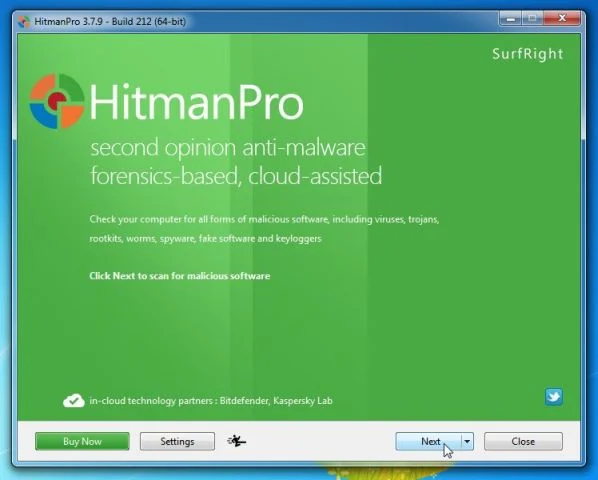
Click on the “Next” button, to install HitmanPro on your computer.
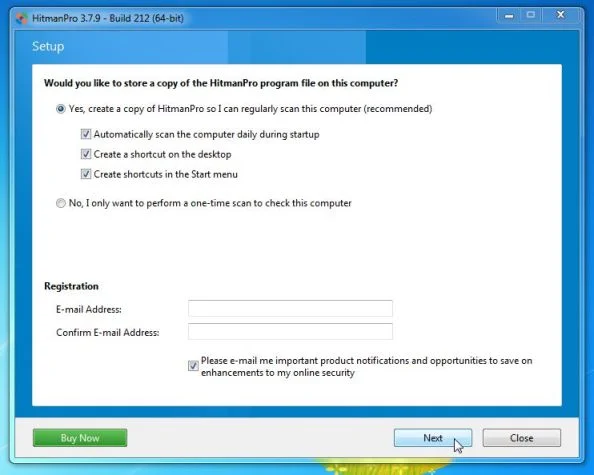
- HitmanPro will now begin to scan your computer for Portalsepeti.com malicious files.
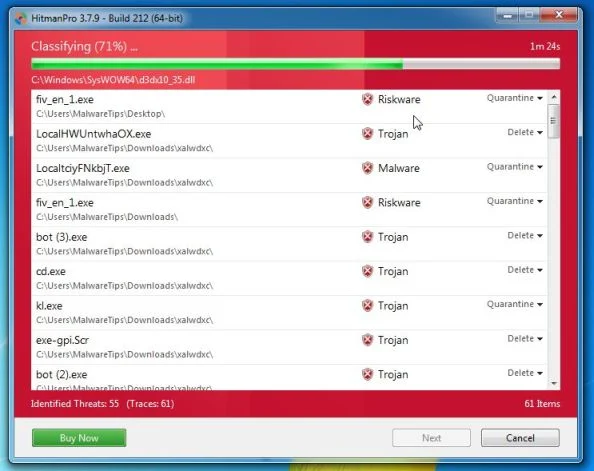
- When it has finished it will display a list of all the malware that the program found as shown in the image below. Click on the “Next” button, to remove Portalsepeti.com malware.
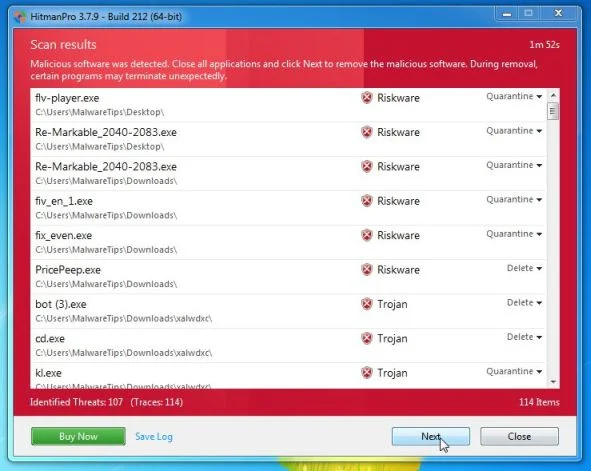
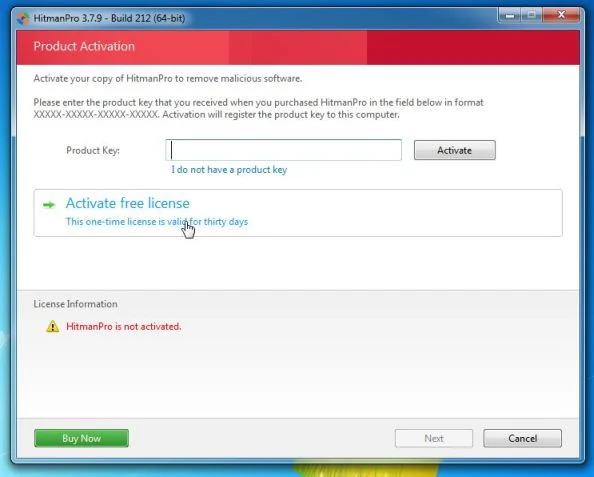
- Click on the “Activate free license” button to begin the free 30 days trial, and remove all the malicious files from your computer.
If you are still experiencing problems while trying to remove Portalsepeti.com hijacker from your machine, please start a new thread in our Malware Removal Assistance forum.

Join the discussion
0 commentsShare your experience or ask a question about this article.
Your progress
Did these steps help?
Let us know how the guide worked for you.
Describe what you see and the step you reached. Keep passwords and other private information out.
Discussion
Start the conversation
Have a question or something useful to share? Add the first comment.