

If you’ve received an alarming email with the subject line “EMAIL STORAGE FAILURE”, warning that your mailbox is nearly full and urging you to take immediate action, you may have been targeted by a phishing scam. This fraudulent email claims that your account storage has reached 96.12% of its capacity (e.g., 481.94MB/500MB) and threatens that you will lose the ability to send or receive important emails unless you log in to take corrective measures.
At first glance, such an email may appear authentic, even referencing legitimate-sounding services like Roundcube Webmail or including professional disclaimers. However, these emails are not genuine system notifications. They are carefully designed phishing attempts meant to trick recipients into clicking a malicious link and entering their login credentials on a fake website.
In this article, we will break down everything you need to know about the “Email Storage Failure” email scam: how it works, what makes it so dangerous, and what steps to take if you have already interacted with it.
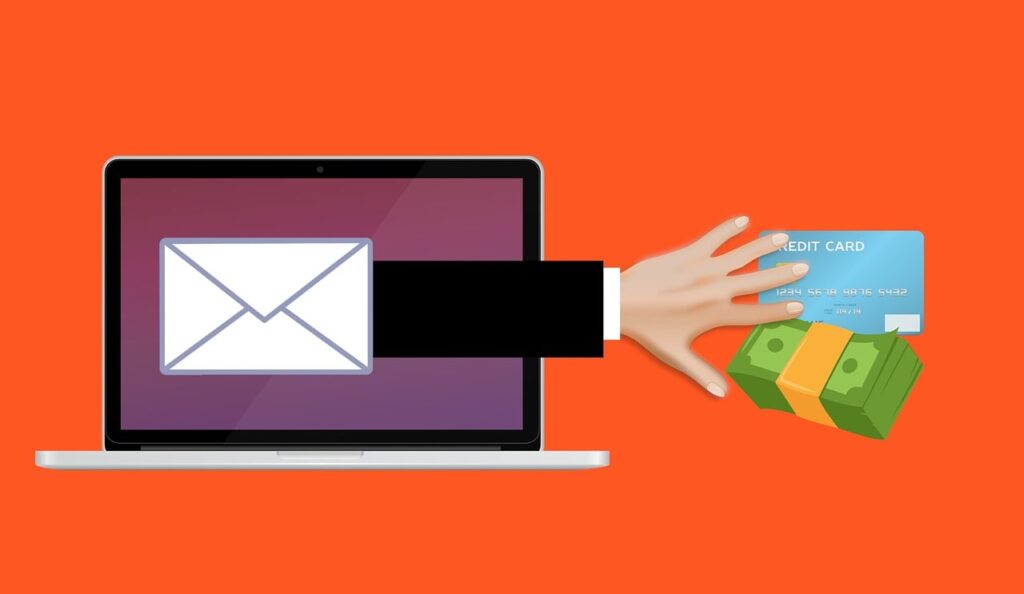
Scam Overview
The “Email Storage Failure” scam is a phishing campaign designed to exploit recipients’ fear of losing access to their emails. Since email is a critical tool for personal communication, work, and financial management, cybercriminals know that most people will act quickly to avoid disruptions.
Key Elements of the Scam Email
- Subject Line Variations
- “EMAIL STORAGE FAILURE”
- “Mailbox Quota Exceeded”
- “Your Email Account is Almost Full”
- “Action Required: Mailbox Storage Warning”
- “Critical Email Quota Alert”
- Storage Warning Details
The body of the email typically states that your mailbox is 96% or more full. For example: The email account currently uses 96.12% (481.94 MB/500 MB) of its capacity. If no action is taken, you may experience service interruptions including the inability to send or receive important emails. This specific detail (percentages, MB used) is inserted to add a false sense of legitimacy. - Threat of Service Interruption
The message warns that if you fail to act, you will lose the ability to send or receive emails. This fear-based tactic is a hallmark of phishing scams. - Fake Action Button
A large button typically labeled “Login Here To Take Action” is included. Instead of fixing any storage issue, this button redirects victims to a fraudulent login page. - Misleading Footer & Branding
The email often includes text mentioning Roundcube Webmail Services or other real-sounding companies. It may even contain fake copyright statements and privacy notices to look professional. Example:
“Roundcube Web Services, Inc. is a subsidiary of WBM Inc. Webmail is a registered trademark of Roundcube. This message was produced and distributed by Web Services, Inc.” While this sounds legitimate, it is completely fabricated.
Why This Scam Works
- Authority: Poses as an official email provider notification.
- Urgency: Implies immediate action is necessary to prevent service interruption.
- Fear of Loss: No one wants to lose access to their inbox or miss important communications.
- Familiar Design: Mimics real webmail storage notifications.
These psychological triggers are the same tactics used in countless phishing campaigns, but they remain effective because they exploit human emotion before logic.
How the Scam Works
To understand the mechanics, let’s break it down into a step-by-step phishing process.
Step 1: The Email Delivery
The victim receives an email with the subject “EMAIL STORAGE FAILURE” or a similar variant. It bypasses spam filters by using carefully crafted text and occasionally compromised servers.
Step 2: The Fake Warning
The body of the email states:
- Your storage is nearly full.
- If no action is taken, you will not be able to send or receive messages.
- A button is provided to “resolve” the issue.
The scam relies on the fact that many real email providers send similar quota alerts, making it believable.
Step 3: The Call-to-Action Link
The victim clicks “Login Here To Take Action”. This is the most critical moment — instead of leading to their legitimate email provider, the button redirects to a phishing page.
Step 4: The Phishing Website
- The phishing site is often a clone of a Roundcube Webmail login page or a generic webmail portal.
- It prompts the user to enter:
- Email address
- Password
- In some cases, advanced phishing kits may also request recovery codes, 2FA tokens, or secondary email credentials.
Step 5: Credential Theft
Once the victim enters their credentials:
- The data is captured and transmitted to the scammers’ server.
- The fake site may then display a “login error” or simply redirect to the real Roundcube login page to reduce suspicion.
Step 6: Exploitation of Stolen Data
The stolen email credentials are valuable because:
- Email is a master key: Many services (banking, shopping, cloud storage, social media) are tied to your email account. With access, scammers can reset passwords.
- Business email compromise: For corporate users, attackers may send fraudulent invoices or impersonate executives to trick colleagues into transferring funds.
- Identity theft: Emails often contain sensitive personal documents, financial statements, and private communications.
- Spamming & phishing campaigns: The hijacked email may be used to spread further scams.
- Sale on dark web markets: Cybercriminals frequently sell harvested credentials in bulk.
What To Do If You Have Fallen Victim To This Scam
If you interacted with the “Email Storage Failure” scam email, immediate action is necessary to minimize damage.
1. Change Your Email Password Immediately
- Go directly to your provider’s official login page.
- Use a strong, unique password that you have never used before.
2. Enable Two-Factor Authentication (2FA)
- Use an authenticator app (Google Authenticator, Authy) rather than SMS for better security.
- This adds an extra layer of protection even if your password is stolen.
3. Check Recent Login Activity
- Review your account’s login history for suspicious devices or IP addresses.
- Log out all active sessions if possible.
4. Revoke Suspicious Connections
- Go into account settings and remove any unknown linked applications or permissions.
5. Scan Your Device for Malware
- Use a trusted antivirus or anti-malware tool.
- Some phishing campaigns also drop malware via attachments.
6. Secure Other Accounts
- If you reused the same password elsewhere (banking, shopping, social media), change those passwords immediately.
- Enable 2FA on those services too.
7. Notify Your Contacts
- Warn colleagues, clients, and friends not to trust suspicious emails from your address.
- Scammers may already be using your account to spread more phishing attempts.
8. Report the Scam
- Use your email provider’s “Report Phishing” option.
- Forward the email to reportphishing@apwg.org (Anti-Phishing Working Group).
- In the U.S., report to the FTC.
- In the U.K., forward to report@phishing.gov.uk.
- Within the EU, report to your national cybercrime authority.
9. Monitor for Identity Theft
- Watch your bank and credit card accounts for unauthorized activity.
- Consider freezing your credit reports if financial fraud is suspected.
10. Consider Professional Help
- Businesses should involve their IT security team.
- Victims of identity theft may benefit from credit monitoring or identity protection services.
Is Your Device Infected? Run a Free Malware Scan
Slow performance, constant pop-ups, or strange behavior? These are classic signs of a malware infection. The fastest way to find out is to scan your device with Malwarebytes Free — one of the most trusted malware removal tools available.
The free version detects and removes the most common threats, including:
- Adware — the cause of those annoying pop-ups
- Browser hijackers — unwanted redirects and changed homepages
- Trojans and spyware — hidden programs stealing your data
- Potentially unwanted programs (PUPs) — software you never asked for
👉 Select your device below — Windows, Mac, or Android — then follow the simple steps to download Malwarebytes, scan your system, and remove any threats it finds. The scan usually takes 5 to 20 minutes.
Run a Malware Scan with Malwarebytes for Windows
Malwarebytes is one of the most popular and trusted anti-malware tools for Windows — and it’s completely free for removing infections. It catches threats that many antivirus programs miss, including adware, browser hijackers, and trojans. Follow the steps below to scan and clean your PC in just a few minutes.
Download Malwarebytes
Click the button below to download the latest version of Malwarebytes for Windows from the official source. The free version is all you need — it will scan your computer and remove adware, browser hijackers, and other malicious software at no cost.
Download MalwarebytesOfficial installer for Windows 11 and 10. Your download starts right away.Want real-time protection? See Malwarebytes Premium Malwarebytes Free for WindowsScans and removes malware at no cost
-
Install Malwarebytes
When the download finishes, open your Downloads folder and double-click the MBSetup file. If Windows shows a User Account Control pop-up, click “Yes” to allow the installation.

Follow the On-Screen Prompts to Install Malwarebytes
The setup wizard will walk you through a few quick screens:
-
Choose where you’re installing the program — “Personal Computer” or “Work Computer” — then click Next.

-
Malwarebytes will now install on your device. This usually takes under a minute.

-
When installation is complete, the “Welcome to Malwarebytes” screen will open automatically.

-
On the final screen, click Open Malwarebytes to launch the program.

-
Enable “Scan for Rootkits”
Before scanning, turn on rootkit detection so Malwarebytes can find even the most hidden threats. Click the Settings gear icon on the left side of the screen.

In the settings menu, find “Scan for rootkits” and click the toggle so it turns blue.

Done? Click “Dashboard” in the left pane to return to the main screen.
Start the Scan
Click the blue Scan button. Malwarebytes will automatically update its virus database and start checking your computer for malware.

-
Wait for the Scan to Finish
The scan checks your entire system for browser hijackers and other malicious programs, so it can take 5 to 20 minutes depending on your computer. Feel free to do something else — just check back occasionally to see the progress.

-
Quarantine the Detected Threats
When the scan is done, you’ll see a list of everything Malwarebytes found — malware, adware, and potentially unwanted programs. Click the “Quarantine” button to remove all of them at once.

Malwarebytes will now remove the malicious files and registry entries and move them safely into quarantine.

-
Restart Your Computer
Some threats can only be fully removed after a reboot. If Malwarebytes asks you to restart, click Yes. Once you’re logged back in, Malwarebytes has finished removing the threats it found.

That’s it — your Windows PC is now clean of trojans, adware, and other malware, and should be back to running smoothly.
If you are still having problems with your computer after completing these instructions, then please follow one of the steps:
- Run a computer scan with ESET Online Scanner
- Ask for help in our Windows Malware Removal Help & Support forum.
Run a Malware Scan with Malwarebytes for Mac
Malwarebytes for Mac is a free on-demand scanner that removes the malware other security software tends to miss — adware, browser hijackers, and unwanted programs included. Cleaning an infected Mac with Malwarebytes has always been completely free, and it’s our go-to recommendation. Follow the steps below to scan and clean your Mac in just a few minutes.
-
Download Malwarebytes for Mac
Click the button below to download the latest version of Malwarebytes for Mac.
Download MalwarebytesOfficial installer for macOS. Your download starts right away.Want real-time protection? See Malwarebytes PremiumMalwarebytes Free for MacScans and removes malware at no cost -
Open the Malwarebytes setup file
When the download finishes, open your Downloads folder and double-click the setup file to begin the installation.

-
Follow the On-Screen Prompts to Install Malwarebytes
The Malwarebytes for Mac Installer will guide you through a few quick screens. Click “Continue” and keep following the prompts until the installation completes.



When the installation is complete, Malwarebytes opens to the Welcome to Malwarebytes screen. Click “Get started“.
-
Select “Personal Computer” or “Work Computer”
Malwarebytes will ask what type of computer you’re installing it on. Click either Personal Computer or Work Computer, whichever applies.

-
Start the Scan
Click the “Scan” button. Malwarebytes will automatically update its detection database and begin checking your Mac for malware.

-
Wait for the Scan to Finish
Malwarebytes will scan your Mac for adware, browser hijackers, and other malicious programs. This can take a few minutes, so feel free to do something else — just check back occasionally to see the progress.

-
Quarantine the Detected Threats
When the scan is done, you’ll see a list of everything Malwarebytes found. Click the “Quarantine” button to remove all the threats at once.

-
Restart Your Mac
Malwarebytes will now remove all the malicious files it found. Some threats can only be fully removed after a reboot — if Malwarebytes asks you to restart, allow it. Once you’re logged back in, your Mac is clean.

That’s it — your Mac is now free of adware, rogue browser extensions, and other potentially harmful software.
If you are still experiencing problems while trying to remove a malicious program from your computer, please ask for help in our Mac Malware Removal Help & Support forum.
Run a Malware Scan with Malwarebytes for Android
Malwarebytes for Android automatically detects and removes dangerous threats like malware and ransomware so you don’t have to worry about your most-used device being compromised. Aggressive detection of adware and potentially unwanted programs keeps your Android phone or tablet running smooth.
-
Download Malwarebytes for Android.
You can download Malwarebytes for Android by clicking the link below.
Get Malwarebytes for AndroidOpens Google Play in a new tab.Want real-time protection? See Malwarebytes Premium for AndroidMalwarebytes for AndroidScans your phone and removes malware at no cost -
Install Malwarebytes for Android on your phone.
In the Google Play Store, tap “Install” to install Malwarebytes for Android on your device.

When the installation process has finished, tap “Open” to begin using Malwarebytes for Android. You can also open Malwarebytes by tapping on its icon in your phone menu or home screen.

-
Follow the on-screen prompts to complete the setup process
When Malwarebytes will open, you will see the Malwarebytes Setup Wizard which will guide you through a series of permissions and other setup options.
This is the first of two screens that explain the difference between the Premium and Free versions. Swipe this screen to continue.
Tap on “Got it” to proceed to the next step.
Malwarebytes for Android will now ask for a set of permissions that are required to scan your device and protect it from malware. Tap on “Give permission” to continue.
Tap on “Allow” to permit Malwarebytes to access the files on your phone.
-
Update database and run a scan with Malwarebytes for Android
You will now be prompted to update the Malwarebytes database and run a full system scan.

Click on “Update database” to update the Malwarebytes for Android definitions to the latest version, then click on “Run full scan” to perform a system scan.

-
Wait for the Malwarebytes scan to complete.
Malwarebytes will now start scanning your phone for adware and other malicious apps. This process can take a few minutes, so we suggest you do something else and periodically check on the status of the scan to see when it is finished.

-
Click on “Remove Selected”.
When the scan has been completed, you will be presented with a screen showing the malware infections that Malwarebytes for Android has detected. To remove the malicious apps that Malwarebytes has found, tap on the “Remove Selected” button.

-
Restart your phone.
Malwarebytes for Android will now remove all the malicious apps that it has found. To complete the malware removal process, Malwarebytes may ask you to restart your device.
That’s it — your Android phone is now clean — no more malicious apps, adware, or browser redirects.
If you are still having problems with your phone after completing these instructions, then please follow one of the steps:
- Restore your phone to factory settings by going to Settings > General management > Reset > Factory data reset.
- Ask for help in our Mobile Malware Removal Help & Support forum.
Stay Protected: Block Ads and Malicious Sites
Now that your device is clean, keep it that way. Most infections start with a malicious ad or a fake download button — so blocking them at the source is your best defense.
We recommend AdGuard, which blocks malicious ads, phishing pages, and dangerous redirects before they can reach you.
👉 Download AdGuard and browse safely
Frequently Asked Questions
What is the “Email Storage Failure” email scam?
The “Email Storage Failure” scam is a phishing campaign that pretends your email account is almost full. It typically claims your storage is at 96% capacity and that you risk losing the ability to send or receive emails. The email includes a button labeled “Login Here To Take Action.” If clicked, it redirects you to a fake login page designed to steal your email credentials.
Is the “EMAIL STORAGE FAILURE” message real?
No, it is not real. This message is not sent by Roundcube, Microsoft, Gmail, Yahoo, or any legitimate email service provider. Real providers may notify you of storage limits, but they will never ask you to click a suspicious link or button to “fix” the issue. If you receive such an email, it is a scam and should be ignored or deleted.
How do scammers trick people with this email?
Scammers use urgency and fear tactics. By warning you that your mailbox is almost full and threatening service interruptions, they pressure you into acting quickly. The inclusion of precise percentages like “96.12% full” makes the message look legitimate, increasing the chance that you will click the malicious link without questioning it.
What happens if I click “Login Here To Take Action”?
If you click the button, you will be taken to a phishing site disguised as a real webmail login page. Once you enter your username and password, the scammers collect this information. They may then use your email account to spread more phishing messages, steal sensitive data, or gain access to other services linked to your email.
What can scammers do with my stolen email credentials?
Once scammers have access to your email login details, they can reset passwords for banking, shopping, or social media accounts linked to your email. They may impersonate you to trick your contacts into sending money or sharing sensitive information. For businesses, scammers may attempt invoice fraud or wire transfer scams. Stolen credentials are also often sold on dark web marketplaces.
How can I tell if the “Email Storage Failure” email is fake?
Look for common signs of phishing:
- The sender’s address does not match your provider’s official domain.
- The email contains urgent language like “take action immediately.”
- The message includes suspicious links or buttons.
- The email has poor grammar, formatting issues, or unusual phrasing.
- The footer may reference companies like Roundcube Web Services but is filled with fabricated details.
If you are unsure, log in directly to your email provider through its official website instead of clicking any links.
What should I do if I entered my password on the phishing site?
If you entered your credentials, take action immediately. First, change your email password from the official login page. Then enable two-factor authentication to add an extra layer of protection. Check your account’s login history for suspicious activity and log out of unknown devices. Revoke any unauthorized app connections and update passwords for other accounts that used the same login details. Finally, report the phishing attempt to your provider and relevant cybercrime authorities.
Can my device get infected with malware from this scam?
Most “Email Storage Failure” scams focus on credential theft rather than malware. However, some phishing campaigns may include malicious attachments or links to sites that attempt to install spyware or trojans. It is always a good idea to scan your device with updated antivirus software after interacting with a phishing email.
How can I protect myself from email phishing scams?
To stay safe, never click links or buttons in suspicious emails. Always verify alerts by logging in through your provider’s official website. Use strong and unique passwords, and enable two-factor authentication on all accounts. Keep your operating system and security tools updated. For businesses, employee training on phishing recognition is essential.
Should I report the “Email Storage Failure” email?
Yes, reporting helps providers and security organizations block future campaigns. You can report phishing directly in your email client or forward the email to reportphishing@apwg.org. In the U.S., you can also report to the Federal Trade Commission (FTC). In the U.K., forward phishing emails to report@phishing.gov.uk. European Union users should report to their national cybercrime authority.
The Bottom Line
The “Email Storage Failure” email scam is a phishing attack designed to steal your email login credentials by convincing you that your account is almost full. While the warning may look professional and urgent, it is not associated with Roundcube or any legitimate provider.
If you receive such an email:
- Do not click any links.
- Delete it immediately.
- If you already entered your information, change your passwords and enable 2FA without delay.
By remaining cautious, verifying suspicious alerts, and practicing good cyber hygiene, you can protect yourself from falling victim to this scam and others like it.








