

If you’ve ever stumbled upon a webpage warning you about a “Warning: System Resource Leak”, claiming your browser is draining memory or slowing down your computer, you might have encountered one of the latest online scam trends. These pages often mimic system alerts, display alarming messages, and pressure users to download certain software to “fix” the problem. One of the most common versions of this scam promotes the Opera GX browser, a legitimate browser, but the scam itself is not affiliated with Opera GX in any way.
These deceptive sites use fear tactics to manipulate users into clicking links and downloading programs through affiliate schemes. In this detailed guide, we will uncover everything about the “Warning: System Resource Leak” scam, how it works, how scammers profit from it, and most importantly, how you can protect yourself.
Scam Overview
The “Warning: System Resource Leak” scam is a fraudulent online campaign that uses fake warnings to manipulate users into installing software, often through misleading affiliate links. The scam usually appears when users visit questionable or high-risk websites such as pornographic platforms, torrent sites, or illegal streaming services. These websites are notorious for hosting third-party advertising networks, which sometimes allow deceptive ads to slip through.
What the Scam Looks Like
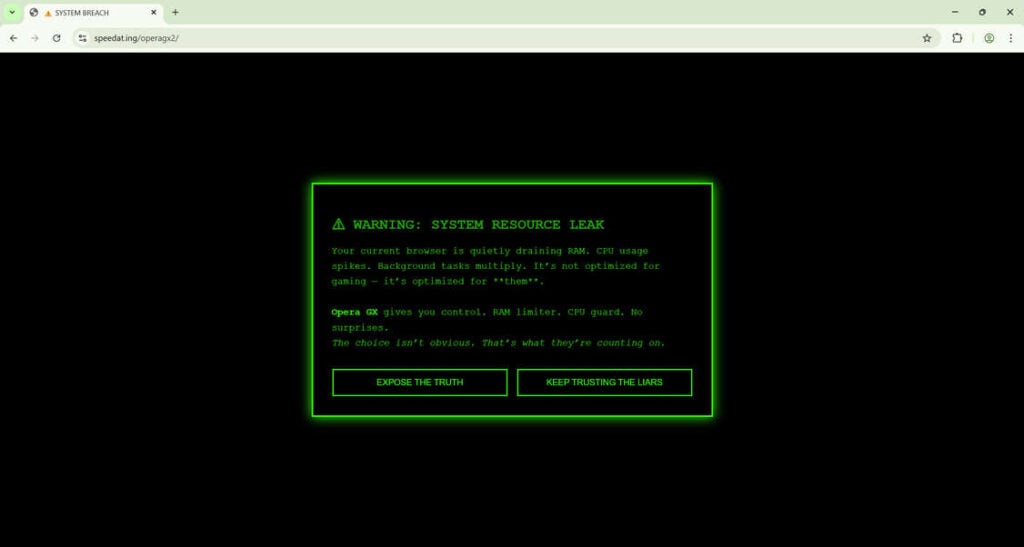
The fake alert is designed to imitate a system or browser warning. It typically displays text like:
WARNING: SYSTEM RESOURCE LEAK
Your current browser is quietly draining RAM. CPU usage spikes. Background tasks multiply. It’s not optimized for gaming – it’s optimized for them.
Opera GX gives you control. RAM limiter. CPU guard. No surprises.
The choice isn’t obvious. That’s what they’re counting on.
Users are then presented with two buttons:
- EXPOSE THE TRUTH
- KEEP TRUSTING THE LIARS
This manipulative phrasing is intentionally designed to create urgency and fear, making users feel as if they are making a critical decision about their computer’s safety. The scam relies on emotional triggers, exploiting the fear of performance loss or malware infection.
Why It Works
These scams are remarkably effective because they imitate legitimate warning messages. The average internet user often cannot distinguish between a genuine system alert and a fake one embedded on a webpage. The visual design mimics the aesthetic of a tech terminal, complete with neon green text and system-like fonts, giving it a falsely authoritative appearance.
Moreover, the psychological impact of fear-based messaging amplifies the scam’s effectiveness. Users are made to feel responsible for fixing an urgent problem, which reduces their ability to think critically before clicking.
The Connection to Opera GX
The scam often uses the Opera GX browser as bait. Opera GX is a real web browser developed by Opera Software, specifically designed for gamers. It includes unique features such as CPU and RAM limiters, background music, and gaming integrations. However, Opera GX is not involved in or responsible for these scams.
Instead, scammers use Opera GX’s reputation to lend legitimacy to their fake alert pages. These pages often contain affiliate links that track installations. When someone downloads Opera GX through their unique link, the scammer earns a small commission from the affiliate program. This means the scam’s true purpose is not to harm your device directly, but to generate revenue through affiliate marketing abuse.
Where These Ads Come From
The majority of these scam ads originate from malicious ad networks or redirect chains embedded within unsafe websites. When a user clicks on a link or banner on such sites, they are often redirected through several tracking domains before landing on the fake “System Resource Leak” warning page.
This entire process happens in milliseconds and is invisible to most users. Scammers take advantage of this to deliver their message in a way that appears spontaneous and authentic. Since these pages often appear as overlays or pop-ups, users believe the warning came from their browser or operating system.
Technical Behavior
While most of these scam pages are just scareware (scare-based advertisements) and don’t install malware directly, some versions can be more dangerous. Variations of the same campaign have been reported to:
- Trigger fake download prompts.
- Redirect users to phishing websites.
- Install browser extensions that collect browsing data.
- Push potentially unwanted programs (PUPs).
Even if no malware is immediately installed, clicking or interacting with these pages increases the risk of future exposure to malicious software.
Why Users Should Be Concerned
Although Opera GX itself is safe, the method used to promote it through deception damages user trust and puts people at risk of installing unwanted software or exposing personal data. Scammers take advantage of affiliate marketing systems, turning legitimate business models into fraudulent revenue schemes.
Every time a user clicks a link, fills in a form, or downloads a program from one of these scam pages, they provide potential access to data, including IP addresses, device information, and browsing behavior. This information can later be used for targeted advertising, malvertising, or even identity theft in more advanced scams.
Understanding how this scam operates is the first step toward defending against it.
How the Scam Works
The “Warning: System Resource Leak” scam follows a calculated, step-by-step process designed to exploit user trust and fear. Below is a detailed breakdown of each stage:
Step 1: The Bait – Visiting Risky Websites
Most victims encounter the scam when they visit questionable websites, including:
- Free movie streaming platforms
- Torrent download pages
- Adult content sites
- Illegal software or crack download portals
These sites often contain advertising networks with low-quality control, meaning they serve ads from sources that don’t always follow legitimate practices. Once a user clicks on an ad or even interacts with the page, a redirect sequence is triggered.
Step 2: The Redirect Chain
After clicking, users are sent through a series of hidden redirects. Each redirect URL tracks the click and passes it through affiliate or tracking networks. This ensures that if the user eventually installs Opera GX (or another promoted program), the scammer gets paid.
The redirect chain may include domains like:
- Ad tracking URLs
- Cloaked domains to mask origin
- Shortened links to hide final destination
This chain is the foundation of the affiliate marketing abuse that drives these scams.
Step 3: The Fake Warning Page Appears
After the redirects, users arrive at the scam page displaying a visually alarming warning. It typically includes green text on a black background, emulating a command-line interface. The headline reads:
⚠️ WARNING: SYSTEM RESOURCE LEAK
This is followed by a paragraph implying that the user’s current browser is overusing RAM or CPU resources. The text falsely claims that the current browser is inefficient or compromised, suggesting that Opera GX offers protection or optimization.
Step 4: Emotional Manipulation
The scammers use psychological manipulation to push the user into taking immediate action. The message is worded to:
- Instill fear (“Your system is being drained!”)
- Create urgency (“Fix it now before it gets worse!”)
- Offer a simple solution (“Download Opera GX”)
The two-button choice reinforces the illusion of urgency:
- EXPOSE THE TRUTH (positive action)
- KEEP TRUSTING THE LIARS (negative action)
This binary framing tricks users into believing that not clicking means making the wrong choice.
Step 5: The Download Link
When the user clicks either button, they are redirected to an affiliate link for Opera GX or sometimes a third-party installer site. In legitimate cases, it redirects to the real Opera GX download page, but with an affiliate ID attached to track who initiated the installation.
In other cases, users may be sent to fake installer pages that bundle Opera GX with unwanted software or even malware. This depends on how the scam is set up and which affiliate or ad network is involved.
Step 6: Affiliate Tracking and Profit
Each download through the scammer’s affiliate link generates a small commission, often between a few cents to a few dollars per installation. This encourages scammers to spread their campaigns aggressively across multiple websites, forums, and pop-up networks.
The scam’s success depends on volume, not quality. Even if a tiny percentage of users fall for it, the scammers still make significant profit from the sheer number of impressions.
Step 7: Continuous Evolution
These scams evolve constantly to avoid detection. New domains, new messages, and new variations appear daily. Some replace Opera GX with other software, such as cleaning tools, VPNs, or system optimizers. The underlying structure remains the same: fake alert + fear + affiliate link.
Scammers may also experiment with different visual styles, such as:
- Mimicking antivirus software interfaces.
- Using fake progress bars or loading screens.
- Displaying fake system diagnostics.
Each variant aims to appear authentic enough to make users believe their system is in danger.
What To Do If You Have Fallen Victim to the Scam
If you have clicked on one of these scam ads or installed a program from such a page, there are several steps you should take immediately to protect your system and data.
1. Do Not Panic
First and foremost, understand that the Opera GX browser itself is not malware. However, if you installed it through a suspicious link, you should remove it and reinstall it from the official Opera GX website to ensure it’s authentic.
2. Disconnect from the Internet Temporarily
If you suspect any unauthorized downloads or installations, disconnect from your network. This prevents potential malware from communicating with external servers or downloading additional files.
3. Uninstall Unwanted Programs
Go to your system’s control panel or settings and look for any software installed on the same date as your encounter with the scam page. Uninstall anything unfamiliar, especially system optimizers or browser extensions you did not intentionally install.
4. Run a Full System Scan
Use a reputable antivirus or anti-malware tool such as Malwarebytes, Bitdefender, or Windows Defender. Run a full system scan to detect and remove any potential threats or unwanted software.
5. Reset Your Browser
If your browser has started showing unusual pop-ups or redirects after visiting the scam page, reset it to its default settings:
- Clear cookies, cache, and site data.
- Remove suspicious extensions.
- Restore default homepage and search engine settings.
6. Install Browser Security Extensions
Consider adding reliable browser security tools such as:
- uBlock Origin (for ad blocking)
- Malwarebytes Browser Guard (for phishing protection)
- NoScript or ScriptSafe (for controlling JavaScript execution)
These extensions reduce the risk of future exposure to similar scams.
7. Update Your System and Software
Make sure your operating system, browsers, and security software are up to date. Outdated software can be more vulnerable to malicious redirects and exploits.
8. Reinstall Opera GX from the Official Source (Optional)
If you still want to try Opera GX, download it directly from Opera’s official website. Never use links from third-party pages or pop-ups.
9. Educate Yourself and Others
Scams like these rely on user ignorance. By understanding how affiliate scams and fake alerts work, you can help others avoid falling into the same trap. Share this information with friends or family who may browse risky sites.
10. Report the Scam
You can report fake ads and scam pages to:
- Google Safe Browsing: https://safebrowsing.google.com/
- Opera Support (to alert them of brand misuse)
- Your browser’s report phishing tool
Reporting helps reduce the spread of these scams and alerts legitimate companies about the misuse of their brand names.
Is Your Device Infected? Run a Free Malware Scan
Slow performance, constant pop-ups, or strange behavior? These are classic signs of a malware infection. The fastest way to find out is to scan your device with Malwarebytes Free — one of the most trusted malware removal tools available.
The free version detects and removes the most common threats, including:
- Adware — the cause of those annoying pop-ups
- Browser hijackers — unwanted redirects and changed homepages
- Trojans and spyware — hidden programs stealing your data
- Potentially unwanted programs (PUPs) — software you never asked for
👉 Select your device below — Windows, Mac, or Android — then follow the simple steps to download Malwarebytes, scan your system, and remove any threats it finds. The scan usually takes 5 to 20 minutes.
Run a Malware Scan with Malwarebytes for Windows
Malwarebytes is one of the most popular and trusted anti-malware tools for Windows — and it’s completely free for removing infections. It catches threats that many antivirus programs miss, including adware, browser hijackers, and trojans. Follow the steps below to scan and clean your PC in just a few minutes.
Download Malwarebytes
Click the button below to download the latest version of Malwarebytes for Windows from the official source. The free version is all you need — it will scan your computer and remove adware, browser hijackers, and other malicious software at no cost.
Download MalwarebytesOfficial installer for Windows 11 and 10. Your download starts right away.Want real-time protection? See Malwarebytes Premium Malwarebytes Free for WindowsScans and removes malware at no cost
-
Install Malwarebytes
When the download finishes, open your Downloads folder and double-click the MBSetup file. If Windows shows a User Account Control pop-up, click “Yes” to allow the installation.

Follow the On-Screen Prompts to Install Malwarebytes
The setup wizard will walk you through a few quick screens:
-
Choose where you’re installing the program — “Personal Computer” or “Work Computer” — then click Next.

-
Malwarebytes will now install on your device. This usually takes under a minute.

-
When installation is complete, the “Welcome to Malwarebytes” screen will open automatically.

-
On the final screen, click Open Malwarebytes to launch the program.

-
Enable “Scan for Rootkits”
Before scanning, turn on rootkit detection so Malwarebytes can find even the most hidden threats. Click the Settings gear icon on the left side of the screen.

In the settings menu, find “Scan for rootkits” and click the toggle so it turns blue.

Done? Click “Dashboard” in the left pane to return to the main screen.
Start the Scan
Click the blue Scan button. Malwarebytes will automatically update its virus database and start checking your computer for malware.

-
Wait for the Scan to Finish
The scan checks your entire system for browser hijackers and other malicious programs, so it can take 5 to 20 minutes depending on your computer. Feel free to do something else — just check back occasionally to see the progress.

-
Quarantine the Detected Threats
When the scan is done, you’ll see a list of everything Malwarebytes found — malware, adware, and potentially unwanted programs. Click the “Quarantine” button to remove all of them at once.

Malwarebytes will now remove the malicious files and registry entries and move them safely into quarantine.

-
Restart Your Computer
Some threats can only be fully removed after a reboot. If Malwarebytes asks you to restart, click Yes. Once you’re logged back in, Malwarebytes has finished removing the threats it found.

That’s it — your Windows PC is now clean of trojans, adware, and other malware, and should be back to running smoothly.
If you are still having problems with your computer after completing these instructions, then please follow one of the steps:
- Run a computer scan with ESET Online Scanner
- Ask for help in our Windows Malware Removal Help & Support forum.
Run a Malware Scan with Malwarebytes for Mac
Malwarebytes for Mac is a free on-demand scanner that removes the malware other security software tends to miss — adware, browser hijackers, and unwanted programs included. Cleaning an infected Mac with Malwarebytes has always been completely free, and it’s our go-to recommendation. Follow the steps below to scan and clean your Mac in just a few minutes.
-
Download Malwarebytes for Mac
Click the button below to download the latest version of Malwarebytes for Mac.
Download MalwarebytesOfficial installer for macOS. Your download starts right away.Want real-time protection? See Malwarebytes PremiumMalwarebytes Free for MacScans and removes malware at no cost -
Open the Malwarebytes setup file
When the download finishes, open your Downloads folder and double-click the setup file to begin the installation.

-
Follow the On-Screen Prompts to Install Malwarebytes
The Malwarebytes for Mac Installer will guide you through a few quick screens. Click “Continue” and keep following the prompts until the installation completes.



When the installation is complete, Malwarebytes opens to the Welcome to Malwarebytes screen. Click “Get started“.
-
Select “Personal Computer” or “Work Computer”
Malwarebytes will ask what type of computer you’re installing it on. Click either Personal Computer or Work Computer, whichever applies.

-
Start the Scan
Click the “Scan” button. Malwarebytes will automatically update its detection database and begin checking your Mac for malware.

-
Wait for the Scan to Finish
Malwarebytes will scan your Mac for adware, browser hijackers, and other malicious programs. This can take a few minutes, so feel free to do something else — just check back occasionally to see the progress.

-
Quarantine the Detected Threats
When the scan is done, you’ll see a list of everything Malwarebytes found. Click the “Quarantine” button to remove all the threats at once.

-
Restart Your Mac
Malwarebytes will now remove all the malicious files it found. Some threats can only be fully removed after a reboot — if Malwarebytes asks you to restart, allow it. Once you’re logged back in, your Mac is clean.

That’s it — your Mac is now free of adware, rogue browser extensions, and other potentially harmful software.
If you are still experiencing problems while trying to remove a malicious program from your computer, please ask for help in our Mac Malware Removal Help & Support forum.
Run a Malware Scan with Malwarebytes for Android
Malwarebytes for Android automatically detects and removes dangerous threats like malware and ransomware so you don’t have to worry about your most-used device being compromised. Aggressive detection of adware and potentially unwanted programs keeps your Android phone or tablet running smooth.
-
Download Malwarebytes for Android.
You can download Malwarebytes for Android by clicking the link below.
Get Malwarebytes for AndroidOpens Google Play in a new tab.Want real-time protection? See Malwarebytes Premium for AndroidMalwarebytes for AndroidScans your phone and removes malware at no cost -
Install Malwarebytes for Android on your phone.
In the Google Play Store, tap “Install” to install Malwarebytes for Android on your device.

When the installation process has finished, tap “Open” to begin using Malwarebytes for Android. You can also open Malwarebytes by tapping on its icon in your phone menu or home screen.

-
Follow the on-screen prompts to complete the setup process
When Malwarebytes will open, you will see the Malwarebytes Setup Wizard which will guide you through a series of permissions and other setup options.
This is the first of two screens that explain the difference between the Premium and Free versions. Swipe this screen to continue.
Tap on “Got it” to proceed to the next step.
Malwarebytes for Android will now ask for a set of permissions that are required to scan your device and protect it from malware. Tap on “Give permission” to continue.
Tap on “Allow” to permit Malwarebytes to access the files on your phone.
-
Update database and run a scan with Malwarebytes for Android
You will now be prompted to update the Malwarebytes database and run a full system scan.

Click on “Update database” to update the Malwarebytes for Android definitions to the latest version, then click on “Run full scan” to perform a system scan.

-
Wait for the Malwarebytes scan to complete.
Malwarebytes will now start scanning your phone for adware and other malicious apps. This process can take a few minutes, so we suggest you do something else and periodically check on the status of the scan to see when it is finished.

-
Click on “Remove Selected”.
When the scan has been completed, you will be presented with a screen showing the malware infections that Malwarebytes for Android has detected. To remove the malicious apps that Malwarebytes has found, tap on the “Remove Selected” button.

-
Restart your phone.
Malwarebytes for Android will now remove all the malicious apps that it has found. To complete the malware removal process, Malwarebytes may ask you to restart your device.
That’s it — your Android phone is now clean — no more malicious apps, adware, or browser redirects.
If you are still having problems with your phone after completing these instructions, then please follow one of the steps:
- Restore your phone to factory settings by going to Settings > General management > Reset > Factory data reset.
- Ask for help in our Mobile Malware Removal Help & Support forum.
Stay Protected: Block Ads and Malicious Sites
Now that your device is clean, keep it that way. Most infections start with a malicious ad or a fake download button — so blocking them at the source is your best defense.
We recommend AdGuard, which blocks malicious ads, phishing pages, and dangerous redirects before they can reach you.
👉 Download AdGuard and browse safely
The Bottom Line
The “Warning: System Resource Leak” scam is a sophisticated form of digital deception that uses fear-based messaging to drive users toward affiliate downloads. Although the Opera GX browser promoted in these scams is legitimate, the campaigns themselves are unauthorized, manipulative, and misleading.
Always remember: real browsers or operating systems never issue warnings through websites. Genuine system alerts come from your device’s notification center, not a pop-up within your browser.

Join the discussion
0 commentsShare your experience or ask a question about this article.
Community experiences
Did this happen to you?
Your experience could help someone recognize the same scam. Submit a private report for our team to review.
I experienced this tooReports are reviewed before publication. Sharing publicly is always your choice.
Discussion
Start the conversation
Have a question or something useful to share? Add the first comment.