

If you’ve received an alarming email claiming that hackers “have full access to your device,” you’re not alone. This type of message is a common email extortion scam, designed to scare recipients into sending money — usually in cryptocurrency. The goal of this article is to explain exactly how this scam works, what makes it convincing, how you can tell it’s fake, and what to do if you’ve fallen victim. With clear steps and expert insight, you’ll learn how to protect yourself and prevent future attacks.
Scam Overview
The so‑called “We Have Full Access To Your Device” email is one of the most widespread digital extortion scams circulating today. It claims that cybercriminals have taken control of your device, stolen your files, and are monitoring everything you do. The attacker threatens to destroy your data or release it publicly unless you pay a ransom — often several thousand dollars in Bitcoin or Ethereum.
In reality, these emails are mass‑produced hoaxes sent to millions of addresses at once. Scammers obtain email lists from data breaches, leaks, or online directories, then use automated systems to send out thousands of identical threats. The vast majority of victims have not been hacked — the attackers simply rely on fear and confusion to trick people into paying.
The Psychological Manipulation Behind the Scam
These scams are built on psychological pressure, not technology. Criminals use fear‑based tactics such as:
- Urgency: They demand immediate payment, warning that any delay will lead to data loss.
- Authority: The message sounds technical and confident, giving the illusion that the sender knows what they’re doing.
- Isolation: Victims are told not to contact anyone or seek help, to prevent them from verifying that it’s fake.
- Embarrassment: In some cases, scammers claim to have recorded compromising footage using the victim’s webcam.
Common Variations
The “We Have Full Access” scam appears in several forms:
- Ransomware Claim: The email says all your files have been encrypted and will be deleted unless you pay.
- Sextortion Claim: The scammer claims to have recorded private or explicit videos through your webcam.
- Data Leak Threat: They claim to have stolen sensitive information, such as banking details or documents.
- Password Evidence Scam: The attacker includes an old password leaked from a past breach to make the threat look credible.
Real‑World Example
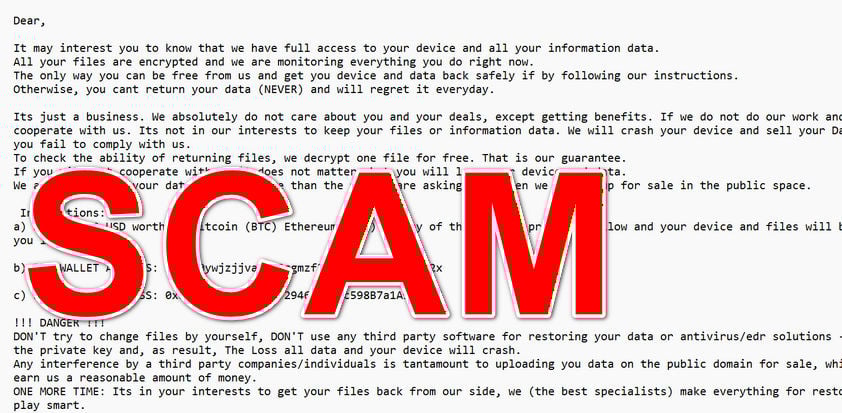
Here’s an example of the type of email millions of people receive:
Subject: URGENT ATTENTION!!!
Dear,
It may interest you to know that we have full access to your device and all your information data.
All your files are encrypted and we are monitoring everything you do right now.
The only way you can be free from us and get you device and data back safely if by following our instructions.
Otherwise, you cant return your data (NEVER) and will regret it everyday.Its just a business. We absolutely do not care about you and your deals, except getting benefits. If we do not do our work and liabilities – nobody will cooperate with us. Its not in our interests to keep your files or information data. We will crash your device and sell your Data in the puplic space if you fail to comply with us.
To check the ability of returning files, we decrypt one file for free. That is our guarantee.
If you will not cooperate with us it does not matter, but you will lose your device and data.
We are aware that your data is worth more than the fee we are asking for, when we put it up for sale in the public space.Instructions:
a) SEND 3,500 USD worth of Bitcoin (BTC) Ethereum (ETH) to any of the wallets provided bellow and your device and files will be decrypted and released to you immediately.b) BTC WALLET ADDRESS: bc1qu0ywjzjjva5ag2qgmzf2r8q9qxg867f32h8v2x
c) ETH WALLET ADDRESS: 0xe0a1Bb3609D52837294605e7Bc598B7a1A943bBE
!!! DANGER !!!
DON’T try to change files by yourself, DON’T use any third party software for restoring your data or antivirus/edr solutions – its may entail damage of the private key and, as result, The Loss all data and your device will crash.
Any interference by a third party companies/individuals is tantamount to uploading you data on the public domain for sale, which ofcourse will
earn us a reasonable amount of money.
ONE MORE TIME: Its in your interests to get your files back from our side, we (the best specialists) make everything for restoring, but you should not play smart.
!!! !!! !!!
This message contains all the classic elements of extortion: fear, urgency, and a demand for cryptocurrency payment.
Why These Emails Work
- Many people panic before verifying the claim.
- The technical language sounds convincing.
- The mention of Bitcoin adds a sense of legitimacy and anonymity.
- The threat of public exposure makes people act impulsively.
Yet, in over 99% of cases, these are empty threats. The scammers have no access to your system, files, or webcam — only your email address.
How the Scam Works
1. Harvesting Email Addresses
Attackers collect millions of email addresses from leaked databases, phishing kits, and the dark web. They use automated tools to verify which addresses are still active.
2. Mass Sending
Using bulk‑email software, scammers distribute the same extortion message to thousands of people. The message is short, emotional, and full of technical‑sounding jargon.
3. Psychological Trigger
The wording is carefully crafted to trigger anxiety. By saying “we are monitoring you right now,” the scammer makes you imagine the worst possible scenario.
4. Payment Demand
Victims are instructed to send cryptocurrency — Bitcoin or Ethereum — to an anonymous wallet. These transactions are nearly impossible to reverse, making crypto ideal for scammers.
5. Optional “Proof”
Sometimes the scammer includes an old password (found in previous data breaches) or claims to decrypt one file for free. These tricks are meant to add credibility.
6. Waiting for Payment
After sending thousands of emails, scammers simply wait. Even if one out of every thousand recipients pays, they can make thousands of dollars with little effort.
7. Repeat and Scale
Once a victim pays, their email is marked as “responsive,” meaning they’ll likely receive future extortion messages. Criminals reuse these lists for new scams.
What To Do If You Receive This Email
- Do not panic. The scammers rely on emotional reactions. Take a moment to think before acting.
- Do not pay the ransom. There’s no guarantee they’ll stop contacting you, and payment funds criminal activity.
- Do not reply to the email. This confirms that your address is active.
- Change your passwords. Use strong, unique passwords for each account. Enable two‑factor authentication.
- Check for real compromise. If your device behaves normally, it’s almost certainly a bluff. Still, scan for malware using trusted security software.
- Preserve evidence. Take screenshots and save the email in case you report it.
- Report the scam. In the U.S., visit reportfraud.ftc.gov. In the U.K., use Action Fraud. EU citizens can contact their local cybercrime unit.
- Educate others. Inform friends, coworkers, and family members so they can recognize and ignore similar messages.
Is Your Device Infected? Run a Free Malware Scan
Slow performance, constant pop-ups, or strange behavior? These are classic signs of a malware infection. The fastest way to find out is to scan your device with Malwarebytes Free — one of the most trusted malware removal tools available.
The free version detects and removes the most common threats, including:
- Adware — the cause of those annoying pop-ups
- Browser hijackers — unwanted redirects and changed homepages
- Trojans and spyware — hidden programs stealing your data
- Potentially unwanted programs (PUPs) — software you never asked for
👉 Select your device below — Windows, Mac, or Android — then follow the simple steps to download Malwarebytes, scan your system, and remove any threats it finds. The scan usually takes 5 to 20 minutes.
Run a Malware Scan with Malwarebytes for Windows
Malwarebytes is one of the most popular and trusted anti-malware tools for Windows — and it’s completely free for removing infections. It catches threats that many antivirus programs miss, including adware, browser hijackers, and trojans. Follow the steps below to scan and clean your PC in just a few minutes.
Download Malwarebytes
Click the button below to download the latest version of Malwarebytes for Windows from the official source. The free version is all you need — it will scan your computer and remove adware, browser hijackers, and other malicious software at no cost.
Download MalwarebytesOfficial installer for Windows 11 and 10. Your download starts right away.Want real-time protection? See Malwarebytes Premium Malwarebytes Free for WindowsScans and removes malware at no cost
-
Install Malwarebytes
When the download finishes, open your Downloads folder and double-click the MBSetup file. If Windows shows a User Account Control pop-up, click “Yes” to allow the installation.

Follow the On-Screen Prompts to Install Malwarebytes
The setup wizard will walk you through a few quick screens:
-
Choose where you’re installing the program — “Personal Computer” or “Work Computer” — then click Next.

-
Malwarebytes will now install on your device. This usually takes under a minute.

-
When installation is complete, the “Welcome to Malwarebytes” screen will open automatically.

-
On the final screen, click Open Malwarebytes to launch the program.

-
Enable “Scan for Rootkits”
Before scanning, turn on rootkit detection so Malwarebytes can find even the most hidden threats. Click the Settings gear icon on the left side of the screen.

In the settings menu, find “Scan for rootkits” and click the toggle so it turns blue.

Done? Click “Dashboard” in the left pane to return to the main screen.
Start the Scan
Click the blue Scan button. Malwarebytes will automatically update its virus database and start checking your computer for malware.

-
Wait for the Scan to Finish
The scan checks your entire system for browser hijackers and other malicious programs, so it can take 5 to 20 minutes depending on your computer. Feel free to do something else — just check back occasionally to see the progress.

-
Quarantine the Detected Threats
When the scan is done, you’ll see a list of everything Malwarebytes found — malware, adware, and potentially unwanted programs. Click the “Quarantine” button to remove all of them at once.

Malwarebytes will now remove the malicious files and registry entries and move them safely into quarantine.

-
Restart Your Computer
Some threats can only be fully removed after a reboot. If Malwarebytes asks you to restart, click Yes. Once you’re logged back in, Malwarebytes has finished removing the threats it found.

That’s it — your Windows PC is now clean of trojans, adware, and other malware, and should be back to running smoothly.
If you are still having problems with your computer after completing these instructions, then please follow one of the steps:
- Run a computer scan with ESET Online Scanner
- Ask for help in our Windows Malware Removal Help & Support forum.
Run a Malware Scan with Malwarebytes for Mac
Malwarebytes for Mac is a free on-demand scanner that removes the malware other security software tends to miss — adware, browser hijackers, and unwanted programs included. Cleaning an infected Mac with Malwarebytes has always been completely free, and it’s our go-to recommendation. Follow the steps below to scan and clean your Mac in just a few minutes.
-
Download Malwarebytes for Mac
Click the button below to download the latest version of Malwarebytes for Mac.
Download MalwarebytesOfficial installer for macOS. Your download starts right away.Want real-time protection? See Malwarebytes PremiumMalwarebytes Free for MacScans and removes malware at no cost -
Open the Malwarebytes setup file
When the download finishes, open your Downloads folder and double-click the setup file to begin the installation.

-
Follow the On-Screen Prompts to Install Malwarebytes
The Malwarebytes for Mac Installer will guide you through a few quick screens. Click “Continue” and keep following the prompts until the installation completes.



When the installation is complete, Malwarebytes opens to the Welcome to Malwarebytes screen. Click “Get started“.
-
Select “Personal Computer” or “Work Computer”
Malwarebytes will ask what type of computer you’re installing it on. Click either Personal Computer or Work Computer, whichever applies.

-
Start the Scan
Click the “Scan” button. Malwarebytes will automatically update its detection database and begin checking your Mac for malware.

-
Wait for the Scan to Finish
Malwarebytes will scan your Mac for adware, browser hijackers, and other malicious programs. This can take a few minutes, so feel free to do something else — just check back occasionally to see the progress.

-
Quarantine the Detected Threats
When the scan is done, you’ll see a list of everything Malwarebytes found. Click the “Quarantine” button to remove all the threats at once.

-
Restart Your Mac
Malwarebytes will now remove all the malicious files it found. Some threats can only be fully removed after a reboot — if Malwarebytes asks you to restart, allow it. Once you’re logged back in, your Mac is clean.

That’s it — your Mac is now free of adware, rogue browser extensions, and other potentially harmful software.
If you are still experiencing problems while trying to remove a malicious program from your computer, please ask for help in our Mac Malware Removal Help & Support forum.
Run a Malware Scan with Malwarebytes for Android
Malwarebytes for Android automatically detects and removes dangerous threats like malware and ransomware so you don’t have to worry about your most-used device being compromised. Aggressive detection of adware and potentially unwanted programs keeps your Android phone or tablet running smooth.
-
Download Malwarebytes for Android.
You can download Malwarebytes for Android by clicking the link below.
Get Malwarebytes for AndroidOpens Google Play in a new tab.Want real-time protection? See Malwarebytes Premium for AndroidMalwarebytes for AndroidScans your phone and removes malware at no cost -
Install Malwarebytes for Android on your phone.
In the Google Play Store, tap “Install” to install Malwarebytes for Android on your device.

When the installation process has finished, tap “Open” to begin using Malwarebytes for Android. You can also open Malwarebytes by tapping on its icon in your phone menu or home screen.

-
Follow the on-screen prompts to complete the setup process
When Malwarebytes will open, you will see the Malwarebytes Setup Wizard which will guide you through a series of permissions and other setup options.
This is the first of two screens that explain the difference between the Premium and Free versions. Swipe this screen to continue.
Tap on “Got it” to proceed to the next step.
Malwarebytes for Android will now ask for a set of permissions that are required to scan your device and protect it from malware. Tap on “Give permission” to continue.
Tap on “Allow” to permit Malwarebytes to access the files on your phone.
-
Update database and run a scan with Malwarebytes for Android
You will now be prompted to update the Malwarebytes database and run a full system scan.

Click on “Update database” to update the Malwarebytes for Android definitions to the latest version, then click on “Run full scan” to perform a system scan.

-
Wait for the Malwarebytes scan to complete.
Malwarebytes will now start scanning your phone for adware and other malicious apps. This process can take a few minutes, so we suggest you do something else and periodically check on the status of the scan to see when it is finished.

-
Click on “Remove Selected”.
When the scan has been completed, you will be presented with a screen showing the malware infections that Malwarebytes for Android has detected. To remove the malicious apps that Malwarebytes has found, tap on the “Remove Selected” button.

-
Restart your phone.
Malwarebytes for Android will now remove all the malicious apps that it has found. To complete the malware removal process, Malwarebytes may ask you to restart your device.
That’s it — your Android phone is now clean — no more malicious apps, adware, or browser redirects.
If you are still having problems with your phone after completing these instructions, then please follow one of the steps:
- Restore your phone to factory settings by going to Settings > General management > Reset > Factory data reset.
- Ask for help in our Mobile Malware Removal Help & Support forum.
Stay Protected: Block Ads and Malicious Sites
Now that your device is clean, keep it that way. Most infections start with a malicious ad or a fake download button — so blocking them at the source is your best defense.
We recommend AdGuard, which blocks malicious ads, phishing pages, and dangerous redirects before they can reach you.
👉 Download AdGuard and browse safely
What To Do If You Paid the Scammer
- Document everything. Save transaction IDs, wallet addresses, and email content.
- Report immediately to your local cybercrime authorities or the FBI’s Internet Crime Complaint Center (IC3).
- Contact your crypto exchange if you purchased coins there. Provide details — sometimes funds can be flagged before cash‑out.
- Secure your accounts. Change all passwords and review active sessions.
- Monitor your financial activity and credit reports for suspicious changes.
How To Prevent Future Scams
Strengthen Your Cyber Hygiene
- Use unique passwords stored in a password manager.
- Enable multi‑factor authentication for all major accounts.
- Keep software updated — patches fix vulnerabilities scammers exploit.
- Back up your files regularly using offline or cloud backups.
- Avoid posting personal data publicly, such as email addresses on social media.
Improve Email Security
- Enable spam and phishing filters.
- Do not open attachments or links from unknown senders.
- Review the sender’s address — spoofed emails often use fake domains.
Business‑Level Protections
Organizations should implement employee training, incident‑response plans, and email gateway protections. Regular simulations and phishing‑awareness sessions significantly reduce risk.
Red Flags to Identify a Fake Extortion Email
- Poor grammar and spelling errors.
- Generic greetings (“Dear user”).
- Unverifiable threats.
- Demands for Bitcoin or Ethereum.
- Claims that antivirus tools will “damage private keys.”
If you notice any of these, it’s a scam.
Frequently Asked Questions
What is the “We Have Full Access To Your Device” email scam?
The “We Have Full Access To Your Device” scam is an email extortion hoax where criminals claim they’ve hacked your computer, stolen your files, and are monitoring you in real time. They threaten to release your private data unless you send them money, usually in Bitcoin or Ethereum. In almost all cases, these claims are completely false — the scammers don’t actually have any access to your device or personal information. They rely on fear and urgency to make you act without thinking.
How can I tell if the email is fake?
There are several signs that the message is fraudulent. The email usually:
- Uses generic greetings like “Dear user” or “Dear” with no personal details.
- Contains poor grammar, spelling mistakes, or broken English.
- Requests payment in cryptocurrency (Bitcoin, Ethereum, etc.).
- Claims your files are encrypted but provides no actual evidence.
- Warns you not to contact authorities or use antivirus tools. If you still have access to your files and your device works normally, it’s almost certainly a scam.
Why do scammers claim they have access to my webcam or files?
Scammers use emotional manipulation to make their threats sound personal and believable. They want you to imagine the worst-case scenario — that someone is spying on you or has private data. In reality, these messages are mass emails sent to thousands of people at once. The mention of your webcam or files is a bluff intended to scare you into paying quickly.
The scammer included one of my real passwords. Does that mean I was hacked?
Not necessarily. Many scammers use passwords leaked in previous data breaches (such as from old websites or services you used years ago). They match these passwords to your email address and include them in the message to appear credible. Visit haveibeenpwned.com or a similar site to check if your email has appeared in a known breach, and immediately change any reused or weak passwords.
What should I do if I receive this email?
If you receive this type of email, follow these steps:
- Stay calm — don’t panic or respond to the sender.
- Do not pay the ransom. These criminals rarely stop contacting victims even after payment.
- Change your passwords for email, banking, and social media accounts.
- Enable multi-factor authentication (MFA) wherever possible.
- Scan your devices with trusted antivirus or anti-malware software.
- Report the email to local authorities or a cybercrime unit.
- Educate others so they recognize similar scams.
Is there any risk if I open the email?
Simply opening the email is not dangerous. However, you should never click on links or download attachments from suspicious messages. Doing so may lead to malware infection or phishing websites. The best practice is to mark the email as spam or phishing so your email provider can filter future attempts.
Can scammers really encrypt my files through an email?
No, not unless you actually download and run a malicious file or program. The text of an email alone cannot encrypt files or take control of your system. Real ransomware infections happen when malware is executed on your device — not through reading an email.
What should I do if I already paid the ransom?
If you’ve already paid, take the following steps immediately:
- Document everything — transaction IDs, wallet addresses, and the full email.
- Contact local authorities or cybercrime agencies. In the U.S., report via the FBI IC3 portal; in the U.K., use Action Fraud.
- Notify your crypto exchange if you bought coins there; provide transaction details to flag the address.
- Secure all your accounts by changing passwords and enabling MFA.
- Monitor for identity theft or suspicious financial activity. While recovery of funds is rare, early reporting improves the chances of tracking the criminals.
Are cryptocurrency payments traceable?
Cryptocurrency payments are pseudonymous, not fully anonymous. Transactions are recorded on public blockchains, but the real identity of the wallet owner is hidden. Law enforcement can trace funds through specialized analytics, especially when criminals try to cash out through regulated exchanges. However, individual victims typically cannot recover their payments directly.
Can I block similar scam emails in the future?
Yes. Use your email client’s spam or phishing report feature to train filters. You can also:
- Create custom filters for words like “Bitcoin,” “ransom,” or “device access.”
- Keep your email address private and avoid sharing it on public websites.
- Use an alias or disposable email for online sign-ups.
- Consider using advanced anti-phishing protection services.
Should I run antivirus software if I get one of these emails?
Yes. Although most of these scams are empty threats, scanning your computer is a smart precaution. Use a reputable antivirus program to ensure there’s no hidden malware. Run a full system scan and keep your security software updated.
Can I trace where the email came from?
You can view email headers to see technical details such as the sender’s IP address, mail server, and route. However, scammers often use compromised or spoofed servers, so the location information is unreliable. Law enforcement can analyze these headers during investigations.
What’s the difference between this scam and real ransomware?
In this scam, you receive only a threatening email — there’s no actual malware, encryption, or device takeover. Real ransomware, on the other hand, infects your system, encrypts files, and displays ransom notes locally. If you can still open your files normally and your system runs fine, it’s not real ransomware.
Can my personal data really be sold on the dark web?
If your passwords or personal information were already leaked in a data breach, that data might already exist on the dark web. However, in the case of this scam, the attacker does not have your files or personal data — they’re only pretending to. Paying them won’t remove any old breach data from the internet.
Is it safe to reply to the email to ask questions?
No. Replying confirms to the attacker that your email address is active. Once confirmed, your address is often added to new scam lists. Never engage with extortion emails; mark them as spam or phishing instead.
Who can I report this scam to?
Depending on your location, report it to:
- United States: FBI Internet Crime Complaint Center (IC3)
- United Kingdom: Action Fraud
- European Union: Local CERT or cybercrime police units
- Canada: Canadian Anti-Fraud Centre
- Global: No More Ransom
Include the full email with headers when reporting; this helps investigators trace campaigns and wallet activity.
What happens if I ignore the email?
In almost every case, nothing. The scammer will move on to other targets. You may receive more spam in the future, but your files and devices remain safe. Ignoring and reporting the message is the best action.
Can businesses be targeted by this scam?
Yes. Criminals send these messages to company addresses, hoping employees will panic and pay to “protect data.” Businesses should train staff to recognize such scams and establish clear reporting procedures. Security awareness programs and phishing simulations help prevent panic-driven decisions.
How can I protect myself long-term?
- Keep your software and operating system updated.
- Enable firewalls and endpoint protection.
- Use strong passwords with MFA.
- Back up important data offline.
- Educate your household or employees about online scams. Awareness is your strongest defense — scammers only succeed when victims believe their lies.
The Bottom Line
The “We Have Full Access To Your Device” email scam is a psychological attack, not a technical one. The criminals behind it exploit fear, urgency, and embarrassment to pressure victims into paying. In almost every case, they have no actual access to your computer or files. The best defense is awareness: remain calm, don’t respond or pay, secure your accounts, and report the scam to authorities. By learning how these schemes work and spreading the word, you help reduce their effectiveness — protecting yourself and others from financial and emotional harm.

Join the discussion
0 commentsShare your experience or ask a question about this article.
Community experiences
Did this happen to you?
Your experience could help someone recognize the same scam. Submit a private report for our team to review.
I experienced this tooReports are reviewed before publication. Sharing publicly is always your choice.
Discussion
Start the conversation
Have a question or something useful to share? Add the first comment.