

Offers4U is an adware program, that displays pop-up ads and advertisements on web pages that you visit. These advertisements will be shown as boxes containing various coupons that are available, as underlined keywords, pop-up ads or advertising banners.

What is Offers4U?
Offers4U is advertised as a program that displays coupons for sites you are visiting and competitive prices when you are viewing product pages at sites like Amazon. Though this may sound like a useful service, the Offers4U program can be intrusive and will display advertisements whether you want them to or not.
When installed, the Offers4U browser extension will display advertising banners, pop-up advertisements and in-text ads, stating that they are brought to you by “Offers4U”. The Offers4U Ads will have different text under the pop-up: “Powered by Offers4U”, “Brought to you by Offers4U”, “You’ve received a premium offer from Offers4U” or “Ads by Offers4U”.
These ads are aimed to promote the installation of additional questionable content including web browser toolbars, optimization utilities and other products, all so the Offers4U publisher can generate pay-per-click revenue.
When infected with Offers4U the common symptoms include:
- Advertising banners are injected with the web pages that you are visiting.
- Random web page text is turned into hyperlinks.
- Browser popups appear which recommend fake updates or other software.
- Other unwanted adware programs might get installed without the user’s knowledge.
How did got Offers4U on my computer?
Offers4U is an adware program that is commonly bundled with other free programs that you download off of the Internet.
Unfortunately, some free downloads do not adequately disclose that other software will also be installed and you may find that you have installed Offers4U without your knowledge.
You should always pay attention when installing software because often, a software installer includes optional installs, such as this Offers4U adware. Be very careful what you agree to install.
Always opt for the custom installation and deselect anything that is not familiar, especially optional software that you never wanted to download and install in the first place.
It goes without saying that you should not install software that you don’t trust.
How to remove Ads by Offers4U adware from Apple Mac OS X
Please perform all the steps in the correct order. If you have any questions or doubt at any point, STOP and ask for our assistance.
-
To remove Offers4u adware, follow these steps:
- STEP 1: Uninstall the malicious apps from your Mac OS
- STEP 2: Remove unwanted extensions from your browser
- (OPTIONAL) STEP 3: Perform a system scan with Malwarebytes Anti-Malware for Mac
STEP 1: Uninstall the malicious apps from your Mac OS
In this first step, we will try to identify and remove any malicious program that might be installed on your machine. The bellow video will explain how to remove any malicious program from your machine.
STEP 2: Remove unwanted extensions from your browser
Safari
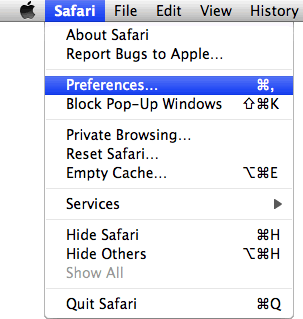
- From the Safari menu, select “Preferences“.
In the Safari Preferences window, click the “Extensions” tab. Find any unknown plugin, then click on the “Uninstall” button.This infection can add more than one extension, it is recommended that you remove all unknown extensions from Safari.
Known malicious extensions: MacSaver, MacVX (and variants like MacVaX), MacCaptain, MacPriceCut, SaveOnMac, Mac Global Deals or MacDeals, MacSter, MacXcoupon, Shop Brain (or variants like SShoP Braaiin), PalMall, MacShop, MacSmart, News Ticker Remover, Shopper Helper Pro, Photo Zoom, Best YouTube Downloader, ArcadeYum, Extended protection, Video download helper, FlashFree or GoldenBoy.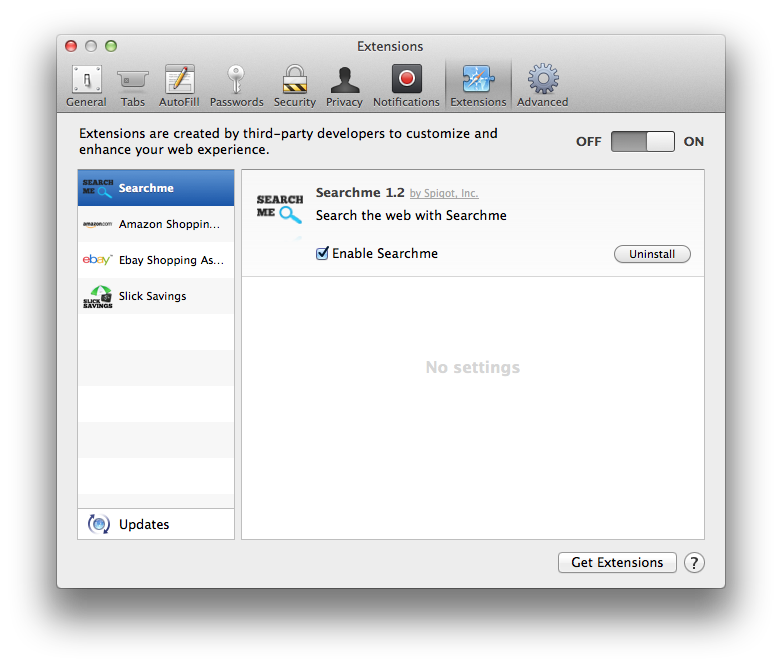
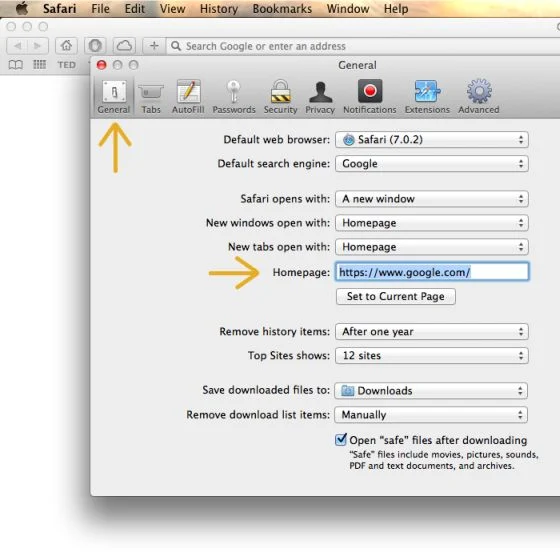
- Next, select “Preferences“, go to the “General” tab and change the “Default Search Engine” to Google. Then, in the “General” tab, find the “Home Page” and change it to “google.com”.
Google Chrome
- Click on Chrome’s main menu button, represented by three horizontal lines. When the drop-down menu appears, select the option labeled Settings.
![[Image: Click on Settings button]](https://malwaretips.com/blogs/wp-content/uploads/mwt-media/5e/5ea2f1059be6ed3e11ee9cf08dc94713740dc26bfcd11789733094e25c90e743/254f3b1ecb384cf22ce749a4f33efba0dce5ca8cba853f203a5a7f7bcd77f28b-276.webp "Click on Settings button")
- Chrome’s Settings should now be displayed in a new tab or window, depending on your configuration. Next, scroll to the bottom of the page and click on the Show advanced settings link (as seen in the below example).
![[Image: Click on Show advanced settings link]](https://malwaretips.com/blogs/wp-content/uploads/mwt-media/68/681f26c5c653c4d7087e7cf1600104a7d5e001d7b34c12e0a375806a8d4b35e8/2067845a65f5a3661693478d046067debe5fd33fcb8b1c025d26469ecd2331a4-448.webp "Click on Show advanced settings link")
- Chrome’s advanced Settings should now be displayed. Scroll down until the Reset browser settings section is visible, as shown in the example below. Next, click on the Reset browser settings button.
![[Image: Click on Reset browser button]](https://malwaretips.com/blogs/wp-content/uploads/mwt-media/15/15ef3fb571705e57b5f7dff0a3153b144f8d683478ad0223b548b07555b95497/6d77f46e648414bd0b55d22938b9194aa2a42e3717275959746fee7b6830550c-472.webp "Click on Reset browser button")
- A confirmation dialog should now be displayed, detailing the components that will be restored to their default state should you continue on with the reset process. To complete the restoration process, click on the Reset button.
![[Image: Click on Reset button to restore Chrome to default settings]](https://malwaretips.com/blogs/wp-content/uploads/mwt-media/22/22d431cf86304871f975fe19d630c15c27739e9e08353d44cc8403c0573f2a88/49d11797ef1fd3e76e367ae85bed895954c33a5e59e1046e9d847374ea3f7b05-487.webp "Click on Reset button to restore Chrome to default settings")
Mozilla Firefox
- In the Firefox’s address bar type: about:support, then click on Enter.
- Click the “Reset Firefox” button in the upper-right corner of the “Troubleshooting Information” page.
![[Image: Reset Firefox to its default settings]](https://malwaretips.com/blogs/wp-content/uploads/mwt-media/7d/7d883ce34b7764cda37ce1caaebdc073fad6c3fc52adaab0f1fab956db3e5ea5/e938c9827fe07f63510e50f578c2e8036a3b007863a6218e7d81d54118999f86-641.webp "Reset Firefox to its default settings")
- To continue, click on the “Reset Firefox” button in the new confirmation window that opens.
![[Image: Click on the Reset Firefox button]](https://malwaretips.com/blogs/wp-content/uploads/mwt-media/b8/b81be351ca30b4f1bcfa5ee64d9190ff5ee41299f4a0507e1f8a2f9df73bd8df/9a5295f266ea438527893d22e732f6b42004850b1681e5cb08cd93585a2d44b8-365.webp "'Click")
- Firefox will close itself and will revert to its default settings. When it’s done, a window will list the information that was imported. Click on the “Finish“.
(Optional) STEP 3: Perform a system scan with Malwarebytes Anti-Malware for Mac
This step should be performed only if your issues have not been solved by the previous steps.
Malwarebytes Anti-Malware for Mac is a powerful tool which is designed to remove adware and browser hijackers from Apple Mac OS.
- You can download Malwarebytes Anti-Malware for Mac from the below link:
Download Malwarebytes for MacFree official installer for macOS. Your download starts right away. - One you have downloaded Malwarebytes Anti-Malware for Mac, click on the “Scan” button to start a system check-up.
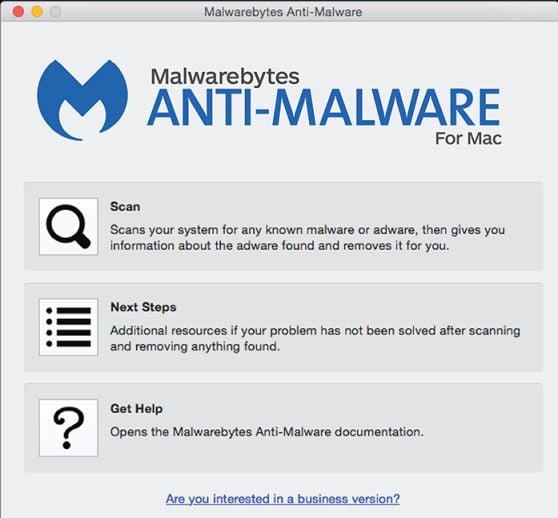
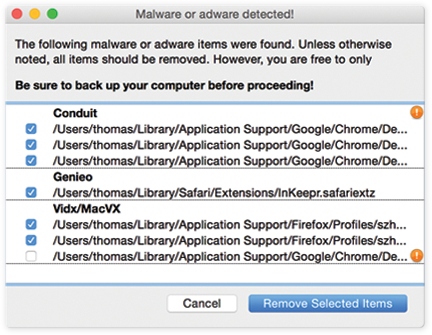
- When the scan has completed, click on the “Remove Selected Items” to remove all the malware that Malwarebytes has detected.

Join the discussion
15 commentsShare your experience or ask a question about this article.
Your progress
Did these steps help?
Let us know how the guide worked for you.
Describe what you see and the step you reached. Keep passwords and other private information out.
Discussion
exactly the same issue with her. Would appreciate your help a lot :(
thank you!
In reply to Ann
Start with the same browser-extension and application checks in the guide, then reset the affected browser if the ads persist. If you still see them, note which browser is affected and the exact extension or profile names you find; those details help distinguish a browser add-on from a system-wide configuration change.
Finally!
I have been searching for a solution for so long!
Problem seems to be fixed now! Thank you so much!
HI Stelian,
From last one week i gone through so many blogs, nothing helps me.
But your’s is too good. Now i am free from that bloody ads. They shown real hell to me.
Thankyou :)
The trick that worked for me was I use chrome as my browser, I had to go in my applications into safaris options and get rid of it there too it’s a third-party extension I believe.
Thank you for the assist, this really helped!!!! You are a lifesaver :,))))
Perfecto… Funciona, me elimino un virus (malsoftware) que colocaba publicidad en todo mi navegador safari y no era una extension, no pude solucionarlo hasta que instale esa aplicación AdwareMedic … ?
simply download the malware finder thing at the bottom. worked for me
OMG THIS IS SO GREAT i tried so many different options and none worked but this
It worked. Thanks for posting this. Now if I could only figure out where it came from……
YES! I’ve been searching the web for hours trying to get rid of all there pop-ups and hijacked toolbars and Step 3 was the only one I found that worked! Cheers man, highly recommened this to anyone!
Thank you, so much!
Thank you, thank you, thank you!! Just like the guy below, nothing else worked for me.
Thanks man,seriously your site is the only one I find and it’s work. I finally don’t have the stupid pop-up about offers4U so thanks you very much!
In reply to Antoine Roy
Me either anymore, thanks to this!!