Microsoft Anti-Xploit Guard Email Scam: Fake Security Update Warning Explained
Written by: Thomas Orsolya
Published on:
It looks like a routine Microsoft notice: a “critical security update,” a specific KB number, a file size, and a simple “Update now” button.
That’s exactly why it works.
The “Microsoft Anti-Xploit Guard Released A Security Update” email is a phishing and malware delivery scam. It tries to rush you into downloading and running an executable such as “Microsoft_Anti-Xploit_Update.exe” by using urgent language and the appearance of a legitimate Windows patch. Real Microsoft security updates are delivered through Windows Update or approved enterprise tools, not unsolicited emails with .exe downloads.
Scam Overview
What this scam claims to be
The message presents itself as a security alert from Microsoft, telling you that a “critical security update” is required to protect your device.
Most versions follow the same pattern:
A subject line like “Microsoft security update”
An urgent heading like “Important security update required”
A claim that a tool called “Microsoft Anti-Xploit Guard” released a patch
A patch identifier meant to look real, commonly “Security Update KB5021234”
A big call-to-action button such as “Update now”
A “manual download” option pointing to an executable file, typically “Microsoft_Anti-Xploit_Update.exe”
A deadline threat, often: “This update will install automatically in 3 days if not installed manually”
The email is crafted to feel like a standard maintenance message. It is short, formatted like a product notice, and tries to sound calm while still pressuring you to act.
That combination is deliberate.
Scammers know that pure panic triggers suspicion. So instead, they aim for “responsible urgency,” the feeling that you are simply doing a sensible security task that should not be delayed.
Why “Anti-Xploit Guard” is a big red flag
One of the most important tells is the name itself.
Windows has legitimate exploit-mitigation and intrusion-prevention features. For example, Windows Defender Exploit Guard was introduced as a set of protections to reduce attack surface and harden systems against common malware and exploit techniques.
But “Microsoft Anti-Xploit Guard” is not a standard Microsoft product name that regular consumers install via emailed patches. The phrasing is “close enough” to sound plausible, especially if you have heard terms like “Exploit Guard,” “Exploit Protection,” or “Anti-exploit mitigation.”
This is a classic impersonation technique: use naming that resembles real security components, add a patch number, and rely on the recipient to fill in the rest.
The scam uses a real-looking KB number to borrow credibility
The email often references “KB5021234” to sound like a real Microsoft update. The problem is that it is being used as theater.
KB5021234 is associated with a legitimate Windows update from December 2022 for Windows 11 (OS Build 22000.1335).
That matters for two reasons:
It makes the email feel authentic. People have seen “KB” numbers in update history before.
It makes quick Googling confusing. A user might search “KB5021234” and find real Microsoft pages, then assume the email must be legitimate.
Scammers love details that are “technically true in isolation” but misused in context.
The file size and “5 minutes” promise are part of the illusion
Many versions include specific numbers, such as:
“Size: 67.5 MB”
“Time required: About 5 minutes”
These details are not included to help you. They are included to reduce doubt.
If something has a file size and an install time, it feels like a normal update process. But when you compare this to real update distribution, the story falls apart.
For example, the Microsoft Update Catalog listing for KB5021234 shows sizes far larger than 67.5 MB for common packages (hundreds of MB).
Even if file sizes vary by device and update type, the bigger point is this: legitimate Windows updates are delivered through Windows Update and trusted Microsoft channels, not via a random emailed executable.
What the email is actually trying to do
The goal is to get you to click one of two paths:
The “Update now” link
The “manual download” link
Both routes lead to a malicious download. The campaign commonly pushes an executable named “Microsoft_Anti-Xploit_Update.exe,” which is designed to look like an official patch installer.
Once executed, the malware can be used for a range of outcomes, depending on what the attacker deploys:
Remote access trojans (attackers can control the device remotely)
Information stealers (passwords, browser data, financial details)
Cryptocurrency miners (using your system resources silently)
Ransomware (locking files and demanding payment)
Other payloads that enable persistence and further compromise
Not every victim will see the same “symptoms,” which makes this scam even more dangerous. Some infections are noisy. Many are quiet.
What a typical scam email looks like
A typical example includes language like this (formatting varies):
Subject: Microsoft security update
Important security update required
Update your security software to protect your device
Microsoft Anti-Xploit Guard has released a critical security update. Install this update to keep your device protected from the latest threats.
This update will install automatically in 3 days if not installed manually.
This exact structure has been documented in reporting on the campaign and matches what many victims describe receiving.
Why this scam works so well
This campaign is effective because it targets three very human instincts:
1) “Security chores are normal”
People are trained to accept updates as routine. Pop-ups, restarts, patches, and “critical fixes” are part of modern life. The scam rides that habit.
2) Fear of being the one who ignored a warning
The message frames inaction as irresponsible: “If you do not install it, you will be exposed.” That fear pushes clicking.
3) The illusion of precision
A patch number, a file size, and a timer feel specific. Specific feels trustworthy. But in scams, specific is often just decoration.
The clearest warning signs
If you want the fast checklist, here it is. This email is a scam if you see any of the following:
You received a “Microsoft security update” through email rather than Windows Update
The email includes an executable download (.exe) or a link to download one
The message uses urgency tactics: deadlines, countdowns, “automatic install in 3 days”
The sender address does not match an official Microsoft domain
Hovering over links shows a non-Microsoft destination
The product name is odd or unfamiliar (“Anti-Xploit Guard”)
The email asks you to “manually install” a patch from a file attachment or download
Microsoft’s own phishing guidance is clear: if an email is suspicious or unexpected, do not open links or attachments, and verify the destination by hovering instead of clicking. (Microsoft Support)
That advice applies perfectly here.
How The Scam Works
This campaign is not complicated technically. It is effective because it is psychologically smooth.
Below is how it typically unfolds, step by step, including the small details that make it convincing.
Step 1: The scammers pick a theme that people already trust
Security updates are the perfect disguise because they meet three conditions:
People already expect them
People fear missing them
People do not fully understand how they work
Most users cannot describe the difference between Windows Update, the Microsoft Update Catalog, and enterprise patch management. Attackers do not need you to understand it. They only need you to feel that “this seems normal.”
The “Anti-Xploit Guard” wording is especially clever because it resembles legitimate exploit protection concepts and sounds like something advanced that you would not question.
Step 2: They craft an email that looks like a routine product notice
A lot of phishing emails fail because they are too dramatic. This one often reads like a status notification:
Short paragraphs
Clean bullet-like lines
A single clear instruction: install the update
A backup option: manual download
A small threat: it will auto-install soon
That structure reduces resistance.
Instead of making you feel like you are being scammed, it makes you feel like you are simply completing a necessary task.
Step 3: They inject urgency without sounding hysterical
The deadline line is one of the most manipulative parts:
“This update will install automatically in 3 days if not installed manually.”
That sentence pushes you into action while pretending to offer you control.
It implies:
The update is real
The update is coming anyway
Manual install is “faster” or “safer”
You should do it now to avoid disruption
But legitimate Windows updates are not delivered this way. The “3 days” pressure is purely psychological.
Step 4: They offer two buttons that lead to the same bad outcome
The email commonly includes:
A primary button: “Update now”
A secondary link: “Download update file manually”
This is not generosity. It is conversion optimization.
Different users respond to different triggers:
Some trust buttons and click fast.
Others distrust buttons but trust a “manual download” that feels more technical and controlled.
Either way, the goal is the same: get you to download the executable.
Step 5: The malicious download is dressed up like a real installer
The file name “Microsoft_Anti-Xploit_Update.exe” is intentionally boring.
A lot of malware gets caught because the file name looks weird. This one is built to look like it belongs on a corporate network share.
It may arrive in different wrappers:
Direct .exe download
A ZIP archive containing the .exe
A disguised installer with a generic icon
A web page that looks like a download portal
The consistent point is that it wants you to run an executable that did not come from an official update channel.
Step 6: The moment you run it, the scam moves from “phishing” to “device compromise”
This is the turning point.
Clicking the email link is risky, but running the file is where the real damage starts. At that stage, the attacker’s code is on your machine, and what happens next depends on the payload.
Reporting on the campaign notes that the downloaded file may deliver a range of malware types, including:
Remote access trojans
Information stealers
Cryptocurrency miners
Ransomware
That range is important. It means two victims can have two completely different experiences, even from the same email template.
Step 7: Common behaviors after infection
Here is what malware commonly does after execution. You may not see all of these, but understanding them helps you respond correctly.
Establish persistence
The malware tries to survive reboots so it can keep running.
This can involve adding itself to startup locations, scheduled tasks, or other auto-run mechanisms. The goal is simple: stay on the system long enough to extract value.
Steal credentials and browser data
Information stealers often target:
Saved passwords in browsers
Autofill data
Session cookies (which can allow account access even without a password)
Crypto wallet browser extensions
Email logins and cloud accounts
This is why changing passwords only on the infected machine can be risky. You want a clean device for that step.
Open a remote control channel
A remote access trojan gives an attacker a live foothold.
That can lead to:
installing additional malware
searching for sensitive files
capturing screenshots or keystrokes
moving laterally to other devices on the network
Trigger ransomware or extortion
Some infections end with encryption or blackmail. Others quietly steal data first, then threaten exposure.
Even if you do not see ransom notes, you should treat any execution as serious.
Step 8: Why the scam wants you to act fast
Speed reduces verification.
If you pause for 2 minutes, you might:
Check Windows Update and see nothing urgent
Hover over the link and notice a strange domain
Ask your IT team
Remember that real updates do not arrive as emailed executables
That is exactly what scammers do not want.
This is why Microsoft’s guidance focuses on slowing down: do not click unexpected links or attachments, verify destinations, and use built-in reporting features instead.
Step 9: The credibility trick most people miss
The campaign’s smartest move is using something real (a KB number) in a fake context.
KB5021234 is a legitimate Microsoft update identifier from December 2022.
So when a victim searches the KB number, they may find official pages and think:
“I found it. It exists. So this email must be real.”
But legitimate updates do not require you to download “Microsoft_Anti-Xploit_Update.exe” from an email. The KB number is being used like a costume.
Step 10: How to verify safely, without guessing
If you receive this email and want to double-check your system, do it like this:
Open Settings
Go to Windows Update
Click Check for updates
Install updates only from that interface (or approved enterprise tools)
Microsoft’s Windows Update guidance shows how users should check for updates manually through Settings, not through emailed download links.
If you want to confirm a specific KB, you can also verify through official Microsoft support pages or the Microsoft Update Catalog, but only by navigating there directly, not through an email link.
How to Remove the “Microsoft Anti-Xploit Guard Security Update” Malware
If you clicked the link or ran the downloaded file, treat this as a real device compromise, not just a “spam email.” The goal is to stop any active malware, remove persistence, and secure your accounts without accidentally making things worse.
The steps below walk you through a clean, practical removal process, including what to do first, how to scan properly, what to reset afterward, and when a full reinstall is the safest option.
First, we’ll manually check your computer for unknown or malicious programs. Adware and browser hijackers often have a working uninstall entry — removing them this way takes care of the easy part before we run the scanners.
Windows 11Windows 10Windows 8Windows 7
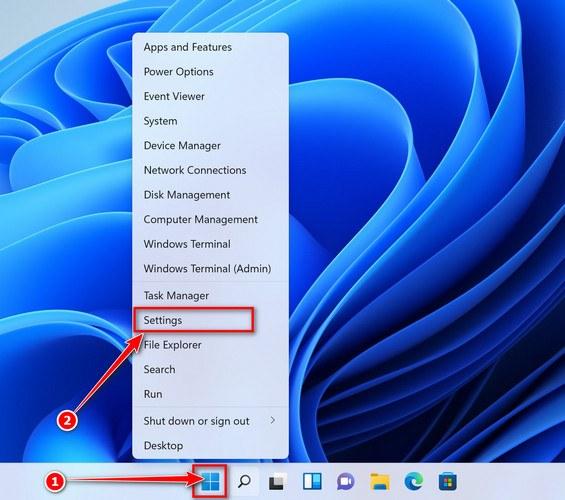
Open the Settings app
Press Windows + I on your keyboard to open Settings. Alternatively, right-click the Start button and select “Settings” from the menu.
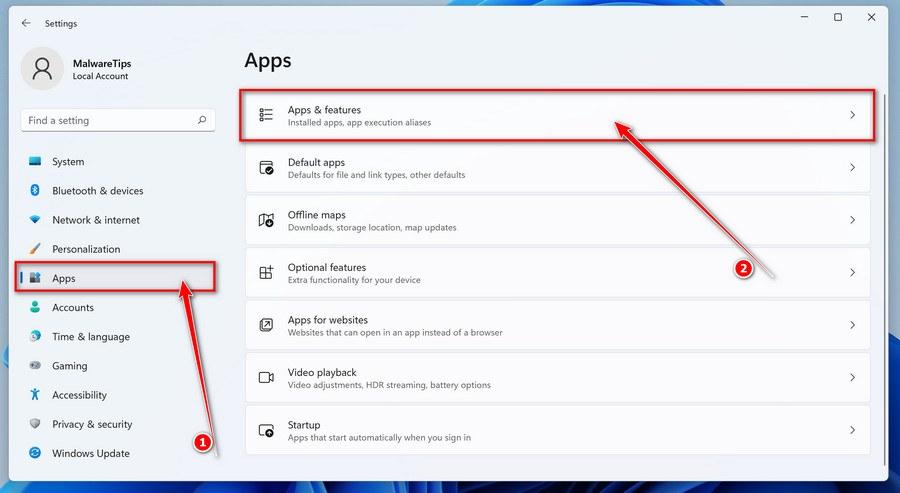
Go to “Apps & Features”
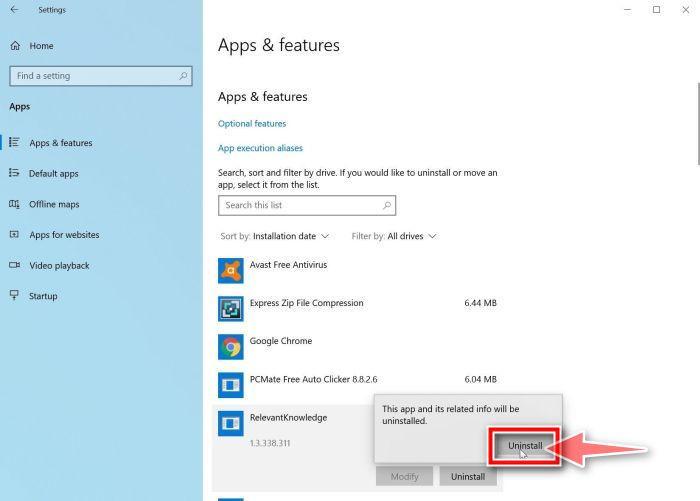
In the Settings window, click “Apps” in the sidebar, then select “Apps & Features“.
Find and uninstall the malicious program
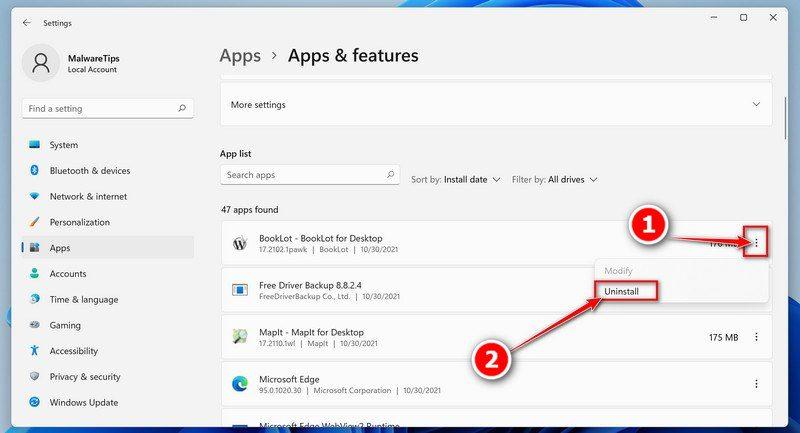
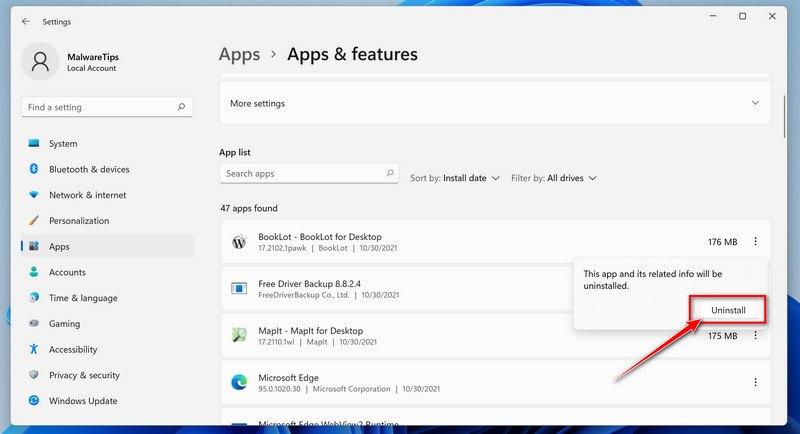
Scroll through the list of installed apps and look for anything suspicious — a program you don’t remember installing, or one with a strange or generic name. Quick tip: click “Sort by” and choose “Install date“. Malware is usually one of the most recently installed programs, so it will appear near the top.
When you find the malicious program, click the three dots next to it and select “Uninstall“.
Didn’t find any suspicious programs? That’s fine — not all infections install visible apps. Just continue with the next step in this guide.
Complete the uninstall
Confirm by clicking Uninstall in the message box, then follow the remaining prompts. Read each prompt carefully — some malicious programs use confusing wording or pre-ticked boxes hoping you’ll click through without looking.
Open the Settings app
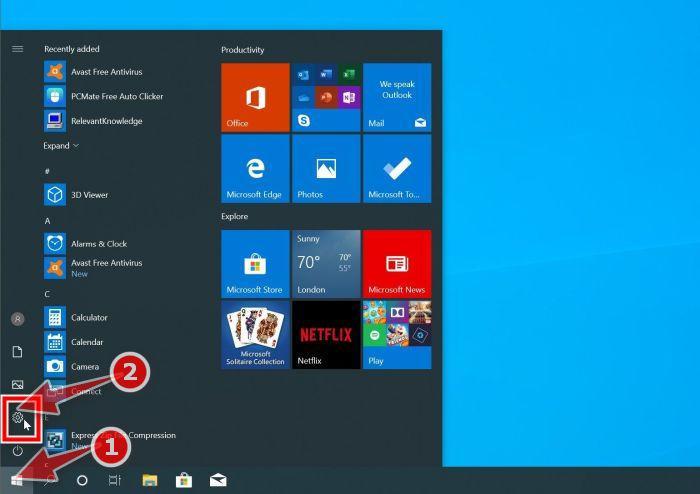
Press Windows + I on your keyboard to open Settings. Alternatively, click the Start button on the taskbar and select “Settings” (the gear icon).
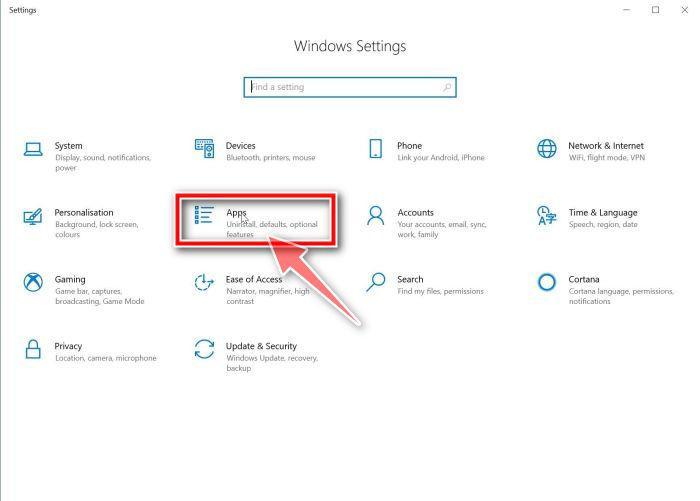
Click on “Apps”
In the “Windows Settings” window, click “Apps“. The “Apps & Features” section should open by default — if it doesn’t, select it from the list on the left.
Find and uninstall the malicious program
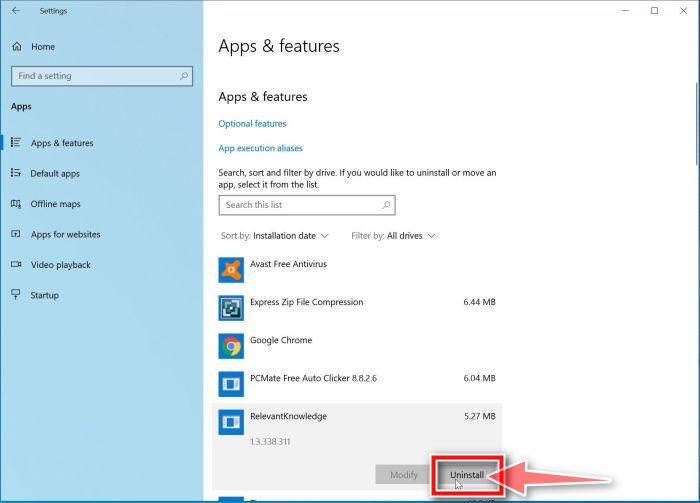
Scroll through the list of installed apps and look for anything suspicious — a program you don’t remember installing, or one with a strange or generic name. Quick tip: click “Sort by” and choose “Install date“. Malware is usually one of the most recently installed programs, so it will appear near the top.
When you find the malicious program, click on it and select “Uninstall“.
Didn’t find any suspicious programs? That’s fine — not all infections install visible apps. Just continue with the next step in this guide.
Complete the uninstall
Confirm by clicking Uninstall in the message box, then follow the remaining prompts. Read each prompt carefully — some malicious programs use confusing wording or pre-ticked boxes hoping you’ll click through without looking.
Open “Programs and Features”
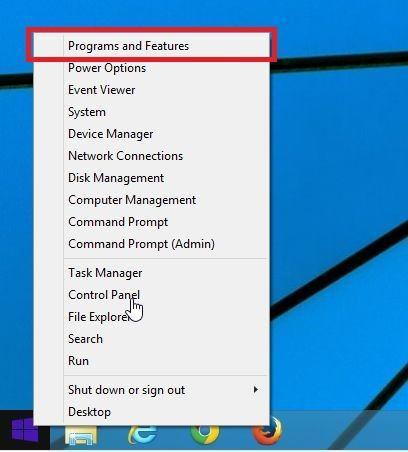
Right-click the Start button in the taskbar, then select “Programs and Features“. This takes you straight to the list of installed programs.
Find and uninstall the malicious program
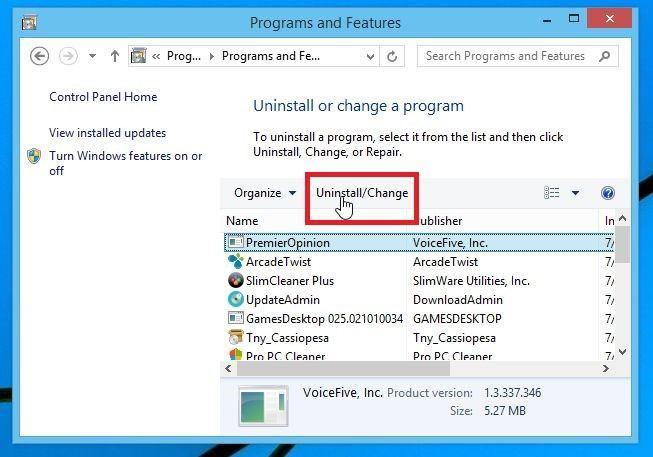
Scroll through the list of installed programs and look for anything suspicious — a program you don’t remember installing, or one with a strange or generic name. Click to highlight it, then click the “Uninstall” button.
Didn’t find any suspicious programs? That’s fine — not all infections install visible apps. Just continue with the next step in this guide.
Complete the uninstall
Confirm by clicking Yes in the message box, then follow the remaining prompts. Read each prompt carefully — some malicious programs use confusing wording or pre-ticked boxes hoping you’ll click through without looking.
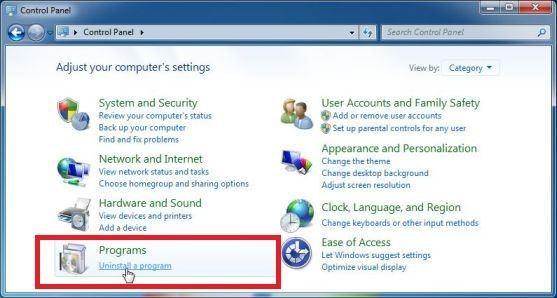
Open the Control Panel
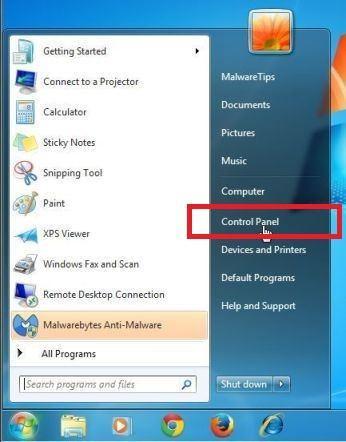
Click the “Start” button, then click “Control Panel“.
Click on “Uninstall a Program”
In the Control Panel, click “Uninstall a Program” under the Programs category.
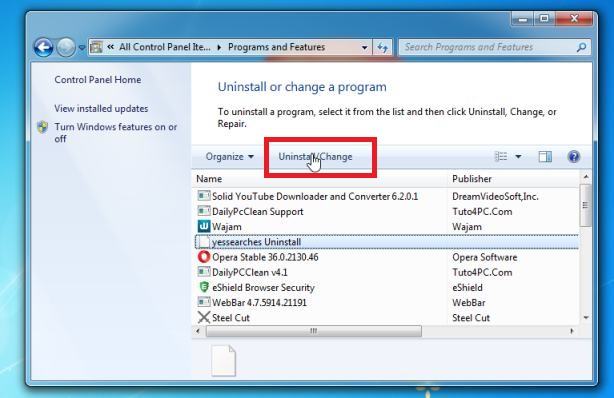
Find and uninstall the malicious program
Scroll through the list of installed programs and look for anything suspicious — a program you don’t remember installing, or one with a strange or generic name. Click to highlight it, then click the “Uninstall” button.
Didn’t find any suspicious programs? That’s fine — not all infections install visible apps. Just continue with the next step in this guide.
Complete the uninstall
Confirm by clicking Yes in the message box, then follow the remaining prompts. Read each prompt carefully — some malicious programs use confusing wording or pre-ticked boxes hoping you’ll click through without looking.
Is a stubborn program refusing to uninstall? Use Revo Uninstaller to force-remove it completely, including leftover files and registry entries.
With the malicious programs removed, you’re ready for the next step in this guide.
STEP 2: Reset browsers back to default settings
In this step, we will remove spam notifications, malicious extensions, and change to default any settings that might have been changed by malware. Please note that this method will remove all extensions, toolbars, and other customizations but will leave your bookmarks and favorites intact. For each browser that you have installed on your computer, please click on the browsers tab below and follow the displayed steps to reset that browser.
ChromeFirefoxMicrosoft EdgeInternet Explorer
Reset Chrome for Windows to default settings
We will now reset your Chrome browser settings to their original defaults. This will reset your startup page, new tab page, search engine, and pinned tabs. It will also disable all extensions and clear temporary data like cookies. Your favorites, history, and saved passwords will not be cleared.
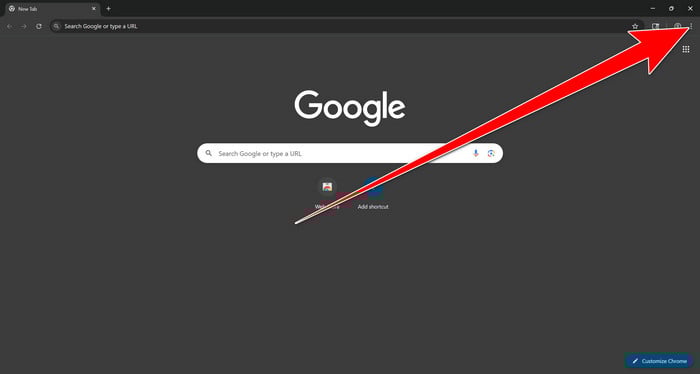
Open the Chrome menu
Open Google Chrome and click the three-dot (⋮) icon in the top-right corner.
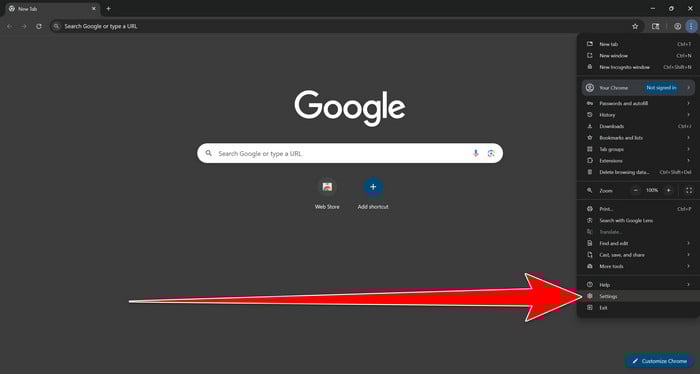
Open Chrome Settings
Select Settings from the Chrome menu.
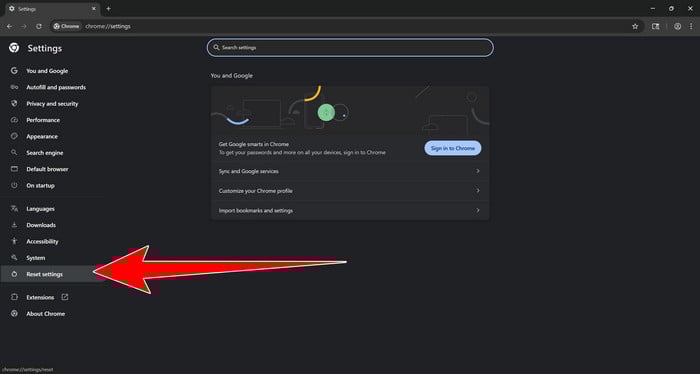
Select “Reset settings”
Look at the menu on the left side of the Settings page. Scroll down and click Reset settings.
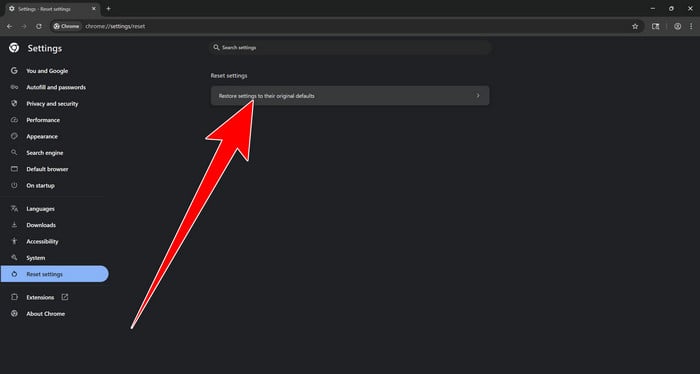
Restore Chrome’s original settings
Click Restore settings to their original defaults.
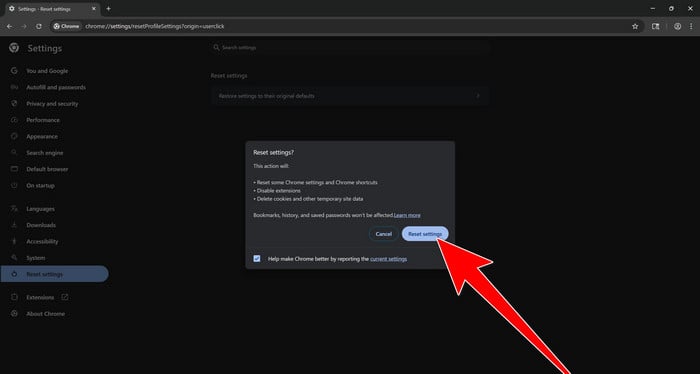
Confirm the Chrome reset
A confirmation window will appear. Click Reset settings.
This will:
Restore the default search engine, homepage, and new tab page
Reset startup pages and pinned tabs
Disable installed extensions
Clear temporary cookies and website data
Don’t worry: Chrome will not delete your bookmarks, browsing history, or saved passwords.
Restart Chrome and perform a test search. If your searches now open normally in Google, you can stop here.
If searches are still redirected through shady domains complete the additional step below.
Remove persistent search hijacker data
Only complete this step if the redirect continues after resetting Chrome.
Some browser hijackers hide inside Chrome’s local search-engine database. A standard Chrome reset may not remove this database, which is why searches can continue to pass through shady sites.
The following procedure creates a backup of the affected database and allows Chrome to build a new, clean version. This is safer and less disruptive than deleting the entire Chrome profile.
First, prevent Chrome Sync from restoring the hijacked settings:
Open a new Chrome tab.
Copy the following address, paste it into Chrome’s address bar, and press Enter:
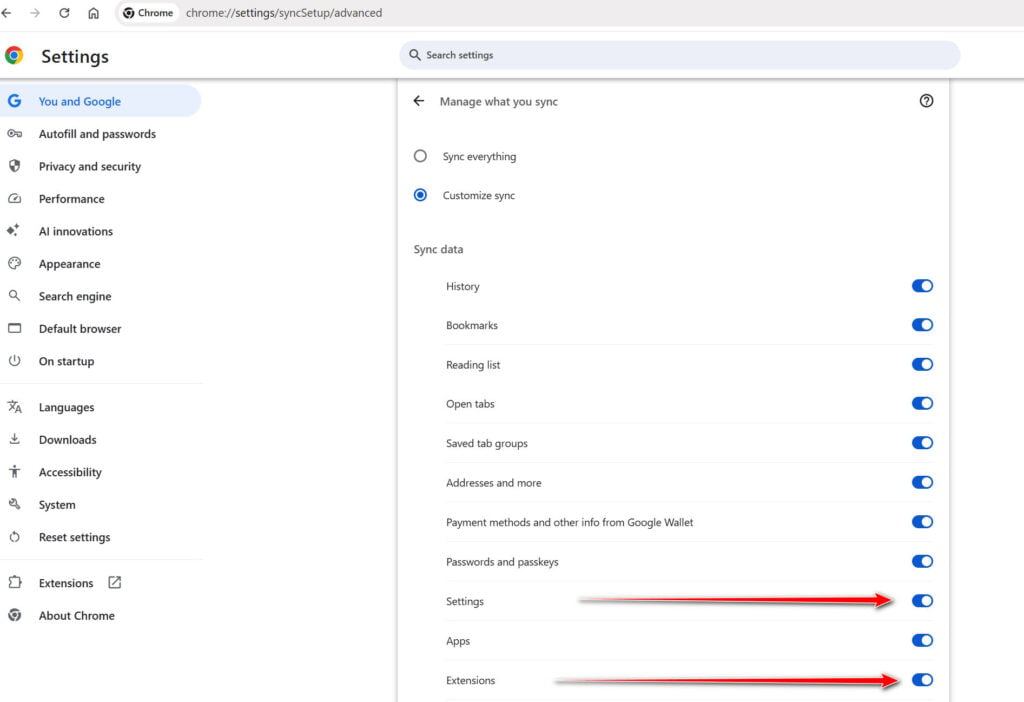
chrome://settings/syncSetup/advanced
Under Manage what you sync, select Customize sync.
Turn off Settings and Extensions.
You can leave Bookmarks and Passwords enabled so your important data remains synchronized.
Note: Some newer Chrome versions may automatically redirect this address to the Google Account settings page. If that happens, locate the list of synchronized Chrome data and turn off Settings and Extensions there.
Now save anything you are working on and close every Chrome window.
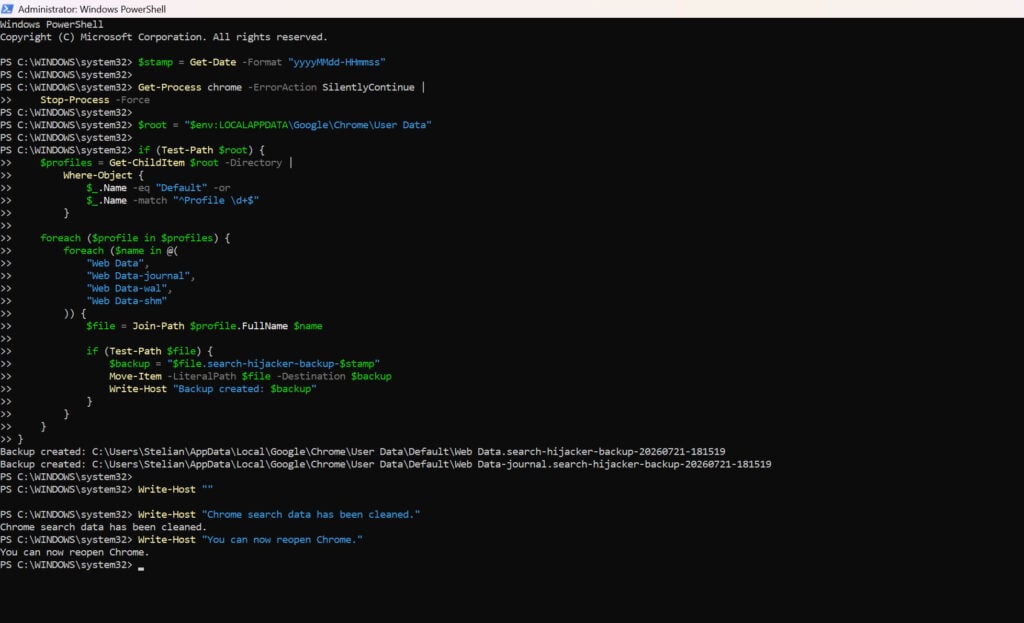
Run the cleanup command:
Press the Windows key on your keyboard.
Type PowerShell.
Open Windows PowerShell. Administrator access is not required.
Copy the entire command shown below.
Right-click inside the PowerShell window to paste the command, then press Enter.
If Windows warns you about pasting multiple lines, select the option to continue.
Write-Host "" Write-Host "Chrome search data has been cleaned." Write-Host "You can now reopen Chrome."
Wait until PowerShell displays the following message:
Chrome search data has been cleaned.
You can now reopen Chrome.
Close PowerShell and reopen Google Chrome. Chrome will automatically create a clean search database for every local profile.
Next, copy the following address, paste it into Chrome’s address bar, and press Enter:
chrome://settings/searchEngines
Make sure Google is selected as the default search engine. Test several searches from the address bar and confirm that they no longer pass through shady search engines.
Your important Chrome data is protected: the PowerShell cleanup does not remove bookmarks, saved passwords, browsing history, cookies, or installed extensions. However, it may reset locally stored Autofill addresses and form suggestions.
The original search database is not deleted. PowerShell renames it and adds search-hijacker-backup to its filename so it can be recovered if necessary.
Keep Settings and Extensions synchronization disabled while testing Chrome. Do not enable every extension at once. Enable only the extensions you recognize, one at a time, and test Chrome after each one.
If the redirect returns after enabling a particular extension, remove that extension immediately.
Reset Firefox for Windows to default settings
We will now reset your Firefox browser settings to their default. The reset feature fixes many issues by restoring Firefox to its factory default state while saving your essential information like bookmarks, passwords, web form auto-fill information, browsing history, and open tabs.
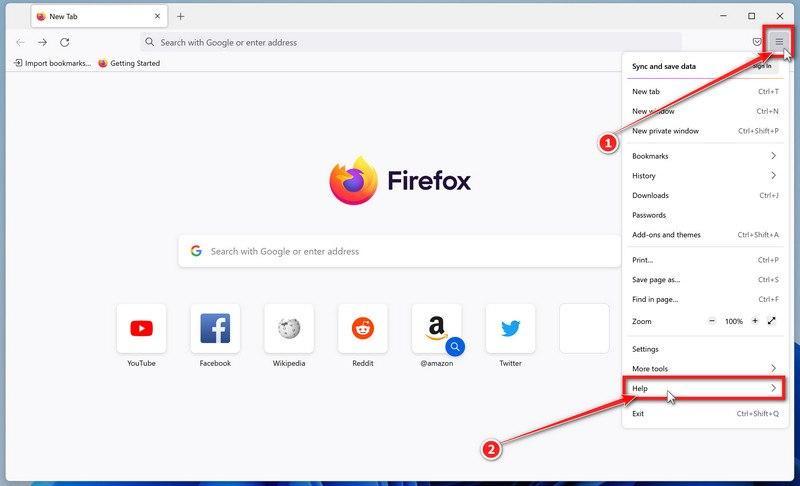
Open the Firefox menu and click “Help”
Click the three horizontal lines in the top-right corner of Firefox to open the main menu, then select “Help“.
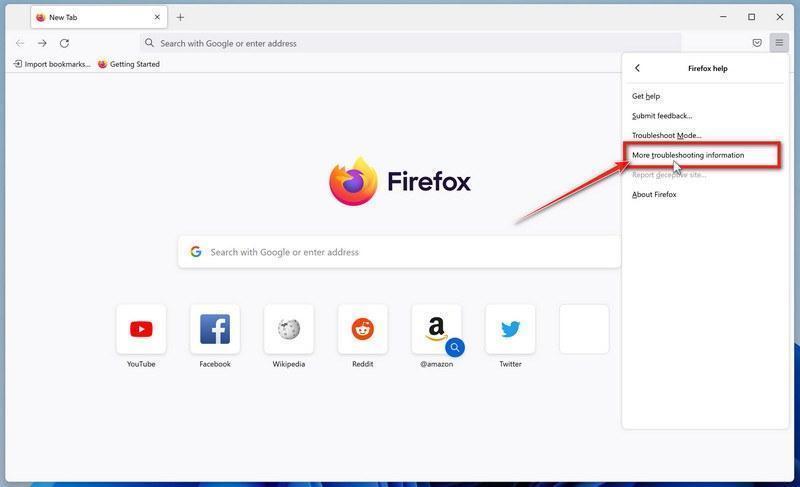
Click “More troubleshooting information”
In the Help menu, click “More troubleshooting information“.
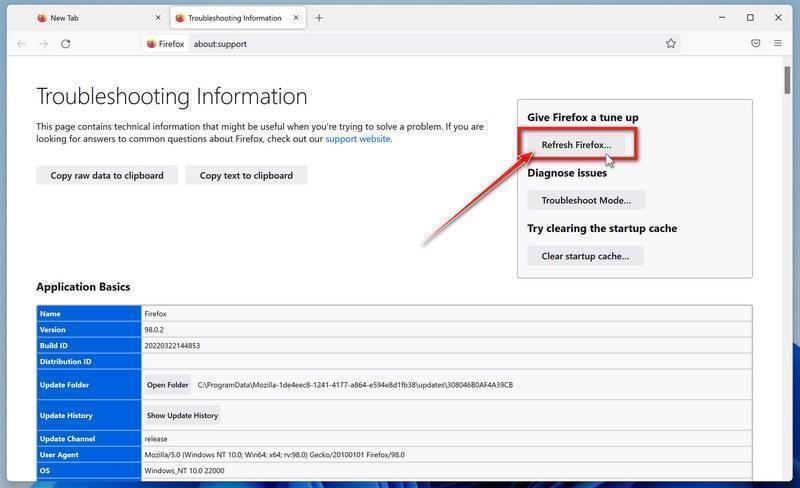
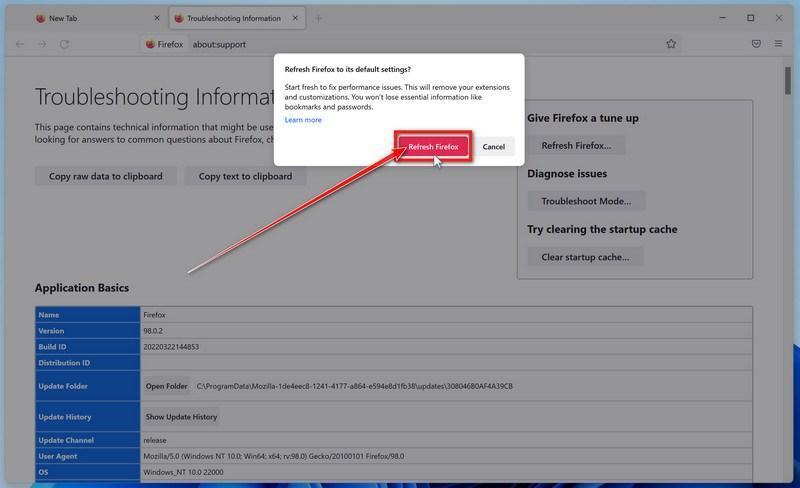
Click “Refresh Firefox”
On the “Troubleshooting Information” page, click the “Refresh Firefox” button in the top-right area of the page.
Confirm the refresh
In the confirmation window, click “Refresh Firefox” again. This removes extensions, themes, and customized settings — the usual hiding places for browser hijackers — while keeping your bookmarks, history, and saved passwords safe.
Click “Finish”
Firefox will close, reset itself to default settings, and reopen with a window listing the information that was restored. Click “Finish” — your Firefox is now clean.
About the “Old Firefox Data” folder: Firefox saves a copy of your old profile on your desktop. If something you need is missing after the reset, you can recover it from this folder. Otherwise, delete the folder — it contains sensitive data like passwords and cookies, and may also still hold the malicious files you just removed.
Reset Microsoft Edge to default settings
We will now reset your Microsoft Edge browser settings to their default. This will reset your startup page, new tab page, search engine, and pinned tabs. It will also disable all extensions and clear temporary data like cookies. Your favorites, history, and saved passwords will not be cleared.
Updated for Microsoft Edge on Windows 10 and Windows 11 — July 2026.
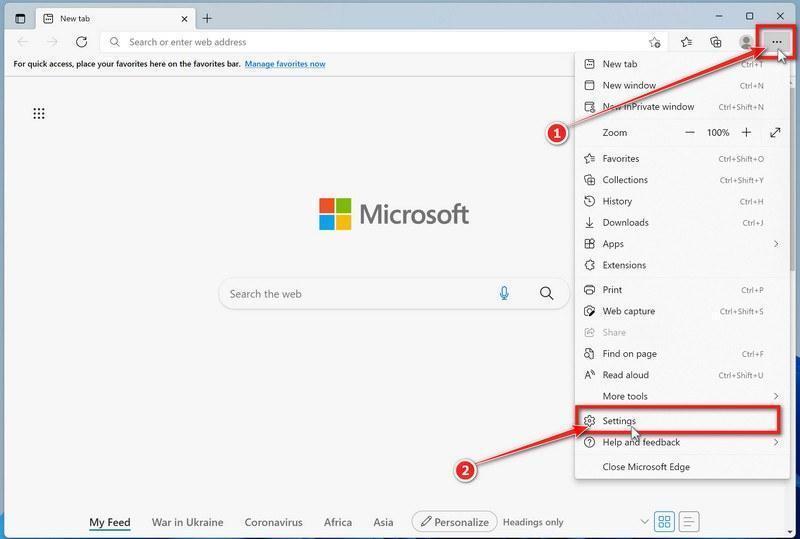
Open the Edge menu and click “Settings”
Open Microsoft Edge. In the top-right corner, click the three-dot (…) icon, then click Settings.
Prevent the unwanted settings from returning through Edge Sync
If you are signed in to Microsoft Edge, a bad setting or extension may be stored in your Microsoft account and return after the reset.
Copy the following address, paste it into the Edge address bar, and press Enter:
edge://settings/profiles/sync
On the Sync page, turn off these two options:
Settings
Extensions
You can leave Favorites and Passwords turned on.
If Edge says that sync is already off, simply continue to the next step.
Important: Edge Sync settings are separate for each profile. If you use more than one Edge profile, switch to each affected profile and repeat this step.
You do not need to sign out of your Microsoft account or delete the Edge profile.
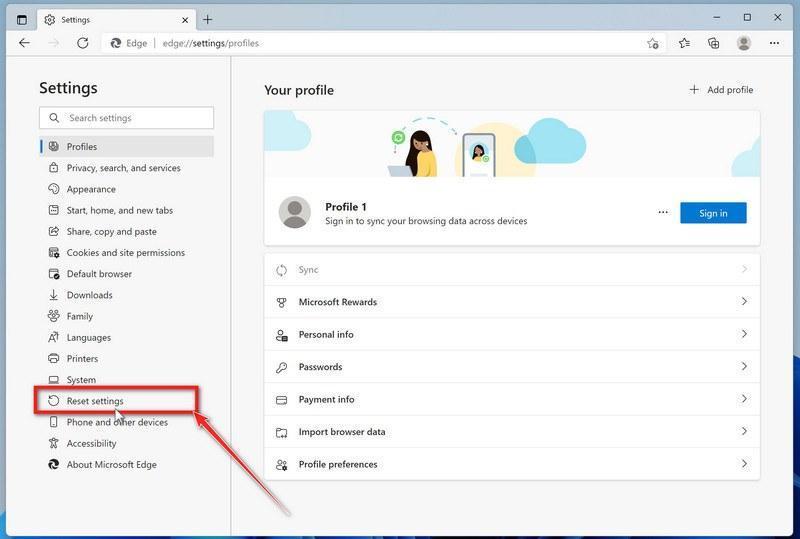
Open “Reset settings”
In the left sidebar, click Reset settings.
You can also open the reset page directly. Copy the following address, paste it into the Edge address bar, and press Enter:
edge://settings/reset
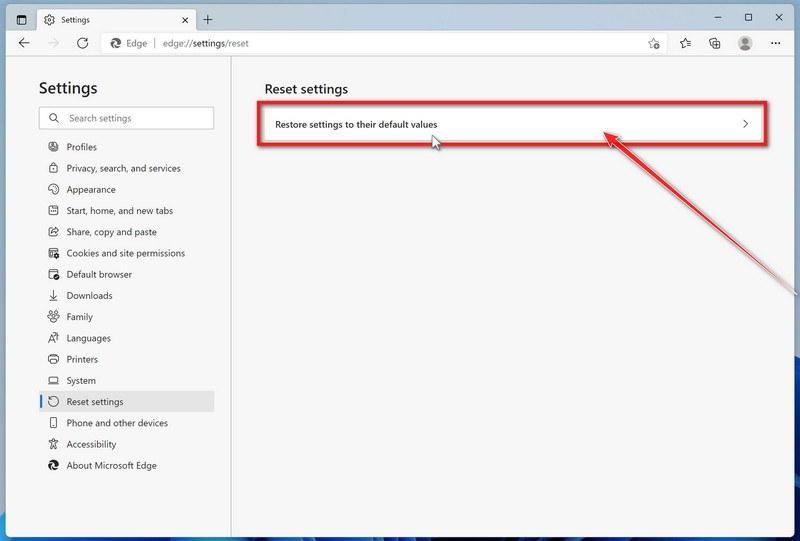
Click “Restore settings to their default values”
Click Restore settings to their default values.
Confirm the reset
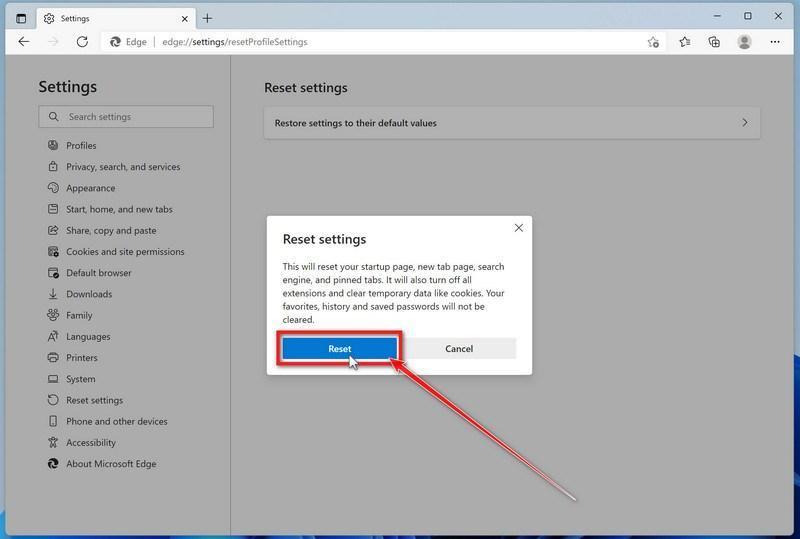
In the confirmation dialog, click Reset.
This resets the startup page, new tab page, search engine, and pinned tabs. It also disables all extensions and clears temporary site data, such as cookies.
Don’t worry: your favorites, browsing history, and saved passwords will not be deleted.
Check your extensions before turning them back on
Copy the following address, paste it into the Edge address bar, and press Enter:
edge://extensions
Remove any extension you do not recognize or no longer use. Pay particular attention to extensions related to search, coupons, shopping, PDF conversion, browser protection, new tabs, or video downloading.
Do not turn all extensions back on at the same time. Enable only the extensions you recognize and trust.
Select a trusted search engine
Copy the following address, paste it into the Edge address bar, and press Enter:
edge://settings/searchEngines
Select Bing, Google, DuckDuckGo, or another search provider you trust and make it the default.
Remove any unknown search engines, especially providers with strange names or addresses that you did not add yourself.
Restart Edge and perform a search from the address bar. If searches are no longer redirected, you can stop here.
If the redirect remains, clean the corrupted search data without deleting the Edge profile
Use this additional step only if Edge continues to redirect searches after the normal reset.
This command cleans the search-engine database from every local Edge profile while keeping your favorites, saved passwords, browsing history, cookies, and profiles.
Before continuing: save anything you are working on because the command will close Microsoft Edge.
Open the Windows Start menu.
Type PowerShell.
Open Windows PowerShell. Administrator access is not required.
Copy the entire command below.
Paste it into PowerShell and press Enter.
$stamp = Get-Date -Format "yyyyMMdd-HHmmss"
$root = Join-Path $env:LOCALAPPDATA "Microsoft\Edge\User Data"

Get-Process -Name msedge -ErrorAction SilentlyContinue |
    Stop-Process -Force -ErrorAction SilentlyContinue

Start-Sleep -Seconds 2

if (-not (Test-Path -LiteralPath $root)) {
    Write-Host "The Microsoft Edge profile folder was not found:"
    Write-Host $root
    return
}

$profiles = Get-ChildItem -LiteralPath $root -Directory |
    Where-Object {
        $_.Name -eq "Default" -or
        $_.Name -match "^Profile \d+$"
    }

$movedFiles = 0

foreach ($profile in $profiles) {
    foreach ($name in @(
        "Web Data",
        "Web Data-journal",
        "Web Data-wal",
        "Web Data-shm"
    )) {
        $file = Join-Path $profile.FullName $name

        if (Test-Path -LiteralPath $file) {
            $backup = "$file.search-reset-backup-$stamp"

            try {
                Move-Item -LiteralPath $file -Destination $backup -ErrorAction Stop
                Write-Host "Cleaned: $($profile.Name)\$name"
                $movedFiles++
            }
            catch {
                Write-Warning "Could not clean: $file"
            }
        }
    }
}

Write-Host ""

if ($movedFiles -gt 0) {
    Write-Host "Microsoft Edge search data has been cleaned." -ForegroundColor Green
    Write-Host "You can now reopen Microsoft Edge."
}
else {
    Write-Host "No Edge search database files were found." -ForegroundColor Yellow
}
The command does not permanently delete the original files. It renames them as backup files, and Edge creates a clean search database when it starts again.
Note: this additional cleanup may also reset saved form-fill suggestions, saved addresses, and manually added search engines. It does not delete favorites, passwords, or browsing history.
Reopen Edge and test the browser
Open Microsoft Edge again, visit edge://settings/searchEngines, and select your preferred search engine.
Perform several searches from the address bar to confirm that the redirect is gone.
Keep synchronization for Settings and Extensions turned off until you are certain that the computer and extensions are clean. If you enable them again, turn them on one at a time and test Edge after each change.
If Edge still redirects your searches
Open edge://policy. If this is your personal computer and Edge displays unknown policies such as ExtensionInstallForcelist or DefaultSearchProvider, the hijacker may be installed outside the browser profile.
In that situation, continue with the next malware-removal steps and run a complete antivirus scan. If the computer belongs to a company or school, contact its IT administrator before changing any policies.
Reset Internet Explorer to default settings
We will now reset your Internet Explorer browser settings to their default. You can reset Internet Explorer settings to return them to the state they were in when Internet Explorer was first installed on your computer.
Go to “Internet Options”.
Open Internet Explorer, click on the gear icon in the upper-right part of your browser, then select “Internet Options“.
Select the “Advanced” tab, then click “Reset”
In the “Internet Options” dialog box, select the “Advanced” tab, then click on the “Reset” button.
Click on “Reset”.
In the “Reset Internet Explorer settings” section, select the “Delete personal settings” checkbox, then click on the “Reset” button.
Click on “Close”.
When Internet Explorer has completed its task, click on the “Close” button in the confirmation dialogue box. Close your browser and then you can open Internet Explorer again.
STEP 3: Use Rkill to terminate suspicious programs
Next, we’ll download and run Rkill to stop any suspicious processes running in the background. This prevents the malware from interfering with the removal tools in the following steps.
RKill is a program that was developed at BleepingComputer.com that attempts to terminate known malware processes so that your normal security software can then run and clean your computer of infections. When RKill runs it will kill malware processes and then removes incorrect executable associations and fixes policies that stop us from using certain tools.
Download Rkill.
You can download RKill to your computer from the below link. When at the download page, click on the Download Now button labeled iExplore.exe. We are downloading a renamed version of Rkill (iExplore.exe) because some malware will not allow processes to run unless they have a certain filename.
RKILL DOWNLOAD LINK (The above link will open a new page from where you can download Rkill)
Run RKill.
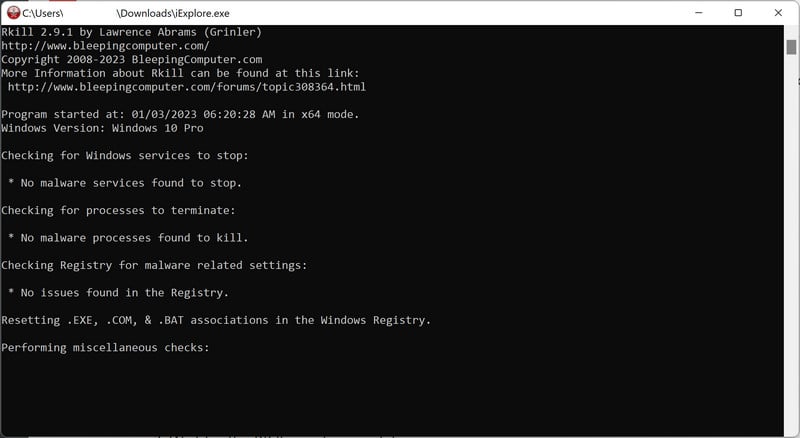
After downloading, double-click the iExplore.exe icon to kill malicious processes. In most cases, downloaded files are saved to the Downloads folder. The program may take some time to search for and end various malware programs.
When it is finished, the black window will close automatically and a log file will open. Do not restart your computer. Proceed to the next step in this guide.
STEP 4: Use Malwarebytes to remove Trojans and unwanted programs
Now we’ll install Malwarebytes and run a full scan to detect and remove infections, adware, and potentially unwanted programs from your computer.
Malwarebytes is one of the most popular and trusted anti-malware tools for Windows — and it’s completely free for removing infections. It catches threats that many antivirus programs miss, including adware, browser hijackers, and trojans. Follow the steps below to scan and clean your PC in just a few minutes.
Download Malwarebytes
Click the button below to download the latest version of Malwarebytes for Windows from the official source. The free version is all you need — it will scan your computer and remove adware, browser hijackers, and other malicious software at no cost.
(The link opens in a new page where your download will start)
Install Malwarebytes
When the download finishes, open your Downloads folder and double-click the MBSetup file. If Windows shows a User Account Control pop-up, click “Yes” to allow the installation.
Follow the On-Screen Prompts to Install Malwarebytes
The setup wizard will walk you through a few quick screens:
Choose where you’re installing the program — “Personal Computer” or “Work Computer” — then click Next.
Malwarebytes will now install on your device. This usually takes under a minute.
When installation is complete, the “Welcome to Malwarebytes” screen will open automatically.
On the final screen, click Open Malwarebytes to launch the program.
Enable “Scan for Rootkits”
Before scanning, turn on rootkit detection so Malwarebytes can find even the most hidden threats. Click the Settings gear icon on the left side of the screen.
In the settings menu, find “Scan for rootkits” and click the toggle so it turns blue.
Done? Click “Dashboard” in the left pane to return to the main screen.
Start the Scan
Click the blue Scan button. Malwarebytes will automatically update its virus database and start checking your computer for malware.
Wait for the Scan to Finish
The scan checks your entire system for browser hijackers and other malicious programs, so it can take several minutes. Feel free to do something else — just check back occasionally to see the progress.
Quarantine the Detected Threats
When the scan is done, you’ll see a list of everything Malwarebytes found — malware, adware, and potentially unwanted programs. Click the “Quarantine” button to remove all of them at once.
Malwarebytes will now remove the malicious files and registry entries and move them safely into quarantine.
Restart Your Computer
Some threats can only be fully removed after a reboot. If Malwarebytes asks you to restart, click Yes. Once you’re logged back in, your PC is clean and you can continue with the next steps in this guide.
STEP 5: Use HitmanPro to remove rootkits and other malware
Next, we’ll run a second-opinion scan with HitmanPro to catch Trojans, rootkits, and other malicious programs that may have survived the previous step.
HitmanPro is a second-opinion scanner — it’s designed to catch what your main antivirus might have missed. Instead of relying on a single detection engine, it checks the behavior of files in the locations where malware usually hides. Anything suspicious gets sent to the cloud, where it’s analyzed by two of the best antivirus engines available: Bitdefender and Kaspersky.
Good news: scanning is completely free, with no limits. You only need a license when it’s time to remove what was found — and even then, you can activate a free one-time 30-day trial to clean your PC at no cost. (A full license is $24.95 per year for 1 PC.)
Download HitmanPro
Click the button below to download HitmanPro. Remember — the scan is free, so you have nothing to lose by checking your PC.
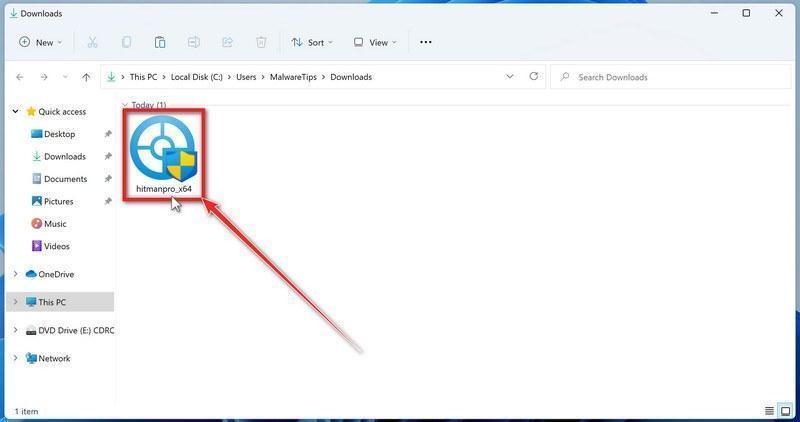
When the download finishes, open your Downloads folder and double-click the file: “hitmanpro.exe” on 32-bit Windows, or “hitmanpro_x64.exe” on 64-bit Windows.
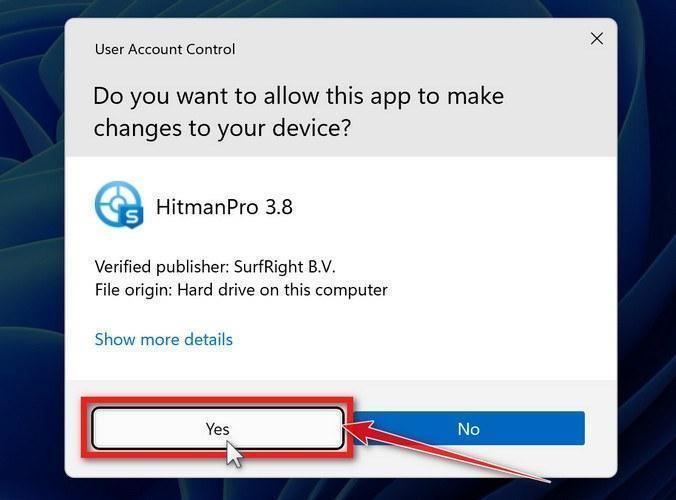
If a User Account Control pop-up asks whether HitmanPro can make changes to your device, click “Yes” to continue.
Follow the On-Screen Prompts
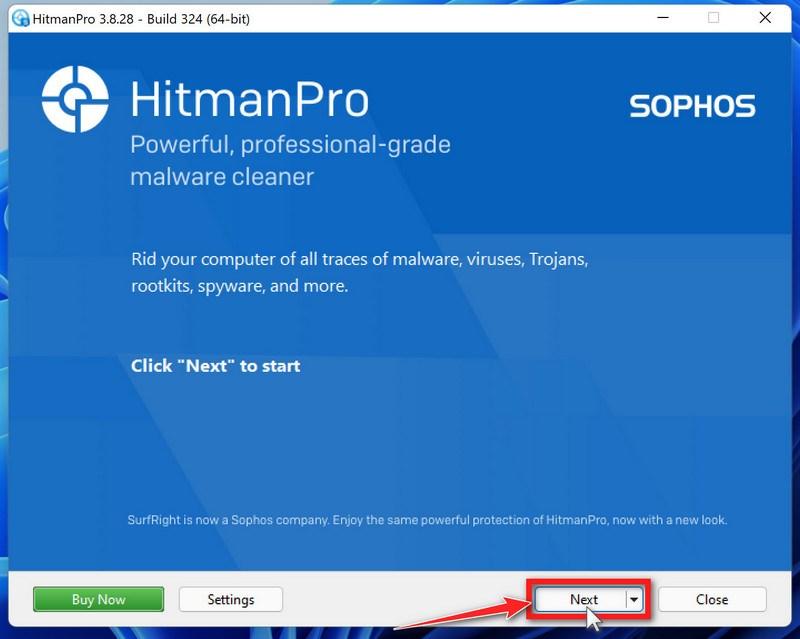
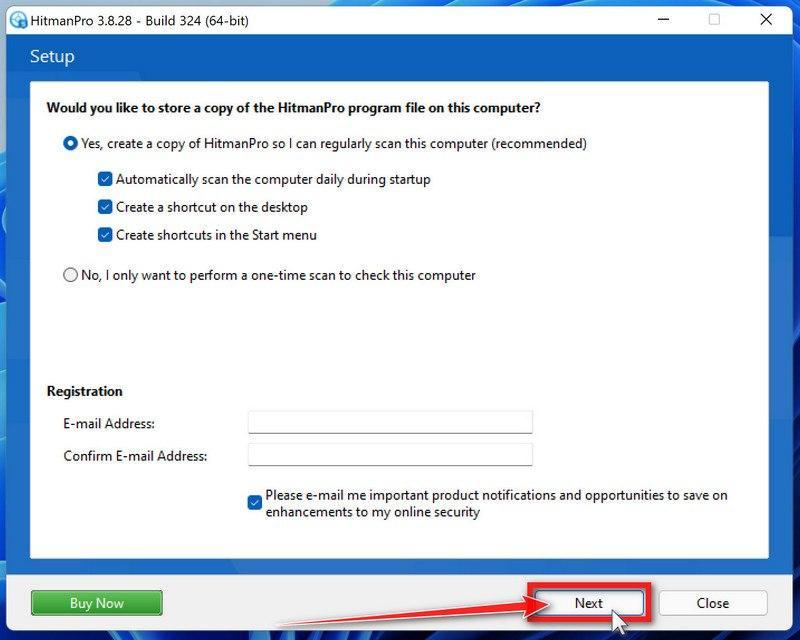
On the HitmanPro start screen, click “Next” to begin the system scan. No lengthy setup required — it goes straight to work.
Wait for the Scan to Finish
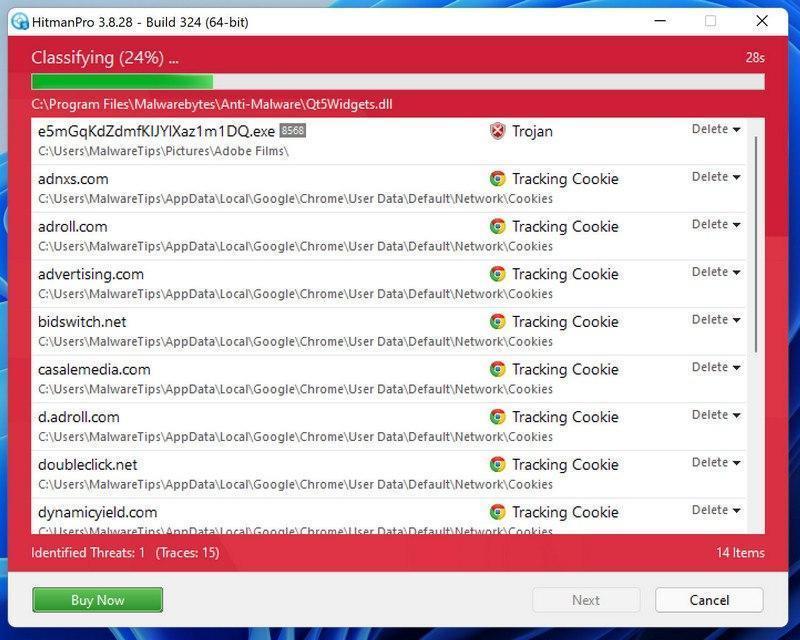
HitmanPro will now check your computer for malicious programs. This usually takes just a few minutes thanks to its cloud-based scanning.
Review the Results and Click “Next”
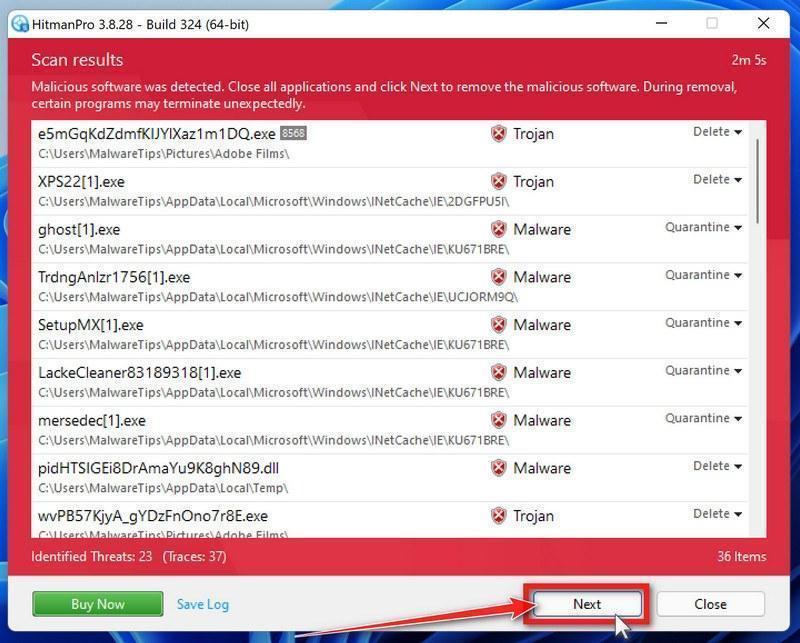
When the scan is done, HitmanPro will show you everything it found. Click “Next” to remove the detected threats.
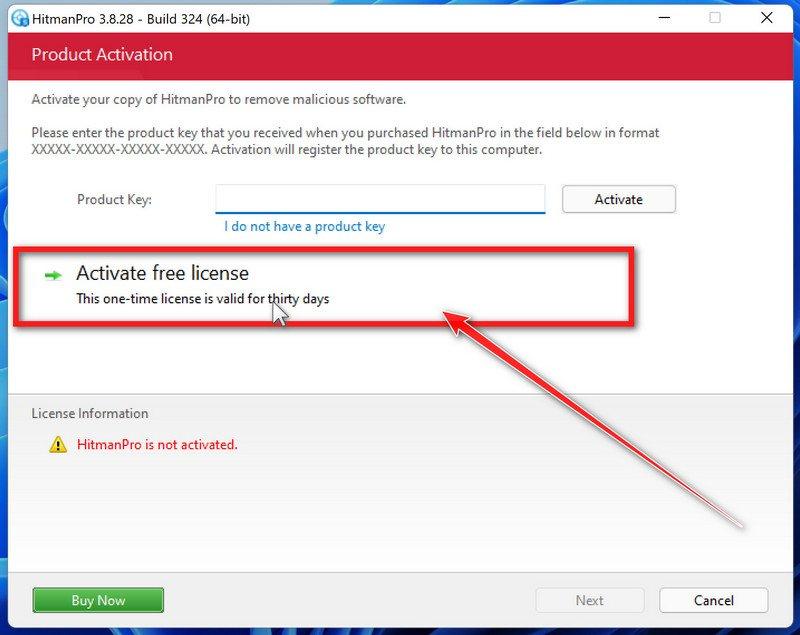
Click “Activate Free License”
To remove the malicious files, click the “Activate free license” button. This starts your free 30-day trial — no payment details needed — and unlocks the full cleanup.
When the removal is complete, HitmanPro will show a summary of everything it cleaned. Click Next, then click Reboot if prompted. If there’s no reboot prompt, just click Close — your PC is clean.
STEP 6: Use AdwCleaner to remove malicious browser policies and adware
We’ll now use AdwCleaner to remove malicious browser policies and unwanted browser extensions — the leftovers that keep hijacking your browser settings even after the malware itself is gone.
AdwCleaner is a free on-demand scanner that specializes in adware, browser hijackers, and unwanted toolbars — the exact threats that mainstream antivirus programs often miss. It also includes tools that repair the damage malware leaves behind, like hijacked browser settings and malicious policies. It’s a quick scan that’s well worth running.
Download AdwCleaner
Click the button below to download AdwCleaner — it’s free, portable, and requires no installation.
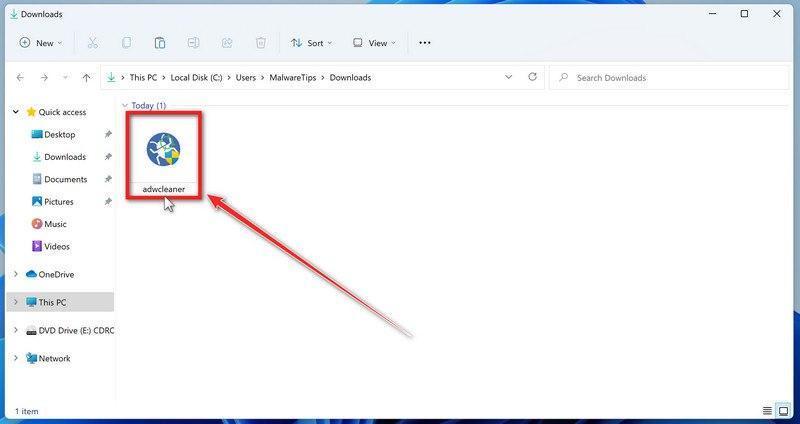
Open your Downloads folder and double-click the file named “adwcleaner_x.x.x.exe“. There’s no installation — the program starts right away.
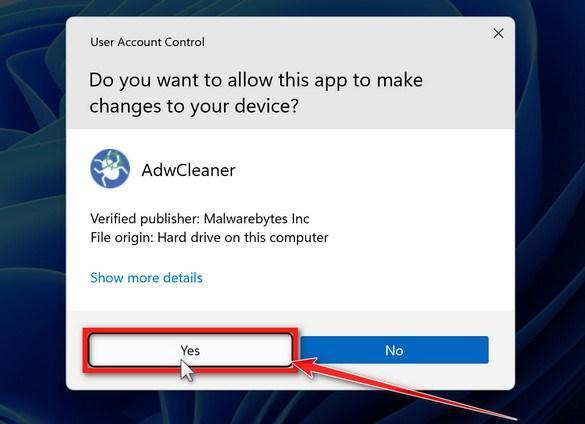
If Windows asks whether you want to allow AdwCleaner to run, click “Yes“. When the license agreement appears, click I agree to continue.
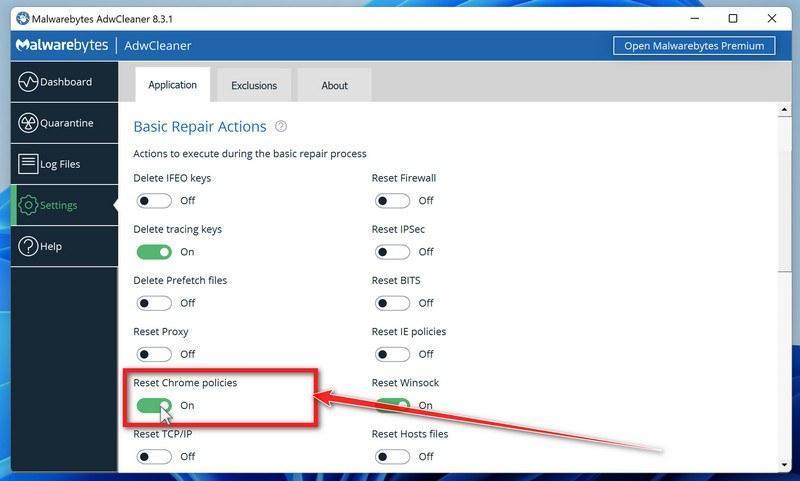
Enable “Reset Chrome policies”
This setting removes malicious browser policies — a trick malware uses to lock your browser settings so you can’t change them back. Click “Settings” on the left side of the window, then turn on “Reset Chrome policies“.
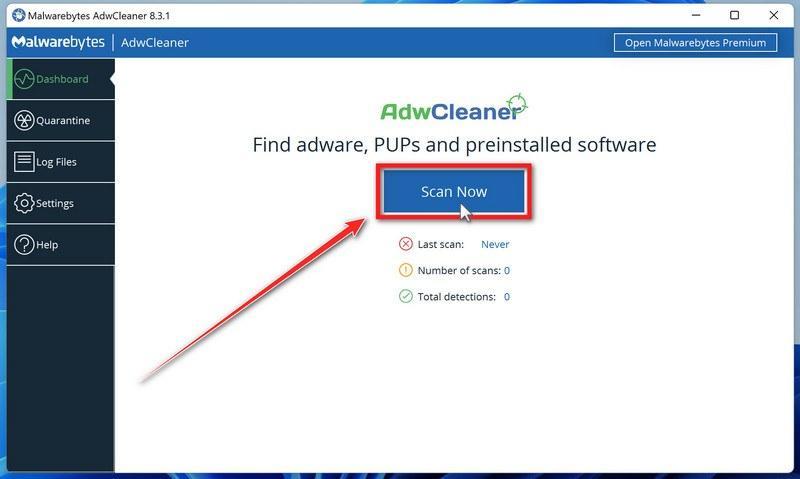
Start the Scan
Click “Dashboard” on the left side of the window, then click the “Scan” button.
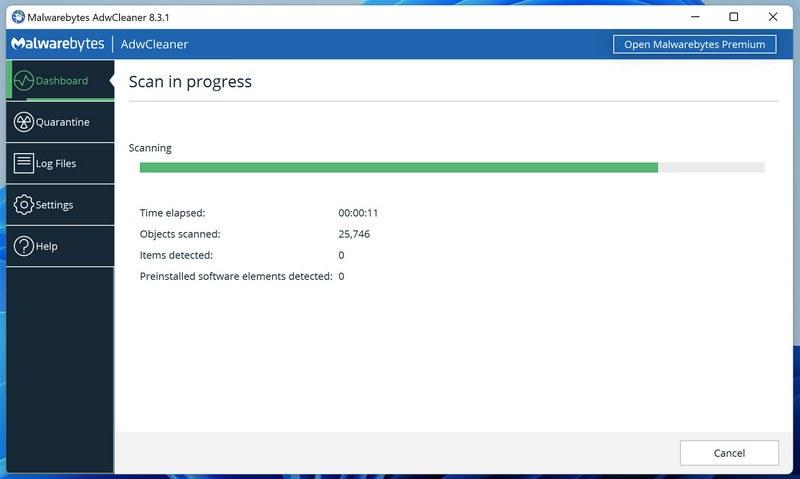
Wait for the Scan to Finish
AdwCleaner will now check your computer for adware and other malware. This usually takes only a few minutes — it’s one of the fastest scanners around.
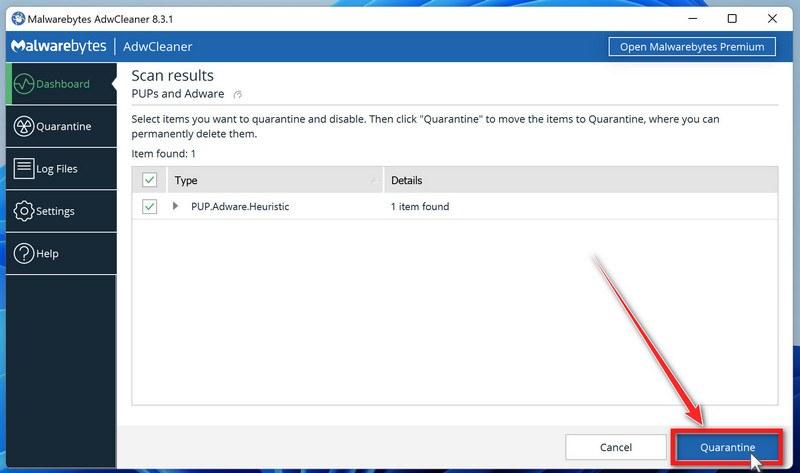
Quarantine the Detected Threats
When the scan finishes, AdwCleaner will list everything it found. Click the “Quarantine” button to remove all the malicious items at once.
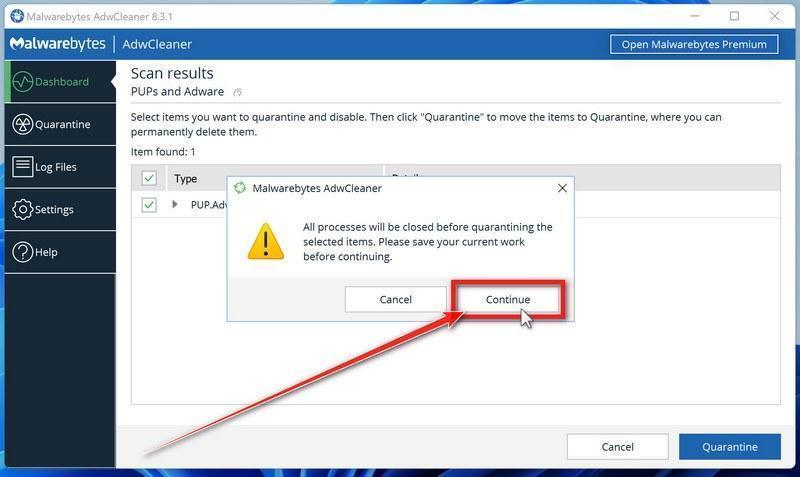
Click “Continue” to Finish the Cleanup
Save any open work first — AdwCleaner needs to close your open programs before it can clean. When you’re ready, click the “Continue” button.
AdwCleaner will now delete all detected malware from your computer. If it asks you to restart your PC, allow it — your computer will be clean when you log back in.
STEP 7: Perform a final check with ESET Online Scanner
Finally, we’ll run ESET Online Scanner as a last sweep to confirm nothing was missed. If this scan comes back clean, your computer is malware-free.
ESET Online Scanner is a free second-opinion scanner that performs a deep, full-system check for viruses, trojans, rootkits, and other malware. We use it as the final step because it’s thorough — if anything slipped past the previous scans, ESET will find it. A clean result here means your computer is malware-free.
Download ESET Online Scanner
Click the button below to download ESET Online Scanner.
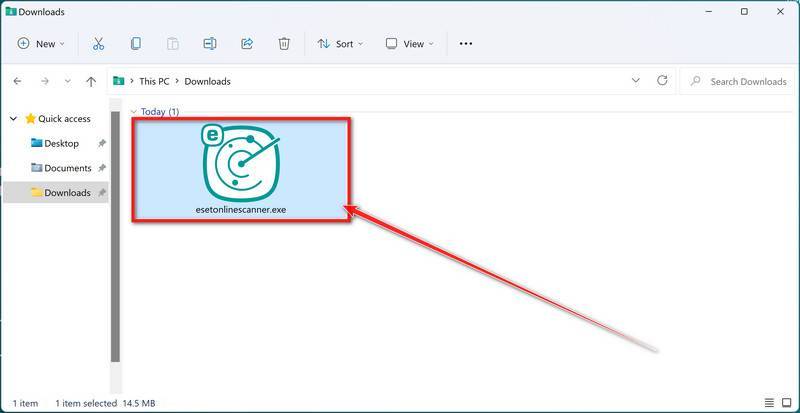
When the download finishes, open your Downloads folder and double-click “esetonlinescanner.exe“.
Install ESET Online Scanner
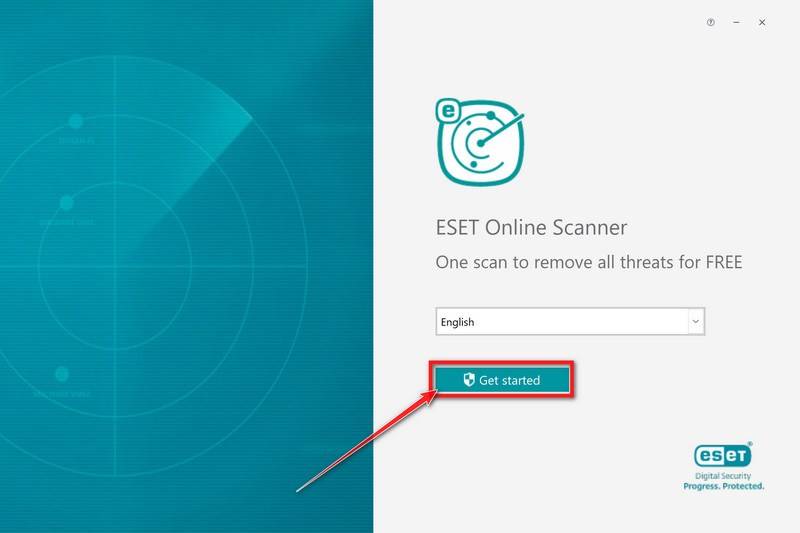
On the start screen, select your language from the drop-down menu and click Get started.
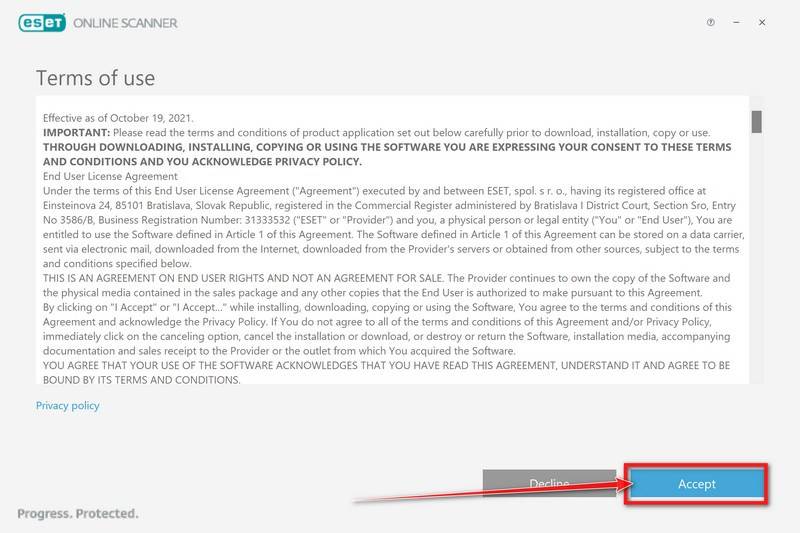
On the Terms of use screen, click Accept.
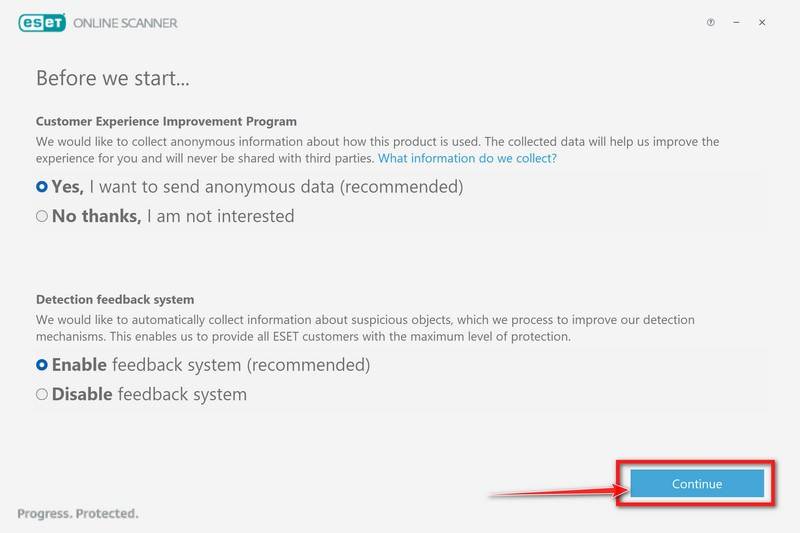
Choose your preferences for the Customer Experience Improvement Program and the Detection feedback system (either choice is fine), then click Continue.
Start a Full Scan
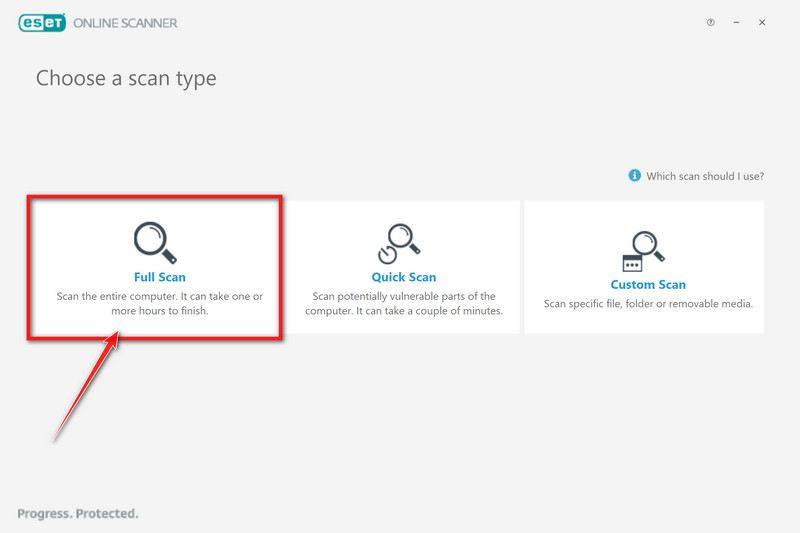
Click Full Scan — this checks your entire computer, not just the common hiding spots.
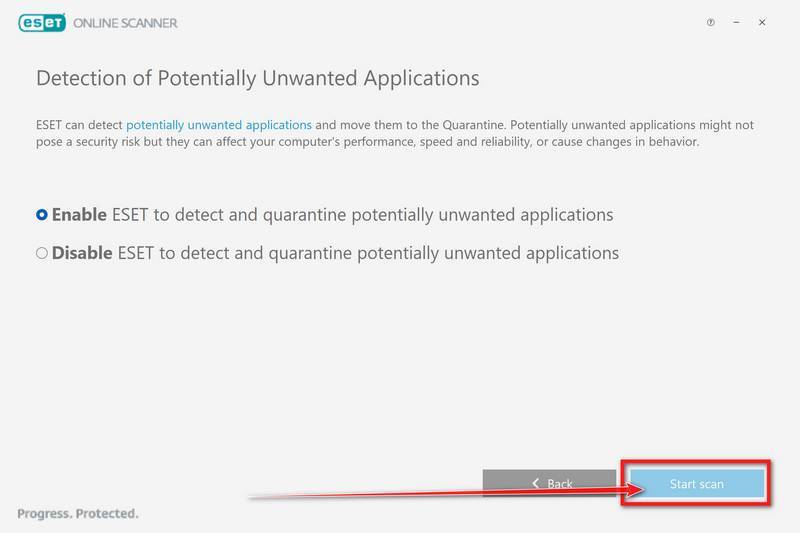
Select Enable for Detection of Potentially Unwanted Applications — this lets ESET catch adware and bundled junk programs, not just viruses. Then click Start scan.
Wait for the Scan to Finish
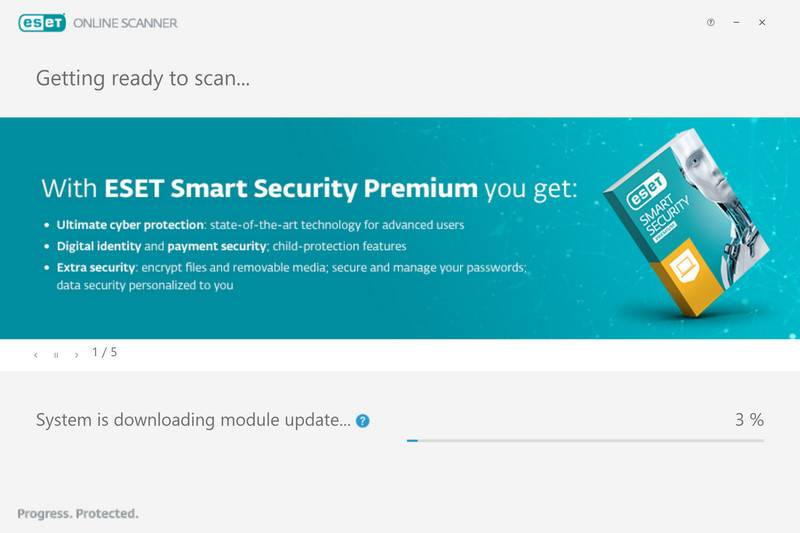
ESET will now check every file on your computer. Because it’s a full scan, this can take a while — often an hour or more, depending on how much data you have. Leave it running in the background and check on it from time to time.
Review the Results
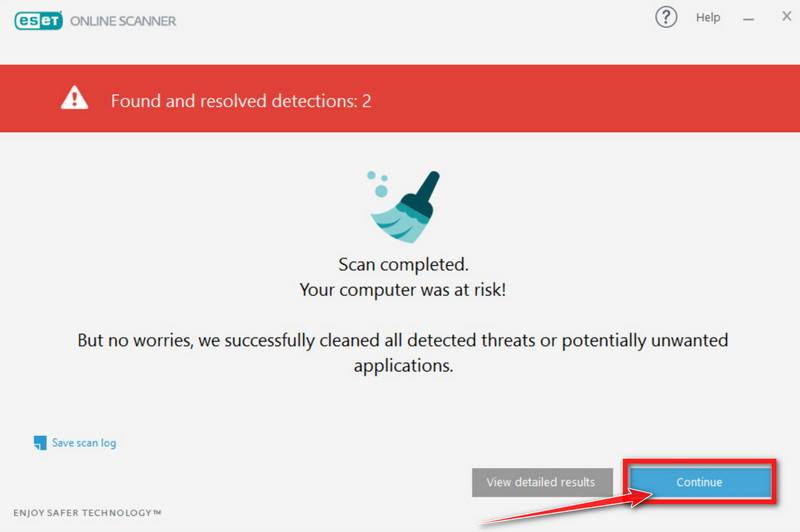
When the scan completes, the Found and resolved detections screen appears. Any threats found were automatically cleaned and quarantined — there’s nothing extra you need to do. Click View detailed results if you want to see exactly what was removed.
If ESET found nothing — congratulations, your computer has passed the final check and is malware-free.
What To Do If You Have Fallen Victim to This Scam
If you clicked the link but did not download anything, your risk is lower, but you should still take precautions.
If you downloaded the file but did not run it, treat it as a near miss and clean up carefully.
If you ran the file, assume your device could be compromised and respond immediately.
Here is a calm, practical step-by-step plan.
Disconnect the affected device from the internet Turn off Wi-Fi or unplug the Ethernet cable. This can interrupt malware communication and reduce the chance of data being sent out.
Do not “test it again” Do not reopen the file to see what it does. Do not click the email links again. Close the email and leave it alone.
If you are on a work device, notify IT or security right away In an organization, timing matters. A fast report can prevent spread to shared drives, inboxes, or other endpoints.
Delete the downloaded file and empty your Recycle Bin If you did not run it, deleting it helps, but do not assume that deletion alone is enough if you executed it even once.
Run a full security scan using a trusted tool On Windows, start with built-in protections and a full scan. If available, run an offline scan option as well. If your security tool flags anything, follow its remediation steps.
Update Windows through official channels only Go to Windows Update in Settings and install all pending updates. This helps close known vulnerabilities and ensures your system is current.
Change passwords from a clean device, not the infected one If the file was executed, assume credentials may be at risk. Use a different device you trust (or a freshly scanned one) to change:
Your email password first
Your Microsoft account password
Banking and payment passwords
Any account that shares the same password
Turn on multi-factor authentication wherever possible MFA can stop attackers even if they stole a password. Prioritize email, financial accounts, and any admin accounts.
Review account security activity and logged-in sessions Many services let you see recent logins and active sessions. Look for unfamiliar devices, locations, or times.
Watch your financial accounts closely If you entered credentials, monitor bank and card transactions. If you see suspicious activity, contact your bank immediately.
Check for signs of additional compromise Be alert to:
New browser extensions you did not install
Antivirus disabled unexpectedly
Strange startup programs
Unexpected admin prompts
Performance spikes that could indicate mining
None of these prove infection, but they justify deeper checking.
Consider a clean reinstall if you executed the file and suspect compromise For serious infections, the most reliable fix is backing up essential files (carefully) and reinstalling the operating system, then restoring only what you need.
If you do this, change passwords after the reinstall, not before.
Report the phishing email through your email client Use the built-in phishing report tools if available. This helps providers block similar messages for others.
Microsoft’s phishing guidance emphasizes not interacting with suspicious attachments or links and using reporting features when possible.
Learn the “never again” rules that stop this scam cold For the future, make these non-negotiable habits:
Never install “security updates” from email links
Never run an unexpected .exe you downloaded from an email
Always update via Windows Update or approved IT tools
Hover over links before clicking
When in doubt, navigate to the official site manually
These steps are simple, but they shut down most malware delivery attempts.
The Bottom Line
The “Microsoft Anti-Xploit Guard Released A Security Update” email is not a helpful warning. It is a malware delivery scheme dressed up as routine maintenance. As documented in current reporting on this specific campaign (dated February 6, 2026), the email’s links lead to a malicious executable commonly presented as “Microsoft_Anti-Xploit_Update.exe.”
If you received it, do not click. Do not download. Do not run anything.
Check for updates the real way through Windows Update, keep your security tools active, and treat any emailed “manual patch installer” as a major red flag. If you already interacted with the file, act quickly and methodically. Disconnect, scan, secure your accounts from a clean device, and escalate to IT if this happened in a workplace.
FAQ
Is the “Microsoft Anti-Xploit Guard security update” email real?
No. It is a phishing and malware delivery message designed to look like a legitimate security alert from Microsoft. Real Windows security updates are delivered through your system’s update mechanism, not as unsolicited emails with executable downloads.
Does Microsoft ever email security updates as attachments?
Legitimate update notifications do not require you to download and run a .exe from an email. Any message that includes an “update installer” attachment or a “manual download” button is a major red flag.
What is “Anti-Xploit Guard”? Is it a real Microsoft product?
The wording is meant to sound like real exploit protection features, but the email name itself is commonly used as a lure. Scammers often pick product-sounding labels that feel plausible to non-technical users.
The email mentions “KB5021234.” Does a real KB number mean the email is safe?
No. Attackers frequently reuse real-looking KB numbers to build credibility. A KB reference in an email does not prove the message is legitimate, especially when it is paired with an executable download.
Why does the email include file size and “about 5 minutes” to install?
Those details are psychological. They make the message feel routine and reduce doubt. Real updates do not require you to trust a random download link just because it includes technical-looking numbers.
What happens if I click “Update now” but do not download anything?
Your risk is lower, but not zero. The link may lead to a phishing page, tracking, or additional prompts to download malware. Close the page, do not enter any credentials, and run a security scan.
What if I downloaded the file but did not run it?
Delete it immediately, empty the Recycle Bin, and run a full antivirus scan. If the file never executed, you likely avoided the worst outcome, but scanning is still smart.
What if I ran “Microsoft_Anti-Xploit_Update.exe”?
Treat the device as potentially compromised. Disconnect from the internet, run a full security scan, and change important passwords from a different, trusted device. If this is a work computer, notify IT right away.
What kind of malware can this scam install?
It varies by campaign, but common outcomes include credential theft, remote access, ransomware, or secondary downloads that install additional threats. The same email template can deliver different payloads over time.
How can I tell if my computer is infected?
Sometimes there are no obvious signs. Possible clues include new startup items, unusual CPU usage, unknown browser extensions, security tools being disabled, or new logins to your accounts. Even without symptoms, take action if you executed the file.
How do I check for updates the safe way?
Use your system’s built-in update settings. Open your Windows update settings and check for updates there. Avoid “manual patch” downloads from emails, pop-ups, or unfamiliar websites.
Should I reply to the email or contact the sender?
No. Replying confirms your address is active and can lead to more targeted attempts. Delete the message and report it as phishing in your email provider.
I entered my email password on a page linked in the message. What now?
Change your email password immediately from a clean device, enable multi-factor authentication, and review recent account activity and sign-ins. Then update passwords for any accounts that reused the same password.
Can I recover money if this led to fraud or unauthorized charges?
If you gave payment details or see suspicious transactions, contact your bank or card issuer immediately and follow their fraud process. The faster you report, the better the odds of stopping or reversing charges.
How do I report this scam?
Report it in your email client as phishing, then forward it to your organization’s IT or security team if you are on a work account. If you have the suspicious link or sender address, include it in the report without clicking it.
What are the quickest red flags to remember?
“Manual download” language for a critical patch
Any “security update” delivered by email
Any request to download or run a .exe file
Urgent deadlines like “installs automatically in 3 days”
Buttons that lead to non-official domains
10 Rules to Avoid Online Scams
Here are 10 practical safety rules to help you avoid malware, online shopping scams, crypto scams, and other online fraud. Each tip includes a quick “if you already got hit” action.
Stop and verify before you click, log in, download, or pay.
Most scams win by creating urgency. Verify using a trusted method: type the website address yourself, use the official app, or call a known number (not the one in the message).
If you already clicked: close the page, do not enter passwords, and run a malware scan.
Keep your operating system, browser, and apps updated.
Updates patch security holes used by malware and malicious ads. Turn on automatic updates where possible.
If you saw a scary “update now” pop-up: close it and update only through your device settings or the official app store.
Use layered protection: antivirus plus an ad blocker.
Antivirus helps block malware. An ad blocker reduces scam redirects, phishing pages, and malvertising.
If your browser is acting weird: remove unknown extensions, reset the browser, then run a full scan.
Install apps, software, and extensions only from official sources.
Avoid cracked software, “keygens,” and random downloads. During installs, choose Custom/Advanced and decline bundled offers you do not recognize.
If you already installed something suspicious: uninstall it, restart, and scan again.
Treat links and attachments as untrusted by default.
Phishing often impersonates delivery services, banks, and popular brands. If it is unexpected, do not open attachments or log in through the message.
If you entered credentials: change the password immediately and enable 2FA.
Shop safely: research the store, then pay with protection.
Be cautious with brand-new stores, “closing sale” stories, and prices that make no sense. Prefer credit cards or PayPal for dispute options. Avoid wire transfers, gift cards, and crypto payments.
If you already paid: contact your card issuer or PayPal quickly to dispute the transaction.
Crypto rule: never pay a “fee” to withdraw or recover money.
Common patterns include fake profits, then “tax,” “gas,” or “verification” fees. Another is a “recovery agent” who demands upfront crypto.
If you already sent crypto: stop paying, save evidence (wallet addresses, TXIDs, chats), and report the scam to the platform used.
Secure your accounts with unique passwords and 2FA (start with email).
Use a password manager and unique passwords for every account. Enable 2FA using an authenticator app when possible.
If you suspect an account takeover: change passwords, sign out of all devices, and review recent logins and recovery settings.
Back up important files and keep one backup offline.
Backups protect you from ransomware and device failure. Keep at least one backup on an external drive that is not always connected.
If you suspect infection: do not connect backup drives until the system is clean.
If you think you are a victim: stop losses, document evidence, and escalate fast.
Move quickly. Speed matters for disputes, account recovery, and limiting damage.
Stop payments and contact: do not send more money or respond to the scammer.
Call your bank or card issuer: block transactions, replace the card if needed, and start a dispute or chargeback.
Secure your email first: change the email password, enable 2FA, and remove unfamiliar recovery options.
Secure other accounts: change passwords, enable 2FA, and log out of all sessions.
Scan your device: remove suspicious apps or extensions, then run a full malware scan.
Save evidence: screenshots, emails, order pages, tracking pages, wallet addresses, TXIDs, and chat logs.
Report it: to the payment provider, marketplace, social platform, exchange, or wallet service involved.
These rules are intentionally simple. Most online losses happen when decisions are rushed. Slow down, verify independently, and use payment methods and account controls that give you recourse.
Thomas is an expert at uncovering scams and providing in-depth reporting on cyber threats and online fraud. As an editor, he is dedicated to keeping readers informed on the latest developments in cybersecurity and tech.