

An email claiming that your myGov account has been suspended can feel serious. The message may mention unusual activity, a tax refund, a new Medicare or Centrelink notice, or a deadline for verifying your identity.
Do not sign in through the email. myGov advises users to access the service through the official app or by typing my.gov.au into the browser. Fake messages use lookalike links to steal passwords, identity documents, banking details, and one-time security codes.
Overview
myGov is the Australian Government’s online portal for accessing linked services such as the Australian Taxation Office, Medicare, Centrelink, Child Support, and other participating agencies.
A stolen myGov login can therefore expose far more than one website. Depending on the services linked to the account, an attacker may find tax information, identity data, payment records, health-related correspondence, and contact details.
Scammers impersonate myGov in email, text messages, telephone calls, sponsored ads, and fake search results. They often copy the dark blue branding, Australian Government crest, “secure message” language, and familiar references to tax or benefits.
Official myGov guidance says genuine notifications direct users to sign in through the official app or by entering my.gov.au themselves. Unexpected messages should not be trusted simply because the sender name displays myGov.
A real notification can tell you that a new message is available, but the safest response is always the same: leave the email, open myGov independently, and see whether the account contains the claimed notice.
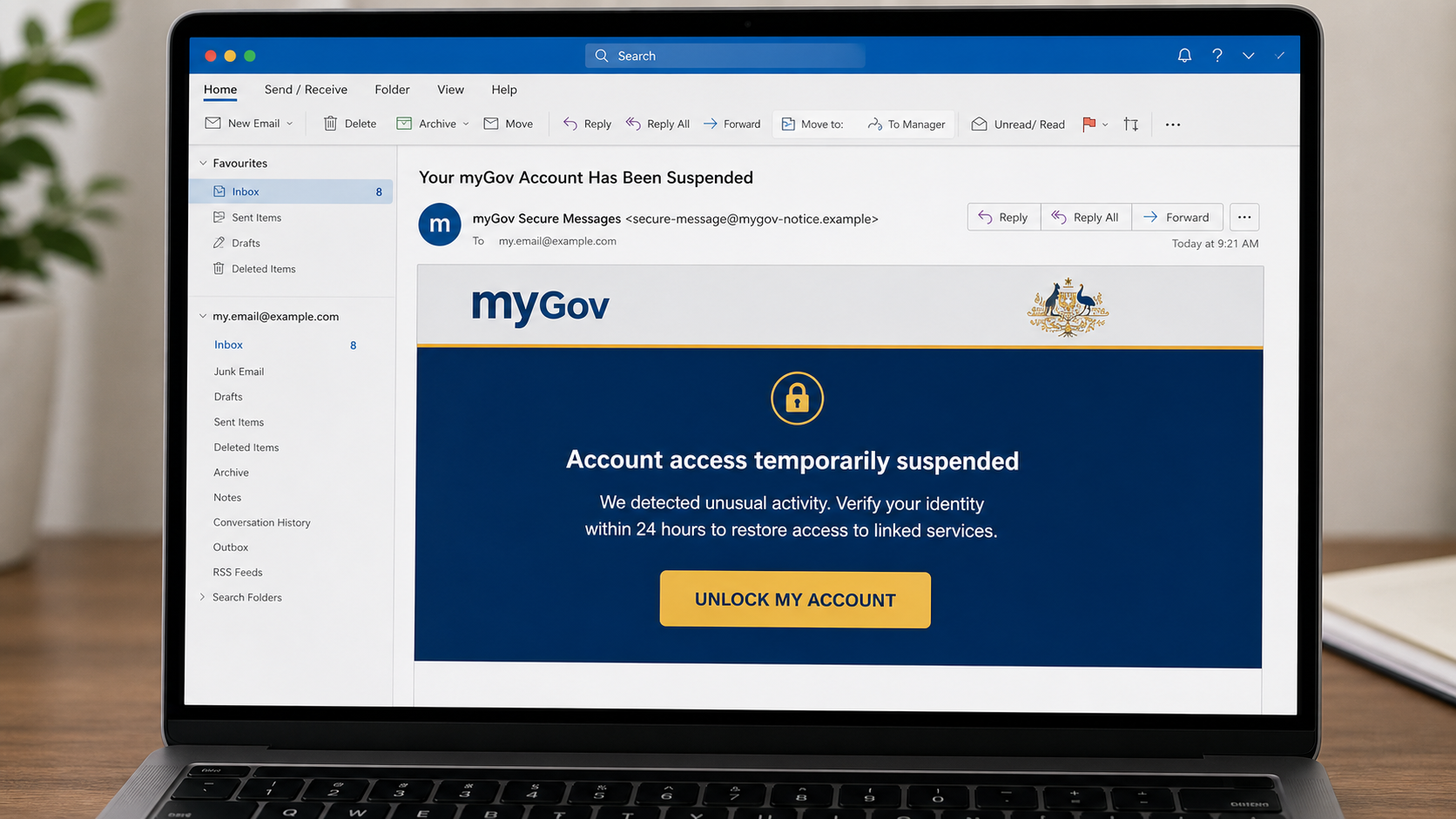
What the fake suspension email may say
Subject: Your myGov Account Has Been Suspended
We detected unusual activity on your account.
Your access to linked services has been temporarily suspended. Verify your identity within 24 hours to avoid permanent deactivation.
UNLOCK MY ACCOUNT
The email may address the recipient by name or include a reference number. Those details can come from data breaches and do not prove that the sender has access to myGov.
Common variations of the email
- “Your myGov Account Has Been Suspended”
- “New Secure Message Available in myGov”
- “ATO Tax Refund Ready for Deposit”
- “Confirm Your Bank Details for a Refund”
- “Medicare Rebate Pending Verification”
- “Centrelink Payment Has Been Placed on Hold”
- “Unusual Sign-In Detected on Your myGov Account”
- “Your Digital Identity Will Expire Today”
- “Action Required: Update Your myGov Profile”
- “You Have an Unread Government Document”
- “Final Notice Before Account Deactivation”
- “myGov Security Upgrade: Reconfirm Your Details”
SMS versions may use a shortened link and only a few words, such as “myGov: Your refund could not be deposited. Update account details now.” The limited space hides the absence of an official domain.
Information the scammers are trying to collect
- myGov email address or username and password
- One-time SMS or authenticator codes
- Tax File Number
- Medicare card and Centrelink information
- Passport or driver licence images
- Date of birth, address and telephone number
- Bank account and credit card details
- Answers to identity-verification questions
Collecting several of these items gives an attacker enough material to impersonate the victim in later calls, attempt account recovery, redirect payments, or apply for services under a stolen identity.
Warning signs inside the message
- The link does not end in
my.gov.au. Words such as myGov can appear anywhere in a fraudulent address. - The message threatens immediate loss of access. A short deadline is meant to replace verification with panic.
- A refund requires card details or a fee. Government payments are not released by paying a verification charge to an email link.
- The page asks for an authentication code. A code can authorize the attacker’s real login and should never be relayed to another person.
- The attachment supposedly contains a secure message. Unexpected attachments can carry malware or open a fake sign-in form.
- The sender uses a non-government domain. The display name and crest are easy to copy.
- The message asks for passport or licence scans by email. Sensitive documents should not be sent in response to an unsolicited notification.
How The Operation Works
1. The scam selects a government event people expect
Tax time, benefit changes, Medicare reimbursements, and security announcements create natural opportunities for impersonation. Campaigns can be scheduled when a large part of the public is already expecting government communication.
The scammers may know only an email address or phone number. Mass distribution ensures that some messages reach people with an active claim, recent tax return, or upcoming payment.
2. The message turns uncertainty into urgency
A vague phrase such as “new secure message” makes the recipient curious without revealing details that could be checked. A suspension or refund story adds a cost to waiting.
The deadline is artificial. It encourages the recipient to use the supplied button rather than independently opening the real account.
3. A lookalike site copies the myGov sign-in page
The landing page can reproduce colors, logos, accessibility links, privacy wording, and a familiar sign-in form. It may be hosted on a domain containing words such as secure, services, gov, digital, or Australia.
The padlock in the browser only indicates encryption between the visitor and that site. Fraudulent sites can obtain HTTPS certificates too.
4. Credentials are relayed to the attacker
After the victim enters a username and password, the kit records them. A message such as “session expired” or “details incorrect” can prompt a second attempt and help confirm the password.
The operator may immediately try those details on the real myGov service. Fast action matters because the next stage can happen while the victim is still viewing the fake page.
5. The fake page asks for the security code
When the real service sends a one-time code, the phishing site asks the victim to enter it for “identity confirmation.” The attacker uses that code to complete a separate login.
A one-time code protects an account only when it remains between the account holder and the official service. Giving it to a page reached through an unexpected message defeats that protection.
6. A verification form harvests identity documents
The next page may request a Tax File Number, Medicare details, date of birth, licence number, passport, selfie, or proof of address. The form claims these items are needed to unlock the account or process the refund.
Those records can support identity theft even if the attacker never maintains access to myGov. Document images can be reused in applications and social-engineering calls.
7. The refund story collects banking information
A fake refund page asks for an account name, BSB, account number, or card information. Some versions place a small “authorization” charge on the card or subscribe the victim to an unrelated service.
Government branding makes the request feel administrative, but the destination is controlled by criminals. Verify payments through the account, not the message.
8. Compromised accounts enable further changes
An intruder may attempt to change recovery details, access linked services, obtain tax records, or redirect correspondence. They may also use the information to impersonate the victim when contacting agencies or financial institutions.
The victim can then receive follow-up calls from someone claiming to investigate the first incident. A legitimate-looking caller ID does not prove identity because numbers can be spoofed.
Why the URL is more important than the page design
A convincing myGov replica can be created from public images. The browser address identifies where information is actually being sent. Read from the domain ending backward and confirm the registered domain is exactly my.gov.au.
Do not rely on a Google ad or search result for urgent account recovery. Open the official myGov app or type the address yourself, particularly after receiving a threat or refund promise.
How the refund version changes the emotional pressure
The suspension message uses fear, but a refund message uses opportunity. It claims the ATO, Medicare, or another service has approved money that cannot be deposited until banking details are confirmed.
A specific amount and recent-looking date can make the refund feel connected to a tax return or medical expense. The campaign may be sent during tax season or after public announcements about payments, increasing the chance of a coincidental match.
The fake page first requests a myGov login and then displays an invented refund dashboard. It may ask for a BSB and account number, card details, or a small identity-verification payment. Supplying a card does not direct a government refund. It gives the operator a payment method.
How the secure-message version hides the subject
A genuine-style notification may say only that a new message is available. Scammers use the same lack of detail because curiosity encourages a click and there is no false tax amount to challenge.
The email can claim that privacy rules prevent it from displaying the notice. That explanation makes the hidden content feel responsible while directing the recipient to a counterfeit login page.
The safe response does not depend on the subject. Open myGov independently. If the notification is real, the same message will be waiting in the account. If it is not there, do not return to the email to try another link.
Account recovery is part of the attack surface
Phishing forms sometimes ask for email access, recovery answers, identity documents, and one-time codes because the attacker wants to change myGov recovery settings. Securing only the myGov password may be insufficient if the connected email remains exposed.
Review both accounts for unfamiliar sessions, changes, forwarding, and recovery methods. If a scammer called while the form was open, also check whether any screen-sharing or support application was installed.
What To Do If You Clicked or Shared Details
- Close the page and stop communication. Do not continue uploading documents or call a number displayed by the site.
- Change the myGov password from the official service. Use the app or type
my.gov.au. Create a strong password not used anywhere else. - Review sign-in activity and account details. Check for unfamiliar access, changed recovery information, newly linked services, and altered bank or contact details.
- Secure the associated email account. Change its password, review forwarding rules, sign out unknown sessions, and enable multifactor authentication.
- Contact myGov or Services Australia through official channels. Explain exactly what credentials, codes, or documents were submitted and ask for account-protection steps.
- Contact financial institutions if banking data was exposed. Ask the bank to monitor or restrict the account and replace a compromised card when appropriate.
- Protect identity documents. If a licence, passport, Medicare card, or Tax File Number was disclosed, follow the issuing agency’s identity-compromise guidance.
- Check linked-service records. Review ATO, Medicare, Centrelink, and other relevant activity for changes or claims you do not recognize.
- Scan the device if a file or application was opened. Update the system, remove unknown software, and run a trusted security scan.
- Report the scam. myGov says suspicious messages can be sent to
reportascam@servicesaustralia.gov.au. Keep screenshots, headers, links, and transaction evidence.
Services Australia provides a Scams and Identity Theft Help Desk for people affected by identity fraud. Obtain the current contact details from an official government page rather than from the suspicious message.
Keep a written timeline of what was entered and when. Include security codes, document images, banking details, changes noticed in linked services, and calls received afterward. A clear timeline helps myGov, Services Australia, banks, and identity-support services respond without relying on memory during a stressful incident.
Warn other members of the household if the message referred to a shared address, family payment, or linked benefit. Scammers often reuse the same details against relatives once one person responds.
The Bottom Line
myGov phishing messages imitate account locks, refunds, secure notices, Medicare rebates, and Centrelink payments. Their purpose is to move the recipient from a trusted government name to a site controlled by the attacker.
Do not sign in, upload documents, or enter a code through an unexpected email or text. Open the official app or type my.gov.au, then check the claim inside the account. That simple separation between message and service prevents most versions of the scam.

Join the discussion
0 commentsShare your experience or ask a question about this article.
Discussion
Start the conversation
Have a question or something useful to share? Add the first comment.