

A DHL notice says a driver could not deliver your parcel because the address was wrong. With online orders arriving every week, the warning can feel routine enough to open without a second look.
The DHL Package Delivery Failed email scam exploits that habit. Its reschedule button leads to a fake sign-in page that asks for an email address and password, giving criminals access to far more than one shipment.
Overview
The message creates a believable delivery problem
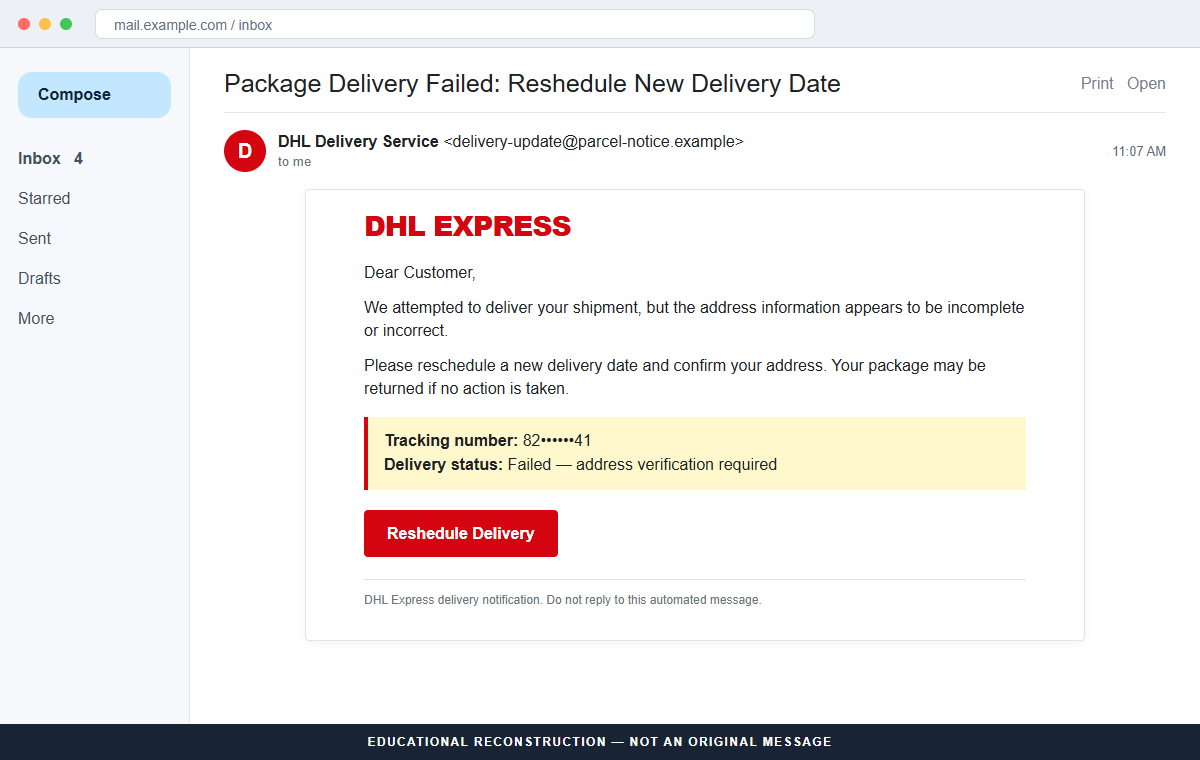
The email claims that a DHL Express delivery attempt failed because the destination address was incomplete or incorrect. A partly hidden tracking number helps the notice look specific while preventing the recipient from checking a complete number easily.
The subject and button in the documented sample misspell “reschedule” as “reshedule.” Errors can be useful warnings, but polished variants may correct them, copy real tracking language, and include accurate personal information.
The reschedule button is a credential trap
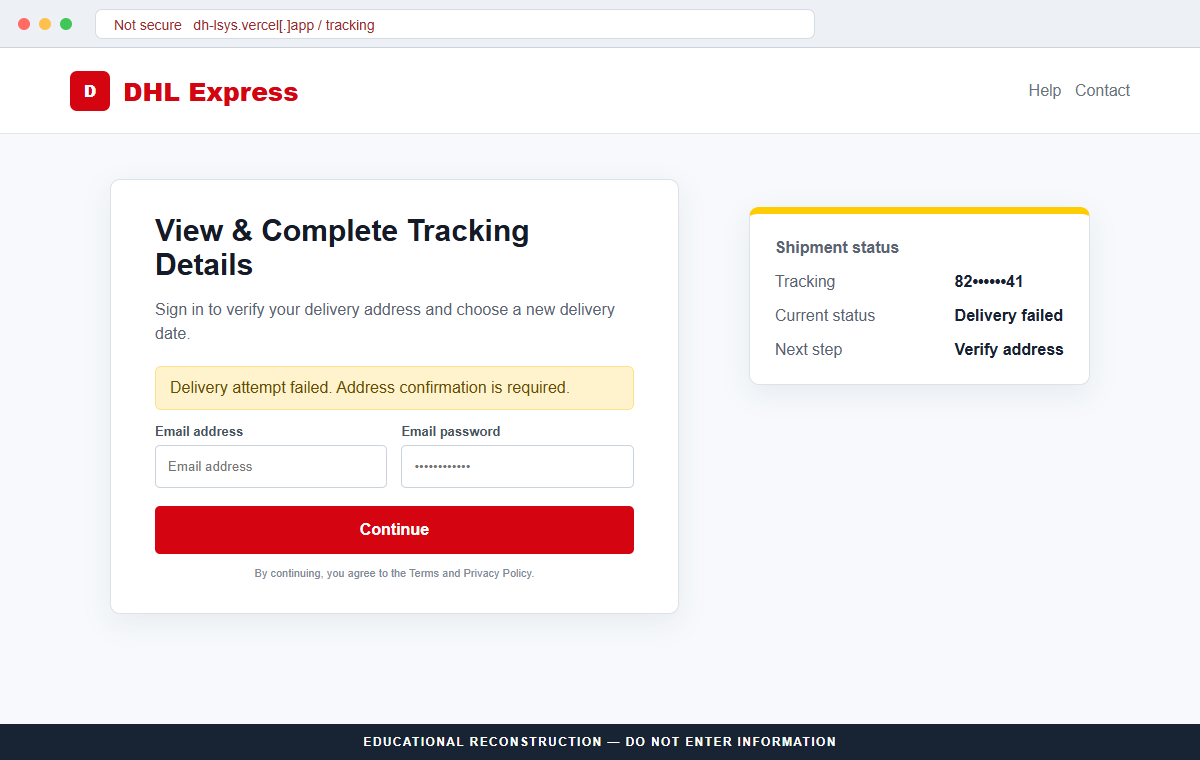
Instead of opening DHL, the button sends the visitor to dh-lsys.vercel[.]app. The page imitates a DHL sign-in and asks for an email address and the password to that email account.
A carrier does not need an email-mailbox password to display package tracking. The unusual request reveals the real objective: stealing access to the inbox used for account resets, invoices, business conversations, and delivery notices.
Independent tracking settles the question safely
DHL says official communications use its recognized domains and that links should lead to DHL-owned sites. It also advises recipients to look for unknown URLs, urgency, grammar problems, and other anomalies.
If a package is real, its tracking number can be checked by opening DHL's official website or app separately. A sender, retailer, or DHL customer service can confirm the shipment without the suspicious button.
- The subject claims package delivery failed because of an incorrect address.
- A hidden tracking number prevents a straightforward independent match.
- The email pressures the recipient to choose a new delivery date.
- “Reschedule” may be misspelled in the subject or button.
- The link opens dh-lsys.vercel[.]app rather than a DHL-owned domain.
- The landing page requests the password to the recipient's email account.
- Stolen mailbox access can lead to many additional account takeovers.
Why Failed-Delivery Notices Catch Careful People
A recipient does not need to be waiting for DHL specifically. Orders can be shipped by marketplace sellers, relatives, employers, medical suppliers, and stores that choose a carrier after checkout. That uncertainty gives a generic notice room to feel relevant.
Address problems are also plausible. Apartment numbers disappear, labels are damaged, and drivers genuinely need delivery instructions. The scam inserts itself into a familiar customer-service event rather than promising something extraordinary.
The cost of checking seems low. A button labeled reschedule appears to offer a harmless calendar, so the recipient may not consider passwords until the fake page has already borrowed DHL's colors and terminology.
Mobile screens strengthen the deception because they show less of the destination address. A long subdomain or redirect may be hidden, while the logo and warning occupy most of the visible page.
The safe habit is to separate notification from action. Let the email tell you that a shipment might need attention, but complete the check only in the official carrier app, saved bookmark, or retailer order history.
What DHL's Official Fraud Guidance Confirms
Analysis of this campaign confirmed that it was a phishing email impersonating DHL Express. The linked page collected email login credentials and had no connection with DHL.
DHL's Fraud Awareness page states that official communication uses DHL domains and related recognized domains. It says DHL does not use free email services for official messages and does not link to unrelated websites.
DHL also warns that a familiar-looking sender may be spoofed. It recommends examining the content for urgency, grammar errors, unfamiliar URLs, and suspicious attachments instead of trusting the visible From line alone.
The company asks recipients to report suspicious email to phishing@dhl.com, preferably as an attachment so headers are included. Shipment questions should go to customer support, not to the anti-abuse mailbox.
A current campaign can replace the Vercel host, tracking fragment, wording, and misspelling. The invariant is a supposed carrier notice that redirects to a non-carrier domain and asks for credentials unrelated to package delivery.
How the DHL Package Delivery Failed Email Scam Works
Step 1: A delivery failure arrives at a busy moment
The email is sent in bulk with a subject about a failed package. Attackers know that many recipients have active online orders, so they do not need access to DHL's systems or a store's customer database.
A workday arrival can be deliberate. The recipient may click quickly to prevent a return before checking order histories or asking another household member about expected packages.
Step 2: An address error explains why action is required
The body says a driver could not complete delivery because the address is incorrect or incomplete. This creates a task that seems too personal to ignore and too easy to postpone.
The notice may warn that the parcel will be returned, stored, or destroyed. None of those claims should be accepted without a complete tracking record on the official carrier site.
Step 3: A partial tracking number creates false specificity
Digits and status labels make the email resemble an automated logistics system. By masking part of the number, the attacker avoids providing a value the recipient could compare directly with a real order.
If a complete number is shown, scammers may use a random or publicly obtained number. The correct test is whether it matches your merchant's order and returns the same shipment details on DHL's site.
Step 4: The reschedule button hides an outside destination
The call-to-action promises a calendar or address form, but its URL leads to infrastructure outside DHL. In this campaign the destination used a Vercel-hosted subdomain crafted to look vaguely delivery-related.
Hosting services are used by many legitimate developers, yet a project on a third-party host does not become a DHL portal. The owner and full domain must match the service requested.
Step 5: A fake tracking page asks for email credentials
The landing page displays DHL branding, a shipment status, and a sign-in box. It asks for the recipient's email address and email password under the pretext of viewing or completing tracking details.
That password has no logistical purpose. It can let the attacker read messages, reset retailer and financial accounts, and identify real shipments for more targeted fraud.
Step 6: Submitted credentials are tested quickly
An automated kit can send the password to the criminal immediately. The attacker may log in, add a forwarding rule, remove security alerts, and search the mailbox for invoices, payment services, cloud storage, or payroll systems.
The fake page may report an error and ask for the password again. Repetition helps the criminal distinguish a typing mistake from a valid credential and may collect an alternate password.
Step 7: The mailbox supports secondary fraud
With inbox access, criminals can reset shopping accounts, redirect actual deliveries, impersonate the victim in business email, or send the same lure to contacts. A stolen mailbox is more valuable than one delivery fee.
The visible DHL message is therefore only the entry point. Recovery must secure the email account and its connected services, not merely delete the original notice.
Company and Checkout Checks
Check the sender and Reply-To domains separately
A DHL display name can be attached to an unrelated sender, and the Reply-To field can route responses elsewhere. Expand both fields and compare them with the domain guidance on DHL's official Fraud Awareness page.
A spoofed address can still look official, so this is one check rather than a complete verdict. Tracking and links must agree with the message.
Read the full link before opening it
On a desktop, hover to preview the destination. On mobile, long-press without opening when the device permits. A URL on Vercel, a URL shortener, or an unrelated domain is not a DHL tracking page.
Do not assume a word such as dhl, delivery, express, or tracking makes the registrable domain legitimate. Attackers control everything to the left of a domain they own.
Match the shipment through the retailer
Open the store or marketplace account used for the purchase and locate its tracking record. The merchant should identify the carrier, complete tracking number, shipping address, and current status.
If no order matches, contact the sender or DHL through a number on the official website. Do not supply passwords or payment details to make an unknown shipment appear.
A carrier page should never request an email password
DHL may require an account sign-in for some services, but it cannot need the password to Gmail, Outlook, Yahoo, or a workplace mailbox. That credential belongs only on the email provider's verified site or app.
Close any delivery page that asks for mailbox authentication, one-time codes, or remote access. A legitimate address correction can be handled through carrier-controlled tools.
Warning Signs to Check Before You Act
- You were not expecting a DHL shipment and no retailer order matches.
- The complete tracking number is hidden or cannot be verified.
- The email threatens an immediate return or loss of the package.
- “Reschedule” is misspelled as “reshedule.”
- The sender or Reply-To address is outside recognized DHL domains.
- The button opens a URL unrelated to DHL, such as a hosted app subdomain.
- The page asks for the password to Gmail, Outlook, Yahoo, or work email.
- The address bar and page branding identify different organizations.
- A sign-in error encourages you to enter another password.
- The message cannot be confirmed in DHL tracking or the retailer account.
The strongest warning is the credential mismatch. Correcting a delivery address does not require access to your inbox. If the page asks for an email password, close it and treat any submitted credential as exposed.
What to Do if You Have Fallen Victim to This Scam
- Change the email password immediately. Use the provider's official app or a manually entered address on a clean device. Create a unique password that has never been used elsewhere and do not merely add a character to the exposed one.
- Enable strong multi-factor authentication. Prefer an authenticator app, security key, or passkey when available. Save recovery codes securely and review whether an unfamiliar authentication method, telephone number, or recovery email was added.
- Sign out unfamiliar sessions and connected applications. Open the mailbox security dashboard and revoke devices, app passwords, OAuth connections, and sessions you do not recognize. If possible, use the provider's option to sign out everywhere.
- Inspect forwarding rules and mailbox filters. Attackers often hide access by forwarding mail or moving security alerts to trash. Check forwarding, inbox rules, delegates, automatic replies, sent messages, deleted items, and blocked addresses.
- Change reused passwords on connected accounts. Start with banking, shopping, cloud storage, social media, work systems, and the email recovery account. Use a password manager so each service receives a different credential.
- Scan devices if the page installed anything. Run Malwarebytes or another trusted security scanner if you downloaded a file, extension, or remote-access program. Remove unknown software and update the browser, operating system, and security tools.
- Use domain blocking as an additional layer. AdGuard or another reputable DNS and content blocker can stop some known phishing pages and malicious ads. It cannot reverse credential theft, so complete the account-security steps even if the URL is now blocked.
- Review retailer and delivery accounts. Check saved addresses, active orders, gift cards, payment methods, and account sessions. Criminals with mailbox access may reset store passwords or use real shipment details to create a second, more convincing message.
- Report the message to DHL and your email provider. Send the suspicious email to DHL using the reporting instructions on its official Fraud Awareness page, preferably as an attachment. Mark it as phishing in the mailbox so filters receive the signal.
- Warn affected contacts and your workplace. If the account sent messages or contains business data, notify contacts and the IT or security team quickly. Tell them not to trust recent links, payment changes, or delivery requests sent from the compromised address.
Is Your Device Infected? Run a Free Malware Scan
Slow performance, constant pop-ups, or strange behavior? These are classic signs of a malware infection. The fastest way to find out is to scan your device with Malwarebytes Free — one of the most trusted malware removal tools available.
The free version detects and removes the most common threats, including:
- Adware — the cause of those annoying pop-ups
- Browser hijackers — unwanted redirects and changed homepages
- Trojans and spyware — hidden programs stealing your data
- Potentially unwanted programs (PUPs) — software you never asked for
👉 Select your device below — Windows, Mac, or Android — then follow the simple steps to download Malwarebytes, scan your system, and remove any threats it finds. The scan usually takes 5 to 20 minutes.
Run a Malware Scan with Malwarebytes for Windows
Malwarebytes is one of the most popular and trusted anti-malware tools for Windows — and it’s completely free for removing infections. It catches threats that many antivirus programs miss, including adware, browser hijackers, and trojans. Follow the steps below to scan and clean your PC in just a few minutes.
Download Malwarebytes
Click the button below to download the latest version of Malwarebytes for Windows from the official source. The free version is all you need — it will scan your computer and remove adware, browser hijackers, and other malicious software at no cost.
Download MalwarebytesOfficial installer for Windows 11 and 10. Your download starts right away.Want real-time protection? See Malwarebytes Premium Malwarebytes Free for WindowsScans and removes malware at no cost
-
Install Malwarebytes
When the download finishes, open your Downloads folder and double-click the MBSetup file. If Windows shows a User Account Control pop-up, click “Yes” to allow the installation.

Follow the On-Screen Prompts to Install Malwarebytes
The setup wizard will walk you through a few quick screens:
-
Choose where you’re installing the program — “Personal Computer” or “Work Computer” — then click Next.

-
Malwarebytes will now install on your device. This usually takes under a minute.

-
When installation is complete, the “Welcome to Malwarebytes” screen will open automatically.

-
On the final screen, click Open Malwarebytes to launch the program.

-
Enable “Scan for Rootkits”
Before scanning, turn on rootkit detection so Malwarebytes can find even the most hidden threats. Click the Settings gear icon on the left side of the screen.

In the settings menu, find “Scan for rootkits” and click the toggle so it turns blue.

Done? Click “Dashboard” in the left pane to return to the main screen.
Start the Scan
Click the blue Scan button. Malwarebytes will automatically update its virus database and start checking your computer for malware.

-
Wait for the Scan to Finish
The scan checks your entire system for browser hijackers and other malicious programs, so it can take 5 to 20 minutes depending on your computer. Feel free to do something else — just check back occasionally to see the progress.

-
Quarantine the Detected Threats
When the scan is done, you’ll see a list of everything Malwarebytes found — malware, adware, and potentially unwanted programs. Click the “Quarantine” button to remove all of them at once.

Malwarebytes will now remove the malicious files and registry entries and move them safely into quarantine.

-
Restart Your Computer
Some threats can only be fully removed after a reboot. If Malwarebytes asks you to restart, click Yes. Once you’re logged back in, Malwarebytes has finished removing the threats it found.

That’s it — your Windows PC is now clean of trojans, adware, and other malware, and should be back to running smoothly.
If you are still having problems with your computer after completing these instructions, then please follow one of the steps:
- Run a computer scan with ESET Online Scanner
- Ask for help in our Windows Malware Removal Help & Support forum.
Run a Malware Scan with Malwarebytes for Mac
Malwarebytes for Mac is a free on-demand scanner that removes the malware other security software tends to miss — adware, browser hijackers, and unwanted programs included. Cleaning an infected Mac with Malwarebytes has always been completely free, and it’s our go-to recommendation. Follow the steps below to scan and clean your Mac in just a few minutes.
-
Download Malwarebytes for Mac
Click the button below to download the latest version of Malwarebytes for Mac.
Download MalwarebytesOfficial installer for macOS. Your download starts right away.Want real-time protection? See Malwarebytes PremiumMalwarebytes Free for MacScans and removes malware at no cost -
Open the Malwarebytes setup file
When the download finishes, open your Downloads folder and double-click the setup file to begin the installation.

-
Follow the On-Screen Prompts to Install Malwarebytes
The Malwarebytes for Mac Installer will guide you through a few quick screens. Click “Continue” and keep following the prompts until the installation completes.



When the installation is complete, Malwarebytes opens to the Welcome to Malwarebytes screen. Click “Get started“.
-
Select “Personal Computer” or “Work Computer”
Malwarebytes will ask what type of computer you’re installing it on. Click either Personal Computer or Work Computer, whichever applies.

-
Start the Scan
Click the “Scan” button. Malwarebytes will automatically update its detection database and begin checking your Mac for malware.

-
Wait for the Scan to Finish
Malwarebytes will scan your Mac for adware, browser hijackers, and other malicious programs. This can take a few minutes, so feel free to do something else — just check back occasionally to see the progress.

-
Quarantine the Detected Threats
When the scan is done, you’ll see a list of everything Malwarebytes found. Click the “Quarantine” button to remove all the threats at once.

-
Restart Your Mac
Malwarebytes will now remove all the malicious files it found. Some threats can only be fully removed after a reboot — if Malwarebytes asks you to restart, allow it. Once you’re logged back in, your Mac is clean.

That’s it — your Mac is now free of adware, rogue browser extensions, and other potentially harmful software.
If you are still experiencing problems while trying to remove a malicious program from your computer, please ask for help in our Mac Malware Removal Help & Support forum.
Run a Malware Scan with Malwarebytes for Android
Malwarebytes for Android automatically detects and removes dangerous threats like malware and ransomware so you don’t have to worry about your most-used device being compromised. Aggressive detection of adware and potentially unwanted programs keeps your Android phone or tablet running smooth.
-
Download Malwarebytes for Android.
You can download Malwarebytes for Android by clicking the link below.
Get Malwarebytes for AndroidOpens Google Play in a new tab.Want real-time protection? See Malwarebytes Premium for AndroidMalwarebytes for AndroidScans your phone and removes malware at no cost -
Install Malwarebytes for Android on your phone.
In the Google Play Store, tap “Install” to install Malwarebytes for Android on your device.

When the installation process has finished, tap “Open” to begin using Malwarebytes for Android. You can also open Malwarebytes by tapping on its icon in your phone menu or home screen.

-
Follow the on-screen prompts to complete the setup process
When Malwarebytes will open, you will see the Malwarebytes Setup Wizard which will guide you through a series of permissions and other setup options.
This is the first of two screens that explain the difference between the Premium and Free versions. Swipe this screen to continue.
Tap on “Got it” to proceed to the next step.
Malwarebytes for Android will now ask for a set of permissions that are required to scan your device and protect it from malware. Tap on “Give permission” to continue.
Tap on “Allow” to permit Malwarebytes to access the files on your phone.
-
Update database and run a scan with Malwarebytes for Android
You will now be prompted to update the Malwarebytes database and run a full system scan.

Click on “Update database” to update the Malwarebytes for Android definitions to the latest version, then click on “Run full scan” to perform a system scan.

-
Wait for the Malwarebytes scan to complete.
Malwarebytes will now start scanning your phone for adware and other malicious apps. This process can take a few minutes, so we suggest you do something else and periodically check on the status of the scan to see when it is finished.

-
Click on “Remove Selected”.
When the scan has been completed, you will be presented with a screen showing the malware infections that Malwarebytes for Android has detected. To remove the malicious apps that Malwarebytes has found, tap on the “Remove Selected” button.

-
Restart your phone.
Malwarebytes for Android will now remove all the malicious apps that it has found. To complete the malware removal process, Malwarebytes may ask you to restart your device.
That’s it — your Android phone is now clean — no more malicious apps, adware, or browser redirects.
If you are still having problems with your phone after completing these instructions, then please follow one of the steps:
- Restore your phone to factory settings by going to Settings > General management > Reset > Factory data reset.
- Ask for help in our Mobile Malware Removal Help & Support forum.
Stay Protected: Block Ads and Malicious Sites
Now that your device is clean, keep it that way. Most infections start with a malicious ad or a fake download button — so blocking them at the source is your best defense.
We recommend AdGuard, which blocks malicious ads, phishing pages, and dangerous redirects before they can reach you.
👉 Download AdGuard and browse safely
Frequently Asked Questions
Is the DHL Package Delivery Failed email genuine?
The campaign described here is not. Its link opened a non-DHL host and requested email login credentials. Verify any real shipment separately through DHL or the retailer.
Does DHL ever email about address problems?
A carrier can send legitimate delivery notices. The message still needs a verifiable tracking number, recognized domain, expected shipment, and a destination controlled by DHL.
Why would a fake DHL page ask for my email password?
Mailbox access lets criminals reset other accounts, find payment records, impersonate you, and learn about real deliveries. The password is the target, not a requirement for tracking.
Is a Vercel address automatically malicious?
No. Vercel hosts many legitimate applications. It is inappropriate here because the page claims to be DHL while operating on an unrelated project domain and collecting email credentials.
How can I check a delivery safely?
Open DHL's official site or app independently and enter the complete tracking number from your retailer order history. Contact the seller if the number or carrier is unclear.
Where can I report a suspicious DHL email?
DHL's official Fraud Awareness page lists phishing@dhl.com and asks for the original email as an attachment when possible. Use customer support separately for genuine shipment questions.
The Bottom Line
The DHL Package Delivery Failed email scam starts with a believable address problem and ends with a request that makes no sense: the password to your email account. The fake tracking screen exists to make that request feel connected to a parcel.
Do not use the reschedule button. Check the shipment through the retailer and DHL's official site, compare the full tracking number, and report the message using DHL's published fraud channel.
If a password was entered, secure the mailbox immediately and inspect every connected account. Deleting the delivery email is not enough once the inbox itself may be open to the attacker.

Join the discussion
0 commentsShare your experience or ask a question about this article.
Discussion
Start the conversation
Have a question or something useful to share? Add the first comment.