

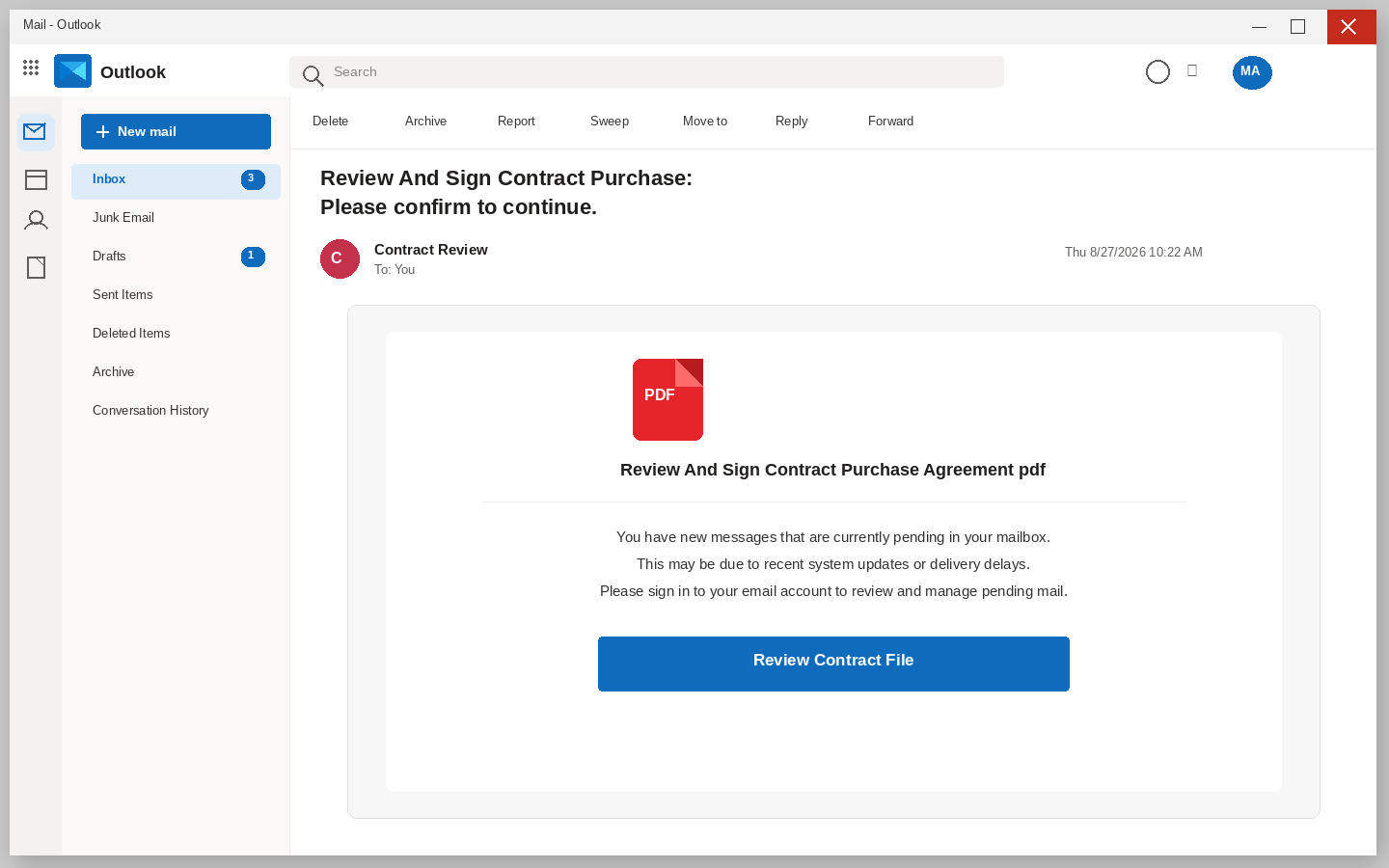
A contract is waiting for review, and the email says pending mailbox messages may disappear. That combination is designed to make a recipient act before thinking.
The message does not need a real agreement to work. It needs only a believable reason to place a webmail login form behind a button.
Overview
A document story mixed with mailbox anxiety
The email claims there is a contract purchase agreement to review, then adds a warning about delayed or pending mailbox messages. Those are two different issues placed together on purpose.
The contract theme reaches people who handle approvals. The mailbox theme reaches anyone afraid of losing important correspondence.
Combining both creates a shortcut: the reader is nudged to sign in before asking who sent the document.
The button does not open a contract
A control labeled Review Contract File can lead to a webmail-style login page rather than a document. The promised PDF becomes an excuse for a credential prompt.
A real contract platform normally identifies the sender, the parties, and the signing process. It does not ask for the password to an unrelated mailbox.
The page may borrow a neutral mail design because familiar email fields feel less alarming than an unknown vendor portal.
The value lies in the mailbox
A mailbox can contain negotiations, attachments, contacts, payment questions, and reset links. That makes it a more valuable target than the fictitious contract.
Once access is obtained, the attacker may read quietly, forward messages, or impersonate the account owner later.
The original email can therefore be only the first message in a longer business or personal fraud attempt.
- A contract-review invitation paired with a separate pending-mail warning
- A deadline or deletion threat that discourages verification
- A button that leads to a sign-in form instead of an agreement
- A request for webmail credentials unrelated to document review
- A mailbox target that can support later payment impersonation
- A campaign that is safer to verify through the supposed sender directly
The contract-review trap relies on a small moment of confusion. A recipient may think the mail system is asking for access to release a document.
That is not how an ordinary agreement should arrive. A contract and a mailbox account are separate things.
Once that mismatch is visible, the request loses much of its urgency.
How The Scam Works
Step 1: A contract subject line creates a reason to open
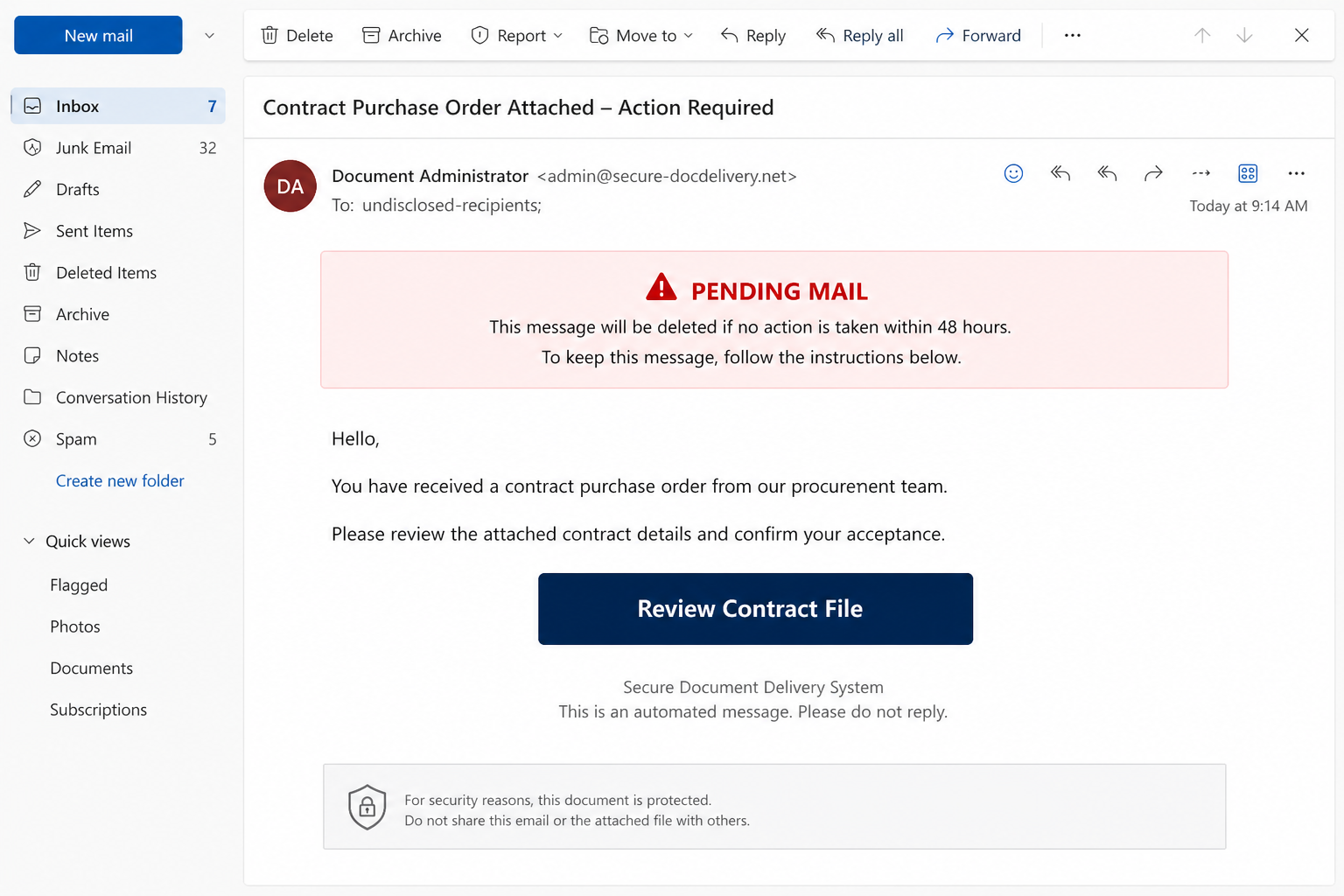
At this point, a contract purchase order is announced as awaiting review.
This sign-off email gains leverage because the subject appeals to people who approve, sell, buy, or manage agreements.
For a rushed recipient, the email can appear among genuine document notifications.
Contracts can involve deadlines, approvals, and anxiety about holding up a transaction.
That makes an unexpected sign-off request feel more urgent than an ordinary spam message.
The campaign uses that pressure before supplying any real agreement context.
For the contract-review trap, a contract purchase order is announced as awaiting review. The recipient is meant to confuse urgency with authenticity.
The mailbox warning adds pressure, although a contract purchase order is announced as awaiting review. A real agreement can be verified without this detour.
The fake sign-off path works only if a contract purchase order is announced as awaiting review. Looking at the domain interrupts that handoff.
Step 2: A pending-mail warning adds artificial urgency
At this point, the message says pending mail may be delayed or deleted.
This sign-off email gains leverage because a vague systems explanation makes the request feel like account maintenance.
For a rushed recipient, the reader is encouraged to fix the alleged issue immediately.
The pending-mail warning broadens the appeal beyond people expecting a contract.
Anyone worried about losing messages may feel compelled to repair the mailbox first.
The pairing is a clue because document signing and mailbox cleanup are unrelated.
For the contract-review trap, the message says pending mail may be delayed or deleted. The recipient is meant to confuse urgency with authenticity.
The mailbox warning adds pressure, although the message says pending mail may be delayed or deleted. A real agreement can be verified without this detour.
The fake sign-off path works only if the message says pending mail may be delayed or deleted. Looking at the domain interrupts that handoff.
Step 3: The call to action promises a protected file
At this point, a Review Contract File button is presented as the safe path.
This sign-off email gains leverage because the wording suggests an enclosed agreement without showing meaningful contract details.
For a rushed recipient, the click can move to an unrelated website.
A genuine agreement should identify the parties and transaction before asking for action.
The button in this campaign substitutes a generic promise for those useful details.
That vagueness keeps the deception flexible.
For the contract-review trap, a Review Contract File button is presented as the safe path. The recipient is meant to confuse urgency with authenticity.
The mailbox warning adds pressure, although a Review Contract File button is presented as the safe path. A real agreement can be verified without this detour.
The fake sign-off path works only if a Review Contract File button is presented as the safe path. Looking at the domain interrupts that handoff.
Step 4: The destination imitates a webmail sign-in
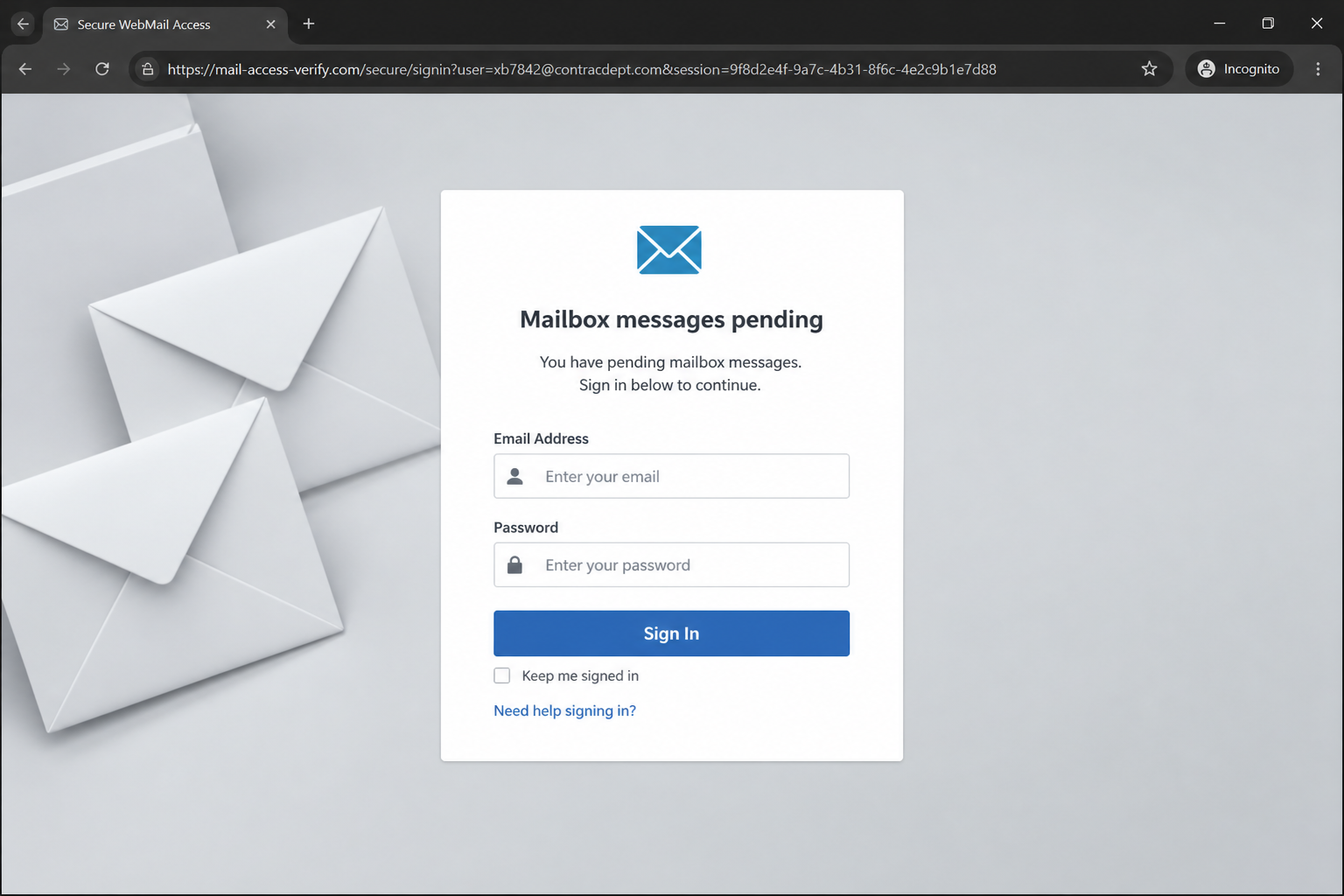
At this point, the next page resembles a familiar email login screen.
This sign-off email gains leverage because mail icons and ordinary fields can make the page feel routine.
For a rushed recipient, the actual domain may have no relationship to the recipient’s provider.
Webmail screens are familiar enough that users may type without inspecting the address bar.
The design can resemble a provider while sitting on a completely different domain.
A password manager failing to recognize the page is worth noticing.
For the contract-review trap, the next page resembles a familiar email login screen. The recipient is meant to confuse urgency with authenticity.
The mailbox warning adds pressure, although the next page resembles a familiar email login screen. A real agreement can be verified without this detour.
The fake sign-off path works only if the next page resembles a familiar email login screen. Looking at the domain interrupts that handoff.
Step 5: Credentials are collected instead of a signature
At this point, the page requests inbox credentials instead of a signature.
This sign-off email gains leverage because a signing request has quietly become a mailbox-login demand.
For a rushed recipient, there is no legitimate reason for a contract file to require a main-mailbox password.
Signing a document and signing into an inbox are different tasks.
The false page tries to blur them by placing email fields where a contract should appear.
A recipient who sees that substitution can exit safely.
For the contract-review trap, the page requests inbox credentials instead of a signature. The recipient is meant to confuse urgency with authenticity.
The mailbox warning adds pressure, although the page requests inbox credentials instead of a signature. A real agreement can be verified without this detour.
The fake sign-off path works only if the page requests inbox credentials instead of a signature. Looking at the domain interrupts that handoff.
Step 6: Mailbox access can support quiet follow-up fraud
At this point, a stolen mailbox can reveal existing deals and trusted contacts.
This sign-off email gains leverage because the attacker may create rules that hide replies or copy incoming messages.
For a rushed recipient, later messages can appear to come from a known person.
Email access gives an intruder a quiet view of negotiations and reset messages.
They may wait for a valuable thread instead of acting immediately.
That patience makes early account review essential.
For the contract-review trap, a stolen mailbox can reveal existing deals and trusted contacts. The recipient is meant to confuse urgency with authenticity.
The mailbox warning adds pressure, although a stolen mailbox can reveal existing deals and trusted contacts. A real agreement can be verified without this detour.
The fake sign-off path works only if a stolen mailbox can reveal existing deals and trusted contacts. Looking at the domain interrupts that handoff.
Step 7: The missing contract delays suspicion
At this point, no real agreement is provided after the credentials are entered.
This sign-off email gains leverage because recipients may assume a technical delay caused the problem.
For a rushed recipient, that hesitation can give the intruder time to explore the account.
A nonexistent contract provides no obvious error message after the password is entered.
The recipient may assume a temporary problem caused the blank result.
That uncertainty helps the attacker remain unnoticed.
For the contract-review trap, no real agreement is provided after the credentials are entered. The recipient is meant to confuse urgency with authenticity.
The mailbox warning adds pressure, although no real agreement is provided after the credentials are entered. A real agreement can be verified without this detour.
The fake sign-off path works only if no real agreement is provided after the credentials are entered. Looking at the domain interrupts that handoff.
Company, Address, and Fulfillment Checks
A document administrator is not proof of a sender
A generic administrator title can be invented in seconds. Verify the person through a company directory or an existing contact record.
A familiar display name should never outweigh a mismatched email domain.
If the sender cannot be confirmed independently, treat the file request as untrusted.
A protected file should name its platform
Legitimate e-signature services describe the agreement, sender, and signing destination. An anonymous mail form does not provide that traceability.
Open an expected platform from its known address, not from a button that appeared unexpectedly.
A padlock graphic cannot tell you who owns the site.
Real support can discuss the agreement
Call the supposed sender through a number you already know or find from a verified website. Ask whether they sent a contract and what it concerns.
Avoid numbers, links, and reply instructions contained in the suspicious message.
Pressure to sign in before asking questions is a warning, not a support process.
Mailbox credentials should never be the document fee
A contract file may require an account with the signing service, but it should not request the password to your primary email provider.
That distinction protects a much broader set of conversations than one agreement.
If a page crosses that line, close it without submitting anything.
Why This Message Can Cause Real Harm
Contract scams can affect homes as well as businesses. People may assume a lease, delivery, utility, or purchase document is connected to something they recently discussed.
Read the sender and the first line closely. A genuine contract notice usually provides names, context, and a recognizable transaction before it asks the recipient to act.
Be particularly cautious when one email mixes unrelated fears, such as a document review and a mailbox deletion warning. That blend is an attempt to widen the audience.
Browser password managers can sometimes reveal a mismatch. If the saved sign-in does not appear on a supposed mail page, do not type credentials manually.
Email providers allow users to review login activity and forwarding rules. Those features become important if a password was entered.
Tell colleagues or family members about the lure if they share the account or handle the same subject. It prevents a second person from reusing the link later.
Treat unexplained contract links as verification tasks, not as signing tasks. The sender should be able to confirm the request without demanding a password.
What to Do if You Have Fallen Victim to This Scam
- Close the fake sign-in page and retain the email for evidence. Save the link address and a screenshot of the page if it can be collected safely.
- Change the mailbox password immediately from a trusted device if it was entered. Use a unique replacement password rather than a variation of the old one.
- Sign out of other email sessions and review account recovery details, forwarding rules, connected applications, and recent sign-in activity.
- Warn contacts if the mailbox may have been accessed. A short notice can stop a later invoice, gift-card, or payment request from appearing credible.
- Contact the real organization through an independently found number if the email named a company or person. Ask whether any contract was actually sent.
- Run Malwarebytes if the link downloaded a file, installed an extension, or caused unexpected browser behavior. It can help locate malicious software and unwanted changes.
- Use AdGuard to block many malicious advertising and phishing destinations while you remove suspicious browser notifications and reassess saved logins.
- Report the phishing page to the email provider and consumer-fraud reporting service. Include the page address so protections can be updated.
Is Your Device Infected? Run a Free Malware Scan
Slow performance, constant pop-ups, or strange behavior? These are classic signs of a malware infection. The fastest way to find out is to scan your device with Malwarebytes Free — one of the most trusted malware removal tools available.
The free version detects and removes the most common threats, including:
- Adware — the cause of those annoying pop-ups
- Browser hijackers — unwanted redirects and changed homepages
- Trojans and spyware — hidden programs stealing your data
- Potentially unwanted programs (PUPs) — software you never asked for
👉 Select your device below — Windows, Mac, or Android — then follow the simple steps to download Malwarebytes, scan your system, and remove any threats it finds. The scan usually takes 5 to 20 minutes.
Run a Malware Scan with Malwarebytes for Windows
Malwarebytes is one of the most popular and trusted anti-malware tools for Windows — and it’s completely free for removing infections. It catches threats that many antivirus programs miss, including adware, browser hijackers, and trojans. Follow the steps below to scan and clean your PC in just a few minutes.
Download Malwarebytes
Click the button below to download the latest version of Malwarebytes for Windows from the official source. The free version is all you need — it will scan your computer and remove adware, browser hijackers, and other malicious software at no cost.
Download MalwarebytesOfficial installer for Windows 11 and 10. Your download starts right away.Want real-time protection? See Malwarebytes Premium Malwarebytes Free for WindowsScans and removes malware at no cost
-
Install Malwarebytes
When the download finishes, open your Downloads folder and double-click the MBSetup file. If Windows shows a User Account Control pop-up, click “Yes” to allow the installation.

Follow the On-Screen Prompts to Install Malwarebytes
The setup wizard will walk you through a few quick screens:
-
Choose where you’re installing the program — “Personal Computer” or “Work Computer” — then click Next.

-
Malwarebytes will now install on your device. This usually takes under a minute.

-
When installation is complete, the “Welcome to Malwarebytes” screen will open automatically.

-
On the final screen, click Open Malwarebytes to launch the program.

-
Enable “Scan for Rootkits”
Before scanning, turn on rootkit detection so Malwarebytes can find even the most hidden threats. Click the Settings gear icon on the left side of the screen.

In the settings menu, find “Scan for rootkits” and click the toggle so it turns blue.

Done? Click “Dashboard” in the left pane to return to the main screen.
Start the Scan
Click the blue Scan button. Malwarebytes will automatically update its virus database and start checking your computer for malware.

-
Wait for the Scan to Finish
The scan checks your entire system for browser hijackers and other malicious programs, so it can take 5 to 20 minutes depending on your computer. Feel free to do something else — just check back occasionally to see the progress.

-
Quarantine the Detected Threats
When the scan is done, you’ll see a list of everything Malwarebytes found — malware, adware, and potentially unwanted programs. Click the “Quarantine” button to remove all of them at once.

Malwarebytes will now remove the malicious files and registry entries and move them safely into quarantine.

-
Restart Your Computer
Some threats can only be fully removed after a reboot. If Malwarebytes asks you to restart, click Yes. Once you’re logged back in, Malwarebytes has finished removing the threats it found.

That’s it — your Windows PC is now clean of trojans, adware, and other malware, and should be back to running smoothly.
If you are still having problems with your computer after completing these instructions, then please follow one of the steps:
- Run a computer scan with ESET Online Scanner
- Ask for help in our Windows Malware Removal Help & Support forum.
Run a Malware Scan with Malwarebytes for Mac
Malwarebytes for Mac is a free on-demand scanner that removes the malware other security software tends to miss — adware, browser hijackers, and unwanted programs included. Cleaning an infected Mac with Malwarebytes has always been completely free, and it’s our go-to recommendation. Follow the steps below to scan and clean your Mac in just a few minutes.
-
Download Malwarebytes for Mac
Click the button below to download the latest version of Malwarebytes for Mac.
Download MalwarebytesOfficial installer for macOS. Your download starts right away.Want real-time protection? See Malwarebytes PremiumMalwarebytes Free for MacScans and removes malware at no cost -
Open the Malwarebytes setup file
When the download finishes, open your Downloads folder and double-click the setup file to begin the installation.

-
Follow the On-Screen Prompts to Install Malwarebytes
The Malwarebytes for Mac Installer will guide you through a few quick screens. Click “Continue” and keep following the prompts until the installation completes.



When the installation is complete, Malwarebytes opens to the Welcome to Malwarebytes screen. Click “Get started“.
-
Select “Personal Computer” or “Work Computer”
Malwarebytes will ask what type of computer you’re installing it on. Click either Personal Computer or Work Computer, whichever applies.

-
Start the Scan
Click the “Scan” button. Malwarebytes will automatically update its detection database and begin checking your Mac for malware.

-
Wait for the Scan to Finish
Malwarebytes will scan your Mac for adware, browser hijackers, and other malicious programs. This can take a few minutes, so feel free to do something else — just check back occasionally to see the progress.

-
Quarantine the Detected Threats
When the scan is done, you’ll see a list of everything Malwarebytes found. Click the “Quarantine” button to remove all the threats at once.

-
Restart Your Mac
Malwarebytes will now remove all the malicious files it found. Some threats can only be fully removed after a reboot — if Malwarebytes asks you to restart, allow it. Once you’re logged back in, your Mac is clean.

That’s it — your Mac is now free of adware, rogue browser extensions, and other potentially harmful software.
If you are still experiencing problems while trying to remove a malicious program from your computer, please ask for help in our Mac Malware Removal Help & Support forum.
Run a Malware Scan with Malwarebytes for Android
Malwarebytes for Android automatically detects and removes dangerous threats like malware and ransomware so you don’t have to worry about your most-used device being compromised. Aggressive detection of adware and potentially unwanted programs keeps your Android phone or tablet running smooth.
-
Download Malwarebytes for Android.
You can download Malwarebytes for Android by clicking the link below.
Get Malwarebytes for AndroidOpens Google Play in a new tab.Want real-time protection? See Malwarebytes Premium for AndroidMalwarebytes for AndroidScans your phone and removes malware at no cost -
Install Malwarebytes for Android on your phone.
In the Google Play Store, tap “Install” to install Malwarebytes for Android on your device.

When the installation process has finished, tap “Open” to begin using Malwarebytes for Android. You can also open Malwarebytes by tapping on its icon in your phone menu or home screen.

-
Follow the on-screen prompts to complete the setup process
When Malwarebytes will open, you will see the Malwarebytes Setup Wizard which will guide you through a series of permissions and other setup options.
This is the first of two screens that explain the difference between the Premium and Free versions. Swipe this screen to continue.
Tap on “Got it” to proceed to the next step.
Malwarebytes for Android will now ask for a set of permissions that are required to scan your device and protect it from malware. Tap on “Give permission” to continue.
Tap on “Allow” to permit Malwarebytes to access the files on your phone.
-
Update database and run a scan with Malwarebytes for Android
You will now be prompted to update the Malwarebytes database and run a full system scan.

Click on “Update database” to update the Malwarebytes for Android definitions to the latest version, then click on “Run full scan” to perform a system scan.

-
Wait for the Malwarebytes scan to complete.
Malwarebytes will now start scanning your phone for adware and other malicious apps. This process can take a few minutes, so we suggest you do something else and periodically check on the status of the scan to see when it is finished.

-
Click on “Remove Selected”.
When the scan has been completed, you will be presented with a screen showing the malware infections that Malwarebytes for Android has detected. To remove the malicious apps that Malwarebytes has found, tap on the “Remove Selected” button.

-
Restart your phone.
Malwarebytes for Android will now remove all the malicious apps that it has found. To complete the malware removal process, Malwarebytes may ask you to restart your device.
That’s it — your Android phone is now clean — no more malicious apps, adware, or browser redirects.
If you are still having problems with your phone after completing these instructions, then please follow one of the steps:
- Restore your phone to factory settings by going to Settings > General management > Reset > Factory data reset.
- Ask for help in our Mobile Malware Removal Help & Support forum.
Stay Protected: Block Ads and Malicious Sites
Now that your device is clean, keep it that way. Most infections start with a malicious ad or a fake download button — so blocking them at the source is your best defense.
We recommend AdGuard, which blocks malicious ads, phishing pages, and dangerous redirects before they can reach you.
👉 Download AdGuard and browse safely
Frequently Asked Questions
Why does the email mention pending mailbox messages?
The warning creates fear that important mail will disappear. It has no necessary connection to a contract review.
Should a contract page ask for my webmail password?
No. A document-signing service may use its own account, but it should not require the password to your email inbox.
What happens if someone gets into my mailbox?
They may read messages, create forwarding rules, reset other accounts, or impersonate you in later correspondence.
Can a legitimate contract email look urgent?
Sometimes, but the sender should be independently verifiable and able to explain the transaction outside the link.
How do I check whether a contract is real?
Contact the named person using an existing number or a verified company website. Do not reply through the suspicious message.
What if I typed only my email address?
Expect targeted follow-up phishing. Change the password only if it was submitted, then review account security settings.
The Bottom Line
The Review and Sign Contract email scam swaps a document request for a mailbox credential trap.
A real agreement can be verified through its sender. It never needs the password to the inbox where the notice appeared.
Pause when a contract and a mailbox warning are bundled together. That mismatch is the clue.

Join the discussion
0 commentsShare your experience or ask a question about this article.
Discussion
Start the conversation
Have a question or something useful to share? Add the first comment.