

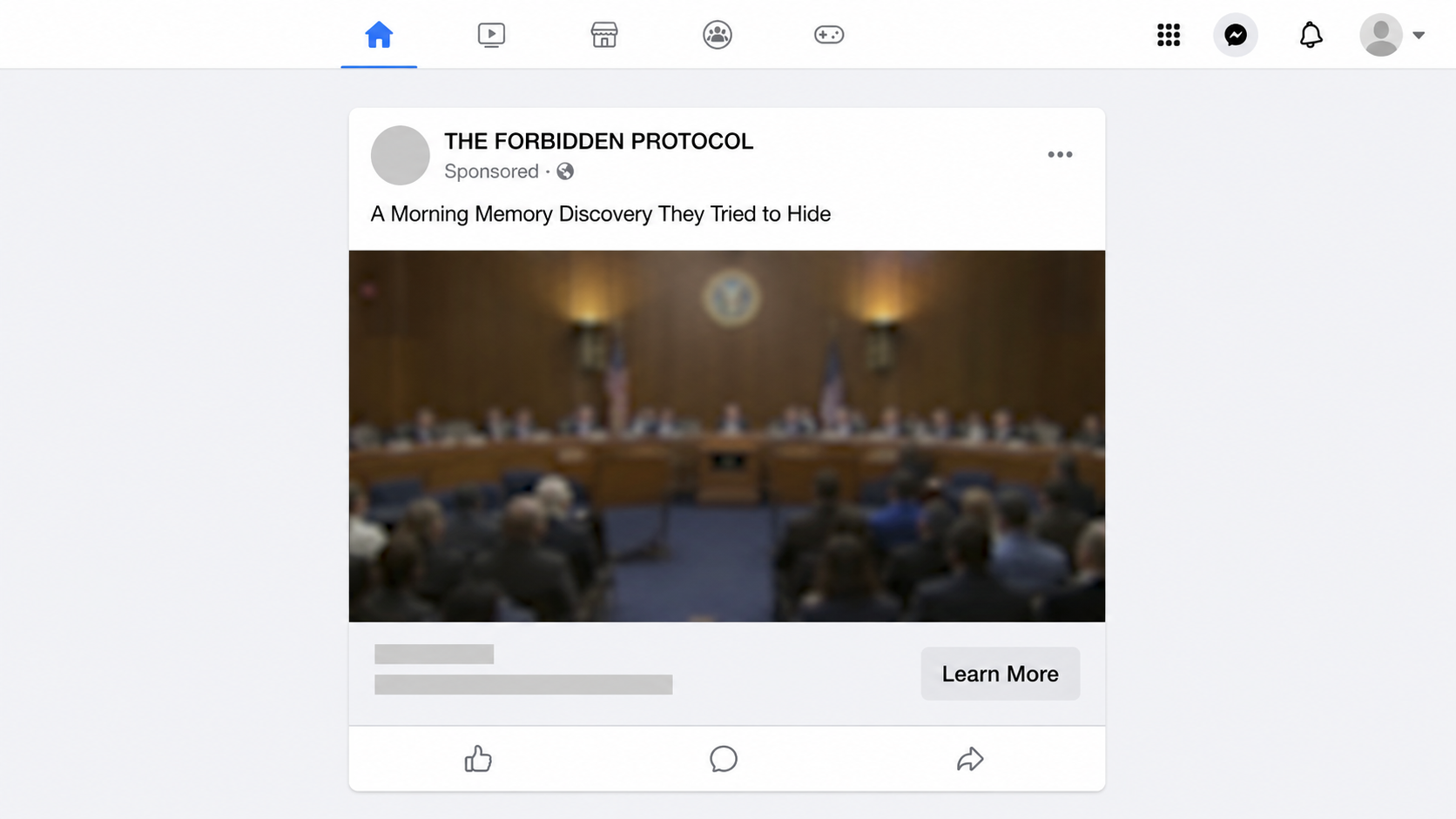
A polished video claims a suppressed memory breakthrough has finally escaped Washington. The story feels urgent, personal, and just plausible enough to stop a worried family member mid-scroll.
Behind that dramatic opening sits a fast-moving sales campaign built around authority, fear, and hope. We followed its path to see what buyers actually encounter.
Overview
What the advertisement claims
The promotion says Robert F. Kennedy Jr. uncovered a forbidden memory protocol in documents powerful interests wanted buried.
Versions reference Alzheimer’s disease, dementia, brain fog, lost words, and everyday forgetfulness. A morning mixture involving honey, water, or baking soda supplies the curiosity hook.
The headline often resembles an investigative report. Phrases about a “DOJ document dump” and payments by “Big Pharma” make the tale sound documented.
What our checks found
We found no credible announcement, medical paper, government record, or authorized endorsement connecting Kennedy to this memory remedy or MemoFlow.
The path leads to a commercial supplement offer, not an official health agency, research institution, or recognized Alzheimer’s treatment program.
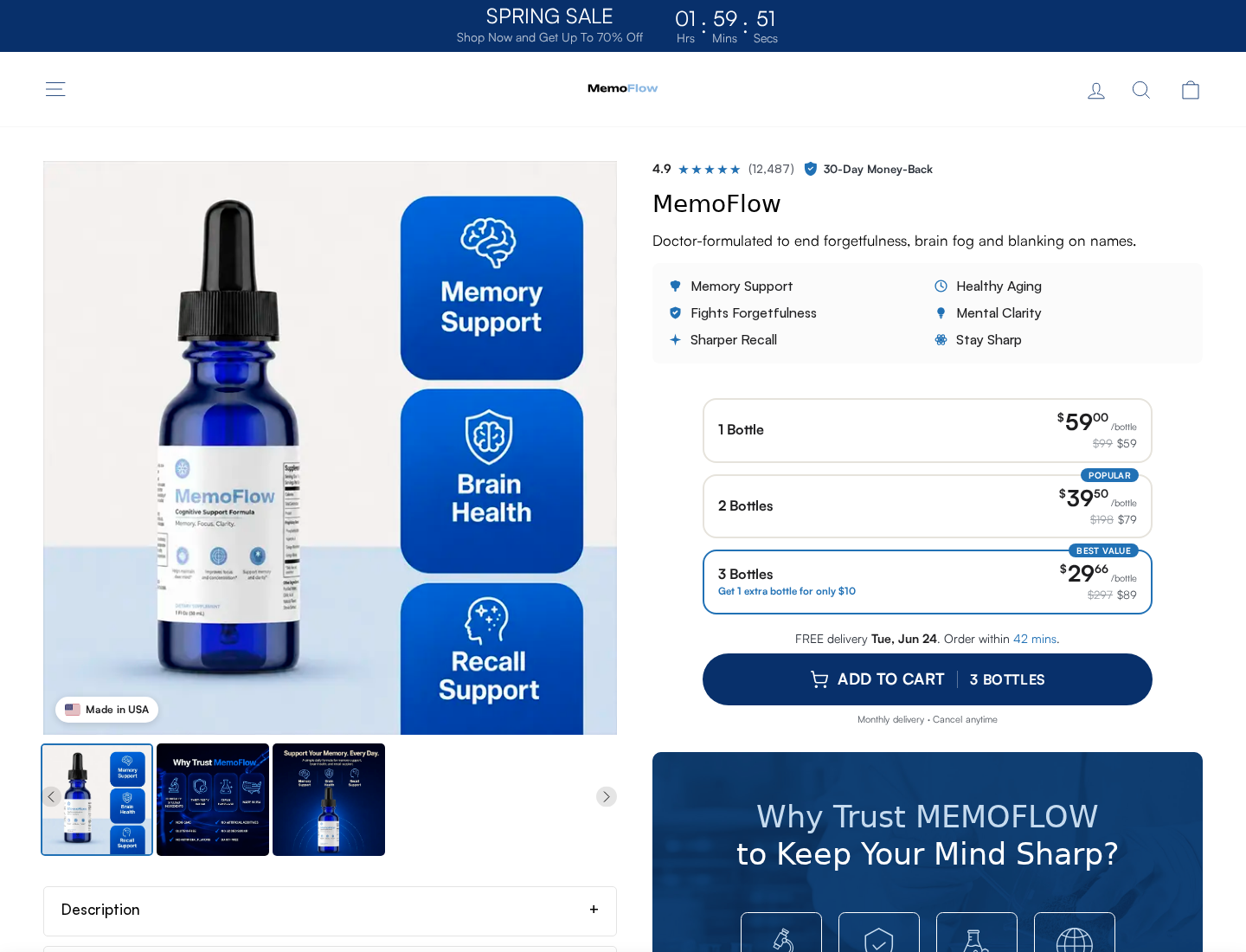
The current MemoFlow page openly uses monthly-delivery language. Its purchase link then moves shoppers to a differently branded Mediterra checkout.
The warning signs at a glance
- A public figure appears to reveal a secret medical discovery.
- A fake-news presentation replaces verifiable clinical evidence.
- Emotional stories encourage viewers to distrust doctors and established treatment.
- The product name appears only after a long promotional sequence.
- Sales, checkout, support, and refund pages use different brand identities.
- Recurring-delivery language appears around what may look like a simple bottle purchase.
Why the RFK Jr. “Memory Discovery” Story Does Not Hold Up
A medical breakthrough for Alzheimer’s disease would not emerge through a mystery Facebook advertorial that immediately sells supplement drops.
It would produce named researchers, study methods, peer review, safety data, and statements from medical institutions. The campaign supplies theatrical allegations instead.
The National Institute on Aging says there is currently no cure for Alzheimer’s. Approved treatments require medical evaluation and carry specific indications and risks.
A honey drink or hydration ritual cannot be treated as a substitute for diagnosis. Memory problems can have many causes, some reversible and some urgent.
Medication side effects, sleep disorders, depression, infections, thyroid problems, strokes, and other conditions may affect memory. A clinician must separate them carefully.
The Kennedy storyline works because it bypasses that complexity. It gives frightened viewers one villain, one hidden answer, and one convenient checkout.
How the Scam Works
Step 1: A sensational social video creates instant authority
The first contact usually appears as a sponsored post, short video, or recommended clip. It borrows the rhythm of television news.
Kennedy’s name supplies political visibility. Alzheimer’s and dementia supply emotional pressure. Together, they can make an unknown advertiser feel unexpectedly important.
The clip may use synthetic narration, edited footage, or a voice that seems familiar. Small visual inconsistencies are easy to miss on a phone.
Viewers are not asked to buy immediately. They are invited to “watch,” “learn more,” or discover why the information was supposedly suppressed.
Step 2: A fake investigation turns uncertainty into suspicion
The next page imitates an article, interview, or leaked report. Its job is to make ordinary skepticism feel like proof of a cover-up.
References to government files, secret settlements, censorship, or pharmaceutical pressure sound specific. Yet the page provides no traceable document supporting them.
This reversal is central to the pitch. Missing evidence is presented as evidence that the discovery was hidden especially well.
Real verification becomes difficult because the campaign gives readers no study title, journal, trial registration number, research institution, or accountable medical author.
Step 3: A harmless kitchen ritual keeps viewers curious
Honey, baking soda, or morning water makes the story feel accessible. Everyone recognizes the ingredients, so the claim feels less intimidating than medicine.
The “recipe” remains deliberately incomplete. Each paragraph promises the missing detail is coming after one more testimonial, explanation, or warning.
That delay creates commitment. After spending several minutes reading or watching, a viewer becomes more likely to continue toward the promised answer.
The kitchen imagery also softens the later transition to supplement drops. The bottle appears to be the concentrated version of something familiar.
Step 4: Fear of decline is converted into a product reveal
The presentation describes common lapses as signs that a dangerous process is accelerating. Forgetting a name or entering a room without purpose becomes ominous.
Testimonials then introduce dramatic improvement. These stories may use stock portraits, invented names, staged scripts, or images that cannot be independently verified.
Only after the viewer accepts the crisis does the product appear. In this campaign, that product is sold under the MemoFlow name.
The reveal is carefully timed. It makes the bottle feel like the conclusion of an investigation rather than the purpose of an advertisement.
Step 5: Bundle pricing reframes a large order as savings
The current sales page lists one, two, and three-bottle choices, then highlights the largest package as the best value.
Price comparisons use crossed-out totals, countdowns, review counts, and percentage discounts. None of those visual elements proves the reference price was commonly charged.
Buyers concentrating on the per-bottle figure may overlook the full transaction. They may also miss small recurring-delivery wording beneath the main button.
A bundle can be legitimate, but it deserves a clear total, exact quantity, delivery schedule, and cancellation method before card information is entered.
Step 6: The checkout identity changes
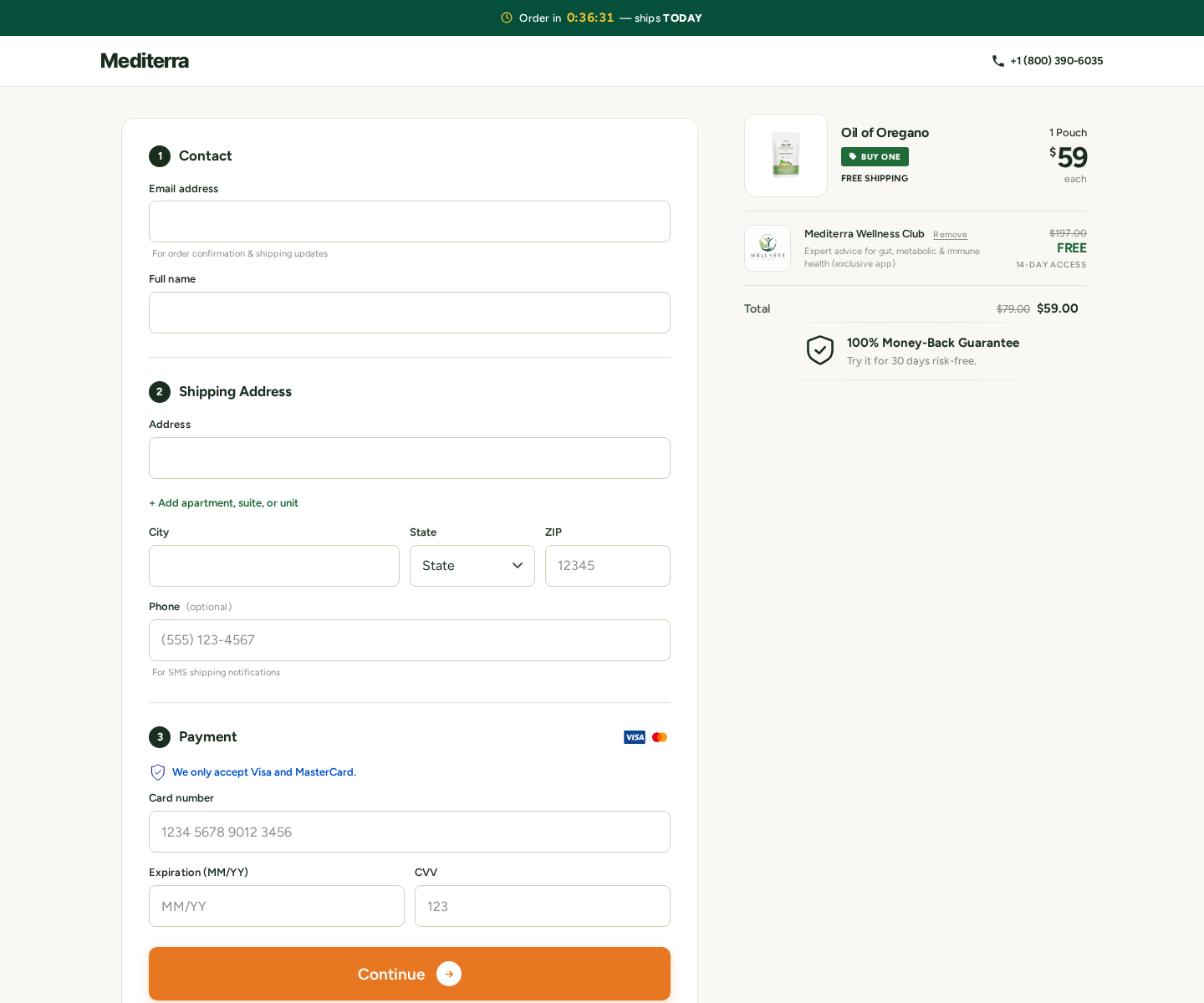
The MemoFlow order button currently sends customers to a checkout on the usemediterra.com domain. The page is branded Mediterra, not MemoFlow.
More concerning, our captured checkout displayed Oil of Oregano instead of the memory product shown moments earlier. That disconnect makes informed consent extremely difficult.
The checkout also advertised a free Wellness Club period that renews for $197 annually. A separate member option referenced ongoing monthly shipments.
These terms are not minor decoration. They may determine what gets shipped, how often the card is billed, and which company appears on a statement.
Step 7: Refund rules become narrower than the sales promise
The MemoFlow page promotes a 30-day money-back message. The Mediterra refund policy adds eligibility limits and case-by-case review.
It states that subscription renewals after the 30-day window are not eligible. It also says requests can be denied when details are considered insufficient.
The legal terms instruct customers to contact support@Mediterra.com, while the sales page displays support@usememoflow.com and a different consumer-facing phone number.
Fragmented support details force buyers to determine which identity controls the order while a refund deadline continues running.
Step 8: The campaign can change names without changing its engine
The story is more durable than any bottle label. Advertisers can replace MemoFlow with another memory supplement while keeping the same celebrity, secret, and recipe.
Domains can also change quickly. RDAP records show usememoflow.com was registered on July 7, 2026, and usemediterra.com on May 8, 2026.
A new domain is not automatic proof of fraud. Here, it matters because it accompanies identity changes, subscription language, and an unrelated checkout item.
Searching only the product name may miss the next version. Recognizing the underlying narrative protects consumers after the current name disappears.
What Credible Memory Research Looks Like
Real findings identify the researchers and evidence
A genuine discovery names the institution, investigators, study design, journal, participants, limitations, and funding. Other specialists can inspect the work and challenge its conclusions.
The RFK Jr. story substitutes dramatic secrecy for those ordinary details. It offers a villain and revelation where readers should find a traceable scientific record.
A video saying “doctors are stunned” does not identify any doctor who examined the formula. Anonymous amazement is advertising language, not peer review.
Search exact study titles through medical databases and the named institution. If the only results repeat an advertisement, the claimed discovery probably lacks independent support.
Memory symptoms deserve a proper evaluation
Forgetfulness can relate to sleep, depression, medication effects, thyroid conditions, vitamin deficiencies, alcohol, infections, stress, or neurological disease.
Some causes may be treatable, while others require planning and specialist care. A generic supplement funnel cannot distinguish among them.
Sudden confusion, weakness, speech difficulty, severe headache, or abrupt behavioral change can signal an emergency. A honey ritual should never delay urgent assessment.
For gradual changes, document examples, timing, medicines, sleep patterns, and daily-function problems. Bring that record to a qualified clinician.
Approved treatments are not secret internet recipes
The National Institute on Aging explains available Alzheimer’s treatments, their limits, and why care must be individualized.
None turns an anonymous checkout into medical evidence. Even approved medicines require diagnosis, eligibility checks, monitoring, and a discussion of possible risks.
The contrast is revealing. Responsible guidance acknowledges uncertainty and tradeoffs, while the advertorial promises speed, simplicity, and near-universal success.
That confidence is not a strength. In health marketing, certainty unsupported by transparent evidence is often the clearest warning.
Company, Address, and Fulfillment Checks
The seller identity changes between pages
The storefront says MemoFlow, while checkout and legal pages say Mediterra. The relationship between those brands is not explained with a clear legal entity.
That is a serious transparency failure. A buyer should know who accepts payment, who supplies the product, and who is legally responsible before ordering.
The support details do not stay consistent
The storefront currently links support@usememoflow.com and a (323) number. Mediterra policies instead direct disputes and cancellations to support@Mediterra.com.
The checkout shows +1 (800) 390-6035. Earlier promotional material displayed another (323) number, showing how quickly contact information can shift.
The address appears to be a fulfillment location
Promotional material lists 19655 East 35th Drive, Suite 100, Aurora, Colorado. Other supplement sellers also use that address for package returns.
A returns warehouse can process parcels for many unrelated brands. It does not establish where MemoFlow is managed, formulated, tested, or manufactured.
Manufacturing claims need independent proof
Words such as “doctor-formulated,” “Made in USA,” and “GMP” appear on sales materials. We did not find a public certificate naming the actual manufacturer.
The FDA does not approve dietary supplements for safety or effectiveness before sale. A facility reference is not approval of this formula or its memory claims.
Unknown sourcing matters because contamination, undisclosed ingredients, dosage errors, and medication interactions can create real health risks.
What to Do if You Have Fallen Victim to This Scam
- Call the card issuer now. Explain that the purchase followed a deceptive celebrity medical advertisement. Ask about stopping pending charges and blocking future merchant rebills.
- Document every promise. Save the ad, product page, checkout total, confirmation email, delivery wording, refund policy, package label, and complete card-statement descriptor.
- Cancel every recurring component. Contact both MemoFlow and Mediterra in writing. Cancel product shipments, memberships, club access, and any annual renewal separately.
- Request the refund immediately. Quote the order number and purchase date. Demand written confirmation, and keep proof that your request arrived before the stated deadline.
- Do not return bottles blindly. Obtain written return instructions first. Use tracking, photograph the contents, and preserve the postal receipt if a shipment is required.
- Protect your accounts. If you reused a password, change it everywhere. Run a Malwarebytes scan and enable AdGuard to reduce malicious redirects and follow-up advertising.
- Speak with a clinician. Do not stop prescribed memory medication or delay an evaluation because of the advertisement. Report unexpected symptoms or supplement reactions promptly.
- Report the campaign. File complaints with the FTC, FDA for adverse events, your state attorney general, and IC3 when deception or unauthorized billing occurred online.
Is Your Device Infected? Run a Free Malware Scan
Slow performance, constant pop-ups, or strange behavior? These are classic signs of a malware infection. The fastest way to find out is to scan your device with Malwarebytes Free — one of the most trusted malware removal tools available.
The free version detects and removes the most common threats, including:
- Adware — the cause of those annoying pop-ups
- Browser hijackers — unwanted redirects and changed homepages
- Trojans and spyware — hidden programs stealing your data
- Potentially unwanted programs (PUPs) — software you never asked for
👉 Select your device below — Windows, Mac, or Android — then follow the simple steps to download Malwarebytes, scan your system, and remove any threats it finds. The scan usually takes 5 to 20 minutes.
Run a Malware Scan with Malwarebytes for Windows
Malwarebytes is one of the most popular and trusted anti-malware tools for Windows — and it’s completely free for removing infections. It catches threats that many antivirus programs miss, including adware, browser hijackers, and trojans. Follow the steps below to scan and clean your PC in just a few minutes.
Download Malwarebytes
Click the button below to download the latest version of Malwarebytes for Windows from the official source. The free version is all you need — it will scan your computer and remove adware, browser hijackers, and other malicious software at no cost.
Download MalwarebytesOfficial installer for Windows 11 and 10. Your download starts right away.Want real-time protection? See Malwarebytes Premium Malwarebytes Free for WindowsScans and removes malware at no cost
-
Install Malwarebytes
When the download finishes, open your Downloads folder and double-click the MBSetup file. If Windows shows a User Account Control pop-up, click “Yes” to allow the installation.

Follow the On-Screen Prompts to Install Malwarebytes
The setup wizard will walk you through a few quick screens:
-
Choose where you’re installing the program — “Personal Computer” or “Work Computer” — then click Next.

-
Malwarebytes will now install on your device. This usually takes under a minute.

-
When installation is complete, the “Welcome to Malwarebytes” screen will open automatically.

-
On the final screen, click Open Malwarebytes to launch the program.

-
Enable “Scan for Rootkits”
Before scanning, turn on rootkit detection so Malwarebytes can find even the most hidden threats. Click the Settings gear icon on the left side of the screen.

In the settings menu, find “Scan for rootkits” and click the toggle so it turns blue.

Done? Click “Dashboard” in the left pane to return to the main screen.
Start the Scan
Click the blue Scan button. Malwarebytes will automatically update its virus database and start checking your computer for malware.

-
Wait for the Scan to Finish
The scan checks your entire system for browser hijackers and other malicious programs, so it can take 5 to 20 minutes depending on your computer. Feel free to do something else — just check back occasionally to see the progress.

-
Quarantine the Detected Threats
When the scan is done, you’ll see a list of everything Malwarebytes found — malware, adware, and potentially unwanted programs. Click the “Quarantine” button to remove all of them at once.

Malwarebytes will now remove the malicious files and registry entries and move them safely into quarantine.

-
Restart Your Computer
Some threats can only be fully removed after a reboot. If Malwarebytes asks you to restart, click Yes. Once you’re logged back in, Malwarebytes has finished removing the threats it found.

That’s it — your Windows PC is now clean of trojans, adware, and other malware, and should be back to running smoothly.
If you are still having problems with your computer after completing these instructions, then please follow one of the steps:
- Run a computer scan with ESET Online Scanner
- Ask for help in our Windows Malware Removal Help & Support forum.
Run a Malware Scan with Malwarebytes for Mac
Malwarebytes for Mac is a free on-demand scanner that removes the malware other security software tends to miss — adware, browser hijackers, and unwanted programs included. Cleaning an infected Mac with Malwarebytes has always been completely free, and it’s our go-to recommendation. Follow the steps below to scan and clean your Mac in just a few minutes.
-
Download Malwarebytes for Mac
Click the button below to download the latest version of Malwarebytes for Mac.
Download MalwarebytesOfficial installer for macOS. Your download starts right away.Want real-time protection? See Malwarebytes PremiumMalwarebytes Free for MacScans and removes malware at no cost -
Open the Malwarebytes setup file
When the download finishes, open your Downloads folder and double-click the setup file to begin the installation.

-
Follow the On-Screen Prompts to Install Malwarebytes
The Malwarebytes for Mac Installer will guide you through a few quick screens. Click “Continue” and keep following the prompts until the installation completes.



When the installation is complete, Malwarebytes opens to the Welcome to Malwarebytes screen. Click “Get started“.
-
Select “Personal Computer” or “Work Computer”
Malwarebytes will ask what type of computer you’re installing it on. Click either Personal Computer or Work Computer, whichever applies.

-
Start the Scan
Click the “Scan” button. Malwarebytes will automatically update its detection database and begin checking your Mac for malware.

-
Wait for the Scan to Finish
Malwarebytes will scan your Mac for adware, browser hijackers, and other malicious programs. This can take a few minutes, so feel free to do something else — just check back occasionally to see the progress.

-
Quarantine the Detected Threats
When the scan is done, you’ll see a list of everything Malwarebytes found. Click the “Quarantine” button to remove all the threats at once.

-
Restart Your Mac
Malwarebytes will now remove all the malicious files it found. Some threats can only be fully removed after a reboot — if Malwarebytes asks you to restart, allow it. Once you’re logged back in, your Mac is clean.

That’s it — your Mac is now free of adware, rogue browser extensions, and other potentially harmful software.
If you are still experiencing problems while trying to remove a malicious program from your computer, please ask for help in our Mac Malware Removal Help & Support forum.
Run a Malware Scan with Malwarebytes for Android
Malwarebytes for Android automatically detects and removes dangerous threats like malware and ransomware so you don’t have to worry about your most-used device being compromised. Aggressive detection of adware and potentially unwanted programs keeps your Android phone or tablet running smooth.
-
Download Malwarebytes for Android.
You can download Malwarebytes for Android by clicking the link below.
Get Malwarebytes for AndroidOpens Google Play in a new tab.Want real-time protection? See Malwarebytes Premium for AndroidMalwarebytes for AndroidScans your phone and removes malware at no cost -
Install Malwarebytes for Android on your phone.
In the Google Play Store, tap “Install” to install Malwarebytes for Android on your device.

When the installation process has finished, tap “Open” to begin using Malwarebytes for Android. You can also open Malwarebytes by tapping on its icon in your phone menu or home screen.

-
Follow the on-screen prompts to complete the setup process
When Malwarebytes will open, you will see the Malwarebytes Setup Wizard which will guide you through a series of permissions and other setup options.
This is the first of two screens that explain the difference between the Premium and Free versions. Swipe this screen to continue.
Tap on “Got it” to proceed to the next step.
Malwarebytes for Android will now ask for a set of permissions that are required to scan your device and protect it from malware. Tap on “Give permission” to continue.
Tap on “Allow” to permit Malwarebytes to access the files on your phone.
-
Update database and run a scan with Malwarebytes for Android
You will now be prompted to update the Malwarebytes database and run a full system scan.

Click on “Update database” to update the Malwarebytes for Android definitions to the latest version, then click on “Run full scan” to perform a system scan.

-
Wait for the Malwarebytes scan to complete.
Malwarebytes will now start scanning your phone for adware and other malicious apps. This process can take a few minutes, so we suggest you do something else and periodically check on the status of the scan to see when it is finished.

-
Click on “Remove Selected”.
When the scan has been completed, you will be presented with a screen showing the malware infections that Malwarebytes for Android has detected. To remove the malicious apps that Malwarebytes has found, tap on the “Remove Selected” button.

-
Restart your phone.
Malwarebytes for Android will now remove all the malicious apps that it has found. To complete the malware removal process, Malwarebytes may ask you to restart your device.
That’s it — your Android phone is now clean — no more malicious apps, adware, or browser redirects.
If you are still having problems with your phone after completing these instructions, then please follow one of the steps:
- Restore your phone to factory settings by going to Settings > General management > Reset > Factory data reset.
- Ask for help in our Mobile Malware Removal Help & Support forum.
Stay Protected: Block Ads and Malicious Sites
Now that your device is clean, keep it that way. Most infections start with a malicious ad or a fake download button — so blocking them at the source is your best defense.
We recommend AdGuard, which blocks malicious ads, phishing pages, and dangerous redirects before they can reach you.
👉 Download AdGuard and browse safely
How to Recognize the Next Version
Do not memorize only “MemoFlow.” The next advertisement may use another bottle while repeating the same forbidden-discovery script.
Pause whenever a social clip combines a famous official, a frightening diagnosis, a kitchen ingredient, and a claim that ordinary treatment hides the truth.
Search the quoted headline, then check the public figure’s official channels. Look for named studies, not screenshots of unnamed documents.
Open the checkout in a separate tab before entering data. Compare the domain, product name, quantity, total, renewal schedule, and statement descriptor.
If any identity changes, leave. A legitimate medical purchase should become clearer as checkout approaches, never more confusing.
Frequently Asked Questions
Did RFK Jr. endorse MemoFlow?
We found no credible evidence that he endorsed MemoFlow or a honey, baking soda, or hydration protocol for Alzheimer’s disease.
Is the “DOJ document dump” real?
The advertisement offers no verifiable document identifying this discovery. Government-sounding language is used as a narrative prop, not substantiated evidence.
Can honey or baking soda cure memory loss?
No credible medical authority recognizes that recipe as an Alzheimer’s cure. Memory changes deserve proper assessment because their causes and treatments differ.
Is MemoFlow a one-time purchase?
The current storefront displays “Monthly delivery” and “Cancel anytime.” The linked Mediterra checkout also contains membership and recurring-payment language, so buyers should assume renewal risk.
Why does checkout show Mediterra?
The order link crosses to usemediterra.com. We found no plain explanation identifying the legal relationship or explaining why our checkout displayed another product.
What should appear on my card statement?
Check the confirmation and statement rather than guessing. If the descriptor is unfamiliar, contact the issuer and compare the amount and date immediately.
The Bottom Line
The RFK Jr. “memory discovery” is a sales story, not a documented Alzheimer’s breakthrough. It uses synthetic authority and secrecy to guide worried viewers toward MemoFlow.
The changing brand identity, unrelated checkout item, monthly-delivery wording, and restrictive renewal rules make this campaign unsafe to trust with health decisions or payment information.
If memory changes are affecting daily life, choose medical evaluation over a hidden recipe. The earlier the real cause is identified, the more useful the next step can be.

Join the discussion
0 commentsShare your experience or ask a question about this article.
Discussion
Start the conversation
Have a question or something useful to share? Add the first comment.