

Your wallet will not connect, a token is missing, or a transaction appears stuck. A page offering “DApp rectification” promises one universal fix for all three problems.
The interface speaks the language of Web3 support and offers dozens of familiar wallet choices. The request behind the Connect button deserves far more attention.
Overview
A fake repair service is presented as blockchain infrastructure
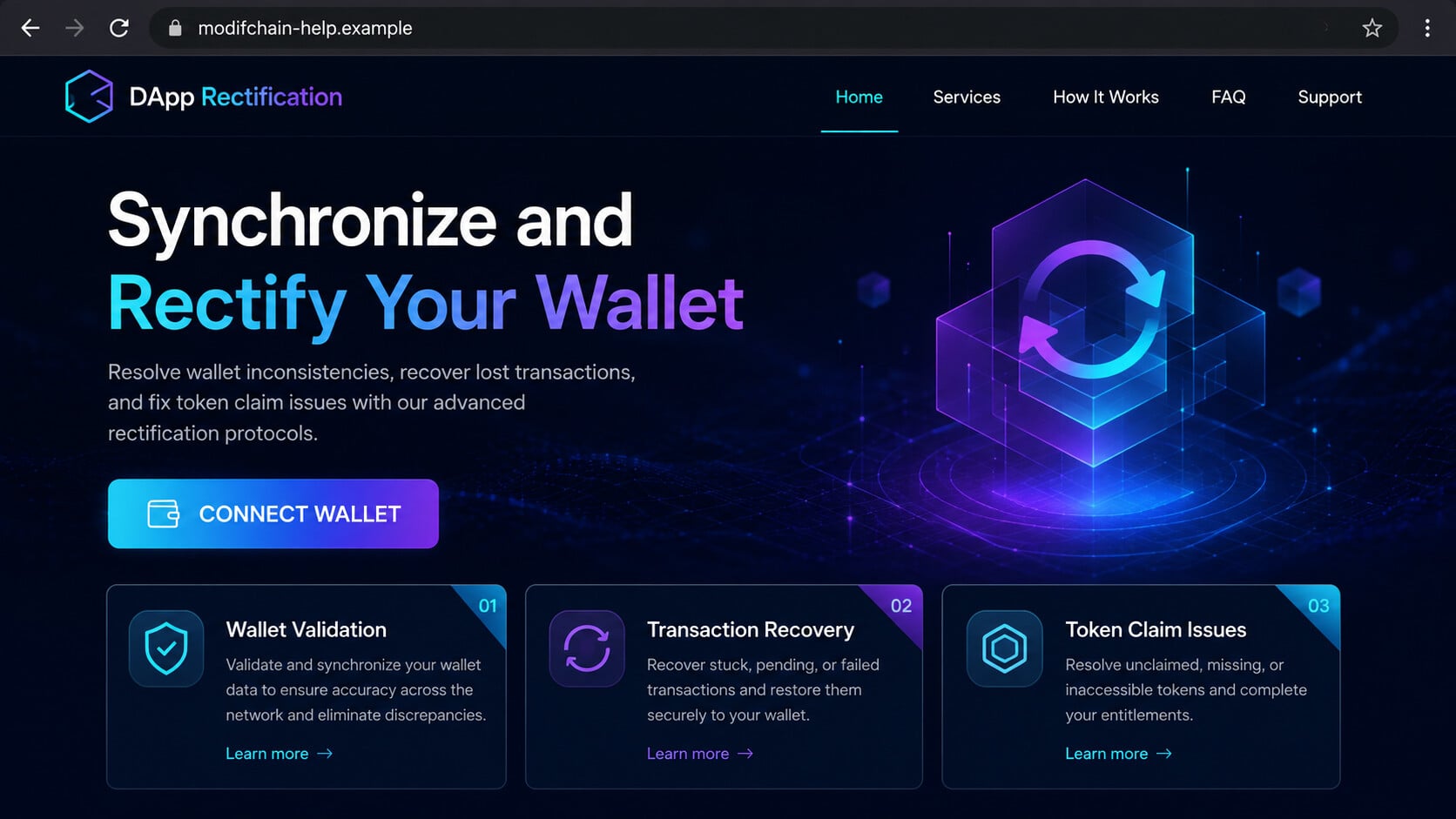
The DApp Rectification scam claims to synchronize wallets, repair transaction errors, validate assets, recover tokens, or reconnect decentralized applications.
Its language sounds broad because the operators want nearly any wallet problem to feel relevant. The page offers one repeated solution: connect the wallet.
There is no universal protocol that repairs every chain, token, bridge, staking issue, and wallet through an unrelated website.
The campaign rotates through domains and visual identities
Observed versions appeared on modifchainapp.pages.dev, rolesauthenticators.live, dappapp.pages.dev, stableflarewares.pages.dev, and other unrelated domains.
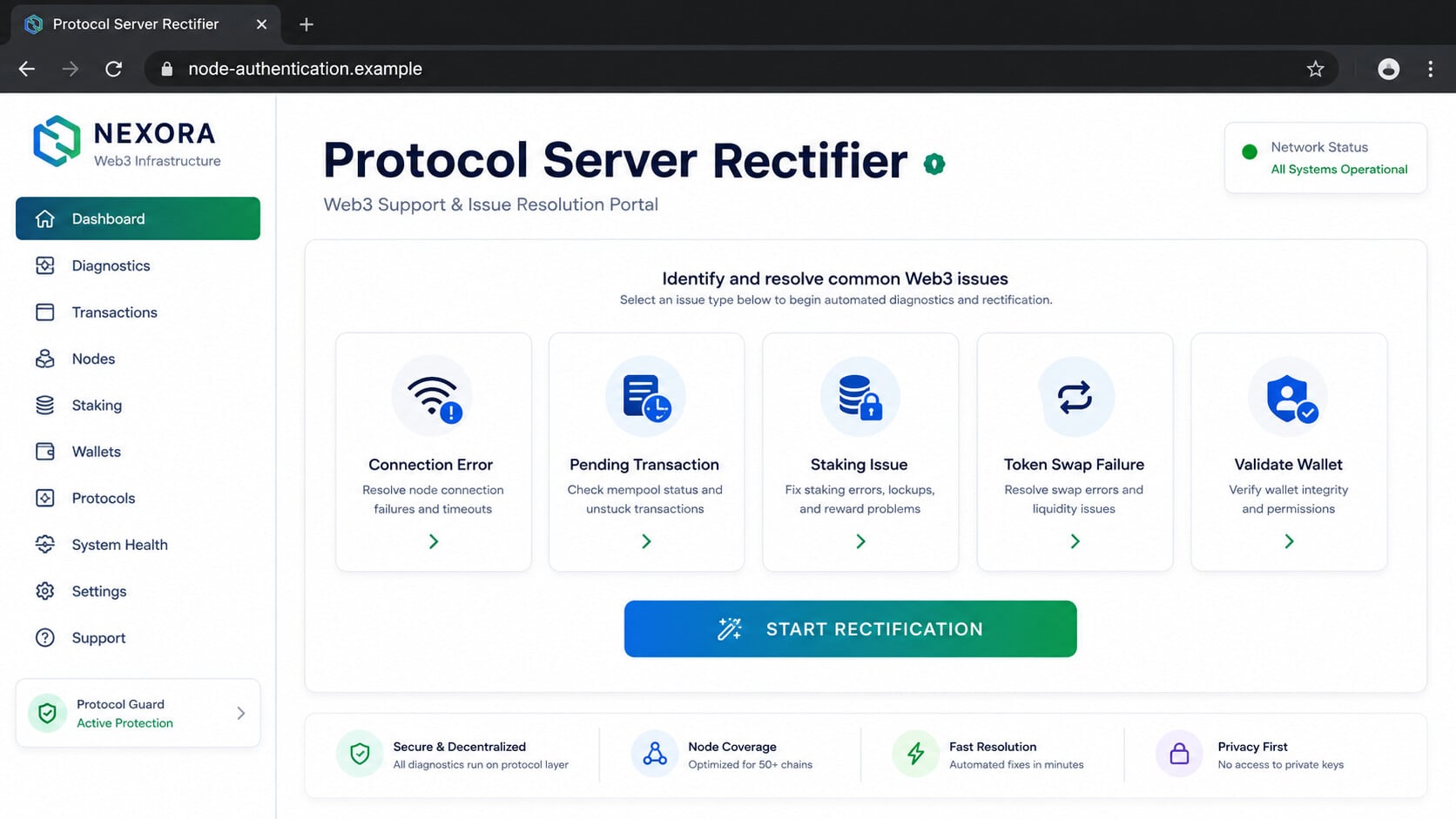
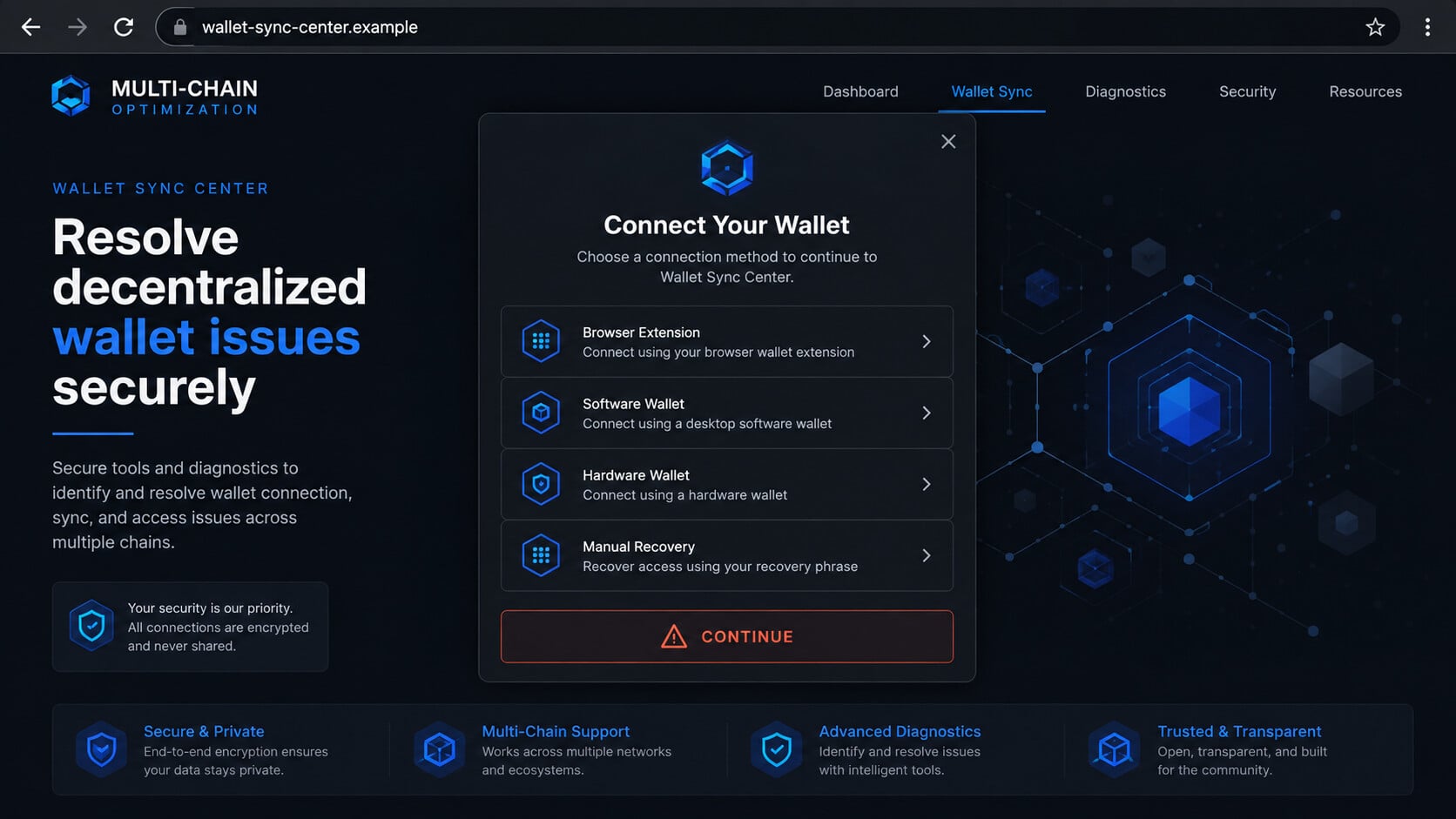
One page uses a blue “DApp Rectification” design. Another calls itself a server rectifier. A third promises to validate, sync, and optimize wallets.
The branding changes, but the action remains consistent. Visitors are pushed toward a wallet connection, signature request, or seed-phrase form.
The objective is wallet access, not technical support
A malicious site may request a token approval, Permit signature, transaction, or broad contract permission. The wording inside the wallet can be difficult to interpret.
If signed, that permission may let an attacker-controlled contract move approved tokens. Other variants simply ask for the Secret Recovery Phrase and steal direct control.
- The service claims to solve many unrelated wallet issues.
- Multiple disposable domains carry nearly identical promises.
- Buttons emphasize connection, restoration, validation, or synchronization.
- A signature can authorize token movement without displaying a normal payment.
- A seed phrase gives permanent control over every derived account.
What “Connecting a Wallet” Really Allows
A basic wallet connection usually exposes the public address, selected network, and balances visible on-chain. That alone is not the same as transferring assets.
The dangerous part often comes next. A decentralized application may ask the user to sign a message, approve token spending, or confirm an on-chain transaction.
Legitimate services also use signatures and approvals. The wallet depends on the user to decide whether the requesting site and permission are appropriate.
A fraudulent page exploits that normal workflow. It describes the signature as synchronization, verification, validation, or repair instead of explaining the actual authority requested.
Some approvals are unlimited. They can permit a contract to transfer a token type up to the wallet’s entire available balance.
Disconnecting the site later may not cancel that allowance. The approval exists on-chain until it is revoked through another transaction.
Why the Word “Rectification” Is a Warning
Rectification is not a standard consumer support category shared by all blockchains. It is a vague label that can be attached to almost any wallet concern.
Scam pages list problems such as failed swaps, delayed transactions, missing tokens, staking errors, bridge failures, high gas, locked assets, and NFT transfers.
Those issues have different causes. A network outage, wrong chain, hidden token, insufficient gas, failed bridge, or malicious contract requires a specific diagnosis.
A universal repair button avoids diagnosis. It sends the visitor toward the one action valuable to the attacker: approving access.
The word also sounds technical enough to discourage questions. A worried user may assume the procedure is an established blockchain maintenance step.
Wallet providers and legitimate projects publish support information on known domains. They do not need a mystery portal to “synchronize” a Secret Recovery Phrase.
How the DApp Rectification Scam Works
Step 1: A real wallet problem creates urgency
The victim may begin with a genuine issue: a token does not appear, a transaction fails, or a bridge transfer takes longer than expected.
Searching the error or asking for help on social media exposes that concern publicly. Scam accounts monitor support conversations and reply quickly.
Step 2: A reply or advertisement introduces the fake solution
The link may arrive through a direct message, reply, promoted post, malicious search result, browser notification, or compromised website.
The person sharing it may claim to be community support, a project moderator, wallet technician, recovery specialist, or another helpful user.
Step 3: The website claims broad compatibility
Logos or labels for Ethereum, BNB Chain, Polygon, Avalanche, Solana, Cardano, and popular wallets create the appearance of industry-wide support.
Compatibility claims are easy to display. They do not establish a relationship with those networks, wallet developers, or token projects.
Step 4: The visitor selects a repair category
Menus may offer options for staking, swapping, migration, claiming, bridging, validation, recovery, or transaction delay. Every selection can lead to the same collector.
This stage personalizes the experience without changing the underlying mechanism. The victim believes the site understood the problem.
Step 5: The page asks to connect, sign, or restore
A wallet modal may request connection first, then present a signature or token approval. The transaction description may be technical or intentionally unclear.
If automated connection fails, the page may offer “manual rectification.” That route often asks for a seed phrase or private key.
Step 6: The attacker gains spending authority or direct control
A malicious approval can authorize the transfer of selected tokens. A Permit or Permit2 signature may remain usable later, even without an immediate on-chain theft.
A stolen seed phrase is more serious. It lets the attacker derive wallet accounts, sign transactions, and move assets without further permission.
Step 7: Valuable assets are transferred first
Drainer software can inspect balances and prioritize tokens or NFTs by estimated value. Automated transfers may occur quickly after authorization.
Gas availability, network congestion, token approvals, and attacker strategy affect what moves. Some theft may be delayed to make the original interaction less obvious.
Step 8: Recovery impostors target the victim again
After the loss becomes public, fake investigators and recovery companies may promise to reverse blockchain transactions for an advance fee.
They may ask for more cryptocurrency, remote access, or the remaining wallet secrets. This is a second scam, not asset recovery.
Domain, Contract, and Wallet Checks
The domain is not a recognized support channel
The observed addresses do not belong to a single established wallet provider or blockchain project. Several are disposable-looking domains or hosted subdomains.
Reach support from the wallet application or project website you already know. Never trust a domain supplied by an unsolicited responder.
The claimed protocol has no accountable operator
The pages use generic labels such as DApp, server rectifier, authenticator, or protocol. They do not provide a verifiable legal entity responsible for the service.
A privacy policy or footer can be copied. Look for consistent documentation, established repositories, audited contracts, long-term channels, and confirmations from the project itself.
The wallet prompt reveals the real request
Read the network, contract address, token, spending limit, recipient, and function shown inside the wallet. Cancel if the purpose is unclear.
A support interaction should never require unlimited token spending. It should never require typing a seed phrase into a website.
The contract history can expose risk
Use the appropriate block explorer to examine the contract address, creation date, verified source code, transactions, labels, and reported activity.
An unlabeled contract is not automatically malicious. However, an unknown contract reached through an unverified repair page should not receive wallet authority.
Connection, Approval, Signature, and Seed Phrase Are Different
A connection lets a site see the selected public account and request further actions. It does not automatically authorize every asset transfer.
A transaction moves assets or changes blockchain state. The wallet normally shows a recipient, contract interaction, network fee, and requested action.
A token approval gives a contract permission to spend a token. An unlimited approval can remain dangerous until revoked.
A message signature may appear gas-free, yet some structured signatures authorize future asset movement. “No gas” does not mean “no risk.”
A Secret Recovery Phrase or private key grants direct wallet control. No support agent, validator, rectifier, or recovery website needs it.
MetaMask’s official guidance explains that disconnecting a site and revoking token approvals are different actions.
Warning Signs on DApp Rectification Pages
- One portal claims to fix unrelated problems across many chains.
- The domain was supplied by an unsolicited social-media responder.
- The operator has no verifiable company or established project identity.
- Every repair option ends with Connect Wallet.
- Manual connection requests a seed phrase or private key.
- The wallet shows unlimited spending or an unfamiliar contract.
- Support claims the procedure must happen immediately.
- A recovery agent guarantees reversible cryptocurrency transfers.
A polished interface does not make these requests legitimate. Scam kits can copy wallet lists, chain logos, animations, and support language within hours.
When the problem is real, pause. Check the transaction on a block explorer and use support reached from the project’s official application or documented website.
What to Do if You Have Fallen Victim to This Scam
- Reject any pending wallet prompt. Close the page and do not sign another message, approval, transaction, or “cancellation” request supplied by the same site.
- Determine what you authorized. Review recent wallet activity and the block explorer. Distinguish a basic connection from an approval, signature, transfer, or seed-phrase disclosure.
- Revoke malicious token approvals quickly. Use your wallet’s official approval manager or a trusted block-explorer checker. Revocation requires an on-chain transaction and network fee.
- Move remaining assets when the seed phrase was exposed. Create a new wallet on a clean device. Transfer assets before abandoning the compromised wallet permanently.
- Do not send gas into a watched wallet carelessly. Automated sweepers can steal incoming native tokens. Seek experienced incident help for complex positions.
- Contact centralized exchanges involved. Provide transaction hashes and destination addresses. An exchange may preserve records or freeze assets before they leave its control.
- Preserve blockchain evidence. Save the scam URL, wallet address, contract address, transaction hashes, signed messages, screenshots, times, and social-media account.
- Report the theft. File with IC3’s cryptocurrency complaint channel, your local authorities, wallet provider, hosting company, and relevant block explorers.
- Scan the device with Malwarebytes. A drainer usually relies on signed permissions, but malicious pages may also deliver stealers or harmful browser extensions.
- Use AdGuard to block repeat routes. Its web filtering can stop many known scam domains, malicious advertisements, and redirects used to circulate wallet drainers.
- Secure related accounts. Change passwords for email, exchanges, and social platforms. Enable strong MFA and remove unknown browser extensions or connected applications.
- Ignore guaranteed recovery services. Blockchain transfers are generally irreversible. Advance fees, seed-phrase requests, and claims of secret law-enforcement access signal another fraud attempt.
Is Your Device Infected? Run a Free Malware Scan
Slow performance, constant pop-ups, or strange behavior? These are classic signs of a malware infection. The fastest way to find out is to scan your device with Malwarebytes Free — one of the most trusted malware removal tools available.
The free version detects and removes the most common threats, including:
- Adware — the cause of those annoying pop-ups
- Browser hijackers — unwanted redirects and changed homepages
- Trojans and spyware — hidden programs stealing your data
- Potentially unwanted programs (PUPs) — software you never asked for
👉 Select your device below — Windows, Mac, or Android — then follow the simple steps to download Malwarebytes, scan your system, and remove any threats it finds. The scan usually takes 5 to 20 minutes.
Run a Malware Scan with Malwarebytes for Windows
Malwarebytes is one of the most popular and trusted anti-malware tools for Windows — and it’s completely free for removing infections. It catches threats that many antivirus programs miss, including adware, browser hijackers, and trojans. Follow the steps below to scan and clean your PC in just a few minutes.
Download Malwarebytes
Click the button below to download the latest version of Malwarebytes for Windows from the official source. The free version is all you need — it will scan your computer and remove adware, browser hijackers, and other malicious software at no cost.
Download MalwarebytesOfficial installer for Windows 11 and 10. Your download starts right away.Want real-time protection? See Malwarebytes Premium Malwarebytes Free for WindowsScans and removes malware at no cost
-
Install Malwarebytes
When the download finishes, open your Downloads folder and double-click the MBSetup file. If Windows shows a User Account Control pop-up, click “Yes” to allow the installation.

Follow the On-Screen Prompts to Install Malwarebytes
The setup wizard will walk you through a few quick screens:
-
Choose where you’re installing the program — “Personal Computer” or “Work Computer” — then click Next.

-
Malwarebytes will now install on your device. This usually takes under a minute.

-
When installation is complete, the “Welcome to Malwarebytes” screen will open automatically.

-
On the final screen, click Open Malwarebytes to launch the program.

-
Enable “Scan for Rootkits”
Before scanning, turn on rootkit detection so Malwarebytes can find even the most hidden threats. Click the Settings gear icon on the left side of the screen.

In the settings menu, find “Scan for rootkits” and click the toggle so it turns blue.

Done? Click “Dashboard” in the left pane to return to the main screen.
Start the Scan
Click the blue Scan button. Malwarebytes will automatically update its virus database and start checking your computer for malware.

-
Wait for the Scan to Finish
The scan checks your entire system for browser hijackers and other malicious programs, so it can take 5 to 20 minutes depending on your computer. Feel free to do something else — just check back occasionally to see the progress.

-
Quarantine the Detected Threats
When the scan is done, you’ll see a list of everything Malwarebytes found — malware, adware, and potentially unwanted programs. Click the “Quarantine” button to remove all of them at once.

Malwarebytes will now remove the malicious files and registry entries and move them safely into quarantine.

-
Restart Your Computer
Some threats can only be fully removed after a reboot. If Malwarebytes asks you to restart, click Yes. Once you’re logged back in, Malwarebytes has finished removing the threats it found.

That’s it — your Windows PC is now clean of trojans, adware, and other malware, and should be back to running smoothly.
If you are still having problems with your computer after completing these instructions, then please follow one of the steps:
- Run a computer scan with ESET Online Scanner
- Ask for help in our Windows Malware Removal Help & Support forum.
Run a Malware Scan with Malwarebytes for Mac
Malwarebytes for Mac is a free on-demand scanner that removes the malware other security software tends to miss — adware, browser hijackers, and unwanted programs included. Cleaning an infected Mac with Malwarebytes has always been completely free, and it’s our go-to recommendation. Follow the steps below to scan and clean your Mac in just a few minutes.
-
Download Malwarebytes for Mac
Click the button below to download the latest version of Malwarebytes for Mac.
Download MalwarebytesOfficial installer for macOS. Your download starts right away.Want real-time protection? See Malwarebytes PremiumMalwarebytes Free for MacScans and removes malware at no cost -
Open the Malwarebytes setup file
When the download finishes, open your Downloads folder and double-click the setup file to begin the installation.

-
Follow the On-Screen Prompts to Install Malwarebytes
The Malwarebytes for Mac Installer will guide you through a few quick screens. Click “Continue” and keep following the prompts until the installation completes.



When the installation is complete, Malwarebytes opens to the Welcome to Malwarebytes screen. Click “Get started“.
-
Select “Personal Computer” or “Work Computer”
Malwarebytes will ask what type of computer you’re installing it on. Click either Personal Computer or Work Computer, whichever applies.

-
Start the Scan
Click the “Scan” button. Malwarebytes will automatically update its detection database and begin checking your Mac for malware.

-
Wait for the Scan to Finish
Malwarebytes will scan your Mac for adware, browser hijackers, and other malicious programs. This can take a few minutes, so feel free to do something else — just check back occasionally to see the progress.

-
Quarantine the Detected Threats
When the scan is done, you’ll see a list of everything Malwarebytes found. Click the “Quarantine” button to remove all the threats at once.

-
Restart Your Mac
Malwarebytes will now remove all the malicious files it found. Some threats can only be fully removed after a reboot — if Malwarebytes asks you to restart, allow it. Once you’re logged back in, your Mac is clean.

That’s it — your Mac is now free of adware, rogue browser extensions, and other potentially harmful software.
If you are still experiencing problems while trying to remove a malicious program from your computer, please ask for help in our Mac Malware Removal Help & Support forum.
Run a Malware Scan with Malwarebytes for Android
Malwarebytes for Android automatically detects and removes dangerous threats like malware and ransomware so you don’t have to worry about your most-used device being compromised. Aggressive detection of adware and potentially unwanted programs keeps your Android phone or tablet running smooth.
-
Download Malwarebytes for Android.
You can download Malwarebytes for Android by clicking the link below.
Get Malwarebytes for AndroidOpens Google Play in a new tab.Want real-time protection? See Malwarebytes Premium for AndroidMalwarebytes for AndroidScans your phone and removes malware at no cost -
Install Malwarebytes for Android on your phone.
In the Google Play Store, tap “Install” to install Malwarebytes for Android on your device.

When the installation process has finished, tap “Open” to begin using Malwarebytes for Android. You can also open Malwarebytes by tapping on its icon in your phone menu or home screen.

-
Follow the on-screen prompts to complete the setup process
When Malwarebytes will open, you will see the Malwarebytes Setup Wizard which will guide you through a series of permissions and other setup options.
This is the first of two screens that explain the difference between the Premium and Free versions. Swipe this screen to continue.
Tap on “Got it” to proceed to the next step.
Malwarebytes for Android will now ask for a set of permissions that are required to scan your device and protect it from malware. Tap on “Give permission” to continue.
Tap on “Allow” to permit Malwarebytes to access the files on your phone.
-
Update database and run a scan with Malwarebytes for Android
You will now be prompted to update the Malwarebytes database and run a full system scan.

Click on “Update database” to update the Malwarebytes for Android definitions to the latest version, then click on “Run full scan” to perform a system scan.

-
Wait for the Malwarebytes scan to complete.
Malwarebytes will now start scanning your phone for adware and other malicious apps. This process can take a few minutes, so we suggest you do something else and periodically check on the status of the scan to see when it is finished.

-
Click on “Remove Selected”.
When the scan has been completed, you will be presented with a screen showing the malware infections that Malwarebytes for Android has detected. To remove the malicious apps that Malwarebytes has found, tap on the “Remove Selected” button.

-
Restart your phone.
Malwarebytes for Android will now remove all the malicious apps that it has found. To complete the malware removal process, Malwarebytes may ask you to restart your device.
That’s it — your Android phone is now clean — no more malicious apps, adware, or browser redirects.
If you are still having problems with your phone after completing these instructions, then please follow one of the steps:
- Restore your phone to factory settings by going to Settings > General management > Reset > Factory data reset.
- Ask for help in our Mobile Malware Removal Help & Support forum.
Stay Protected: Block Ads and Malicious Sites
Now that your device is clean, keep it that way. Most infections start with a malicious ad or a fake download button — so blocking them at the source is your best defense.
We recommend AdGuard, which blocks malicious ads, phishing pages, and dangerous redirects before they can reach you.
👉 Download AdGuard and browse safely
How to Read a Wallet Request Before Approving It
Start with the account that opened the request
A wallet popup does not certify the website behind it. The extension reports what the page requested, even when that page is fraudulent.
Confirm the exact domain before reading the transaction details. Bookmarks and links from a project’s verified documentation are safer than replies under social-media posts.
Check which account and network are selected. A prompt on the wrong chain may still grant valuable authority, particularly when the same address holds several assets.
If the request appeared without a deliberate action, reject it. Legitimate applications should not pressure visitors to approve unexplained transactions immediately after arrival.
Approval scope matters more than the button color
A token approval can authorize a contract to spend assets later. The transaction may show no immediate transfer, yet create an allowance the attacker can exploit.
Look for the token, spender address, allowance amount, and network fee. Unlimited approval is especially dangerous when the spender is unfamiliar or unverifiable.
A typed-message signature may also carry consequences. Permit-style signatures can authorize token movement without resembling a conventional on-chain approval transaction.
Hardware wallets protect private keys from leaving the device. They cannot determine that a malicious approval is against the owner’s interests.
Independent verification breaks the urgency
Search the official project documentation for the claimed repair procedure. Genuine protocols explain supported functions and publish stable links through controlled channels.
Inspect the spender address with the appropriate block explorer. Recent creation, suspicious transfers, or warnings from security services can expose a newly deployed drainer.
When uncertain, use a fresh browser profile and a disposable wallet containing no valuable assets. Never test a questionable website with a primary wallet.
No support agent needs a Secret Recovery Phrase. Anyone requesting it can recreate the wallet and control every account derived from that phrase.
Frequently Asked Questions
Is DApp Rectification a legitimate wallet repair service?
The reviewed pages are fraudulent. They use vague repair language and rotating domains to push visitors toward dangerous wallet interactions.
Does connecting a wallet automatically drain it?
A basic connection alone usually does not transfer assets. The following approval, transaction, or signature can create the spending authority used for theft.
Is disconnecting the fraudulent website enough?
No. Disconnecting does not remove on-chain token approvals. Inspect allowances and revoke anything granted to the suspicious contract.
What if I entered my Secret Recovery Phrase?
Treat the wallet as permanently compromised. Create a new wallet on a clean device and move remaining assets without reusing that phrase.
Can a gas-free signature be dangerous?
Yes. Some structured signatures can authorize later transfers without an immediate on-chain transaction. Read every request and reject anything unclear.
Can stolen cryptocurrency be recovered?
Recovery is uncommon and cannot be guaranteed. Report quickly with transaction hashes, especially when funds reach a centralized exchange that can identify account holders.
The Bottom Line
DApp Rectification pages turn genuine wallet confusion into a request for dangerous authority. Their rotating designs cannot establish a real universal repair protocol.
Never submit a seed phrase or approve an unexplained contract. Use official support, inspect on-chain permissions, and act immediately if anything was signed.

Join the discussion
0 commentsShare your experience or ask a question about this article.
Discussion
Start the conversation
Have a question or something useful to share? Add the first comment.