

A discounted makeup compact can feel like a low-risk experiment, especially when it promises smoother-looking mature skin in seconds.
Luvie presents the product through an unusually polished offer, with several purchasing choices clustered around the checkout. Those choices deserve a careful look before ordering.
Overview
What Luvie Glow Foundation Cushion is
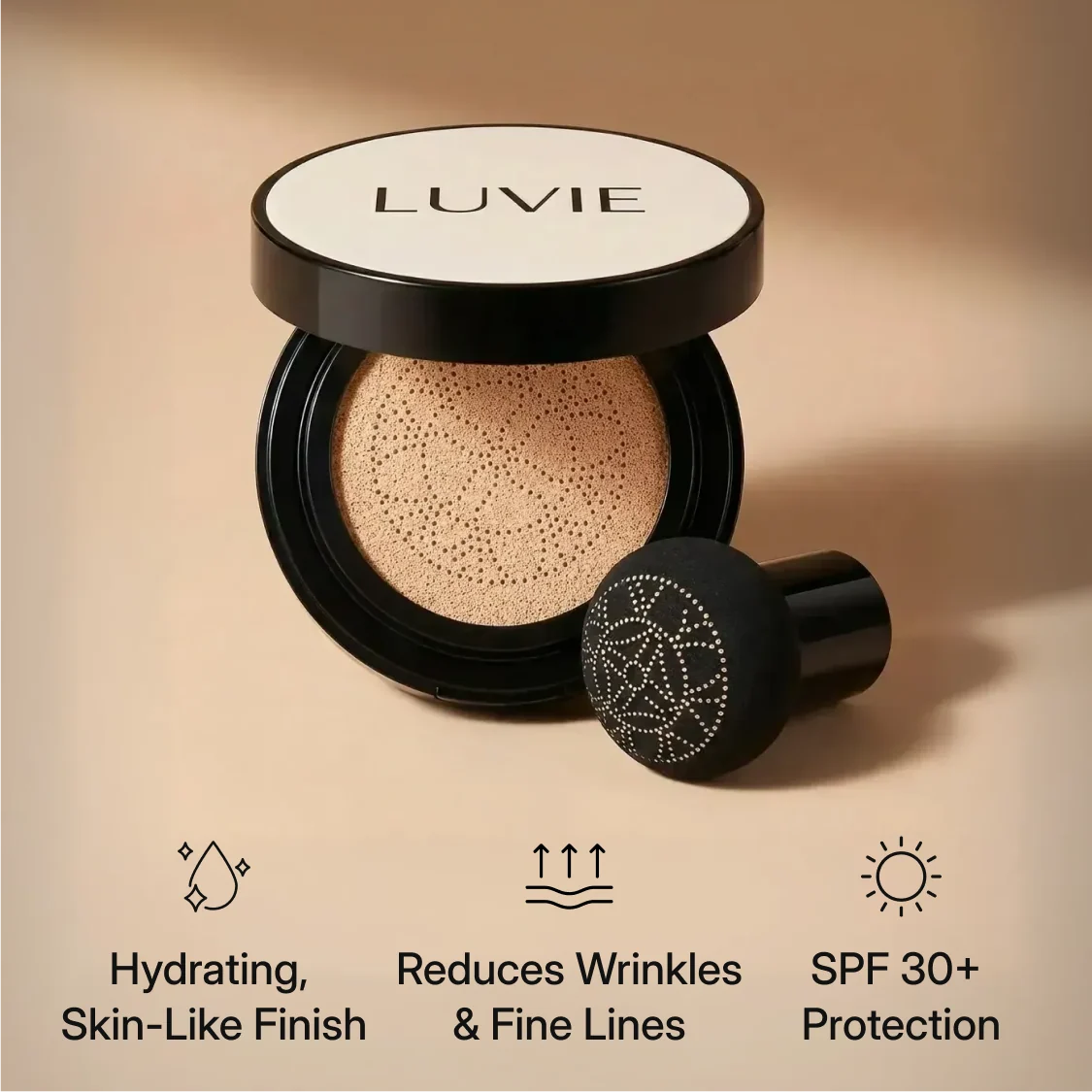
Luvie Glow Foundation Cushion is a compact foundation sold in six shades for dry, sensitive, and mature-looking skin.
The product page promises fast coverage, reduced redness, an even finish, hydration, SPF 30+ protection, and visibly smoother wrinkles or fine lines.
During our review, the single compact option showed $39.99, while two and three-piece bundles displayed progressively larger discounts.
The existence of a real cosmetic offer is not disputed here. The central issues are recurring billing, return language, and inflated appearance claims.
The refill plan changes the real cost
Luvie separately presents “Autoship Benefits” for one, two, or three boxes delivered every four weeks.
The subscription price shown was $53.32 per compact, multiplied by the selected quantity at each renewal.
One refill every four weeks produces 13 billing cycles across 52 weeks, not merely 12 monthly charges.
- One-box refills can total $693.16 over 13 cycles.
- Three boxes cost $159.96 during each displayed refill cycle.
- Thirteen three-box renewals total $2,079.48 before tax or shipping.
- The first promotional purchase may have a different price.
- Customers can reportedly skip, adjust, or cancel through membership tools.
Why this offer needs careful checkout reading
The store does disclose subscription terms, so this is not evidence that every buyer is secretly enrolled.
The risk appears when a shopper focuses on the discount and misses which purchasing option remains selected before payment.
A four-week frequency also feels monthly while renewing slightly faster than a calendar month. That difference compounds during a year.
The 14-day return window and clothing-style condition language create additional uncertainty for anyone who opens makeup to test a shade.
How the Luvie Glow Foundation Offer Works
Step 1: The page targets common mature-skin frustrations
The sales page speaks directly to wrinkles, deep lines, redness, dryness, sensitivity, and makeup that cakes during the day.
These are recognizable concerns. A shopper may already have wasted money on foundations that settle into texture or look heavy.
Luvie then promises a skin-like finish and flawless coverage within seconds, making the compact appear unusually forgiving.
Before-and-after imagery can be persuasive, but foundation results depend on shade, lighting, preparation, quantity, photography, and digital processing.
Step 2: Ratings and scarcity accelerate the decision
The product page displayed a 4.8 rating based on 3,872 reviews and said only five units remained in stock.
On-site ratings can be useful customer feedback, yet shoppers should understand who collects, moderates, imports, and verifies them.
A low-stock message creates time pressure. It discourages checking ingredients, shade accuracy, subscription frequency, or the separate return page.
That does not prove inventory is fabricated. It means the message functions as a conversion tool and should not replace comparison shopping.
Step 3: Bundles make the initial discount look larger
The purchase panel compares sale prices with much higher crossed-out amounts and labels larger bundles as popular or best savings.
A bundle may reduce the price per compact, but only if the shade works and the customer can use every unit.
Cosmetics are personal. Texture, oxidation, fragrance, undertone, and skin response cannot be confirmed from an advertisement.
Buying three before testing one raises the amount at risk and can make a restrictive return policy more consequential.
Step 4: Autoship converts makeup into an ongoing expense
The refill presentation says selected quantities arrive every four weeks and promotes convenience, locked savings, shade adjustments, skipping, and cancellation.
Four weeks equals 28 days. A buyer paid every 28 days receives an extra annual cycle compared with ordinary monthly billing.
At the displayed $53.32 refill price, a single-unit cycle costs more than the $39.99 initial single purchase shown during our visit.
Three-unit autoship would charge $159.96 each cycle. Over 13 cycles, that reaches $2,079.48 before additional costs.
Consumers should calculate annual spending instead of judging the small per-box label in isolation.
Step 5: The policy allows cancellation but relies on account access
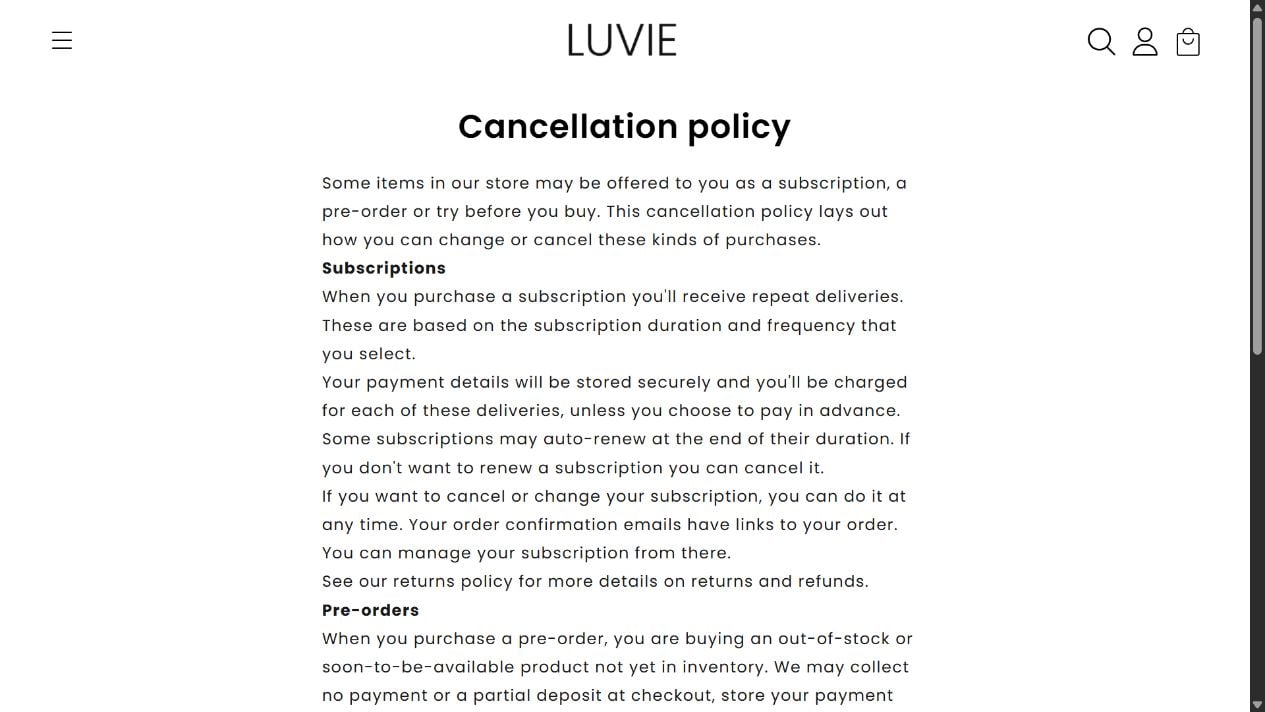
Luvie’s subscription policy says payment details are stored and each delivery is charged in advance.
It says some plans may auto-renew at the end of their duration and can be changed or canceled at any time.
Management links are supposed to appear in order confirmation emails, and the website includes a “Manage Memberships” route.
This is meaningful disclosure. Still, a customer should test account access immediately rather than waiting until the next renewal date.
Cancellation should produce a dated confirmation identifying the plan and final shipment. A screen that merely stops marketing emails is not enough.
Step 6: The return page is poorly matched to cosmetics
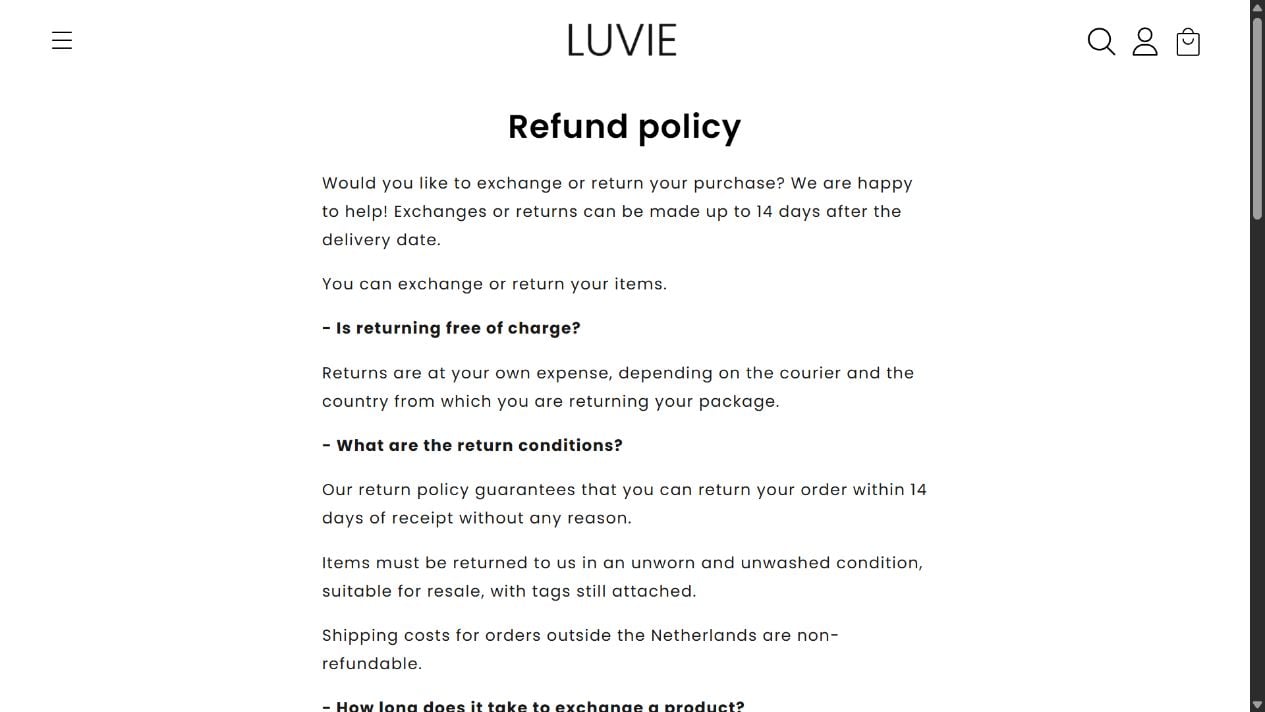
The return policy gives customers 14 days after delivery and places return shipping at their expense.
It says items must be unworn, unwashed, suitable for resale, and have tags attached, wording more appropriate for apparel than foundation.
The page does not clearly explain whether an opened compact, sampled shade, used applicator, or broken seal can be refunded.
It also tells damaged-product customers to contact info@CoveVital.com, although the store’s normal address is info@tryluvie.com.
That mismatch may be a template mistake. During a short return window, even a mistake can delay the correct request.
What the Foundation Claims Really Mean
Makeup can disguise lines without repairing them
A foundation can reflect light, add moisture, even color, and temporarily reduce the visibility of texture.
That is cosmetic coverage. It does not fill wrinkles anatomically or reverse the biological processes that create them.
The phrase “instantly smooths” may describe appearance after application. Buyers should not interpret it as a lasting structural result.
Shade choice remains a real limitation
Six shade options cannot capture every skin tone and undertone. Screen brightness also changes how colors look online.
A flattering product photograph does not establish that Ivory, Warm, Golden Caramel, Brunette Brown, or Rich Espresso will match a particular complexion.
Ask whether shade exchanges are permitted after opening and whether the replacement restarts the 14-day window.
SPF claims require correct application
SPF protection depends on tested formulation and applying enough product evenly. People often apply much less foundation than dedicated sunscreen.
Makeup with SPF can contribute protection, but it should not automatically replace a broad-spectrum sunscreen used as directed.
Request the exact active sunscreen ingredients, testing standard, and market-specific label if sun protection is a deciding factor.
Sensitive skin needs an ingredient review
“Made for sensitive skin” is a marketing description, not a guarantee that no buyer will react.
Check the full ingredient list before purchase, particularly if fragrances, preservatives, pigments, or sunscreen filters have caused earlier problems.
Patch test cautiously and stop using the compact if redness, swelling, itching, or burning develops.
The Subscription Math Buyers Often Miss
Every four weeks is not the same as once monthly
A monthly plan usually creates 12 charges during a year. A 28-day cycle produces 13 charges across 364 days.
The renewal date also moves earlier on the calendar after most months, which can surprise customers budgeting by a fixed date.
Write the next three renewal dates on a calendar immediately after ordering.
This simple exercise reveals whether the chosen frequency matches how quickly one compact is realistically used.
If makeup lasts longer than four weeks, inventory can accumulate before the customer notices the mismatch.
Quantity multiplies at every renewal
A three-box subscription is not merely a larger first shipment. The selected quantity can repeat with each scheduled delivery.
At the displayed figures, three boxes every four weeks means 39 compacts across 13 cycles.
That volume is unusually high for many individual users, especially when shade needs change seasonally.
Confirm whether reducing the quantity changes only future orders or also triggers an immediate replacement shipment.
Keep a dated capture of the account page after every modification.
A canceled order and a canceled subscription are different
Returning one shipment does not necessarily terminate the authority for future recurring charges.
Likewise, canceling the membership may stop later renewals without refunding a package already processed.
Ask for two separate statements when necessary: one addressing the current parcel and another confirming the recurring plan is closed.
Do not assume removing a card from a digital wallet cancels a merchant billing agreement.
The strongest record identifies the subscription, effective cancellation date, and absence of further scheduled orders.
Shipping protection is another distinct charge
The cart displayed a $4.95 shipping-protection item during our review.
Shoppers should check whether that add-on is selected, optional, recurring, or limited to the current parcel.
Protection may cover transit loss without expanding the ordinary cosmetic return policy.
Remove any unwanted option before payment and verify the final amount updates.
A screenshot taken after the change is more useful than remembering what the cart appeared to show.
Policy Problems That Can Complicate a Refund
The 14-day window moves quickly
Shade testing, contacting support, receiving instructions, and arranging tracked return shipping can consume much of two weeks.
Start the request on the first day a problem becomes apparent.
State the delivery date and ask whether the deadline applies to contacting support or the parcel reaching the warehouse.
If support delays answering, preserve the original timestamp showing the request was timely.
Apparel language creates ambiguity
Terms such as unworn, unwashed, and tags attached do not explain the hygienic status of a foundation compact.
A cosmetic policy should address opened seals, sampled shades, used applicators, contamination, exchanges, and defective pumps or cushions.
Without those details, customers may interpret “14-day return” more broadly than the seller later applies it.
Request written clarification before swatching the foundation if return eligibility matters.
International fulfillment changes the calculation
Luvie’s shipping page says worldwide orders may arrive from an overseas warehouse.
The return policy says costs depend on the courier and the country from which the customer sends the parcel.
Neither statement tells a shopper the return destination before authorization.
Tracked international shipping can consume a meaningful portion of a small refund, particularly for multi-unit bundles.
Ask for the destination, carrier requirements, and expected deductions before choosing a large order.
Billing records should be reviewed by cycle
Create a simple list containing each authorization date, shipment number, quantity, amount, and cancellation attempt.
This makes duplicate shipments easier to distinguish from expected 28-day renewals.
A card alert can catch a new charge before the parcel travels, although it does not automatically cancel the merchant agreement.
If support offers store credit, decide whether accepting it resolves the recurring plan or only the current order.
Keep returned-package tracking until the money appears, not merely until the warehouse signs for delivery.
Review the account again after cancellation because scheduled orders can sometimes already be processing.
Company, Address, and Fulfillment Checks
KLNL LLC is identified in the footer
The Luvie website lists KLNL LLC as its company. The legal name should match or be explainable across the receipt and payment record.
Subscription disputes are easier to document when customers know both the product name and the entity behind the charge.
Search card statements after every expected delivery because the descriptor may not contain the word Luvie.
The Wyoming address is not presented as a cosmetics facility
Luvie lists 5830 East 2nd Street, Suite 7000, number 17063, Casper, Wyoming 82609.
That address provides an administrative contact. It does not establish where the compacts are manufactured, tested, warehoused, or returned.
The shipping policy says worldwide orders may come from an overseas warehouse.
No telephone number appeared on the reviewed contact page
The page provides info@tryluvie.com, a form, weekday hours, and a claimed 24-to-48-hour response period.
This investigation did not send a private message. We therefore cannot confirm actual response speed.
Email-only support is not automatically illegitimate, but written records become essential when a recurring payment is involved.
The CoveVital email is a notable policy inconsistency
The damaged-item paragraph points to info@CoveVital.com instead of the Luvie domain used elsewhere.
That observation does not prove common ownership or a hidden network. It proves the published return instructions contain an unrelated brand address.
Customers should write to the normal Luvie address, quote the policy, and preserve a screenshot of the mismatch.
What to Do if Your Luvie Order or Subscription Has a Problem
- Check what you actually selected. Review the confirmation for “autoship,” “subscription,” “every four weeks,” quantity, shade, renewal price, and next charge date.
- Use the membership link immediately. Log in through the confirmation email or website. Cancel, skip, or change the plan, then save the final confirmation screen.
- Send a written cancellation. Include your order number and demand confirmation that recurring deliveries and stored payment authorization have ended before the next cycle.
- Document the return condition. Photograph seals, compact, applicator, packaging, parcel label, and any damage before opening or repacking the product.
- Raise the wrong email address. If the policy routes you to CoveVital, contact Luvie’s published address and attach the relevant page capture.
- Monitor the payment account. Look for another charge 28 days after the original order, not only on the same calendar date next month.
- Dispute accurately if needed. Tell the issuer whether the issue is unauthorized renewal, cancellation failure, nondelivery, misrepresentation, or a rejected return. Supply evidence.
- Protect your browsing environment. Malwarebytes can check suspicious downloads from ad funnels. AdGuard can reduce misleading pop-ups, trackers, and repeat promotional redirects.
Is Your Device Infected? Run a Free Malware Scan
Slow performance, constant pop-ups, or strange behavior? These are classic signs of a malware infection. The fastest way to find out is to scan your device with Malwarebytes Free — one of the most trusted malware removal tools available.
The free version detects and removes the most common threats, including:
- Adware — the cause of those annoying pop-ups
- Browser hijackers — unwanted redirects and changed homepages
- Trojans and spyware — hidden programs stealing your data
- Potentially unwanted programs (PUPs) — software you never asked for
👉 Select your device below — Windows, Mac, or Android — then follow the simple steps to download Malwarebytes, scan your system, and remove any threats it finds. The scan usually takes 5 to 20 minutes.
Run a Malware Scan with Malwarebytes for Windows
Malwarebytes is one of the most popular and trusted anti-malware tools for Windows — and it’s completely free for removing infections. It catches threats that many antivirus programs miss, including adware, browser hijackers, and trojans. Follow the steps below to scan and clean your PC in just a few minutes.
Download Malwarebytes
Click the button below to download the latest version of Malwarebytes for Windows from the official source. The free version is all you need — it will scan your computer and remove adware, browser hijackers, and other malicious software at no cost.
Download MalwarebytesOfficial installer for Windows 11 and 10. Your download starts right away.Want real-time protection? See Malwarebytes Premium Malwarebytes Free for WindowsScans and removes malware at no cost
-
Install Malwarebytes
When the download finishes, open your Downloads folder and double-click the MBSetup file. If Windows shows a User Account Control pop-up, click “Yes” to allow the installation.

Follow the On-Screen Prompts to Install Malwarebytes
The setup wizard will walk you through a few quick screens:
-
Choose where you’re installing the program — “Personal Computer” or “Work Computer” — then click Next.

-
Malwarebytes will now install on your device. This usually takes under a minute.

-
When installation is complete, the “Welcome to Malwarebytes” screen will open automatically.

-
On the final screen, click Open Malwarebytes to launch the program.

-
Enable “Scan for Rootkits”
Before scanning, turn on rootkit detection so Malwarebytes can find even the most hidden threats. Click the Settings gear icon on the left side of the screen.

In the settings menu, find “Scan for rootkits” and click the toggle so it turns blue.

Done? Click “Dashboard” in the left pane to return to the main screen.
Start the Scan
Click the blue Scan button. Malwarebytes will automatically update its virus database and start checking your computer for malware.

-
Wait for the Scan to Finish
The scan checks your entire system for browser hijackers and other malicious programs, so it can take 5 to 20 minutes depending on your computer. Feel free to do something else — just check back occasionally to see the progress.

-
Quarantine the Detected Threats
When the scan is done, you’ll see a list of everything Malwarebytes found — malware, adware, and potentially unwanted programs. Click the “Quarantine” button to remove all of them at once.

Malwarebytes will now remove the malicious files and registry entries and move them safely into quarantine.

-
Restart Your Computer
Some threats can only be fully removed after a reboot. If Malwarebytes asks you to restart, click Yes. Once you’re logged back in, Malwarebytes has finished removing the threats it found.

That’s it — your Windows PC is now clean of trojans, adware, and other malware, and should be back to running smoothly.
If you are still having problems with your computer after completing these instructions, then please follow one of the steps:
- Run a computer scan with ESET Online Scanner
- Ask for help in our Windows Malware Removal Help & Support forum.
Run a Malware Scan with Malwarebytes for Mac
Malwarebytes for Mac is a free on-demand scanner that removes the malware other security software tends to miss — adware, browser hijackers, and unwanted programs included. Cleaning an infected Mac with Malwarebytes has always been completely free, and it’s our go-to recommendation. Follow the steps below to scan and clean your Mac in just a few minutes.
-
Download Malwarebytes for Mac
Click the button below to download the latest version of Malwarebytes for Mac.
Download MalwarebytesOfficial installer for macOS. Your download starts right away.Want real-time protection? See Malwarebytes PremiumMalwarebytes Free for MacScans and removes malware at no cost -
Open the Malwarebytes setup file
When the download finishes, open your Downloads folder and double-click the setup file to begin the installation.

-
Follow the On-Screen Prompts to Install Malwarebytes
The Malwarebytes for Mac Installer will guide you through a few quick screens. Click “Continue” and keep following the prompts until the installation completes.



When the installation is complete, Malwarebytes opens to the Welcome to Malwarebytes screen. Click “Get started“.
-
Select “Personal Computer” or “Work Computer”
Malwarebytes will ask what type of computer you’re installing it on. Click either Personal Computer or Work Computer, whichever applies.

-
Start the Scan
Click the “Scan” button. Malwarebytes will automatically update its detection database and begin checking your Mac for malware.

-
Wait for the Scan to Finish
Malwarebytes will scan your Mac for adware, browser hijackers, and other malicious programs. This can take a few minutes, so feel free to do something else — just check back occasionally to see the progress.

-
Quarantine the Detected Threats
When the scan is done, you’ll see a list of everything Malwarebytes found. Click the “Quarantine” button to remove all the threats at once.

-
Restart Your Mac
Malwarebytes will now remove all the malicious files it found. Some threats can only be fully removed after a reboot — if Malwarebytes asks you to restart, allow it. Once you’re logged back in, your Mac is clean.

That’s it — your Mac is now free of adware, rogue browser extensions, and other potentially harmful software.
If you are still experiencing problems while trying to remove a malicious program from your computer, please ask for help in our Mac Malware Removal Help & Support forum.
Run a Malware Scan with Malwarebytes for Android
Malwarebytes for Android automatically detects and removes dangerous threats like malware and ransomware so you don’t have to worry about your most-used device being compromised. Aggressive detection of adware and potentially unwanted programs keeps your Android phone or tablet running smooth.
-
Download Malwarebytes for Android.
You can download Malwarebytes for Android by clicking the link below.
Get Malwarebytes for AndroidOpens Google Play in a new tab.Want real-time protection? See Malwarebytes Premium for AndroidMalwarebytes for AndroidScans your phone and removes malware at no cost -
Install Malwarebytes for Android on your phone.
In the Google Play Store, tap “Install” to install Malwarebytes for Android on your device.

When the installation process has finished, tap “Open” to begin using Malwarebytes for Android. You can also open Malwarebytes by tapping on its icon in your phone menu or home screen.

-
Follow the on-screen prompts to complete the setup process
When Malwarebytes will open, you will see the Malwarebytes Setup Wizard which will guide you through a series of permissions and other setup options.
This is the first of two screens that explain the difference between the Premium and Free versions. Swipe this screen to continue.
Tap on “Got it” to proceed to the next step.
Malwarebytes for Android will now ask for a set of permissions that are required to scan your device and protect it from malware. Tap on “Give permission” to continue.
Tap on “Allow” to permit Malwarebytes to access the files on your phone.
-
Update database and run a scan with Malwarebytes for Android
You will now be prompted to update the Malwarebytes database and run a full system scan.

Click on “Update database” to update the Malwarebytes for Android definitions to the latest version, then click on “Run full scan” to perform a system scan.

-
Wait for the Malwarebytes scan to complete.
Malwarebytes will now start scanning your phone for adware and other malicious apps. This process can take a few minutes, so we suggest you do something else and periodically check on the status of the scan to see when it is finished.

-
Click on “Remove Selected”.
When the scan has been completed, you will be presented with a screen showing the malware infections that Malwarebytes for Android has detected. To remove the malicious apps that Malwarebytes has found, tap on the “Remove Selected” button.

-
Restart your phone.
Malwarebytes for Android will now remove all the malicious apps that it has found. To complete the malware removal process, Malwarebytes may ask you to restart your device.
That’s it — your Android phone is now clean — no more malicious apps, adware, or browser redirects.
If you are still having problems with your phone after completing these instructions, then please follow one of the steps:
- Restore your phone to factory settings by going to Settings > General management > Reset > Factory data reset.
- Ask for help in our Mobile Malware Removal Help & Support forum.
Stay Protected: Block Ads and Malicious Sites
Now that your device is clean, keep it that way. Most infections start with a malicious ad or a fake download button — so blocking them at the source is your best defense.
We recommend AdGuard, which blocks malicious ads, phishing pages, and dangerous redirects before they can reach you.
👉 Download AdGuard and browse safely
Frequently Asked Questions
Is Luvie Glow Foundation Cushion a scam?
A real product offer exists, and the subscription is disclosed. Risks come from aggressive claims, four-week renewals, unclear cosmetic returns, and policy inconsistencies.
Does Luvie automatically send refills?
The site offers autoship plans for repeat deliveries every four weeks. Enrollment depends on the option selected during purchase.
How much can one Luvie subscription cost yearly?
At $53.32 every four weeks, 13 single-box cycles total $693.16 before tax or shipping, excluding the initial promotional order.
Can a Luvie subscription be canceled?
The policy says it can be changed or canceled through links in confirmation emails. Always retain a dated cancellation confirmation.
Can opened foundation be returned?
The published language requires resale condition but does not clearly address sampled cosmetics. Request a written answer before opening the compact.
Why does the policy mention CoveVital?
The damaged-product instructions contain that email address. We cannot infer ownership from the error, but it is a meaningful documentation problem.
The Bottom Line
Luvie Glow Foundation Cushion is a cosmetic offer with an optional recurring plan, not proof that every transaction is an undisclosed subscription.
The four-week frequency, annual cost, narrow return window, and mismatched support address make careful checkout screenshots and prompt cancellation records essential.

Join the discussion
0 commentsShare your experience or ask a question about this article.
Discussion
Start the conversation
Have a question or something useful to share? Add the first comment.