

A polished clip claims Dr. Oz revealed a capsule so effective that drug companies rushed to silence him.
It sounds like a breaking medical scandal. The closer the details are examined, the less convincing that story becomes.
Overview
The story used to capture attention
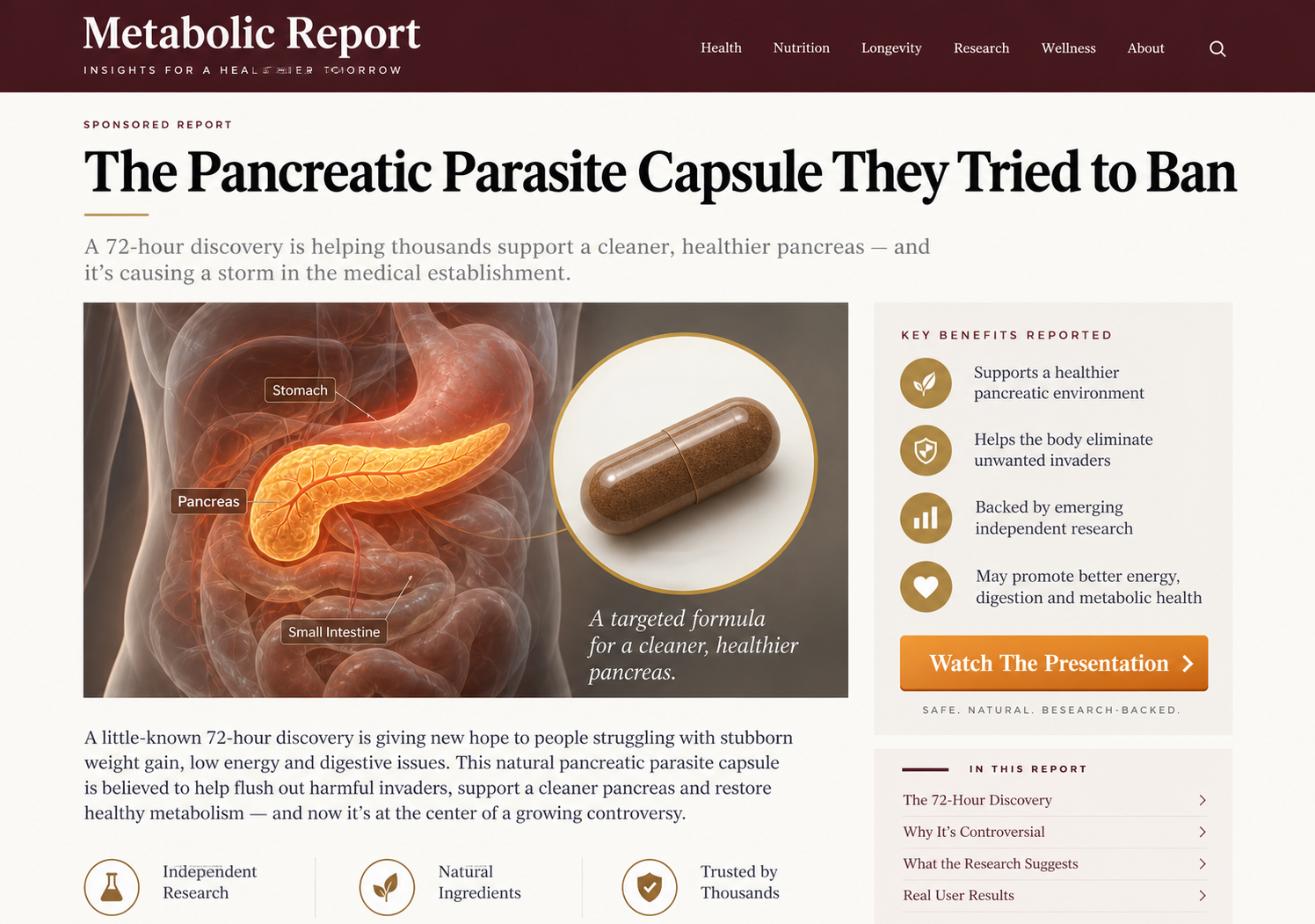
The advertisement presents what looks like Dr. Mehmet Oz discussing a parasite hidden inside the pancreas.
It says the organism causes diabetes, weight gain, fatigue, and unstable glucose, while an enteric capsule supposedly removes it within 72 hours.
A fake article then claims powerful pharmaceutical interests sued him because the discovery threatened profitable treatments.
The product shown in the version we reviewed was Glykera Gluco Capsules, although another name could replace it easily.
Why the presentation is deceptive
The video appears artificially generated or heavily altered. It uses a recognizable public figure without providing a verifiable original interview.
The supposed publication, legal battle, parasite discovery, and rapid cure are presented as facts without traceable primary evidence.
Established health agencies describe type 2 diabetes through insulin resistance and impaired insulin production, not the advertised parasite explanation.
The story turns a serious chronic condition into a conspiracy thriller whose ending is always a checkout button.
What can still be verified today
Glykera.com was registered on July 3, 2026, according to the domain registration record.
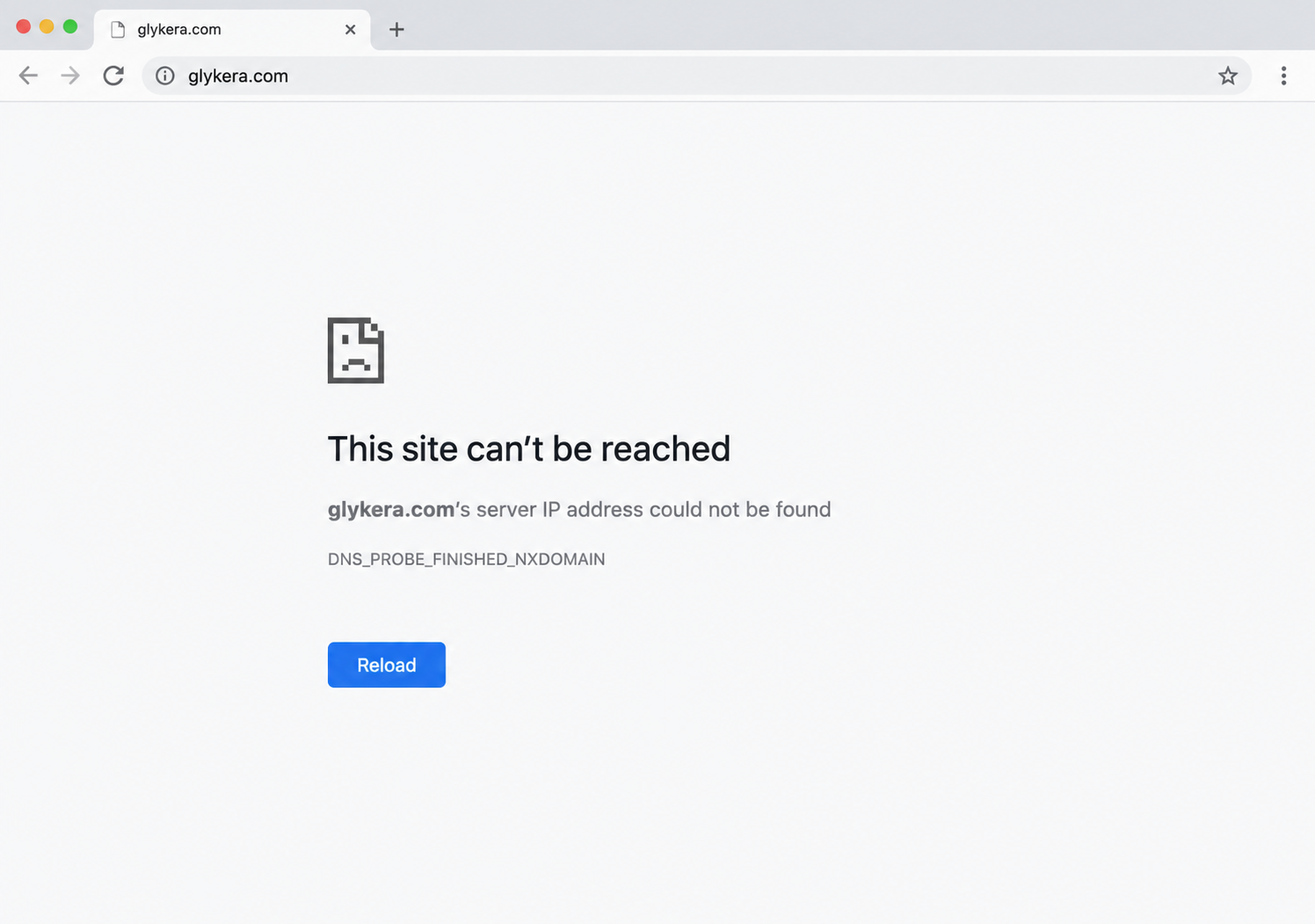
When we tested it, the domain no longer resolved. The sales site, checkout, support route, and legal policies were unavailable.
That prevents a current inspection of the exact seller, formula, price, refund requirements, and billing arrangement.
It also demonstrates why an article about the reusable story is more useful than one built entirely around a temporary bottle.
Key concerns include:
- A likely AI-generated Dr. Oz endorsement.
- A fabricated medical-conspiracy storyline.
- An unsupported pancreatic-parasite cause for diabetes.
- A promise of results within 72 hours.
- A publication that imitates health journalism.
- Packages designed to secure a large first purchase.
- A recently registered domain that soon became unreachable.
- No presently accessible company or refund information.
The Fake Lawsuit Makes the Advertisement Feel Like Forbidden News
Ordinary supplement advertising asks consumers to believe ingredients may support wellness. This campaign needs viewers to believe they discovered a suppressed medical revolution.
The fake article reportedly asks why “Big Pharma” is suing Dr. Oz and calls the capsule banned.
That language performs several jobs at once. It explains why viewers have never heard of the remedy and makes doubt feel like institutional manipulation.
It also turns a lack of credible coverage into supposed proof that the discovery is being hidden.
A real lawsuit would leave a searchable record identifying the court, parties, filing date, claims, and attorneys.
A real clinical finding would identify the investigators, institution, journal, participant group, methods, outcome measures, and limitations.
The promotion offers dramatic fragments instead. Viewers see medical graphics, urgent narration, headlines, and references to thousands of legal complaints.
Those details sound specific, but they are not the kind of specificity that permits independent verification.
The number of alleged lawsuits may change between advertisements. The purpose is emotional scale, not legal accuracy.
Once the viewer accepts the censorship narrative, the seller can frame every skeptical source as part of the same cover-up.
How the Dr. Oz Pancreatic Parasite Capsule Scam Works
Step 1: The social ad starts with a recognizable authority figure
A short video appears between ordinary posts, often beginning mid-sentence so it feels clipped from a longer broadcast.
The face resembles Dr. Oz, while the voice delivers unusually sweeping claims about a secret cause of diabetes.
Viewers may notice stiff expressions, inconsistent lip synchronization, or a bottle label that changes shape between frames.
Those defects are easier to miss on a phone, especially when captions and urgent music direct attention elsewhere.
Step 2: The narration gives diabetes one hidden culprit
The speaker describes a parasite supposedly living inside the pancreas and interfering with the body’s ability to regulate glucose.
This explanation is emotionally appealing because it is simple. Remove the invader, the story says, and multiple problems disappear together.
Actual type 2 diabetes is more complicated. The NIDDK describes insulin resistance and inadequate insulin production, alongside several established risk factors.
The advertisement never provides credible evidence that its named product eliminates a disease-causing organism in humans.
Step 3: A ban and lawsuit create urgency
The audience is told the revelation is being removed, censored, or challenged in court.
That claim encourages immediate viewing because the page may supposedly disappear before the consumer can return.
It also discourages comparison shopping. Waiting becomes framed as losing access to a secret rather than making a careful health decision.
Countdowns, remaining-bottle notices, and “today only” prices often reinforce the same pressure later.
Step 4: A counterfeit publication repeats the claims
The click opens an article designed to resemble health reporting, complete with sections, quotations, scientific-looking images, and reader comments.
The publication may be called something credible but generic, such as a metabolic, wellness, or medical insider.
Its purpose is not independent reporting. Every path moves the visitor toward the same presentation and product offer.
No clear newsroom, editor, corrections policy, or documented investigation supports the headline.

Step 5: The promised recipe becomes a packaged supplement
Viewers may expect a household solution, a named ingredient, or instructions they can evaluate independently.
Instead, the promised discovery is folded into a proprietary product whose full evidence is difficult to inspect.
Glykera appeared in two, four, and six-month packages, with the largest order positioned as the strongest value.
The product becomes the only practical way to act on the frightening story the advertisement just created.
Step 6: Testimonials substitute for clinical proof
Stories about lower readings, renewed energy, weight loss, and medication changes make extraordinary outcomes sound common.
Names, photographs, medical histories, and before-and-after results in such funnels are rarely independently verifiable.
The FTC’s endorsement guidance says testimonials cannot communicate deceptive or unsubstantiated claims that an advertiser could not make directly.
A disclaimer in tiny text cannot turn an invented disease mechanism into reliable medical evidence.
Step 7: The disappearing site makes accountability difficult
After a domain stops resolving, buyers may lose the page containing the guarantee, support instructions, and claims that influenced the purchase.
Email confirmations and card statements become the remaining evidence, assuming the consumer saved them.
Another domain can later sell a different product using the same video structure, headline, and pancreatic-parasite script.
This is why documenting the entire journey matters before entering a card number.
The 72-Hour Promise Conflicts With What A1C Measures
The campaign reportedly promises substantial improvement within 72 hours, blending immediate blood-glucose language with broader claims about A1C.
Those measurements are not interchangeable. A glucose reading captures a particular moment, while A1C summarizes a much longer period.
The CDC states that A1C reflects average blood sugar across approximately three months.
A capsule cannot erase that historical record in three days, regardless of how confidently an animated presenter describes it.
People with diabetes can experience meaningful glucose changes, including dangerous highs and lows, over shorter periods.
Those changes should be managed through an established care plan, appropriate monitoring, and professional medical guidance.
An advertisement promising fast normalization may encourage someone to skip medicine or ignore concerning readings.
That is more dangerous than simply wasting money because delayed treatment can worsen complications.
Why an Enteric Capsule Does Not Prove the Parasite Story
“Enteric” describes a coating designed to delay release until a tablet or capsule passes through the stomach.
It can be a legitimate pharmaceutical or supplement formulation feature. It does not prove the contents eliminate parasites or treat diabetes.
The campaign uses a technical-sounding delivery term to make the underlying medical claim appear more credible.
Evidence would still need to establish the organism, diagnostic method, active ingredient, dose, pharmacology, safety, and successful human outcomes.
None of those requirements disappear because a capsule dissolves later in the digestive tract.
A product intended to treat or cure a disease is making a drug claim, even when its label calls it natural or dietary.
The FDA explains that dietary supplements are not approved to treat or prevent disease.
Statements about registered facilities, natural ingredients, or manufacturing standards cannot replace approval and evidence for the claimed medical use.
The Missing Website Removes Essential Buying Information
During this investigation, glykera.com returned a domain-resolution error instead of a functioning store.
We could not independently confirm the current ingredient panel, responsible legal entity, support telephone number, return address, or checkout terms.
We also could not verify whether a current order would be one-time, recurring, or unavailable entirely.
Therefore, this article does not claim Glykera had a proven subscription arrangement.
That restraint matters. Subscription accusations require the exact checkout disclosure, receipt, or repeated billing evidence.
The absence of a live site creates a different concern: consumers who already paid may have no obvious place to seek help.
Search results may contain affiliate pages claiming to be official. Those pages should not automatically receive personal or payment information.
The most reliable starting point is the order confirmation and the merchant information supplied by the card issuer.
Search the email sender’s full domain instead of trusting the displayed name, which can be changed easily.
Check archived copies only for historical evidence. Never enter payment details into an old checkout preserved by an archive service.
If a parcel arrived, photograph every side before opening it, including the return label, lot code, seal, and Supplement Facts panel.
Compare those details with saved advertising. A mismatch can support a refund request or payment dispute.
Do not assume a newly appearing “official” Glykera page belongs to the same operator.
Look for continuity through the legal entity, support address, merchant descriptor, and verifiable ownership rather than matching bottle graphics.
Company, Address, and Fulfillment Checks
No current legal operator could be confirmed
Because the domain was offline, its legal pages could not be reviewed during our live check.
A brand name on a bottle is not automatically the registered company that accepted payment.
Use the receipt, card descriptor, parcel label, and payment processor’s records to identify the actual merchant.
A return address is not necessarily a headquarters
Online supplement orders often pass through third-party warehouses that receive returns for many unrelated brands.
That address can prove where a parcel went without identifying who formulated, manufactured, advertised, or sold the product.
Search property and business records, then ask the merchant to explain the location’s role in writing.
Telephone and email support must answer specific questions
A working inbox alone does not establish accountability. Ask for the legal seller, complete ingredients, lot testing, return deadline, and billing status.
Generic replies that repeat benefits or send another order link do not resolve those questions.
Keep the message headers and every response, particularly if the original domain has disappeared.
Unknown manufacturing should be treated cautiously
Do not assume a supplement came from China, America, or any other country without traceable label and import evidence.
What matters is whether the seller supplies an identifiable manufacturer, lot number, complete Supplement Facts panel, and credible testing.
Without those records, buyers cannot evaluate purity, dose accuracy, contamination, or undeclared ingredients.
How to Recognize the Same Story Under Another Product Name
The bottle may change from capsules to drops, gummies, powder, tea, or a supposedly traditional recipe.
The public figure can also change. A doctor, television host, entrepreneur, or university researcher may occupy the same role.
Look for the underlying narrative rather than one logo.
- A hidden parasite supposedly causes several unrelated conditions.
- A household ingredient keeps viewers watching.
- Doctors or pharmaceutical companies allegedly suppressed the cure.
- A familiar person appears in an unverifiable clip.
- A fake article imitates trusted journalism.
- The discovery is available only through one sales page.
- The largest bundle receives overwhelming visual emphasis.
- The domain has little history or disappears quickly.
If these elements appear together, stop evaluating the product as though the advertisement established the diagnosis.
Start again with the medical claim, original source, company identity, and exact checkout terms.
What to Do if You Have Fallen Victim to This Scam
- Preserve everything still available. Save the advertisement, video, screenshots, domain, receipt, card descriptor, parcel, bottle label, emails, and tracking records.
- Call the card issuer. Ask for the merchant’s contact information and explain any unauthorized amount, misleading claim, non-delivery, or unusable refund route.
- Send a written refund demand. Use every address in the confirmation, state the purchase date and amount, and request a response deadline.
- Reject additional billing. Tell the merchant and issuer that no future shipment, renewal, membership, or recurring charge is authorized.
- Do not mail the product blindly. Obtain written return instructions and use tracked shipping to the confirmed address.
- Protect your health. Stop using the product and contact a clinician after unusual symptoms, missing labels, broken seals, or unexplained ingredients.
- Resume prescribed care safely. If the promotion caused you to change diabetes medicine, contact your healthcare team promptly instead of correcting doses alone.
- Scan the device. Use Malwarebytes if the funnel triggered downloads, pop-ups, notification permissions, or unfamiliar browser extensions.
- Block malicious promotion. AdGuard can reduce deceptive advertisements and redirects, but it cannot verify treatments or guarantee a refund.
- File reports. Report fake endorsements to the platform and FTC, and report serious supplement reactions through the FDA’s reporting system.
Is Your Device Infected? Run a Free Malware Scan
Slow performance, constant pop-ups, or strange behavior? These are classic signs of a malware infection. The fastest way to find out is to scan your device with Malwarebytes Free — one of the most trusted malware removal tools available.
The free version detects and removes the most common threats, including:
- Adware — the cause of those annoying pop-ups
- Browser hijackers — unwanted redirects and changed homepages
- Trojans and spyware — hidden programs stealing your data
- Potentially unwanted programs (PUPs) — software you never asked for
👉 Select your device below — Windows, Mac, or Android — then follow the simple steps to download Malwarebytes, scan your system, and remove any threats it finds. The scan usually takes 5 to 20 minutes.
Run a Malware Scan with Malwarebytes for Windows
Malwarebytes is one of the most popular and trusted anti-malware tools for Windows — and it’s completely free for removing infections. It catches threats that many antivirus programs miss, including adware, browser hijackers, and trojans. Follow the steps below to scan and clean your PC in just a few minutes.
Download Malwarebytes
Click the button below to download the latest version of Malwarebytes for Windows from the official source. The free version is all you need — it will scan your computer and remove adware, browser hijackers, and other malicious software at no cost.
Download MalwarebytesOfficial installer for Windows 11 and 10. Your download starts right away.Want real-time protection? See Malwarebytes Premium Malwarebytes Free for WindowsScans and removes malware at no cost
-
Install Malwarebytes
When the download finishes, open your Downloads folder and double-click the MBSetup file. If Windows shows a User Account Control pop-up, click “Yes” to allow the installation.

Follow the On-Screen Prompts to Install Malwarebytes
The setup wizard will walk you through a few quick screens:
-
Choose where you’re installing the program — “Personal Computer” or “Work Computer” — then click Next.

-
Malwarebytes will now install on your device. This usually takes under a minute.

-
When installation is complete, the “Welcome to Malwarebytes” screen will open automatically.

-
On the final screen, click Open Malwarebytes to launch the program.

-
Enable “Scan for Rootkits”
Before scanning, turn on rootkit detection so Malwarebytes can find even the most hidden threats. Click the Settings gear icon on the left side of the screen.

In the settings menu, find “Scan for rootkits” and click the toggle so it turns blue.

Done? Click “Dashboard” in the left pane to return to the main screen.
Start the Scan
Click the blue Scan button. Malwarebytes will automatically update its virus database and start checking your computer for malware.

-
Wait for the Scan to Finish
The scan checks your entire system for browser hijackers and other malicious programs, so it can take 5 to 20 minutes depending on your computer. Feel free to do something else — just check back occasionally to see the progress.

-
Quarantine the Detected Threats
When the scan is done, you’ll see a list of everything Malwarebytes found — malware, adware, and potentially unwanted programs. Click the “Quarantine” button to remove all of them at once.

Malwarebytes will now remove the malicious files and registry entries and move them safely into quarantine.

-
Restart Your Computer
Some threats can only be fully removed after a reboot. If Malwarebytes asks you to restart, click Yes. Once you’re logged back in, Malwarebytes has finished removing the threats it found.

That’s it — your Windows PC is now clean of trojans, adware, and other malware, and should be back to running smoothly.
If you are still having problems with your computer after completing these instructions, then please follow one of the steps:
- Run a computer scan with ESET Online Scanner
- Ask for help in our Windows Malware Removal Help & Support forum.
Run a Malware Scan with Malwarebytes for Mac
Malwarebytes for Mac is a free on-demand scanner that removes the malware other security software tends to miss — adware, browser hijackers, and unwanted programs included. Cleaning an infected Mac with Malwarebytes has always been completely free, and it’s our go-to recommendation. Follow the steps below to scan and clean your Mac in just a few minutes.
-
Download Malwarebytes for Mac
Click the button below to download the latest version of Malwarebytes for Mac.
Download MalwarebytesOfficial installer for macOS. Your download starts right away.Want real-time protection? See Malwarebytes PremiumMalwarebytes Free for MacScans and removes malware at no cost -
Open the Malwarebytes setup file
When the download finishes, open your Downloads folder and double-click the setup file to begin the installation.

-
Follow the On-Screen Prompts to Install Malwarebytes
The Malwarebytes for Mac Installer will guide you through a few quick screens. Click “Continue” and keep following the prompts until the installation completes.



When the installation is complete, Malwarebytes opens to the Welcome to Malwarebytes screen. Click “Get started“.
-
Select “Personal Computer” or “Work Computer”
Malwarebytes will ask what type of computer you’re installing it on. Click either Personal Computer or Work Computer, whichever applies.

-
Start the Scan
Click the “Scan” button. Malwarebytes will automatically update its detection database and begin checking your Mac for malware.

-
Wait for the Scan to Finish
Malwarebytes will scan your Mac for adware, browser hijackers, and other malicious programs. This can take a few minutes, so feel free to do something else — just check back occasionally to see the progress.

-
Quarantine the Detected Threats
When the scan is done, you’ll see a list of everything Malwarebytes found. Click the “Quarantine” button to remove all the threats at once.

-
Restart Your Mac
Malwarebytes will now remove all the malicious files it found. Some threats can only be fully removed after a reboot — if Malwarebytes asks you to restart, allow it. Once you’re logged back in, your Mac is clean.

That’s it — your Mac is now free of adware, rogue browser extensions, and other potentially harmful software.
If you are still experiencing problems while trying to remove a malicious program from your computer, please ask for help in our Mac Malware Removal Help & Support forum.
Run a Malware Scan with Malwarebytes for Android
Malwarebytes for Android automatically detects and removes dangerous threats like malware and ransomware so you don’t have to worry about your most-used device being compromised. Aggressive detection of adware and potentially unwanted programs keeps your Android phone or tablet running smooth.
-
Download Malwarebytes for Android.
You can download Malwarebytes for Android by clicking the link below.
Get Malwarebytes for AndroidOpens Google Play in a new tab.Want real-time protection? See Malwarebytes Premium for AndroidMalwarebytes for AndroidScans your phone and removes malware at no cost -
Install Malwarebytes for Android on your phone.
In the Google Play Store, tap “Install” to install Malwarebytes for Android on your device.

When the installation process has finished, tap “Open” to begin using Malwarebytes for Android. You can also open Malwarebytes by tapping on its icon in your phone menu or home screen.

-
Follow the on-screen prompts to complete the setup process
When Malwarebytes will open, you will see the Malwarebytes Setup Wizard which will guide you through a series of permissions and other setup options.
This is the first of two screens that explain the difference between the Premium and Free versions. Swipe this screen to continue.
Tap on “Got it” to proceed to the next step.
Malwarebytes for Android will now ask for a set of permissions that are required to scan your device and protect it from malware. Tap on “Give permission” to continue.
Tap on “Allow” to permit Malwarebytes to access the files on your phone.
-
Update database and run a scan with Malwarebytes for Android
You will now be prompted to update the Malwarebytes database and run a full system scan.

Click on “Update database” to update the Malwarebytes for Android definitions to the latest version, then click on “Run full scan” to perform a system scan.

-
Wait for the Malwarebytes scan to complete.
Malwarebytes will now start scanning your phone for adware and other malicious apps. This process can take a few minutes, so we suggest you do something else and periodically check on the status of the scan to see when it is finished.

-
Click on “Remove Selected”.
When the scan has been completed, you will be presented with a screen showing the malware infections that Malwarebytes for Android has detected. To remove the malicious apps that Malwarebytes has found, tap on the “Remove Selected” button.

-
Restart your phone.
Malwarebytes for Android will now remove all the malicious apps that it has found. To complete the malware removal process, Malwarebytes may ask you to restart your device.
That’s it — your Android phone is now clean — no more malicious apps, adware, or browser redirects.
If you are still having problems with your phone after completing these instructions, then please follow one of the steps:
- Restore your phone to factory settings by going to Settings > General management > Reset > Factory data reset.
- Ask for help in our Mobile Malware Removal Help & Support forum.
Stay Protected: Block Ads and Malicious Sites
Now that your device is clean, keep it that way. Most infections start with a malicious ad or a fake download button — so blocking them at the source is your best defense.
We recommend AdGuard, which blocks malicious ads, phishing pages, and dangerous redirects before they can reach you.
👉 Download AdGuard and browse safely
Frequently Asked Questions
Did Dr. Oz reveal a pancreatic parasite cure?
We found no credible original interview or medical evidence supporting that story. The circulating presentation appears altered and commercially constructed.
Was Glykera banned because it threatened drug companies?
No verifiable court record, regulatory action, or documented medical controversy located in our review supported that dramatic allegation.
Can parasites cause diabetes?
Certain infections can affect health, but the campaign does not establish that a hidden pancreatic parasite causes typical type 2 diabetes.
Is glykera.com still working?
No. The domain failed to resolve during our September 2026 investigation, so current sales and support terms could not be verified.
Was Glykera sold through a subscription?
We could not confirm that. The vanished checkout prevents a current billing review, and the video alone does not prove recurring charges.
What should I do with unopened bottles?
Keep them sealed while requesting written return instructions from the merchant identified on your receipt or card statement.
The Bottom Line
The Dr. Oz pancreatic parasite capsule story combines an apparent AI endorsement, fake suppression narrative, false medical simplicity, and urgent bundle sale.
Glykera was one product attached to that script, but its website is already unavailable. Another bottle can take its place tomorrow.
Do not let a familiar face replace verifiable medicine. Check the original interview, evidence, company, and checkout before risking money or treatment.

Join the discussion
0 commentsShare your experience or ask a question about this article.
Discussion
Start the conversation
Have a question or something useful to share? Add the first comment.