

A reminder about a phone payment arrives just as you’re clearing your inbox. It looks routine, right down to the warning about extra charges.
Before you settle anything, take a closer look at where that payment would actually go. The checkout’s appearance isn’t the most important detail.
Overview
A phone deposit becomes the reason to pay
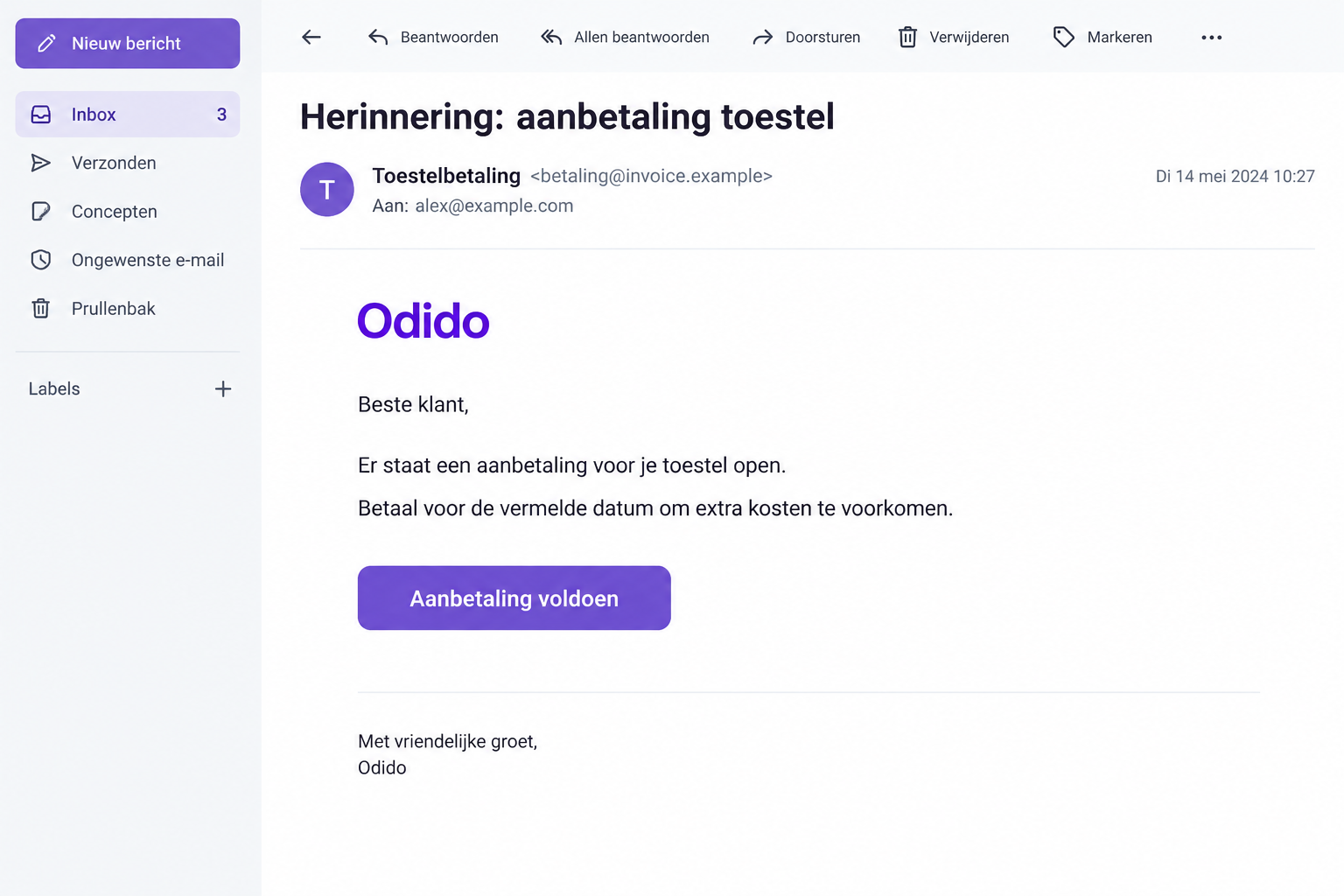
The Odido down payment email scam imitates a billing reminder from the Dutch telecommunications provider. It asks recipients to clear an allegedly overdue device deposit.
The reported message is in Dutch and threatens additional costs if payment misses its deadline. Its sender does not use an official Odido domain.
This warning concerns that fraudulent demand, not Odido’s genuine bills or every message about buying a phone. The provider’s name is being misused.
A genuine checkout can collect a dishonest payment
The reported payment route uses SumUp, a real payment processing service. The crucial problem is the merchant collecting the payment, not a counterfeit checkout screen.
A payment processor can successfully process money for a transaction that was obtained through deception. Successful payment does not establish that you owed the recipient anything.
That distinction matters if you’ve paid. Describe the misleading invoice and unintended recipient to your bank, rather than assuming your card details were necessarily stolen.
What deserves your attention first
- Does the claimed order exist in your actual Odido account?
- Does the payment recipient match the company you intended to pay?
- Are the device, amount, and reference consistent with your purchase documents?
- Did you reach the payment page independently, or only through this email?
Don’t pay through the reminder. Open your established account separately and resolve any real outstanding balance through a verified route.
The illustration above shows the kind of billing prompt involved. Its example address and layout are illustrative, not additional evidence about a particular merchant.
Why an Ordinary Payment Reminder Can Be Convincing
Phone purchases often involve several moving parts: the device, an initial payment, a monthly service plan, and sometimes separate financing arrangements.
That makes an overlooked deposit sound possible. Someone who recently ordered a handset might assume the reminder belongs to the same purchase.
The scam benefits from that assumption without needing to know whether you bought anything. A believable billing category can be enough to start the conversation.
A deadline then changes the question in your mind. Instead of asking whether the bill exists, you start wondering how to avoid a penalty.
Pause at that point. A genuine outstanding balance should have an identifiable relationship to a real account, order, or agreement.
You shouldn’t have to establish that relationship by asking the same unfamiliar sender who wants your money. Use records you already possessed before the message arrived.
Those records might include your original order confirmation, an invoice in the provider’s account portal, or a contract saved when you placed the order.
A matching logo is weaker evidence than those documents. So is a correct first name, a plausible customer number, or a well-written Dutch sentence.
Personal details can come from many places. Their presence alone cannot establish how this particular message was created or whether its payment destination is authorized.
How the Odido Down Payment Email Scam Works
Step 1: Make the balance sound like unfinished business
The initial demand presents itself as something that already happened: a phone was ordered, a deposit became due, and the customer hasn’t completed it.
This is different from advertising a bargain. The sender wants the recipient to feel responsible for an existing obligation, making payment seem like tidying up.
If you don’t remember the purchase, don’t accept the email’s version of events. Check whether anyone authorized on your account actually placed an order.
For a family account, ask the account holder through your usual contact method. A short independent conversation is safer than guessing from the reminder.
Step 2: Push the reader toward the convenient payment button
The reminder offers a quick route to finishing the supposed transaction. That convenience discourages a separate visit to the real provider.
The more familiar the message feels, the less attention the destination may receive. Readers often inspect the amount more carefully than the person being paid.
Before following a billing link, inspect the actual sender address and the destination preview. Neither the display name nor the button wording authenticates the request.
An unfamiliar domain is a reason to stop, but a recognizable payment-service domain isn’t enough to continue. The underlying bill still needs independent confirmation.
Step 3: Let the processor’s reputation reassure the customer
Once a familiar checkout opens, the recipient may relax. The page might use ordinary payment fields and the same banking confirmation flow used for legitimate shopping.
Those features can protect the processing of a payment without validating the story that persuaded you to make it.
Think of an envelope delivered reliably to the wrong address. The delivery worked, but that doesn’t make the destination the one you intended.
Look for the merchant identity, payment description, and total. If these don’t clearly match your verified order, don’t approve the transaction.
Step 4: Obtain approval for the wrong recipient
A banking notification may ask you to approve the payment. Read its recipient and amount rather than treating the approval as a routine security formality.
Approving a transaction can authorize money to leave your account even when the sender’s explanation was false. Authentication and honest billing are separate issues.
Never share a banking code with someone offering to help complete the payment. A code is not a customer-service ticket or proof of identity for a caller.
If the approval details differ from what you expected, cancel. Don’t let a countdown, warning about extra costs, or impatient message override that mismatch.
Step 5: Leave the customer with a receipt, not a resolved bill
A receipt may confirm that money was processed, while the provider’s actual account shows no corresponding payment. Keep both records if that happens.
The receipt is useful evidence for identifying the processor and merchant. It is not proof that the impersonated company received the money.
A further demand should not be paid merely because the first payment went through. Stop the exchange and let the bank investigate the original transaction.
Any later refund offer also needs independent checking. Returning money should not require you to transfer more money or install a remote-access application.
Checking the Bill, Merchant, and Payment Destination
Start with the account you already use
Open the provider’s app yourself, or type its known website address. Avoid search advertisements and contact details supplied inside the suspicious reminder.
Compare the order reference with your own records. Check the device, purchase date, outstanding amount, and payment status together, not as isolated matching details.
If a real balance exists, ask support how to settle it safely. Don’t assume an unrelated emailed link is valid just because you also owe a genuine bill.
A checkout brand is not the merchant’s identity
SumUp provides payment tools to businesses. Its name on a checkout describes infrastructure, not an endorsement of every invoice that links there.
Don’t accuse the processor of sending the fraudulent email. Preserve the particular payment link and receipt so its support team can identify the account involved.
A processor may have information unavailable to a customer, including merchant onboarding and transaction records. Report through its official support channel rather than contacting another recipient.
Check statements without inventing a card-theft diagnosis
Write down the statement descriptor exactly as it appears. Merchant names may be abbreviated, so the descriptor is an investigative lead rather than a complete company profile.
If you entered payment details only into a genuine processor’s checkout, that alone doesn’t prove the impersonator received the full card number.
Tell your bank where you entered the information. It can advise whether replacement, transaction controls, or additional monitoring makes sense for your circumstances.
Keep unknowns separate from the warning
The sender’s identity isn’t established by the billing label. Preserve the actual payment records instead of assuming a name on the reminder identifies its operators.
Those limits don’t make an unsupported payment demand safe. They mean you shouldn’t attach unverified personal names, countries, or company addresses to the fraud.
Links can also change. A later message might lead somewhere different, so evaluate the actual information you submitted rather than relying on another recipient’s experience.
What to Do if You Have Fallen Victim to This Scam
If you’ve already paid, start with the transaction rather than trying to convince the sender to admit the deception. Your bank needs a clear account of events.
Separate the amount you expected to owe from the amount actually charged. Keep the currency shown on the receipt, without converting it from memory.
Check whether your statement shows a pending authorization or a completed charge. Give that information to the bank rather than assuming a pending entry has disappeared.
Also check whether the supposed recipient sent a second receipt. The difference between the email’s provider name and the receipt’s merchant name may explain the problem.
If the legitimate provider still shows an unpaid balance, don’t settle it through the original reminder. Ask verified support how the actual order should be handled.
Someone may claim that reporting the transaction will cancel your phone service. Confirm service status directly; don’t let an unverified sender dictate your complaint.
For a joint or family account, tell the other authorized person what happened. That can prevent them from paying a duplicate reminder while you’re seeking help.
Keep written case references from each organization. A bank, provider, and processor handle different parts of the problem, so a single report may not reach all three.
Stop further approvals. Close the payment page and decline pending requests you don’t recognize. Don’t make a second payment to clear an alleged processing problem.
If someone calls about your attempted payment, end the call and contact the provider or bank through details you obtained independently.
Ask your bank about the payment immediately. Explain that a telecom impersonation induced you to pay a different merchant.
Give the amount, time, statement descriptor, and receipt. State accurately whether you approved the payment, and ask about available dispute or recovery options.
Recovery is not guaranteed. The correct procedure depends on the payment method and circumstances, so let the bank identify the appropriate route.
Notify the real provider. Odido’s fraud guidance lists phishing@odido.nl for suspicious messages using its name.
Forward the original message if requested. Explain whether you have an actual order and whether the supposed deposit appears in your legitimate account.
Report the payment link to the processor. Reach SumUp through its own website or help center, not a support address supplied by the sender.
Include the link, receipt, merchant display name, and your bank’s reference if available. Don’t email full card details or online banking passwords.
Protect any information you actually disclosed. Replace a password if you typed it into an unverified login page, especially if it protects another account.
If you shared a bank approval code or installed software, tell the bank explicitly. Those events require different precautions from an ordinary card checkout.
Check the device when downloads were involved. If the route prompted an installer, extension, or unexpected file, stop using it and run Malwarebytes.
AdGuard can help reduce malicious advertising exposure, but neither product reverses a payment or authenticates a merchant. Receiving the reminder alone doesn’t establish infection.
Save a clean evidence package. Keep the original email, its headers, destination URL, bank record, and support correspondence together.
Record a short timeline while events are fresh. Redact personal and payment information before sharing screenshots publicly.
Reject paid recovery offers. Don’t pay a caller who promises a guaranteed refund, asks for remote access, or requests another banking approval.
Continue through the bank, provider, processor, and local reporting channels. A new stranger’s knowledge of the payment does not make that stranger trustworthy.
Is Your Device Infected? Run a Free Malware Scan
Slow performance, constant pop-ups, or strange behavior? These are classic signs of a malware infection. The fastest way to find out is to scan your device with Malwarebytes Free — one of the most trusted malware removal tools available.
The free version detects and removes the most common threats, including:
- Adware — the cause of those annoying pop-ups
- Browser hijackers — unwanted redirects and changed homepages
- Trojans and spyware — hidden programs stealing your data
- Potentially unwanted programs (PUPs) — software you never asked for
👉 Select your device below — Windows, Mac, or Android — then follow the simple steps to download Malwarebytes, scan your system, and remove any threats it finds. The scan usually takes 5 to 20 minutes.
Run a Malware Scan with Malwarebytes for Windows
Malwarebytes is one of the most popular and trusted anti-malware tools for Windows — and it’s completely free for removing infections. It catches threats that many antivirus programs miss, including adware, browser hijackers, and trojans. Follow the steps below to scan and clean your PC in just a few minutes.
Download Malwarebytes
Click the button below to download the latest version of Malwarebytes for Windows from the official source. The free version is all you need — it will scan your computer and remove adware, browser hijackers, and other malicious software at no cost.
Download MalwarebytesOfficial installer for Windows 11 and 10. Your download starts right away.Want real-time protection? See Malwarebytes Premium Malwarebytes Free for WindowsScans and removes malware at no cost
-
Install Malwarebytes
When the download finishes, open your Downloads folder and double-click the MBSetup file. If Windows shows a User Account Control pop-up, click “Yes” to allow the installation.

Follow the On-Screen Prompts to Install Malwarebytes
The setup wizard will walk you through a few quick screens:
-
Choose where you’re installing the program — “Personal Computer” or “Work Computer” — then click Next.

-
Malwarebytes will now install on your device. This usually takes under a minute.

-
When installation is complete, the “Welcome to Malwarebytes” screen will open automatically.

-
On the final screen, click Open Malwarebytes to launch the program.

-
Enable “Scan for Rootkits”
Before scanning, turn on rootkit detection so Malwarebytes can find even the most hidden threats. Click the Settings gear icon on the left side of the screen.

In the settings menu, find “Scan for rootkits” and click the toggle so it turns blue.

Done? Click “Dashboard” in the left pane to return to the main screen.
Start the Scan
Click the blue Scan button. Malwarebytes will automatically update its virus database and start checking your computer for malware.

-
Wait for the Scan to Finish
The scan checks your entire system for browser hijackers and other malicious programs, so it can take 5 to 20 minutes depending on your computer. Feel free to do something else — just check back occasionally to see the progress.

-
Quarantine the Detected Threats
When the scan is done, you’ll see a list of everything Malwarebytes found — malware, adware, and potentially unwanted programs. Click the “Quarantine” button to remove all of them at once.

Malwarebytes will now remove the malicious files and registry entries and move them safely into quarantine.

-
Restart Your Computer
Some threats can only be fully removed after a reboot. If Malwarebytes asks you to restart, click Yes. Once you’re logged back in, Malwarebytes has finished removing the threats it found.

That’s it — your Windows PC is now clean of trojans, adware, and other malware, and should be back to running smoothly.
If you are still having problems with your computer after completing these instructions, then please follow one of the steps:
- Run a computer scan with ESET Online Scanner
- Ask for help in our Windows Malware Removal Help & Support forum.
Run a Malware Scan with Malwarebytes for Mac
Malwarebytes for Mac is a free on-demand scanner that removes the malware other security software tends to miss — adware, browser hijackers, and unwanted programs included. Cleaning an infected Mac with Malwarebytes has always been completely free, and it’s our go-to recommendation. Follow the steps below to scan and clean your Mac in just a few minutes.
-
Download Malwarebytes for Mac
Click the button below to download the latest version of Malwarebytes for Mac.
Download MalwarebytesOfficial installer for macOS. Your download starts right away.Want real-time protection? See Malwarebytes PremiumMalwarebytes Free for MacScans and removes malware at no cost -
Open the Malwarebytes setup file
When the download finishes, open your Downloads folder and double-click the setup file to begin the installation.

-
Follow the On-Screen Prompts to Install Malwarebytes
The Malwarebytes for Mac Installer will guide you through a few quick screens. Click “Continue” and keep following the prompts until the installation completes.



When the installation is complete, Malwarebytes opens to the Welcome to Malwarebytes screen. Click “Get started“.
-
Select “Personal Computer” or “Work Computer”
Malwarebytes will ask what type of computer you’re installing it on. Click either Personal Computer or Work Computer, whichever applies.

-
Start the Scan
Click the “Scan” button. Malwarebytes will automatically update its detection database and begin checking your Mac for malware.

-
Wait for the Scan to Finish
Malwarebytes will scan your Mac for adware, browser hijackers, and other malicious programs. This can take a few minutes, so feel free to do something else — just check back occasionally to see the progress.

-
Quarantine the Detected Threats
When the scan is done, you’ll see a list of everything Malwarebytes found. Click the “Quarantine” button to remove all the threats at once.

-
Restart Your Mac
Malwarebytes will now remove all the malicious files it found. Some threats can only be fully removed after a reboot — if Malwarebytes asks you to restart, allow it. Once you’re logged back in, your Mac is clean.

That’s it — your Mac is now free of adware, rogue browser extensions, and other potentially harmful software.
If you are still experiencing problems while trying to remove a malicious program from your computer, please ask for help in our Mac Malware Removal Help & Support forum.
Run a Malware Scan with Malwarebytes for Android
Malwarebytes for Android automatically detects and removes dangerous threats like malware and ransomware so you don’t have to worry about your most-used device being compromised. Aggressive detection of adware and potentially unwanted programs keeps your Android phone or tablet running smooth.
-
Download Malwarebytes for Android.
You can download Malwarebytes for Android by clicking the link below.
Get Malwarebytes for AndroidOpens Google Play in a new tab.Want real-time protection? See Malwarebytes Premium for AndroidMalwarebytes for AndroidScans your phone and removes malware at no cost -
Install Malwarebytes for Android on your phone.
In the Google Play Store, tap “Install” to install Malwarebytes for Android on your device.

When the installation process has finished, tap “Open” to begin using Malwarebytes for Android. You can also open Malwarebytes by tapping on its icon in your phone menu or home screen.

-
Follow the on-screen prompts to complete the setup process
When Malwarebytes will open, you will see the Malwarebytes Setup Wizard which will guide you through a series of permissions and other setup options.
This is the first of two screens that explain the difference between the Premium and Free versions. Swipe this screen to continue.
Tap on “Got it” to proceed to the next step.
Malwarebytes for Android will now ask for a set of permissions that are required to scan your device and protect it from malware. Tap on “Give permission” to continue.
Tap on “Allow” to permit Malwarebytes to access the files on your phone.
-
Update database and run a scan with Malwarebytes for Android
You will now be prompted to update the Malwarebytes database and run a full system scan.

Click on “Update database” to update the Malwarebytes for Android definitions to the latest version, then click on “Run full scan” to perform a system scan.

-
Wait for the Malwarebytes scan to complete.
Malwarebytes will now start scanning your phone for adware and other malicious apps. This process can take a few minutes, so we suggest you do something else and periodically check on the status of the scan to see when it is finished.

-
Click on “Remove Selected”.
When the scan has been completed, you will be presented with a screen showing the malware infections that Malwarebytes for Android has detected. To remove the malicious apps that Malwarebytes has found, tap on the “Remove Selected” button.

-
Restart your phone.
Malwarebytes for Android will now remove all the malicious apps that it has found. To complete the malware removal process, Malwarebytes may ask you to restart your device.
That’s it — your Android phone is now clean — no more malicious apps, adware, or browser redirects.
If you are still having problems with your phone after completing these instructions, then please follow one of the steps:
- Restore your phone to factory settings by going to Settings > General management > Reset > Factory data reset.
- Ask for help in our Mobile Malware Removal Help & Support forum.
Stay Protected: Block Ads and Malicious Sites
Now that your device is clean, keep it that way. Most infections start with a malicious ad or a fake download button — so blocking them at the source is your best defense.
We recommend AdGuard, which blocks malicious ads, phishing pages, and dangerous redirects before they can reach you.
👉 Download AdGuard and browse safely
Practical Habits That Prevent the Next False Reminder
Keep one trusted route for paying recurring providers. A bookmark or established app makes it easier to ignore payment links arriving in unexpected messages.
Save major purchase confirmations somewhere you can find them. An organized order history gives you a better answer than trying to remember a handset’s price.
Where several people use one account, agree who approves additional purchases. That prevents a scammer from exploiting uncertainty about what another family member ordered.
Check banking notifications individually, even when you’re busy. The recipient, amount, and purpose should agree with the transaction you meant to make.
Don’t forward the payment button to someone else with a request to settle it. Share a warning without spreading the active route.
Finally, keep routine billing disagreements separate from impersonation. A confusing genuine invoice deserves customer support; an unverified third-party demand deserves no payment.
Frequently Asked Questions
Is every Odido payment reminder a scam?
No. This warning concerns an impersonation campaign. Verify a reminder against your actual account and purchase records rather than rejecting all provider communication.
Does a SumUp payment page prove the bill is genuine?
No. A real processor can handle a payment requested under false pretenses. Confirm the debt and intended merchant independently before authorizing anything.
Have scammers definitely stolen my card number?
Not necessarily. Explain exactly where you entered payment details to your issuer. Don’t confuse a deceptive payment request with confirmed theft of full card information.
What if I really ordered a new phone?
Check the original contract and your provider’s account. An authentic purchase doesn’t authenticate every later message mentioning a device deposit.
Can I get the money back after approving payment?
Ask the bank promptly and provide the deception evidence. Approval affects the circumstances, but you should still request an assessment rather than assume recovery is impossible.
Do I need a malware scan after reading the reminder?
Reading it alone doesn’t demonstrate malware. Device cleanup becomes relevant if you installed something, opened a suspicious file, or noticed unwanted changes after following the route.
The Bottom Line
Don’t pay through the Odido down payment email scam. A familiar checkout cannot turn an unverified device charge into a legitimate bill.
Check the real account separately. If money already left, contact your bank and report the specific payment link, keeping the receipt and original message.

Join the discussion
0 commentsShare your experience or ask a question about this article.
Discussion
Start the conversation
Have a question or something useful to share? Add the first comment.