

An urgent meeting invitation lands in your inbox. You follow it, wait for the connection, and find yourself facing one more task before joining.
It’s the kind of interruption that can feel perfectly ordinary during a busy workday. What happens at that moment deserves a much closer look.
Overview
A meeting invitation becomes a software request
The Zoom Meeting Invitation email virus campaign uses a video-call invitation to deliver malicious software. Zoom itself is being impersonated, not distributing the payload.
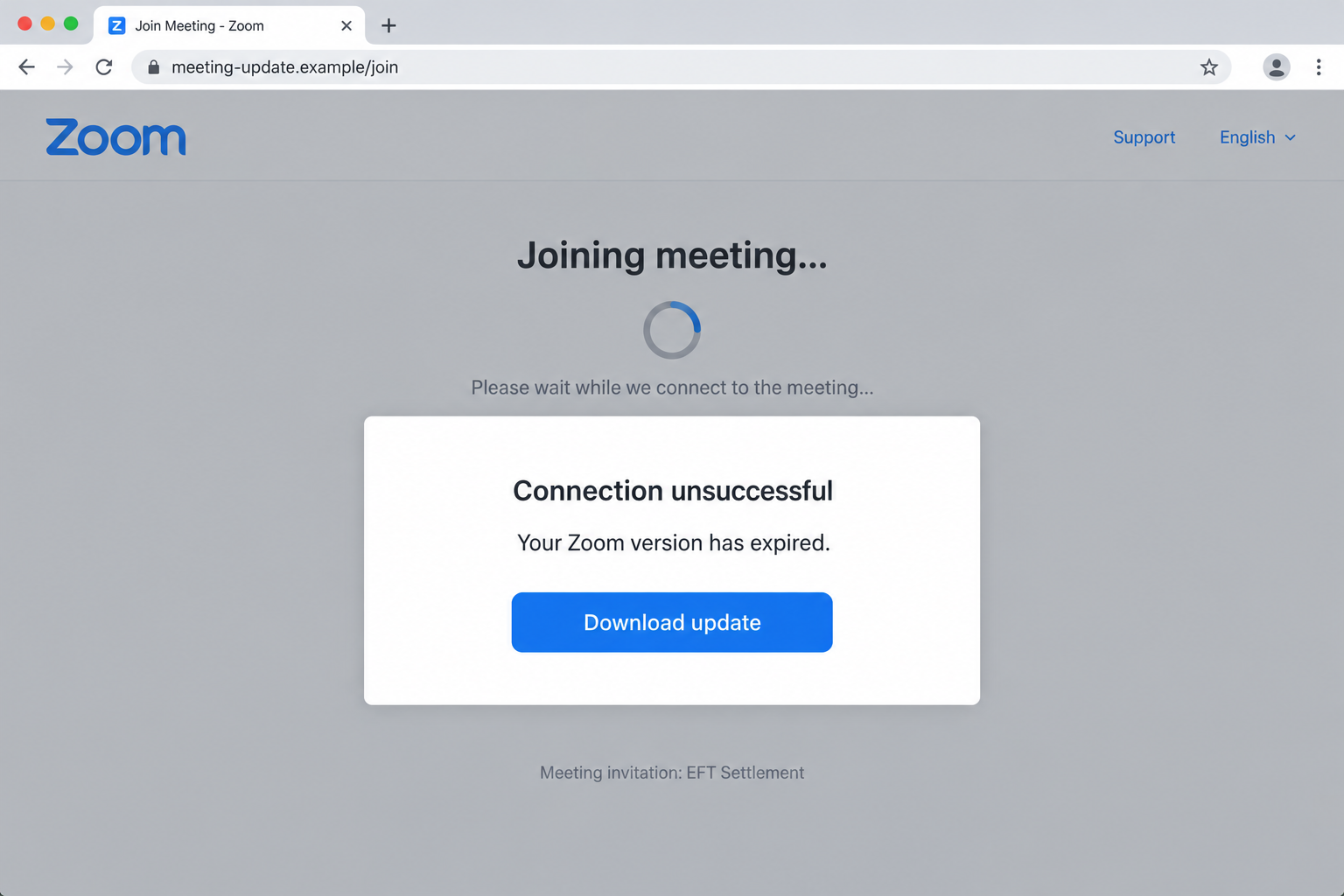
The reported lure references an EFT settlement. Its invitation and guest-list links lead to a third-party page that stages a failed meeting connection.
A version-expiry warning then offers an update. The reported Windows executable is named enZoomWorkspace_EditionApkoidv25.exe and is described as installing a remote access trojan.
Running the download is the critical escalation
Receiving a message, visiting a page, downloading a file, and executing it are different events. The recovery advice needs to reflect which event occurred.
A remote access trojan can expose much more than a meeting account. Depending on its capabilities and privileges, it may allow surveillance, theft, or further software installation.
The exact malware family and everything it did on an individual computer aren’t established by the invitation alone. Don’t infer a complete incident from a filename.
What to do before trying again
- Leave the unexpected update page without running its installer.
- Confirm the meeting with the organizer using an existing contact method.
- Open your installed Zoom application independently to check for genuine updates.
- If the downloaded program ran, treat device cleanup and account protection as separate tasks.
The image depicts the counterfeit connection-and-update prompt using a nonfunctional example address. It isn’t a capture of a live meeting or tested malware session.
Why This Is More Than a Stolen-Password Invitation
Some fraudulent meeting invitations ask you to sign in to a copied login screen. This campaign instead tries to persuade you to run software.
The difference changes the response. A password reset may protect one account, but it doesn’t remove a program that could remain active on the computer.
Likewise, deleting the invitation after installing the download won’t undo the installation. The entry point and the resulting threat aren’t the same thing.
The promise of a meeting provides a practical excuse for the interruption. Most people have experienced a call delayed by permissions, an update, or a connection problem.
The malicious page borrows that familiar frustration. The reader wants to join, so a new button looks like a solution rather than a separate security decision.
A convincing loading animation doesn’t establish that a real session is starting. A website can display progress and an error without contacting a meeting service.
The safest response is to step outside the page’s instructions. Open the app yourself and ask the organizer whether the invitation is genuine.
If a legitimate update is necessary, that update should come through a known distribution route. Don’t let an unexpected webpage choose a new software supplier.
How the Zoom Meeting Invitation Update Scam Works
Step 1: Supply a reason to join without checking the host
The invitation creates an unfinished task. The recipient is expected to view details or join a session, rather than evaluate an unsolicited software offer.
References to a financial or administrative matter can make ignoring the meeting feel risky. That’s precisely when confirming the organizer independently becomes useful.
If the topic is unfamiliar, don’t invent an explanation for it. Ask a known colleague or contact through an established conversation.
A guest-list link is not independent corroboration when it comes from the same message. A second button can send you into the same controlled route.
Step 2: Recreate the appearance of a meeting starting
The landing page gives you something familiar to watch. A joining message or progress indicator can make the browser feel like an extension of the conferencing app.
Look at the actual address, not just the service name inside the page. A logo is page content that an unrelated site can reproduce.
Custom invitation links and company scheduling tools do exist. That’s why the useful check combines the destination, expected organizer, and requested action.
An unexpected download from an unrelated host deserves a stop even if the initial invitation looked professionally formatted.
Step 3: Explain the interruption as your software problem
The error shifts responsibility to the visitor. You aren’t told to question the invitation; you’re told something on your computer needs fixing.
This creates a small dependency: to finish the task you came for, first complete the new task the page supplies.
Don’t accept that dependency automatically. Close the page and check the real application. A browser banner cannot establish the origin or safety of an installer.
A genuine service may require current software, but that fact doesn’t authenticate a file offered by a stranger’s page.
Step 4: Present an executable as the necessary update
The download’s name is designed to sound related to the application. Familiar product words can distract from the fact that you are being asked to execute code.
On Windows, an .exe is a program, not a meeting invitation. Double-clicking can run it even when no normal installation window appears.
Administrative approval is not required for every harmful action. Don’t assume that declining one permission prompt proves nothing executed beforehand.
A digital signature may provide publisher information, but it isn’t a reason to trust a download from a suspicious route. Prefer the official source from the outset.
Step 5: Use the device access beyond the fake meeting
After execution, the concern is what the program can access and whether it remains active. A meeting that never opens doesn’t mean the download failed.
Account sessions, local documents, and stored browser information may warrant review. Which items were actually exposed requires investigation rather than guesswork.
A quiet computer is not a reliable all-clear. Harmful software can run without the dramatic pop-ups people associate with an infection.
For a managed work device, prompt reporting gives the security team a better chance to contain the incident and inspect related systems.
Verifying Zoom, the Organizer, and the Download
Use a distribution route you choose
The official Zoom Download Center is the appropriate starting point for obtaining the application, rather than a file promoted by an unexpected page.
For an already installed app, consult its update controls or your organization’s software portal. Managed devices may have updates controlled by an administrator.
Don’t disable security protections to make an update work. An invitation isn’t a sufficient reason to override a blocked download or install an unfamiliar package.
Confirm the meeting without using its contact details
Use a saved phone number, existing company directory, or earlier genuine email thread. Ask whether the organizer sent the particular invitation.
If a colleague’s account was compromised, a reply to the same mailbox may reach the attacker. A separate contact method can resolve that uncertainty.
Check your calendar independently as well. The presence of an event isn’t absolute proof, but discrepancies can reveal a meeting that nobody actually scheduled.
Preserve identifiers without executing the sample
Record the filename, download time, originating message, and website address. A screenshot of the browser’s download history can help reconstruct what happened.
Don’t reopen the file to determine whether it is harmful. Security staff can decide how to preserve and analyze it safely.
A filename is an identifier, not a complete malware diagnosis. Different programs can use similar names, while the same malicious program can circulate under another name.
Questions That Help Reconstruct the Installation
If you’re trying to remember what happened, focus on visible events rather than whether the page seemed convincing. A technician needs actions and timing.
Did the browser display a saved download? Did you open it from the download list, or only view its location in a folder?
Was there a system approval prompt, and did you accept it? Record the response without assuming that the absence of a prompt rules out execution.
Did a new app window appear, briefly flash, or fail to appear at all? Each is worth mentioning, but none provides a complete diagnosis by itself.
Also note which accounts you used afterward. Sensitive activity on the same computer may affect the order in which your security team protects access.
If the computer is shared, ask other users not to reopen the download. Don’t leave it available as a supposed repair for the same meeting problem.
A managed device may retain security logs useful to investigators. Avoid running cleanup scripts from forums or deleting system folders before the responsible team can advise.
For a personal computer, keep the description equally factual. A trusted repair professional should be able to explain the cleanup plan without asking you to purchase mystery software.
You don’t need to determine the malware’s family before asking for help. Reporting that an untrusted meeting update executed is enough to start an appropriate assessment.
Include any browser warning you bypassed. That detail helps reconstruct the route; it isn’t a reason to delay reporting out of embarrassment.
What to Do if You Have Fallen Victim to This Scam
Work out whether the program ran. Note whether you only saw the page, saved the file, double-clicked it, or approved a system prompt.
If you’re unsure, describe the sequence to your security team or a trusted technician. Don’t reproduce it just to find the answer.
Contain a potentially infected device. If you executed the suspect program, disconnect its network connection and stop using it for banking, passwords, or private work.
On a company computer, notify IT promptly and follow its instructions. Avoid wiping files or changing system settings before it can preserve needed evidence.
Run the relevant malware-removal procedure. Use Malwarebytes from a trusted source, update it, complete a scan, and review quarantine results.
The Windows instructions below apply to the reported executable. A downloaded file on another operating system needs that system’s appropriate assessment, not blind Windows steps.
If access keeps returning or the scope is unclear, seek professional help. A clean reinstall may be appropriate after evidence preservation and careful backup planning.
Protect important accounts from a separate clean device. Prioritize email, financial accounts, work access, and password-manager access relevant to what was available on the computer.
Replace exposed credentials and revoke unfamiliar sessions. Use stronger authentication, but don’t treat a new password alone as removal of malicious software.
Ask about information exposure. Identify which documents and accounts were accessible during the suspected compromise. Tell your employer if business or client information was present.
Preserve the timing of sensitive activity. It can help distinguish an actual unauthorized event from the broader risk created by the installation.
Report suspicious financial activity directly. Contact the relevant bank if you notice unauthorized transfers or shared financial access while the program was running.
Provide actual transaction details. Don’t transfer funds because a supposed technician claims that a different account is safer.
Close the original route and report the invitation. Use the mail provider’s phishing controls and alert the real organizer if their identity was copied.
Keep the original message privately. Avoid forwarding a runnable attachment or active download link to colleagues as part of a warning.
Reduce future exposure after cleanup. Update the operating system and conferencing app. Review unfamiliar extensions, startup entries, and permissions with appropriate help.
AdGuard can limit some malicious advertising and redirects. It doesn’t inspect every file, remove all malware, or replace verifying an unexpected meeting update.
Is Your Device Infected? Run a Free Malware Scan
Slow performance, constant pop-ups, or strange behavior? These are classic signs of a malware infection. The fastest way to find out is to scan your device with Malwarebytes Free — one of the most trusted malware removal tools available.
The free version detects and removes the most common threats, including:
- Adware — the cause of those annoying pop-ups
- Browser hijackers — unwanted redirects and changed homepages
- Trojans and spyware — hidden programs stealing your data
- Potentially unwanted programs (PUPs) — software you never asked for
👉 Select your device below — Windows, Mac, or Android — then follow the simple steps to download Malwarebytes, scan your system, and remove any threats it finds. The scan usually takes 5 to 20 minutes.
Run a Malware Scan with Malwarebytes for Windows
Malwarebytes is one of the most popular and trusted anti-malware tools for Windows — and it’s completely free for removing infections. It catches threats that many antivirus programs miss, including adware, browser hijackers, and trojans. Follow the steps below to scan and clean your PC in just a few minutes.
Download Malwarebytes
Click the button below to download the latest version of Malwarebytes for Windows from the official source. The free version is all you need — it will scan your computer and remove adware, browser hijackers, and other malicious software at no cost.
Download MalwarebytesOfficial installer for Windows 11 and 10. Your download starts right away.Want real-time protection? See Malwarebytes Premium Malwarebytes Free for WindowsScans and removes malware at no cost
-
Install Malwarebytes
When the download finishes, open your Downloads folder and double-click the MBSetup file. If Windows shows a User Account Control pop-up, click “Yes” to allow the installation.

Follow the On-Screen Prompts to Install Malwarebytes
The setup wizard will walk you through a few quick screens:
-
Choose where you’re installing the program — “Personal Computer” or “Work Computer” — then click Next.

-
Malwarebytes will now install on your device. This usually takes under a minute.

-
When installation is complete, the “Welcome to Malwarebytes” screen will open automatically.

-
On the final screen, click Open Malwarebytes to launch the program.

-
Enable “Scan for Rootkits”
Before scanning, turn on rootkit detection so Malwarebytes can find even the most hidden threats. Click the Settings gear icon on the left side of the screen.

In the settings menu, find “Scan for rootkits” and click the toggle so it turns blue.

Done? Click “Dashboard” in the left pane to return to the main screen.
Start the Scan
Click the blue Scan button. Malwarebytes will automatically update its virus database and start checking your computer for malware.

-
Wait for the Scan to Finish
The scan checks your entire system for browser hijackers and other malicious programs, so it can take 5 to 20 minutes depending on your computer. Feel free to do something else — just check back occasionally to see the progress.

-
Quarantine the Detected Threats
When the scan is done, you’ll see a list of everything Malwarebytes found — malware, adware, and potentially unwanted programs. Click the “Quarantine” button to remove all of them at once.

Malwarebytes will now remove the malicious files and registry entries and move them safely into quarantine.

-
Restart Your Computer
Some threats can only be fully removed after a reboot. If Malwarebytes asks you to restart, click Yes. Once you’re logged back in, Malwarebytes has finished removing the threats it found.

That’s it — your Windows PC is now clean of trojans, adware, and other malware, and should be back to running smoothly.
If you are still having problems with your computer after completing these instructions, then please follow one of the steps:
- Run a computer scan with ESET Online Scanner
- Ask for help in our Windows Malware Removal Help & Support forum.
Run a Malware Scan with Malwarebytes for Mac
Malwarebytes for Mac is a free on-demand scanner that removes the malware other security software tends to miss — adware, browser hijackers, and unwanted programs included. Cleaning an infected Mac with Malwarebytes has always been completely free, and it’s our go-to recommendation. Follow the steps below to scan and clean your Mac in just a few minutes.
-
Download Malwarebytes for Mac
Click the button below to download the latest version of Malwarebytes for Mac.
Download MalwarebytesOfficial installer for macOS. Your download starts right away.Want real-time protection? See Malwarebytes PremiumMalwarebytes Free for MacScans and removes malware at no cost -
Open the Malwarebytes setup file
When the download finishes, open your Downloads folder and double-click the setup file to begin the installation.

-
Follow the On-Screen Prompts to Install Malwarebytes
The Malwarebytes for Mac Installer will guide you through a few quick screens. Click “Continue” and keep following the prompts until the installation completes.



When the installation is complete, Malwarebytes opens to the Welcome to Malwarebytes screen. Click “Get started“.
-
Select “Personal Computer” or “Work Computer”
Malwarebytes will ask what type of computer you’re installing it on. Click either Personal Computer or Work Computer, whichever applies.

-
Start the Scan
Click the “Scan” button. Malwarebytes will automatically update its detection database and begin checking your Mac for malware.

-
Wait for the Scan to Finish
Malwarebytes will scan your Mac for adware, browser hijackers, and other malicious programs. This can take a few minutes, so feel free to do something else — just check back occasionally to see the progress.

-
Quarantine the Detected Threats
When the scan is done, you’ll see a list of everything Malwarebytes found. Click the “Quarantine” button to remove all the threats at once.

-
Restart Your Mac
Malwarebytes will now remove all the malicious files it found. Some threats can only be fully removed after a reboot — if Malwarebytes asks you to restart, allow it. Once you’re logged back in, your Mac is clean.

That’s it — your Mac is now free of adware, rogue browser extensions, and other potentially harmful software.
If you are still experiencing problems while trying to remove a malicious program from your computer, please ask for help in our Mac Malware Removal Help & Support forum.
Run a Malware Scan with Malwarebytes for Android
Malwarebytes for Android automatically detects and removes dangerous threats like malware and ransomware so you don’t have to worry about your most-used device being compromised. Aggressive detection of adware and potentially unwanted programs keeps your Android phone or tablet running smooth.
-
Download Malwarebytes for Android.
You can download Malwarebytes for Android by clicking the link below.
Get Malwarebytes for AndroidOpens Google Play in a new tab.Want real-time protection? See Malwarebytes Premium for AndroidMalwarebytes for AndroidScans your phone and removes malware at no cost -
Install Malwarebytes for Android on your phone.
In the Google Play Store, tap “Install” to install Malwarebytes for Android on your device.

When the installation process has finished, tap “Open” to begin using Malwarebytes for Android. You can also open Malwarebytes by tapping on its icon in your phone menu or home screen.

-
Follow the on-screen prompts to complete the setup process
When Malwarebytes will open, you will see the Malwarebytes Setup Wizard which will guide you through a series of permissions and other setup options.
This is the first of two screens that explain the difference between the Premium and Free versions. Swipe this screen to continue.
Tap on “Got it” to proceed to the next step.
Malwarebytes for Android will now ask for a set of permissions that are required to scan your device and protect it from malware. Tap on “Give permission” to continue.
Tap on “Allow” to permit Malwarebytes to access the files on your phone.
-
Update database and run a scan with Malwarebytes for Android
You will now be prompted to update the Malwarebytes database and run a full system scan.

Click on “Update database” to update the Malwarebytes for Android definitions to the latest version, then click on “Run full scan” to perform a system scan.

-
Wait for the Malwarebytes scan to complete.
Malwarebytes will now start scanning your phone for adware and other malicious apps. This process can take a few minutes, so we suggest you do something else and periodically check on the status of the scan to see when it is finished.

-
Click on “Remove Selected”.
When the scan has been completed, you will be presented with a screen showing the malware infections that Malwarebytes for Android has detected. To remove the malicious apps that Malwarebytes has found, tap on the “Remove Selected” button.

-
Restart your phone.
Malwarebytes for Android will now remove all the malicious apps that it has found. To complete the malware removal process, Malwarebytes may ask you to restart your device.
That’s it — your Android phone is now clean — no more malicious apps, adware, or browser redirects.
If you are still having problems with your phone after completing these instructions, then please follow one of the steps:
- Restore your phone to factory settings by going to Settings > General management > Reset > Factory data reset.
- Ask for help in our Mobile Malware Removal Help & Support forum.
Stay Protected: Block Ads and Malicious Sites
Now that your device is clean, keep it that way. Most infections start with a malicious ad or a fake download button — so blocking them at the source is your best defense.
We recommend AdGuard, which blocks malicious ads, phishing pages, and dangerous redirects before they can reach you.
👉 Download AdGuard and browse safely
What Changes if You Downloaded the File but Never Opened It?
A saved executable is not the same as executed malware. Don’t inflate the incident, but don’t leave the file where it could be opened accidentally.
Cancel the download if it’s still in progress. On a personal device, quarantine or remove the file using trusted security software.
For a work device, let IT decide whether it needs a copy for analysis. Give the filename and source rather than sending the program through ordinary email.
If you entered credentials anywhere along the route, address that disclosure separately. A decision not to run the installer doesn’t undo information already submitted.
Unexpected browser notifications are another separate issue. Revoke permission for the suspicious site in browser settings if you allowed it to send alerts.
Remembering exactly what you clicked can be difficult under pressure. Your download history, recent files, and security notifications may provide a clearer timeline.
Don’t interpret the absence of an installed Zoom update as proof of safety. A malicious program doesn’t need to complete the task advertised on the page.
Frequently Asked Questions
Is Zoom sending the Meeting Invitation email virus?
No. The warning concerns a campaign impersonating the service. Genuine meeting invitations and official application updates are separate from the malicious route.
Can opening the invitation alone install the reported trojan?
The described chain depends on following a link and running its download. Merely receiving the message doesn’t demonstrate that this payload executed.
Does a failed meeting mean the installer did nothing?
No. The advertised call and the program’s actual behavior are separate. An absent meeting window cannot establish that a downloaded executable was harmless.
Should I uninstall the real Zoom application?
Not merely because its name was copied. Focus on the suspect download and device assessment, then obtain legitimate software through the official distribution route.
Will changing my Zoom password remove the malware?
No. Account recovery protects access, while malware removal addresses the computer. Both may be necessary depending on what you ran and disclosed.
What should employees tell their IT team?
Provide the original invitation, website address, filename, approximate execution time, and any prompts approved. Report quickly without rerunning or forwarding the executable.
The Bottom Line
Don’t install an update from the Zoom Meeting Invitation email virus route. Verify the organizer and get genuine software independently.
If the executable ran, contain the device and use the removal guidance. Secure potentially exposed accounts from a clean device rather than trusting a password reset alone.

Join the discussion
0 commentsShare your experience or ask a question about this article.
Discussion
Start the conversation
Have a question or something useful to share? Add the first comment.