

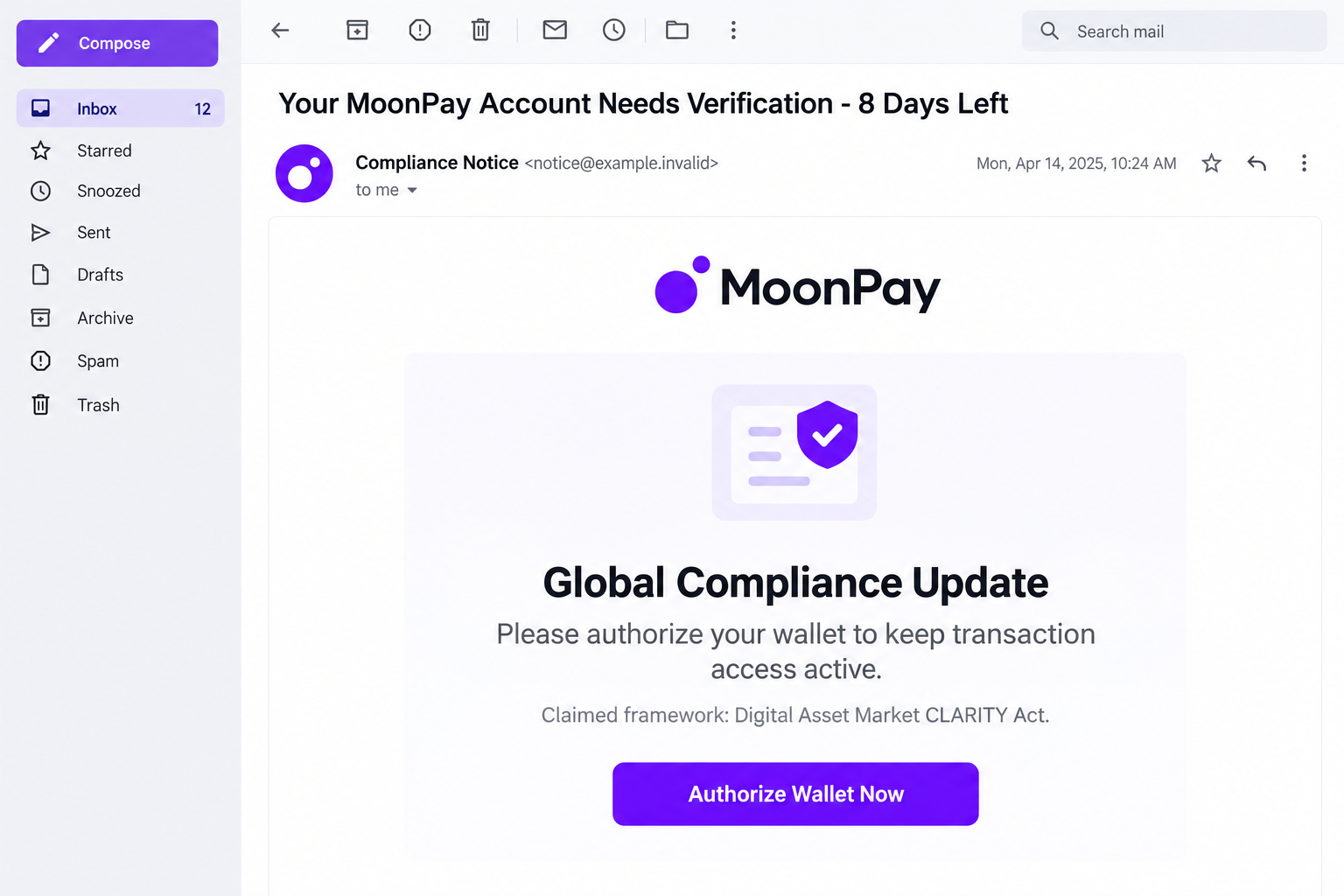
An email says your MoonPay account needs verification, with only a few days left to act. The explanation sounds official: a new compliance requirement affecting your wallet.
For someone who wants to keep access to their crypto, that can feel like routine paperwork with an inconvenient deadline. The details tell a different story.
Overview
The verification request leads to a wallet-secret form
The MoonPay account verification email scam uses a supposed compliance update to direct recipients toward a counterfeit wallet-import page.
The reported message warns of losing transaction capabilities and offers wallet authorization. Its destination imitates MetaMask and requests a 12-word recovery phrase.
Those words aren’t an ordinary account-confirmation detail. They can let someone recreate the associated wallet and control its assets.
MoonPay and MetaMask are legitimate services. This message borrows both identities, first to establish authority and then to make the secret request look familiar.
A legal name doesn’t authenticate the demand
The notice invokes the Digital Asset Market CLARITY Act. Legislation with that name is real, as the official GovInfo record confirms.
That fact doesn’t make the email genuine. A legislative title is not evidence that a sender is authorized to collect wallet secrets.
MoonPay’s wallet-security guidance says it won’t ask recipients to share or enter a recovery phrase in response to such messages.
- The supposed compliance task is different from genuine identity verification.
- A recovery phrase grants control, rather than merely proving an address belongs to you.
- A MetaMask-looking page isn’t authenticated by a MoonPay-looking email.
- Disclosed recovery words require a different response from an exposed login password.
The reported destination is not a current verification service
The campaign was associated with tuvanmuahang[.]com. Its root now displays an unrelated domain-for-sale page, not the reported wallet-import form.
That current page doesn’t identify who operated the earlier phishing route. No original path, working form, submitted phrase, or theft was tested here.
The practical warning remains clear: don’t surrender a recovery phrase to complete this alleged account-verification process.
Why This Is More Serious Than an Ordinary Password Phish
A service password usually controls access through that service’s systems. Its provider may offer password changes, session controls, and account recovery.
A self-custody recovery phrase is different. It can recreate wallet keys outside the application where you originally used them.
Think of replacing the lock on an app’s front door while someone still holds the plans for rebuilding the entire house. The original secret remains the problem.
Changing a local wallet password doesn’t make copied recovery words disappear. The attacker may not need to open your installed application at all.
Likewise, disconnecting a website won’t retract a phrase already disclosed. App connections and possession of private keys are separate forms of access.
This is why accurate recovery starts with a simple question: which secret did you enter? A MoonPay login and another wallet’s recovery phrase aren’t interchangeable.
Don’t open your wallet’s secret-export screen just to investigate the email. Reading a compliance notice doesn’t require exposing those words to anyone.
How the MoonPay Account Verification Email Scam Works
Step 1: A deadline makes an account notice feel compulsory
The reported subject says eight days remain. One copy sets a May 15, 2026 deadline and threatens restrictions if the recipient doesn’t comply.
That is the message’s claimed deadline, not a current instruction from MoonPay. An old copy may continue circulating after its printed date has passed.
The threat is chosen carefully. You may not want to transact today, but losing the ability to do so can feel like losing control of your assets.
A compliance label makes the action sound mandatory rather than optional. The reader is encouraged to think about meeting a requirement instead of verifying the sender.
You can check a real account restriction through the genuine service. The email doesn’t need to choose your route merely because its wording sounds official.
Step 2: The legal explanation supplies borrowed authority
A recognizable law or bill name can make an instruction feel too technical to question. Most readers won’t stop to examine legislative records before clicking.
But the key issue isn’t whether a title appears in government records. It’s whether the specific requested action belongs to a genuine process.
Don’t let legal terminology substitute for a verifiable account notice. A copied corporate footer and a promise of encryption don’t resolve that gap.
Nor should the email’s support link serve as its own confirmation. A second page controlled by the same sender doesn’t independently validate the first.
The article doesn’t determine the legislation’s current enactment status or offer legal advice. Neither question requires you to give a stranger your recovery words.
Step 3: A MoonPay task becomes a MetaMask import
The reported transition changes brands and functions. You began with a payment-service notice but arrive at an interface resembling a wallet-restoration tool.
That is a material change, not a cosmetic detail. Importing a wallet and verifying an account are different operations with different consequences.
A familiar wallet logo can make the request feel safe to an experienced user. The interface may resemble something they saw during legitimate setup.
The purpose and destination still matter. Restoring a wallet into a trusted application you deliberately chose is not the same as filling an unsolicited webpage.
Stop at that mismatch. You don’t need to finish importing anything to establish whether your real MoonPay account has a pending requirement.
Step 4: The phrase can be collected without a visible transfer
Entering the words may expose them before any congratulatory screen appears. A page error doesn’t tell you whether the information was retained.
No separate wallet popup is necessarily required for someone to receive text submitted to a webpage. Don’t assume the absence of a transaction prompt protected the secret.
A thief who has valid recovery words may attempt to recreate the wallet elsewhere. That bypasses the need to keep the original page connected.
Not every attempted theft succeeds immediately. Some assets may remain long enough for protective action, which is why delay can be costly.
Don’t test the phrase again or ask the sender to delete it. Treat the relevant keys as exposed and move recovery to trusted channels.
Step 5: The consequences follow the secret, not the email’s brand
If you supplied a phrase from a separate self-custody wallet, that wallet is the priority. Merely changing a MoonPay account password won’t replace those keys.
If you exposed only a service password, use that service’s account-recovery process. Don’t assume a seed phrase was taken when none was entered.
Multiple accounts derived from one disclosed recovery phrase can be affected. Creating another address under the same secret doesn’t make that address independent of the exposure.
The right response therefore depends on the credential and assets involved, not simply on the logo that appeared at the start.
Keep a record of what you disclosed without copying the secret into a support ticket. Support can discuss the incident without receiving your recovery phrase.
Account Verification Is Not Permission to Rebuild Your Wallet
Check the requirement inside the genuine service
Open the MoonPay app or a known official website independently. Look for an account request there, and use its established support route if needed.
If there is a real identity check, follow the genuine service’s instructions. Don’t infer that every request for information is fraudulent because this campaign uses compliance language.
The boundary is the unverified route and the secret it requests. Don’t send personal documents through the email simply to avoid sharing the phrase.
Understand which wallet actually holds the assets
You may use a payment provider to buy crypto and then store it elsewhere. The buying service and the destination wallet don’t necessarily share recovery controls.
Identify the wallet and public addresses involved without displaying the recovery words. Make an inventory of affected accounts and networks for trusted assistance.
If you are unsure whether a secret belongs to one account or several, consult the wallet provider’s documentation rather than an unsolicited recovery helper.
Keep the new recovery environment separate
A replacement wallet should use newly generated secrets in a trusted environment. Importing the exposed phrase into a fresh installation recreates the same compromised keys.
Don’t store the new phrase in the conversation or device location that may have exposed the old one. Review how the original disclosure happened.
Where software compromise is suspected, obtain technical help before using that same environment for sensitive setup. New secrets shouldn’t be exposed in the same way again.
After replacing an exposed wallet, stop treating its old receiving addresses as safe destinations. Future transfers sent there may also become accessible through the stolen keys.
Review your own saved withdrawal addresses and tell trusted people who regularly send you funds through an established conversation. Verify replacement details carefully.
Don’t send a replacement address to the phishing contact for approval. The sender has no legitimate role in validating your recovery.
Keep the incident’s public transaction records even after moving assets. Closing a browser or deleting an application doesn’t remove the need for evidence.
What to Do if You Have Fallen Victim to This Scam
- Leave the authorization page immediately.
Don’t submit additional words, verification codes, identity documents, or funds. Cancel any outstanding requests linked to the message.
Record the approximate time and whether you typed a phrase, a service password, or both. Keep secrets themselves out of that incident record.
- Treat a disclosed recovery phrase as compromised.
Don’t rely on changing the app password or disconnecting the site. The phrase may allow access independently of those controls.
Follow your wallet provider’s verified guidance for creating fresh keys and securing assets that remain. Don’t recreate the exposed wallet and assume it’s now new.
- Plan transfers carefully if funds are still present.
Check the affected networks and accounts. If incoming fee funds vanish immediately, stop blindly adding more and seek trusted provider guidance.
MetaMask’s compromised-wallet instructions warn about sweeper activity and explain moving to a genuinely new wallet. Recovery isn’t guaranteed.
- Secure separately exposed service accounts.
If you also provided a MoonPay or email password, replace it through the genuine service and review available account-security controls.
Use unique credentials elsewhere. Protecting a login is still important, but it shouldn’t distract from replacing exposed wallet keys.
- Check approvals when signing was involved.
If you connected and signed without sharing a phrase, investigate the actual transaction or permission instead. A different exposure may need a different remedy.
MetaMask’s connection guidance distinguishes app access from token approvals. Don’t assume a browser disconnection addresses every authorization.
- Preserve public evidence and report the loss.
Save transaction hashes, public addresses, network names, and the original invitation. Contact any involved exchange or provider through its independently located support.
Ethereum’s reporting resources explain useful evidence and warn about recovery fraud. Avoid anyone promising to reverse transactions for an upfront fee.
- Inspect any related download.
If the email also caused you to install a supposed wallet upgrade, run Malwarebytes and obtain trusted assistance for suspicious software.
AdGuard may reduce exposure to malicious advertising. Neither tool changes blockchain keys or retrieves a phrase already sent to another party.
Is Your Device Infected? Run a Free Malware Scan
Slow performance, constant pop-ups, or strange behavior? These are classic signs of a malware infection. The fastest way to find out is to scan your device with Malwarebytes Free — one of the most trusted malware removal tools available.
The free version detects and removes the most common threats, including:
- Adware — the cause of those annoying pop-ups
- Browser hijackers — unwanted redirects and changed homepages
- Trojans and spyware — hidden programs stealing your data
- Potentially unwanted programs (PUPs) — software you never asked for
👉 Select your device below — Windows, Mac, or Android — then follow the simple steps to download Malwarebytes, scan your system, and remove any threats it finds. The scan usually takes 5 to 20 minutes.
Run a Malware Scan with Malwarebytes for Windows
Malwarebytes is one of the most popular and trusted anti-malware tools for Windows — and it’s completely free for removing infections. It catches threats that many antivirus programs miss, including adware, browser hijackers, and trojans. Follow the steps below to scan and clean your PC in just a few minutes.
Download Malwarebytes
Click the button below to download the latest version of Malwarebytes for Windows from the official source. The free version is all you need — it will scan your computer and remove adware, browser hijackers, and other malicious software at no cost.
Download MalwarebytesOfficial installer for Windows 11 and 10. Your download starts right away.Want real-time protection? See Malwarebytes Premium Malwarebytes Free for WindowsScans and removes malware at no cost
-
Install Malwarebytes
When the download finishes, open your Downloads folder and double-click the MBSetup file. If Windows shows a User Account Control pop-up, click “Yes” to allow the installation.

Follow the On-Screen Prompts to Install Malwarebytes
The setup wizard will walk you through a few quick screens:
-
Choose where you’re installing the program — “Personal Computer” or “Work Computer” — then click Next.

-
Malwarebytes will now install on your device. This usually takes under a minute.

-
When installation is complete, the “Welcome to Malwarebytes” screen will open automatically.

-
On the final screen, click Open Malwarebytes to launch the program.

-
Enable “Scan for Rootkits”
Before scanning, turn on rootkit detection so Malwarebytes can find even the most hidden threats. Click the Settings gear icon on the left side of the screen.

In the settings menu, find “Scan for rootkits” and click the toggle so it turns blue.

Done? Click “Dashboard” in the left pane to return to the main screen.
Start the Scan
Click the blue Scan button. Malwarebytes will automatically update its virus database and start checking your computer for malware.

-
Wait for the Scan to Finish
The scan checks your entire system for browser hijackers and other malicious programs, so it can take 5 to 20 minutes depending on your computer. Feel free to do something else — just check back occasionally to see the progress.

-
Quarantine the Detected Threats
When the scan is done, you’ll see a list of everything Malwarebytes found — malware, adware, and potentially unwanted programs. Click the “Quarantine” button to remove all of them at once.

Malwarebytes will now remove the malicious files and registry entries and move them safely into quarantine.

-
Restart Your Computer
Some threats can only be fully removed after a reboot. If Malwarebytes asks you to restart, click Yes. Once you’re logged back in, Malwarebytes has finished removing the threats it found.

That’s it — your Windows PC is now clean of trojans, adware, and other malware, and should be back to running smoothly.
If you are still having problems with your computer after completing these instructions, then please follow one of the steps:
- Run a computer scan with ESET Online Scanner
- Ask for help in our Windows Malware Removal Help & Support forum.
Run a Malware Scan with Malwarebytes for Mac
Malwarebytes for Mac is a free on-demand scanner that removes the malware other security software tends to miss — adware, browser hijackers, and unwanted programs included. Cleaning an infected Mac with Malwarebytes has always been completely free, and it’s our go-to recommendation. Follow the steps below to scan and clean your Mac in just a few minutes.
-
Download Malwarebytes for Mac
Click the button below to download the latest version of Malwarebytes for Mac.
Download MalwarebytesOfficial installer for macOS. Your download starts right away.Want real-time protection? See Malwarebytes PremiumMalwarebytes Free for MacScans and removes malware at no cost -
Open the Malwarebytes setup file
When the download finishes, open your Downloads folder and double-click the setup file to begin the installation.

-
Follow the On-Screen Prompts to Install Malwarebytes
The Malwarebytes for Mac Installer will guide you through a few quick screens. Click “Continue” and keep following the prompts until the installation completes.



When the installation is complete, Malwarebytes opens to the Welcome to Malwarebytes screen. Click “Get started“.
-
Select “Personal Computer” or “Work Computer”
Malwarebytes will ask what type of computer you’re installing it on. Click either Personal Computer or Work Computer, whichever applies.

-
Start the Scan
Click the “Scan” button. Malwarebytes will automatically update its detection database and begin checking your Mac for malware.

-
Wait for the Scan to Finish
Malwarebytes will scan your Mac for adware, browser hijackers, and other malicious programs. This can take a few minutes, so feel free to do something else — just check back occasionally to see the progress.

-
Quarantine the Detected Threats
When the scan is done, you’ll see a list of everything Malwarebytes found. Click the “Quarantine” button to remove all the threats at once.

-
Restart Your Mac
Malwarebytes will now remove all the malicious files it found. Some threats can only be fully removed after a reboot — if Malwarebytes asks you to restart, allow it. Once you’re logged back in, your Mac is clean.

That’s it — your Mac is now free of adware, rogue browser extensions, and other potentially harmful software.
If you are still experiencing problems while trying to remove a malicious program from your computer, please ask for help in our Mac Malware Removal Help & Support forum.
Run a Malware Scan with Malwarebytes for Android
Malwarebytes for Android automatically detects and removes dangerous threats like malware and ransomware so you don’t have to worry about your most-used device being compromised. Aggressive detection of adware and potentially unwanted programs keeps your Android phone or tablet running smooth.
-
Download Malwarebytes for Android.
You can download Malwarebytes for Android by clicking the link below.
Get Malwarebytes for AndroidOpens Google Play in a new tab.Want real-time protection? See Malwarebytes Premium for AndroidMalwarebytes for AndroidScans your phone and removes malware at no cost -
Install Malwarebytes for Android on your phone.
In the Google Play Store, tap “Install” to install Malwarebytes for Android on your device.

When the installation process has finished, tap “Open” to begin using Malwarebytes for Android. You can also open Malwarebytes by tapping on its icon in your phone menu or home screen.

-
Follow the on-screen prompts to complete the setup process
When Malwarebytes will open, you will see the Malwarebytes Setup Wizard which will guide you through a series of permissions and other setup options.
This is the first of two screens that explain the difference between the Premium and Free versions. Swipe this screen to continue.
Tap on “Got it” to proceed to the next step.
Malwarebytes for Android will now ask for a set of permissions that are required to scan your device and protect it from malware. Tap on “Give permission” to continue.
Tap on “Allow” to permit Malwarebytes to access the files on your phone.
-
Update database and run a scan with Malwarebytes for Android
You will now be prompted to update the Malwarebytes database and run a full system scan.

Click on “Update database” to update the Malwarebytes for Android definitions to the latest version, then click on “Run full scan” to perform a system scan.

-
Wait for the Malwarebytes scan to complete.
Malwarebytes will now start scanning your phone for adware and other malicious apps. This process can take a few minutes, so we suggest you do something else and periodically check on the status of the scan to see when it is finished.

-
Click on “Remove Selected”.
When the scan has been completed, you will be presented with a screen showing the malware infections that Malwarebytes for Android has detected. To remove the malicious apps that Malwarebytes has found, tap on the “Remove Selected” button.

-
Restart your phone.
Malwarebytes for Android will now remove all the malicious apps that it has found. To complete the malware removal process, Malwarebytes may ask you to restart your device.
That’s it — your Android phone is now clean — no more malicious apps, adware, or browser redirects.
If you are still having problems with your phone after completing these instructions, then please follow one of the steps:
- Restore your phone to factory settings by going to Settings > General management > Reset > Factory data reset.
- Ask for help in our Mobile Malware Removal Help & Support forum.
Stay Protected: Block Ads and Malicious Sites
Now that your device is clean, keep it that way. Most infections start with a malicious ad or a fake download button — so blocking them at the source is your best defense.
We recommend AdGuard, which blocks malicious ads, phishing pages, and dangerous redirects before they can reach you.
👉 Download AdGuard and browse safely
What a Legitimate Helper Should Not Need
Someone helping with a transaction can ask for a public transaction identifier. That is different from asking for the secret needed to authorize new transactions.
Don’t photograph your phrase to prove ownership or display it during screen sharing. A view-only conversation can still expose words visible on the screen.
A request to validate a new wallet through a special website recreates the original danger. The replacement secret should not leave your trusted setup.
Be cautious with people contacting you after a public complaint. They may know the loss details because you posted them, not because they have privileged recovery access.
If you need help from a family member, explain the distinction between public addresses and secrets first. Well-intentioned assistance shouldn’t accidentally disclose the replacement phrase.
Frequently Asked Questions
Does MoonPay require my recovery phrase for this compliance update?
Don’t provide it through the message. MoonPay’s official security guidance warns that it won’t ask you to share or enter recovery words through unsolicited communications.
Is the CLARITY Act name completely invented?
No. Official legislative records use that name. Its existence doesn’t authenticate the email or justify handing wallet secrets to its linked form.
Why would a MoonPay notice open a MetaMask-looking page?
The reported campaign borrows a second familiar identity to collect recovery words. A wallet-import interface isn’t a normal explanation for an unrelated account-verification demand.
Will changing my wallet password protect an exposed phrase?
No. A copied phrase can recreate the wallet outside your installation. Use fresh keys and trusted recovery guidance for assets that remain.
What if I entered only a MoonPay password?
Secure that service account through its real recovery process. Don’t assume a separate wallet phrase was exposed, but investigate any additional permissions or actions you approved.
Can I keep using another account under the same phrase?
Don’t assume it’s safe. A disclosed recovery secret can affect accounts derived from it. A truly separate replacement requires fresh secrets, not another familiar account label.
The Bottom Line
Don’t authorize this supposed MoonPay compliance update or give its linked page your recovery phrase. Official-sounding language doesn’t justify surrendering control of a wallet.
If the words were disclosed, prioritize fresh keys and protecting remaining assets. Check genuine account requirements independently and ignore promises of guaranteed recovery.

Join the discussion
0 commentsShare your experience or ask a question about this article.
Discussion
Start the conversation
Have a question or something useful to share? Add the first comment.