

A purchase notice says your latest account statement is attached. If you don’t recognize the transaction, opening that small file can feel like the quickest way to investigate.
The message leaves the useful details inside the attachment. Before looking for the amount payable, check what kind of file you’ve actually been sent.
Overview
The attachment is the sign-in trap
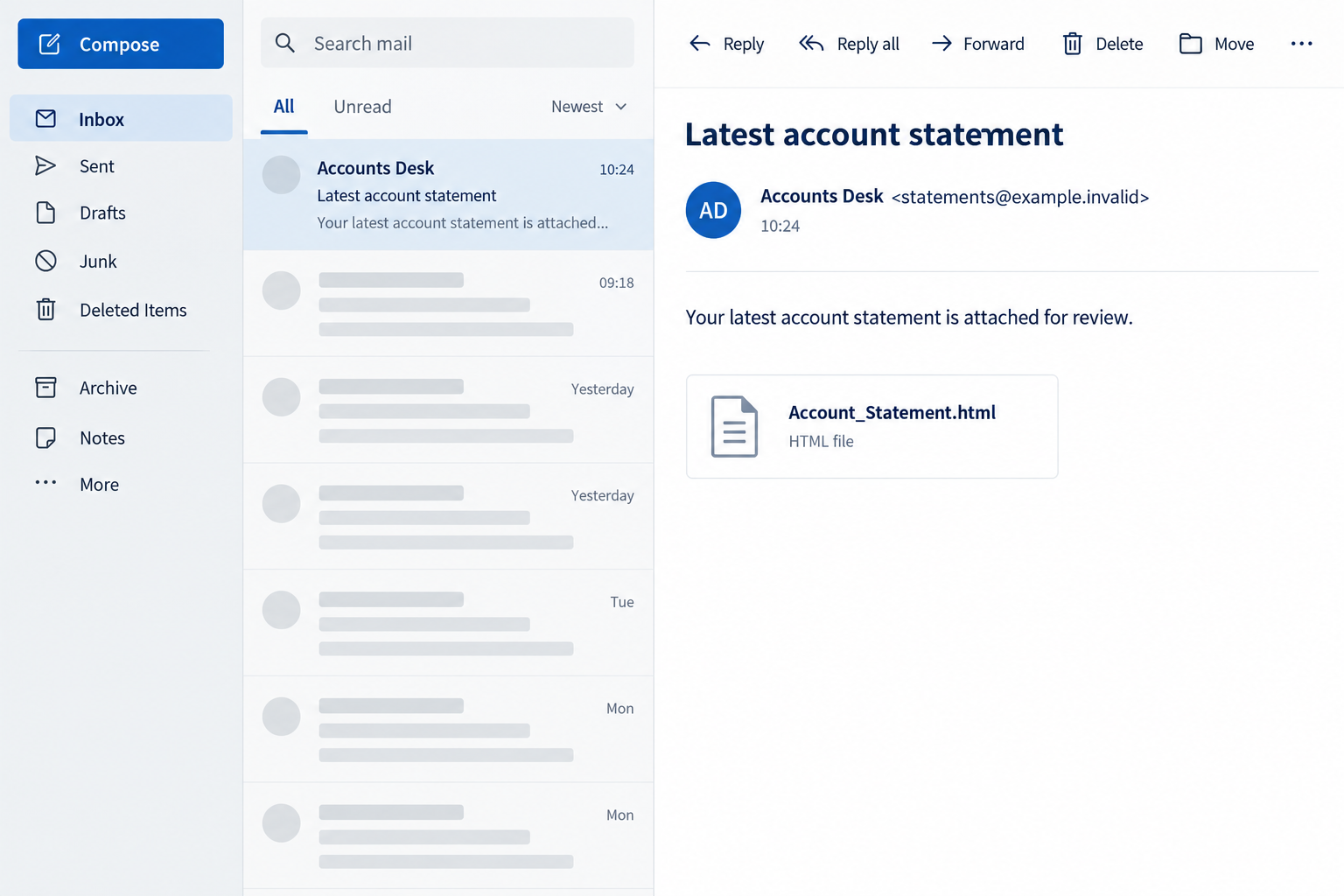
The Latest Account Statement email scam claims that details of a purchase and the amount owed are enclosed. The reported attachment is an HTML page.
Opening that file displays a fake Docusign login. It asks for an email address and password before allowing access to the supposed statement.
The request targets credentials, not a verified invoice payment. The email doesn’t demonstrate that the purchase occurred or that there is a genuine debt to settle.
A transaction-like subject, reference, and timestamp make the notice resemble administrative correspondence. They don’t authenticate the document behind it.
A browser file is not the same as a static statement
HTML is the format used to build web pages. An attached HTML file can display forms, buttons, and other elements that behave differently from ordinary printed paperwork.
A document-looking screen can therefore ask you to interact with an online service, even if you began by opening a file stored on your device.
- The statement’s filename doesn’t establish its contents or issuer.
- A Docusign logo can be placed inside a file without Docusign sending it.
- Signing a document and surrendering a mailbox password are different actions.
- A local-looking address doesn’t establish that information stays on your computer.
The response depends on what happened after opening
No original sample code or collection endpoint was available for independent examination. The established warning is about the reported imitation login, not a tested executable infection.
If you entered a password, protect the account it belongs to. If you ran additional software, investigate that separate exposure too.
Docusign is a legitimate service. The deceptive attachment borrows its identity; this isn’t a warning that every genuine Docusign document or HTML attachment is fraudulent.
The Missing Purchase Details Are Doing Part of the Work
A statement normally helps you understand a transaction. Here, the promised explanation is withheld until you engage with the attached page.
That can catch both worried and organized readers. One wants to investigate an unfamiliar charge; the other wants to file routine paperwork before moving on.
The absence of a recognizable purchase isn’t a reason to hurry. It is a reason to consult the account or records where that purchase would actually appear.
For a personal transaction, check your card activity and merchant account independently. For a business purchase, identify the employee or department that placed the order.
A statement email cannot create a debt by announcing one. Conversely, an unrelated legitimate charge doesn’t establish that this particular attachment came from the merchant.
Keep those questions separate. You can investigate a transaction without giving the unknown attachment a chance to define your next login.
How the Latest Account Statement Email Scam Works
Step 1: The subject makes the purchase sound established
The reported subject combines a purchase reference with payment-style language and a date. It presents the transaction as something that has already happened.
That framing encourages a reader to search their memory rather than question the sender. You may wonder whether a family member or coworker ordered something.
A complicated reference can reinforce the impression of a real system. But a random-looking identifier is easy to generate without access to anyone’s purchasing history.
Look for an independently recognizable merchant and transaction. Don’t turn an unexplained identifier into an assumption that the sender knows your accounts.
Step 2: The file becomes the only apparent way to understand the bill
The message offers the attached statement as the place to find the amount payable. That makes opening it feel like investigation, not trust.
Yet choosing the attachment already accepts the sender’s route. You leave your own payment records and enter a document environment supplied by an unknown party.
Notice the file type before interacting. A name containing account, statement, or document doesn’t make an HTML page a conventional invoice.
Don’t rename the file or try another application to force it open. Your goal is to verify the purchase, not to make an unexplained attachment work.
Step 3: A signing brand supplies a reason the statement is locked
The attachment presents an imitation Docusign sign-in. A recognizable document brand can make the password requirement feel like a normal protection for financial information.
That is a change in the task. You started with a statement about an alleged purchase, but now an unknown page wants an account credential.
Confidential documents can genuinely require authentication. However, that doesn’t establish a relationship between this file, the real signing service, and your email provider.
Ask which account the form is requesting and who controls it. The answer isn’t established by artwork copied into an attachment.
A document shouldn’t need to hide its entire business context behind an unverified password demand. Confirm the sender and transaction through a separate route.
Step 4: The reader may confuse the file’s location with its behavior
A browser can open an HTML file from a Downloads folder. Seeing a local file location may make the page seem isolated from outside websites.
But a page can include network requests, remote content, or forms that send information elsewhere. Its starting location doesn’t explain everything it might do.
The original code wasn’t available here, so a specific submission address or script cannot be identified. Don’t infer technical details from the Docusign-looking screen alone.
The safe decision doesn’t require experimenting with the form. Leave it rather than entering test passwords or clicking through to find the next stage.
If you already supplied a real password, treat the disclosure seriously even if the attachment subsequently failed to display anything.
Step 5: A missing statement can conceal a completed disclosure
A failed loading screen can leave you focused on the promised document. You may retry, switch accounts, or submit another password to resolve the apparent problem.
Don’t do that. The disappearance of the statement is not proof that the credential request failed before receiving information.
An attacker could try the exposed password against its real service. Reused credentials can create additional opportunities without any further statement email.
Actual unauthorized access needs examination of account activity. You shouldn’t assume a takeover occurred, but you shouldn’t wait for a visible lockout before replacing disclosed credentials.
For a work address, tell the security team what account you tried to use. The Docusign branding alone may not identify which credential needs protection.
How to Investigate the Claimed Statement Safely
Begin with the purchase, not the attachment
Look for the order in your own records. Compare the merchant, purchase date, responsible person, and actual payment activity rather than relying on the email’s reference.
If the transaction is unfamiliar, ask the appropriate cardholder or purchasing contact through an established channel. Don’t use a reply address supplied by the statement.
Do not send the attachment to several coworkers asking whether it opens for them. That spreads the risk without providing independent confirmation.
Verify an actual document request through the genuine service
Use Docusign’s known website or your established account route if a real signing task is expected. Ask the verified sender for clarification where necessary.
Not seeing a document in one account isn’t a universal test of authenticity. Account settings and signing workflows vary, so confirm the specific request with its actual sender.
The Docusign Safety Center provides the company’s current fraud and identity-verification resources. A copied attachment is not an alternative entrance to those services.
If the task belongs to another document platform, verify that platform instead. Don’t assume Docusign must be involved simply because the attachment displays its name.
Docusign’s safety guidance describes using a notification’s unique security code to reach a document through the official website instead of following the emailed link.
That option applies to a genuine envelope notification. A code or reference invented inside an attached imitation doesn’t create an envelope in Docusign’s system.
The company also warns that signature requests aren’t delivered as attached files. Don’t confuse a completed document copy with an HTML file requesting a new login.
If your mail app hides part of an attachment’s name, check its details without opening it. A familiar document icon isn’t a reliable indication of file type.
Ask your administrator for help when file details are unclear. You don’t need to execute the attachment to establish how the sender packaged it.
Keep the suspicious file as evidence without using it
An IT team may need the original email and attachment to investigate. Follow its reporting procedure rather than trying to inspect scripts yourself.
A screenshot can show the claim, but it may omit the attachment and routing information. Preserve the original when requested, without reopening it to produce more screenshots.
Keep sensitive business information out of public malware-analysis uploads. Your organization should decide what can safely be shared with external services.
What to Do if You Have Fallen Victim to This Scam
- Close the attached page and stop repeated attempts.
Don’t enter another password, approve an unexpected sign-in, or install an application to make the statement display.
Write down which file you opened and what you entered. Distinguish a mailbox password, Docusign password, verification code, and any additional authorization.
- Secure the account matching the disclosed secret.
Change that password through the genuine account system on a trusted device. Replace it wherever else you used the same credential.
For Microsoft personal accounts, Microsoft’s recovery guide explains the official process. An employer-managed account should go through the organization’s administrator.
- Review sessions and mailbox changes.
Look for unauthorized sign-ins, altered recovery details, unfamiliar forwarding, and rules that hide messages. Ask support to remove access you cannot manage yourself.
Preserve relevant findings for the incident record. A normal inbox view doesn’t answer whether someone else also obtained access.
- Report the impersonation accurately.
Docusign’s reporting guide distinguishes genuine envelopes being abused from messages merely pretending to come from Docusign.
Use the appropriate verified reporting route. Your own mail provider or workplace team should also receive the original deceptive message through its established process.
- Resolve any real payment concern independently.
If an actual unauthorized transaction appears in your banking records, contact the issuer through its app or a number you already trust.
The attached page isn’t a refund desk. Don’t give the sender card information to cancel a purchase that hasn’t been independently established.
- Assess software exposure without assuming an infection.
If you launched another downloaded program, enabled unusual permissions, or notice suspicious software changes, run Malwarebytes and obtain qualified assistance.
AdGuard can help reduce some malicious advertising encounters. Neither tool retracts information entered into a form or approves the safety of a document signature.
- Check whether the account was used afterward.
Inspect relevant sent messages and important recovery notifications with the provider or IT team. Warn contacts if evidence shows they received deceptive instructions from your account.
Don’t let embarrassment delay that report. A precise description of the interaction is more helpful than waiting until you can personally prove every consequence.
Is Your Device Infected? Run a Free Malware Scan
Slow performance, constant pop-ups, or strange behavior? These are classic signs of a malware infection. The fastest way to find out is to scan your device with Malwarebytes Free — one of the most trusted malware removal tools available.
The free version detects and removes the most common threats, including:
- Adware — the cause of those annoying pop-ups
- Browser hijackers — unwanted redirects and changed homepages
- Trojans and spyware — hidden programs stealing your data
- Potentially unwanted programs (PUPs) — software you never asked for
👉 Select your device below — Windows, Mac, or Android — then follow the simple steps to download Malwarebytes, scan your system, and remove any threats it finds. The scan usually takes 5 to 20 minutes.
Run a Malware Scan with Malwarebytes for Windows
Malwarebytes is one of the most popular and trusted anti-malware tools for Windows — and it’s completely free for removing infections. It catches threats that many antivirus programs miss, including adware, browser hijackers, and trojans. Follow the steps below to scan and clean your PC in just a few minutes.
Download Malwarebytes
Click the button below to download the latest version of Malwarebytes for Windows from the official source. The free version is all you need — it will scan your computer and remove adware, browser hijackers, and other malicious software at no cost.
Download MalwarebytesOfficial installer for Windows 11 and 10. Your download starts right away.Want real-time protection? See Malwarebytes Premium Malwarebytes Free for WindowsScans and removes malware at no cost
-
Install Malwarebytes
When the download finishes, open your Downloads folder and double-click the MBSetup file. If Windows shows a User Account Control pop-up, click “Yes” to allow the installation.

Follow the On-Screen Prompts to Install Malwarebytes
The setup wizard will walk you through a few quick screens:
-
Choose where you’re installing the program — “Personal Computer” or “Work Computer” — then click Next.

-
Malwarebytes will now install on your device. This usually takes under a minute.

-
When installation is complete, the “Welcome to Malwarebytes” screen will open automatically.

-
On the final screen, click Open Malwarebytes to launch the program.

-
Enable “Scan for Rootkits”
Before scanning, turn on rootkit detection so Malwarebytes can find even the most hidden threats. Click the Settings gear icon on the left side of the screen.

In the settings menu, find “Scan for rootkits” and click the toggle so it turns blue.

Done? Click “Dashboard” in the left pane to return to the main screen.
Start the Scan
Click the blue Scan button. Malwarebytes will automatically update its virus database and start checking your computer for malware.

-
Wait for the Scan to Finish
The scan checks your entire system for browser hijackers and other malicious programs, so it can take 5 to 20 minutes depending on your computer. Feel free to do something else — just check back occasionally to see the progress.

-
Quarantine the Detected Threats
When the scan is done, you’ll see a list of everything Malwarebytes found — malware, adware, and potentially unwanted programs. Click the “Quarantine” button to remove all of them at once.

Malwarebytes will now remove the malicious files and registry entries and move them safely into quarantine.

-
Restart Your Computer
Some threats can only be fully removed after a reboot. If Malwarebytes asks you to restart, click Yes. Once you’re logged back in, Malwarebytes has finished removing the threats it found.

That’s it — your Windows PC is now clean of trojans, adware, and other malware, and should be back to running smoothly.
If you are still having problems with your computer after completing these instructions, then please follow one of the steps:
- Run a computer scan with ESET Online Scanner
- Ask for help in our Windows Malware Removal Help & Support forum.
Run a Malware Scan with Malwarebytes for Mac
Malwarebytes for Mac is a free on-demand scanner that removes the malware other security software tends to miss — adware, browser hijackers, and unwanted programs included. Cleaning an infected Mac with Malwarebytes has always been completely free, and it’s our go-to recommendation. Follow the steps below to scan and clean your Mac in just a few minutes.
-
Download Malwarebytes for Mac
Click the button below to download the latest version of Malwarebytes for Mac.
Download MalwarebytesOfficial installer for macOS. Your download starts right away.Want real-time protection? See Malwarebytes PremiumMalwarebytes Free for MacScans and removes malware at no cost -
Open the Malwarebytes setup file
When the download finishes, open your Downloads folder and double-click the setup file to begin the installation.

-
Follow the On-Screen Prompts to Install Malwarebytes
The Malwarebytes for Mac Installer will guide you through a few quick screens. Click “Continue” and keep following the prompts until the installation completes.



When the installation is complete, Malwarebytes opens to the Welcome to Malwarebytes screen. Click “Get started“.
-
Select “Personal Computer” or “Work Computer”
Malwarebytes will ask what type of computer you’re installing it on. Click either Personal Computer or Work Computer, whichever applies.

-
Start the Scan
Click the “Scan” button. Malwarebytes will automatically update its detection database and begin checking your Mac for malware.

-
Wait for the Scan to Finish
Malwarebytes will scan your Mac for adware, browser hijackers, and other malicious programs. This can take a few minutes, so feel free to do something else — just check back occasionally to see the progress.

-
Quarantine the Detected Threats
When the scan is done, you’ll see a list of everything Malwarebytes found. Click the “Quarantine” button to remove all the threats at once.

-
Restart Your Mac
Malwarebytes will now remove all the malicious files it found. Some threats can only be fully removed after a reboot — if Malwarebytes asks you to restart, allow it. Once you’re logged back in, your Mac is clean.

That’s it — your Mac is now free of adware, rogue browser extensions, and other potentially harmful software.
If you are still experiencing problems while trying to remove a malicious program from your computer, please ask for help in our Mac Malware Removal Help & Support forum.
Run a Malware Scan with Malwarebytes for Android
Malwarebytes for Android automatically detects and removes dangerous threats like malware and ransomware so you don’t have to worry about your most-used device being compromised. Aggressive detection of adware and potentially unwanted programs keeps your Android phone or tablet running smooth.
-
Download Malwarebytes for Android.
You can download Malwarebytes for Android by clicking the link below.
Get Malwarebytes for AndroidOpens Google Play in a new tab.Want real-time protection? See Malwarebytes Premium for AndroidMalwarebytes for AndroidScans your phone and removes malware at no cost -
Install Malwarebytes for Android on your phone.
In the Google Play Store, tap “Install” to install Malwarebytes for Android on your device.

When the installation process has finished, tap “Open” to begin using Malwarebytes for Android. You can also open Malwarebytes by tapping on its icon in your phone menu or home screen.

-
Follow the on-screen prompts to complete the setup process
When Malwarebytes will open, you will see the Malwarebytes Setup Wizard which will guide you through a series of permissions and other setup options.
This is the first of two screens that explain the difference between the Premium and Free versions. Swipe this screen to continue.
Tap on “Got it” to proceed to the next step.
Malwarebytes for Android will now ask for a set of permissions that are required to scan your device and protect it from malware. Tap on “Give permission” to continue.
Tap on “Allow” to permit Malwarebytes to access the files on your phone.
-
Update database and run a scan with Malwarebytes for Android
You will now be prompted to update the Malwarebytes database and run a full system scan.

Click on “Update database” to update the Malwarebytes for Android definitions to the latest version, then click on “Run full scan” to perform a system scan.

-
Wait for the Malwarebytes scan to complete.
Malwarebytes will now start scanning your phone for adware and other malicious apps. This process can take a few minutes, so we suggest you do something else and periodically check on the status of the scan to see when it is finished.

-
Click on “Remove Selected”.
When the scan has been completed, you will be presented with a screen showing the malware infections that Malwarebytes for Android has detected. To remove the malicious apps that Malwarebytes has found, tap on the “Remove Selected” button.

-
Restart your phone.
Malwarebytes for Android will now remove all the malicious apps that it has found. To complete the malware removal process, Malwarebytes may ask you to restart your device.
That’s it — your Android phone is now clean — no more malicious apps, adware, or browser redirects.
If you are still having problems with your phone after completing these instructions, then please follow one of the steps:
- Restore your phone to factory settings by going to Settings > General management > Reset > Factory data reset.
- Ask for help in our Mobile Malware Removal Help & Support forum.
Stay Protected: Block Ads and Malicious Sites
Now that your device is clean, keep it that way. Most infections start with a malicious ad or a fake download button — so blocking them at the source is your best defense.
We recommend AdGuard, which blocks malicious ads, phishing pages, and dangerous redirects before they can reach you.
👉 Download AdGuard and browse safely
An HTML Warning Is Not a Diagnosis of Every Device Problem
Security products may classify a credential-collection file as phishing or malicious HTML. That does not, by itself, establish an installed remote-access Trojan.
The distinction changes recovery. An exposed password needs account protection even if no program was installed and a device scan finds nothing.
An unexpected installation needs its own investigation, even after you’ve changed the password. One successful recovery step doesn’t automatically cover the other exposure.
Describe what you observed rather than guessing a malware family from a frightening label. Leave technical attribution to the people examining the actual file and system.
If you only received the email, there is no reason to open the attachment to discover whether it is dangerous. Reporting it is enough.
Frequently Asked Questions
Does this notice mean I owe the amount in the statement?
No debt is established by the message. Verify a real purchase and payment record independently instead of relying on the attached page.
Is the attachment a genuine Docusign document?
The reported file displays a counterfeit sign-in using Docusign’s identity. Verify any actual document request with its sender and the genuine service.
Are all HTML attachments unsafe?
No. The format has legitimate uses. This case concerns an unsolicited purchase statement that uses HTML to present a deceptive credential request.
Can a file in Downloads still send information online?
Yes. Local storage doesn’t guarantee offline behavior. Don’t enter secrets into an unfamiliar page merely because it opened from a saved attachment.
What if I used my email password rather than a Docusign password?
Protect the email account first. The brand displayed by the form doesn’t change which service the disclosed password can actually unlock.
Does a clean scan reverse a password submission?
No. Scanning checks software. Password replacement, access review, and provider recovery address information already disclosed through the imitation.
The Bottom Line
Don’t sign in through the attached account statement. Its purchase story leads to a reported fake Docusign form, not verified evidence of an amount you owe.
Check any real transaction through your own records. If you supplied a credential, secure the corresponding account and report the original attachment through trusted channels.

Join the discussion
0 commentsShare your experience or ask a question about this article.
Discussion
Start the conversation
Have a question or something useful to share? Add the first comment.