


Chrome keeps switching to Yahoo, even after you pick Google again. Your address-bar searches land on Yahoo results, or Google sticks for a day and then flips back.
This guide shows you how to set your search engine back, find the extension or program forcing Yahoo, and make the fix stick on Windows.
Overview
Why does Chrome keep switching to Yahoo?
Yahoo Search is a real search engine, and Chrome offers it as a built-in choice. The trouble starts when something picks it for you and keeps putting it back.
On a Windows PC, that something is usually one of these:
- A recently added extension, often a new-tab, search helper or “safe search” tool. Chrome names it in Settings when it is controlling your search engine.
- A free program installed with extra offers ticked. Under Google’s unwanted-software policy, bundled extras must be clearly disclosed and skippable, but those checkboxes are easy to miss.
- A security suite’s safe-search feature. McAfee’s WebAdvisor page, for example, lists Secure Search with Yahoo and says you may be asked to make it your default after restarting the browser.
- A Windows program, startup task or Chrome policy that sets Yahoo again each time you sign in.
If you accepted a security tool’s safe-search offer, that isn’t malware. Switch the option off in that tool’s own settings, then pick your engine in Chrome.
Otherwise, take it seriously. Google lists a search engine that keeps changing without your permission as a sign of unwanted software, so a repeat change is a cleanup job.
The quick fix that works for most people
Work through these five steps in order. Stop as soon as Yahoo stays gone after you close and reopen Chrome.
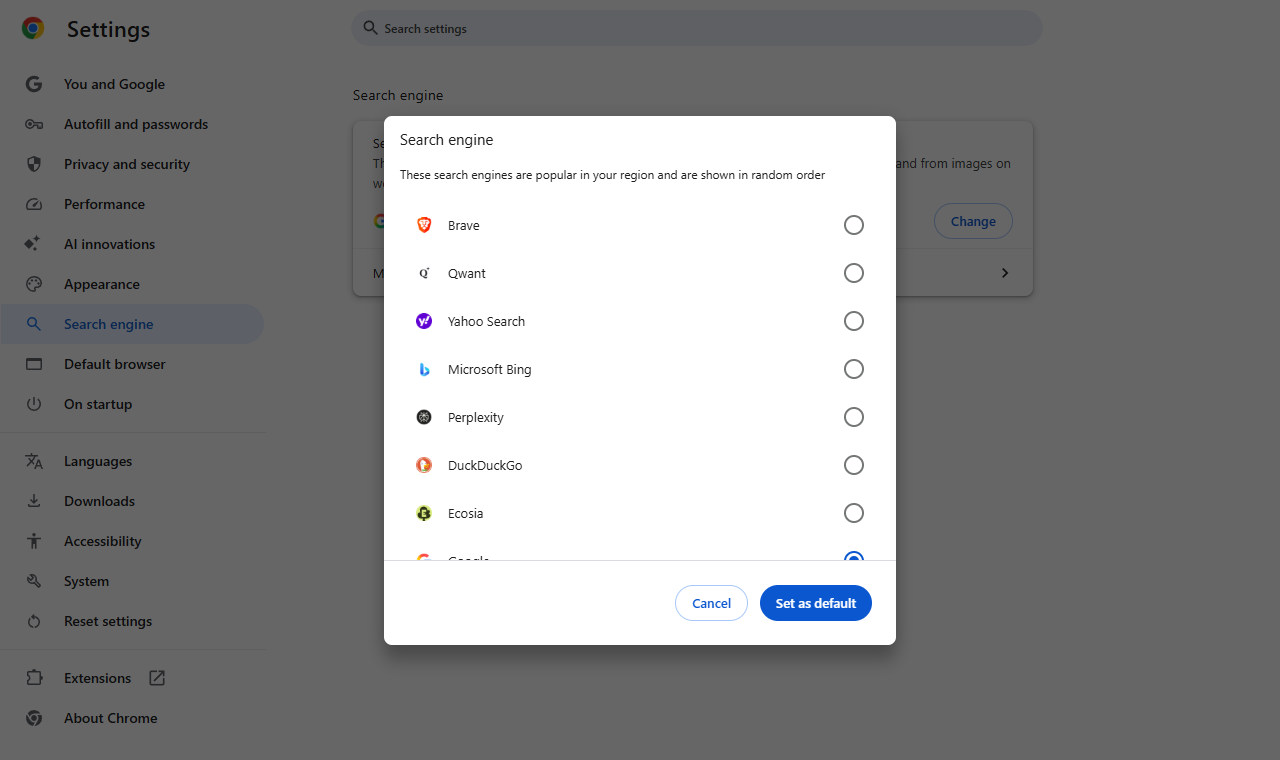
- Click Chrome’s three-dot menu, then Settings > Search engine. Click Change, pick Google or another engine you trust, and confirm.
- Type chrome://extensions in the address bar. Switch off one add-on you don’t recognize, especially new-tab, search or “secure search” tools, then search again.
- If Yahoo is gone, click Remove on that add-on’s card. If it’s a security tool you want to keep, turn off its safe-search option instead.
- Open Windows Settings > Apps > Installed apps. Uninstall programs you don’t remember choosing, especially ones added around the day Yahoo appeared.
- Restart Windows, open Chrome and search from the address bar. If your engine sticks, you’re done.
What to do if Yahoo comes back
If Yahoo returns after a restart, something outside Chrome’s settings is putting it back. Run the Windows scans in Step 3, then check for a locked setting.
See “Managed by your organization” at the bottom of Chrome’s three-dot menu on a personal PC? A policy is involved, and the advanced section shows how to check it.
Skip registry cleaners and scripts that wipe every Chrome profile. They can delete saved data and still miss the program that keeps choosing Yahoo.
On a work or school PC, Yahoo might be set on purpose. Ask your IT team before you change anything marked as managed.
This guide covers unwanted search settings, browser hijackers, sneaky extensions and adware. It won’t unlock encrypted files or secure an account someone else has used.
How to Remove Yahoo From Chrome on Windows
Go through the steps in order and stop once Yahoo stays gone. Use these shortcuts to jump ahead:
- Change Chrome’s search engine
- Test the fix and stop when it works
- Only if Yahoo returns or settings are locked
Step 1: Choose the search engine you want
Chrome: change the address-bar search engine
-
Open Search engine
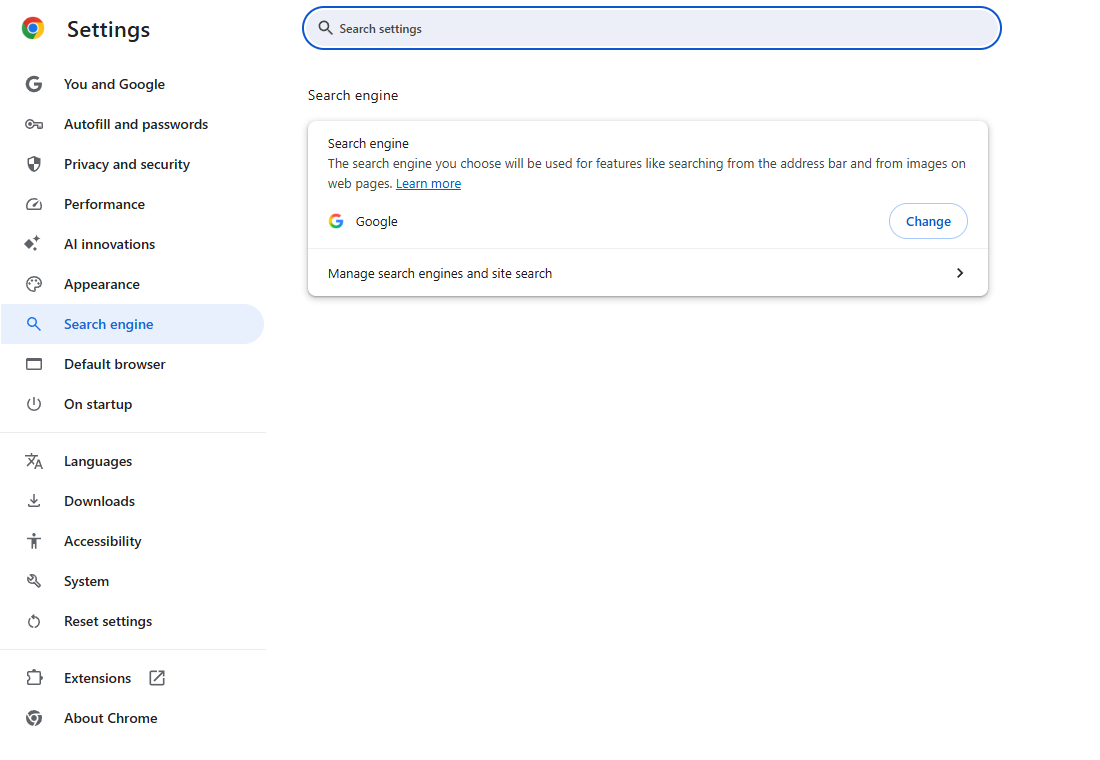
Type chrome://settings/search in Chrome’s address bar and press Enter. Your current search engine is shown next to the Change button.
-
Pick the engine you want
Click Change. Choose Google, DuckDuckGo or another engine you trust, then confirm with the button in the dialog.
Open a new tab and search from the address bar. Going to google.com directly doesn’t test this setting.
-
Check the result before doing anything else
If the search goes where you chose and stays that way, jump to the final check. You don’t need a reset just to switch engines.
If Yahoo comes back, continue with extensions below. If the setting is grayed out or locked, go to the advanced section.
Step 2: Test a search or new-tab extension
Chrome: find the extension changing your search
-
Open your extensions
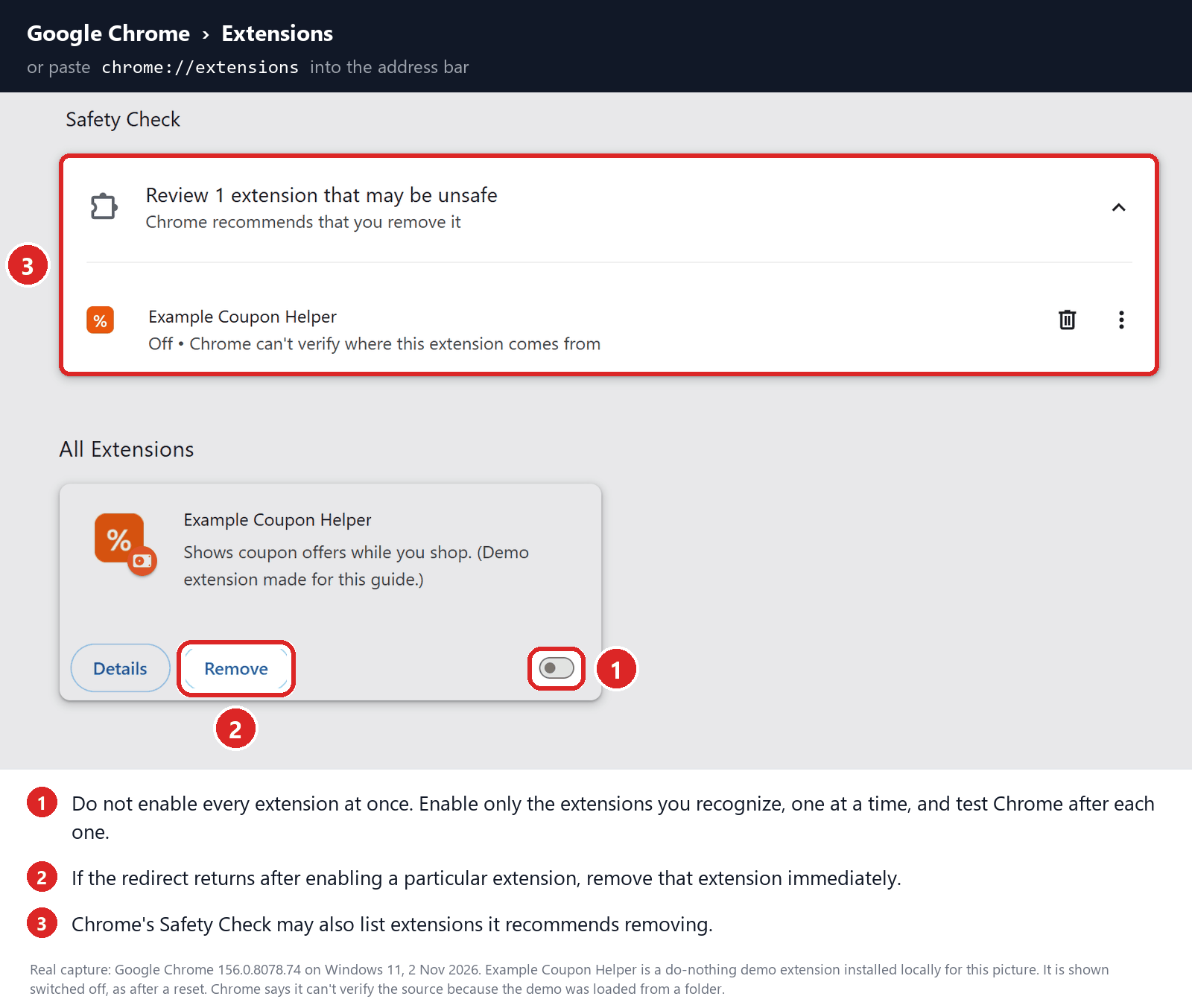
Type chrome://extensions and press Enter. The example below points out an extension’s on/off switch and Remove button. It’s a demo, not a threat found on your PC.
-
Switch off one suspect and search again
Start with anything new, or anything that changes search or the new tab. Switch its toggle off, open a new tab and search again.
If Yahoo is gone, click Remove on that extension’s card and confirm. Keep trusted password managers and security tools unless they turn out to be the cause.
If you have no extensions, skip this part. If Remove is blocked or the extension comes back, go to the advanced checks.
-
Confirm the fix
Close and reopen Chrome, then search again. If Yahoo stays away, go to the final check and skip the scanners and reset below.
If a notification opens unwanted pages
Use this only when pop-up alerts or pages appear without you searching. A site allowed to send notifications is a different problem from a hijacked search engine.
-
Chrome: open chrome://settings/content/notifications. Under sites allowed to send notifications, open the unwanted site’s menu and choose Block or Remove.
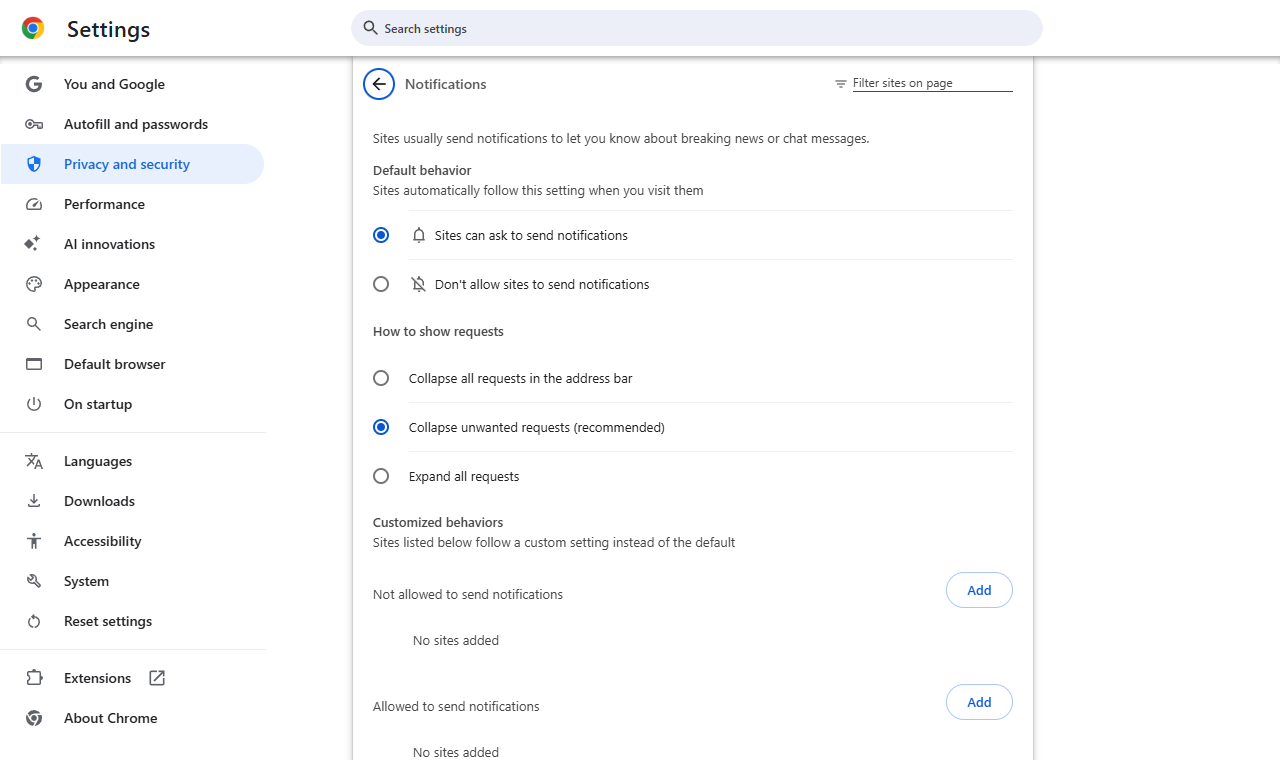
Always use Chrome’s settings, not the buttons inside a scary alert. If the alerts stop and search works, you can skip the scans and reset.
Step 3: Scan Windows if Yahoo returns
Skip this step if changing the setting fixed things. Use it when an extension returns, an unknown program is installed, or Yahoo keeps coming back.
Scan Windows for the program bringing Yahoo back
Run this scan when an unwanted app or extension keeps returning. If a settings change already fixed Chrome, you can skip it.
The installer screenshots come from our Windows guide. Your version may show slightly different scan options.
Optional purchases may earn MalwareTips a commission. Paid protection is not required for the manual repairs.
-
Download the Windows installer
Use the download button below. Don’t trust a cleaner advertised on a redirect page or pop-up warning.
Malwarebytes for WindowsOn-demand scan and threat review -
Open the setup file and check the publisher
Open your Downloads folder and double-click the MBSetup file.

If Windows asks for permission, check the verified publisher before clicking Yes. Don’t click past a security warning you can’t explain.
-
Complete setup without accepting unwanted extras
Choose Personal for your own PC, then continue. A work computer is your IT team’s job.

Read any trial, subscription or extension offers and decline the ones you don’t want.
Leave the installer open while the progress bar moves.

At the welcome screen, click Get started.

When setup says it’s finished, click Open Malwarebytes.

-
Start a free manual scan
In Malwarebytes for Windows, click the three dots on the Scanner tile. Choose Advanced Scan, then Custom Scan.
Quick and Custom scans are free. The Threat Scan shown in older screenshots may need a trial or paid plan.
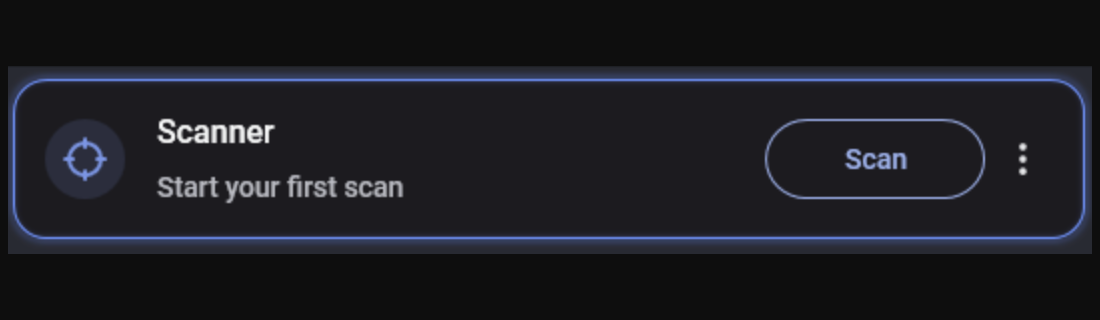
Tick the folders or drives you want to check. Look at how the scan handles potentially unwanted programs, then click Start Custom Scan.
A scan of a few folders doesn’t check the whole PC. For a full built-in check, use the Microsoft Defender Full scan described below.
This older screenshot shows a Threat Scan running. Your free scan may look a little different, so just wait for its results.

-
Review what it found and quarantine threats
Read the names and locations of what was found. Select the threats, and save the report if you want an expert to look at it.

The detections shown here are examples. Check the real results on your PC.
Click Quarantine to lock the selected items away. The report can link a program to the Yahoo change you were chasing.
Let quarantine finish before you close anything.

-
Restart if requested, then repeat the browser test
Save your work before approving a restart. Let the cleanup finish even if Chrome already looks fixed.

After you sign back in, check Chrome’s search engine, extensions and chrome://policy. A clean scan doesn’t guarantee every browser setting is fixed.
If the same detection or Yahoo comes back, keep the report and note when it returns. Then ask for help instead of running deletion scripts.
Prefer the tool built into Windows? Open Windows Security, then Virus & threat protection, Scan options, and Full scan. Act on what it finds.
Optional second scan for stubborn adware
AdwCleaner is a separate Windows adware scanner. Use it if unwanted software still seems likely; a normal Yahoo results page isn’t something to remove.
-
Download and open AdwCleaner
Malwarebytes AdwCleanerOptional Windows adware checkOpen the downloaded file, check its publisher and read the license prompt. AdwCleaner runs without a normal installation.
Find the AdwCleaner file in your Downloads folder. Open that file, not a lookalike from a search ad.
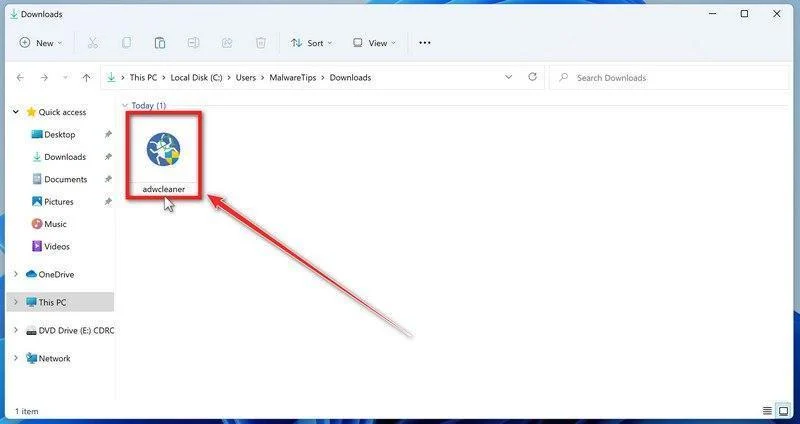
If Windows asks for permission, check the file name and publisher before choosing Run or Yes.
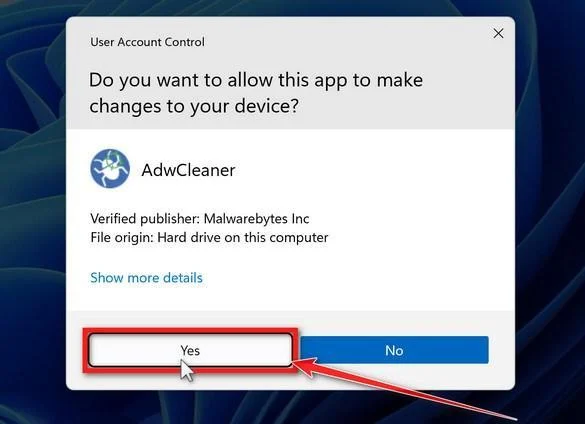
-
Leave extra repair options off, then scan
Leave Reset Chrome Policies switched off. It clears every Chrome policy, including legitimate ones, and this guide checks policies one by one instead.
Don’t reset network or firewall settings either. Go back to Dashboard and click Scan Now.
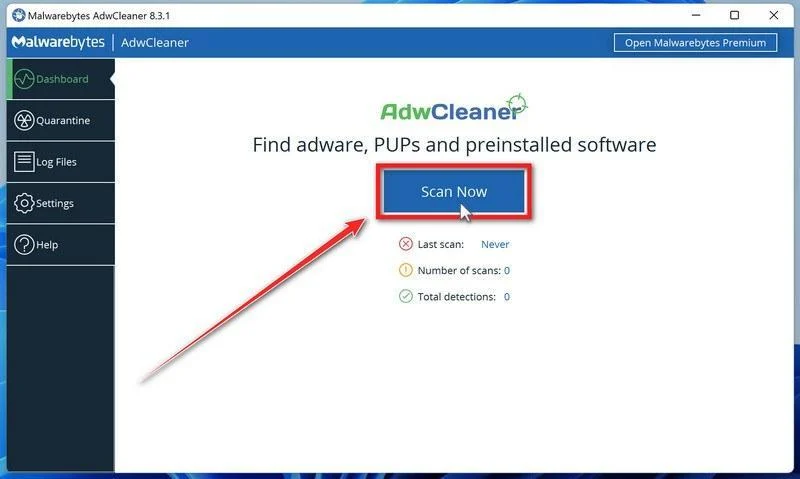
Let the scan run to the end. It looks for adware and unwanted programs without changing anything yet.
Wait for the progress bar, then review the results before you clean anything.
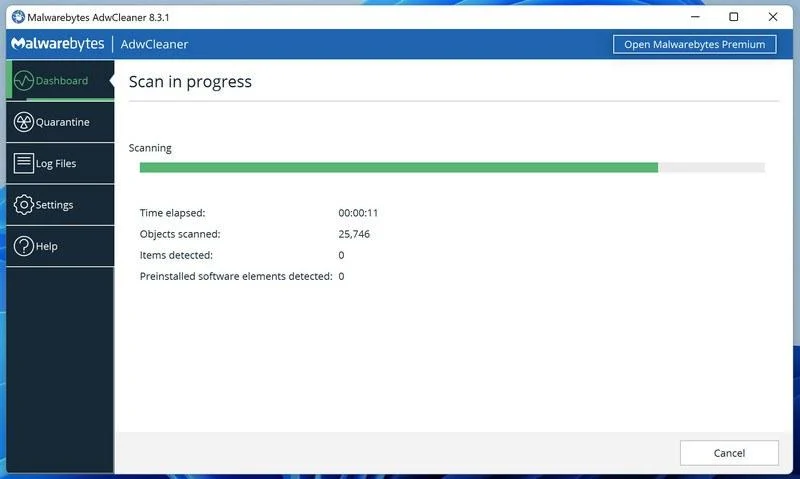
-
Review the results before cleanup
Look through what it found. Newer versions may show Next and then Quarantine; the older screenshot below has a single Quarantine button.
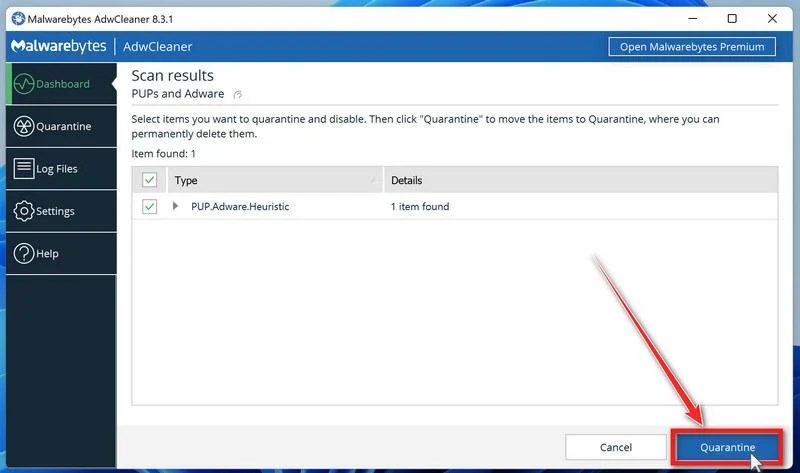
If a separate list of preinstalled software appears, check it too. Leave anything you actually use unticked.
-
Save your work, then clean up
AdwCleaner may close programs while it quarantines items. Save documents and browser work before you click Continue.
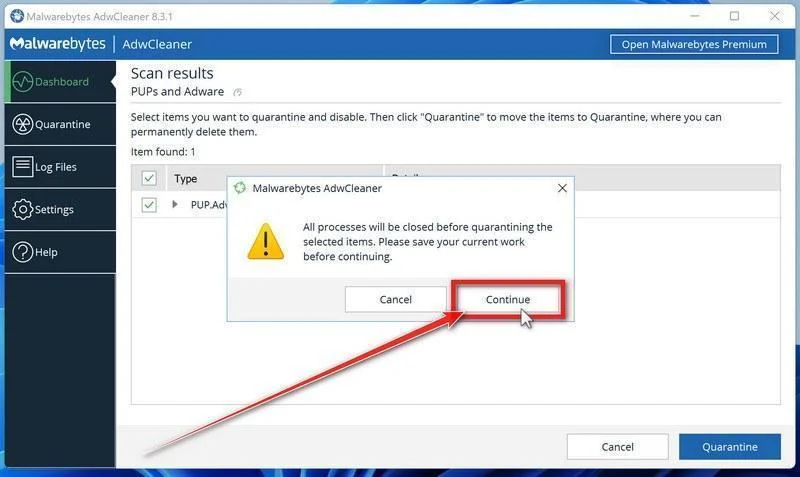
Restart when asked, then read the cleanup log. Skip Basic Repair unless a trusted helper tells you it’s needed.
-
Repeat the search that failed
Search again from the address bar, a new tab and right after starting Chrome. Check whether the extension or policy came back too.
Keep any unresolved findings for the help forum. A “no threats” result won’t undo a search engine you or your employer chose on purpose.
Step 4: Repair remaining browser settings if necessary
If searches work now, skip to the final check. Reset Chrome only when the steps above haven’t fixed its search settings.
Reset Chrome after removing what changed it
Check Chrome Sync before you reset. Google warns that reset settings can also change on other devices signed in to the same profile.
Pause Settings and Extensions sync first. To compare safely, try a separate profile with sync off rather than resetting a synced one.
The screenshots below show Chrome’s desktop reset controls on Windows. Menus can look slightly different between Chrome versions.
-
Open the reset page in the affected profile
Save your work and check which Chrome profile is open. Type chrome://settings/reset in its address bar and press Enter.
Or use the menu: open Chrome Settings and select Reset settings. Leave other people’s profiles out of this.
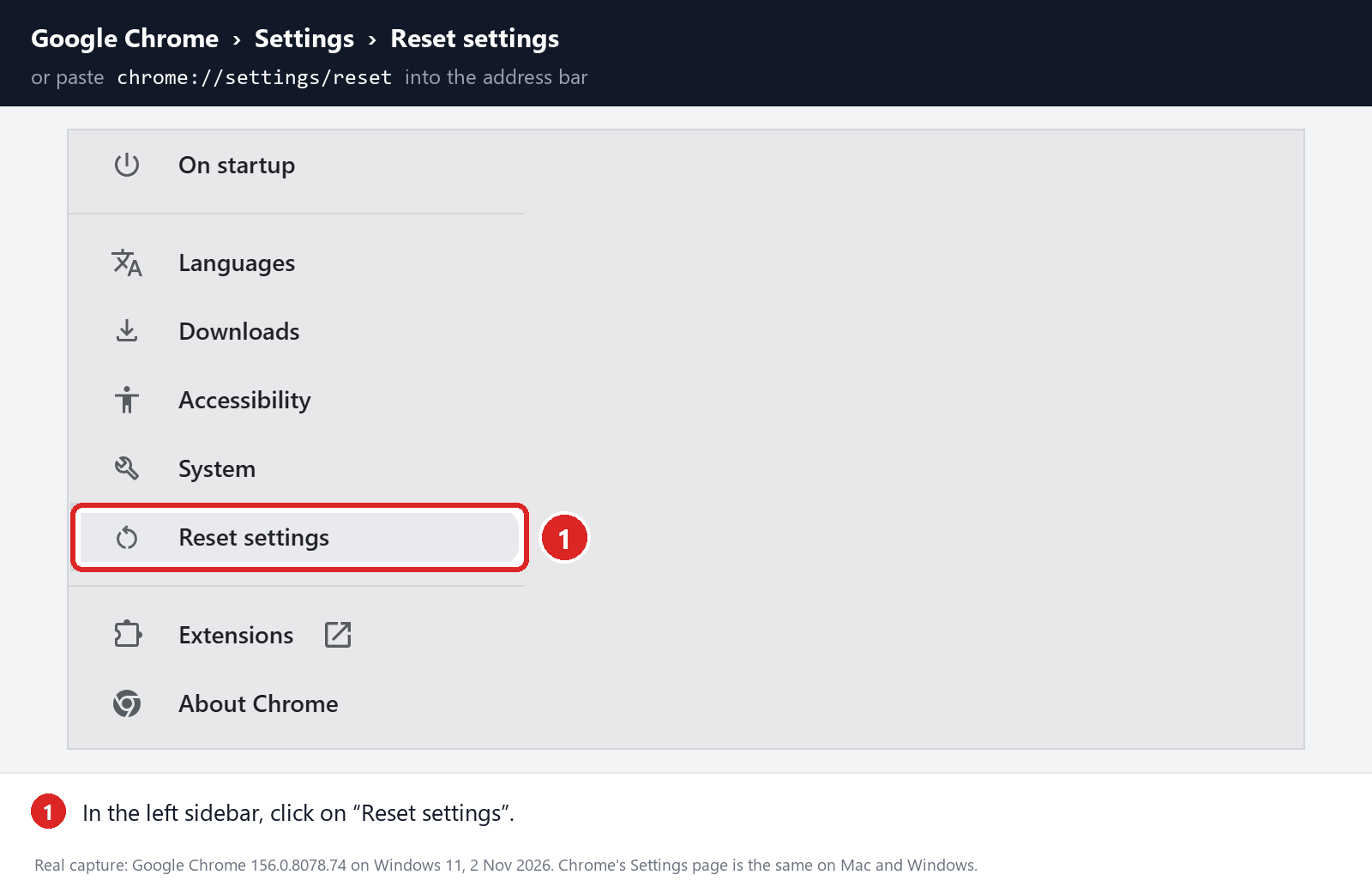
Using the menu? Open Settings first. Reset settings is in the sidebar.
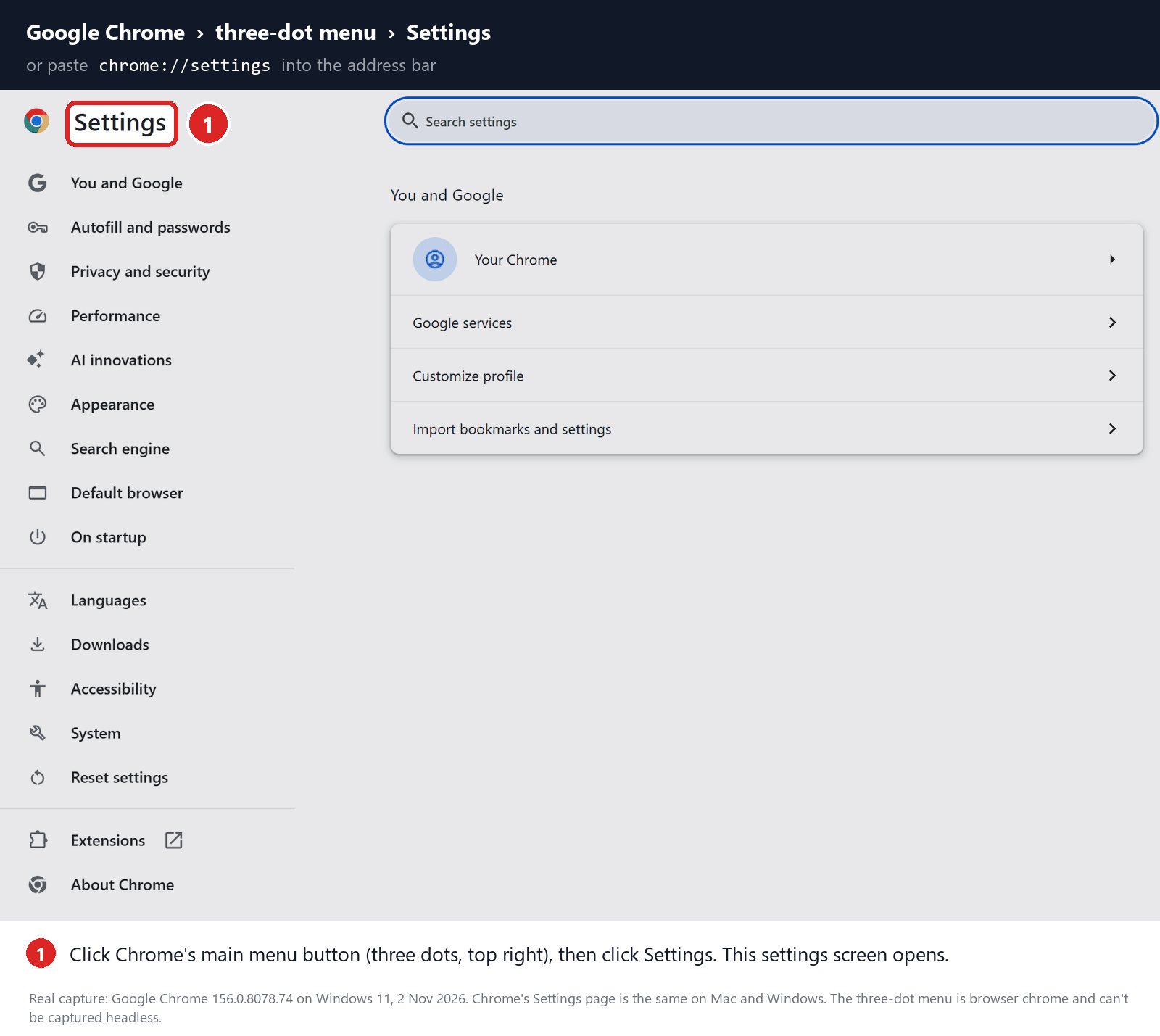
Click Reset settings in the sidebar to open the reset page.
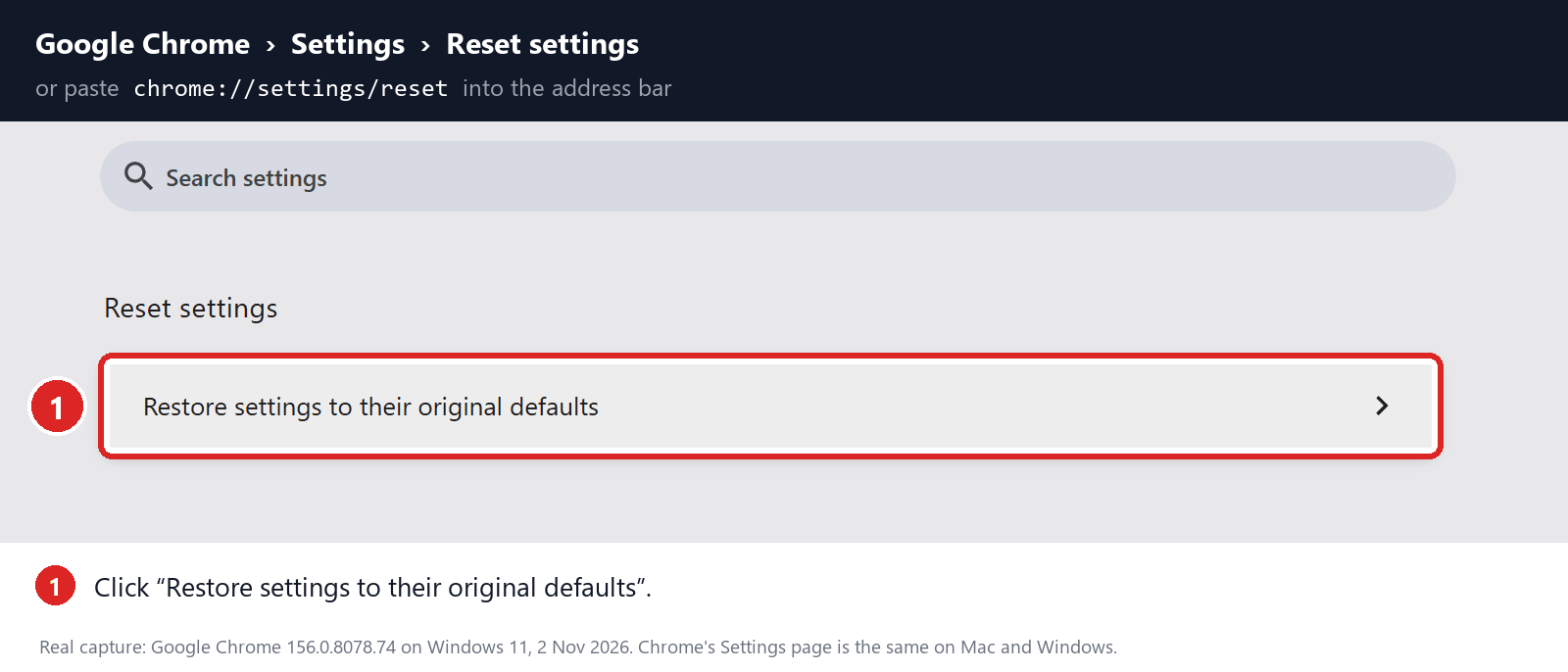
On that page, find Restore settings to their original defaults.
-
Read the confirmation before resetting
Click Restore settings to their original defaults. The dialog lists what will change, including your startup page, search engine, pinned tabs, extensions and temporary site data.
A normal reset keeps your bookmarks, history and saved passwords. You may need to sign back in to some websites afterward.
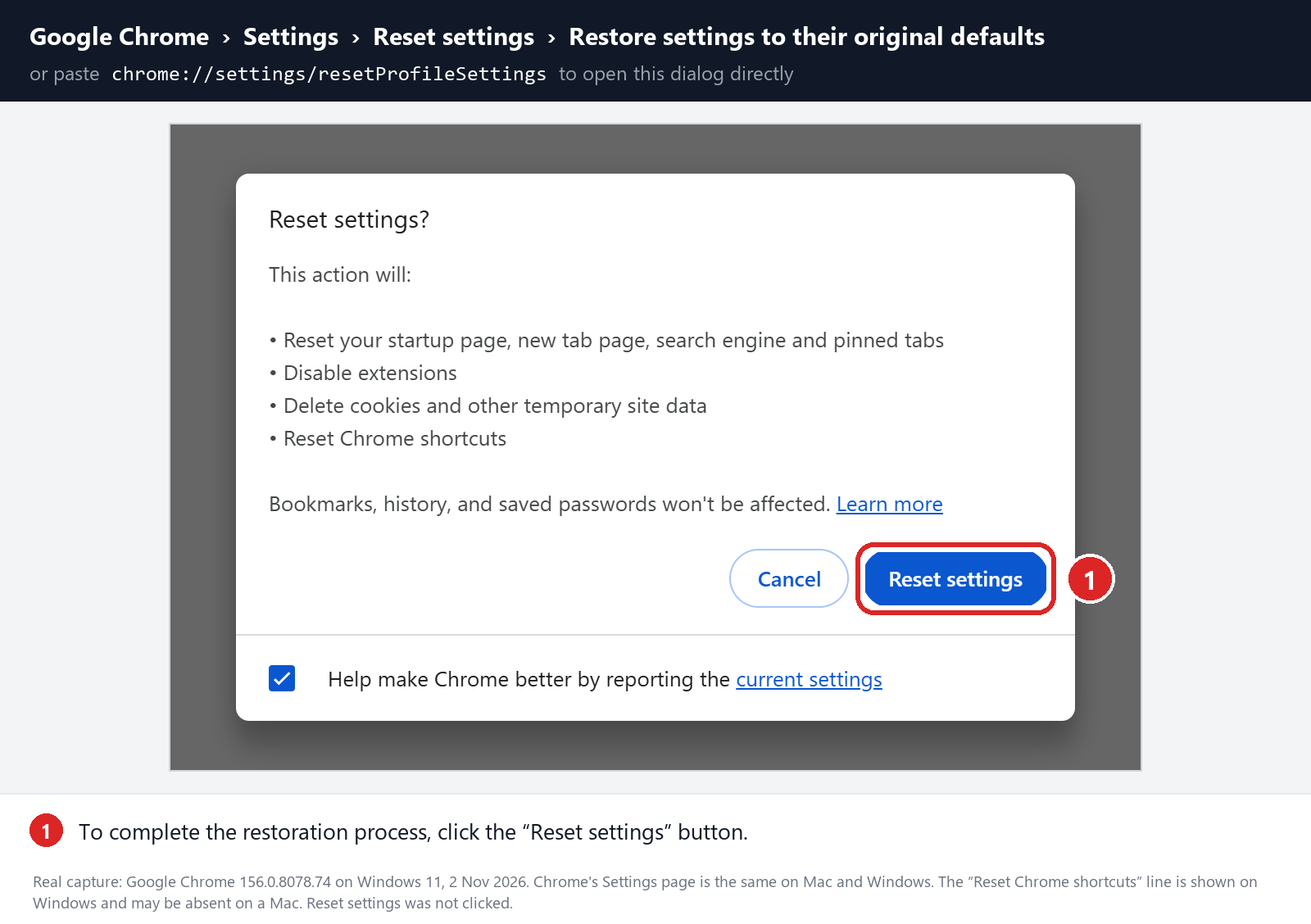
Click Reset settings once you’re happy with that. A reset won’t remove a Windows program or policy that keeps switching Chrome to Yahoo.
-
Set your engine and bring extensions back slowly
Open chrome://settings/searchEngines, choose your search engine and check your startup pages. Run a test search before turning extensions back on.
Turn trusted extensions back on one at a time. If Yahoo returns after one, leave it off and note its name.
Step 5: Test the fix, then stop
Repeat the search that went to Yahoo. Use the address bar first, then any new-tab search box and the page Chrome opens at startup.
-
Close and reopen Chrome. Check that your search engine is still selected.
-
If Yahoo used to return after you signed in to Windows, save your work, restart and test again.
-
If you paused sync, turn it back on one category at a time. You’re done when Yahoo stays away through the restart or sync that used to bring it back.
If that works, stop here. The advanced section below is only for a change that keeps returning, a locked setting or an extension you can’t remove.
Advanced Fixes When Yahoo Won’t Stay Gone
Show fixes for locked settings, policies and Windows startup items
Skip these if the fix above held. On a work or school PC, talk to IT before changing management settings, system files or startup items.
Pick the right profile and pause sync
Click Chrome’s profile icon to see which profile is open. If others share this PC, leave their profiles alone.
Before resetting anything, save open tabs and export important bookmarks. Make sure you can still get into your important accounts.
In Chrome Settings, pause syncing of Settings and Extensions for this profile. That stops Chrome Sync from restoring an unwanted extension while you test.
Don’t clear all your synced Google data; pausing those two categories is enough. If work or school manages the PC, ask the administrator first.
Check whether a Chrome policy is forcing Yahoo
Go to chrome://policy, click Reload policies and look for entries about search, startup or extensions. chrome://management shows who manages the browser.
Entries named DefaultSearchProviderSearchURL, ExtensionInstallForcelist or ExtensionSettings can lock your search engine or force an extension. Check their values, not just their names.
A Yahoo address in the default-search value explains a locked engine. A forced extension ID should match the extension you saw in chrome://extensions.
On your own PC, use Registry Editor only for a policy you’ve confirmed is unwanted. Chrome reads policies from these two keys:
HKEY_CURRENT_USER\Software\Policies\Google\Chrome and HKEY_LOCAL_MACHINE\Software\Policies\Google\Chrome. Don’t use admin rights to get around a legitimate work policy.
Export the key first so you can undo the change. Then delete only the unwanted value or extension entry and leave the rest.
If the value comes back, a program is rewriting it. Deleting it again won’t help until you find and remove that program.
Find the Windows program, shortcut or task bringing Yahoo back
Open Settings > Apps > Installed apps and look at what was installed around the time Yahoo appeared. Uninstall the unwanted program, not every name you don’t recognize.
Launch Chrome from the Start menu instead of your usual shortcut. If only the shortcut opens Yahoo, right-click it and check Properties > Target for an added web address.
Copy the Target text before editing it. Keep the chrome.exe path and remove only the web address that was added after it.
If Yahoo returns at sign-in, check Startup apps and Task Scheduler. Look at each suspect’s command, file location, publisher and timing.
A task that opens the strange site or reruns an unwanted installer deserves a closer look. Export it, then disable it so you can undo the change.
Don’t delete all scheduled tasks or stop Windows services you don’t understand. If you’re unsure what a task does, save its details for the help forum.
Try a fresh profile before touching browser files
Use Chrome’s profile menu to add a new test profile. Keep sync and extension imports off, then try the same search there.
If the new profile works, compare its settings and extensions with the old one. Something on Windows can still target only your original profile.
If both profiles go to Yahoo, check policies and the shortcut. Don’t delete the old profile or copy its whole setup into the new one.
Keep the original profile until your bookmarks, passwords and other data are safe. Import only what you need, once you know what caused Yahoo.
Only repair Chrome’s files with expert help
Chrome’s Web Data file holds more than search settings. Don’t rename it in every profile or run a script that cleans all profiles at once.
If a trusted helper recommends a file-level fix, find the exact Profile Path at chrome://version. Close Chrome fully and back up that profile first.
Write down the one change you made and how to undo it. Browser backups can contain sensitive data, so keep them private.
Test the search again before turning sync back on. A reset or file fix doesn’t prove that the program forcing Yahoo is gone.
Check site-search shortcuts if only one keyword goes to Yahoo
Chrome can send a keyword to a site-search shortcut without changing your main search engine. Open chrome://settings/searchEngines and check the shortcut that matches the failing keyword.
How to Tell If Chrome Is Really Redirecting to Yahoo
Type a simple phrase in the address bar and watch the address as the page loads. Note any strange site that flashes before search.yahoo.com.
Then search from your preferred engine’s own website. If that works but the address bar doesn’t, focus on Chrome’s search setting and extensions.
A Yahoo tab that opens when Chrome starts is a startup-page problem, even if your searches work. Fix it separately under On startup in Settings.
Also check whether you typed a site-search keyword and pressed Tab or Space. That can send one search to another engine without changing your default.
If you chose Yahoo yourself, seeing it is normal. You only need this guide when something changes Chrome without asking you.
If the Address Bar Works but Yahoo Still Opens
Find out exactly what still opens Yahoo. It may be a pinned tab, a startup page, the home button or a new-tab page from an extension.
Fix that one setting. An old bookmark to Yahoo doesn’t mean a hijacker is back.
If Yahoo pages open on their own, check notifications and block the site responsible. Resetting your search engine won’t stop those.
Check proxy or DNS settings only if several browsers or apps are affected. They’re not the first suspect when one Chrome shortcut misbehaves.
Two common patterns, and what they mean
The desktop icon opens Yahoo, but Chrome from the Start menu doesn’t. The shortcut is the problem, so check its Target as described above.
Chrome’s search setting says Google, yet the new tab’s search box goes to Yahoo. Turn off the new-tab extension and search again.
If the search setting itself flips to Yahoo right after you sign in, look at extension sync and policies before blaming the shortcut.
When you post for help, list each place you searched from and what happened. Change one thing at a time so each result tells you something.
Match a forced extension to its ID
In chrome://extensions, turn on Developer mode just to see extension IDs. Compare the ID with the one in chrome://policy or your scan report.
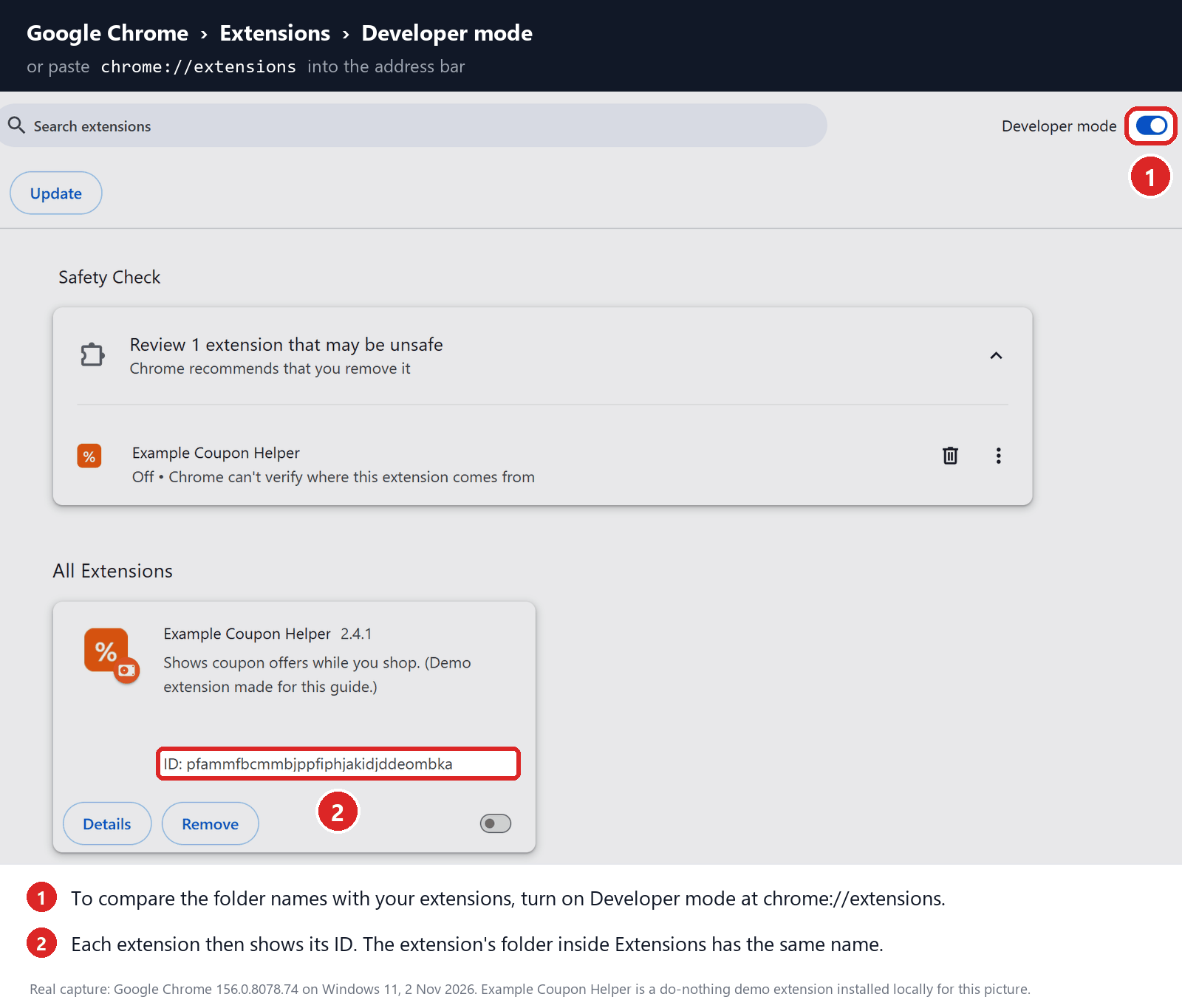
The card shown is a demo, not malware on your PC. Don’t load unpacked extensions or delete Chrome’s extension folders.
If a scheduled task brings Yahoo back at sign-in
Press Windows+R, type taskschd.msc and press Enter. Open Task Scheduler Library and look at the suspect task’s Actions and Triggers.
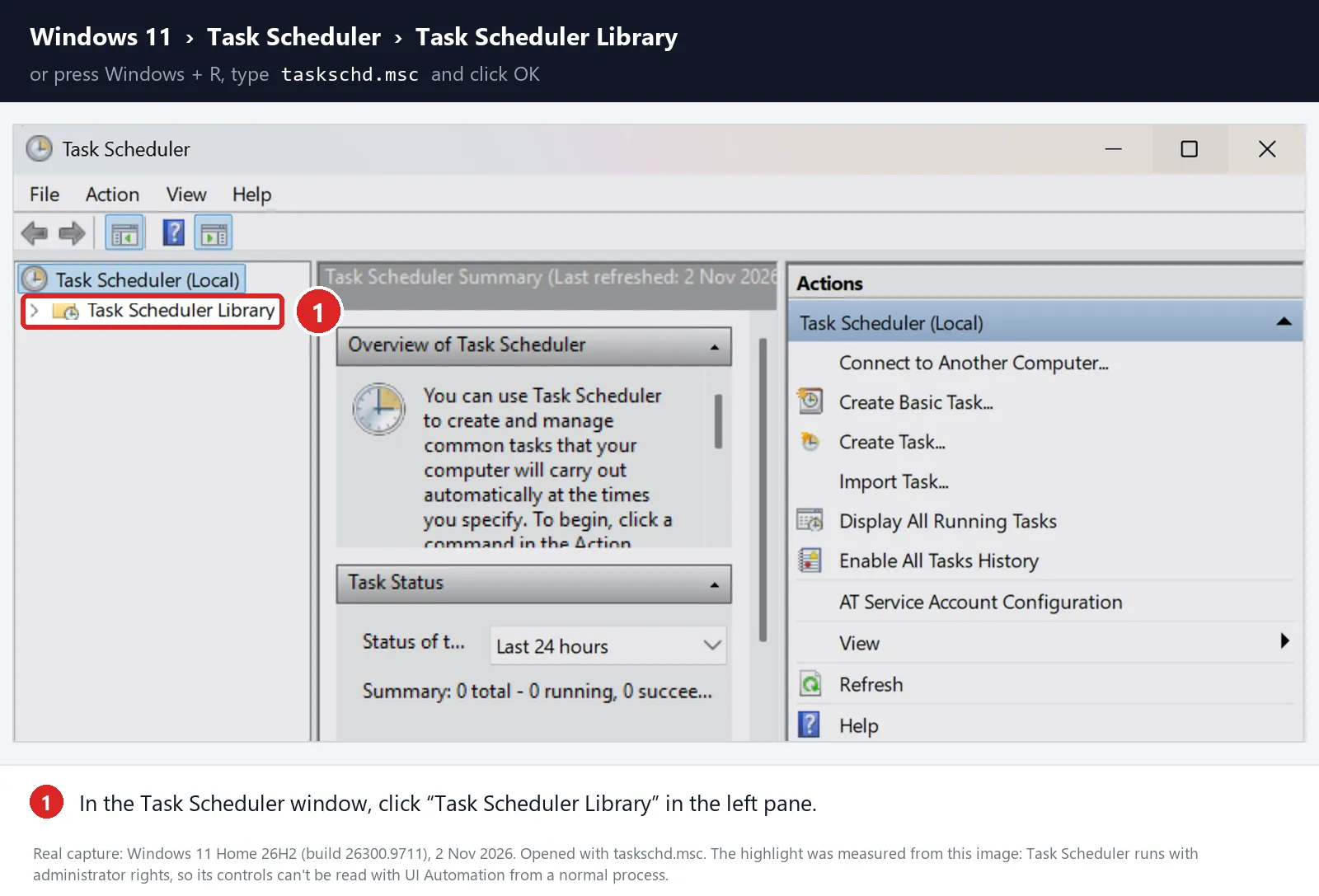
Match the task’s program or arguments to the strange site or a scan finding. An odd name or AppData folder alone isn’t enough.
If the task is clearly unwanted, right-click it, choose Export to save a backup, then Disable. Test again before deleting it, and leave other tasks alone.
What to Do If You Still Can’t Find the Cause
-
Write down the strange site that flashes before Yahoo, any extension ID, the policy values you found, and what brings Yahoo back.
-
Keep your scan reports and any task or registry key you exported. Remove personal names and account details before sharing them.
-
Post in the MalwareTips Windows removal-help forum for a personal review instead of trying a random cleanup script.
Don’t install an app just because an ad promises instant Yahoo removal. It may add a new search changer of its own.
If you typed a password into the strange site, change it on the real service’s website. That’s a separate job from fixing Chrome.
Using more than one browser? Our complete Yahoo redirect guide covers Chrome, Edge, Firefox and Safari on Windows and Mac.
Related: Bing redirects in Chrome on Windows and Yahoo in Chrome on Mac.
Frequently Asked Questions
Is the Yahoo search engine a virus?
No. Yahoo Search is a legitimate search engine. The “Yahoo virus” people describe is unwanted software, usually an extension or program, that switches Chrome to Yahoo without asking.
Remove that extension or program and Yahoo stops taking over. You don’t need to block Yahoo’s own website to fix it.
Why is Yahoo my default search engine in Chrome?
Someone may have picked it, since Yahoo is one of Chrome’s built-in options. A security tool’s safe-search feature or a free program’s bundled offer can also set it.
If you didn’t choose it and it returns after you change it, treat it as unwanted software and follow the quick fix above.
Why can’t I remove Yahoo from Chrome?
Something is holding the setting. If an extension controls it, Chrome Settings shows a box saying “An extension, [name], is controlling this setting.” Remove that extension.
If the setting is locked and Chrome’s menu says “Managed by your organization,” a policy is in charge. Check chrome://policy as shown in the advanced section.
How do I block Yahoo in Chrome permanently?
Set your own search engine, remove the extension or program that keeps choosing Yahoo, and pause sync until that extension is gone everywhere.
Chrome also asks you to confirm when an extension changes your search engine. If you didn’t make that change, don’t keep it.
Does resetting Chrome get rid of Yahoo?
Usually, for a while. A reset puts back the default search engine and turns off extensions, while keeping bookmarks, history and saved passwords.
A Windows program or policy can switch Chrome back to Yahoo afterward. Remove that first, or the reset won’t last.
Why does Yahoo keep popping up when Google is my search engine?
Something other than the search setting is opening it: a startup page, a pinned tab, a new-tab extension, a desktop shortcut or a site’s notifications.
The advanced section shows how to check each one. Fix the one that matches what you see.
The Bottom Line
If Chrome keeps switching to Yahoo, set your search engine back, then remove the extension or Windows program that keeps choosing it. Yahoo itself isn’t what you need to delete.
If Yahoo comes back after a restart, scan Windows, check chrome://policy and look for a startup task. Change one thing at a time and keep backups.
Still stuck? Post your notes and scan reports in the MalwareTips Windows removal-help forum, where helpers can review your specific case.

Join the discussion
0 commentsShare your experience or ask a question about this article.
Your progress
Did these steps help?
Let us know how the guide worked for you.
Describe what you see and the step you reached. Keep passwords and other private information out.
Discussion
Start the conversation
Have a question or something useful to share? Add the first comment.