


Your Chrome search engine keeps changing to Bing. You set Google, search from the address bar, and Bing results come back, sometimes right after a restart.
Here’s how to switch back, find the extension, Microsoft app or setting doing it, and keep Google as your default on Windows.
Overview
Why does Chrome keep changing to Bing?
Bing is a legitimate search engine and one of Chrome’s built-in choices. It’s also Microsoft Edge’s default, so Bing showing up in Edge is normal, not a redirect.
In Chrome on Windows, these are the usual reasons it flips to Bing:
- A Microsoft extension. “Microsoft Bing Search for Chrome” and “Microsoft Bing Search with Rewards” both offer to make Bing your default search.
- Microsoft Search in Bing, a background service some work PCs got with Microsoft 365 Apps for enterprise. If IT deployed its Chrome extension, Bing became the default.
- A third-party extension or bundled free program that changes search without asking, sometimes passing your searches through an unfamiliar site first.
- A Chrome policy, startup task or desktop shortcut that puts Bing back every time Windows starts.
Microsoft retired Microsoft Search in Bing in March 2025, but says an already installed service isn’t removed automatically. Uninstalling it also removes the extension.
Google’s Chrome help treats a search engine that changes on its own as a warning sign of unwanted software. If no Microsoft tool explains it, plan on a cleanup.
Quick fix: get Google back in Chrome
These five steps fix most cases. After each one, close Chrome, reopen it and search from the address bar.
- Open chrome://settings/search, click Change next to Search engine, choose Google and confirm.
- Open chrome://extensions. Remove Microsoft Bing extensions you don’t want, plus any unfamiliar search or new-tab add-on.
- On a work or school PC, open Control Panel > Programs > Programs and Features. If Microsoft Search in Bing is listed, ask IT, then right-click it and choose Uninstall.
- In Windows Settings > Apps > Installed apps, uninstall other programs you don’t remember adding before Bing appeared.
- Restart Windows and search again. If Google holds, you’re finished.
What if Bing comes back after a restart?
A comeback after restarting means something outside Chrome is switching it. Run the scans in Step 3 and check whether Chrome says it’s managed.
On a work or school PC, IT may have set Bing on purpose, including through Microsoft 365. Ask them before you remove anything they manage.
If Chrome says the Rewards or Bing extension is controlling your search engine, turn that extension off or remove it. Google won’t stick while it stays on.
Avoid “Bing remover” downloads, registry cleaners and scripts that wipe all Chrome profiles. They can delete your data and leave the real cause behind.
The steps here deal with unwanted search changes, browser hijackers, pushy extensions and adware. They can’t decrypt files or respond to a stolen account.
How to Remove Bing From Chrome on Windows
Follow the steps from the top and stop when Bing stays gone. Shortcuts:
Step 1: Choose the search engine you want
Chrome: switch the address bar back to Google
-
Go to the search engine setting
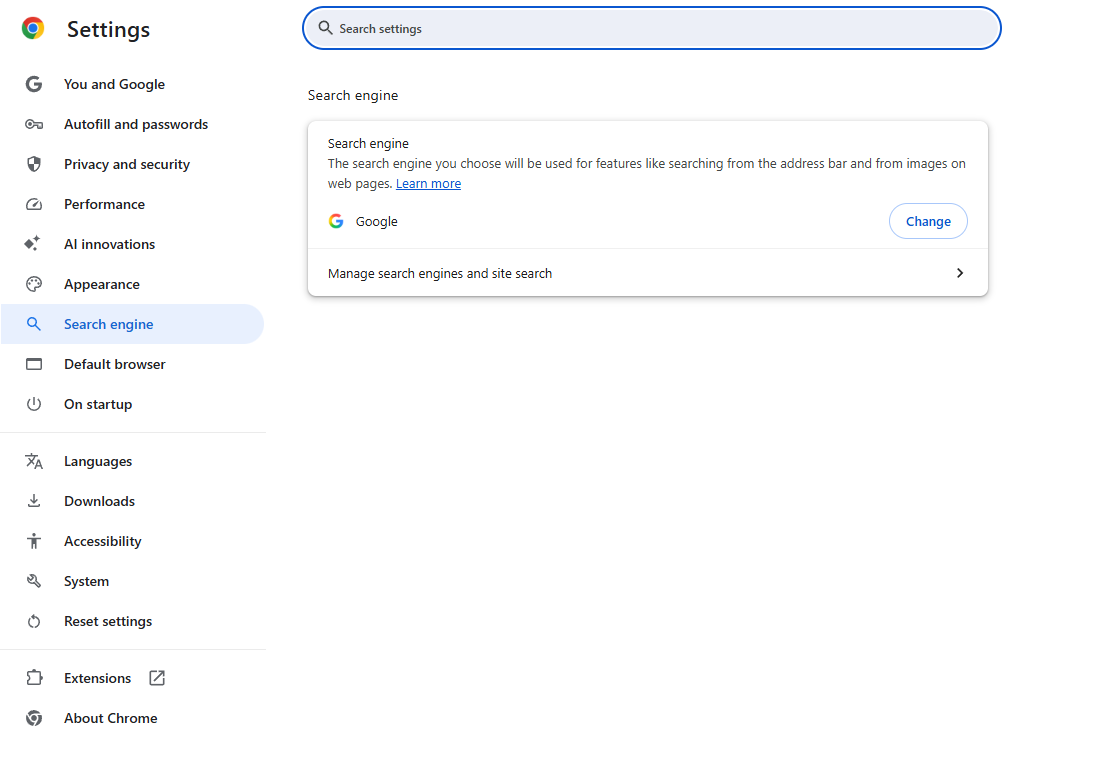
Enter chrome://settings/search in the address bar. Chrome shows the engine it uses now, with a Change button beside it.
-
Select Google or another engine
Click Change, choose Google, DuckDuckGo or whichever engine you prefer, and confirm in the dialog.
Now test it: open a new tab, type a search in the address bar and press Enter. Searching on bing.com or google.com doesn’t test this.
-
Stop if it worked
Bing gone, and Google still selected in a new tab? Go to the final check. Switching engines doesn’t need a reset.
Did Bing come back? Continue to Step 2. If the setting is grayed out, jump to the advanced fixes.
Step 2: Test a search or new-tab extension
Chrome: find the add-on that brought Bing back
-
Open chrome://extensions
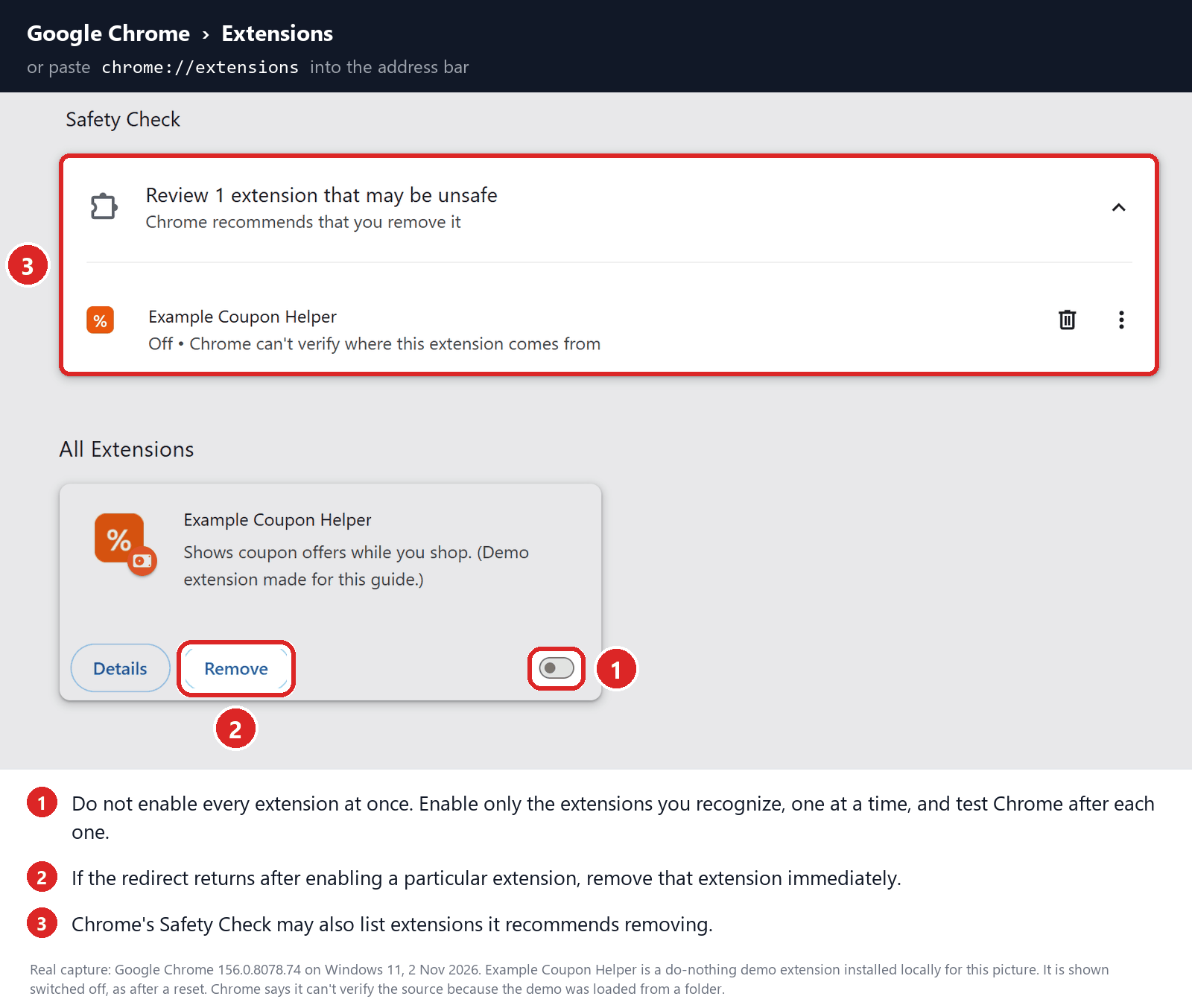
Paste chrome://extensions into the address bar. The sample screenshot shows where the on/off switch and Remove button sit; the extension in it is a demo.
-
Disable one add-on at a time
Look for Microsoft Bing extensions first, then anything new or search-related. Switch one off, open a new tab and run a search.
Search fixed? Click Remove on that extension and confirm. Leave your password manager and security extensions on unless they’re clearly the cause.
No extensions installed? Move on. If Chrome won’t let you remove one, or it reinstalls itself, use the locked-setting checks.
-
Confirm before moving on
Quit Chrome completely and open it again. If Google is still your engine, head to the final check and skip the scans below.
If a notification opens unwanted pages
This applies when pages or alerts pop up while you’re not searching. A website with notification permission is a separate issue from a changed search engine.
-
Chrome: open chrome://settings/content/notifications. In the list of sites allowed to send notifications, click the site’s menu and choose Block or Remove.
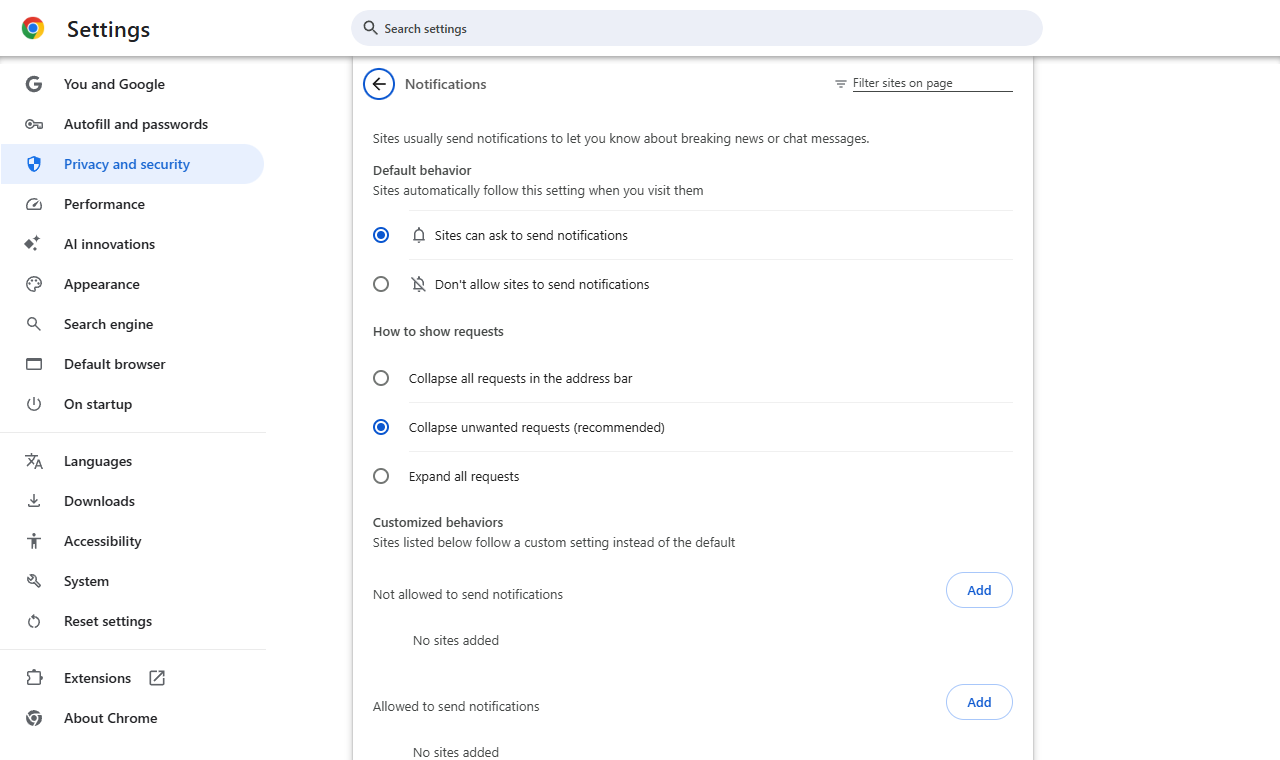
Change permissions in Chrome’s settings, never through buttons on the alert itself. If the pop-ups stop and Google is back, you can stop here.
Step 3: Scan Windows if Bing keeps returning
Not needed if the steps above fixed it. Scan when an extension reappears, you find a program you didn’t install, or Bing returns after a restart.
Look for the program that switches Chrome to Bing
This scan is for an app or extension that keeps coming back. Skip it if changing the setting was enough.
The screenshots are from our Windows guide, so your edition’s scan options may differ a little.
Optional purchases may earn MalwareTips a commission. Paid protection is not required for the manual repairs.
-
Get the Windows installer
Download it with the button below. Ignore any cleaner that a redirect page or fake warning tries to sell you.
Malwarebytes for WindowsOn-demand scan and threat review -
Run setup and check who published it
Go to Downloads and double-click the MBSetup file.

When Windows asks for permission, confirm the verified publisher first. Don’t approve an unexpected security warning just to keep going.
-
Finish setup and skip extras
Pick Personal if this is your own PC. For a work PC, ask your IT team.

Decline trial, subscription or extension offers you don’t want.
Wait while the files install, and don’t close the window partway through.

On the welcome screen, select Get started.

Select Open Malwarebytes once setup says it’s complete.

-
Run a free Custom Scan
Click the three dots on the Scanner tile in Malwarebytes for Windows. Then choose Advanced Scan and Custom Scan.
Custom and Quick scans cost nothing. Older screenshots show a Threat Scan, which can require a trial or a paid plan.
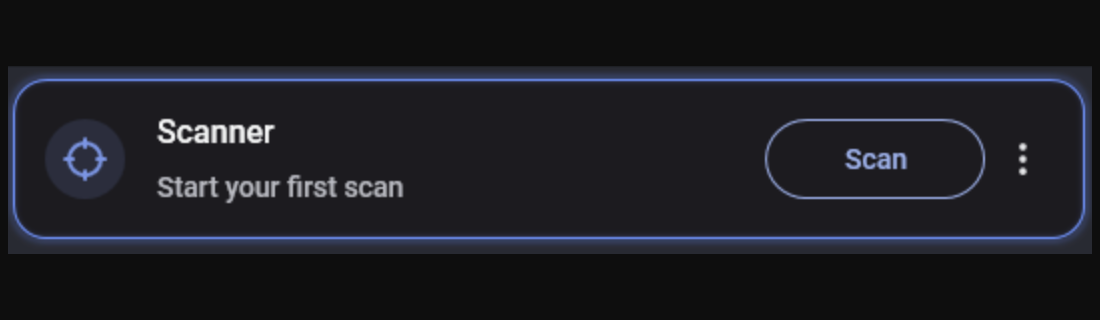
Choose the drives or folders to scan, check the setting for potentially unwanted programs, and click Start Custom Scan.
Scanning a few folders isn’t a full check. The Microsoft Defender Full scan below covers the whole PC.
The progress screenshot below comes from a Threat Scan. A free scan may use other labels, so wait for the summary.

-
Check the results and quarantine
Look at each detection’s name and location. Tick the threats, and keep the report if you’d like an expert’s opinion.

Your own results will differ from this example.
Select Quarantine to isolate the threats. Save the report, since it may name the program that changed Chrome to Bing.
Wait until quarantine completes.

-
Restart when asked, then search again
If Malwarebytes asks to restart, save your work first. Finish the cleanup even if Chrome seems fine already.

Back in Windows, check Chrome’s search engine, extensions and policies. A finished scan doesn’t promise that every browser setting is repaired.
If Bing or the same detection returns, save the report and note what triggered it. Ask for help rather than trying deletion scripts.
You can also use Microsoft Defender: open Windows Security, go to Virus & threat protection, Scan options, then Full scan. Follow its recommended actions.
Second opinion: AdwCleaner for Windows adware
AdwCleaner is another adware scanner for Windows. Run it only if unwanted software still seems likely; Bing on its own isn’t something to remove.
-
Download AdwCleaner
Malwarebytes AdwCleanerOptional Windows adware checkRun the downloaded program after checking its source and publisher, then accept the license if you agree. It doesn’t need installing.
Your Downloads folder should show the AdwCleaner file. Use that file, not a similar name from a search ad.
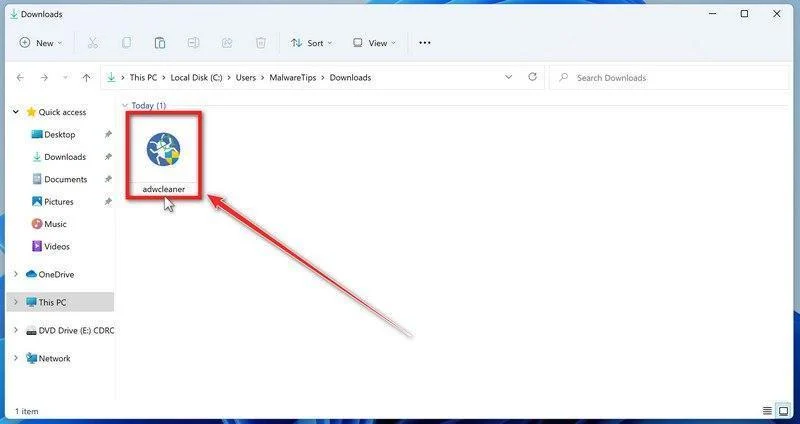
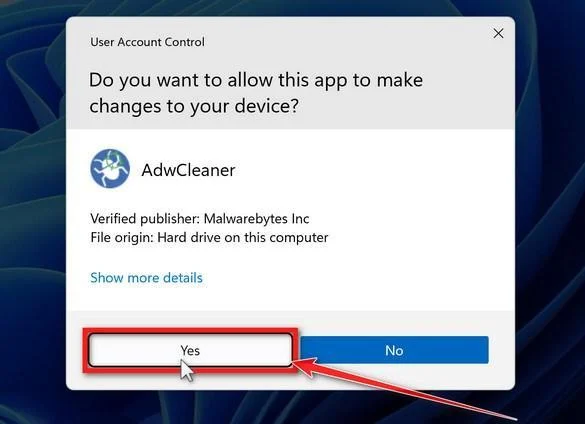
At the Windows permission prompt, confirm the file name and publisher, then choose Run or Yes.
-
Keep repair switches off and scan
Don’t turn on Reset Chrome Policies. It erases all Chrome policies, even legitimate ones, while this guide checks them individually.
Leave network and firewall resets off too. On the Dashboard, select Scan Now.
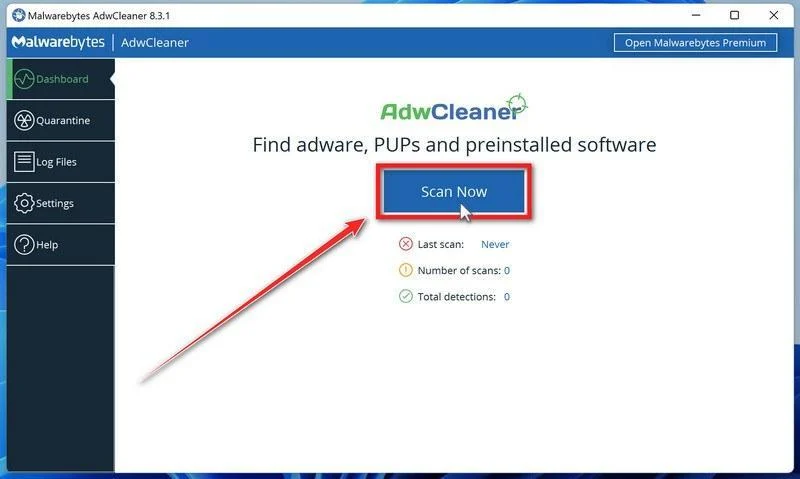
The scan only looks for adware and unwanted programs. Nothing is removed until you approve it.
Let it finish, then look at the results.
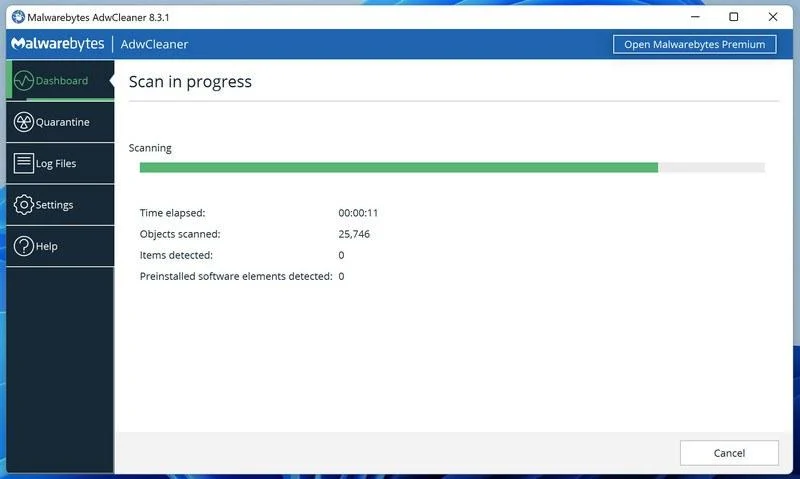
-
Check the results first
Go through each item found. Recent versions show Next, then Quarantine; this older screenshot has one Quarantine button.
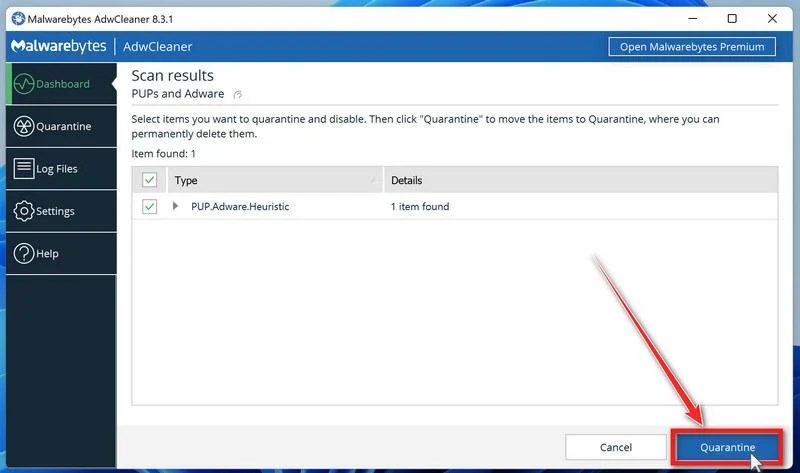
A separate preinstalled software list may appear. Untick anything you use and want to keep.
-
Save work and confirm the cleanup
Programs may close while AdwCleaner quarantines items. Save your files and browser tabs, then choose Continue.
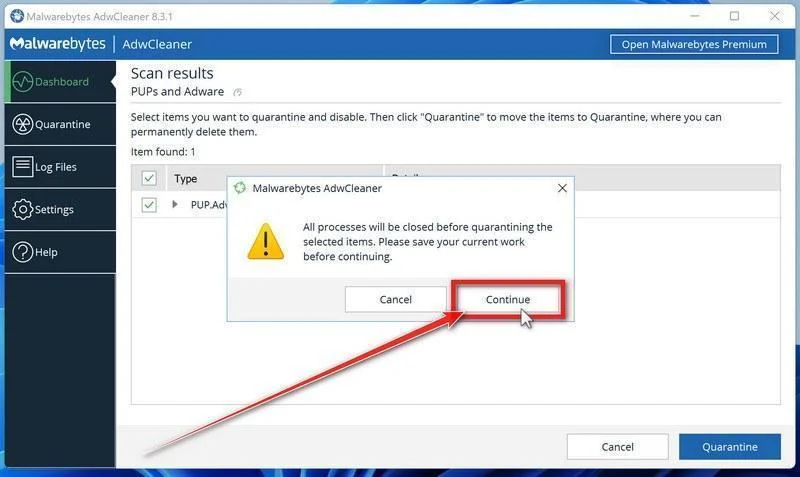
Restart if prompted and read the log. Leave Basic Repair alone unless a trusted helper asks you to run it.
-
Test Chrome again
Search from the address bar, a new tab and a fresh Chrome window. See whether the Bing extension or policy has returned.
Save anything AdwCleaner couldn’t fix for the forum. A clean result won’t undo a Bing setting you or your IT team chose.
Step 4: Repair remaining browser settings if necessary
Searches working? Go straight to Step 5. Reset Chrome only when the targeted fixes above didn’t hold.
Reset Chrome once the Bing changer is gone
Think about sync first. Google notes that a reset can carry over to other devices using the same synced profile.
Pause syncing of Settings and Extensions before resetting. For a clean comparison, use a new profile with sync off instead.
The screenshots show Chrome’s reset controls on Windows. Labels can shift a little between Chrome versions.
-
Open Reset settings in the right profile
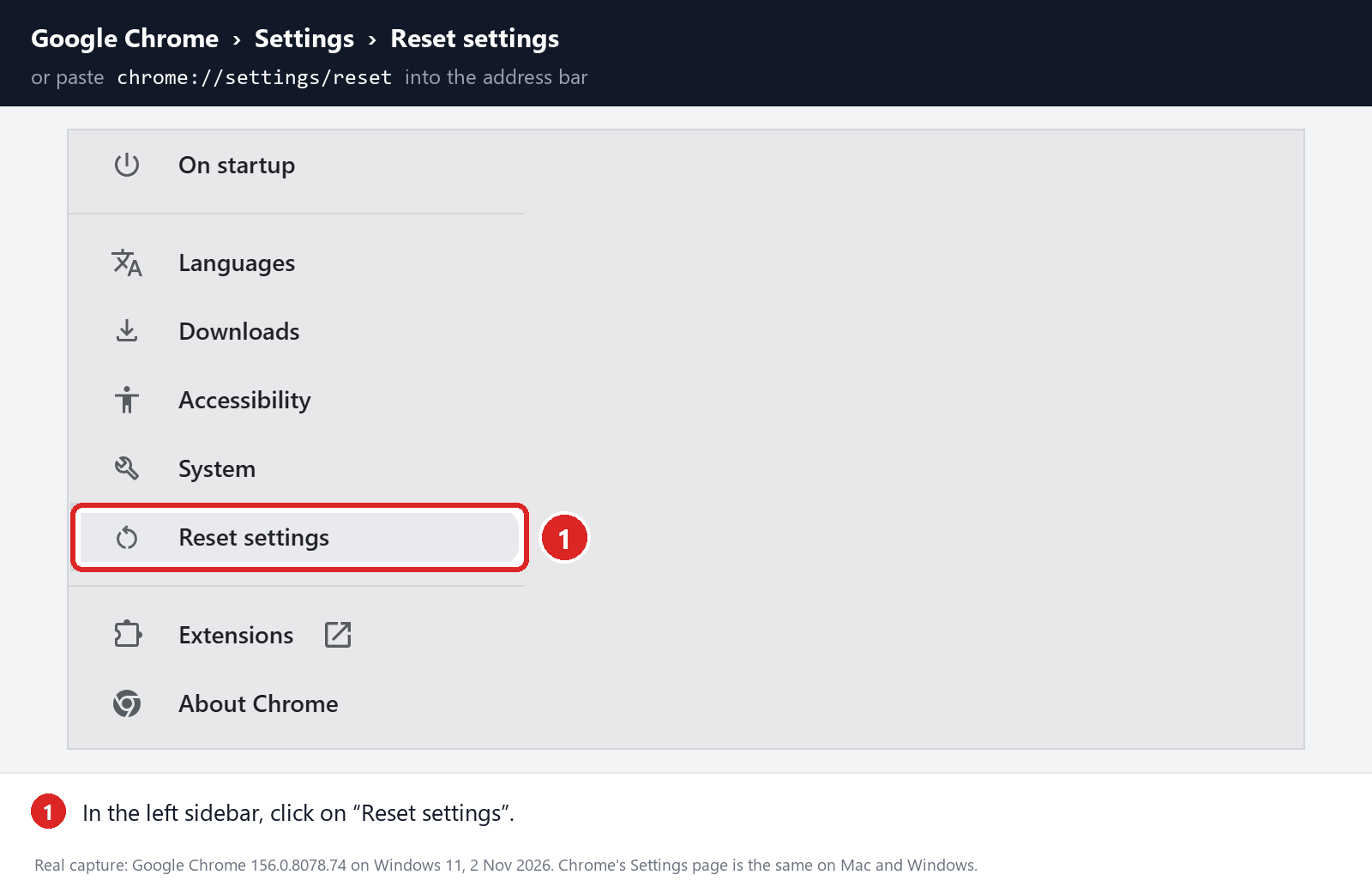
Save your work and make sure the affected profile is the one open. Enter chrome://settings/reset in the address bar.
Another way is Chrome Settings, then Reset settings. Only reset the profile that has the problem.
Using the menu? Open Settings first; Reset settings sits in the left sidebar.
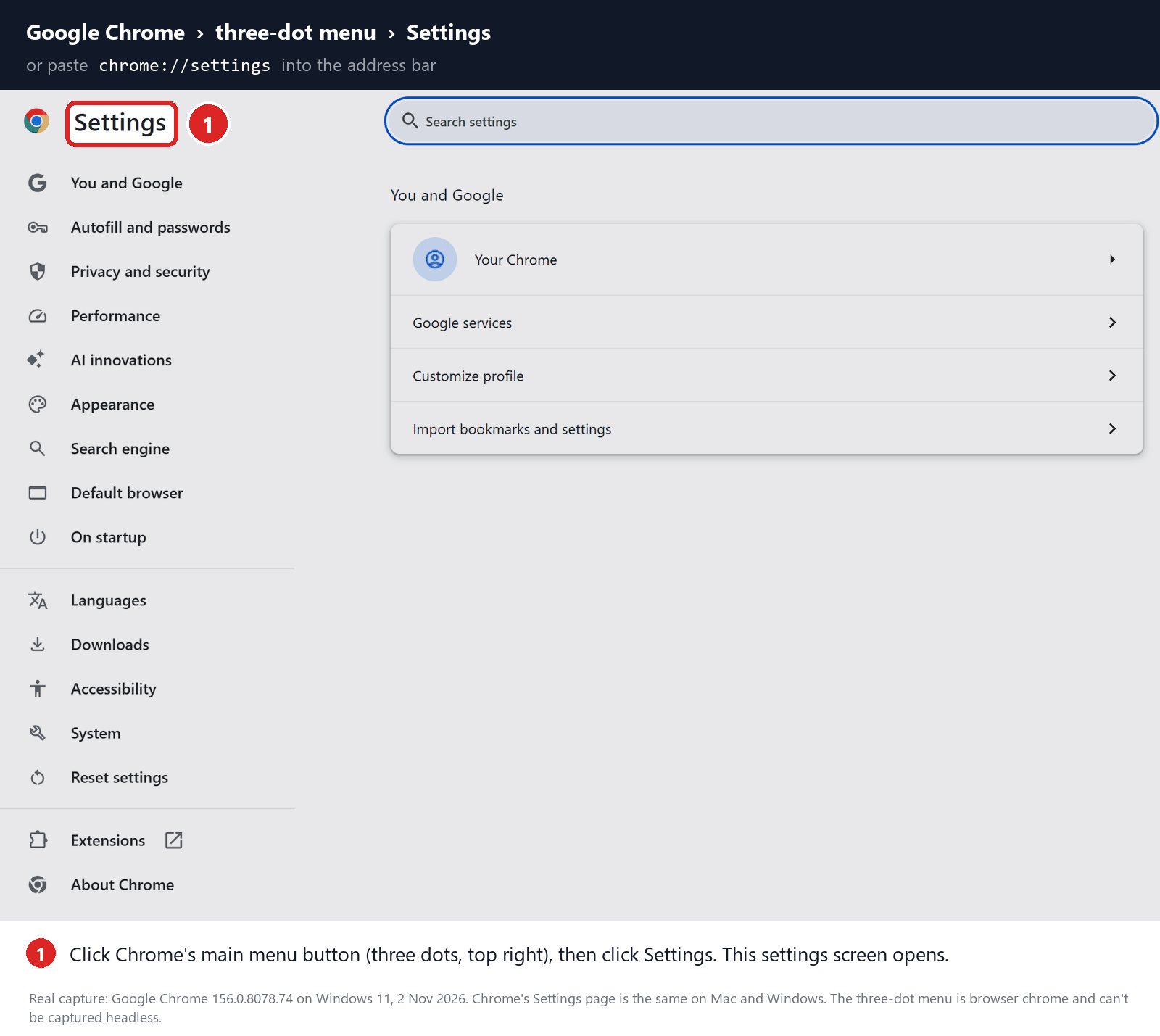
Select Reset settings there to reach the reset page.
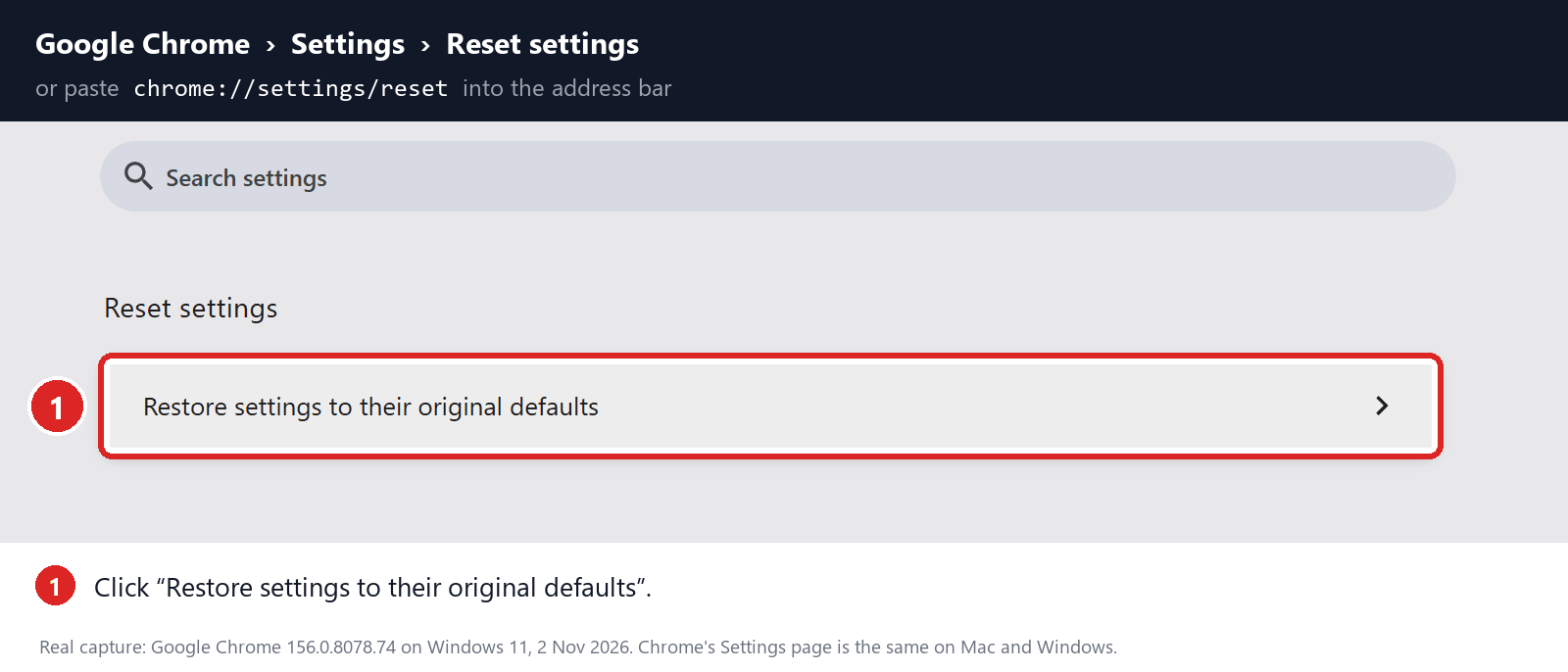
Look for Restore settings to their original defaults.
-
Read the warning, then reset
Choose Restore settings to their original defaults. The dialog explains what changes, including search, startup pages, extensions and temporary site data.
Bookmarks, history and saved passwords stay put. Some websites may sign you out afterward.
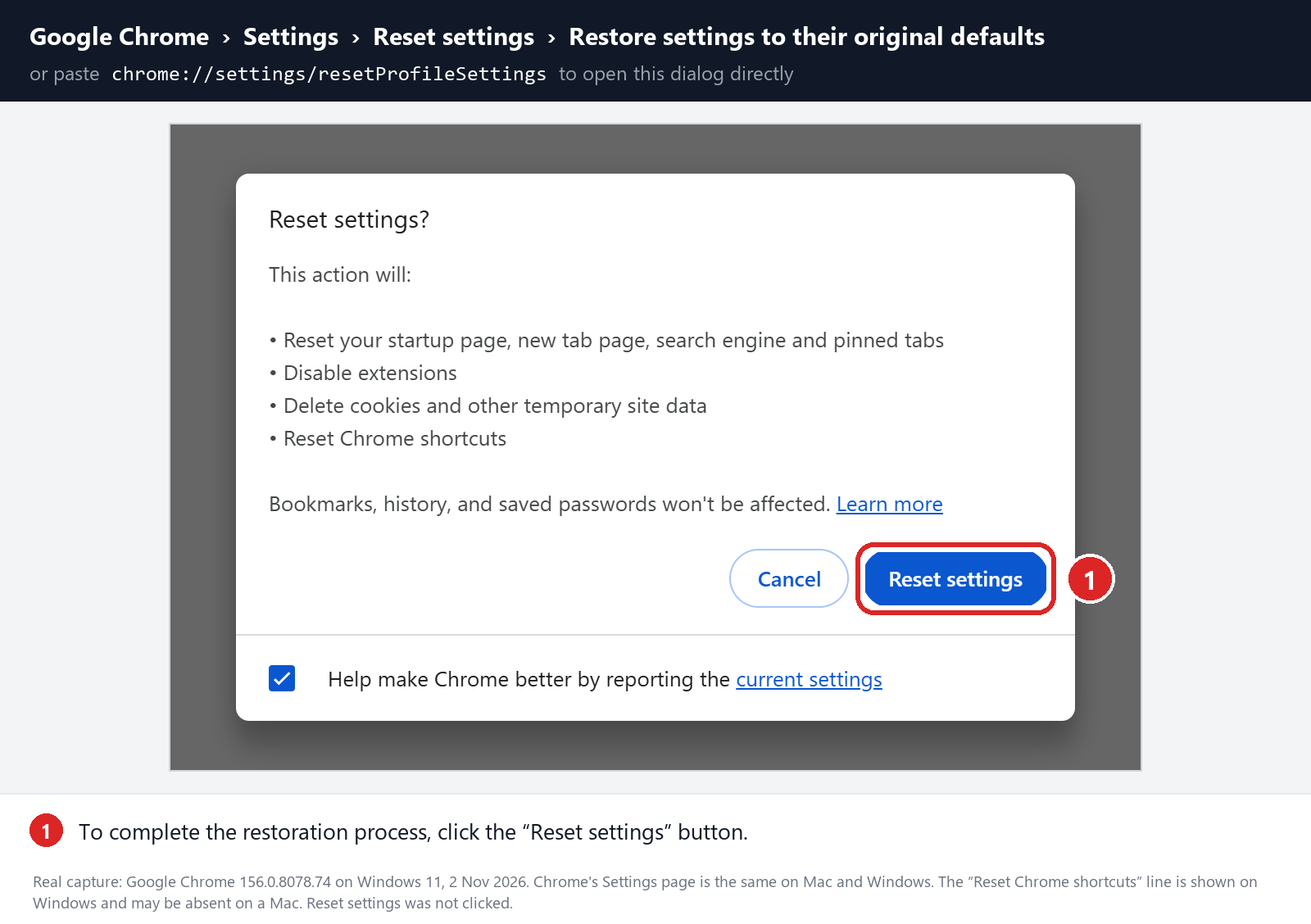
Select Reset settings if that’s acceptable. A reset can’t uninstall a Windows program or remove a policy that keeps choosing Bing.
-
Set Google again and re-enable add-ons slowly
Go to chrome://settings/searchEngines, set your engine and look over your startup pages. Test a search before switching extensions back on.
Re-enable trusted extensions one by one. If Bing returns after one, switch it off again and write down its name.
Step 5: Make sure Bing stays gone, then stop
Run the same kind of search that used to open Bing. Try the address bar, the new-tab search box and the first page Chrome shows.
-
Quit and relaunch Chrome. Your engine should still be selected.
-
If Bing used to return after Windows started, save your work, restart the PC and check again.
-
Turn paused sync categories back on one at a time. The fix has held when Bing doesn’t return after whatever used to trigger it.
All good? Then you’re finished. Use the advanced fixes below only for a locked setting, a returning change or an extension you can’t remove.
Advanced Fixes for Locked or Returning Bing Settings
Show checks for policies, Windows programs and startup tasks
Not needed after a fix that holds. On a work or school PC, check with IT before you touch management, system files or startup items.
Back up first and pause sync
Note which Chrome profile is open and save your work. Back up important bookmarks and confirm you can still sign in to key accounts.
Screenshot the search engine setting and your extensions. If another site loads before Bing, write down its name, leaving out your search words.
If Bing keeps returning, pause syncing of Chrome settings and extensions while you test. Don’t delete your cloud data or sign out of other accounts.
On a work or school PC, ask the administrator about locked settings before changing anything the organization set up.
A new profile with sync off gives you a clean comparison. Keep the original; you don’t need to delete it.
Unlock a forced extension or grayed-out search setting
Open chrome://policy to see active policies and chrome://management to see who manages Chrome. Click Reload policies before you write anything down.
Default-search and forced-extension policies explain grayed-out settings. Make sure a listed extension ID matches the actual add-on before changing anything.
Look at each policy’s Source. A cloud-managed work profile needs your administrator; editing local values won’t change it.
On your own PC, Registry Editor shows Chrome policies under Software\Policies\Google\Chrome, in both the current-user and local-machine branches.
Export that branch first and note the exact unwanted value. Fix only that entry and leave other browser and security settings alone.
Never run a command that deletes the whole Chrome policies branch. It can remove legitimate settings and still miss the app recreating them.
If the entry reappears after a reload or restart, note when it happens and look for its source. Don’t jump to deleting Chrome’s program folder.
Check your Chrome shortcut and installed programs
Right-click your Chrome shortcut and open Properties > Target. A web address added after chrome.exe can open Bing without changing your search engine.
Copy the original text first. Remove only a web address you’re sure was added, not the chrome.exe path or switches you don’t understand.
In Settings > Apps > Installed apps, check what arrived around the date Bing first appeared. A search utility or bundled app can add the extension or policy.
Uninstall it the normal way once you know its role. Read each screen and refuse any new browser or search offer during removal.
Check the Windows startup apps list for the same program. If it relaunches at sign-in, removing only the extension may not be enough.
Don’t disable every background app. Change one thing at a time so you know which one mattered.
Check Task Scheduler without deleting other tasks
In Task Scheduler, open a suspect task and read its Actions, Triggers and program path. What it runs matters more than its friendly name.
A task that opens the in-between site, adds an extension or reruns an unwanted installer deserves a closer look. Save its full action for the forum.
Export the task before you disable it, then restart or sign in again to test. Keep every change reversible until you’re sure.
Services and other startup entries need the same proof. Being unsigned or newly installed isn’t enough reason to delete something.
If you can’t link an entry to Bing, leave it alone. A search redirect never justifies removing Windows services at random.
Test a clean profile before editing Chrome’s files
Add a test profile from Chrome’s profile menu. With sync and extension imports off, run the same search there.
If the test profile works, compare its settings and extensions with your main one. A Windows program could still be targeting only your main profile.
If both send you to Bing, check policies and how Chrome is launched. Keep the old profile and don’t copy its full setup across.
Hold on to the original profile until bookmarks, passwords and other data are safely recovered. Bring over only what you need once the cause is clear.
Repair Chrome’s data files only as a last resort
The Web Data file stores much more than your search engine. Never rename it in all profiles or run a script that touches every profile.
If an expert suggests fixing files, look up the Profile Path at chrome://version. Quit Chrome fully and copy that profile somewhere safe first.
Note the one change you made and how to reverse it. Profile backups hold private browsing and account data, so store them securely.
Check your search before you turn sync back on. Finishing a reset or file repair doesn’t prove the Bing changer has been removed.
Look at site-search shortcuts if one keyword opens Bing
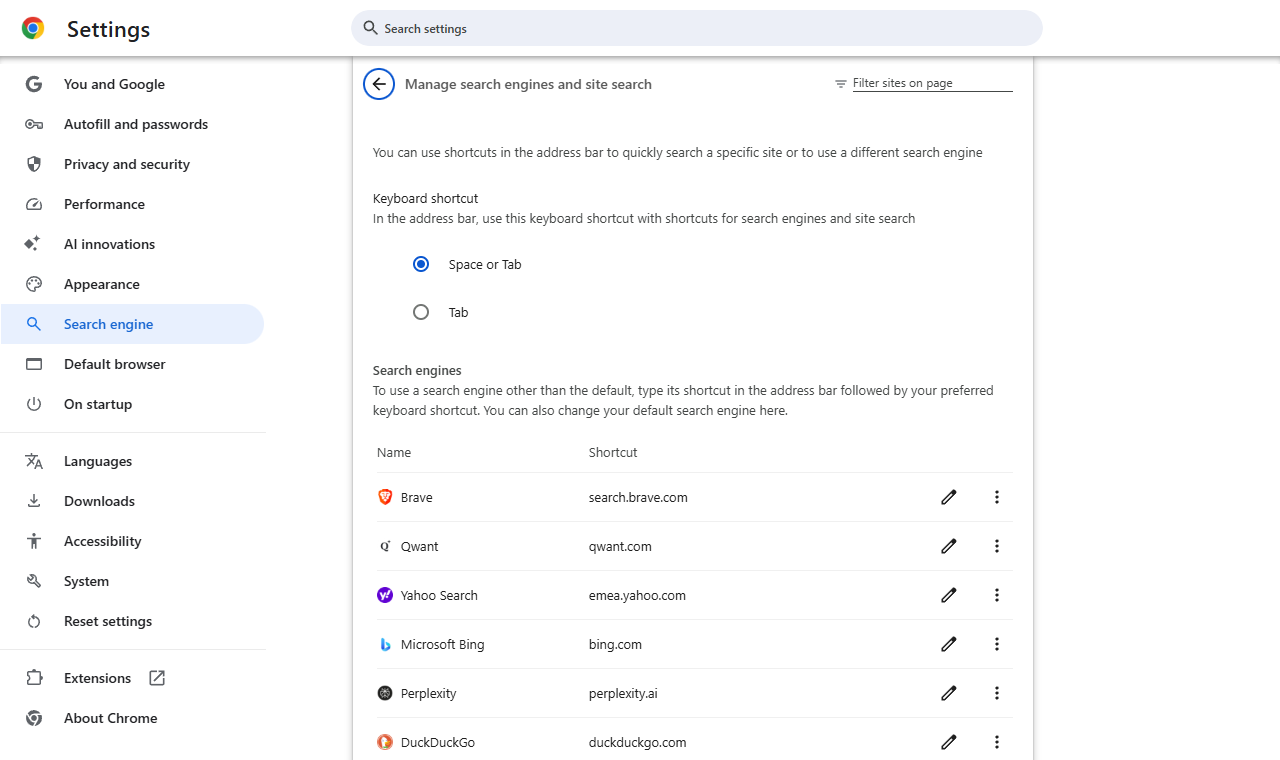
A site-search shortcut can send a single keyword to Bing while your main engine stays the same. Check it at chrome://settings/searchEngines.
Find Which Search Box Sends You to Bing
Press Ctrl+L to jump to Chrome’s address bar and run a quick search. Then try the search box on the new-tab page.
If only the new-tab box goes to Bing, an extension or custom new-tab page owns it. Changing Chrome’s default won’t affect that box.
Next, search on Google’s own site. If that works, the problem is Chrome’s address bar setting, not Google.
A Bing tab at startup is a separate issue. Check On startup and pinned tabs before assuming a hijacker survived.
Finally, open Chrome from the Start menu, not a desktop shortcut. If only the shortcut shows Bing, the shortcut is the culprit.
Bing From Windows Search Is a Separate Issue
Chrome’s search setting doesn’t control every Windows feature that searches the web. Windows and Chrome have their own search boxes.
Test inside Chrome before deciding the fix failed. Otherwise you may keep repairing a Chrome profile that already works.
A new-tab extension can also run its own search. Decide whether you want that add-on before blaming Chrome’s search menu.
Judge success by the search you meant to fix. Typing bing.com yourself will still open Bing after any hijacker is gone.
Notes to Keep Before You Ask for Help
Write down the engine you chose and where searches actually ended up. Mention both clearly when they differ.
Note whether an address-bar search reaches Bing directly or passes through another site first. Don’t share a link containing your private search words.
Say whether a fresh profile with sync off behaves differently. That shows whether the problem lives in one profile or affects all of Chrome.
Add how you open Chrome: desktop icon, taskbar pin or a link from another app. Each can start in a different place.
Keep exported tasks or registry keys private, since they may include your username or network details.
Find the ID of a forced extension
At chrome://extensions, switch on Developer mode only to reveal extension IDs. Compare the ID with chrome://policy or your scan report.
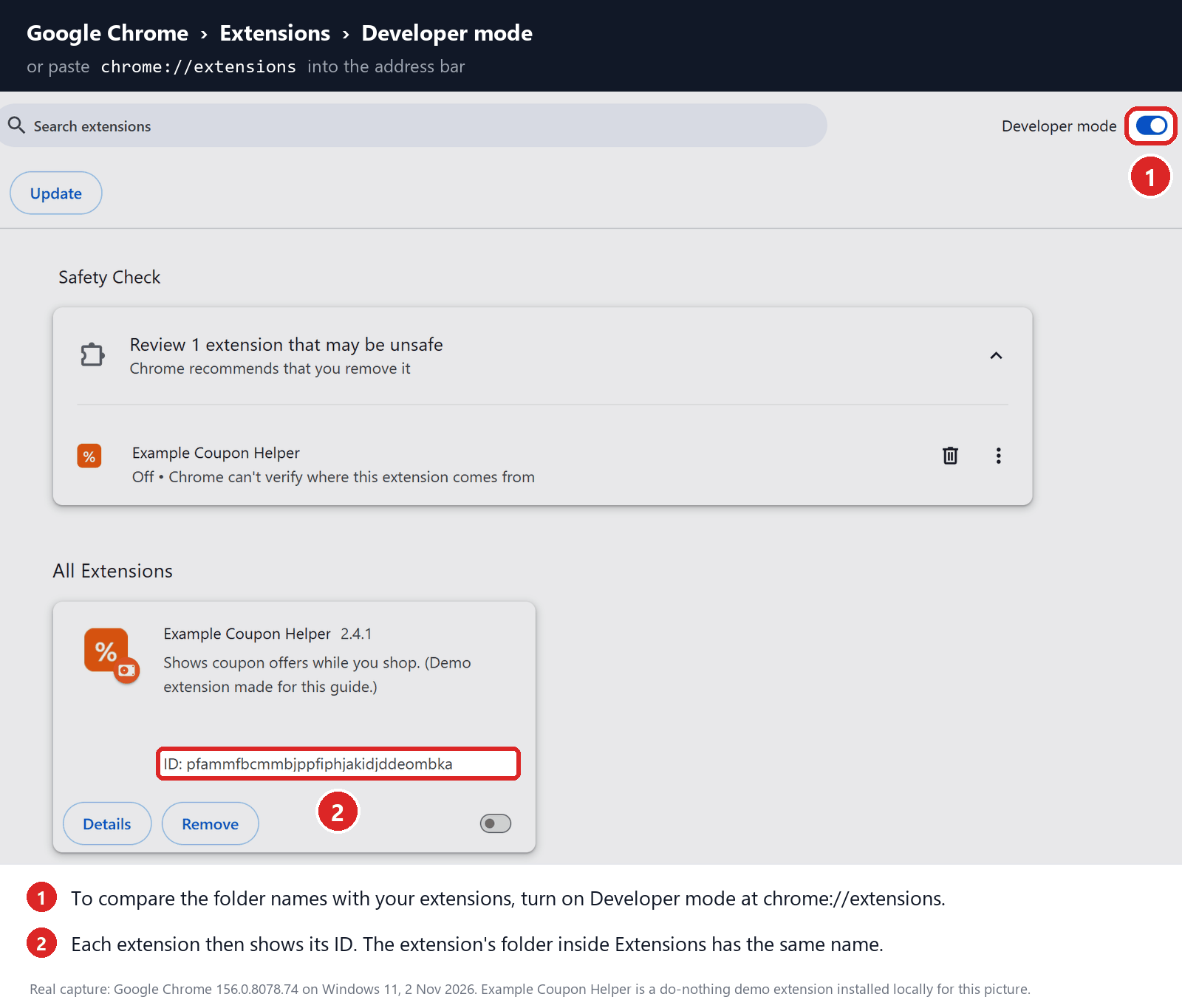
This example card is a demo, not proof of malware. Don’t add unpacked extensions or delete Chrome’s extension folders.
If a startup task switches Chrome to Bing
Press Windows+R, enter taskschd.msc and press Enter. In Task Scheduler Library, open the suspect task’s Actions and Triggers tabs.
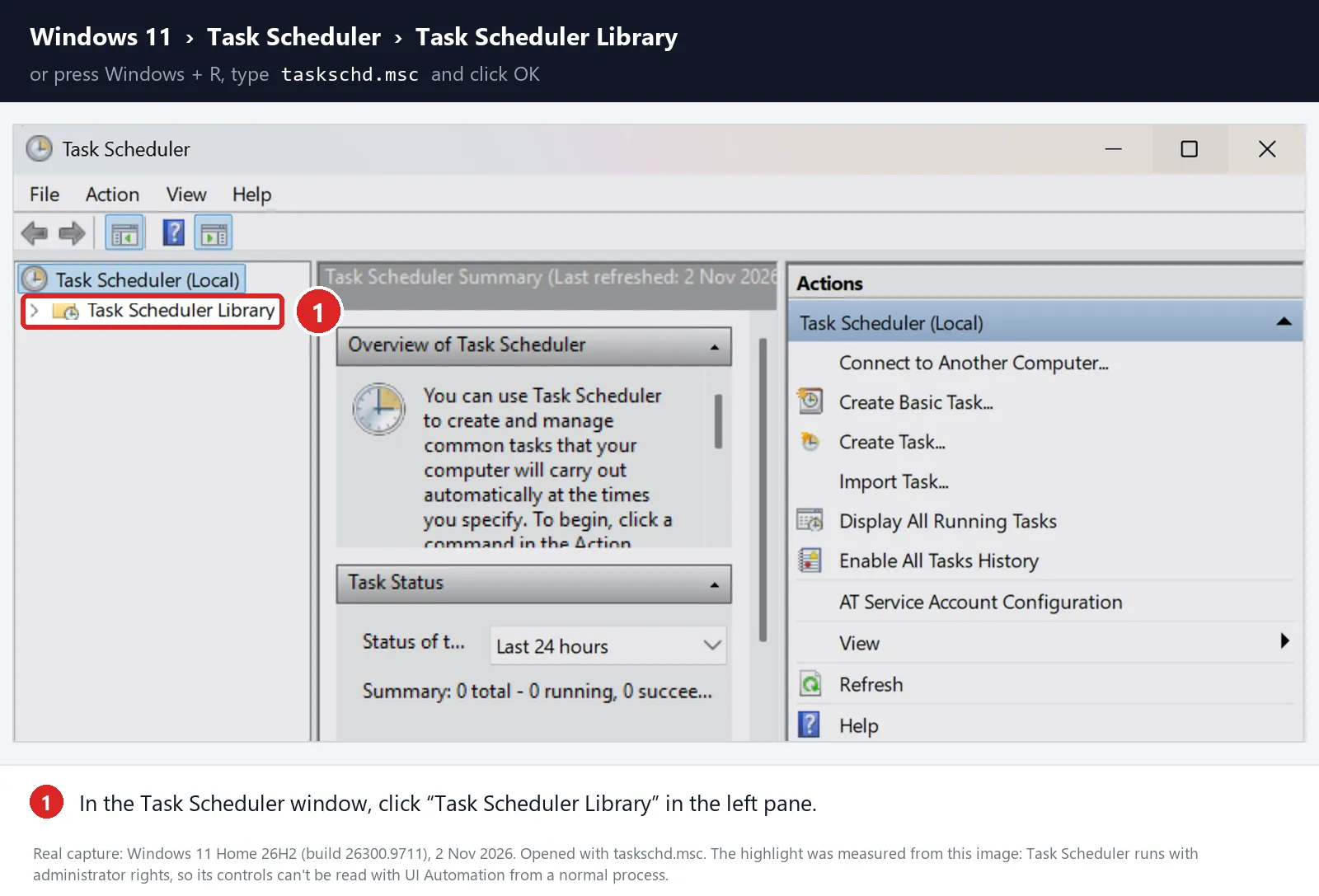
The task’s program or arguments should match the in-between site or a scan finding. A strange name or AppData path isn’t proof by itself.
Once you’re sure it’s unwanted, right-click the task, Export a backup and choose Disable. Test again before deleting it, and keep other tasks.
What to Do If Bing Still Takes Over
-
Note which search box fails, whether another site appears before Bing, your Chrome profile and your Windows version.
-
Save policy details, extension IDs, task actions and scan reports. Hide account names and personal folder paths.
-
Ask in the MalwareTips Windows malware-removal community before running registry cleaners or scripts that change every profile.
If other browsers also switch to Bing without being asked, check proxy, DNS and installed software too. Keep legitimate VPN settings, and ask IT on a work PC.
A clean scan doesn’t settle an extension or settings problem. Keep testing the actual search instead of relying on a clean-PC result.
Using more than one browser? Our complete Bing redirect guide covers Chrome, Edge, Firefox and Safari on Windows and Mac.
Related: Yahoo redirects in Chrome on Windows and Bing in Chrome on Mac.
Frequently Asked Questions
Is Bing a virus or a browser hijacker?
No. Bing is Microsoft’s legitimate search engine. A “Bing virus” usually means an extension or program that switches Chrome to Bing without your consent.
Remove what’s switching it and Bing stops appearing. You don’t need to block bing.com itself.
Why does Google redirect to Bing in Chrome?
Usually Google isn’t redirecting at all. Chrome’s address bar is set to Bing, or an extension catches your search first. Search on google.com directly to check.
If google.com works but the address bar doesn’t, fix the search engine setting and extensions. If google.com itself jumps to Bing, run the scans in Step 3.
Why does Bing open when I open Chrome?
Chrome is loading a startup page, pinned tab or new-tab page that points to Bing. A shortcut with a Bing address added after chrome.exe does the same.
Check On startup in Chrome Settings, then your shortcut’s Target. Remove any Bing homepage extension you didn’t add.
Did Microsoft software change my Chrome search to Bing?
It can. Microsoft’s Bing and Rewards extensions for Chrome offer to set Bing as your default. Some work PCs also got Microsoft Search in Bing through Microsoft 365 Apps.
Remove the extension, or uninstall Microsoft Search in Bing from Programs and Features. On a work PC, ask IT first.
How do I get rid of Microsoft Bing on Chrome for good?
Set Google in chrome://settings/search, remove Bing extensions you didn’t want, and uninstall the program behind them. Pause sync until the extension is gone from your other devices.
If Chrome warns that an extension changed your search engine, choose the option to change it back.
Does seeing Bing in Microsoft Edge mean I have a hijacker?
No. Bing is Edge’s built-in default search engine. If you prefer another, change it in Edge Settings under Privacy, search, and services, then Address bar and search.
This guide only matters when Chrome, not Edge, keeps switching to Bing.
The Bottom Line
When your Chrome search engine keeps changing to Bing, set Google again, then remove whatever keeps switching it: a Bing extension, Microsoft Search in Bing, or unwanted software.
If Bing returns after a restart, scan Windows and check chrome://policy, your shortcut and startup tasks. Fix one thing at a time and keep backups.
Can’t pin it down? Share your notes and scan reports in the MalwareTips Windows removal forum so a helper can review your setup.

Join the discussion
0 commentsShare your experience or ask a question about this article.
Discussion
Start the conversation
Have a question or something useful to share? Add the first comment.