


Is Safari redirecting to Bing every time you search, even though you chose Google? Sometimes a strange site flashes in the address bar first, then Bing loads.
Bing itself is a normal Microsoft search engine. Below, you’ll learn whether Safari is simply set to Bing or being pushed there, and how to stop it.
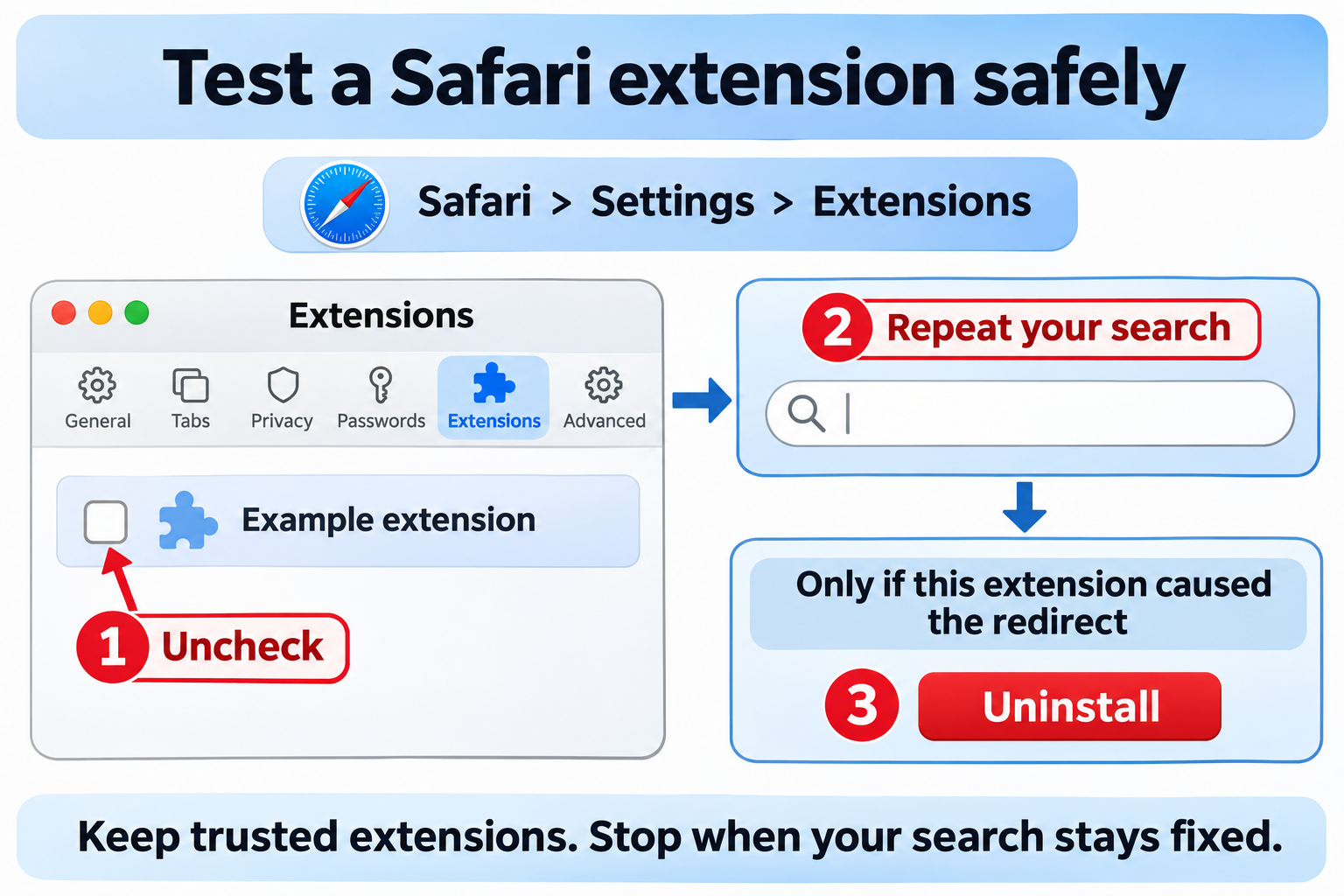
Overview
Why is Safari redirecting to Bing?
Bing is Microsoft’s search engine, the default in Microsoft Edge and one of the engines Safari offers in its own Search menu. Seeing it isn’t automatically a problem.
Microsoft Rewards pays points for Bing searches, so you or someone in your household may have picked Bing on purpose. That’s a setting, not an infection.
Microsoft also publishes Safari extensions on the Mac App Store, including Microsoft Bing for Safari and Microsoft Rewards for Safari. If you installed either, turn it off first and test.
It’s a redirect when Safari is set to Google but searches still end on Bing. An extension you didn’t mean to install is the usual cause.
Quick fix: stop Bing in four steps
Do these in order and stop once your searches go back to normal.
- In the menu bar, open Safari > Settings and click the Search tab. Pick your engine under Search engine, and set the Private Browsing search engine as well.
- Open the Extensions tab and untick anything you don’t recognize, including Microsoft extensions you no longer use. Search again after each change.
- Select the extension that was sending you to Bing and click Uninstall. If Safari says it belongs to an app, remove that app too.
- Open the General tab. If Homepage points to Bing or an odd address you didn’t choose, replace it, then quit and reopen Safari.
Your setting or a hijacker? How to tell
Open Safari > Settings > Search. If it says Bing, Safari is simply set that way. Switch it, quit Safari, and if your choice holds, there’s nothing to remove.
Signs of a hijacker: your choice keeps flipping back, another site appears before Bing, or a new extension or app showed up around the time it started.
In 2018, some Mac adware installed configuration profiles that locked Safari’s homepage so it couldn’t be changed back. If your setting won’t budge, see the advanced checks below.
These fixes handle hijacked search settings, unwanted extensions and adware. A stolen account or locked files need a different kind of help.
How to Stop Safari Redirecting to Bing on Mac
Go step by step. The moment Bing stops, jump to the final test instead of doing extra cleanup.
Step 1: Choose the search engine you want
Safari’s windows change slightly from one macOS version to the next. Follow the menu names here rather than matching every detail of the drawings.
Safari: fix the search engine first, the homepage second
-
Open Safari Settings
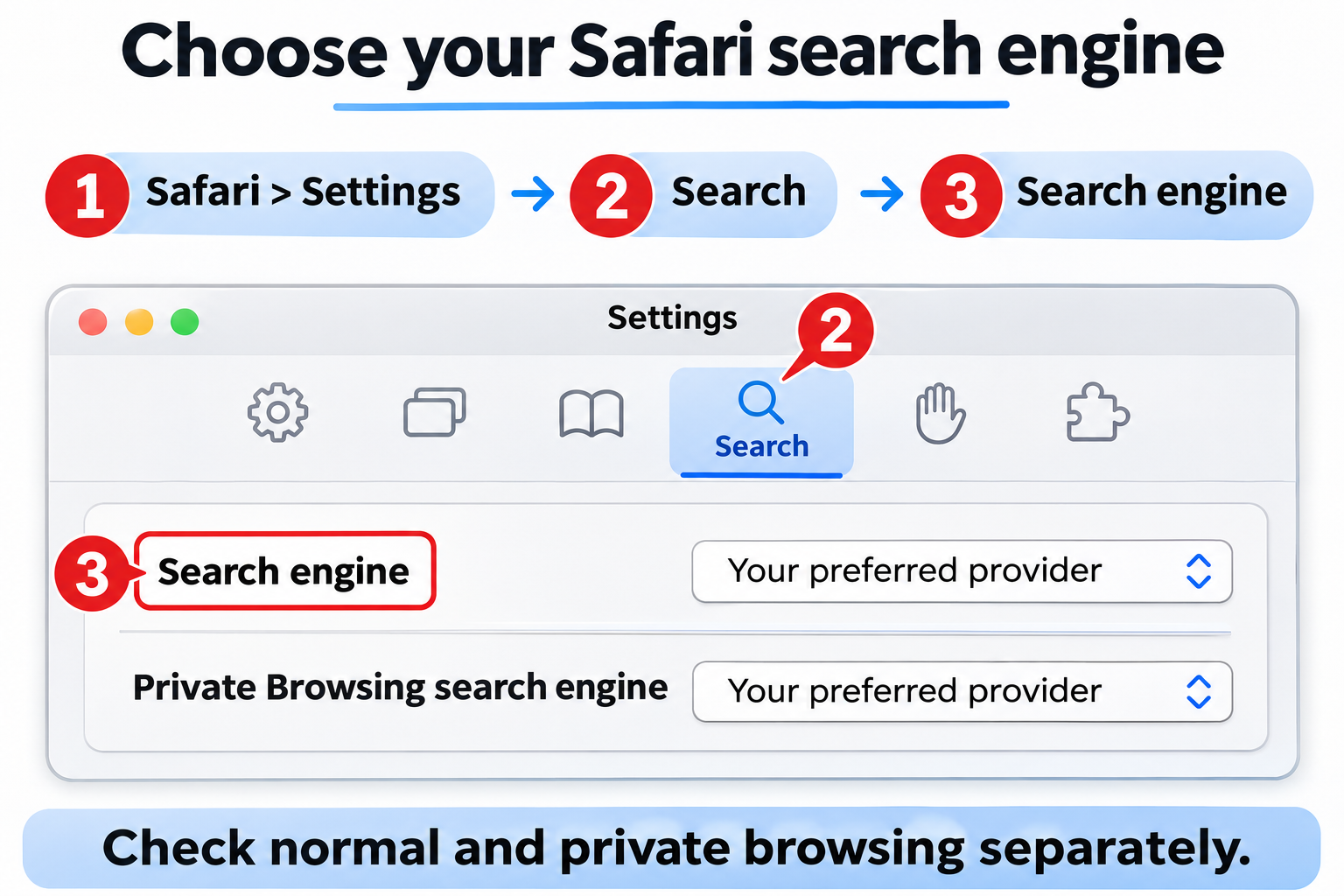
From the menu bar, pick Safari > Settings > Search. The drawing below is a guide to where things are, not a screenshot of macOS.
-
Choose the search engine
Click Search and open the Search engine menu. Choose the engine you actually want, then do the same for Private Browsing if that menu appears.
Test from the address bar in a regular window. Private windows can be set to a different engine, and that’s allowed.
-
Check General only if a page opens automatically
Does Bing load before you’ve typed anything? Click General and look at Homepage and what new windows open with. Replace only the address you didn’t choose.
Searches working again? Go straight to the final check. Still seeing Bing? Continue to the extensions step.
Step 2: Test a search or new-tab extension
Safari: switch off extensions to find the one sending you to Bing
-
Open the Extensions pane
Go to Safari > Settings > Extensions. The illustration at the top of this guide shows the idea: switch off first, uninstall second.
-
Untick one extension at a time
Untick one unfamiliar extension and search again from the address bar. When Bing stops appearing, select that extension and click Uninstall.
The name in the illustration is made up. Test the extensions on your own Mac, and keep any you rely on.
-
Deal with the app behind the extension
Some extensions come inside a Mac app, and Safari may tell you so. Find out what that app does, then remove it the way its developer recommends.
No extensions listed, or Bing already gone? Skip the removal and check the result after reopening Safari.
When Bing or other pages open without a search
This applies only to pages or alerts that appear while you’re not searching. Those usually come from a website you allowed to notify you, not a hijacked search.
-
Go to Safari Settings, Websites, Notifications. Pick the site causing it and choose Deny. Blocking future requests won’t remove sites you already said yes to.
Never use the buttons inside a frightening alert. Once the pop-ups stop and Bing is gone from searches, you can skip the scan and resets.
Step 3: Scan only if unwanted software remains plausible
Did Step 1 or 2 fix it for good? Skip ahead. Scan if an extension keeps coming back, an app you don’t know appears, or Bing returns on its own.
Check your Mac with Malwarebytes when Bing keeps returning
This scan is for a stubborn app or extension that reinstalls itself. If Bing stayed gone after Step 1 or 2, you don’t need it.
Our screenshots come from an earlier Malwarebytes for Mac release. Expect newer version numbers and a slightly different look.
MalwareTips may receive a commission from optional purchases. You don’t need a paid protection plan to follow the manual browser checks.
-
Download Malwarebytes for Mac
Malwarebytes for MacMac-specific scan and threat reviewChoose the Mac download. The Windows installer and AdwCleaner won’t run on a Mac, and a cleaner pushed by a redirect page should never be trusted.
-
Run the installer package
Go to your Downloads folder in Finder and double-click the Malwarebytes installer. The version in your file name may be newer.

Confirm it’s the real Malwarebytes package before going further. Don’t open anything with an odd name or an unexpected publisher.
Click Continue on the first installer screen. The example is an older build, so don’t worry if your file name is different.

Next comes the software license. Accept it only if you agree. It has nothing to do with buying a subscription.

-
Install it and grant permissions
Move through the remaining screens and click Install once the install location looks correct.

macOS will ask for your Mac password or Touch ID. That’s normal here, but no website or phone caller should ever ask for it.
Asked for Full Disk Access? Go to System Settings, Privacy & Security, Full Disk Access and switch Malwarebytes on. On older macOS, it’s System Preferences.
Then return to Malwarebytes. It may offer a trial or subscription, so say no to anything you didn’t plan to get.
When asked about the computer type, pick Personal Computer if the Mac is yours. If your employer owns it, follow their instructions.

-
Pick a free scan
On the dashboard, click the Scanner tile, not the Scan button inside it. Go to the Scan tab, then Advanced scans, then Custom scan.
The free plan includes Quick and Custom scans. Threat Scan can require a trial or subscription, whatever the older picture suggests.
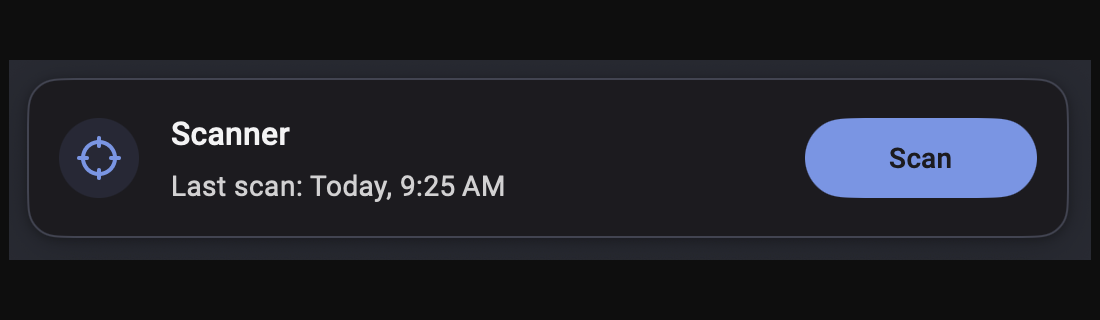
In the Finder window, choose a folder, an app or a whole directory and click Open. Malwarebytes starts the custom scan on it.
Pressing the dashboard’s Scan button may run a Threat Scan. Stick with Custom scan if you want to stay on the free plan.
Wait for the scan to complete. Don’t close Malwarebytes or uninstall it in the middle.
The next picture is an older Threat Scan in progress. Whichever scan you chose, let it reach the results screen.

-
Review results and quarantine
Read through each detection and where it sits on your Mac before you quarantine it. Keep the report if you’re unsure about an item.
Older versions remove selected items with a Confirm button, shown below. Your version may label its quarantine button differently.

Those detections are only an example. Go by your own results.
-
Restart if Malwarebytes asks
Malwarebytes may need a restart to finish. Save your open files, approve it, then open Malwarebytes and keep the report.

Now search in Safari once more and see whether any extension or profile reappeared. A clean result doesn’t mean every setting is back to normal.
-
Write down what still brings Bing back
Still landing on Bing? Note what triggers it, such as opening Safari or logging in. Save extension and profile details plus the scan report, with personal info removed.
Resist deleting all profiles or launch folders. Work out what an item is and what installed it before making system changes.
Step 4: Repair remaining browser settings if necessary
Searches fine now? Go to the final check. If one Safari setting is still wrong after the earlier steps, fix just that one.
Fix leftover website data or notifications
You can skip this if Bing is already gone. Safari doesn’t have a one-click reset, so this part targets only what’s left.
-
Clear data for one website
Go to Safari Settings, Privacy and click Manage Website Data. Only do this when one particular website seems linked to what’s still happening.
Pick that website’s entry, click Remove, then Done. Expect to be signed out of that site.
Skip Remove All. Cookies have nothing to do with installed apps or Mac profiles, so wiping them all won’t stop a Bing redirect.
-
Stop pages that open on their own
If pages pop open without a search, look in Settings, Websites, Notifications. Set the responsible site to Deny, since the search menu can’t stop notifications.
Don’t switch off the fraudulent website warning or other safety features. If Safari blocks a page, there’s usually a reason.
Step 5: Test the original symptom, then stop
Repeat the search that used to land on Bing. Start with the address bar, then try the search box on your start page or homepage if you use one.
-
Quit Safari completely and open it again. Your chosen engine should still be selected.
-
If Bing used to come back after a restart, save open work, restart your Mac and test again.
-
Turn synced settings back on slowly if you paused them. You’re finished when searches stay right after whatever used to bring Bing back.
All good? Stop here. Open the advanced section only if Bing returns, a setting is locked, or an extension refuses to uninstall.
Advanced Fixes When Bing Won’t Stay Gone
Show fixes for a Bing redirect that returns, locked settings and login items
Only needed if Bing keeps coming back. If the Mac belongs to your work or school, contact IT before changing profiles or startup settings.
Look for profiles and login items that bring Bing back
Open System Settings, General, Device Management if your Mac has it. On older versions, configuration profiles appear in a Profiles pane instead.
Click each profile to see who issued it and what it controls. A profile alone isn’t proof of malware. Look for a clear link to Safari or a suspect app.
Before you remove an unwanted profile, note what it set up. Removing it can also take away accounts, certificates, VPN and network settings.
A managed Mac is IT’s call. Don’t bypass enrollment or wipe every profile to change one search setting.
In Finder, open Applications and look for an app tied to the Bing problem. Check who made it and when it was installed, not just its name.
Then open Login Items & Extensions and see whether that app runs in the background. Turn off only an item you’ve traced to the unwanted app.
If Bing returns every time you log in, a technician can check for a specific LaunchAgent or LaunchDaemon. Back it up before making any change you might need to undo.
Don’t empty system launch folders or stop services you don’t know. An odd file name needs explaining before it’s removed.
Don’t confuse Safari profiles with Mac profiles
Recent Safari versions support separate browsing profiles. Trying a clean one is a useful comparison, as long as you don’t bring every old extension along.
A Safari profile just keeps browsing separate. A Device Management profile can configure the whole Mac, including accounts, certificates and networks.
Starting a new Safari profile won’t remove a Mac app. If Bing follows you into the new profile, look outside Safari.
Turn syncing and shared extensions back on slowly. Add trusted items one by one and note the first one that brings Bing back.
Protect your bookmarks and logins. Deleting Safari’s Library folders or all its preference files is not a reset and can lose data.
Test Which Search Goes to Bing
In a regular Safari window, press Command+L and search for something ordinary. Notice whether another site’s name appears before Bing loads.
Now search on your preferred engine’s own homepage. Then try a private window and a brand-new regular window.
Note each result separately. A website whose own search box uses Bing doesn’t mean Safari’s address bar has been hijacked.
If a strange site appears, write its name down. Don’t post private searches, login links or full account addresses publicly.
Back up bookmarks and save your work before bigger changes. A normal search fix never requires deleting Safari’s data folders.
Cookies, Network Settings and Your Accounts
Compare results with the same simple search on the same trusted network. A different Wi-Fi or search box can make an old problem look like it’s back.
Cookies only affect a site’s own settings and sign-ins. Clearing them won’t uninstall an extension’s app or remove a configuration profile.
Look at proxy and DNS settings only if several browsers show the same odd site, or the problem follows one network.
Keep your current network settings and any VPN you need. Resetting every network service can break your connection and still leave the extension in place.
If a new window opens from a website notification, change that site’s notification permission. Switching search engines won’t stop it.
If you typed a password into a strange page along the way, change it on the real website. Fixing Safari doesn’t sign anyone else out.
Never let someone connect to your Mac remotely because a warning page told you to call. A “Bing virus” alert doesn’t make the caller real support.
What to Do If Safari Still Goes to Bing
-
Note which search fails: the address bar, a private window or a new window. Add the name of any site that loads before Bing.
-
Gather extension and app names, profile details, scan reports and copies of any settings you changed.
-
Post in the MalwareTips Mac help forum for advice on your specific Mac, or ask IT about managed settings.
Share only what helpers need. A full browser backup or profile export can hold personal information you don’t want to post.
If you typed a password into a page that appeared during the redirect, change it on the real website. Fixing Safari doesn’t undo that.
Using more than one browser? Our complete Bing redirect guide covers Chrome, Edge, Firefox and Safari on Windows and Mac.
Related: Yahoo redirects in Safari on Mac.
Frequently Asked Questions
How do I remove Bing from my Safari browser?
Choose Safari > Settings > Search and select another engine from the Search engine menu, plus the Private Browsing one. Bing stays in the list, but Safari stops using it.
If searches still reach Bing, an extension is usually responsible. Turn extensions off one at a time to find it, then uninstall it.
Why does my search engine keep changing to Bing on my Mac?
Something is resetting it, most often an extension or the app that installed it. A configuration profile or login item can do the same, which the advanced section covers.
Is Bing a virus on a Mac?
No. Bing is Microsoft’s legitimate search engine. A “Bing redirect virus” means adware or an unwanted extension is forcing your searches there, and that’s what you remove.
Why does Google redirect to Bing in Safari?
Safari is set to Google, but something catches the search first and passes it to Bing. Watch the address bar, because a brief flash of another site gives it away.
Disable extensions one by one and search after each. When Google results come back, uninstall the last one you disabled.
How do I get rid of Microsoft Bing on my Mac?
Bing is a website, so there’s nothing to uninstall. What sends you there is usually an extension, either one you don’t recognize or Microsoft Bing for Safari.
Remove those in Safari’s Extensions settings, or delete the app they came with. Microsoft Edge uses Bing by default, but changing Edge doesn’t affect Safari.
Why does Bing keep popping up after I restart my Mac?
A change that returns at login usually comes from something that starts with your Mac. Check Login Items & Extensions and Device Management, then run the Malwarebytes scan in Step 3.
The Bottom Line
Bing is a real search engine, so the goal is control, not deleting it. Set your engine in Safari > Settings > Search and turn off any extension that sends you there.
If you still see Safari redirecting to Bing after a restart, run the Malwarebytes for Mac scan and check Device Management for a profile you didn’t install.
If it still won’t stop, bring your notes to our Mac malware-removal forum. Help with your exact setup beats deleting system files by guesswork.

Join the discussion
0 commentsShare your experience or ask a question about this article.
Your progress
Did these steps help?
Let us know how the guide worked for you.
Describe what you see and the step you reached. Keep passwords and other private information out.
Discussion
Start the conversation
Have a question or something useful to share? Add the first comment.