


You picked Google, but Edge keeps changing your search engine back to Bing. Part of that is built into Edge. Part may come from software you never chose.
This guide shows which Bing searches are normal, how to make Google or any other engine stick in Edge on Windows, and how to remove anything forcing Bing back.
Overview
Why does Edge keep going back to Bing?
Bing is Edge’s built-in search engine, so seeing it isn’t a sign of a virus. Several normal Edge and Windows features keep using Bing even after you choose Google.
- The search box in the middle of Edge’s new tab page runs on Bing unless you switch new tabs to the address bar.
- If right-clicking selected text offers a search in the sidebar, those results come from Bing.
- Copilot, opened from the icon at the top right of Edge, looks things up on the web with Bing.
- Web results in the Windows taskbar search box come from Bing, whatever Edge is set to use.
- Edge sometimes offers Microsoft’s recommended browser settings. Accepting that prompt makes Bing your search engine again.
- Resetting Edge restores its defaults, and Bing is the default search engine.
- Sync copies settings and extensions between PCs where you’re signed in to Edge, so a change made on one can reach another.
The unwanted kind looks different. Your choice flips back by itself, a strange site flashes before Bing loads, or Edge says it’s managed when nobody manages your PC.
Then the likely cause is an extension, a bundled program, a policy or a startup task. Microsoft calls software that locks browser settings or redirects searches without consent unwanted.
The quick fix that works for most people
- Type edge://settings/search in the address bar and press Enter. Set Search engine used in the address bar to Google or another engine.
- On the same page, set Search on new tabs uses search box or address bar to Address bar. New tabs will then follow your choice.
- Type edge://extensions and turn off any search or new tab extension you don’t remember adding. Remove it if Bing stops coming back.
- If Edge offers Microsoft’s recommended browser settings, pick the option that keeps your current settings instead of accepting.
- Restart Edge and run a search from the address bar. If your engine answers, you’re done.
What to do if Bing comes back anyway
Notice when Bing returns. If it flips back instantly, suspect an extension or a policy. If it returns after a restart, suspect a program or a startup task.
If it only comes back after you sign in to Edge, open Settings > Profiles > Sync and pause settings and extensions sync while you test.
On a work or school PC, Bing may be required by your organization. Ask IT before you change anything it manages.
The fixes here deal with search settings, extensions and adware on Windows. They can’t unlock encrypted files or repair a hacked account.
How to Stop Edge From Going Back to Bing on Windows
Go step by step and stop once Bing stays away. These links jump straight to the key parts.
- Edge search settings
- Check the result and stop when fixed
- Only if Bing returns or settings are locked
Step 1: Choose the search engine you want
Edge: pick the engine for the address bar
-
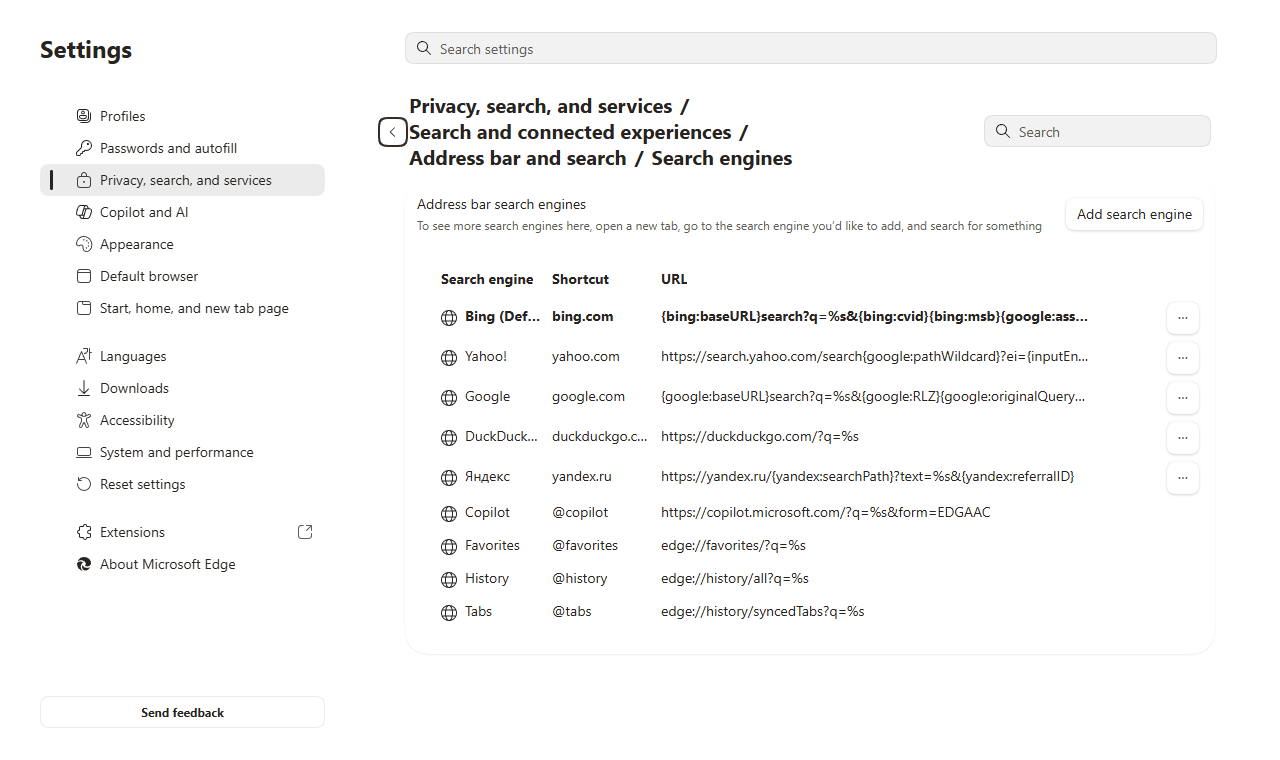
Open Address bar and search
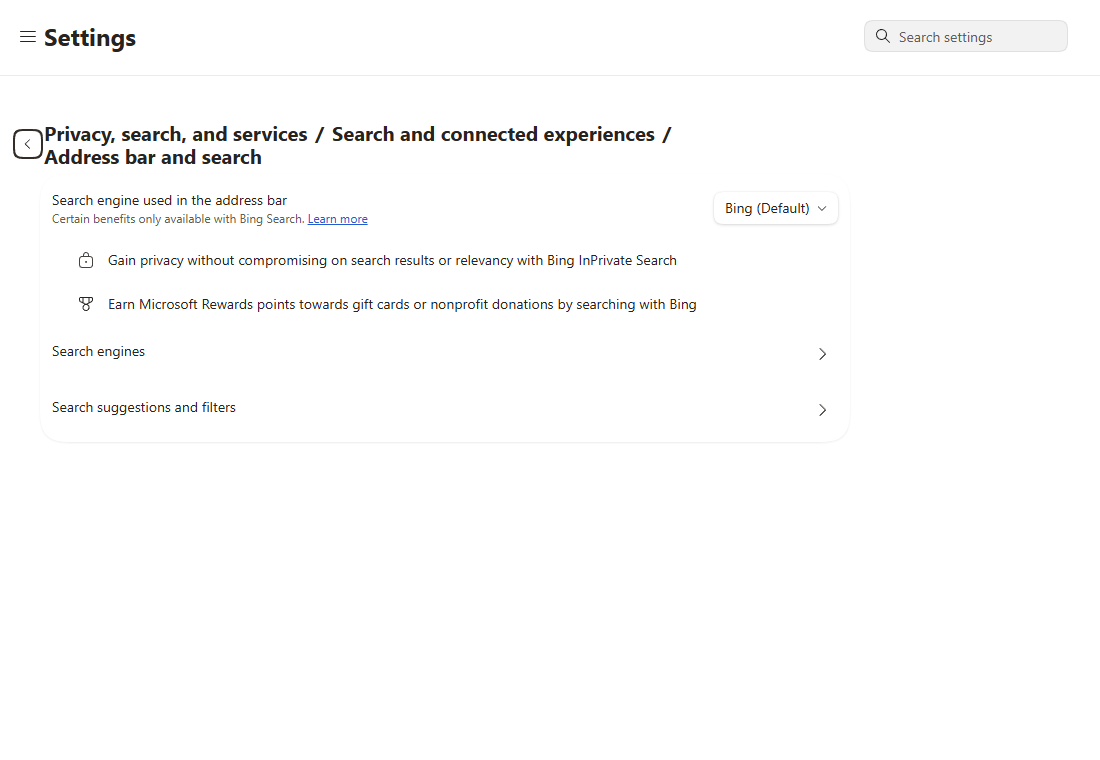
Type edge://settings/search and press Enter. You’ll also find the same page under Privacy, search, and services > Search and connected experiences.
-
Select the engine you want
Click Search engine used in the address bar and choose Google or another engine. Bing is simply Edge’s starting choice, not a sign of malware.
Engine missing from the list? Visit its real website, run one search there, then come back to this list.
-
Switch new tabs to the address bar
In a new tab, type a search into the address bar at the top. The box in the middle of Edge’s own new tab page searches with Bing.
Back on Address bar and search, set Search on new tabs uses search box or address bar to Address bar. It appears once Bing isn’t your engine.
If both searches now use your engine, go to the final check. Look at extensions only if Bing still takes over.
Step 2: Turn off extensions that force Bing
Edge: switch off an unwanted search extension
-
Open the Extensions page
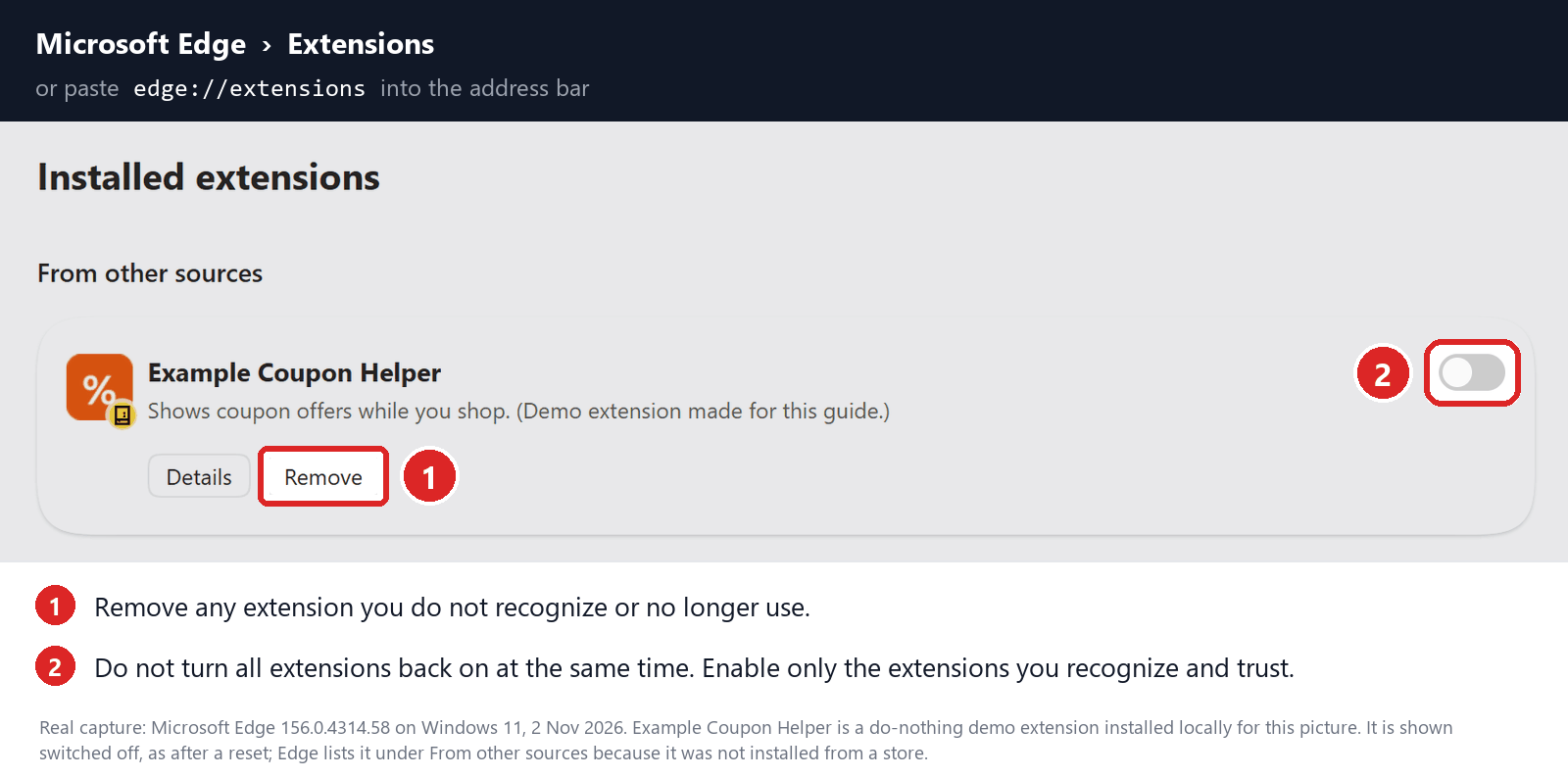
Type edge://extensions and press Enter. The screenshot uses a sample extension to show where Remove and the on/off switch sit.
-
Switch off one suspect at a time
Look for search helpers, new tab replacements, or anything you don’t remember adding. Turn its switch off, then repeat your address bar and new tab searches.
If Bing stops taking over, click Remove on that extension and confirm. Then check your search engine choice once more.
No extensions listed? Skip ahead. If one won’t switch off or keeps reinstalling, use the advanced checks instead of deleting extension folders.
-
Stop when Bing stays away
If Edge still uses your engine after you close and reopen it, go to the final check. Leave your other profiles as they are.
If a notification opens unwanted pages
Use this only when pages or alerts pop up without you searching. A site you allowed to send notifications is a different problem from a hijacker.
-
In Edge Settings, search for Notifications and open the site permissions result. Find the unwanted site under Allowed and set it to Block or Remove.
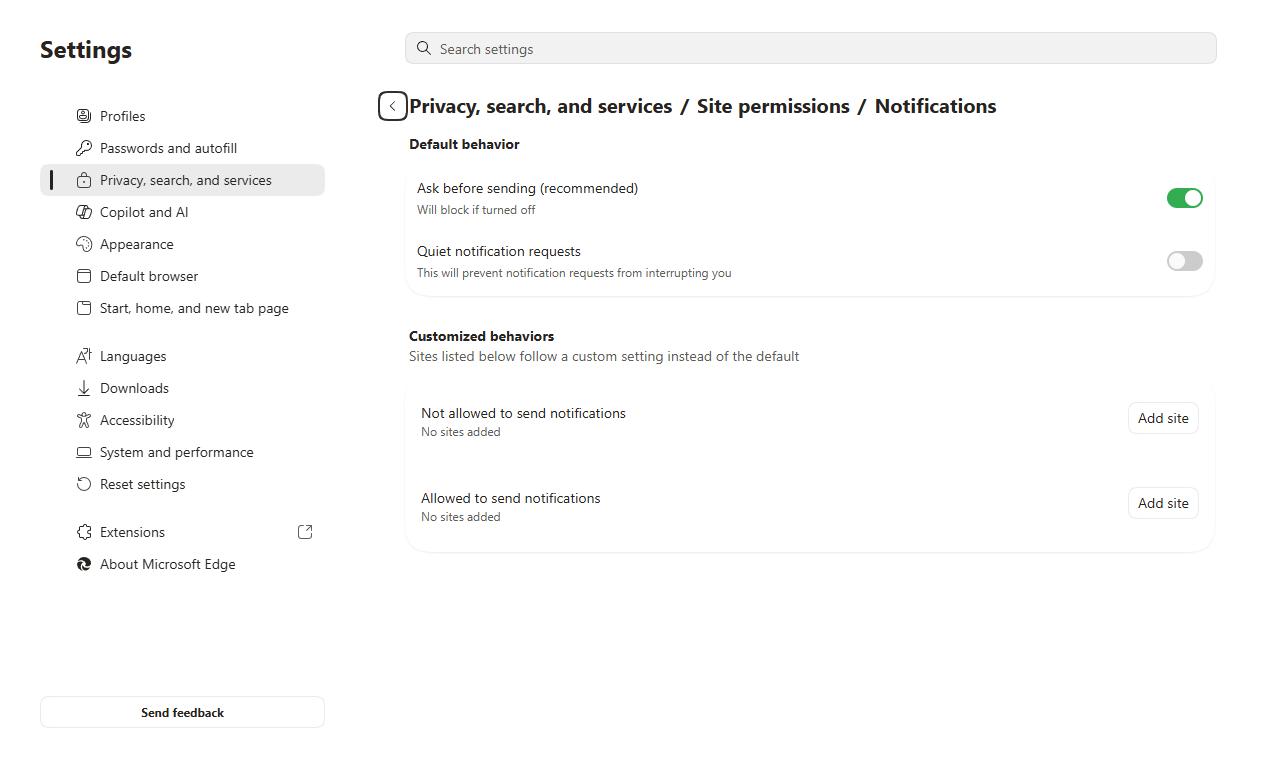
Change it from Edge’s own settings, never from buttons inside the alert. If the pop-ups stop and searches go to your engine, you can skip scanning and resetting.
Step 3: Scan Windows if Bing keeps coming back
Skip this if Step 1 or Step 2 fixed it. Scan when Bing returns after a restart, an extension reinstalls itself, or you spot a program you didn’t install.
Scan for the program that keeps resetting Edge
A scan helps when a program, not a setting, keeps putting Bing back. Malwarebytes and Microsoft Defender can both do the job.
The installer screenshots come from our Windows guide. Your version may name its scan options differently.
Optional purchases may earn MalwareTips a commission. Paid protection is not required for the manual repairs.
-
Download the Windows installer
Get Malwarebytes from the button below. Ignore any cleaner that a pop-up or warning page pushes at you.
Malwarebytes for WindowsOn-demand scan and threat review -
Open the setup file and check the publisher
In your Downloads folder, double-click the MBSetup file.

If Windows asks for permission, check that the publisher is Malwarebytes before you click Yes. Never click past a security warning you can’t explain.
-
Complete setup without accepting unwanted extras
Pick Personal if this is your own PC, then continue. On a work PC, stop and ask IT.

Read any trial, subscription or extension offers and decline what you don’t want.
Wait while the progress bar fills, and keep the window open.

When the app opens, choose Get started and read any offers before going on.

Setup may stop on a Success screen first. If so, click Open Malwarebytes.

-
Update and start an available manual scan
On the Scanner tile, click the three dots, then choose Advanced Scan and Custom Scan.
Quick and Custom scans are free. The Threat Scan in older screenshots may need a trial or paid plan.
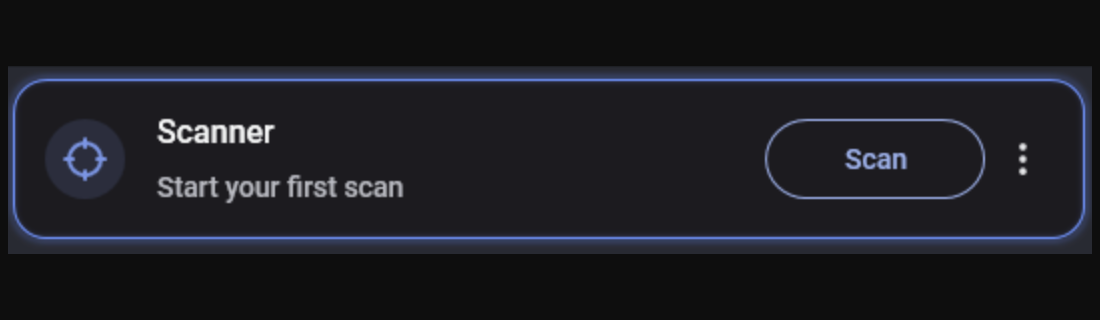
Tick the drives or folders to check. Look at how it will treat potentially unwanted programs and modifications, then click Start Custom Scan.
Picking one folder doesn’t check the whole PC. For a full check, also run the Microsoft Defender scan described below.
The progress screenshot shows an older Threat Scan. Your free scan may look a little different, so just wait for the results.

-
Review detections and quarantine identified threats
Read what it found and where. Tick the items to quarantine, and save the report if you want a second opinion.

Your own list will look different from this example.
Click Quarantine. Keep the report, since it may name the program that kept switching Edge to Bing.
Let quarantine finish before you close anything.

-
Restart if requested, then repeat the browser test
Save your work, then allow the restart if Malwarebytes asks for one.

After you sign back in, check Edge’s search engine and extensions again. A clean scan doesn’t undo settings a program already changed.
If Bing or the same detection comes back, save the report and note when it happened. Ask for help instead of running cleanup scripts from the web.
Prefer Windows’ own tool? Open Windows Security, Virus & threat protection, Scan options, then pick Full scan and act on what it finds.
Optional: a second check with AdwCleaner
AdwCleaner is a separate Malwarebytes tool for adware. Use it if Bing keeps coming back, not because Bing itself needs removing.
-
Download and open AdwCleaner
Malwarebytes AdwCleanerOptional Windows adware checkAdwCleaner runs without a normal install. Once you’ve confirmed the file came from the button above, accept its license prompt.
Open the AdwCleaner file from your Downloads folder, not a look-alike from a search ad.
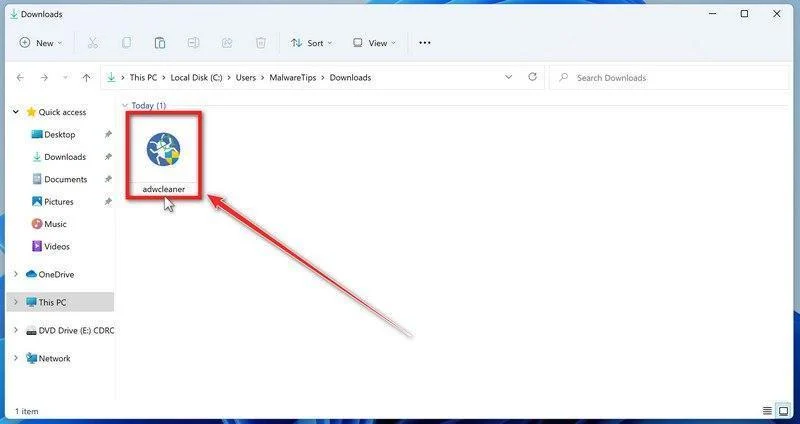
If Windows asks for permission, check the name and publisher, then click Run or Yes.
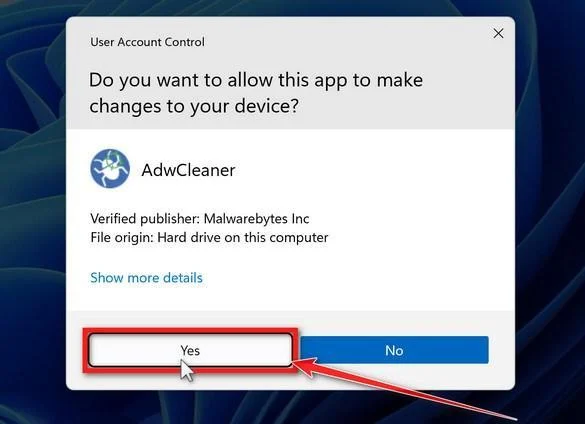
-
Leave broad repair switches off and start the scan
Leave Reset Chrome Policies switched off. It wipes every Chrome policy, including ones you or your employer need.
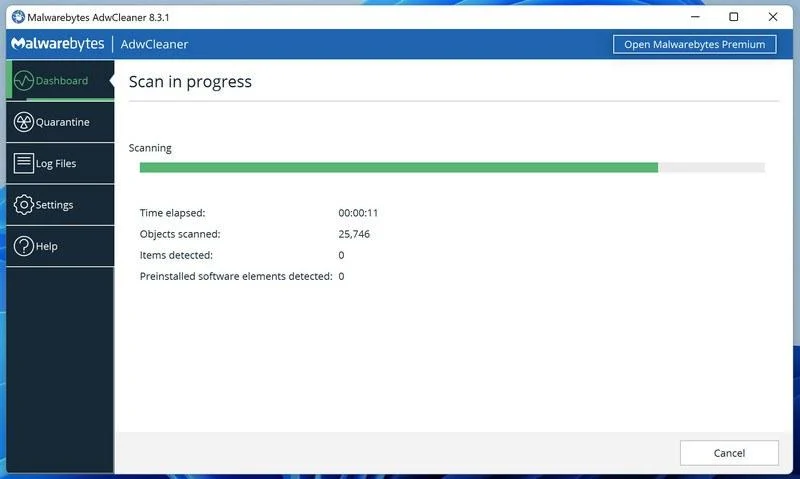
Leave the network and firewall resets off too. Go to Dashboard and click Scan Now.
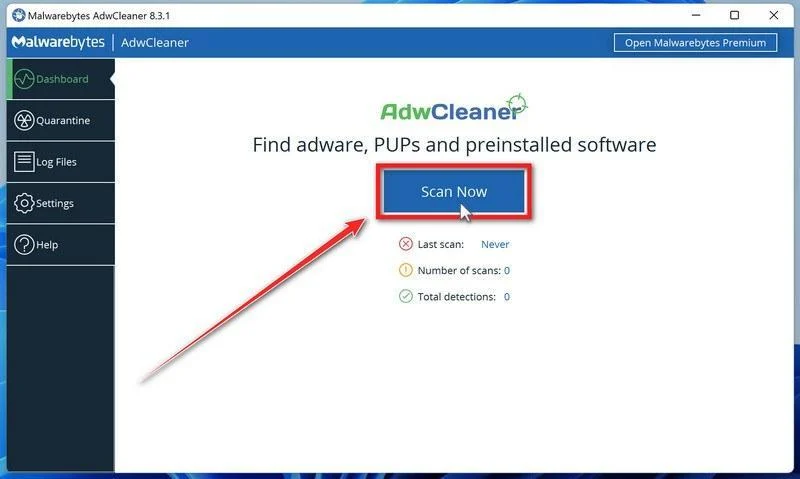
Let the scan run to the end.
Read the results before you approve any cleanup.
-
Review the results before cleanup
Look through the results. Newer versions show Next, then Quarantine, while the older screenshot shows a single Quarantine button.
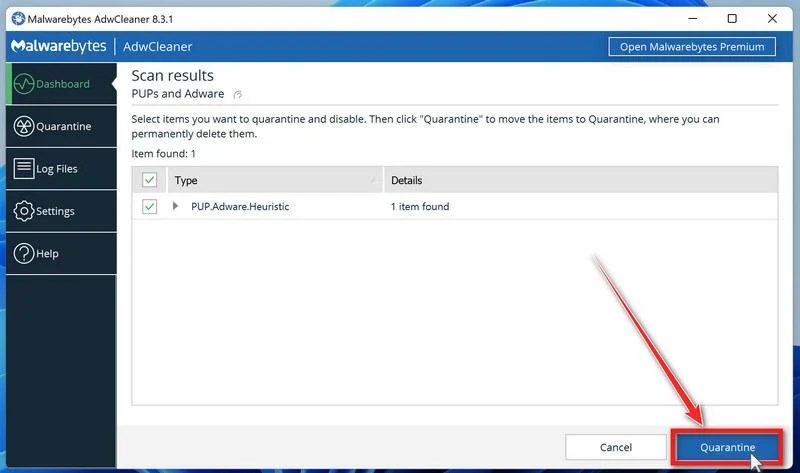
If a list of preinstalled software appears, untick anything you actually use.
-
Save your work and approve relevant cleanup
AdwCleaner may close open apps to finish. Save your work, then click Continue.
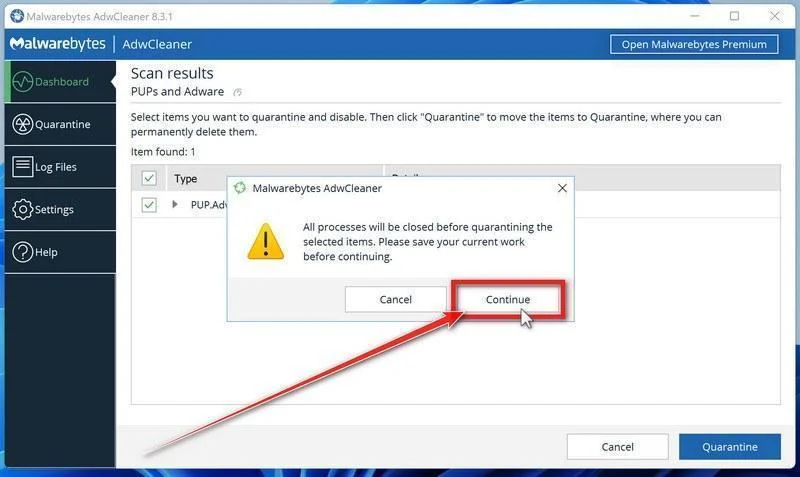
Restart if asked and read the log. Skip Basic Repair unless a helper tells you it’s needed.
-
Return to the exact search that failed
Search again from the address bar and a new tab. Check whether the extension or policy you spotted earlier came back.
No detections doesn’t mean a work policy or a setting you chose is wrong. Keep anything unresolved for the help forum.
Step 4: Reset Edge if the setting still won’t stick
Skip this if search already works. Reset only Edge, and only after the steps above have failed.
Reset Edge after removing whatever keeps changing it
A reset won’t uninstall a program or clear a work policy. Remove those first, or Bing will be forced straight back.
Save your work and back up important favorites. If you use sync, pause settings and extensions sync first so an old setting doesn’t return.
The screenshots show Edge’s reset screens. Your version may look slightly different, so follow what it shows.
-
Open the reset settings page
In the Edge profile with the problem, type edge://settings/reset and press Enter. Then select Restore settings to their default values.
Prefer menus? Open Edge Settings, and use the settings search box if the sidebar is hidden.
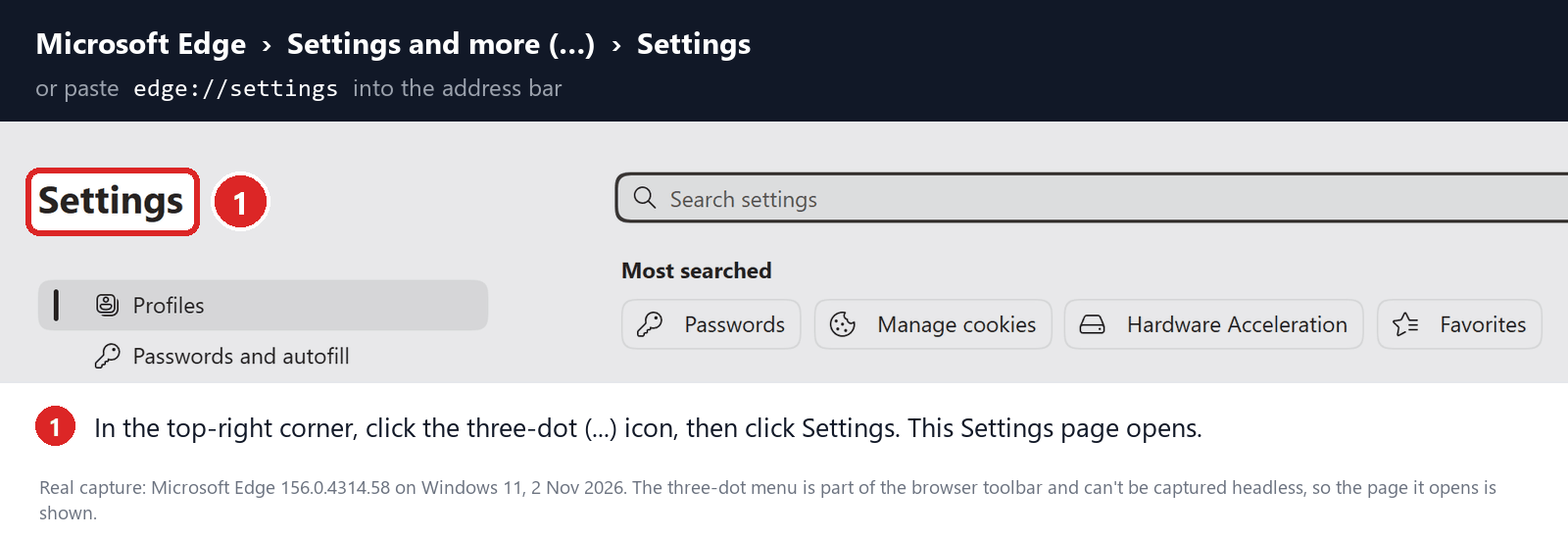
Click Reset settings in the sidebar.
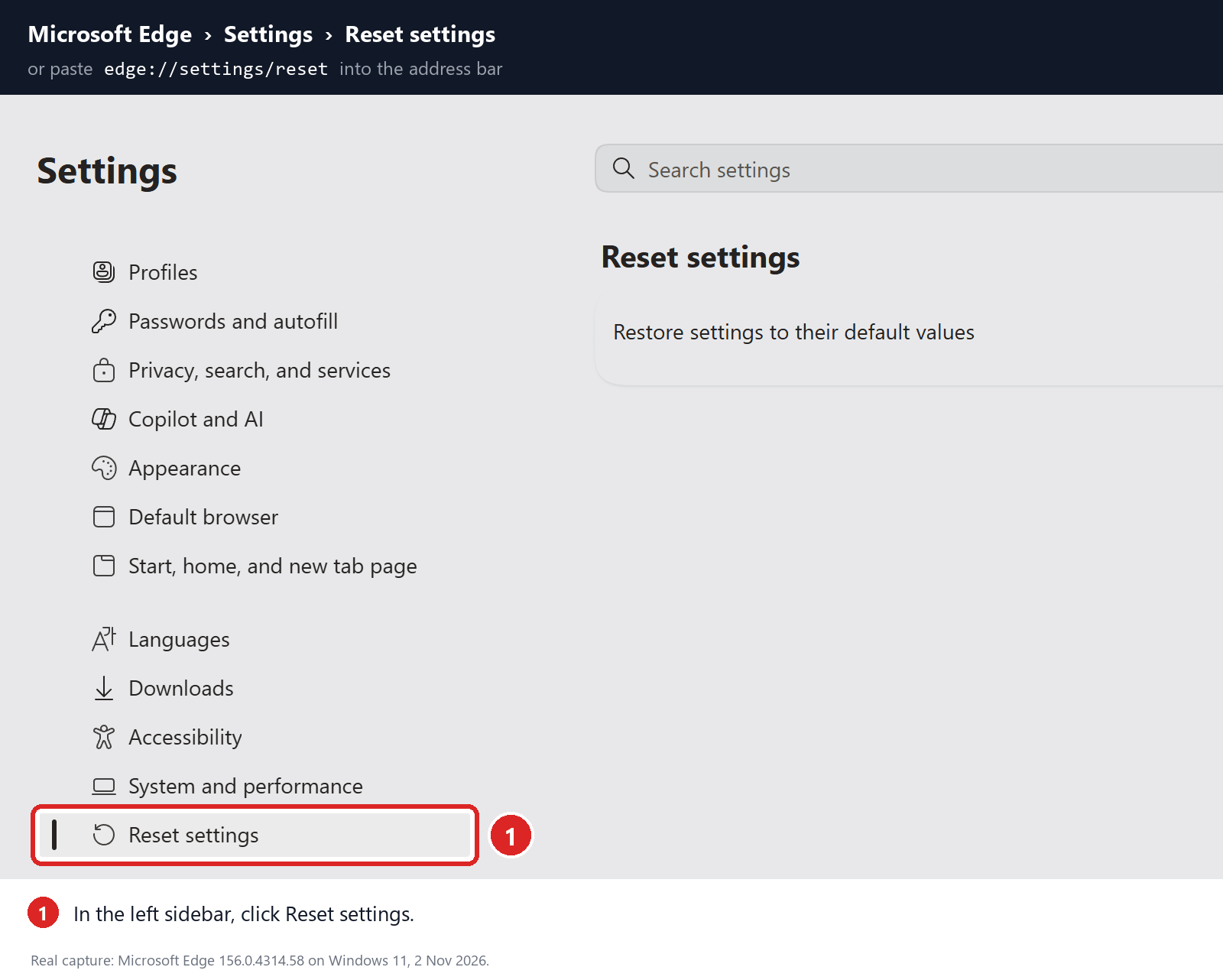
Then find Restore settings to their default values.
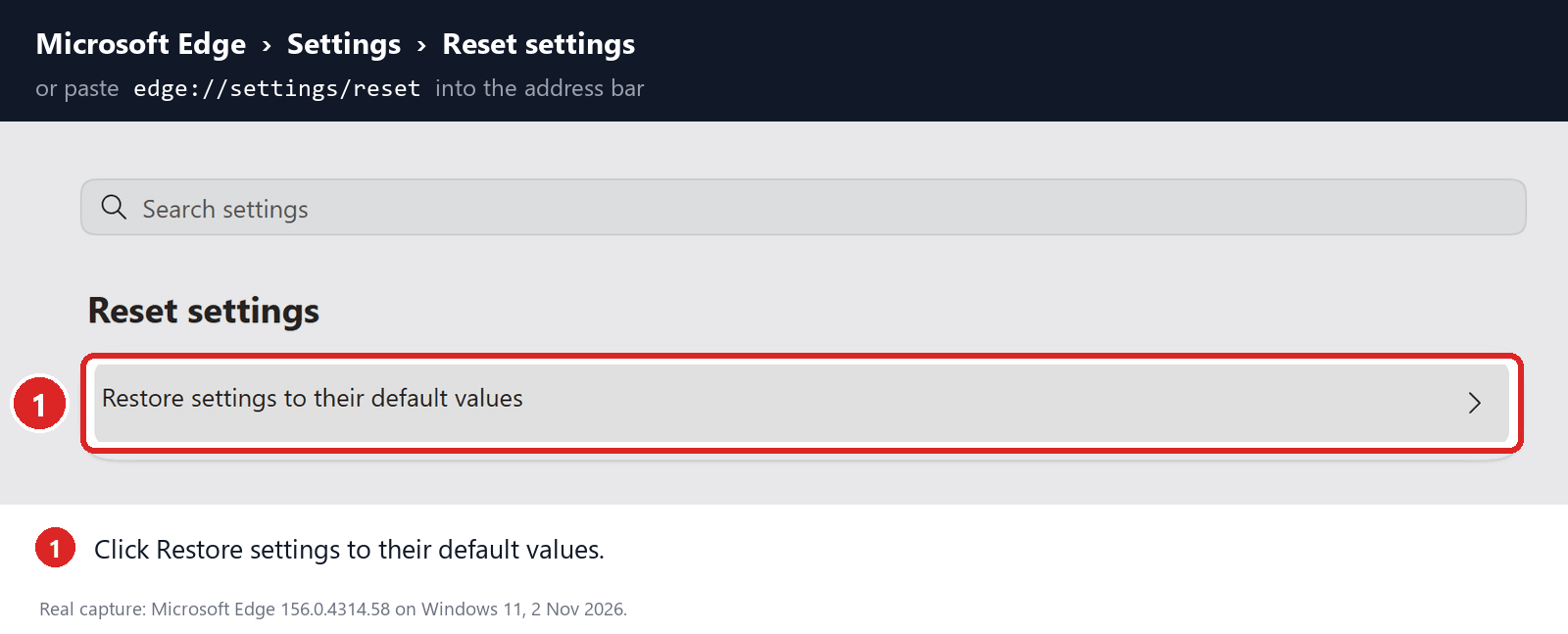
Run the reset only in the profile that has the problem.
-
Read the warning and confirm the repair
The reset puts your search engine back to Bing and resets startup and new tab pages. It also turns off extensions and clears temporary data such as cookies.
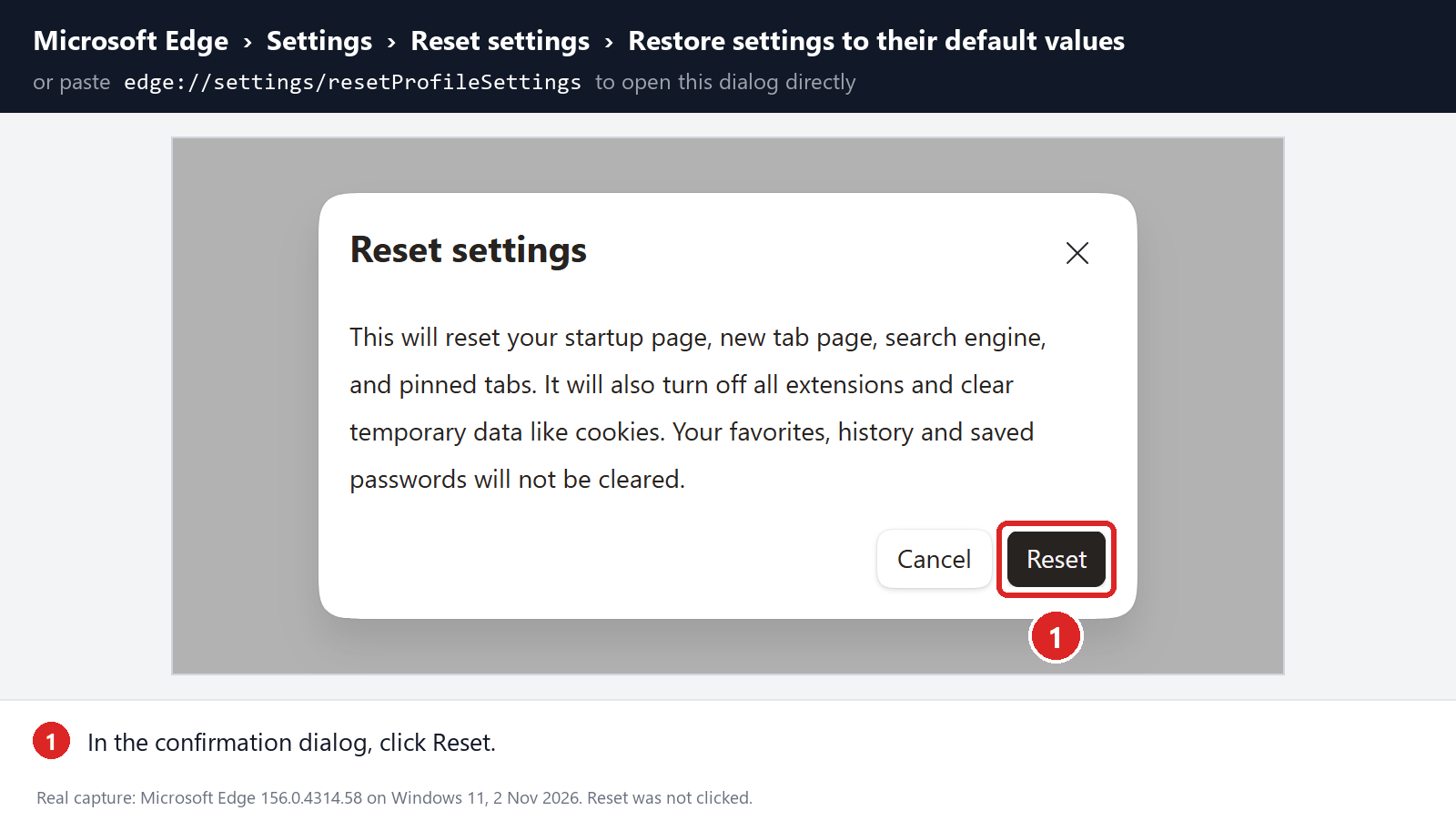
Click Reset. Favorites, history and saved passwords stay, but you may need to sign back in to some websites.
-
Pick your engine again and add extensions back slowly
Return to edge://settings/search and choose your engine again, along with the Address bar option for new tabs.
Turn trusted extensions back on one at a time. If Bing returns right after one, you’ve found the cause.
Step 5: Check that your search engine stays put
Search from the address bar, then from a new tab, the same way you did when Bing appeared.
-
Close Edge completely, reopen it and search again.
-
If Bing used to return after a restart, restart Windows and test once more.
-
If you paused sync, turn it back on one item at a time and test after each.
If your engine survives all three, you’re finished. The section below is only for settings that keep reverting or are locked.
Advanced Help if Bing Still Returns
Show checks for locked settings, startup programs and stubborn extensions
Skip this if the fix held. On a work or school PC, talk to IT before changing anything here.
Check whether a policy is locking Edge to Bing
Type edge://policy, click Reload policies, and look for entries about search, new tabs, extensions or startup pages.
Microsoft says Edge’s search policies only apply to PCs joined to a company domain or enrolled in device management. On a work PC, Bing may be set on purpose.
On a home PC you set up yourself, a search policy is unusual. Find out what put it there before you change it.
An experienced helper can look in the registry under Software\Policies\Microsoft\Edge, in both HKEY_CURRENT_USER and HKEY_LOCAL_MACHINE.
Export that key as a backup first, then change only the entry tied to Bing. Leave security and work settings alone.
If the entry reappears, some program is rewriting it. Track down that program instead of deleting the entry again.
Check shortcuts, installed apps and startup programs
If Bing opens only from one Edge icon, open that shortcut’s Properties and look at Target. Copy the original text before you edit anything.
Delete only an extra web address after the msedge.exe path, and keep the path itself intact.
Next, open Installed apps and look for programs you don’t remember adding around the time Bing took over. Uninstall them the normal way.
If Bing returns after every sign-in, check Startup apps and Task Scheduler. The task steps appear further down this section.
Don’t delete tasks or services because the names look odd. Disable only one you can link to the problem, and leave the rest.
Try a fresh Edge profile
Add a new Edge profile from the profile menu. Name it something like Test, and leave sync and imports off.
Search from it and open edge://policy there too. Settings differ between profiles, but PC-wide policies apply to both.
If the test profile keeps your engine, the problem sits in your main profile. If both switch to Bing, look at programs, policies and shortcuts.
A working test profile doesn’t prove the whole PC is clean, since some changes affect only one account or profile.
Keep your old profile until you’ve moved what you need. Bring over favorites, not old extensions.
Leave Edge’s data files alone
Some guides say to rename Edge’s Web Data file. It holds much more than search settings, so don’t do it in every profile.
If a trusted helper asks for it, check Profile Path at edge://version for the exact folder. Close Edge and back up that folder first.
Write down what you changed so you can undo it, and keep browser backups private.
Is Edge Really Redirecting to Bing? A Quick Test
Press Ctrl+L, type a harmless test word and press Enter. Then search again from the box on a new tab page.
Next, search on Google’s own website, and finally try the Windows taskbar search. Each one can land on a different engine.
Bing from the new tab box, the sidebar, Copilot or the taskbar is normal Microsoft behavior. Bing from the address bar after you chose Google is not.
Watch the address bar while results load. A strange site flashing before bing.com points to an extension or program in the middle.
Note which Edge profile you’re using. A work profile can follow company rules that your personal profile doesn’t.
What Changing Edge Won’t Change in Windows
Edge’s search setting doesn’t control the Windows taskbar search box. Microsoft builds Bing web results into Windows search itself.
If the address bar uses your engine but a Windows feature opens Bing, stop resetting Edge. You’d be fixing the wrong thing.
A link that points to bing.com will still open Bing. Removing a hijacker doesn’t block the site or rewrite links to it.
If every browser on the PC passes through the same strange site, check proxy and DNS settings next. Keep any VPN or work settings you rely on.
Reading the edge://policy page
Open edge://policy and choose Reload policies. Write down any entry about search or extensions, along with its value and source.
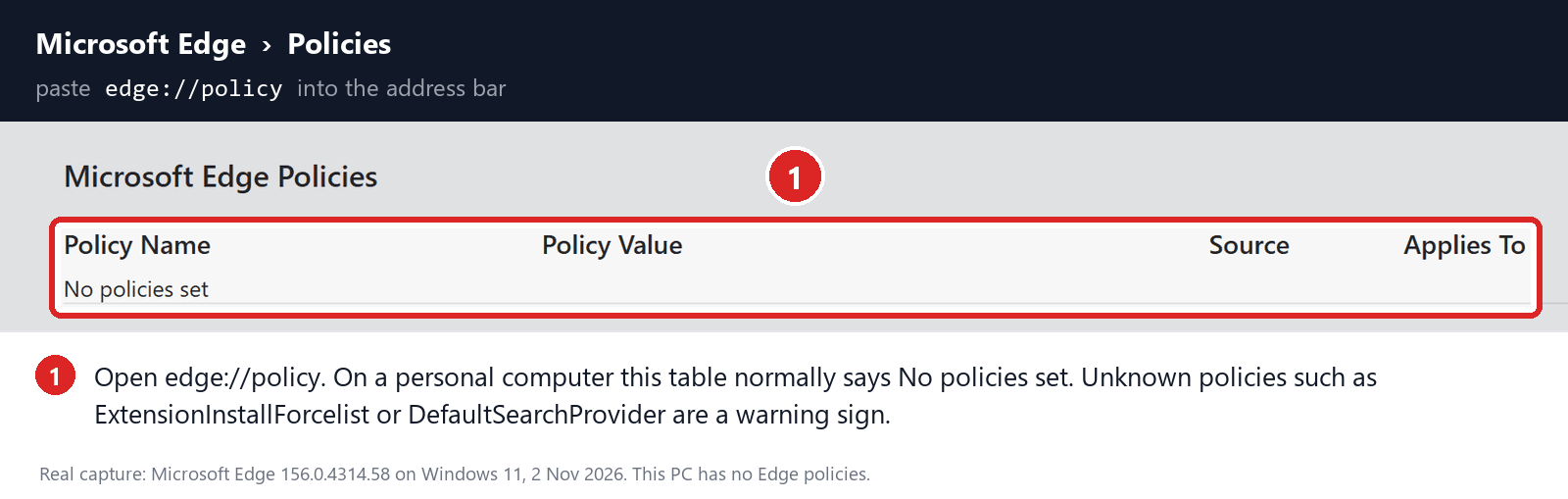
No policies set means nothing is locked by policy. If entries appear on a work PC, ask IT before you touch them.
If a startup task brings Bing back
Press Windows+R, type taskschd.msc and press Enter. Open Task Scheduler Library and check the Actions and Triggers of the task you suspect.
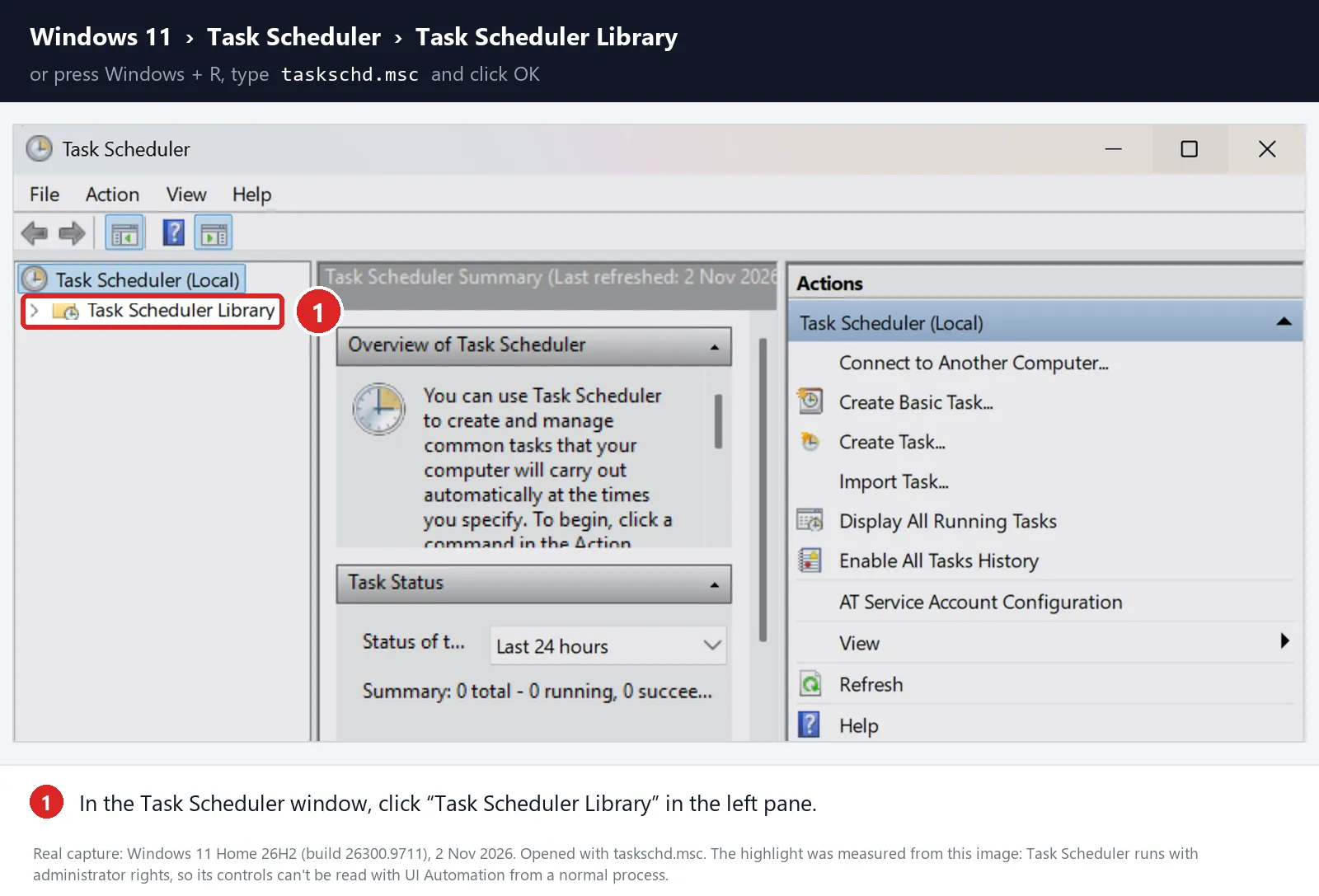
Act only on a task whose program matches what your scan found or what changed Edge. An odd name or AppData folder alone proves nothing.
Right-click that task, choose Export to save a copy, then Disable it. Test Edge before you think about deleting it.
What to Do If Edge Still Switches Back to Bing
-
Write down where Bing appears, which profile you use, any strange site that flashes first, and what brings Bing back.
-
Save your edge://policy entries, extension IDs, task exports and scan reports. Remove personal details before you share them.
-
Ask the MalwareTips Windows support community for help before you edit registry entries or services you aren’t sure about.
Don’t pay anyone who calls or pops up claiming Bing proves your PC is infected, and never give them remote access.
Typed a password into a strange page that appeared before Bing? Change it on the real site. Fixing Edge doesn’t undo that.
Using more than one browser? Our complete Bing redirect guide covers Chrome, Edge, Firefox and Safari on Windows and Mac.
Related: Yahoo redirects in Edge on Windows and Bing in Edge on Mac.
Frequently Asked Questions
Why does my search engine keep changing to Bing in Edge?
Often it’s Edge itself: a reset, the recommended-settings prompt or the Bing box on new tabs. If your choice flips back on its own, check extensions, policies and programs.
Is the Bing search engine a virus?
No. Bing is Microsoft’s own search engine and Edge’s default. The real problem is software that overrides your choice or sends your searches through another site first.
Why does Google redirect to Bing in Edge?
Searches typed into the middle box of the new tab page go to Bing. Use the address bar instead, or switch new tabs to the address bar.
If a search typed into the address bar lands on Bing after you picked Google, something is overriding you. Check edge://extensions first, then edge://policy.
Why did Edge ask me to use Microsoft’s recommended settings?
Edge on Windows can show this offer when Edge isn’t your default browser or Bing isn’t your search engine. Accepting it sets Edge and Bing as your defaults.
Dismiss it to keep your current settings. On a work PC, IT can turn the offer off with a policy.
Why does Windows search still open Bing?
The search box on the Windows taskbar uses Bing for web results. Edge’s setting doesn’t change that, so Bing there doesn’t mean your fix failed.
How do I get rid of Bing in Edge for good?
Set your engine in edge://settings/search, switch new tabs to the address bar, and decline the recommended-settings offer. Remove any extension or program that switches it back.
Bing will still power sidebar search, Copilot and taskbar results. Those are Microsoft features, not a hijacker.
The Bottom Line
When Edge keeps changing your search engine to Bing, set your engine in edge://settings/search, switch new tabs to the address bar, and remove extensions you didn’t choose.
If Bing returns after a restart, scan Windows, check edge://policy and look for startup tasks. A reset brings Bing back too, so choose your engine again afterward.
Still stuck? Share your notes in the MalwareTips Windows removal forum. Bing in Copilot, the sidebar or taskbar search is normal and needs no fix.

Join the discussion
0 commentsShare your experience or ask a question about this article.
Discussion
Start the conversation
Have a question or something useful to share? Add the first comment.