


You search in Edge and land on Yahoo, even after setting Google back. When Edge redirects to Yahoo on Mac like this, something keeps overriding your choice.
This guide gets your own search engine back, shows you how to find the extension, app or Mac profile forcing Yahoo, and checks that the fix sticks.
Overview
Why does Edge on my Mac keep switching to Yahoo?
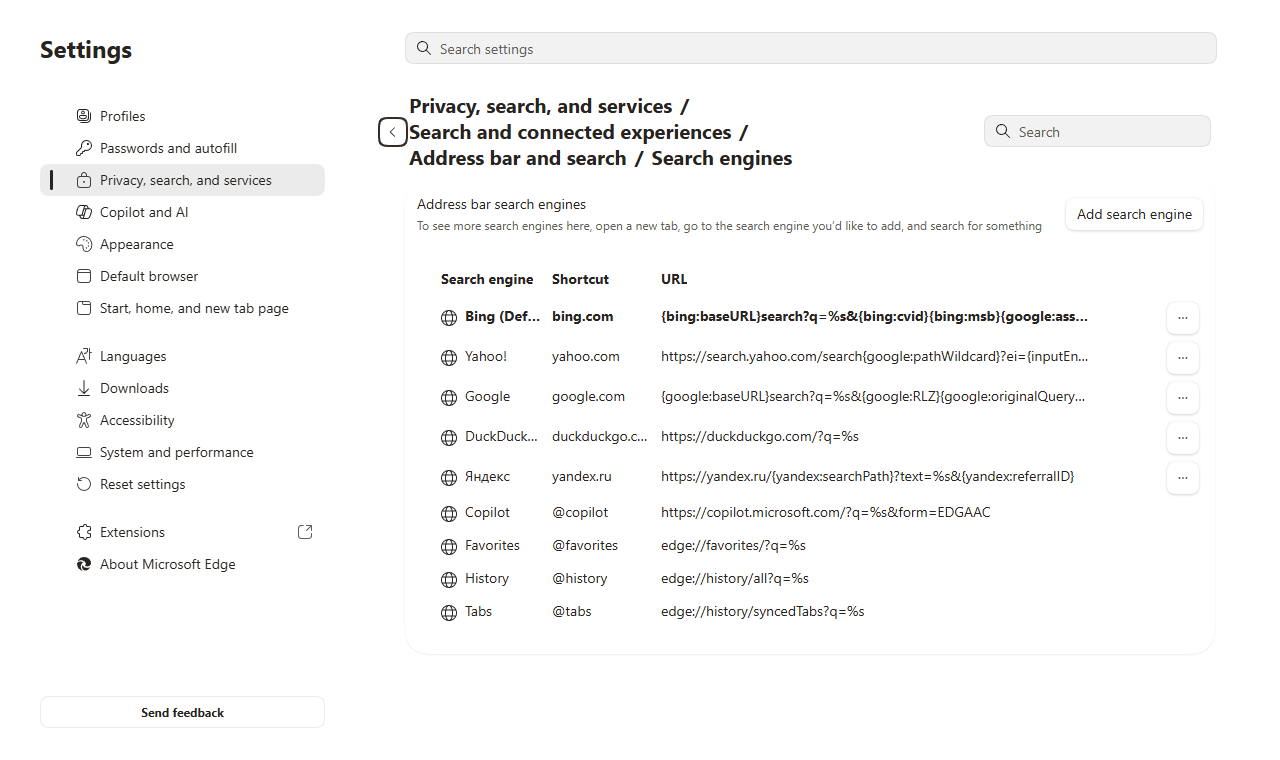
Yahoo is a real search engine, not a virus. Edge comes with Bing as its default, though, so Yahoo only shows up when someone or something picks it.
Yahoo runs a partner program. Other companies can make Yahoo your search engine through their extensions or software installers, and those searches usually land on a Yahoo Hosted Search page.
That page is why the address often reads search.yahoo.com/yhs/ plus a long code. The code tracks the partner that sent you, a clue that software chose Yahoo.
On a Mac, these are the usual ways Yahoo gets set without you meaning to:
- An Edge extension that changes your search engine. Microsoft notes that some extensions do this when they’re installed.
- A free app whose installer also set Yahoo as your search engine, often in a screen you clicked past.
- A security add-on offering Yahoo-powered “secure search” that you accepted during setup.
- A configuration profile that locks Edge’s search setting. Mac adware has used profiles to stop people from changing browser settings back.
The quick fix that works for most Macs
Work through these in order and run a test search after each one. Stop as soon as Yahoo is gone.
- Type edge://settings/search in the address bar, open Search engine used in the address bar, and pick Google or the engine you prefer.
- Type edge://extensions and switch off any extension you don’t recognize, especially search, new tab or “secure search” tools. Remove the one causing Yahoo.
- Open System Settings > General > Device Management (Privacy & Security > Profiles on macOS Ventura and Sonoma). Remove any profile you never installed.
- In Finder > Applications, drag to the Trash any app you don’t recognize that arrived around when Yahoo appeared. Keep Apple, Microsoft and security apps.
- Quit Edge with Command+Q, reopen it, and search from the address bar. If Yahoo stays away, you’re done.
What to do if Yahoo comes back
If Yahoo returns after a restart or a few days, something is still resetting it. Follow the full steps below, including the Mac scan and the Edge reset.
If the engine menu is grayed out or Edge says it’s managed by your organization, check edge://policy. On a Mac, such rules come from device management or configuration profiles.
On a work or school Mac, ask IT before removing anything. Removing a profile also deletes what it set up, such as an email account.
These steps fix unwanted search settings, hijacking extensions and Mac adware. They won’t recover a stolen account; change that password on the real website.
How to Remove Yahoo From Edge on Mac
Work from the top. As soon as Yahoo is gone, skip ahead to the final check instead of doing every step.
- Set Edge’s search engine
- Final check: is Yahoo gone?
- Advanced checks if Yahoo returns or the setting is locked
Step 1: Replace Yahoo with the search engine you want
Our Edge screenshots were taken on Windows. On a Mac the windows look slightly different, but the settings carry the same names.
Edge: pick the engine for the address bar
-
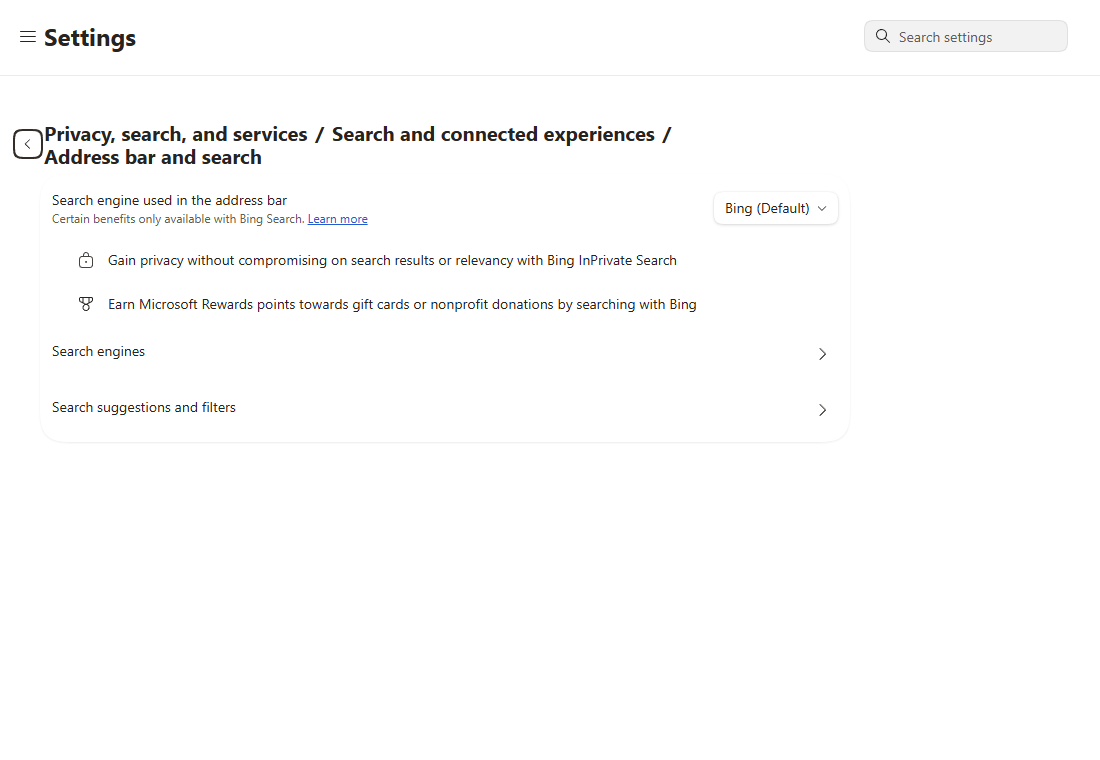
Open Address bar and search
Type edge://settings/search in the address bar and press Enter. This opens Address bar and search, sometimes listed under Privacy, search, and services > Search and connected experiences.
-
Select the engine you want
Click the Search engine used in the address bar menu and pick your engine. If Yahoo is selected and you never chose it, something else did.
Engine missing from the list? Go to its real website, run one search there, then come back. Edge usually adds it.
-
Test from the address bar, not the page
Open a new tab and type a test search into the address bar at the top. The search box in the middle of the page is a separate control.
If the same settings page offers a new-tab search option, set it to Address bar. If it doesn’t, just test from the address bar.
Results coming from your engine? Jump to the final check. Move on to extensions only if Yahoo still appears.
Step 2: Find the extension that set Yahoo
Edge: turn off the add-on behind Yahoo
-
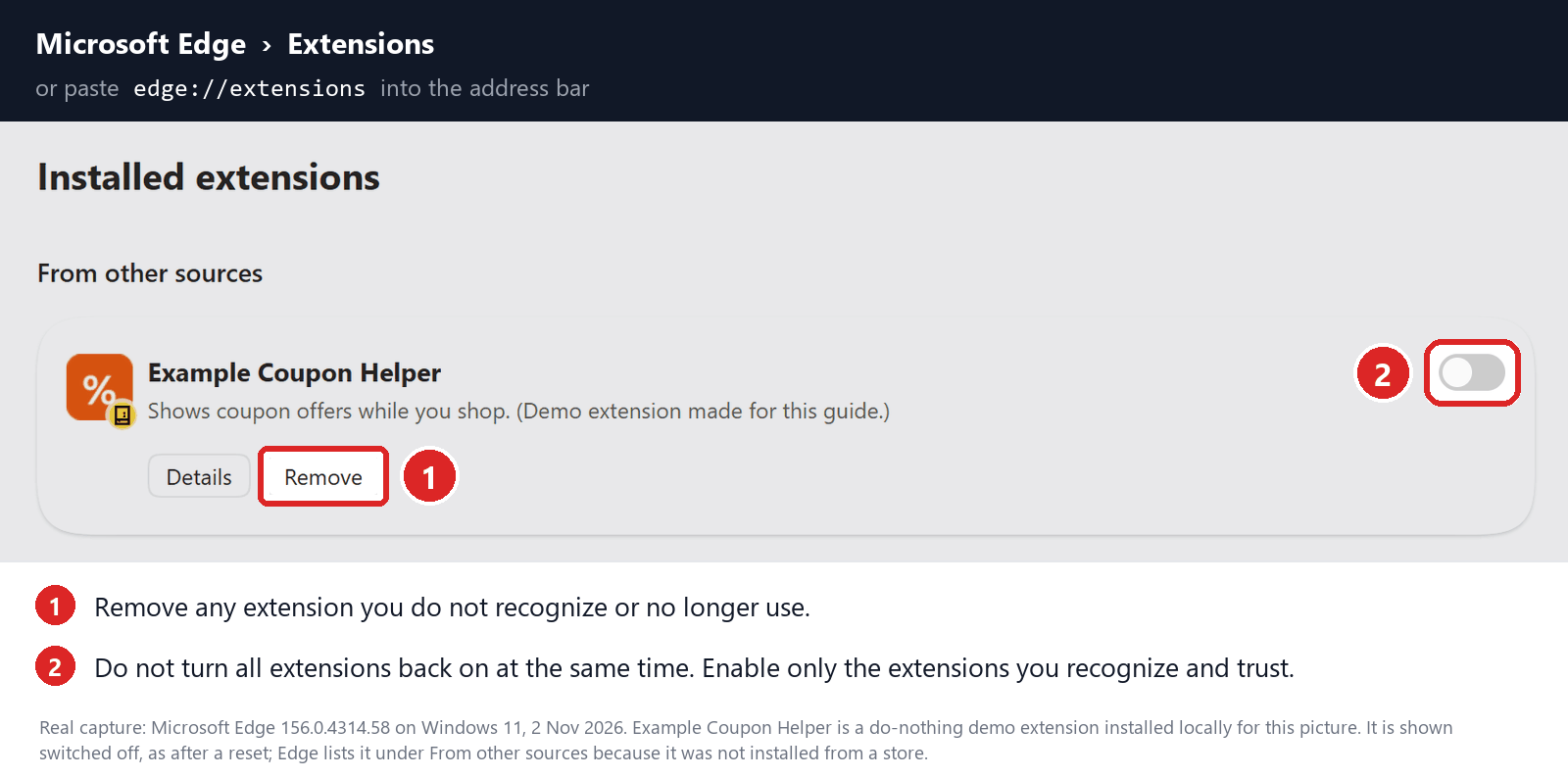
Open the Extensions page
Type edge://extensions and press Enter. The screenshot shows where Remove and the on/off switch sit, using a sample extension rather than one from your Mac.
-
Turn off suspects one at a time
Look for anything tied to search, new tabs or “secure search” that you don’t remember adding. Switch it off and search again.
If Yahoo disappears, click Remove on that extension and confirm. Then reopen the Step 1 page to check your engine is still selected.
Nothing suspicious in the list? Move on. If an extension won’t uninstall or keeps returning, use the advanced checks instead of deleting extension folders.
-
Stop here if searches stay fixed
If searches still go to your engine after you quit and reopen Edge, skip to the final check. Leave your other Edge profiles alone.
If pop-up alerts keep opening pages
Pages that open on their own, without a search, usually come from a site you allowed to send notifications. That is a separate problem from Yahoo search.
-
In Edge, open Settings and type Notifications into the settings search. Open the site permissions result, find the unwanted site under Allowed, and set it to Block or Remove.
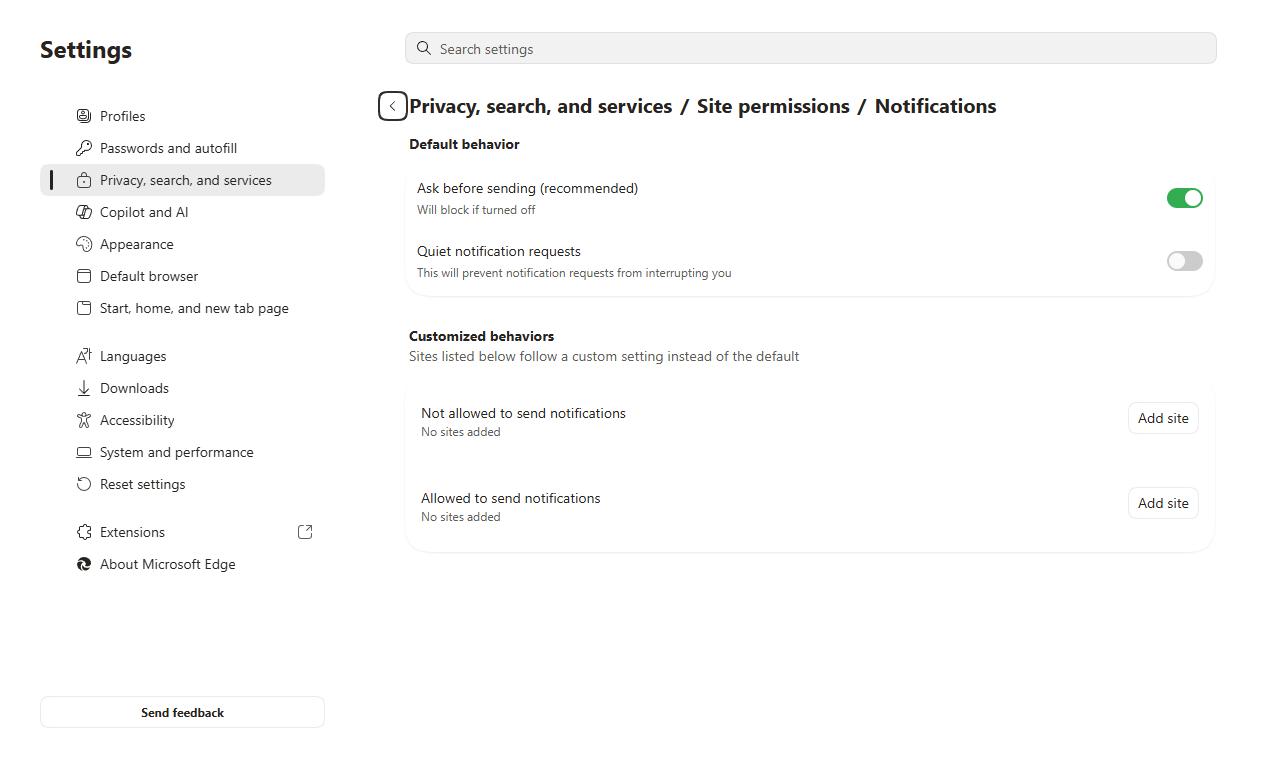
Always use Edge’s settings, never a button inside the alert itself. If the alerts stop and searches stay on your engine, you can skip the later steps.
Step 3: Scan your Mac if Yahoo keeps coming back
Skip this step if changing the setting fixed it. Run a scan when Yahoo keeps returning, an extension reappears, or you found an app you don’t trust.
Scan your Mac with Malwarebytes
Malwarebytes for Mac looks for adware and unwanted apps, the kind of software that keeps putting Yahoo back after you remove it.
The install screenshots come from our Mac guide and show an older version, so your screens may look a little different.
MalwareTips may receive a commission from optional purchases. You don’t need a paid protection plan to follow the manual browser checks.
-
Download Malwarebytes for Mac
Malwarebytes for MacMac-specific scan and threat reviewGet the Mac version, not the Windows installer or AdwCleaner, which only runs on Windows. Never download a “cleaner” offered by a pop-up or warning page.
-
Open the downloaded package
In Finder, open Downloads and double-click the Malwarebytes package. Your version number will likely differ from the one shown.

Make sure the file really comes from Malwarebytes. If the name or publisher looks wrong, stop and don’t open it.
When the installer opens, click Continue to begin.

Read the license screen and continue if you accept the terms. Accepting the license is not the same as buying a subscription.

-
Complete installation and required permissions
Keep clicking Continue through the remaining screens, then click Install when you reach it.

When macOS asks, enter your Mac password or use Touch ID. Only type that password into this Mac prompt, never on a website or for a caller.
If Malwarebytes asks for Full Disk Access, open System Settings, Privacy & Security, Full Disk Access and switch Malwarebytes on. Older macOS versions call it System Preferences.
Then go back to Malwarebytes. It may offer a trial or subscription; skip anything you don’t want.
If it asks what kind of computer this is, choose Personal Computer for your own Mac. On a work Mac, follow your IT team’s instructions.

-
Update the app and choose an available scan
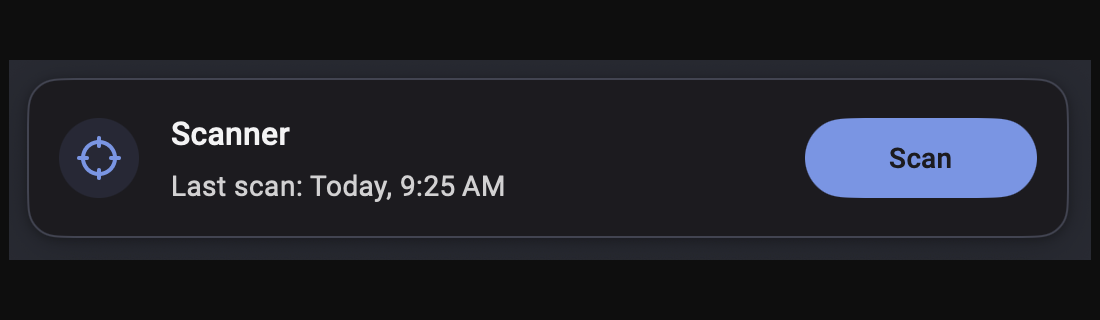
Click the Scanner tile itself, not the Scan button on it. Then open the Scan tab, choose Advanced scans, and pick Custom scan.
Quick and Custom scans are free. Threat Scan may need a trial or paid plan, even though an older screenshot below shows one.
In the Finder window, choose the folder or app you want checked, then click Open. The custom scan starts on that selection.
The big Scan button on the dashboard may start a Threat Scan instead, so use Custom scan for the free option.
Let the scan finish. Don’t close or uninstall Malwarebytes while it is still working.
The screenshot shows an older Threat Scan in progress. Wait for the results of your own scan before moving on.

-
Review what it found and remove threats
Look over each detection’s name and location, then quarantine or remove the threats. Save the report if you want help reading it.
This older version uses a Confirm button for selected items. Use the matching quarantine or remove button in yours.

The detections shown are examples only. Act on your own scan’s list.
-
Restart only if requested
If Malwarebytes asks to restart the Mac, save your work first. After the restart, open Malwarebytes again and keep the report.

Then search in Edge again. A clean scan doesn’t reset browser settings, so check your search engine and extensions once more.
-
Save details if Yahoo still returns
Note exactly when Yahoo comes back, such as after a restart or after signing in. Keep extension names, edge://policy entries and the scan report for later.
Don’t start deleting every profile or startup folder. Find out what each item belongs to before you remove anything.
Step 4: Reset Edge if Yahoo survives the earlier steps
Searches already working? Jump to Step 5. Reset Edge only when Yahoo is still there after the steps above.
Reset Edge after removing what changed it
A reset won’t uninstall a Mac app or remove a configuration profile. Deal with those first, or Yahoo may simply come straight back.
Back up important favorites before you start. If you use sync, pause Settings and Extensions sync so an old setting doesn’t copy straight back in.
These reset screenshots were also taken on Windows. The pages and buttons have the same names in Edge for Mac.
-
Open the reset settings page
In the Edge profile that keeps going to Yahoo, type edge://settings/reset and press Enter. Click Restore settings to their default values.
Prefer the menus? Open Edge Settings instead. If the sidebar is hidden, use the search box at the top of Settings.
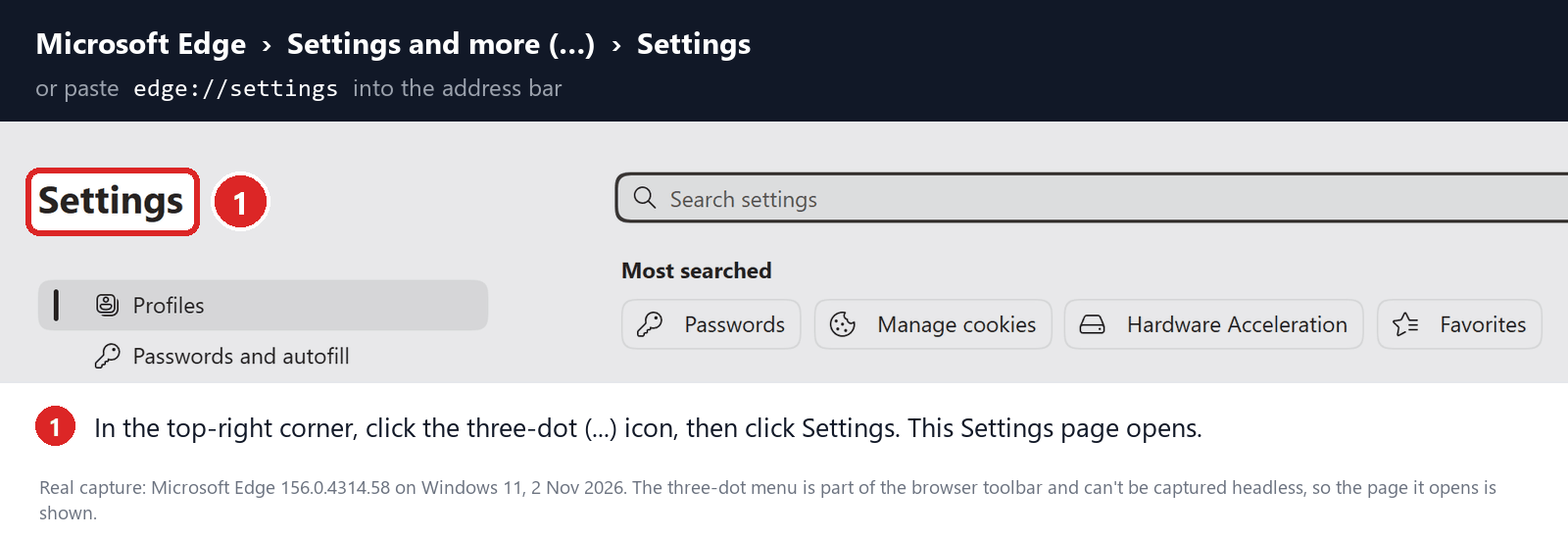
Click Reset settings in the sidebar.
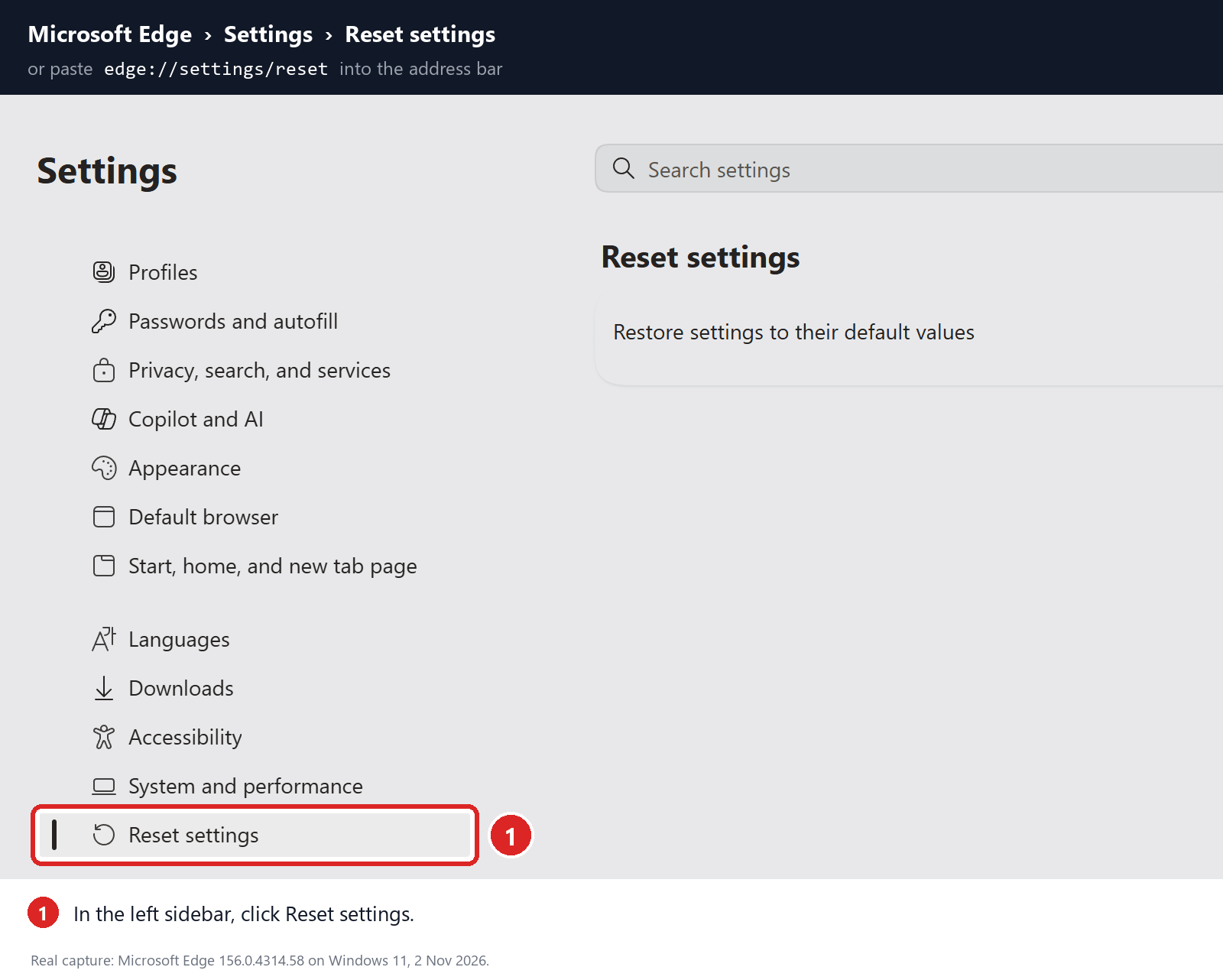
Then find Restore settings to their default values on that page.
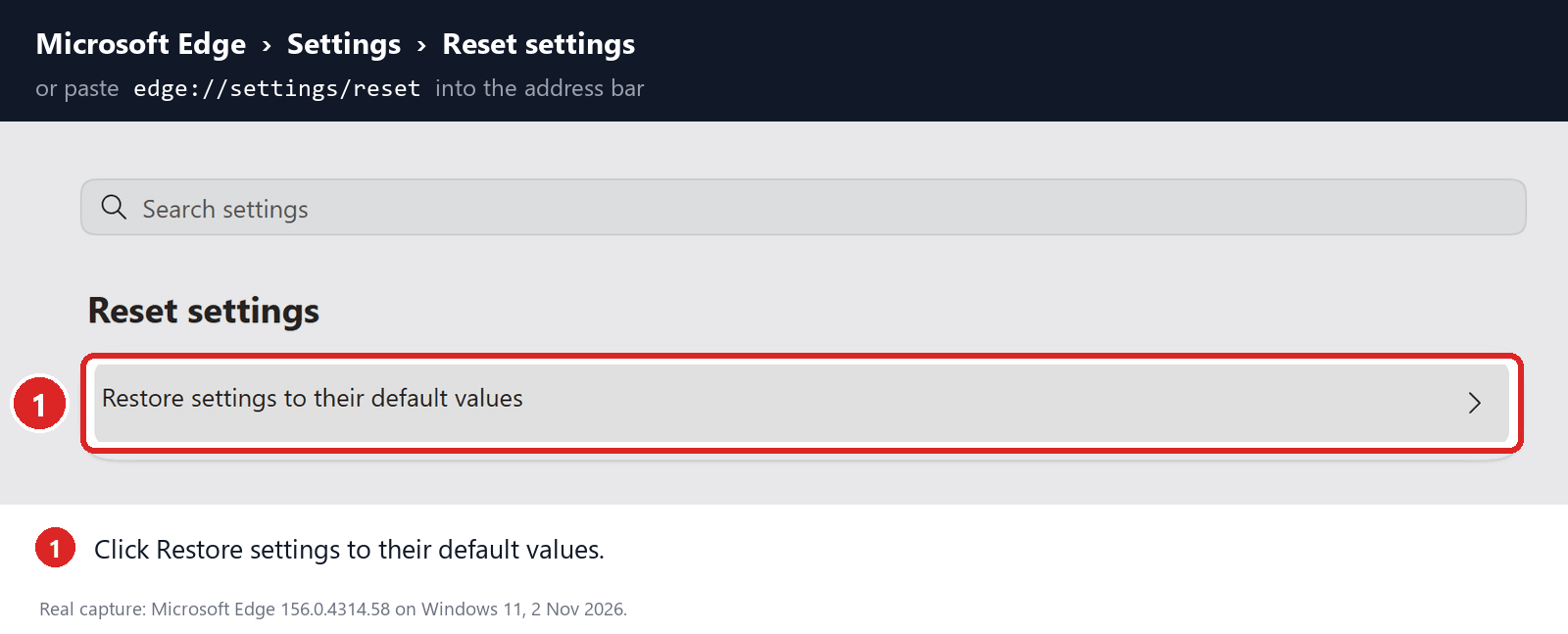
This resets only the profile you’re in. Your other Edge profiles keep their own settings.
-
Read the warning and confirm the reset
The reset puts search, startup and new tab settings back to default, turns off extensions, and clears cookies and other temporary data. Favorites, history and saved passwords stay.
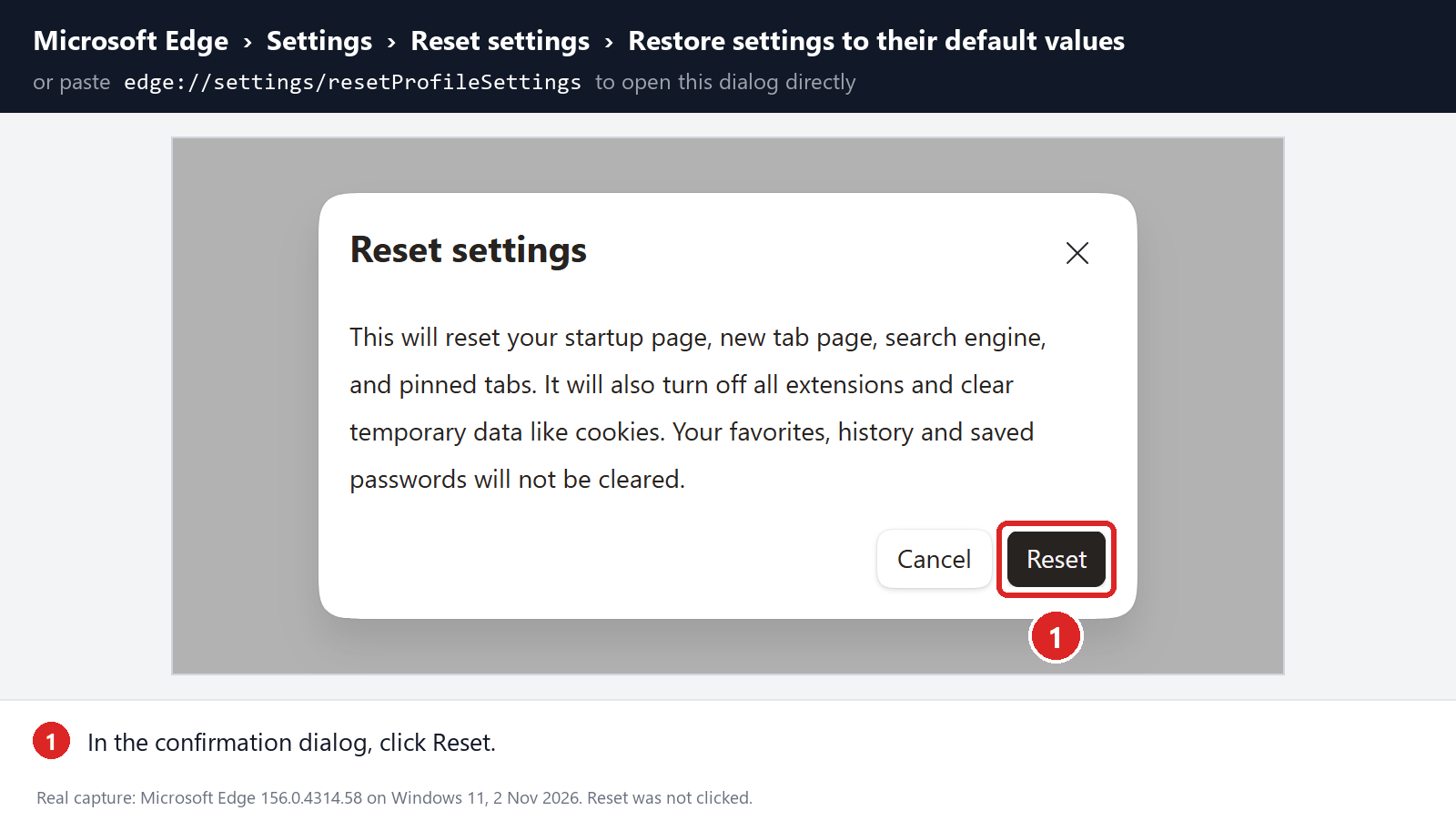
Click Reset. Clearing cookies signs you out of most websites, so keep your passwords handy.
-
Pick your engine again and add back trusted extensions
After a reset, Edge’s search engine goes back to Bing, not to your old choice. Return to Step 1 and select your engine again.
Test a search with extensions still off. Then turn trusted ones back on one at a time, searching after each, to spot the one that brings Yahoo back.
Step 5: Check that Yahoo is gone for good
Run the same search that used to land on Yahoo. Try it from the address bar, from a new tab and from your usual start page.
-
Quit Edge with Command+Q, open it again, and confirm your engine is still selected.
-
If Yahoo used to return after a restart, save your work, restart the Mac and test again.
-
If you paused sync, turn it back on one item at a time. You’re done when searches survive whatever used to bring Yahoo back.
If everything passes, you’re finished. The advanced checks below are only for a locked setting, an extension you can’t remove, or Yahoo that keeps returning.
Advanced Mac Checks If Yahoo Keeps Returning
Show checks for locked settings, stubborn extensions and apps that restore Yahoo
Skip this part if the fix held. On a work or school Mac, ask IT before changing profiles, system files or startup items.
Find out what is locking Edge’s search setting
Open edge://policy and click Reload policies. Write down any entry that mentions search, extensions or startup pages, along with its value.
Look for names like DefaultSearchProviderSearchURL or ExtensionInstallForcelist. If a search value contains yahoo.com, that rule is what forces Yahoo.
Ignore entries that have nothing to do with search. Employers and some security apps set harmless rules too, and those don’t need removing.
Next, open System Settings > General > Device Management (Privacy & Security > Profiles on macOS Ventura and Sonoma). Double-click each profile to see who made it and what it changes.
Removing a profile deletes everything it set up, which can include email, certificates or VPN access. Take a screenshot of its details before you click Remove.
On a company Mac, leave profiles to IT. Don’t try to get around enrollment or delete Microsoft’s preference files to unlock the menu.
Can’t tell where a rule came from? Ask in our forum. Windows registry fixes you find online won’t work on a Mac.
Find the Mac app that keeps restoring Yahoo
Open Finder > Applications and look for an app installed around the time Yahoo appeared, especially one linked to the extension or profile you found.
Use the app’s own uninstaller if it has one, or drag it to the Trash. Leave Microsoft AutoUpdate and your antivirus alone; they normally run in the background.
Then open System Settings > General > Login Items & Extensions. Check which app owns each item that opens at login or runs in the background.
Switch off only items that belong to the app you’re removing. Turning off everything can break software you rely on.
If Yahoo comes back only after you log in to the Mac, a startup helper is the likely cause. If it returns after signing in to Edge, look at sync.
Advanced users can also look in the LaunchAgents and LaunchDaemons folders. Check which program each file starts, and back up a file before removing it.
Never empty these folders, force-delete system files or quit every Microsoft process. That can break other apps and hide what caused the problem.
Test with a fresh Edge profile
Use Edge’s profile menu to add a new profile and name it Test. Don’t sign in or import anything yet.
Search from the new profile and open edge://policy there. Its settings start clean, but policies set for the whole Mac still apply.
If the test profile searches normally, the problem lives in your old profile, usually an extension or synced setting. If both go to Yahoo, look at Mac apps and profiles.
A working test profile doesn’t prove the Mac is clean. Unwanted software can target one Edge profile or one Mac user account.
Keep the old profile until you’ve saved what you need. Bring over favorites and passwords, but leave old extensions behind.
Don’t delete Edge’s data files
Some online guides tell you to delete Edge’s Web Data file. It holds more than search settings, so skip it unless someone helping you asks.
If a helper does ask, find the Profile Path at edge://version, quit Edge completely, and back up that profile folder first.
Keep that backup private, since it contains browsing data. Test a search before you turn sync back on.
Check Whether Edge Is Really Redirecting to Yahoo
Press Command+L in Edge and search for something harmless, like the weather. Then try the search box on the new tab page.
Next, go to your preferred engine’s website and search there. If that works but the address bar still lands on Yahoo, Edge’s search setting is the problem.
Watch the address bar as the page loads. If a different site flashes before search.yahoo.com, write down its name; that middle site is passing your search along.
If Yahoo opens before you type anything, check your startup page and restored tabs. That is a different setting from your search engine.
Also check which Edge profile you’re in. Each profile keeps its own search engine, so fixing one doesn’t fix the others.
If Safari or Chrome Also Opens Yahoo
Search in Safari or another browser on the Mac. What matters is whether the same strange site flashes first, not whether both browsers can show Yahoo.
When several browsers are affected, look for an app or configuration profile. Those can change more than one browser at once.
Check proxy, DNS or VPN settings only if every browser is affected. Note the current values first in case work or school needs them.
Network changes won’t remove an Edge extension, so don’t reset all network settings to fix a single browser.
Also rule out notifications. A site you allowed to send alerts can open Yahoo pages by itself; block it as shown in Step 2.
Read the policy page before changing anything
Open edge://policy and click Reload policies. Note any search or extension entry, its value and where it comes from.
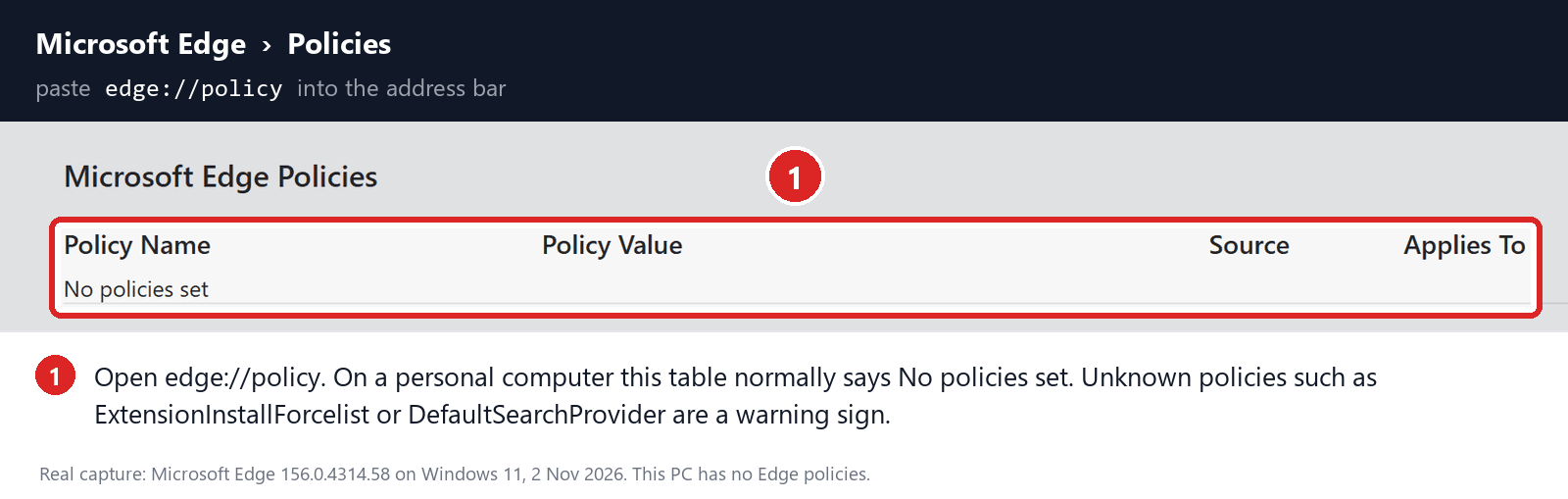
No policies set means nothing is locked, so you can skip this. If entries appear, find out where they came from; work or school rules belong to IT.
What to Do If Yahoo Still Comes Back in Edge
-
Write down which Edge profile is affected, where you searched, any site that flashes before Yahoo, and any suspicious extension or policy entry.
-
Save your Malwarebytes report and screenshots of any profiles. Remove your name, email address and file paths before posting them.
-
Post in the MalwareTips Mac removal-help forum for one-on-one help, or contact IT if work or school manages your Mac.
If a page during the redirect asked for a password and you typed it, change that password on the real website. Fixing Edge won’t protect that account.
Never call a phone number from a warning page, and never let a stranger connect to your Mac remotely.
Using more than one browser? Our complete Yahoo redirect guide covers Chrome, Edge, Firefox and Safari on Windows and Mac.
Related: Bing redirects in Edge on Mac and Yahoo in Edge on Windows.
Frequently Asked Questions
Is the Yahoo search engine a virus on my Mac?
No. Yahoo Search is a real search engine. The trouble is whatever put it in Edge without asking, usually an extension, a bundled app or a configuration profile.
That software is what people call the Yahoo redirect virus. Remove it, and Yahoo goes back to being just another engine you can choose.
Why is Yahoo my search engine in Edge when I never chose it?
Something chose it for you. Microsoft says some extensions change your search engine when installed, and Yahoo’s partner program lets other companies set Yahoo through their software.
Check edge://extensions first, then any app you installed just before the change.
Why can’t I remove Yahoo as my search engine on my Mac?
If the menu is grayed out or Edge says it’s managed by your organization, a policy is locking it. Open edge://policy to see the rule.
On a personal Mac, that rule usually comes from a configuration profile. Remove the one you don’t recognize in System Settings, then restart Edge.
How do I block Yahoo search on my Mac for good?
There’s no switch that blocks Yahoo itself. You keep it away by removing the extension, app or profile that set it, then picking your own engine.
After that, read installer screens carefully. Uncheck offers to change your search engine or home page when you install free software.
What does search.yahoo.com/yhs mean in my address bar?
YHS stands for Yahoo Hosted Search, the results page Yahoo provides to partners that distribute its search. The code after it helps Yahoo track which partner sent you.
Seeing it usually means software or an extension sent your search there, rather than a choice you made in Edge.
Why does Yahoo keep coming back after I fix it?
Something you missed is resetting it: a startup app, a configuration profile, or sync copying an unwanted extension back from another device. The advanced checks above cover each one.
The Bottom Line
Set your engine in edge://settings/search, remove the extension or app that changed it, and delete any profile you didn’t install. Then reopen Edge and test.
If Edge redirects to Yahoo on Mac again later, run the Malwarebytes scan, reset Edge, pick your engine again, and check edge://policy for a locked rule.
Still stuck? Post your notes and scan report in the MalwareTips Mac forum, or ask IT if work or school manages the Mac.

Join the discussion
0 commentsShare your experience or ask a question about this article.
Your progress
Did these steps help?
Let us know how the guide worked for you.
Describe what you see and the step you reached. Keep passwords and other private information out.
Discussion
Start the conversation
Have a question or something useful to share? Add the first comment.