

My Super Cheap is an potentially unwanted program that will display their own ads on eBay,Best Buy,Facebook and other websites that you are visiting.These advertisements will be shown as boxes containing various coupons that are available or as underlined keywords, which when clicked will display an advertisement that states it is brought to you by My Super Cheap.
My Super Cheap is an add-on for Internet Explorer, Firefox, and Chrome that is typically installed when you install other free programs. When you install these free programs, they will also install My Super Cheap as well. Some of the programs that are known to bundle CouponDropDown include 1ClickDownload, Yontoo, and FBPhotoZoom.
![[Image: My Super Cheap ads]](https://malwaretips.com/blogs/wp-content/uploads/mwt-media/57/5748708466dd23b28b9633ec3bf5e7b2e0aa689a42465bc7b21bb2fbd3c1c2e6/75ba75c01bf30f861d900f1e58289a895a7ed9503240f7c66f230f297e20e469-600.webp "Remove My Super Cheap ads (Uninstall Guide) 1")
You should always pay attention when installing software because often, a software installer includes optional installs, such as this My Super Cheap. Be very careful what you agree to install. Always opt for the custom installation and deselect anything that is not familiar, especially optional software that you never wanted to download and install in the first place. It goes without saying that you should not install software that you don’t trust.
My Super Cheap Ads – Adware Removal Instructions
STEP 1 : Uninstall My Super Cheap from your computer
My Super Cheap has installed a program called Yontoo on your computer which we will need to uninstall.
- To uninstall Yontoo program from your computer,click the Start button, click on Control Panel,the select Uninstall a program. (Add or Remove Programs for Windows XP users)
- Search and uninstall Yontoo from your computer.
![[Image: My Super Cheap uninstaller]](https://malwaretips.com/blogs/wp-content/uploads/mwt-media/5f/5f73b32ae5ef62cdf3f70d204a0a0a494acacfc60a082dfe7fd5da7ea74eccf7/643b4b7b39e4d94a3baed423d3d3c36328e5a37c2d4feb0e89385a651f2a3773-600.webp "Uninstall My Super Cheap")
Please keep in mind that on some computers, this program might be renamed, if you can’t find Yontoo on your list,then carefully look for any suspicious program and uninstall it from your computer.
STEP 2 : Remove the My Super Cheap residual damage from your browser
Remove My Super Cheap from Internet Explorer
- Open Internet Explorer,then click on the gear icon
![[Image: icongear.jpg]](//malwaretips.com/images/removalguide/icongear.jpg "Remove My Super Cheap ads (Uninstall Guide) 2") (Tools for Windows XP users) at the top (far right) and then select Manage add-ons
(Tools for Windows XP users) at the top (far right) and then select Manage add-ons
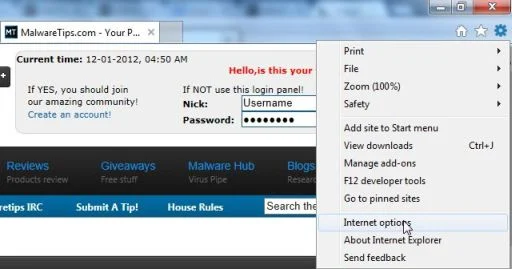
- From the Toolbars and Extensions tab, select My Super Cheap and click Disable.
![[Image: My Super Cheap Internet Explorer add-on]](https://malwaretips.com/blogs/wp-content/uploads/mwt-media/42/42093fe32301823e7eeaddd5c0f6313849d4c7aa6a252ee09fdc504983b788d3/ee3058a60b1552f33505edb410bca021b9f2f1325eaea1232a6261d3e52b5bf7-600.webp "My Super Cheap Internet Explorer add-on")
![[Image: icongear.jpg]](http://malwaretips.com/images/removalguide/icongear.jpg "Remove My Super Cheap ads (Uninstall Guide) 2") (Tools for Windows XP users) at the top (far right) and then select Manage add-ons
(Tools for Windows XP users) at the top (far right) and then select Manage add-onsRemove My Super Cheap from Mozilla Firefox
- At the top of the Firefox window, click the Firefox button, then select Add-ons.
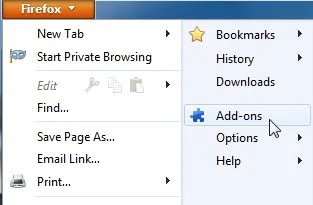
- Select the Extensions tab, then remove Yontoo from Firefox.
![[Image: My Super Cheap Firefox extension]](https://malwaretips.com/blogs/wp-content/uploads/mwt-media/95/9548de3e3f2f052296640915226f365345d93348a34a8d6b2fcb152be9604acd/772085610853b6cab9b68425e1d20066bfc905cf61d66a23d048cf6b7ec3daf4-600.webp "My Super Cheap Firefox extension")
Remove My Super Cheap from Google Chrome
- Click the Chrome menu
on the browser toolbar,select Tools and then click on Extensions.
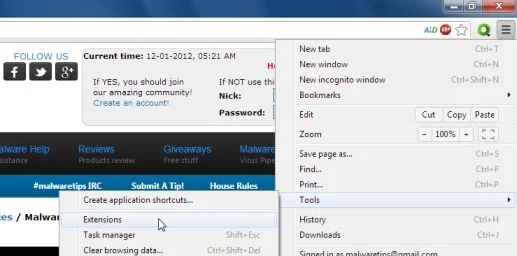
- In the Extensions tab,remove (by clicking on the Recycle Bin) the Yontoo extension.
![[Image: My Super Cheap Chrome extension]](https://malwaretips.com/blogs/wp-content/uploads/mwt-media/92/92defb76ae7b530044e0c6203b98f2f7c2758935480a06a70c8a632b326076c6/35f870ec94eba884ae64a19122696c911b6d0ab955ad5ab02828529af54edb80-600.webp "My Super Cheap Chrome extension")
STEP 3: Remove My Super Cheap registry keys with Adwcleaner
- You can download AdwCleaner from the below link.
Download AdwCleanerFree official download. Nothing to install. - Before starting this utility,close all open programs and internet browsers.
- Double click on adwcleaner.exe to run the tool.
- Click on Delete,then confirm each time with Ok.
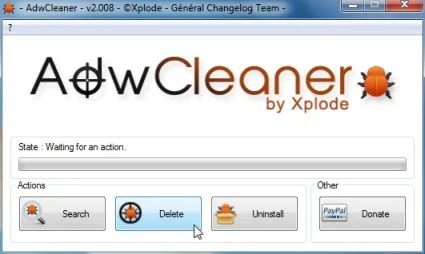
- Your computer will be rebooted automatically. A text file will open after the restart.
- NEXT,double click on adwcleaner.exe to run the tool.
- Click on Uninstall,then confirm with yes to remove this utility from your computer.
STEP 4: Run a computer scan with Malwarebytes Anti-Malware
- You can download Malwarebytes Anti-Malware Free from the below link,then double click on it to install this program.
Download MalwarebytesFree official installer. Your download starts right away. - When the installation begins, keep following the prompts in order to continue with the setup process.
DO NOT make any changes to default settings and when the program has finished installing, make sure you leave both the Update Malwarebytes’ Anti-Malware and Launch Malwarebytes’ Anti-Malware checked,then click on the Finish button.
![[Image: Malwarebytes Anti-Malware final installation screen]](https://malwaretips.com/blogs/wp-content/uploads/mwt-media/47/471448d4dd5aa1d55ea545effccf0ac9c8ccb5a29622da4e38ac677b5d8c37b5/9f473303c15a00262451cc5a56b904de929157b59e19e3cfb2c03ec88f643390-402.webp "Malwarebytes Anti-Malware final installation screen")
- On the Scanner tab,select Perform quick scan and then click on the Scan button to start scanning your computer.
![[Image: Malwarebytes Anti-Malware Quick Scan]](https://malwaretips.com/blogs/wp-content/uploads/mwt-media/1e/1eb209597ca2f06e596fd060345ac7e3100355f1ec8fc8ea2d9dec7abbb05ea0/3afba9b0b97b56945ffc33817ac48f7433c799241a22e422966180b76473a906-521.webp "Run a Quick Scan with Malwarebytes Anti-Malware")
- Malwarebytes’ Anti-Malware will now start scanning your computer as shown below.
![[Image: Malwarebytes Anti-Malware scanning for malware]](https://malwaretips.com/blogs/wp-content/uploads/mwt-media/f6/f6ecfba43df64204df40586070483f260cb91fa07d5cc90cb4c3a588d159ff30/5b6b2687853201a40d29fe27e142cc66b0852745bbad3900a21030a10399cb4c-521.webp "Malwarebytes Anti-Malware scanning for malware")
- When the Malwarebytes scan will be completed,click on Show Result.
![[Image: Malwarebytes Anti-Malware scan results]](https://malwaretips.com/blogs/wp-content/uploads/mwt-media/84/84c62dd46289424dbc686abc53672cb0810111920c8c0bbd69e973844d0a9ab0/a4c04aa700e641f47afec9965f79ff346740668e5952955ccbe5b4c3658b5897-521.webp "Malwarebytes when the system scan has completed")
- You will now be presented with a screen showing you the malware infections that Malwarebytes’ Anti-Malware has detected.Please note that the infections found may be different than what is shown in the image.Make sure that everything is Checked (ticked) and click on the Remove Selected button.
![[Image:Malwarebytes removing malware]](https://malwaretips.com/blogs/wp-content/uploads/mwt-media/d8/d86b6a8bac0e4ece9fd2d259a83db71487943f6b04b567edb0e9adcc3200f492/4eb94651b0e34cc99689c56dc71cd0a49444498ed05c5803ea55fda1cfee1b1f-521.webp "Click on Remove Selected to get rid of malware")

Join the discussion
0 commentsShare your experience or ask a question about this article.
Your progress
Did these steps help?
Let us know how the guide worked for you.
Describe what you see and the step you reached. Keep passwords and other private information out.
Discussion
Start the conversation
Have a question or something useful to share? Add the first comment.