

Oyodomo is an advertising platform, which is used by adware and other malicious programs to display popup ads from Oyodomo.com within Internet Explorer, Firefox and Google Chrome.
![[Image: Oyodomo virus]](https://malwaretips.com/blogs/wp-content/uploads/mwt-media/df/df1523082d7365af652df328b769c749388db596473c984218c6594dc4341c95/66e4f39da7276dcefe8fa1d13e9e1ef3a3e0bfa0c4deb003a063eacb14b865cb-273.webp "Oyodomo adware")
The Oyodomo popup ads happens regardless of the web browser or search engine, and if you are seeing ads from Oyodomo.com whenever you are doing a Google search or visiting a website, then your computer may be infected with Pihar, Tracur, ZeroAccess/Sirefef rootkit, adware or a potentially unwanted program.
This infection is designed specifically to make money. It generates web traffic, collects sales leads for other dubious sites, and will display advertisements and sponsored links within your web browser.
Oyodomo virus is distributed through several means. Malicious websites, or legitimate websites that have been compromised, may drop this Trojan onto a compromised computer. This drive-by-download often happens surreptitiously. Another method used to propagate this type of malware is spam email containing infected attachments or links to malicious websites. The threat may also be downloaded manually by tricking the user into thinking they are installing a useful piece of software.
Oyodomo virus is also prevalent on peer-to-peer file sharing websites and is often packaged with pirated or illegally acquired software.
Once install on a computer, the Oyodomo will display pop-up ads within your browser and Flash update boxes with the sole purpose of generating revenue for the cyber criminals.
![[Image: Oyodomo popup ads]](https://malwaretips.com/blogs/wp-content/uploads/mwt-media/4b/4bbfa35b8057b8675c5ffe2ccd4e22e1ebd129be7ef2ab68cf33d2786d3af76e/5773736b8171944d7f6adbfe2d2f0032e283c93574d9c11cdc710b4d046798e8-600.webp "Oyodomo popup ads")
The text of this pop-up is:
A Flash Player Update is Required to View this Content
- 100% Free Update
- Experience the Web at its fullest
- Beautiful HD video, faster graphics rendering, and high performance
- Richer, more immersive user experiences
See details….
This update will only take a couple of minutes.
Oyodomo.com is not a malicious domain itself, however this website is used by cyber criminals as a tracking website for their affiliate programs.Before traffic is delivered to advertisers, Oyodomo is used as a network referral ID to identify and qualify traffic sent by traffic partners.
Depending on what is causing the Oyodomo popup ads, the malware removal process can be different for each particular case, however using the below guide, you should be able to remove this infection from your computer.
You should always pay attention when installing software because often, a software installer includes optional installs, such as this Oyodomo adware. Be very careful what you agree to install.
Always opt for the custom installation and deselect anything that is not familiar, especially optional software that you never wanted to download and install in the first place. It goes without saying that you should not install software that you don’t trust.
Oyodomo popup ads – Virus Removal Instructions
STEP 1 : Uninstall Oyodomo programs from your computer
Oyodomo pop-up ads may be displayed by a adware program that you recently have installed. In our case Oyodomo.com adware was installed with DownloadTerms, LyricsPal or HD Flash Player programs, and we will need to uninstall any of these programs.
- To uninstall Kaq Pagerte programs from your computer, click the Start button, then select Control Panel, and click on Uninstall a program.
If you are using Windows 8, simply drag your mouse pointer to the right edge of the screen, select Search from the list and search for “control panel“. Or you can right-click on a bottom left hot corner (formerly known as the Start button) and select Control Panel from there, then select Uninstall a program.
![[Image: Uninstall a program]](https://malwaretips.com/blogs/wp-content/uploads/mwt-media/2a/2a46a9e643eeeb764fb164177551c571817a8b4d4fe8141504dca801f8abc8cc/f2a64da5c9bbae588b1c04059e9f6a1e9a413554048666c6db3aa65196a7b99a-557.webp "Click on Uninstall a program")
- When the Add/Remove Programs or the Uninstall a Program screen is displayed, scroll through the list of currently installed programs and uninstall DownloadTerms, LyricsPal, HD Flash Player and any other unwanted or unknown programs from your computer.
![[Image: Uninstall Oyodomo programs]](https://malwaretips.com/blogs/wp-content/uploads/mwt-media/d3/d3f2ecd6d689198177af026f31ddc3ca1730e190871935d352f3d0b42794f61f/2805e07b082e0f78d65298ce4668ad50777a701ebdc86a2b6249801286f5c1a2-825.webp "Uninstall Oyodomo programs")
Depending on what program has installed this adware, the above programs may have a different name.
We recommend that you uninstall any software developed by XingHao, and any other unknown programs.
STEP 2 : Remove Oyodomo.com pop-ups ads from your browser
Remove Oyodomo pop-ups from Internet Explorer
- Open Internet Explorer, click on the gear icon
![[Image: icongear.jpg]](//malwaretips.com/images/removalguide/icongear.jpg "Remove Oyodomo.com pop-up ads (Removal Guide) 1") (Tools for Windows XP users) at the top (far right), then click again on Internet Options.
(Tools for Windows XP users) at the top (far right), then click again on Internet Options.
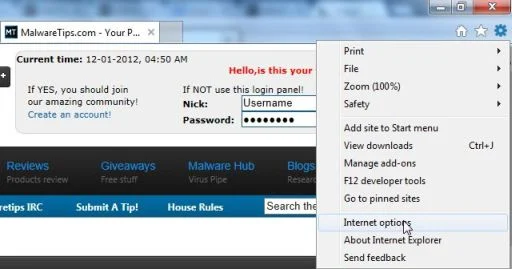
- In the Internet Options dialog box, click on the Advanced tab, then click on the Reset button.
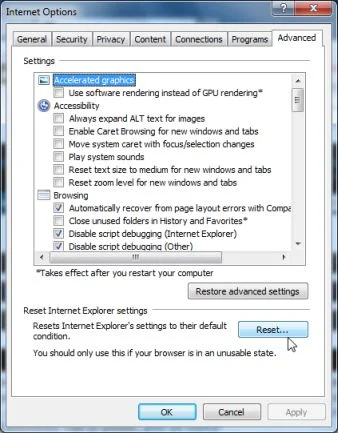
- In the Reset Internet Explorer settings section, check the Delete personal settings box, then click on Reset.
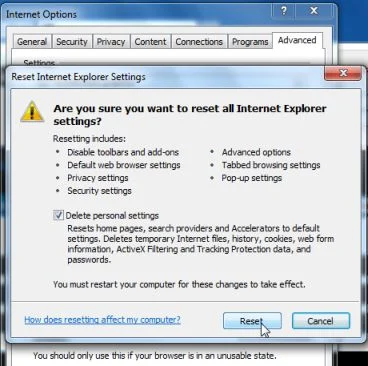
- When Internet Explorer finishes resetting, click Close in the confirmation dialogue box and then click OK.
- Close and open Internet Explorer.
![[Image: icongear.jpg]](http://malwaretips.com/images/removalguide/icongear.jpg "Remove Oyodomo.com pop-up ads (Removal Guide) 1") (Tools for Windows XP users) at the top (far right), then click again on Internet Options.
(Tools for Windows XP users) at the top (far right), then click again on Internet Options.Remove Oyodomo pop-ups from Mozilla Firefox
- At the top of the Firefox window, click the Firefox button, go over to the Help sub-menu (on Windows XP, click the Help menu at the top of the Firefox window), and select Troubleshooting Information.
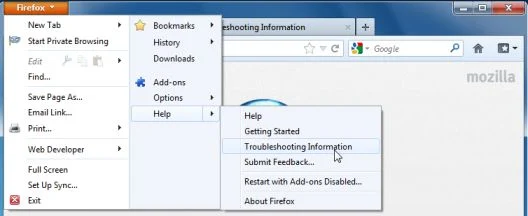
- Click the Reset Firefox button in the upper-right corner of the Troubleshooting Information page.
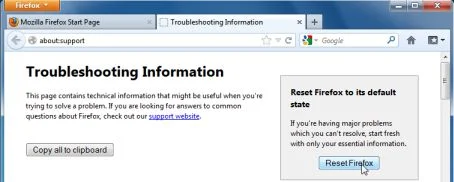
- To continue, click Reset Firefox in the confirmation window that opens.
- Firefox will close and be reset. When it’s done, a window will list the information that was imported. Click Finish
Remove Oyodomo pop-ups from Google Chrome
- Remove Oyodomo extensions from Google Chrome.
Click the Chrome menu button on the browser toolbar, select Tools and then click on Extensions.
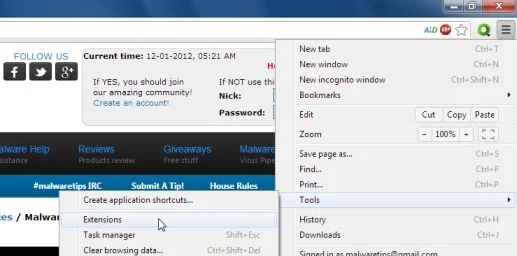
- In the Extensions tab, remove (by clicking on the Recycle Bin) the LyricsPal, FindLyrics and any other unknown extensions from Google Chrome.
![[Image: Oyodomo browser extension]](https://malwaretips.com/blogs/wp-content/uploads/mwt-media/a9/a983bf76fb24482e04a6891aa6f9a947b6b6a94be57bcaef6620bea6a49480b0/2d72a3c333343b42b306dc37db639606794bd258abe6e231c28b1943bfc39f69-612.webp "Oyodomo browser extension")
STEP 3: Remove Oyodomo registry keys with AdwCleaner
- You can download AdwCleaner from the below link. Download AdwCleanerFree official download. Nothing to install.
- Before starting this utility, close all open programs and internet browsers.
- Double click on adwcleaner.exe to run the tool.
- Click on Delete, then confirm each time with Ok.
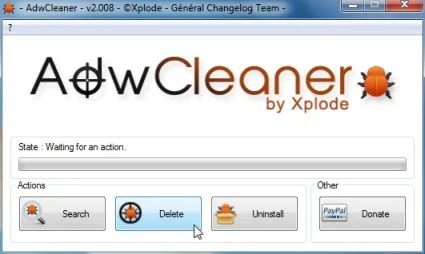
- Your computer will be rebooted automatically. A text file will open after the restart.
STEP 4: Remove Oyodomo malicious files with Malwarebytes Anti-Malware FREE
Malwarebytes Anti-Malware is a powerfull on-demand scanner which will remove Oyodomo malicious files from your computer.
- You can download Malwarebytes Anti-Malware Free from the below link, then double click on it to install this program.
Download MalwarebytesFree official installer. Your download starts right away. - When the installation begins, keep following the prompts in order to continue with the setup process. DO NOT make any changes to default settings and when the program has finished installing, make sure you leave both the Update Malwarebytes’ Anti-Malware and Launch Malwarebytes’ Anti-Malware checked,then click on the Finish button.
![[Image: Malwarebytes Anti-Malware final installation screen]](https://malwaretips.com/blogs/wp-content/uploads/mwt-media/47/471448d4dd5aa1d55ea545effccf0ac9c8ccb5a29622da4e38ac677b5d8c37b5/9f473303c15a00262451cc5a56b904de929157b59e19e3cfb2c03ec88f643390-402.webp "Malwarebytes Anti-Malware final installation screen")
- On the Scanner tab,select Perform quick scan and then click on the Scan button to start scanning your computer.
![[Image: Malwarebytes Anti-Malware Quick Scan]](https://malwaretips.com/blogs/wp-content/uploads/mwt-media/1e/1eb209597ca2f06e596fd060345ac7e3100355f1ec8fc8ea2d9dec7abbb05ea0/3afba9b0b97b56945ffc33817ac48f7433c799241a22e422966180b76473a906-521.webp "Run a Quick Scan with Malwarebytes Anti-Malware")
- Malwarebytes’ Anti-Malware will now start scanning your computer for Oyodomo malicious files as shown below.
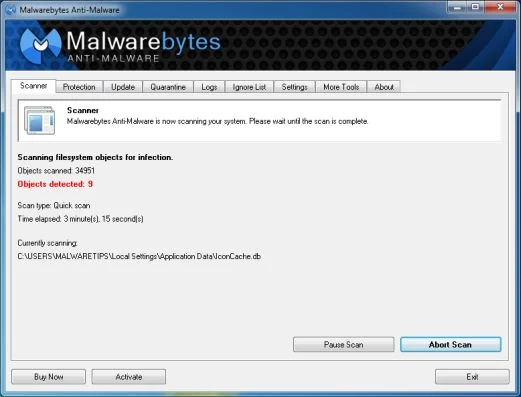
- When the Malwarebytes scan will be completed,click on Show Result.
![[Image: Malwarebytes Anti-Malware scan results]](https://malwaretips.com/blogs/wp-content/uploads/mwt-media/84/84c62dd46289424dbc686abc53672cb0810111920c8c0bbd69e973844d0a9ab0/a4c04aa700e641f47afec9965f79ff346740668e5952955ccbe5b4c3658b5897-521.webp "Malwarebytes when the system scan has completed")
- You will now be presented with a screen showing you the malware infections that Malwarebytes’ Anti-Malware has detected.Please note that the infections found may be different than what is shown in the image.Make sure that everything is Checked (ticked) and click on the Remove Selected button.
![[Image:Malwarebytes removing virus]](https://malwaretips.com/blogs/wp-content/uploads/mwt-media/d8/d86b6a8bac0e4ece9fd2d259a83db71487943f6b04b567edb0e9adcc3200f492/4eb94651b0e34cc99689c56dc71cd0a49444498ed05c5803ea55fda1cfee1b1f-521.webp "Click on Remove Selected to get rid of")
- After your computer restarts, open Malwarebytes Anti-Malware and perform a full system scan to verify that there are no remaining threats.
STEP 5: Remove Oyodomo malicious files with HitmanPro
Oyodomo may also install a rootkit on victims computer, to remove this malicious program we will use HitmanPro.
- You can download HitmanPro from the below link, then double-click on it to start this program.
Download HitmanProOfficial Sophos download. Free scan, free 30-day trial to remove threats.
IF you are experiencing problems while trying to start HitmanPro, you can use the Force Breach mode.To start HitmanPro in Force Breach mode, hold down the left CTRL key when you start HitmanPro and all non-essential processes are terminated, including the malware process. (How to start HitmanPro in Force Breach mode – Video) - HitmanPro will start and you’ll need to follow the prompts (by clicking on the Next button) to start a system scan with this program.
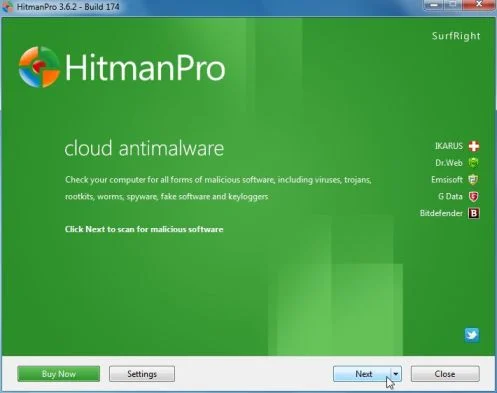
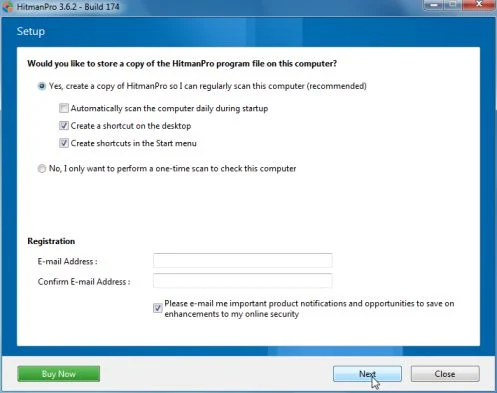
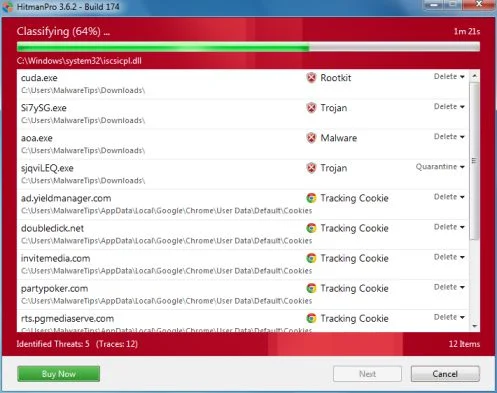
- HitmanPro will start scanning your computer for Oyodomo malicious files as seen in the image below.
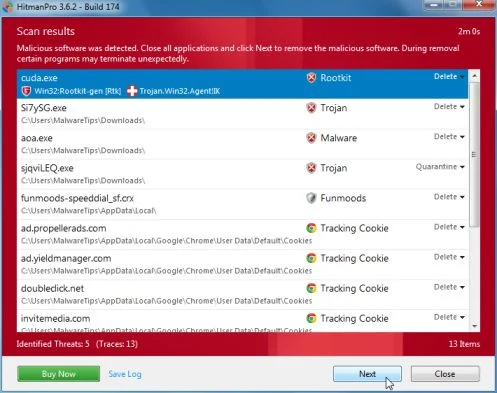
- Once the scan is complete,you’ll see a screen which will display all the infected files that this utility has detected, and you’ll need to click on Next to remove this malicious files.
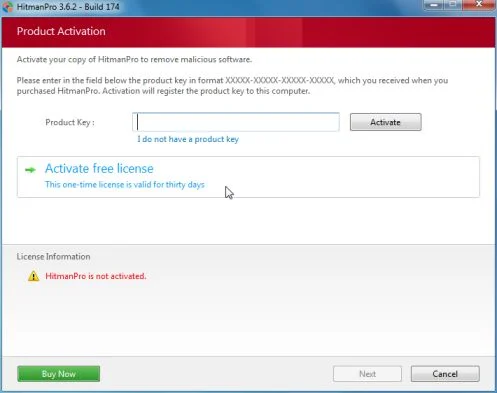
- Click Activate free license to start the free 30 days trial and remove all the malicious files from your computer.

Join the discussion
5 commentsShare your experience or ask a question about this article.
Discussion
Thanks heaps. Very easy steps, appreciated.
Thanks very much
thank you very much! your guiding helped me a lot! now I don’t have crap on my laptop
worked excellent – thanks dude for getting rid of this VERY anoying crap.
thank you