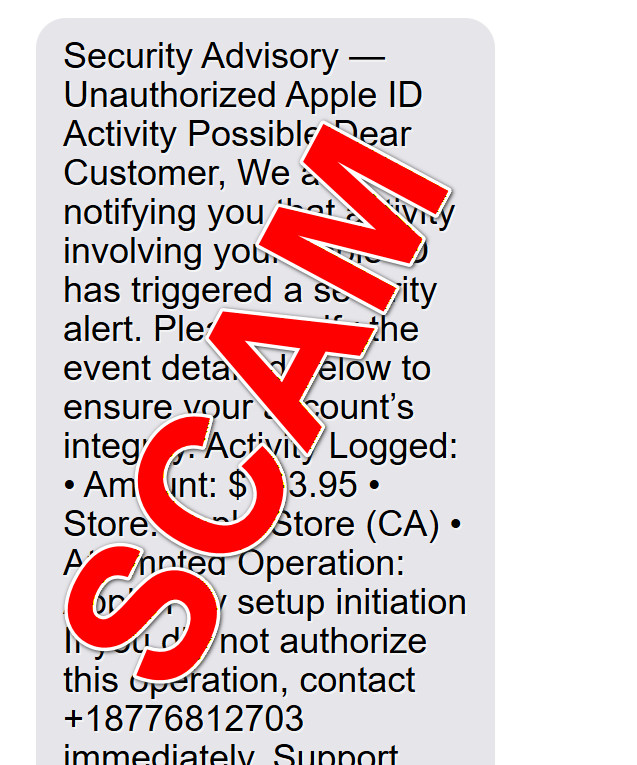
You are waiting in a checkout line, half-watching a video, or answering a work message, and your phone buzzes. The text looks official. It uses the right words. It even sounds like something a cautious company would send.
Then you see the line that changes the temperature in the room.
“Activity involving your Apple ID has triggered a security alert.”
There is a dollar amount. A store location. A scary detail about Apple Pay. And then a single instruction that feels urgent enough to override your instincts, call this number right now.
That is the hook. Not a sophisticated hack, not a mysterious exploit. Just a well-written nudge that turns normal people into panicked people, fast.
And once panic shows up, the scam does not need to be clever, it just needs to keep you moving.
Scam Overview
The “Activity Involving Your Apple ID” text scam is a tech support style con disguised as an Apple security or billing alert. It typically claims there was unauthorized activity tied to your Apple ID, often involving a charge like $143.95 and an “Apple Pay setup initiation” or “Apple Store (CA)” purchase.
The goal is simple: get you to call a phone number that connects you to scammers pretending to be Apple Support or Apple Billing.
What the scam message usually looks like
The message often includes:
A formal header like “Security Advisory” or “Apple Security Alert”
A warning about “unauthorized Apple ID activity”
A specific dollar amount, usually between $100 and $500
A believable location, like “Apple Store (CA)”
A scary “attempted operation” detail, like Apple Pay setup
A phone number to call immediately, for example +18776812703
A line that tries to sound responsible, like “Apple will never request sensitive credentials”
Sometimes a real Apple URL to lower your guard, like support.apple.com/billing
This blend is not accidental. Scammers mix real and fake elements on purpose, because the “real” parts make the “fake” parts easier to swallow.
Why this scam is so effective
This scam works because it attacks three instincts at once: fear, speed, and identity.
Fear: Apple Pay and Apple ID feel connected to your money, your photos, your messages, and your entire digital life. Even people who rarely worry about fraud feel a jolt when they see “Apple Pay setup initiation.”
Speed: The message pressures you to act now. It implies that if you wait, the charge will go through, your account will be compromised, or your payment method will be used again.
Identity: It does not say “your credit card.” It says “your Apple ID.” That feels personal. It feels like someone is inside your world, not just attempting a random charge.
And that emotional impact is the real engine of the scam. If the scammer can keep you anxious, you will cooperate. You will skip the usual verification steps. You will accept instructions you would normally question.
The phone number is the trap, not the link
Many people assume the main danger is the link. In this specific scam, the phone call is the primary weapon.
The scammers want you on the line because:
They can adapt their story in real time
They can pressure you when you hesitate
They can sound “professional” and create authority
They can walk you through steps that lead to account takeover or financial theft
They can convince you to install remote access tools, like AnyDesk
A link can be blocked, flagged, or analyzed. A live call gives them control over the conversation and your attention.
This is not Apple contacting you
Real Apple security and billing communications do not work like this.
A text that says “call this number immediately” is a common scam pattern across many brands, not just Apple. Scammers borrow the look and vocabulary of legitimate support teams, but they cannot replicate the real processes Apple uses for account security.
Even when scammers include a genuine Apple support URL, that does not make the message legitimate. It is a credibility prop, a stage backdrop.
What happens when you call
Once you call, the scam typically shifts into a “helpful rescue” script. The person may introduce themselves with a name and an employee ID. They may refer to themselves as “Apple Billing Protection Team” or “Apple ID & Billing Protection.”
They often do a few things quickly:
Confirm your name and phone number
Ask whether you recognize the charge
Act concerned and reassuring
Promise they can “reverse,” “cancel,” or “stop” the activity
Create urgency by claiming there is an active compromise
Then they guide you into the real objective: access and money.
The remote access move
A classic turning point is when they say something like:
“We need to secure your device.”
“We need to verify there is no malware.”
“We need to process the refund.”
“We need to block the unauthorized Apple Pay setup.”
They may direct you to install a remote access app such as AnyDesk or another screen-sharing tool. On a computer, this is especially dangerous because it can allow deep access to banking sessions, files, saved passwords, and even security settings.
On a phone, it can still be dangerous because it gives them visibility into your accounts and lets them coach you through sensitive steps. Even without full control, that “guided theft” is often enough.
How the “refund” angle fits in
Many tech support scams use a refund story because it sounds plausible and cooperative. You are not being asked to “pay a scammer,” you are being “helped” to recover money.
They may claim:
A refund is pending
They need you to “verify” a payment method
They must “confirm” your bank account to send the refund
They need you to approve something temporarily, and it will be reversed
This is where victims get pulled into sending money, revealing banking information, or approving transfers.
The gift card endgame
If the scammer cannot get direct access to your money, they often pivot to gift cards.
They may say:
Your bank is “blocking” the refund
Your account is “frozen for security”
You must “verify identity” with a temporary payment
You need to “secure the account” using gift cards
Then they ask you to buy gift cards and read the codes to them, or take photos of the back.
Gift card payments are irreversible. Once you give the code away, the money is gone.
Common gift card targets include Apple Gift Cards, but scammers also request other brands because they can resell or redeem them quickly.
Who gets targeted
These texts go out in bulk. They are not always targeted to people who even use Apple Pay. The scam relies on volume and on the fact that a portion of recipients will be Apple users, or will at least be worried enough to call.
That said, scammers often tune the language to maximize response:
Simple wording that reads well on mobile
Familiar Apple terms like Apple ID, Apple Pay, Apple Store
A charge amount that feels “big enough to panic,” but not so huge it feels fake
A location like “CA” that sounds like a real Apple retail footprint
Red flags you can spot in seconds
Here are common warning signs that the “Activity Involving Your Apple ID” text is a scam:
It includes a phone number and pushes you to call immediately
It claims Apple Pay setup or account compromise without showing proof inside your Apple account
It uses dramatic language like “security alert” and “verify the event”
It tries to keep you in a narrow action path: call now, do not think
It mixes a real Apple link with a scam phone number
It asks you to install remote access software
It asks for gift cards, bank transfers, or unusual payment “verification”
If you remember just one thing, remember this: Apple does not resolve account security by having you call a random number from a text message.
How the Scam Works
Below is the typical flow, step by step. The details vary, but the structure is remarkably consistent.
1. The bait arrives as a convincing Apple security text
You receive a text that looks like a security advisory. It includes a dollar amount and a specific action, like “Apple Pay setup initiation.”
This is the moment the scammer is trying to manufacture: a sharp spike of anxiety.
They want you thinking:
“Someone is spending my money.”
“My Apple ID is being hijacked.”
“I have to stop this right now.”
The message often includes “If you did not authorize this operation, contact [number] immediately.” That is your cue, and it is designed to feel like the safest option.
2. You call the number, and the scammer builds authority fast
When you call, you are routed to a fake support desk. The person may sound calm, professional, and practiced. They may use background office noise. They may have a script that mirrors real customer support language.
They often begin with “verification,” but it is really reconnaissance. They want to learn:
Which device you are using (iPhone, Mac, Windows)
Which services you use (Apple Pay, iCloud, banking apps)
How worried you are, and how easy it is to push you
Whether you are alone, or someone can advise you
They may give you a fake case number and repeat it, to make the interaction feel official.
3. They create a crisis, then offer a rescue
Next comes escalation.
They may claim:
Your Apple ID is being accessed from another state
Apple Pay is being set up on a “new device”
There are multiple pending charges
Your account is “flagged” for suspicious activity
Your device may be “infected” or “compromised”
Then they flip the mood.
They reassure you that they can fix it, but only if you follow instructions right now. They make you feel lucky you called quickly.
This is an important psychological move. It turns the scammer into your helper, not your threat.
4. They push you into “secure steps” that hand them access
This step varies depending on your device, but the direction is the same: they want control, credentials, or visibility.
Common tactics include:
Asking you to share your screen
Asking you to install AnyDesk or another remote support tool
Asking you to log into accounts while they “monitor”
Asking you to read verification codes out loud
Asking you to confirm your Apple ID email and other account details
If you share a one-time code, you may be handing them the keys to your Apple ID. If you install remote access tools on a computer, you may be letting them watch everything you do, including banking logins.
Even if they cannot directly control your phone, they can coach you through actions that help them, like opening settings, locating passwords, or approving sign-in prompts.
5. The “refund” or “charge reversal” storyline begins
Once they have you engaged, they often introduce the promise of a refund or reversal.
They may say:
The $143.95 charge is “pending”
They will “cancel” it and “process a refund”
A refund requires confirmation of your payment method
A refund requires you to “verify your identity”
This storyline is flexible. It works whether you actually have a charge or not, because the scammer can claim they see it on their “system.”
The point is not the refund. The point is to keep you cooperating while they move you toward a money transfer or account takeover.
6. They attempt to extract money directly
At this stage, you may see one of several moves:
They ask you to log into your bank so they can “verify” information
They claim a transfer is needed to “secure” funds temporarily
They push you to use a wire, Zelle, or another fast transfer method
They push you to deposit money into a “safe account”
They claim you must pay a “security hold” that will be refunded
If you are on a computer and they have remote access, they may manipulate what you see. They may open pages, type for you, or guide you into approving transactions.
In some refund scams, scammers trick victims into believing money was accidentally sent to them, then pressure them to “return” it. The mechanics differ, but the result is the same: you send real money to the scammer.
7. If direct theft fails, they pivot to gift cards
Gift cards are the scammer’s reliable backup plan.
They may claim:
Your bank is blocking the refund
Apple needs “verification”
Your Apple ID requires “re-activation” or “validation”
A gift card is used as a “temporary token” or “security deposit”
Then they instruct you to buy gift cards quickly, often from a nearby store. They may stay on the phone while you drive there, keeping pressure high and preventing you from thinking clearly.
Once you buy the cards, they ask for the codes. That is the moment the money becomes unrecoverable.
8. They clean up, disappear, and try again later
If you comply, scammers may:
Attempt to change your passwords
Add a trusted device to your Apple ID
Disable notifications
Urge you not to contact your bank or Apple, “to avoid complications”
Promise emails or confirmation that never arrive
Even if you hang up, they may try to keep you engaged via follow-up calls or texts. Sometimes victims receive additional messages that attempt to reopen the panic loop, especially if the scammer thinks you were close to paying.
The scam is not a single message, it is a process. The text is the door. The call is the hallway. The remote access and payment steps are the exit they want you to walk through.
What To Do If You Fell Victim
If you called the number, shared information, installed remote access software, or bought gift cards, act quickly, but try to stay calm. You are not the first person this has happened to, and you can reduce the damage with a focused response.
Stop contact and disconnect immediately Hang up. Do not answer callbacks. Do not continue the conversation “to see what happens.” The longer you stay engaged, the more opportunities they have to extract information or pressure you into a payment.
Remove remote access and screen-sharing tools If you installed AnyDesk or any remote support app, uninstall it right away.
On Windows and Mac, also check for any other “support” software they suggested.
Restart your device after uninstalling.
If you are unsure what they installed, consider getting help from a trusted local technician.
Secure your Apple ID right now Go directly through your device Settings or a bookmarked Apple site, not through links in the message.
Change your Apple ID password to a strong, unique one.
Review the list of devices signed into your Apple ID and remove anything you do not recognize.
Enable two-factor authentication if it is not already enabled.
Check for unfamiliar trusted phone numbers or recovery contacts.
Check for signs of account takeover Look for red flags like:
Password changed without you doing it
New devices listed under your Apple ID
New payment methods added
Unfamiliar Apple Pay cards or setup prompts If you see anything suspicious, treat it as an active compromise and keep tightening security.
Contact your bank or card issuer and protect your money If you shared card details, bank information, or logged into banking while the scammer watched, call your bank immediately. Ask them to:
Review recent transactions
Block or replace compromised cards
Add extra authentication if available
Flag your account for fraud monitoring If you sent money, ask about recall options. Some transfers can be stopped quickly, many cannot, but you will not know until you try.
If you gave gift card codes, report it immediately If you purchased Apple Gift Cards or other gift cards and shared the codes, contact the gift card issuer right away. The odds of recovery vary, but speed matters. Keep your receipts, card numbers, and any messages or call logs.
Scan your devices and clean up safely Use reputable security tools to check for malware or unwanted software.
Run a scan with Malwarebytes on your computer and, where applicable, on mobile.
Install AdGuard to reduce malicious ads, scam pages, and aggressive tracking that often leads to future phishing attempts. These tools will not undo a gift card loss, but they can help prevent follow-up infections and reduce exposure to malicious links and ads.
Change passwords that could have been exposed If the scammer had remote access or you typed passwords while sharing your screen, assume they may have seen them. Prioritize:
Email accounts (especially the email tied to your Apple ID)
Banking and payment apps
Password manager account
Any account that can reset other accounts
Report the scam to help others, and to create a paper trail Save screenshots of the text, the phone number, and any instructions. Then report:
Forward suspicious messages to Apple at reportphishing@apple.com if you received them by email, and keep a copy of the text message details for your records.
Report the phone number and message to your mobile carrier if they have a spam reporting option.
If you are in the US, you can report to the FTC. If you are elsewhere, report to your national fraud reporting portal. Reporting does not always produce an immediate result, but it contributes to takedowns and pattern tracking.
Watch for follow-up scams After an incident, scammers sometimes try again, pretending to be:
Your bank fraud department
Apple escalation support
A “recovery service” that claims it can retrieve lost funds Be cautious with anyone who contacts you about the event, especially if they push urgency or ask for payment.
Is Your Device Infected? Scan for Malware
If your computer or phone is slow, showing unwanted pop-ups, or acting strangely, malware could be the cause. Running a scan with Malwarebytes Anti-Malware Free is one of the most reliable ways to detect and remove harmful software. The free version can identify and clean common infections such as adware, browser hijackers, trojans, and other unwanted programs.
Malwarebytes works on Windows, Mac, and Android devices. Choose your operating system below and follow the steps to scan your device and remove any malware that might be slowing it down.
Malwarebytes for WindowsMalwarebytes for MacMalwarebytes for Android
Run a Malware Scan with Malwarebytes for Windows
Malwarebytes stands out as one of the leading and widely-used anti-malware solutions for Windows, and for good reason. It effectively eradicates various types of malware that other programs often overlook, all at no cost to you. When it comes to disinfecting an infected device, Malwarebytes has consistently been a free and indispensable tool in the battle against malware. We highly recommend it for maintaining a clean and secure system.
Download Malwarebytes
Download the latest version of Malwarebytes for Windows using the official link below. Malwarebytes will scan your computer and remove adware, browser hijackers, and other malicious software for free.
(The above link will open a new page from where you can download Malwarebytes)
Install Malwarebytes
After the download is complete, locate the MBSetup file, typically found in your Downloads folder. Double-click on the MBSetup file to begin the installation of Malwarebytes on your computer. If a User Account Control pop-up appears, click “Yes” to continue the Malwarebytes installation.
Follow the On-Screen Prompts to Install Malwarebytes
When the Malwarebytes installation begins, the setup wizard will guide you through the process.
You’ll first be prompted to choose the type of computer you’re installing the program on—select either “Personal Computer” or “Work Computer” as appropriate, then click on Next.
Malwarebytes will now begin the installation process on your device.
When the Malwarebytes installation is complete, the program will automatically open to the “Welcome to Malwarebytes” screen.
On the final screen, simply click on the Open Malwarebytes option to start the program.
Enable “Rootkit scanning”.
Malwarebytes Anti-Malware will now start, and you will see the main screen as shown below. To maximize Malwarebytes’ ability to detect malware and unwanted programs, we need to enable rootkit scanning. Click on the “Settings” gear icon located on the left of the screen to access the general settings section.
In the settings menu, enable the “Scan for rootkits” option by clicking the toggle switch until it turns blue.
Now that you have enabled rootkit scanning, click on the “Dashboard” button in the left pane to get back to the main screen.
Perform a Scan with Malwarebytes.
To start a scan, click the Scan button. Malwarebytes will automatically update its antivirus database and begin scanning your computer for malicious programs.
Wait for the Malwarebytes scan to complete.
Malwarebytes will now scan your computer for browser hijackers and other malicious programs. This process can take a few minutes, so we suggest you do something else and periodically check the status of the scan to see when it is finished.
Quarantine detected malware
Once the Malwarebytes scan is complete, it will display a list of detected malware, adware, and potentially unwanted programs. To effectively remove these threats, click the “Quarantine” button.
Malwarebytes will now delete all of the files and registry keys and add them to the program’s quarantine.
Restart your computer.
When removing files, Malwarebytes may require a reboot to fully eliminate some threats. If you see a message indicating that a reboot is needed, please allow it. Once your computer has restarted and you are logged back in, you can continue with the remaining steps.
Once the scan completes, remove all detected threats. Your Windows computer should now be clean and running smoothly again, free of trojans, adware, and other malware.
If your current antivirus allowed this malicious program on your computer, you may want to consider purchasing Malwarebytes Premium to protect against these types of threats in the future. If you are still having problems with your computer after completing these instructions, then please follow one of the steps:
Malwarebytes for Mac is an on-demand scanner that can destroy many types of malware that other software tends to miss without costing you absolutely anything. When it comes to cleaning up an infected device, Malwarebytes has always been free, and we recommend it as an essential tool in the fight against malware.
Download Malwarebytes for Mac.
You can download Malwarebytes for Mac by clicking the link below.
When Malwarebytes has finished downloading, double-click on the setup file to install Malwarebytes on your computer. In most cases, downloaded files are saved to the Downloads folder.
Follow the on-screen prompts to install Malwarebytes.
When the Malwarebytes installation begins, you will see the Malwarebytes for Mac Installer which will guide you through the installation process. Click “Continue“, then keep following the prompts to continue with the installation process.
When your Malwarebytes installation completes, the program opens to the Welcome to Malwarebytes screen. Click the “Get started” button.
Select “Personal Computer” or “Work Computer”.
The Malwarebytes Welcome screen will first ask you what type of computer are you installing this program, click either Personal Computer or Work Computer.
Click on “Scan”.
To scan your computer with Malwarebytes, click on the “Scan” button. Malwarebytes for Mac will automatically update the antivirus database and start scanning your computer for malware.
Wait for the Malwarebytes scan to complete.
Malwarebytes will scan your computer for adware, browser hijackers, and other malicious programs. This process can take a few minutes, so we suggest you do something else and periodically check on the status of the scan to see when it is finished.
Click on “Quarantine”.
When the scan has been completed, you will be presented with a screen showing the malware infections that Malwarebytes has detected. To remove the malware that Malwarebytes has found, click on the “Quarantine” button.
Restart computer.
Malwarebytes will now remove all the malicious files that it has found. To complete the malware removal process, Malwarebytes may ask you to restart your computer.
After scanning, delete any detected threats. Your Mac should now be free from adware, unwanted extensions, and other potentially harmful software.
If your current antivirus allowed a malicious program on your computer, you might want to consider purchasing the full-featured version of Malwarebytes Anti-Malware to protect against these types of threats in the future. If you are still experiencing problems while trying to remove a malicious program from your computer, please ask for help in our Mac Malware Removal Help & Support forum.
Run a Malware Scan with Malwarebytes for Android
Malwarebytes for Android automatically detects and removes dangerous threats like malware and ransomware so you don’t have to worry about your most-used device being compromised. Aggressive detection of adware and potentially unwanted programs keeps your Android phone or tablet running smooth.
Download Malwarebytes for Android.
You can download Malwarebytes for Android by clicking the link below.
In the Google Play Store, tap “Install” to install Malwarebytes for Android on your device.
When the installation process has finished, tap “Open” to begin using Malwarebytes for Android. You can also open Malwarebytes by tapping on its icon in your phone menu or home screen.
Follow the on-screen prompts to complete the setup process
When Malwarebytes will open, you will see the Malwarebytes Setup Wizard which will guide you through a series of permissions and other setup options. This is the first of two screens that explain the difference between the Premium and Free versions. Swipe this screen to continue. Tap on “Got it” to proceed to the next step. Malwarebytes for Android will now ask for a set of permissions that are required to scan your device and protect it from malware. Tap on “Give permission” to continue. Tap on “Allow” to permit Malwarebytes to access the files on your phone.
Update database and run a scan with Malwarebytes for Android
You will now be prompted to update the Malwarebytes database and run a full system scan.
Click on “Update database” to update the Malwarebytes for Android definitions to the latest version, then click on “Run full scan” to perform a system scan.
Wait for the Malwarebytes scan to complete.
Malwarebytes will now start scanning your phone for adware and other malicious apps. This process can take a few minutes, so we suggest you do something else and periodically check on the status of the scan to see when it is finished.
Click on “Remove Selected”.
When the scan has been completed, you will be presented with a screen showing the malware infections that Malwarebytes for Android has detected. To remove the malicious apps that Malwarebytes has found, tap on the “Remove Selected” button.
Restart your phone.
Malwarebytes for Android will now remove all the malicious apps that it has found. To complete the malware removal process, Malwarebytes may ask you to restart your device.
When the scan is finished, remove all detected threats. Your Android phone should now be free of malicious apps, adware, and unwanted browser redirects.
If your current antivirus allowed a malicious app on your phone, you may want to consider purchasing the full-featured version of Malwarebytes to protect against these types of threats in the future. If you are still having problems with your phone after completing these instructions, then please follow one of the steps:
Restore your phone to factory settings by going to Settings > General management > Reset > Factory data reset.
After cleaning your device, it’s important to protect it from future infections and annoying pop-ups. We recommend installing an ad blocker such as AdGuard. AdGuard blocks malicious ads, prevents phishing attempts, and stops dangerous redirects, helping you stay safe while browsing online.
The Bottom Line
The “Activity Involving Your Apple ID” text is built to feel like a real emergency, but its real purpose is to pull you into a phone call where scammers can pressure you, guide you, and eventually take money or control of your accounts.
If you receive a message like this, do not call the number in the text. Instead, check your Apple ID and payment activity through official channels you access yourself, and treat any request for remote access software, verification codes, or gift cards as a bright red warning sign.
If you already engaged, do not panic. Cut contact, remove remote tools, lock down your Apple ID, and protect your banking and email accounts. Fast, calm action is how you turn a scary moment into a contained incident.
FAQ
Is the “Activity Involving Your Apple ID” text message real?
In most cases, no. This scam is designed to look like an Apple security or billing alert, but it is not connected to Apple. The biggest giveaway is the instruction to call a phone number included in the text.
Why does the message include a real Apple link like support.apple.com/billing?
Because it builds trust. Scammers often mix a legitimate Apple URL with a fake support phone number to make the message feel authentic. The link being real does not make the text legitimate.
What happens if I call the number in the text?
You are typically connected to a fake “Apple Support” or “Apple Billing” call center. They will try to scare you into taking steps that give them access or money, including installing remote access tools, sharing verification codes, logging into banking accounts, or buying gift cards.
Can Apple really detect “Apple Pay setup initiation” like that?
Apple can send security prompts and account notifications, but a random text telling you to call a number immediately is not how Apple handles account security. If you are worried, you should verify activity inside your Apple account, not through a phone number from a text.
What are the biggest red flags that prove it is a scam?
Common red flags include:
A phone number in the text that you are told to call immediately
Urgent language and pressure to act quickly
Claims of a charge or Apple Pay setup without proof inside your account
Requests to install AnyDesk or another remote access tool
Requests for gift cards, bank transfers, or verification codes
What if the text shows a charge amount like $143.95, does that mean I was actually charged?
Not necessarily. Scammers invent realistic amounts because it triggers panic. Always verify charges by checking your bank or card statement directly, or by checking purchases through your Apple account settings.
If I clicked the link but did not call, am I safe?
You are safer than if you called, but it depends on what happened after clicking. If you did not enter any information, did not install anything, and closed the page, your risk is lower. Still, you should:
Scan your device with Malwarebytes (especially on computers)
Use AdGuard to reduce exposure to malicious ads and scam pages
Keep an eye on your Apple ID security alerts and banking activity
If I called but did not install anything or pay, what should I do?
Take it seriously, but do not panic. Do these steps:
Block the number and stop all contact
Change your Apple ID password
Review your Apple ID device list and remove anything unfamiliar
Watch your bank and card statements for suspicious activity If you shared any codes or passwords during the call, reset those immediately.
Why do scammers want me to install AnyDesk or similar apps?
Because remote access lets them watch what you do and sometimes control your device. They can steal information, guide you into sending money, capture login details, or manipulate settings. It is a common tactic in tech support scams.
Would Apple ever ask me to share a verification code?
No. Verification codes are meant to confirm it is really you. A real support agent will not ask you to read a one-time code to them. If someone asks for it, assume it is an account takeover attempt.
Why do scammers ask for gift cards?
Gift cards are fast, hard to trace, and usually irreversible. Once you share the code, the money can be redeemed immediately and is often unrecoverable. Apple and legitimate companies do not use gift cards as a “security verification” method.
What should I do if I gave the scammer gift card codes?
Act immediately:
Contact the gift card issuer and report the fraud
Keep receipts and card packaging
File a report with your bank if any payment methods were used to buy the cards Recovery is not guaranteed, but speed improves the chances.
What should I do if I installed remote access software?
Uninstall it immediately, reboot the device, then:
Run a full Malwarebytes scan
Change your Apple ID password and your email password
Change banking and payment passwords
Consider a professional check if you are unsure what was accessed
How can I check if my Apple ID has been compromised?
Look for:
Unknown devices in your Apple ID device list
Password changes you did not make
New trusted phone numbers or recovery methods
Login alerts you do not recognize If any of these appear, secure your account right away and consider contacting Apple through official channels you find yourself.
Can this scam steal money even if I do not have Apple Pay?
Yes. Apple Pay is often used as a scare trigger. The real goal is to get access to your device, your Apple ID, your bank accounts, or to push you into gift card payments.
How do I verify real Apple billing activity safely?
Use trusted methods:
Check your bank or card statements directly
Check your purchase history and subscriptions in your Apple account settings
If you need help, contact Apple using official support options from Apple’s website or your device settings, not from a number in a text message
Will blocking the number stop it completely?
Blocking helps, but scammers rotate numbers. The best protection is recognizing the pattern and refusing to engage. Consider enabling your carrier’s spam protection features and using a content blocker like AdGuard for safer browsing.
What security tools do you recommend to reduce future risk?
Two practical additions:
Malwarebytes for scanning and removing malware or unwanted software, especially on computers
AdGuard to block malicious ads, scam pages, and aggressive tracking that often leads to phishing attempts
What is the safest single rule to follow with messages like this?
Never trust the contact method inside the message. If you are worried, open your account directly through official settings or a trusted bookmarked site, and verify from there.
Thomas is an expert at uncovering scams and providing in-depth reporting on cyber threats and online fraud. As an editor, he is dedicated to keeping readers informed on the latest developments in cybersecurity and tech.