

If you are unable to access your Android phone or tablet and are seeing a lock screen message stating that your device has been blocked, it is likely that your device has been infected with a malicious app.
These types of apps can be downloaded from malicious websites or legitimate websites that have been hacked and offer a “video player” or other seemingly useful app for download. The infection may also be downloaded manually if the user is tricked into believing they are installing a genuine update for software such as Adobe Flash Player.
![[Image: Android FBI virus]](https://malwaretips.com/blogs/wp-content/uploads/mwt-media/2c/2c94655bcc7d6b7b2f2d833257765d4cc20b5385df84a3676de4ba6251c6b417/8315b1ba1c38e49802e13a7b9202410d1e4d3cde08a35b0f1c699b2d32571c50-425.webp "Android FBI lock screen virus")
What is the Android lock screen Ransomware?
Ransomware has evolved in recent years and the Windows operating system is not the only one who can get infected with this type of malware. With Android overwhelmingly the most common operating system for mobile devices, ransomware specially made for phones, tablets, and more is also on the rise.
The malicious ransomware apps will lock you out of your Android device and applications, so whenever you try to unlock or use your smartphone, it will display instead a lock screen asking you to pay a ransom in vouchers or cryptocurrency (Bitcoin, Monero, Dash). The malware’s authors prefer these payment services because transactions made through them cannot be reversed and are hard to trace.
Unlike Windows devices, the good news is that the infection doesn’t encrypt any of your data on your Android, and it merely locks your device with a popover browser window that quickly reappears if you try to get clear of it. The bad news is that the continually reappearing pop-over window makes it as good as impossible to get into the Settings menu to remove the malware.
Even rebooting won’t help as the malware kicks back in early in the process of restarting. A factory reset will get rid of it, but that also removes all your other installed apps and stored data.
The messages on this Android lock screen Ransomware are for the most part a scam, and you should ignore any alerts that this malicious app might generate.
Under no circumstance should you send any vouchers or cryptocurrency to these cyber criminals, and if you have, you can request a refund, stating that you are the victim of the malware.
Remove Android Lock Screen Ransomware
This page is a comprehensive guide that will remove the malicious app from your Android phone. Please perform all the steps in the correct order. If you have any questions or doubt at any point, STOP and ask for our assistance.
- STEP 1: Start Android in Safe Mode
- STEP 2: Remove malicious device admin apps
- STEP 3: Uninstall malicious apps
- STEP 4: Reset browsers back to default settings
- STEP 5: Use Malwarebytes for Android to remove malicious apps
STEP 1: Start Android in Safe Mode
In this first step, we will start your phone in Safe Mode to prevent malicious apps from interfering with the next steps. We’re using Safe mode because it starts Android in a basic state, with only the factory apps and settings.
-
Long press the power button.
Long press the hardware power button (located on the side of your phone) until the power off menu appears.
-
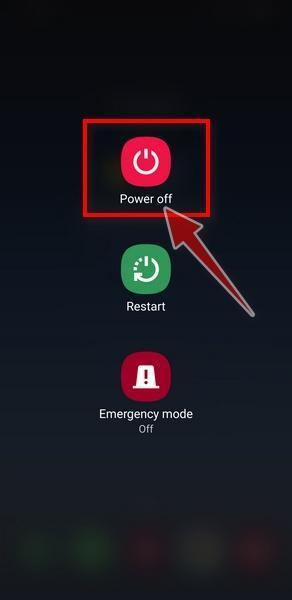
Tap and hold on “Power off”.
When the power off menu appears, tap and hold on the “Power off” button on your screen until you get the “Safe mode” option.
-
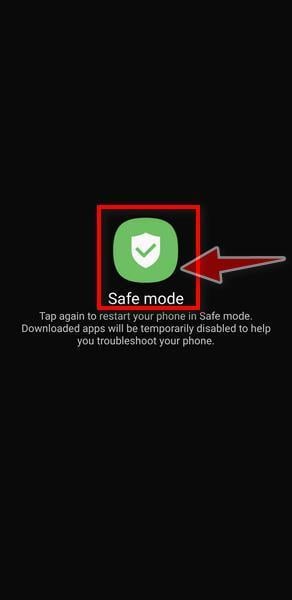
Tap on “Safe Mode”.
When the “Safe mode” option appears on your screen, tap on it to enter safe mode.
-
Your phone is in Safe Mode.
Your Android phone will now restart and enter into safe mode. When your phone is in safe mode, you’ll see the “Safe Mode” text at the bottom left corner of your phone. You can now continue with the next step.
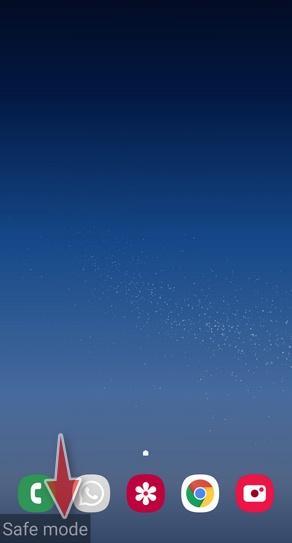
If you can’t find a safe mode on your phone, activate Airplane mode instead, to cut your device off from any networks.
STEP 2: Remove malicious device admin
In this second step, we will check the phone to see if there are any malicious apps with administrator privileges installed on your phone.
The administrator privileges are used by apps to perform legitimate tasks such as device management or for antivirus apps to do a remote wipe. Unfortunately, these elevated privileges are also being used by malicious apps to prevent victims from removing the malicious app from their phone.
-
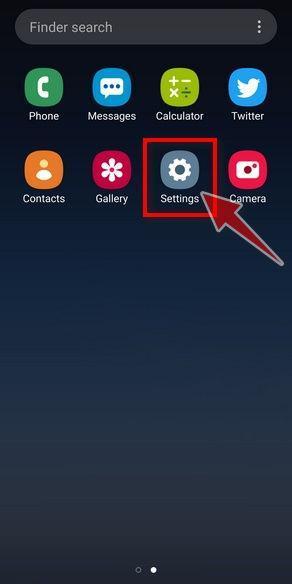
Open the “Settings” menu.
Tap on the “Settings” app from your phone menu or home screen.
-
Go to “Device admin apps”.
When the “Settings” menu opens, if you’re using a newer version of Android or a Samsung phone, tap on “Biometrics and Security“, then tap on “Other Security Settings” and then on “Device admin apps“.
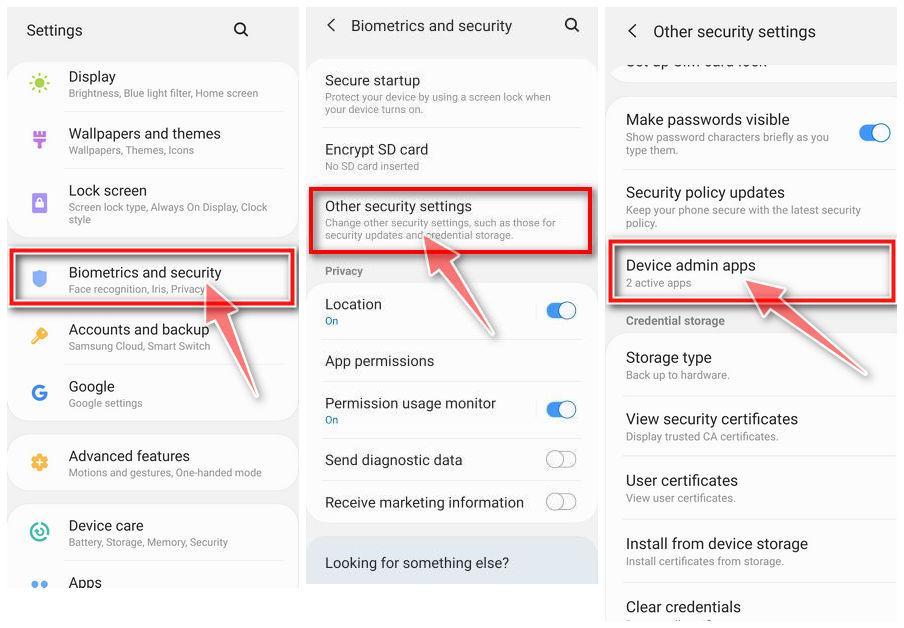
However, because there are phones with different versions of Android the “Device admins apps” settings may be in a different menu, so below we’ve listed other common ways to reach the “Device admin apps” options:
- Security > Device admin apps
- Security & privacy > Device admin apps
- Security > Device Administrators
- Lock Screen and Security > Other Security Settings > Phone Administrators.
If you’re having trouble finding the “Device admin apps” settings, you can use your phone’s built-in search function to search through the Settings.
-
Disable administrator privileges for the malicious app.
Once you’ve accessed the list of device admin apps, disable admin rights by tapping the option to the right of the app. This will remove the checkmark or toggle the button to the off position. Now you can delete the app normally as seen in the below step. On some phones, you can tap the app right there in the admin apps list and then use the Uninstall app link to remove it immediately.
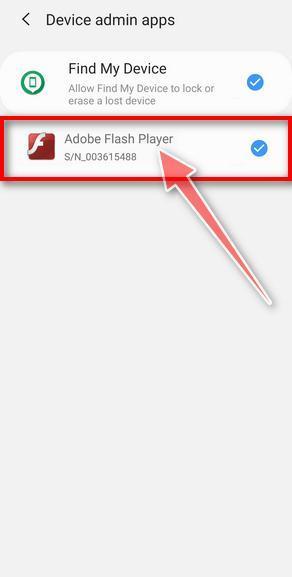
If there is no malicious app with administrator privileges on your phone, then you can continue with the next step from this guide.
STEP 3: Uninstall the malicious apps
In this third step, while the phone is still in Safe Mode, we will check if any malicious apps are installed on your device. Sometimes browser hijackers or adware apps can have usable Uninstall entries that can be used to remove these apps.
-
Open the “Settings” menu.
Tap on the “Settings” app from your phone menu or home screen.
-
Tap on “Apps”.
When the “Settings” menu opens, tap on “Apps” (or “App Manager”) to see all the installed applications on your phone.
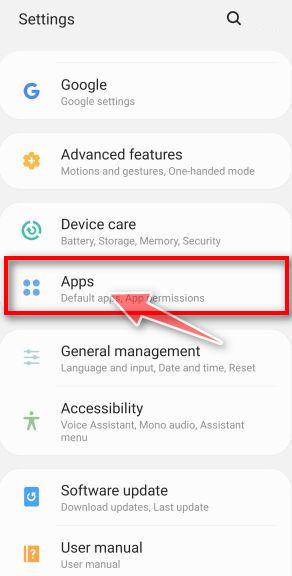
-
Find the malicious app.
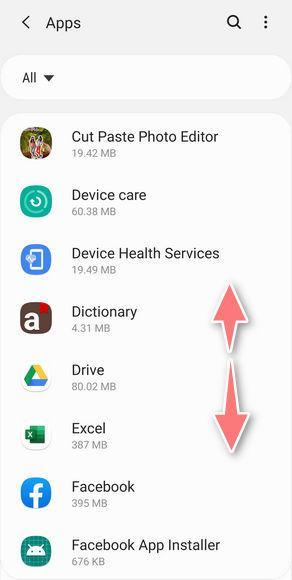
The “Apps” screen will be displayed with a list of all the applications that are installed on your phone. Scroll through the list until you find the malicious app.
Look out for any suspicious app that could be behind all the drama – anything you don’t remember downloading or that doesn’t sound like a genuine program. Most often, cyber criminals hide malware inside video or photo editing apps, weather apps, and camera apps.Here are some known malicious apps: ES File Explorer, Xender, Amber Weather Widget, GO Weather Forecast & Widgets, Kitty Play, Touchpal, Z Camera.
The malicious program will most likely have a different name on your phone. If you cannot find any malicious app on your device, you can exit “Safe mode” (as seen below) and continue with the next step from this guide.
-
Uninstall the malicious app
When you find a suspicious or malicious app, tap on it to uninstall it. This won’t start the app but will open up the app details screen. If the app is currently running press the “Force stop” button, then tap on “Uninstall”.
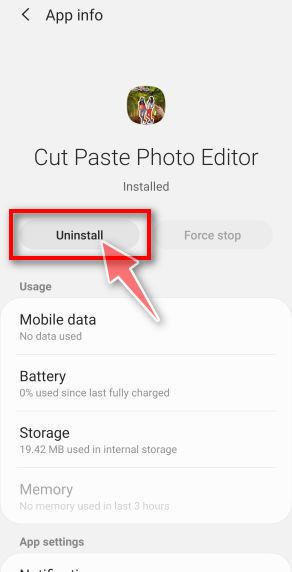
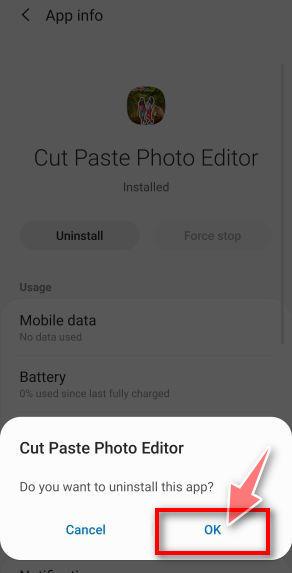
A confirmation dialog should be displayed to confirm you want to uninstall the app, tap on “OK” to remove the malicious app from your phone.
-
Exit “Safe mode”.
Now that we’ve removed the malicious apps from your phone, we can exit “Safe mode”. To do this, hold the power button on your device until you get the power off menu, then select the restart option from the menu.
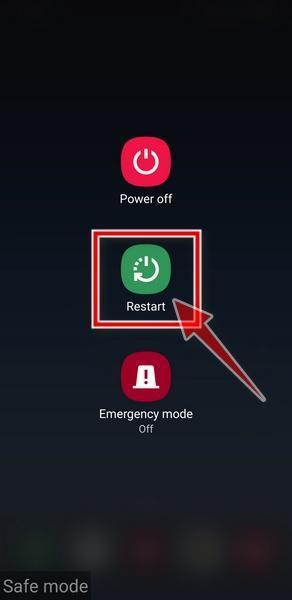
Your phone will now be rebooted and exit from the safe mode and boot into the normal mode.
STEP 4: Reset browsers back to default settings
In this next step, we will remove spam notifications, redirects, and change to default any settings that might have been changed by malware.
Resetting the browser settings to their default it’s an easy task on Windows or Mac computers; however, when it comes to Android, this can’t be done directly because it’s not an option built-in into the browser settings. Restoring the browser settings on Android can be done by clearing the application data. This will remove all the cookies, cache, and other site settings that may have been saved. So let’s see how we can restore your browser to its factory settings.
Remove malware from Chrome for Android
To reset Chrome for Android to its default settings, follow the below steps:
-
Open the “Settings” menu.
Tap on the “Settings” app from your phone menu or home screen.
-
Tap on “Apps”.
When the “Settings” menu opens, tap on “Apps” (or “App Manager”) to see all the installed applications on your phone.
-
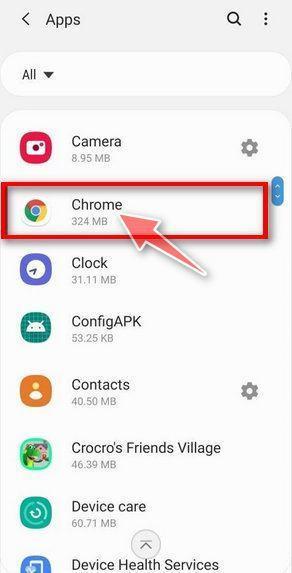
Find and tap on Chrome.
The “Apps” screen will be displayed with a list of all the apps installed on your phone. Scroll through the list until you find the Chrome app, then tap on it to open the app’s details.
-
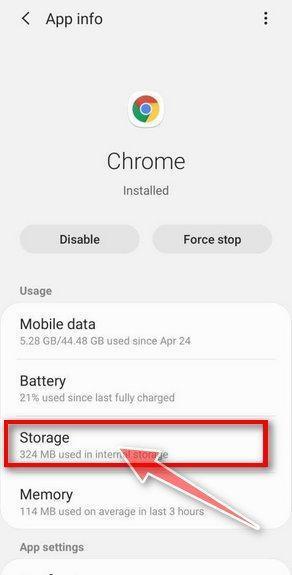
Tap “Storage”.
When Chrome’s app info menu is displayed, tap on “Storage“.
-
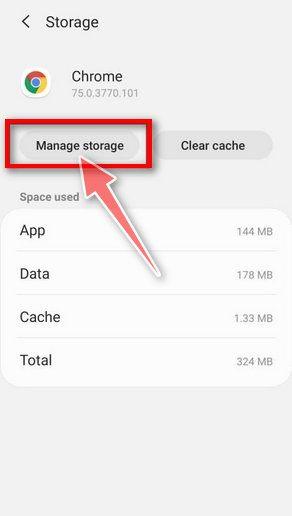
Tap “Manage Space”.
Under the storage settings, you will get two options — Manage Space and Clear Cache. Tap on “Manage Space“.
-
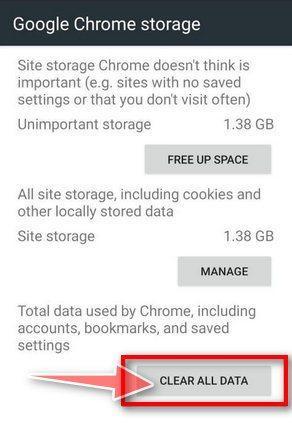
Tap “Clear all data”.
Tap “Clear all data” to delete all Chrome’s data including accounts, bookmarks, and your settings to reset the default settings.
-
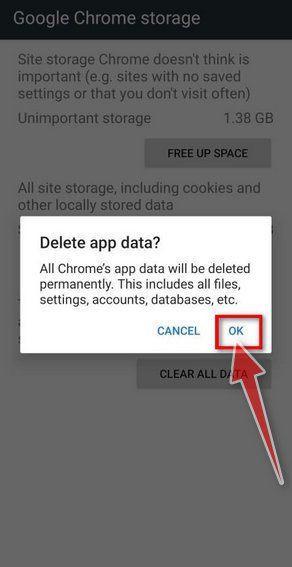
Confirm by tapping “Ok”.
A confirmation dialog should now be displayed, detailing the components that will be restored to their default state should you continue with the reset process. To complete the restoration process, tap “Ok“.
Remove malware from Firefox for Android
To reset Firefox for Android to its default settings, follow the below steps:
-
Open the “Settings” menu.
Tap on the “Settings” app from your phone menu or home screen.
-
Tap on “Apps”.
When the “Settings” menu opens, tap on “Apps” (or “App Manager”) to see all the installed applications on your phone.
-
Find and tap on Firefox.
The “Apps” screen will be displayed with a list of all the apps installed on your phone. Scroll through the list until you find the Firefox app, then tap on it to open the app’s details.
-
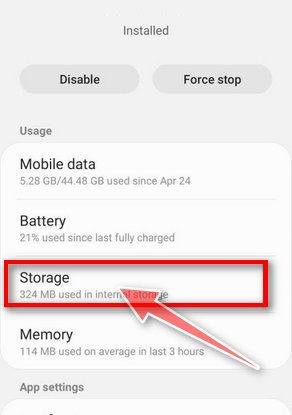
Tap “Storage”.
When Firefox’s app info menu is displayed, tap on “Storage“.
-
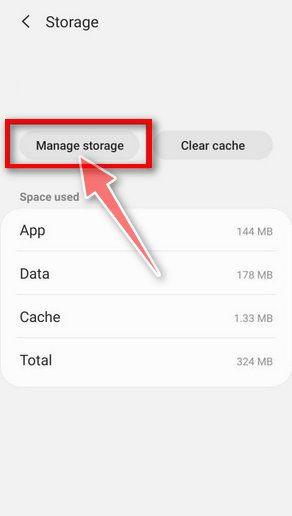
Tap “Manage Space”.
Under the storage settings, you will get two options — Manage Space and Clear Cache. Tap on “Manage Space“.
-
Tap “Clear all data”.
Tap “Clear all data” to delete all Firefox data including accounts, bookmarks, and your settings to reset the default settings.

-
Confirm by tapping “Ok”.
A confirmation dialog should now be displayed, detailing the components that will be restored to their default state should you continue with the reset process. To complete the restoration process, tap “Ok“.
Remove malware from the Opera browser
To reset the Opera browser to its default settings, follow the below steps:
-
Open the “Settings” menu.
Tap on the “Settings” app from your phone menu or home screen.
-
Tap on “Apps”.
When the “Settings” menu opens, tap on “Apps” (or “App Manager”) to see all the installed applications on your phone.
-
Find and tap on Opera.
The “Apps” screen will be displayed with a list of all the apps installed on your phone. Scroll through the list until you find the Opera app, then tap on it to open the app’s details.
-
Tap “Storage”.
When Opera’s app info menu is displayed, tap on “Storage“.
-
Tap “Manage Space”.
Under the storage settings, you will get two options — Manage Space and Clear Cache. Tap on “Manage Space“.
-
Tap “Clear all data”.
Tap “Clear all data” to delete all Opera’s data including accounts, bookmarks, and your settings to reset the default settings.
-
Confirm by tapping “Ok”.
A confirmation dialog should now be displayed, detailing the components that will be restored to their default state should you continue with the reset process. To complete the restoration process, tap “Ok“.
Remove malware from Samsung Internet Browser
To reset the Samsung Internet Browser to its default settings, follow the below steps:
-
Open the “Settings” menu.
Tap on the “Settings” app from your phone menu or home screen.
-
Tap on “Apps”.
When the “Settings” menu opens, tap on “Apps” (or “App Manager”) to see all the installed applications on your phone.
-
Find and tap on Samsung Internet Browser.
The “Apps” screen will be displayed with a list of all the apps installed on your phone. Scroll through the list until you find the Samsung Internet Browser app, then tap on it to open the app’s details.
-
Tap “Storage”.
When the Samsung Internet Browser’s app info menu is displayed, tap on “Storage“.
-
Tap “Manage Space”.
Under the storage settings, you will get two options — Manage Space and Clear Cache. Tap on “Manage Space“.
-
Tap “Clear all data”.
Tap “Clear all data” to delete all Samsung Internet Browser’s data including accounts, bookmarks, and your settings to reset the default settings.
-
Confirm by tapping “Ok”.
A confirmation dialog should now be displayed, detailing the components that will be restored to their default state should you continue with the reset process. To complete the restoration process, tap “Ok“.
Remove malware from Microsoft Edge for Android
To reset the Microsoft Edge for Android to its default settings, follow the below steps:
-
Open the “Settings” menu.
Tap on the “Settings” app from your phone menu or home screen.
-
Tap on “Apps”.
When the “Settings” menu opens, tap on “Apps” (or “App Manager”) to see all the installed applications on your phone.
-
Find and tap on Microsoft Edge.
The “Apps” screen will be displayed with a list of all the apps installed on your phone. Scroll through the list until you find the Microsoft Edge app, then tap on it to open the app’s details.
-
Tap “Storage”.
When the Microsoft Edge’s app info menu is displayed, tap on “Storage“.
-
Tap “Manage Space”.
Under the storage settings, you will get two options — Manage Space and Clear Cache. Tap on “Manage Space“.
-
Tap “Clear all data”.
Tap “Clear all data” to delete all Microsoft Edge’s data including accounts, bookmarks, and your settings to reset the default settings.
-
Confirm by tapping “Ok”.
A confirmation dialog should now be displayed, detailing the components that will be restored to their default state should you continue with the reset process. To complete the restoration process, tap “Ok“.
STEP 5: Use Malwarebytes for Android to remove malicious apps
In this final step, we will download, install and run a scan with Malwarebytes for Android to remove adware, browser hijackers, and other malware from your phone.
Malwarebytes for Android automatically detects and removes dangerous threats like malware and ransomware so you don’t have to worry about your most-used device being compromised. Aggressive detection of adware and potentially unwanted programs keeps your Android phone or tablet running smooth.
-
Download Malwarebytes for Android.
You can download Malwarebytes for Android by clicking the link below.
Get Malwarebytes for AndroidOpens Google Play in a new tab.Want real-time protection? See Malwarebytes Premium for Android Malwarebytes for AndroidScans your phone and removes malware at no cost
 -
Install Malwarebytes for Android on your phone.
In the Google Play Store, tap “Install” to install Malwarebytes for Android on your device.

When the installation process has finished, tap “Open” to begin using Malwarebytes for Android. You can also open Malwarebytes by tapping on its icon in your phone menu or home screen.

-
Follow the on-screen prompts to complete the setup process
When Malwarebytes will open, you will see the Malwarebytes Setup Wizard which will guide you through a series of permissions and other setup options.
This is the first of two screens that explain the difference between the Premium and Free versions. Swipe this screen to continue.
Tap on “Got it” to proceed to the next step.
Malwarebytes for Android will now ask for a set of permissions that are required to scan your device and protect it from malware. Tap on “Give permission” to continue.
Tap on “Allow” to permit Malwarebytes to access the files on your phone.
-
Update database and run a scan with Malwarebytes for Android
You will now be prompted to update the Malwarebytes database and run a full system scan.

Click on “Update database” to update the Malwarebytes for Android definitions to the latest version, then click on “Run full scan” to perform a system scan.

-
Wait for the Malwarebytes scan to complete.
Malwarebytes will now start scanning your phone for adware and other malicious apps. This process can take a few minutes, so we suggest you do something else and periodically check on the status of the scan to see when it is finished.

-
Click on “Remove Selected”.
When the scan has been completed, you will be presented with a screen showing the malware infections that Malwarebytes for Android has detected. To remove the malicious apps that Malwarebytes has found, tap on the “Remove Selected” button.

-
Restart your phone.
Malwarebytes for Android will now remove all the malicious apps that it has found. To complete the malware removal process, Malwarebytes may ask you to restart your device.
Your phone should now be free of browser hijackers, adware, and other malicious apps.
If you are still having problems with your phone after completing these instructions, then please follow one of the steps:
- Restore your phone to factory settings by going to Settings > General management > Reset > Factory data reset.
- Ask for help in our Mobile Malware Removal Help & Support forum.

Join the discussion
310 commentsShare your experience or ask a question about this article.
Your progress
Did these steps help?
Let us know how the guide worked for you.
Describe what you see and the step you reached. Keep passwords and other private information out.
Discussion
I thank you so much. Thanks to this, I don’t have to lose my favorite tablet ^_^. I could not save anything, just send all of my photos to my Gmail account. Because with my Malware, it would not allow me to remove it from from being an admin. So I had to reset the damn thing. But worth it… WAIT!!!! MY CLASH OF CLANS ACOUNT!!!
YOU ARE A GOD SEND. Thank you so much. Mines wasn’t this exact thing it was an app but still you save me and my phone. I owe you bro. If you ever need a follow on social media no problem. I <3 you soooo much. Thank you!!! Thank you!!! Also mind had an actual picture of child porn and I swear I almost threw up it so so gross and sad. That poor child. but those people are sick and almost scared the shit out of me. THANK YOU!!
Really thanks i was like wtf shit this looks real cause it had cantact info from my phone onto the page as well
Thank you so much. I knew this was a scam. Your tips worked the first time no problem. Thanks again.
Pretty sure mine downloaded when I was trying to tap out of ads but it showed up as browser update on my phone.
Thank you so much. This information helped greatly. The malware was called browser update. Followed the info on this page and now my phone works great. Thanks again.
If your phone is still infected with this ransomware is it safe to transfer all of one’s pictures and video files to one’s computer before removing the threat or would that risk spreading the ransomware to the computer? Thanks a lot for everything you do! Really!
Thank You so much, May the lord bless you and your future. I am a college student who was browsing the web doing what boys do and this popped up out of no where and I decided that I would look more into it and I found our blog. Thank You so much If you have an instagram I would be honored to follow you find me at @AboutTreJones
Hello.thank you for your information.i install the app to remove ransomware but despite removal message i can not still use internet explore.can you give me a guide
THANK YOU SOOOOO MUCH!
I simply closed all my apps on my Samsung Galaxy S5, worked
There are not enough words to thank you!!!
Thank you Luke. I had my doubts but it really worked.
Thanks for taking the time.
can this virus really get a hold of my contacts it listed on the message?
thanks man it help the first time this thing happen to me…but the second time it is what had really got me…It said the app could not be deleted because it was a administrator app when I took it off as a administrator the uninstall button was a light gray and would not let me push it. So after 30 min I just did a hard wipe on my phone… if you can try to see if you can help us with that problem… Thanks man
thanks for the tip. I got the virus off my phone but will the cops actually track me down and arrest me or its there to scare you also would it affect my cell phone service please get back to me
In reply to tech guy
They’re scamers not police, is just a scare tactic to get you to pay the $200 or $300 they want
In reply to tech guy
four months went by. so did anything happen??
thank you so much I was scared there so I looked up on google pictures and I found the same thing that was on my htc first and I clicked the link and it brought me here and im sooo glad that’s of my phone:) thank you
Thank you so much for helping me get that off my phone
Worked perfectly for me in a second..Thanks loads!!!!
Thank you so much for the above steps..they were clear and easy to follow and have made my friend very happy today as he is now able to use his mobile again! Definitely reccomend this website! Thank you again! X