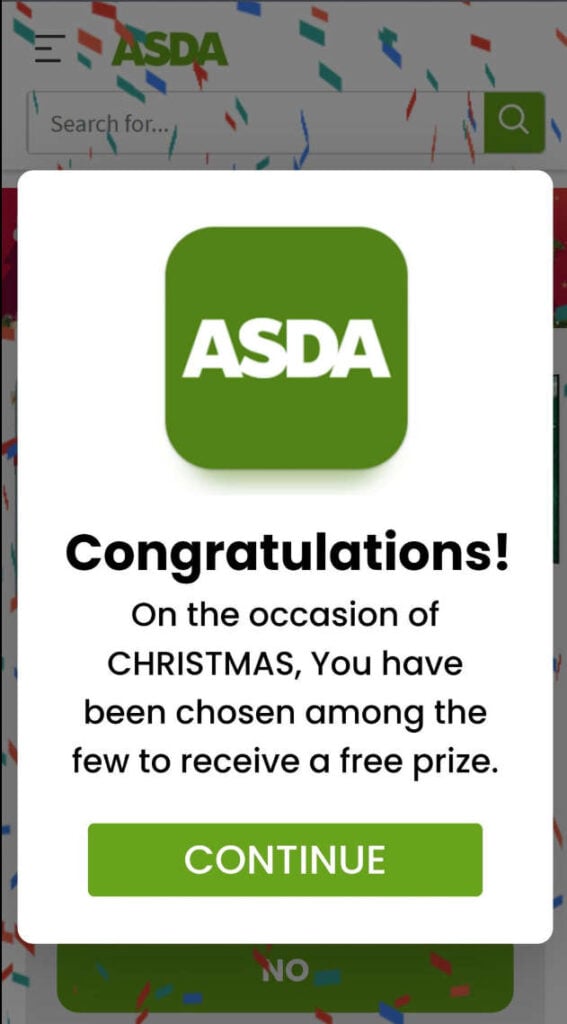
The message arrives suddenly. It promises a free Asda Christmas gift, a voucher for every shopper, or an exclusive holiday giveaway that expires within minutes. The link looks short, neat, and urgent. It spreads through text messages, WhatsApp chats, Facebook groups, and even email inboxes. At first glance, it feels harmless. Some people even think it might be a genuine promotion.
These Asda giveaway messages are part of a fast-spreading scam designed to trick people into giving away their personal details, login credentials, and sometimes even their banking information. This article breaks down exactly how the scam works, why it spreads so quickly, and how to stay safe if you have already clicked the link.
Scam Overview
The Asda Giveaway Scam has become one of the most common supermarket impersonation scams circulating across text messages, WhatsApp, and social platforms. These messages are crafted to look friendly, exciting, and trustworthy. They usually arrive during busy shopping seasons such as Christmas, Black Friday, or major holidays when people expect retailers to run promotions. Scammers exploit this expectation and create a sense of urgency so strong that many people click before thinking.
Most versions of the scam follow the same formula. The message claims that Asda is giving away free vouchers, free gifts, or a seasonal hamper. The wording often includes phrases like Free Gift For Everyone, Hurry Up, Limited Offer, or Claim Before Midnight. The intention is to create pressure. People are more likely to take risks when they believe an offer will disappear if they wait even a few minutes.
The biggest clue is the link. Instead of directing users to the official asda.com or george.com websites, the scam uses shortened URLs. These links hide the true destination. Scammers do this intentionally because if victims saw the actual domain, they would immediately realize it is suspicious. A shortened link lets the scammer disguise a fake phishing page, a malware site, or a cloned login page that looks similar to Asda’s branding.
Once the victim taps the link, the scam page loads quickly and convincingly. Many of these pages use high resolution Asda logos, bright green color schemes, and bold headlines that appear professional. At first glance, some victims believe they are on a real promotional website. The page then asks for simple information like your name or email address. After entering those details, the site escalates and asks for more sensitive information such as home address, date of birth, and in some cases even payment details under the pretext of a small processing fee.
This aligns with the behavior of countless phishing campaigns across the world. Scammers begin with small requests to build trust, then gradually escalate to more dangerous ones. Victims often do not recognize the danger until the end, by which point the scammers may already have enough data to commit identity theft.
Another major concern reported by victims is that clicking the link can trigger automatic forwarding. In some cases, the victim’s device sends the same giveaway message to all contacts in their WhatsApp list or SMS inbox without permission. This turns the scam into a chain reaction that spreads far faster than normal phishing attempts. When a contact receives the message from someone they know personally, they are much more likely to trust it and click the link. The scam uses social credibility to multiply its reach.
Asda has publicly confirmed that it is not running these giveaways. They have issued several warnings stating that they never distribute vouchers through random forwarded links or private messages. Any legitimate promotions are always posted directly on their official website or verified social pages. This official confirmation is one of the strongest indicators that these circulating messages are fake.
Scammers often mimic well known supermarket brands because they know the public recognizes and trusts them. Similar scams have impersonated Tesco, Walmart, Lidl, Morrisons, and Target. The format rarely changes. The scam always revolves around a free voucher, a reward for loyal customers, or a seasonal giveaway. All of these exploit a simple psychological trigger. People love free rewards, especially from stores they already shop at.
The Asda Giveaway Scam can have significant consequences. Victims have reported:
• Unauthorized withdrawals from bank accounts • Online accounts being accessed without permission • Personal details being sold on the dark web • An increase in spam emails and scam phone calls • Identity verification attempts on financial platforms • Contacts complaining that suspicious links were sent from their number
The scammers often run these operations from networks of fraudulent websites. Once one link is taken down, another one appears. The shortened URLs change frequently to avoid being reported or blocked by mobile carriers. This is why the scam continues to resurface. It is designed to adapt quickly, replicate itself, and appear fresh to each new victim.
The most dangerous part is not the message itself. It is the false sense of legitimacy created by familiar branding, urgent language, and the appearance of coming from someone you know. These elements combine to disarm the natural warning instincts that people usually have when receiving unknown messages.
The scam overview demonstrates that this is not a harmless promotion or a discount error. It is a carefully engineered phishing attack designed to extract personal information and spread rapidly across communication platforms. Understanding the structure of the scam is the first step toward avoiding it.
How The Scam Works
The Asda Giveaway Scam follows a predictable but effective blueprint. It is built around social engineering, psychological manipulation, and deceptive website practices. Below is a detailed step by step breakdown of how the scam operates from the moment the message is sent to the moment the scammers obtain the victim’s data.
The Initial Message
The scam begins with a short and simple message. It typically includes the words Asda, Christmas Giveaway, Free Gift, Limited Offer, or Congratulations. These messages are crafted to sound casual and appealing. They are often written in a tone that suggests the opportunity is only available for a short time.
The link in the message is almost always shortened. Scammers rely on URL shortening services like tinyurl or bitly copies because these hide the true identity of the target website. Victims cannot see where they are actually being directed until after they click.
Many messages also include festive wording to create the illusion of a holiday campaign. Christmas, seasonal, or weekend vouchers are common themes. These seasonal hooks distract the victim and make the offer feel more believable.
The Social Spread Trick
One of the most effective tactics used in this scam is the way it spreads. Instead of being sent from an unknown number, the message often appears to come from a friend or family member who has already clicked the link. This is because some versions of the scam page request permission to access your contacts or exploit device vulnerabilities to auto forward the link.
When you receive a message from someone you know, your defenses are lower. You assume they vetted the link before sharing it. Scammers rely on this layer of trust. It is the reason the scam spreads so rapidly through private chat platforms and community groups.
The Fake Giveaway Page
After clicking the link, the victim is taken to a website designed to mimic Asda’s branding. This fraudulent page often includes:
• The Asda logo • A green background similar to official Asda marketing • Friendly greeting text • A countdown timer • A prompt that says the offer will expire soon • Buttons that say Claim Gift or Redeem Voucher
These elements are carefully selected to trigger urgency and excitement. Victims often assume the page is legitimate because the design looks professional at first glance.
Many scam pages simulate a mini survey. Victims are asked simple questions like:
• Have you shopped at Asda recently • How often do you buy groceries per week • Do you want to claim your free voucher
These questions are meaningless. They exist only to create engagement and make the victim feel involved in a real promotional process. After the survey, the site announces that the user qualifies for a reward.
The Information Harvest Stage
Once the victim is emotionally invested, the scammers start collecting personal information. The page may ask for:
• Full name • Email address • Home address • Phone number • Age or date of birth
Each field seems harmless on its own, but together they form a complete personal profile. This profile can be used for identity theft, unauthorized account access, or fraudulent registrations.
Some versions of the scam escalate even further and request payment information. They often justify this by claiming there is a small processing fee or a shipping cost for the free gift. They may promise a $50 voucher in exchange for a $1 processing fee. Many victims comply because the amount looks small.
However, once the scammers have payment details, they can make unauthorized transactions or sell the data to criminal networks.
The Confirmation Loop
Some scam sites create a fake confirmation screen to reassure the victim that everything is legitimate. This screen may say:
• You will receive your voucher in 24 hours • Your gift is being processed • Your entry is confirmed
This false confirmation is meant to delay suspicion for as long as possible. The longer the victim remains unaware, the more time the scammers have to use or sell the stolen data.
The Auto Forward Feature
Certain versions of the scam include a malicious script that automatically forwards the giveaway link to all contacts stored on the device. This happens silently in the background. The victim may not realize they have spread the scam until friends start asking about it.
This auto forwarding is one of the most alarming behaviors reported by users. It indicates that the scammers are not only collecting data but also exploiting device permissions or vulnerabilities to spread their campaign with maximum speed.
The Aftermath
Once the scammers have the victim’s information, several things may occur:
• Increased spam calls and phishing emails • Attempts to access online accounts associated with the victim’s email • Unauthorized purchases on bank cards • Subscription to unknown services • Identity verification attempts on financial sites • Accounts being locked due to suspicious activity
Victims sometimes notice fraudulent transactions days later. Others only realize the severity when their email or bank sends an alert.
The scam works because it stacks multiple psychological triggers. These include urgency, trust, personalization, and excitement. By the time the victim becomes suspicious, the scammers have already achieved their goal.
What To Do If You Have Fallen Victim to This Scam
If you clicked the link, filled out a form, or entered any personal information, stay calm. The situation can be handled with the right steps. Follow this plan immediately:
Change all passwords associated with the email address you provided. Start with your main email account, online banking, shopping sites, and social media accounts.
Contact your bank if you entered any payment information. Ask them to monitor your account, block suspicious transactions, or issue a new card.
Enable two factor authentication on all major accounts. This adds a protective layer that scammers cannot bypass with stolen passwords alone.
Run a full antivirus and malware scan on your device. Use a trusted security program to check for hidden apps, malicious scripts, or unauthorized permissions.
Check your email inbox for suspicious login attempts or password reset requests. If you see unfamiliar activities, secure your account immediately.
Warn your contacts. If the scam auto forwarded itself from your device, let your friends and family know not to click the link.
Report the scam to Asda through their official support page. They collect information to help shut down fraudulent sites.
Report the message to your mobile carrier. Many carriers have systems that detect phishing links and block them once reported.
If you provided identity details such as your home address or date of birth, consider placing a fraud alert with your local credit agency. This will make it harder for scammers to open accounts in your name.
Monitor your bank statements for at least three months. Many scammers wait before using stolen cards to avoid detection.
Delete the message and block the sender. Do not engage in conversation and do not click the link again.
Learn from the experience. Understanding how these scams work reduces the risk of falling for similar tactics in the future.
These steps help contain the damage, prevent further misuse of your information, and increase your online safety moving forward.
Is Your Device Infected? Scan for Malware
If your computer or phone is slow, showing unwanted pop-ups, or acting strangely, malware could be the cause. Running a scan with Malwarebytes Anti-Malware Free is one of the most reliable ways to detect and remove harmful software. The free version can identify and clean common infections such as adware, browser hijackers, trojans, and other unwanted programs.
Malwarebytes works on Windows, Mac, and Android devices. Choose your operating system below and follow the steps to scan your device and remove any malware that might be slowing it down.
Malwarebytes for WindowsMalwarebytes for MacMalwarebytes for Android
Run a Malware Scan with Malwarebytes for Windows
Malwarebytes stands out as one of the leading and widely-used anti-malware solutions for Windows, and for good reason. It effectively eradicates various types of malware that other programs often overlook, all at no cost to you. When it comes to disinfecting an infected device, Malwarebytes has consistently been a free and indispensable tool in the battle against malware. We highly recommend it for maintaining a clean and secure system.
Download Malwarebytes
Download the latest version of Malwarebytes for Windows using the official link below. Malwarebytes will scan your computer and remove adware, browser hijackers, and other malicious software for free.
(The above link will open a new page from where you can download Malwarebytes)
Install Malwarebytes
After the download is complete, locate the MBSetup file, typically found in your Downloads folder. Double-click on the MBSetup file to begin the installation of Malwarebytes on your computer. If a User Account Control pop-up appears, click “Yes” to continue the Malwarebytes installation.
Follow the On-Screen Prompts to Install Malwarebytes
When the Malwarebytes installation begins, the setup wizard will guide you through the process.
You’ll first be prompted to choose the type of computer you’re installing the program on—select either “Personal Computer” or “Work Computer” as appropriate, then click on Next.
Malwarebytes will now begin the installation process on your device.
When the Malwarebytes installation is complete, the program will automatically open to the “Welcome to Malwarebytes” screen.
On the final screen, simply click on the Open Malwarebytes option to start the program.
Enable “Rootkit scanning”.
Malwarebytes Anti-Malware will now start, and you will see the main screen as shown below. To maximize Malwarebytes’ ability to detect malware and unwanted programs, we need to enable rootkit scanning. Click on the “Settings” gear icon located on the left of the screen to access the general settings section.
In the settings menu, enable the “Scan for rootkits” option by clicking the toggle switch until it turns blue.
Now that you have enabled rootkit scanning, click on the “Dashboard” button in the left pane to get back to the main screen.
Perform a Scan with Malwarebytes.
To start a scan, click the Scan button. Malwarebytes will automatically update its antivirus database and begin scanning your computer for malicious programs.
Wait for the Malwarebytes scan to complete.
Malwarebytes will now scan your computer for browser hijackers and other malicious programs. This process can take a few minutes, so we suggest you do something else and periodically check the status of the scan to see when it is finished.
Quarantine detected malware
Once the Malwarebytes scan is complete, it will display a list of detected malware, adware, and potentially unwanted programs. To effectively remove these threats, click the “Quarantine” button.
Malwarebytes will now delete all of the files and registry keys and add them to the program’s quarantine.
Restart your computer.
When removing files, Malwarebytes may require a reboot to fully eliminate some threats. If you see a message indicating that a reboot is needed, please allow it. Once your computer has restarted and you are logged back in, you can continue with the remaining steps.
Once the scan completes, remove all detected threats. Your Windows computer should now be clean and running smoothly again, free of trojans, adware, and other malware.
If your current antivirus allowed this malicious program on your computer, you may want to consider purchasing Malwarebytes Premium to protect against these types of threats in the future. If you are still having problems with your computer after completing these instructions, then please follow one of the steps:
Malwarebytes for Mac is an on-demand scanner that can destroy many types of malware that other software tends to miss without costing you absolutely anything. When it comes to cleaning up an infected device, Malwarebytes has always been free, and we recommend it as an essential tool in the fight against malware.
Download Malwarebytes for Mac.
You can download Malwarebytes for Mac by clicking the link below.
When Malwarebytes has finished downloading, double-click on the setup file to install Malwarebytes on your computer. In most cases, downloaded files are saved to the Downloads folder.
Follow the on-screen prompts to install Malwarebytes.
When the Malwarebytes installation begins, you will see the Malwarebytes for Mac Installer which will guide you through the installation process. Click “Continue“, then keep following the prompts to continue with the installation process.
When your Malwarebytes installation completes, the program opens to the Welcome to Malwarebytes screen. Click the “Get started” button.
Select “Personal Computer” or “Work Computer”.
The Malwarebytes Welcome screen will first ask you what type of computer are you installing this program, click either Personal Computer or Work Computer.
Click on “Scan”.
To scan your computer with Malwarebytes, click on the “Scan” button. Malwarebytes for Mac will automatically update the antivirus database and start scanning your computer for malware.
Wait for the Malwarebytes scan to complete.
Malwarebytes will scan your computer for adware, browser hijackers, and other malicious programs. This process can take a few minutes, so we suggest you do something else and periodically check on the status of the scan to see when it is finished.
Click on “Quarantine”.
When the scan has been completed, you will be presented with a screen showing the malware infections that Malwarebytes has detected. To remove the malware that Malwarebytes has found, click on the “Quarantine” button.
Restart computer.
Malwarebytes will now remove all the malicious files that it has found. To complete the malware removal process, Malwarebytes may ask you to restart your computer.
After scanning, delete any detected threats. Your Mac should now be free from adware, unwanted extensions, and other potentially harmful software.
If your current antivirus allowed a malicious program on your computer, you might want to consider purchasing the full-featured version of Malwarebytes Anti-Malware to protect against these types of threats in the future. If you are still experiencing problems while trying to remove a malicious program from your computer, please ask for help in our Mac Malware Removal Help & Support forum.
Run a Malware Scan with Malwarebytes for Android
Malwarebytes for Android automatically detects and removes dangerous threats like malware and ransomware so you don’t have to worry about your most-used device being compromised. Aggressive detection of adware and potentially unwanted programs keeps your Android phone or tablet running smooth.
Download Malwarebytes for Android.
You can download Malwarebytes for Android by clicking the link below.
In the Google Play Store, tap “Install” to install Malwarebytes for Android on your device.
When the installation process has finished, tap “Open” to begin using Malwarebytes for Android. You can also open Malwarebytes by tapping on its icon in your phone menu or home screen.
Follow the on-screen prompts to complete the setup process
When Malwarebytes will open, you will see the Malwarebytes Setup Wizard which will guide you through a series of permissions and other setup options. This is the first of two screens that explain the difference between the Premium and Free versions. Swipe this screen to continue. Tap on “Got it” to proceed to the next step. Malwarebytes for Android will now ask for a set of permissions that are required to scan your device and protect it from malware. Tap on “Give permission” to continue. Tap on “Allow” to permit Malwarebytes to access the files on your phone.
Update database and run a scan with Malwarebytes for Android
You will now be prompted to update the Malwarebytes database and run a full system scan.
Click on “Update database” to update the Malwarebytes for Android definitions to the latest version, then click on “Run full scan” to perform a system scan.
Wait for the Malwarebytes scan to complete.
Malwarebytes will now start scanning your phone for adware and other malicious apps. This process can take a few minutes, so we suggest you do something else and periodically check on the status of the scan to see when it is finished.
Click on “Remove Selected”.
When the scan has been completed, you will be presented with a screen showing the malware infections that Malwarebytes for Android has detected. To remove the malicious apps that Malwarebytes has found, tap on the “Remove Selected” button.
Restart your phone.
Malwarebytes for Android will now remove all the malicious apps that it has found. To complete the malware removal process, Malwarebytes may ask you to restart your device.
When the scan is finished, remove all detected threats. Your Android phone should now be free of malicious apps, adware, and unwanted browser redirects.
If your current antivirus allowed a malicious app on your phone, you may want to consider purchasing the full-featured version of Malwarebytes to protect against these types of threats in the future. If you are still having problems with your phone after completing these instructions, then please follow one of the steps:
Restore your phone to factory settings by going to Settings > General management > Reset > Factory data reset.
After cleaning your device, it’s important to protect it from future infections and annoying pop-ups. We recommend installing an ad blocker such as AdGuard. AdGuard blocks malicious ads, prevents phishing attempts, and stops dangerous redirects, helping you stay safe while browsing online.
The Bottom Line
The Asda Giveaway Scam is yet another example of how criminals exploit trust, branding, and urgency to trick everyday shoppers. These messages look friendly and harmless, but they are carefully built to steal personal and financial information. Asda has confirmed they do not run voucher giveaways through random links, so any message claiming otherwise should be deleted immediately.
The safest approach is simple. Never click unfamiliar links, especially those promising rewards that seem too good to be true. Protect your information, stay cautious, and always verify promotions through official channels.
If you understand how the scam works and know the warning signs, you can stay ahead of scammers and avoid becoming their next target.
Thomas is an expert at uncovering scams and providing in-depth reporting on cyber threats and online fraud. As an editor, he is dedicated to keeping readers informed on the latest developments in cybersecurity and tech.