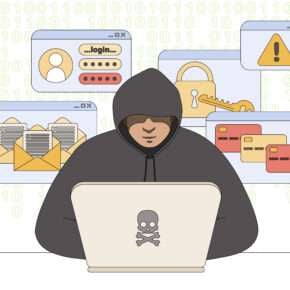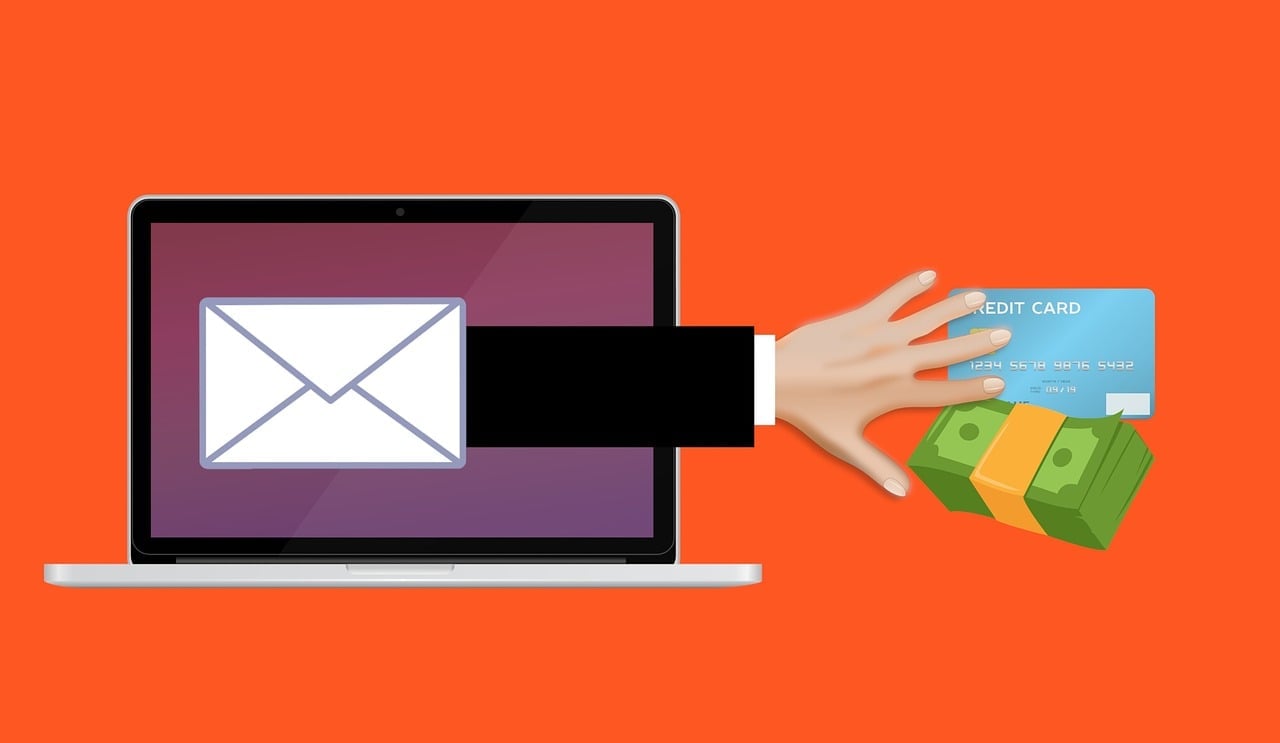
One unexpected email can cause more damage than any virus. Every day, millions of people receive messages claiming to be from trusted IT departments or helpdesk support teams. These emails often look professional, carry an air of authority, and appear legitimate. However, behind the polished design lies one of the most effective and widespread online traps today—the IT Helpdesk Support Email Scam.
This scam has become increasingly dangerous, targeting individuals and businesses worldwide. It preys on trust, routine, and the fear of losing access to vital email accounts. Whether you are a corporate employee, freelancer, or small business owner, understanding how this scam operates is critical to your cybersecurity.
This guide explores everything you need to know: how the IT Helpdesk Support Email Scam works, how to recognize it, and what steps to take if you have already fallen victim. By the end, you will be equipped with practical knowledge to protect yourself and your organization from future attacks.
Scam Overview
The IT Helpdesk Support Email Scam is a type of phishing attack designed to trick recipients into revealing sensitive login credentials or downloading malicious software. It masquerades as an official message from a legitimate IT department or helpdesk service. The email usually claims that the recipient’s email account is about to be deactivated or has a pending issue requiring immediate action.
This scam is highly convincing because it mimics real communication formats used by internal corporate IT departments. The scammers craft emails that appear professional, complete with company logos, official disclaimers, and even copyright notices. These messages are often written in a formal tone and contain urgent language to pressure the victim into acting quickly.
A typical message might say something like:
“We received a request to deactivate your email account. To avoid suspension, please cancel this request within 24 hours by clicking the link below.”
The email then includes a button such as “Cancel Deactivation Request Here.”
Once clicked, the victim is redirected to a fake login page designed to look identical to a real corporate or webmail login portal. When the user enters their credentials, those details are immediately captured by the attackers.
Common Characteristics of the Scam
- Impersonation of Internal Departments
The scammers pose as your organization’s IT support, network administrator, or helpdesk. They use email addresses that appear legitimate, often with minor alterations like an extra letter or different domain ending. - Use of Urgent Language
Messages typically contain warnings such as “Your account will be suspended within 24 hours” or “Immediate verification required.” This urgency prevents recipients from thinking critically and encourages hasty action. - Deceptive Hyperlinks and Buttons
Links and buttons often appear trustworthy, using text like “Cancel Request” or “Verify Account.” However, hovering over them reveals suspicious URLs not related to the legitimate company domain. - Professional Formatting and Branding
Scammers use stolen logos, official color schemes, and proper signatures to create an illusion of authenticity. They might even include fake copyright lines such as “© 2025 IT Helpdesk Support. All rights reserved.” - System-Like Details
Many phishing emails include timestamps, ticket numbers, or “system-generated” disclaimers to appear automated and official.
Why the IT Helpdesk Scam Works
This scam is alarmingly successful because it exploits human psychology and trusted work habits. Most employees receive genuine system updates, password reset notices, or account alerts from real IT teams. Cybercriminals imitate these communications perfectly, making the fake ones hard to distinguish.
Another factor is information overload. Many people receive dozens or even hundreds of emails daily. Under such conditions, it’s easy to overlook subtle red flags or fail to verify authenticity.
Moreover, the scammers’ emails are optimized for both desktop and mobile. On smaller screens, users cannot easily inspect the sender’s full email address or hover over links to preview URLs. This makes it even easier for victims to fall for the deception.
The Scale of the Problem
According to cybersecurity reports:
- Phishing emails account for over 90% of all data breaches worldwide.
- The average cost of a phishing attack on a business exceeds $4.9 million in lost data, downtime, and recovery expenses.
- More than three billion fake emails are sent daily across the globe, with IT impersonation scams ranking among the top five methods used by cybercriminals.
The IT Helpdesk Support Email Scam continues to evolve, often using AI-generated content to craft personalized and grammatically flawless messages, making detection even harder.
Red Flags to Watch Out For
Some clear signs that an email is fraudulent include:
- Generic greetings such as “Dear User” or “Dear Customer.”
- Grammar or punctuation errors that seem unprofessional.
- Unusual URLs when hovering over a link or button.
- Requests for login credentials via email forms or external websites.
- Unexpected urgency or threats of deactivation or suspension.
Always remember: no legitimate IT department will ever ask you to verify or cancel account actions through an external link in an email.
How the Scam Works (Step-by-Step)
Understanding how the IT Helpdesk Support Email Scam operates from start to finish is crucial to avoiding it. Below is a detailed step-by-step breakdown of how cybercriminals execute this deceptive campaign.
Step 1: Target Identification and Research
Before launching the scam, attackers conduct reconnaissance. They often collect data about their targets from social media platforms, company websites, and public directories. They look for:
- Company names and domains
- Employee email formats
- Department structures (especially IT or admin teams)
- Organizational logos and branding elements
This research helps them craft emails that look authentic and relevant to their targets.
Step 2: Email Spoofing and Domain Impersonation
Attackers use a method called email spoofing, which allows them to disguise the sender’s address. They create domains that look nearly identical to the company’s real one—for example:
- Real:
ithelpdesk@company.com - Fake:
it.helpdesk@company-support.com
Even trained employees can overlook the subtle difference, especially when the message design looks identical to official communications.
Step 3: Crafting the Phishing Message
The attackers write a convincing email that mimics a legitimate IT notification. It often includes:
- A subject line that signals urgency (“Your Account Will Be Deactivated in 24 Hours”)
- A professional-looking header (“IT Helpdesk Support”)
- Body text implying a problem or pending action
- A call-to-action button urging the recipient to “Cancel” or “Verify” something
Scammers sometimes add fabricated technical details—like timestamps or system IDs—to increase authenticity.
Step 4: Delivering the Bait
Once composed, the phishing emails are distributed to thousands of recipients using automated bots or stolen mailing lists. Attackers rely on volume: even if only a small fraction of recipients respond, it can yield significant results.
Because many companies don’t use advanced spam filters or email authentication systems like DMARC, SPF, or DKIM, these fraudulent emails often bypass detection and land directly in inboxes.
Step 5: Victim Interaction and Click-through
When the recipient opens the email, they see an urgent message requesting immediate action. Most victims are convinced by the professional tone and appearance, so they click the embedded link or button.
That link leads to a phishing website—a fake login portal that closely resembles legitimate platforms such as Microsoft Outlook, Office 365, or Gmail. Sometimes the site even includes the organization’s branding to deepen the illusion.
Step 6: Credential Theft and Data Capture
Once on the fake site, the victim enters their username and password, believing they are verifying their account. The moment they submit the form, the data is transmitted directly to the attacker’s database.
At this point, the victim often sees a reassuring message like “Your account has been verified” or “Request canceled successfully.” However, behind the scenes, their credentials have been stolen.
Step 7: Account Compromise and Lateral Movement
With valid login credentials, attackers immediately log in to the victim’s real email account. From there, they can:
- Access private and corporate communications
- Steal confidential attachments
- Reset passwords for other linked accounts
- Impersonate the victim to target colleagues or clients
This process is called lateral movement—spreading within the network to compromise additional systems or higher-value targets.
Step 8: Data Exfiltration and Financial Exploitation
Once inside the system, attackers may install malware, steal sensitive files, or use the account to request fraudulent wire transfers. They can also sell the stolen credentials on the dark web, where hackers purchase corporate logins for future attacks.
In large organizations, compromised email accounts are often used to distribute additional phishing emails internally. This makes detection even more difficult since the messages now come from legitimate company addresses.
Step 9: Covering Tracks
To delay discovery, attackers often create email forwarding rules that send copies of all incoming messages to their own accounts. They may also delete evidence, archive conversations, or modify security settings.
This allows them to maintain access unnoticed for weeks or even months.
The Technical Side of the Scam
In addition to psychological manipulation, the IT Helpdesk Support Email Scam relies on several technical tricks:
- Spoofed domains and SMTP headers
The scammer alters email headers to disguise the source. - HTTPS certificates on fake sites
Many phishing pages use free SSL certificates to display the padlock icon, misleading users into thinking the site is safe. - Tracking pixels
Embedded invisible images allow attackers to see who opened the email and when, helping them target active users. - Automation tools
Bots handle mass distribution and credential collection efficiently.
These methods make modern phishing attacks far more sophisticated than older scams, which often contained obvious errors.
Three Common Variations of the IT Helpdesk Support Email Scam
Below are three realistic but simulated variations of the IT Helpdesk Support Email Scam, presented for educational and defensive purposes only. Each variation includes a sample email text, a short breakdown of the scammer’s goal, and clear red flags and detection tips you can use to protect yourself and your organization. Do not copy or reuse any of the content for malicious purposes. Use these examples to train staff, test defenses, and improve incident response.
Variation 1 — Mailbox Deactivation Notice
Sample Email (simulated)
From: IT Helpdesk Support it.helpdesk@company-support.example
Subject: Your Mailbox De-activation Request in Processing 10/07/2025 1:59:37 a.m.
Dear [First Name],
We received a request from you to deactivate your email account, and access to your email will soon be closed.
Kindly cancel the request below within 24 hours to avoid any unwanted consequences. Failure to do so will result in the deactivation of your account, and it will be permanently suspended and closed.
[Cancel De-activation Request Here]Thank you for choosing our services.
The system generated this advisory on, 10/7/2025 1:59:37 a.m.
Copyright © 2025 IT Helpdesk Support. All rights reserved.
Scammer’s Goal
Harvest login credentials by prompting the victim to click a “cancel” link that leads to a fake login form. The urgent deadline drives hurried action.
Red Flags and Detection Tips
- Sender domain looks similar to your company domain but contains extra words or a different top-level domain.
- Generic greeting instead of your full name.
- Urgency and threat of permanent loss within a short timeframe.
- The call-to-action points to an external link rather than your organization’s official portal.
- Verify by contacting your real IT helpdesk using phone numbers or internal ticket systems, not the contact info in the email.
Variation 2 — Forced Password Reset for Security Compliance
Sample Email (simulated)
From: Corporate IT Compliance security@compliance-notify.example
Subject: Mandatory Password Reset Required to Comply With New Security Policy
Hello [First Name],
As part of an urgent security compliance update, all users must reset their account passwords within the next 12 hours. Failure to reset your password may result in restricted access to internal resources.
To reset your password securely, click the link below and follow the instructions. This link will expire automatically.
[Reset Password Now]If you did not request this change, please report it immediately to your helpdesk.
Regards,
Corporate IT Compliance
Scammer’s Goal
Trick users into entering current and new passwords on a fraudulent form, allowing attackers to capture both the existing password and the desired new password. Attackers can then use that information to log in immediately.
Red Flags and Detection Tips
- Extremely short deadline for a mandatory action that would normally be scheduled and communicated through official channels.
- The sender address is generic and not the internal IT compliance mailbox.
- The email asks you to enter a new password through a link rather than directing you to change it from the official account settings page.
- Confirm with internal policy announcements, and initiate password changes only from the service provider’s or company’s authenticated portal.
Variation 3 — Security Alert With Attached “Incident Report”
Sample Email (simulated)
From: Security Incident Response sir@security-team.example
Subject: Security Alert: Unusual Login Activity Detected, Review Attached Report
Dear [First Name Last Name],
Our monitoring system detected unusual login activity on your account from a new location. We have temporarily limited access to protect your data. To review the incident report and restore full access, please open the attached report and complete the verification steps.
Attached: Incident_Report_XXXX.pdf
If you believe this is an error, do not hesitate to contact us immediately.
Sincerely,
Security Incident Response Team
What to Do If You Have Fallen Victim to This Scam
If you suspect you’ve clicked a link or entered your credentials on a fake IT helpdesk page, act immediately. Speed is critical to minimizing damage.
1. Change Your Password Immediately
- Go to your legitimate email provider’s website directly by typing the URL manually (not via any email link).
- Change your password to a strong, unique one that has never been used elsewhere.
- If your account supports multi-factor authentication (MFA), enable it immediately.
2. Notify Your IT Department or Email Provider
If this happened on a work account, inform your IT or security team right away. They can:
- Reset credentials
- Monitor for unauthorized access
- Check system logs for suspicious activity
- Block the phishing domain across the organization
If it’s a personal email account, contact the service provider’s support to report a phishing compromise.
3. Run a Full Security Scan
Use trusted antivirus and anti-malware software to check your system. Some phishing links may install tracking scripts or malicious browser extensions.
4. Check for Unauthorized Activity
Review your:
- Sent mail folder (look for messages you didn’t send)
- Login history or account activity logs
- Security settings (like recovery emails or phone numbers)
If you find changes, reverse them immediately.
5. Revoke Access to Connected Accounts
If your compromised email is linked to financial services, cloud storage, or social platforms, change those passwords as well. Attackers often use stolen credentials to infiltrate connected services.
6. Report the Scam
Report the phishing attempt to:
- Your company’s security team
- Your email provider (e.g., Gmail, Outlook, Yahoo)
- National cybercrime reporting centers such as:
- FTC (U.S.): reportfraud.ftc.gov
- UK Action Fraud: actionfraud.police.uk
- Australian Cyber Security Centre (ACSC)
Reporting helps authorities track recurring scams and warn other users.
7. Educate and Inform Others
If you work within an organization, inform your colleagues so they can remain vigilant. Attackers often target multiple employees within the same company using identical emails.
8. Monitor Financial Accounts
Check your bank statements and credit reports regularly. If you suspect financial data was exposed, contact your financial institution and consider placing fraud alerts on your credit profile.
9. Remove Saved Passwords and Clear Browser Cache
If you entered credentials into a fake site, clear your browser cache and remove saved passwords. This ensures that malicious scripts can’t auto-fill or reuse compromised information.
10. Stay Updated on Cybersecurity Practices
Subscribe to trusted cybersecurity news outlets or your company’s IT alerts. Awareness is the best long-term protection against evolving scams.
The Bottom Line
The IT Helpdesk Support Email Scam is a sophisticated form of phishing that leverages trust, authority, and fear to trick people into compromising their accounts. It may appear harmless at first glance, but it can lead to devastating outcomes—data breaches, financial losses, and identity theft.
The best defense is awareness. Always verify the source of any message claiming to be from IT, especially those urging immediate action. Never click on suspicious links or provide credentials through email. When in doubt, contact your IT department directly using official contact information.
Cybercriminals thrive on confusion and haste. Taking a few extra seconds to verify an email can protect years of personal and professional information.
Frequently Asked Questions
1. What is the IT Helpdesk Support Email Scam?
The IT Helpdesk Support Email Scam is a type of phishing attack in which cybercriminals impersonate an organization’s IT department or helpdesk. The fraudulent email typically claims that your email account is scheduled for deactivation or that a system issue requires immediate verification. The email includes a link or button prompting you to “cancel the request” or “verify your account.” Clicking this link leads to a fake login page designed to steal your credentials.
This scam is particularly dangerous because it appears professional and legitimate, often using company logos, copyright lines, and official-looking formats. It exploits trust and urgency to manipulate victims into taking immediate action without verifying the source.
2. How can I recognize an IT Helpdesk Support phishing email?
Recognizing a phishing email involves looking for subtle warning signs that indicate deception. Here are the most common red flags:
- Generic greetings such as “Dear User” instead of your actual name.
- Urgent language warning that your account will be deactivated or suspended within 24 hours.
- Suspicious sender address that looks similar but not identical to your company’s official domain.
- Links or buttons directing you to verify or cancel account requests.
- Spelling or grammar errors that appear unprofessional.
- Unexpected requests for personal or login information.
Always hover your mouse over any links to preview their actual destination before clicking. If the domain doesn’t match your organization’s legitimate website, do not proceed.
3. Why do scammers impersonate IT departments?
Scammers impersonate IT departments because IT support messages carry authority and urgency. Most employees trust their IT helpdesk and are accustomed to receiving system-related notifications, such as password resets or maintenance alerts. By exploiting this trust, scammers can bypass skepticism and prompt users to act quickly.
Additionally, by posing as internal staff, attackers make their phishing emails appear more credible. Many users assume messages from “IT Support” must be legitimate, especially if they look professional and use internal jargon.
4. What happens if I click the link in the scam email
If you click the link in the IT Helpdesk Support Email Scam, you are typically redirected to a fake login page that mimics your real email provider or corporate portal. Entering your credentials on this page sends your information directly to the attackers.
Once they have your login details, they can:
- Access your real email account.
- Steal sensitive data and attachments.
- Send additional phishing emails to your contacts.
- Change your password and lock you out of your account.
- Use your account to impersonate you for financial or data theft.
Even if you don’t enter your credentials, some links can trigger malicious downloads or install tracking software on your device. It’s best to avoid clicking any link from an unverified sender.
5. Is the IT Helpdesk Support Email Scam the same as other phishing scams?
Yes, it belongs to the broader category of phishing scams, but it is more targeted and convincing. Unlike generic scams promising rewards or financial gains, this one uses authority impersonation—pretending to be part of your organization’s IT team.
This specific scam blends social engineering with technical deception, making it one of the most effective phishing methods. While other scams rely on curiosity or greed, the IT Helpdesk Support version leverages fear, urgency, and trust to elicit compliance.
6. What should I do if I responded to a fake IT Helpdesk Support email?
If you entered your credentials or clicked any suspicious links, take the following steps immediately:
- Change your password on the legitimate website directly (do not use any link in the email).
- Enable two-factor authentication (2FA) if available.
- Inform your IT department or email provider so they can secure your account and monitor for suspicious activity.
- Run a full antivirus and malware scan on your computer.
- Review your sent messages, forwarding rules, and login history for unauthorized access.
- Report the phishing attempt to your local cybercrime authority or the platform provider (e.g., Google, Microsoft, or your company’s security team).
Acting fast can prevent further damage and stop the attacker from spreading the scam using your account.
7. Can antivirus software protect me from email scams?
Antivirus software can help detect malicious attachments or links, but it cannot fully protect you from phishing attacks that rely on social engineering. Since phishing emails often don’t contain actual malware, they can bypass basic antivirus filters.
The best defense is user awareness. Always verify the sender, check URLs before clicking, and be cautious with emails urging immediate action. Combining strong spam filters, email authentication systems (like SPF, DKIM, and DMARC), and employee training provides the most effective protection.
8. How do I verify if an IT helpdesk email is legitimate?
Follow these steps to confirm whether an IT helpdesk email is genuine:
- Check the sender’s email address carefully. Legitimate IT messages will always come from official company domains.
- Hover over any links to view their actual URLs before clicking.
- Contact your IT department directly using official contact information from your company’s website or directory, not the one provided in the suspicious email.
- Look for inconsistencies in tone, grammar, or formatting. Genuine IT departments usually use standardized templates and professional language.
- Check your company intranet or notification system. Most organizations post official IT announcements there instead of sending urgent emails.
If something feels off or too urgent, treat it as suspicious until confirmed otherwise.
9. Why do these phishing emails often look so professional?
Modern scammers use sophisticated tools and AI-generated templates to make their emails look authentic. They can easily copy logos, branding elements, and even official communication styles from a company’s website or previous leaked emails.
Additionally, many scammers use email marketing automation platforms to format their phishing messages with the same polish and responsiveness as legitimate corporate communications. This professional appearance is designed to eliminate suspicion and increase success rates.
10. Can businesses prevent employees from falling for these scams?
Yes, businesses can significantly reduce the risk through a combination of technology, training, and policy. Effective strategies include:
- Regular employee awareness training to teach staff how to identify phishing attempts.
- Simulated phishing campaigns to test and reinforce awareness.
- Email authentication protocols like SPF, DKIM, and DMARC to block spoofed messages.
- Multi-factor authentication (MFA) to limit access even if credentials are compromised.
- Centralized reporting systems so employees can flag suspicious emails easily.
Cybersecurity should be treated as a shared responsibility. One well-trained employee can prevent an entire organization from being compromised.