Crumbl Cookies’ delicious, Instagram-worthy cookie creations have amassed a cult following across the United States. Like many popular brands, Crumbl has become an enticing lure used by online scammers to reel in unsuspecting victims. Read on to learn all about the misleading CookieReviewer.com website and how to avoid falling for this scam.
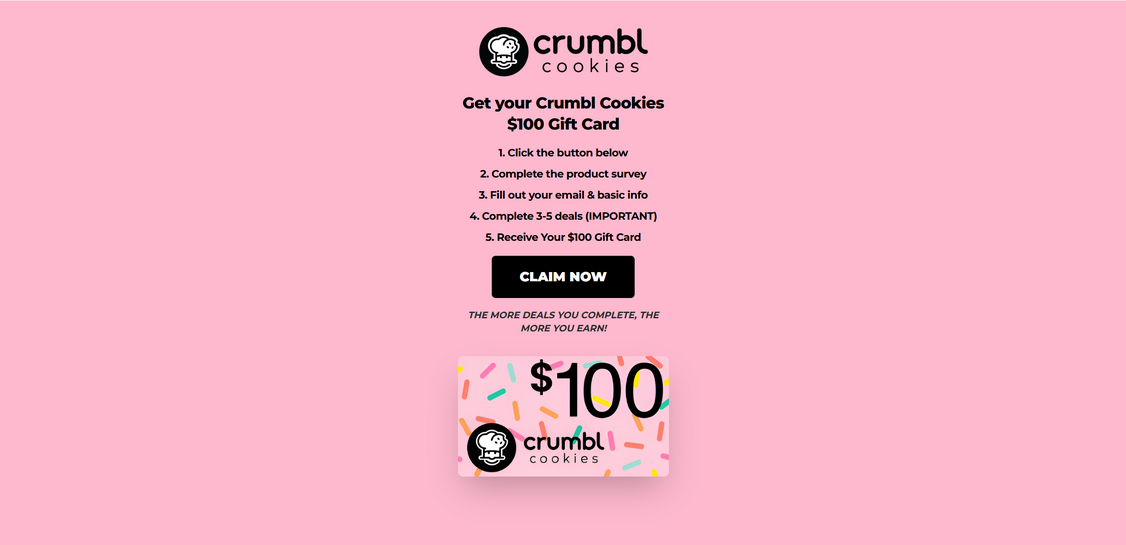
At first glance, the website CookieReviewer.com appears to offer an amazing opportunity for Crumbl fans. The site displays the Crumbl logo and claims that visitors can “Get your Crumbl Cookies” along with a $100 Crumbl gift card.
To get started, you simply have to click a button, take a survey, provide some basic personal information, and complete 3-5 additional “deals.” This includes offers like signing up for subscriptions, completing more surveys, or downloading apps.
It all seems relatively easy and straightforward. Who wouldn’t want a $100 gift card to their favorite cookie company for just a few minutes of effort?
Unfortunately, everything about this offer is completely fake. CookieReviewer.com has no association with Crumbl Cookies. The site is a textbook affiliate marketing scam aimed at abusing the brand’s popularity to generate ill-gotten commissions.
When unsuspecting cookie lovers provide their personal information and complete “deals,” the scammers behind CookieReviewer.com generate affiliate revenue. Meanwhile, the victims receive nothing in return except an inbox full of spam. There is no $100 gift card or any reward waiting at the end.
By piggybacking off a trendy brand like Crumbl, scammers can create believable scam offers that resonate with target demographics. But his deception earns them money while leaving victims frustrated and exposed to future scams or fraud.
How the Cookiestest Scam Works
Now that you understand the general premise, let’s break down the CookieReviewer.com scam step-by-step:
1. You Encounter the CookieReviewer.com Website
The scam starts with potential victims landing on CookieReviewer.com after clicking a link or ad promoted on social media or search engines. The site appears at first glance to be affiliated with Crumbl Cookies, using the brand’s assets illegally to feign credibility.
Upon arriving, users see promises of a $100 Crumbl gift card in exchange for taking a survey and completing a few simple “deals.” The premise seems believable given Crumbl’s immense popularity.
2. You Click “Claim Now” and Start the Process
Enticed by the prospect of free Crumbl cookies, users click the prominent “Claim Now” button to get started. This begins the process of taking a short survey and providing some basic personal information like your email address.
The survey and information collection allows scammers to capture data for affiliate networks like unlockrwrd.com, identify potential victims, and target individuals for future scam offers.
3. You Complete the Additional “Deals”
After entering basic info, users are instructed to complete 3-5 additional “deals” to earn the $100 gift card. These deals typically include:
Taking more surveys
Signing up for subscription services
Downloading and installing certain mobile apps
Making a minimum purchase from an online store
Each deal is designed to generate affiliate commissions for the scammers when users sign up or make purchases. The more deals completed, the more they earn.
4. You Provide Personal and Financial Information
Completing the required deals involves handing over significant personal and financial information. This includes your full name, email, phone number, payment details, government ID numbers, and more.
Deals like subscription services and retail purchases often require a credit card number to complete the transaction. This data enables potential financial fraud.
Meanwhile, survey and app downloads capture your interests, location, shopping habits, and other sensitive info. This data gets used to fuel future scams or sold on the dark web.
5. No Gift Card Arrives After Completing Deals
After investing time and personal information into finishing the required deals, users await their $100 Crumbl Cookies gift card.
Unfortunately, the promised reward never arrives. CookieReviewer.com has no association with Crumbl and never had any intention of providing gift cards. The entire premise is a ruse to scam users into generating affiliate commissions.
6. Scammers Disappear or Attempt the Scam Again
Following their successful scam, the CookieReviewer.com operators walk away with their ill-gotten earnings from affiliate deals. The site may disappear entirely.
In some cases, victims report receiving more scam offers days or weeks later promising the same fake Crumbl gift cards. Persistent scammers may reuse stolen contact lists to try replicating their initial success.
Without intervention, these online scams can scale to take advantage of thousands of unwitting victims.
What to Do If You Are a Victim of CookieReviewer.com
Falling prey to the CookieReviewer.com scam can leave victims feeling confused and exploited. But there are steps you can take right away to start protecting yourself:
Report It – File a scam complaint with the FTC at ReportFraud.ftc.gov. You can also report the website itself to cybercrime authorities and Crumbl Cookies so they can take legal action.
Contact Banks – If you provided any credit card or banking information, contact those institutions immediately to report potential fraud. They can help flag suspicious charges or transactions.
Change Passwords – If you reused the same passwords on CookieReviewer.com as any other accounts, change those passwords immediately to protect against credential stuffing attacks.
Monitor Accounts – Keep close eye on all your financial accounts and credit reports for any signs of misuse of your personal information over the coming weeks. Enable text/email alerts on accounts whenever possible.
Warn Contacts – Let your friends, colleagues, and social media connections know about the scam to prevent others from falling victim. Share posts warning others and report related ads.
Learn From Experience – Use this incident as motivation to be more vigilant against online scams asking for personal information or requiring upfront payment. Never assume a website is legitimate based on branding alone.
Is Your Device Infected? Scan for Malware
If your computer or phone is slow, showing unwanted pop-ups, or acting strangely, malware could be the cause. Running a scan with Malwarebytes Anti-Malware Free is one of the most reliable ways to detect and remove harmful software. The free version can identify and clean common infections such as adware, browser hijackers, trojans, and other unwanted programs.
Malwarebytes works on Windows, Mac, and Android devices. Choose your operating system below and follow the steps to scan your device and remove any malware that might be slowing it down.
Malwarebytes for WindowsMalwarebytes for MacMalwarebytes for Android
Run a Malware Scan with Malwarebytes for Windows
Malwarebytes stands out as one of the leading and widely-used anti-malware solutions for Windows, and for good reason. It effectively eradicates various types of malware that other programs often overlook, all at no cost to you. When it comes to disinfecting an infected device, Malwarebytes has consistently been a free and indispensable tool in the battle against malware. We highly recommend it for maintaining a clean and secure system.
Download Malwarebytes
Download the latest version of Malwarebytes for Windows using the official link below. Malwarebytes will scan your computer and remove adware, browser hijackers, and other malicious software for free.
(The above link will open a new page from where you can download Malwarebytes)
Install Malwarebytes
After the download is complete, locate the MBSetup file, typically found in your Downloads folder. Double-click on the MBSetup file to begin the installation of Malwarebytes on your computer. If a User Account Control pop-up appears, click “Yes” to continue the Malwarebytes installation.
Follow the On-Screen Prompts to Install Malwarebytes
When the Malwarebytes installation begins, the setup wizard will guide you through the process.
You’ll first be prompted to choose the type of computer you’re installing the program on—select either “Personal Computer” or “Work Computer” as appropriate, then click on Next.
Malwarebytes will now begin the installation process on your device.
When the Malwarebytes installation is complete, the program will automatically open to the “Welcome to Malwarebytes” screen.
On the final screen, simply click on the Open Malwarebytes option to start the program.
Enable “Rootkit scanning”.
Malwarebytes Anti-Malware will now start, and you will see the main screen as shown below. To maximize Malwarebytes’ ability to detect malware and unwanted programs, we need to enable rootkit scanning. Click on the “Settings” gear icon located on the left of the screen to access the general settings section.
In the settings menu, enable the “Scan for rootkits” option by clicking the toggle switch until it turns blue.
Now that you have enabled rootkit scanning, click on the “Dashboard” button in the left pane to get back to the main screen.
Perform a Scan with Malwarebytes.
To start a scan, click the Scan button. Malwarebytes will automatically update its antivirus database and begin scanning your computer for malicious programs.
Wait for the Malwarebytes scan to complete.
Malwarebytes will now scan your computer for browser hijackers and other malicious programs. This process can take a few minutes, so we suggest you do something else and periodically check the status of the scan to see when it is finished.
Quarantine detected malware
Once the Malwarebytes scan is complete, it will display a list of detected malware, adware, and potentially unwanted programs. To effectively remove these threats, click the “Quarantine” button.
Malwarebytes will now delete all of the files and registry keys and add them to the program’s quarantine.
Restart your computer.
When removing files, Malwarebytes may require a reboot to fully eliminate some threats. If you see a message indicating that a reboot is needed, please allow it. Once your computer has restarted and you are logged back in, you can continue with the remaining steps.
Once the scan completes, remove all detected threats. Your Windows computer should now be clean and running smoothly again, free of trojans, adware, and other malware.
If your current antivirus allowed this malicious program on your computer, you may want to consider purchasing Malwarebytes Premium to protect against these types of threats in the future. If you are still having problems with your computer after completing these instructions, then please follow one of the steps:
Malwarebytes for Mac is an on-demand scanner that can destroy many types of malware that other software tends to miss without costing you absolutely anything. When it comes to cleaning up an infected device, Malwarebytes has always been free, and we recommend it as an essential tool in the fight against malware.
Download Malwarebytes for Mac.
You can download Malwarebytes for Mac by clicking the link below.
When Malwarebytes has finished downloading, double-click on the setup file to install Malwarebytes on your computer. In most cases, downloaded files are saved to the Downloads folder.
Follow the on-screen prompts to install Malwarebytes.
When the Malwarebytes installation begins, you will see the Malwarebytes for Mac Installer which will guide you through the installation process. Click “Continue“, then keep following the prompts to continue with the installation process.
When your Malwarebytes installation completes, the program opens to the Welcome to Malwarebytes screen. Click the “Get started” button.
Select “Personal Computer” or “Work Computer”.
The Malwarebytes Welcome screen will first ask you what type of computer are you installing this program, click either Personal Computer or Work Computer.
Click on “Scan”.
To scan your computer with Malwarebytes, click on the “Scan” button. Malwarebytes for Mac will automatically update the antivirus database and start scanning your computer for malware.
Wait for the Malwarebytes scan to complete.
Malwarebytes will scan your computer for adware, browser hijackers, and other malicious programs. This process can take a few minutes, so we suggest you do something else and periodically check on the status of the scan to see when it is finished.
Click on “Quarantine”.
When the scan has been completed, you will be presented with a screen showing the malware infections that Malwarebytes has detected. To remove the malware that Malwarebytes has found, click on the “Quarantine” button.
Restart computer.
Malwarebytes will now remove all the malicious files that it has found. To complete the malware removal process, Malwarebytes may ask you to restart your computer.
After scanning, delete any detected threats. Your Mac should now be free from adware, unwanted extensions, and other potentially harmful software.
If your current antivirus allowed a malicious program on your computer, you might want to consider purchasing the full-featured version of Malwarebytes Anti-Malware to protect against these types of threats in the future. If you are still experiencing problems while trying to remove a malicious program from your computer, please ask for help in our Mac Malware Removal Help & Support forum.
Run a Malware Scan with Malwarebytes for Android
Malwarebytes for Android automatically detects and removes dangerous threats like malware and ransomware so you don’t have to worry about your most-used device being compromised. Aggressive detection of adware and potentially unwanted programs keeps your Android phone or tablet running smooth.
Download Malwarebytes for Android.
You can download Malwarebytes for Android by clicking the link below.
In the Google Play Store, tap “Install” to install Malwarebytes for Android on your device.
When the installation process has finished, tap “Open” to begin using Malwarebytes for Android. You can also open Malwarebytes by tapping on its icon in your phone menu or home screen.
Follow the on-screen prompts to complete the setup process
When Malwarebytes will open, you will see the Malwarebytes Setup Wizard which will guide you through a series of permissions and other setup options. This is the first of two screens that explain the difference between the Premium and Free versions. Swipe this screen to continue. Tap on “Got it” to proceed to the next step. Malwarebytes for Android will now ask for a set of permissions that are required to scan your device and protect it from malware. Tap on “Give permission” to continue. Tap on “Allow” to permit Malwarebytes to access the files on your phone.
Update database and run a scan with Malwarebytes for Android
You will now be prompted to update the Malwarebytes database and run a full system scan.
Click on “Update database” to update the Malwarebytes for Android definitions to the latest version, then click on “Run full scan” to perform a system scan.
Wait for the Malwarebytes scan to complete.
Malwarebytes will now start scanning your phone for adware and other malicious apps. This process can take a few minutes, so we suggest you do something else and periodically check on the status of the scan to see when it is finished.
Click on “Remove Selected”.
When the scan has been completed, you will be presented with a screen showing the malware infections that Malwarebytes for Android has detected. To remove the malicious apps that Malwarebytes has found, tap on the “Remove Selected” button.
Restart your phone.
Malwarebytes for Android will now remove all the malicious apps that it has found. To complete the malware removal process, Malwarebytes may ask you to restart your device.
When the scan is finished, remove all detected threats. Your Android phone should now be free of malicious apps, adware, and unwanted browser redirects.
If your current antivirus allowed a malicious app on your phone, you may want to consider purchasing the full-featured version of Malwarebytes to protect against these types of threats in the future. If you are still having problems with your phone after completing these instructions, then please follow one of the steps:
Restore your phone to factory settings by going to Settings > General management > Reset > Factory data reset.
After cleaning your device, it’s important to protect it from future infections and annoying pop-ups. We recommend installing an ad blocker such as AdGuard. AdGuard blocks malicious ads, prevents phishing attempts, and stops dangerous redirects, helping you stay safe while browsing online.
Frequently Asked Questions About the CookieReviewer.com Scam
1. What is CookieReviewer.com?
CookieReviewer.com is a scam website that claims to offer $100 Crumbl Cookies gift cards in exchange for completing surveys and “deals”. It uses Crumbl’s branding without permission to appear legitimate. In reality, there is no gift card reward – it is an affiliate marketing scam.
2. How does the CookieReviewer.com scam work?
The site entices visitors with a $100 Crumbl gift card offer. After clicking “Claim Now”, users take a survey and then are told to complete additional “deals” like subscriptions and purchases to earn the supposed reward. These deals earn affiliate commissions for scammers, while users get nothing.
3. What happens when you click “Claim Now” on CookieReviewer.com?
Clicking “Claim Now” redirects visitors off the CookieReviewer.com site via affiliate links to secondary scam websites like Unlockrwrd.com and Rewardsgiantusa.com. Here, users must complete survey “deals” that require providing personal information and signing up for offers.
4. What “deals” does CookieReviewer.com want you to complete?
Typical deals include:
Online surveys
Subscription sign-ups
Mobile app downloads
Making minimum purchases
Each deal earns affiliate commissions for scammers when users provide info or purchase items.
5. What personal information do they obtain through these deals?
The CookieReviewer.com scam collects:
Full names
Email addresses
Phone numbers
Home addresses
Credit card numbers
Passwords
This information enables identity theft and future targeting.
6. What happens after completing the required deals on CookieReviewer.com?
After completing all the requested deals and handing over personal information, users never receive the promised $100 Crumbl Cookies gift card. CookieReviewer.com is not affiliated with Crumbl and never intended to provide any reward.
7. Why do they specifically claim to offer Crumbl Cookies gift cards?
Scammers use Crumbl’s brand because it has a passionate following who will find a $100 gift card offer highly enticing. Dangling a popular brand makes the scam more believable and irresistible.
8. How can I identify the CookieReviewer.com scam?
Warning signs include:
Too-good-to-be-true gift card offers
Requests for personal info and payments
Redirection to questionable third-party sites
Use of real brand names without permission
Vague language about completing “deals”
9. What should I do if I encounter CookieReviewer.com?
Avoid entering any information or clicking claim buttons. Report the site to Crumbl Cookies so they can issue takedown notices. Enable ad blockers and warn others not to engage. Check bank statements for any suspicious charges as well.
10. How can I avoid this type of scam in the future?
Be wary of unsolicited gift card offers requiring upfront information or payments. Verify legitimacy directly through brand sites and check for actual contact information. Avoid clicking affiliate links promising free rewards. Also, use unique passwords on all sites and monitor accounts closely.
The Bottom Line on the Cookiestest Scam
In summary, CookieReviewer.com is an affiliate marketing scam designed to abuse Crumbl Cookies’ brand recognition to generate illicit commissions. By posing as the popular company, these scammers entice superfans with the false promise of gift cards that never materialize.
When exposed, this scam serves as an important reminder to think critically about unsolicited offers online. If something seems too good to be true, approach with extreme caution rather than handing over personal data.
Legitimate market research never requires upfront payments. Nor will real brands ask for sensitive information outside of their official channels. By spotting the warning signs, we can avoid falling victim while cutting off scammers’ ability to profit from deception.
Thomas is an expert at uncovering scams and providing in-depth reporting on cyber threats and online fraud. As an editor, he is dedicated to keeping readers informed on the latest developments in cybersecurity and tech.