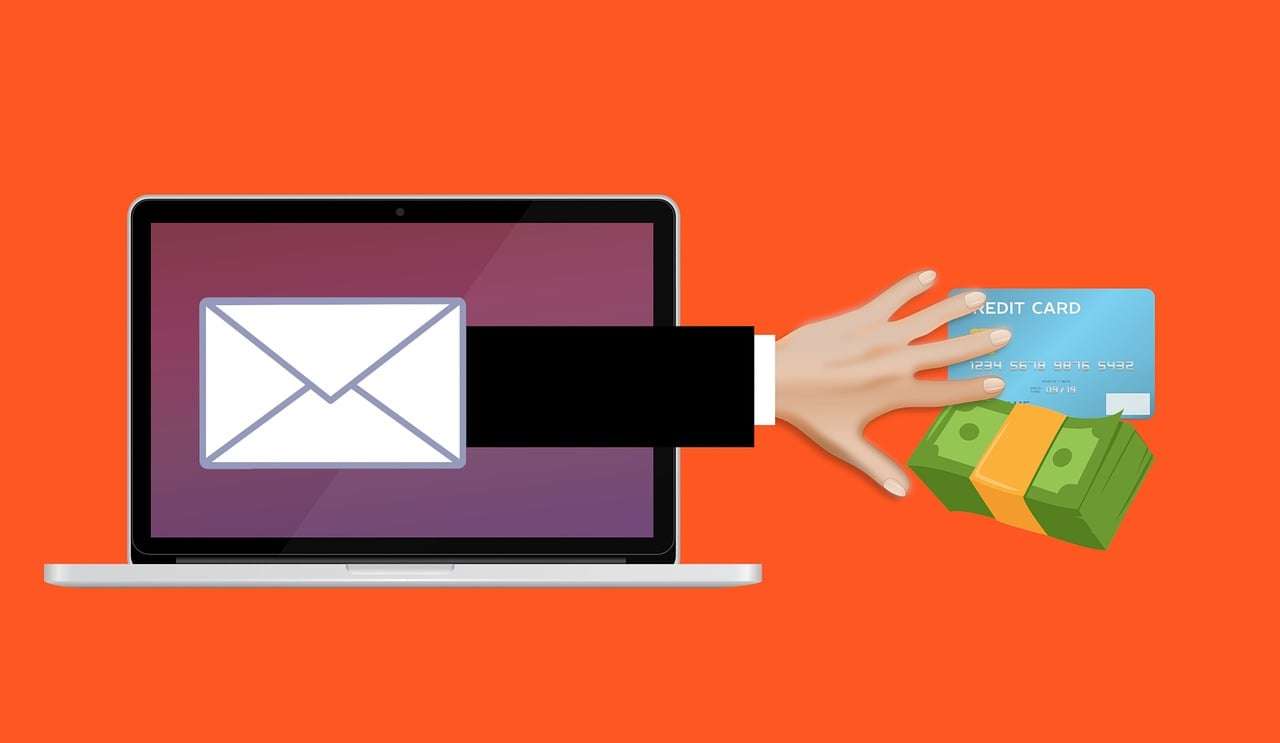
Have you received an alarming message warning that your email is “due for renewal” or that your inbox is almost full? You’re not alone. A growing number of people are being targeted by the “Email Is Due For Renewal” scam, a clever phishing campaign that tricks users into revealing sensitive login information. In this article, we’ll walk you through exactly how this scam works, what to watch out for, and what to do if you’ve already taken the bait.
The “Email Is Due For Renewal” scam is a type of phishing attack disguised as a legitimate email service notification. The core message typically states that the recipient’s email storage is full or nearing capacity, and that immediate action is required to upgrade or renew their account to avoid service disruption.
Key Characteristics of the Scam Email
Urgent Language: Scammers use phrases like “Your email storage is at 95% capacity,” “Renew now to avoid deactivation,” or “Immediate upgrade required.”
Impersonation of Trusted Brands: These messages often use logos, color schemes, and sender names that resemble well-known email providers like Gmail, Outlook, Yahoo, or company-specific domains.
Suspicious Links: The email contains a call-to-action button or hyperlink labeled something like “Renew Now,” “Verify Account,” or “Upgrade Storage.”
Fake Web Pages: Clicking the link redirects users to a spoofed website that mimics a legitimate login page. This is where credentials are harvested.
Why This Scam Works
Scammers are successful because they tap into users’ fears of losing access to their email accounts. For many people, email is tied to essential services like banking, work, communication, and cloud storage. The threat of sudden interruption compels users to act quickly without verifying the authenticity of the message.
Moreover, these emails often bypass spam filters because they’re cleverly constructed to mimic real alerts. Attackers use domain spoofing, display name deception, and minimal suspicious content to sneak past email security tools.
Real-World Examples
Many users have reported receiving messages that read:
“Your mailbox has reached 99% of its quota. Upgrade now to avoid email loss.”
“We could not automatically renew your mailbox. Please confirm your credentials.”
“Storage capacity warning: Your mailbox will be suspended unless action is taken.”
In each case, the design and tone appear authentic. The URLs, however, redirect to phishing domains that harvest personal information.
Consequences of Falling for the Scam
If a user enters their login credentials on the spoofed site, the attackers gain access to their entire email account. This opens the door to:
Identity theft
Access to linked financial services
Compromise of work-related data
Distribution of additional spam or scams from the hijacked account
Password resets for other services tied to the email
The threat doesn’t end with the compromised account. Once inside, attackers may use that access to launch further attacks on colleagues, clients, or friends.
How the Scam Works: Step-by-Step Breakdown
Let’s dissect this scam in detail so you can better understand how attackers orchestrate the deception from beginning to end.
Step 1: Target Selection
Scammers use automated tools to harvest email addresses from data breaches, leaked databases, or public sources. Sometimes, they buy lists from underground forums. Their targets can be individuals, business professionals, or entire organizations.
Step 2: Email Construction
Using HTML email templates, scammers craft messages that appear to come from trusted providers. They replicate brand logos, email footers, and even legitimate-sounding email addresses. Here’s what they usually include:
A fake sender address like support@mailbox.com or no-reply@outlookrenewal.com
Branding from the supposed provider
A message body warning of full storage, deactivation, or required renewal
A call-to-action link labeled “Upgrade Now” or “Renew”
Step 3: Link Redirection
The link in the email doesn’t lead to your real email provider. Instead, it redirects through a chain of shortened or obfuscated URLs to land on a phishing site. These fake pages often look nearly identical to real login portals, down to the colors, fonts, and layout.
Some tactics used include:
Using subdomains that resemble real ones, like mail.google-support.com
Registering domains that are close misspellings of real providers (e.g., outllok.com)
Hosting phishing pages on compromised websites
Step 4: Credential Harvesting
Once a victim lands on the fake login page and enters their username and password, those credentials are instantly captured. The page may then redirect to a legitimate-looking confirmation message or even forward the user to the real site to avoid suspicion.
Step 5: Account Takeover
With the login details, scammers log into the victim’s real email account. They may:
Change the password and recovery options
Enable forwarding rules to monitor future emails
Access stored data, photos, documents, and contacts
Reset passwords for other linked accounts (e.g., social media, banking)
Step 6: Spread and Exploit
Scammers may use the compromised account to send the same phishing email to the victim’s contacts, thus propagating the attack. They might also use the email account to:
Defraud others
Impersonate the user
Request wire transfers
Install malware through file attachments
What to Do If You’ve Fallen Victim to This Scam
If you suspect or know that you’ve entered your login details into a phishing page, act fast. Here are the steps to follow:
1. Change Your Password Immediately
Go to your email provider’s official website.
Change your password to something strong and unique.
If you use the same password elsewhere, update those accounts too.
2. Enable Two-Factor Authentication (2FA)
Most email providers offer 2FA.
This adds an extra layer of protection even if your password is compromised.
3. Scan for Suspicious Activity
Check your sent messages for unknown emails.
Look for new filters or rules you didn’t set.
Review your login history and locations if your provider offers it.
4. Remove Unauthorized Access
Go to your account’s security settings.
Remove any unfamiliar devices or sessions.
Check for changes to recovery email or phone numbers.
5. Run a Full Malware Scan
Use a trusted antivirus program to scan your device.
Phishing attacks can also deliver malware or spyware.
6. Alert Your Contacts
Inform your contacts that your account was compromised.
Warn them not to click on suspicious links from your email.
7. Report the Scam
Report phishing attempts to your email provider.
Forward the original message to reportphishing@apwg.org or the appropriate authority in your country.
8. Stay Vigilant
Bookmark your email provider’s official login page.
Never click on links from unsolicited or suspicious emails.
Educate yourself and others about new scam tactics.
Is Your Device Infected? Scan for Malware
If your computer or phone is slow, showing unwanted pop-ups, or acting strangely, malware could be the cause. Running a scan with Malwarebytes Anti-Malware Free is one of the most reliable ways to detect and remove harmful software. The free version can identify and clean common infections such as adware, browser hijackers, trojans, and other unwanted programs.
Malwarebytes works on Windows, Mac, and Android devices. Choose your operating system below and follow the steps to scan your device and remove any malware that might be slowing it down.
Malwarebytes for WindowsMalwarebytes for MacMalwarebytes for Android
Run a Malware Scan with Malwarebytes for Windows
Malwarebytes stands out as one of the leading and widely-used anti-malware solutions for Windows, and for good reason. It effectively eradicates various types of malware that other programs often overlook, all at no cost to you. When it comes to disinfecting an infected device, Malwarebytes has consistently been a free and indispensable tool in the battle against malware. We highly recommend it for maintaining a clean and secure system.
Download Malwarebytes
Download the latest version of Malwarebytes for Windows using the official link below. Malwarebytes will scan your computer and remove adware, browser hijackers, and other malicious software for free.
(The above link will open a new page from where you can download Malwarebytes)
Install Malwarebytes
After the download is complete, locate the MBSetup file, typically found in your Downloads folder. Double-click on the MBSetup file to begin the installation of Malwarebytes on your computer. If a User Account Control pop-up appears, click “Yes” to continue the Malwarebytes installation.
Follow the On-Screen Prompts to Install Malwarebytes
When the Malwarebytes installation begins, the setup wizard will guide you through the process.
You’ll first be prompted to choose the type of computer you’re installing the program on—select either “Personal Computer” or “Work Computer” as appropriate, then click on Next.
Malwarebytes will now begin the installation process on your device.
When the Malwarebytes installation is complete, the program will automatically open to the “Welcome to Malwarebytes” screen.
On the final screen, simply click on the Open Malwarebytes option to start the program.
Enable “Rootkit scanning”.
Malwarebytes Anti-Malware will now start, and you will see the main screen as shown below. To maximize Malwarebytes’ ability to detect malware and unwanted programs, we need to enable rootkit scanning. Click on the “Settings” gear icon located on the left of the screen to access the general settings section.
In the settings menu, enable the “Scan for rootkits” option by clicking the toggle switch until it turns blue.
Now that you have enabled rootkit scanning, click on the “Dashboard” button in the left pane to get back to the main screen.
Perform a Scan with Malwarebytes.
To start a scan, click the Scan button. Malwarebytes will automatically update its antivirus database and begin scanning your computer for malicious programs.
Wait for the Malwarebytes scan to complete.
Malwarebytes will now scan your computer for browser hijackers and other malicious programs. This process can take a few minutes, so we suggest you do something else and periodically check the status of the scan to see when it is finished.
Quarantine detected malware
Once the Malwarebytes scan is complete, it will display a list of detected malware, adware, and potentially unwanted programs. To effectively remove these threats, click the “Quarantine” button.
Malwarebytes will now delete all of the files and registry keys and add them to the program’s quarantine.
Restart your computer.
When removing files, Malwarebytes may require a reboot to fully eliminate some threats. If you see a message indicating that a reboot is needed, please allow it. Once your computer has restarted and you are logged back in, you can continue with the remaining steps.
Once the scan completes, remove all detected threats. Your Windows computer should now be clean and running smoothly again, free of trojans, adware, and other malware.
If your current antivirus allowed this malicious program on your computer, you may want to consider purchasing Malwarebytes Premium to protect against these types of threats in the future. If you are still having problems with your computer after completing these instructions, then please follow one of the steps:
Malwarebytes for Mac is an on-demand scanner that can destroy many types of malware that other software tends to miss without costing you absolutely anything. When it comes to cleaning up an infected device, Malwarebytes has always been free, and we recommend it as an essential tool in the fight against malware.
Download Malwarebytes for Mac.
You can download Malwarebytes for Mac by clicking the link below.
When Malwarebytes has finished downloading, double-click on the setup file to install Malwarebytes on your computer. In most cases, downloaded files are saved to the Downloads folder.
Follow the on-screen prompts to install Malwarebytes.
When the Malwarebytes installation begins, you will see the Malwarebytes for Mac Installer which will guide you through the installation process. Click “Continue“, then keep following the prompts to continue with the installation process.
When your Malwarebytes installation completes, the program opens to the Welcome to Malwarebytes screen. Click the “Get started” button.
Select “Personal Computer” or “Work Computer”.
The Malwarebytes Welcome screen will first ask you what type of computer are you installing this program, click either Personal Computer or Work Computer.
Click on “Scan”.
To scan your computer with Malwarebytes, click on the “Scan” button. Malwarebytes for Mac will automatically update the antivirus database and start scanning your computer for malware.
Wait for the Malwarebytes scan to complete.
Malwarebytes will scan your computer for adware, browser hijackers, and other malicious programs. This process can take a few minutes, so we suggest you do something else and periodically check on the status of the scan to see when it is finished.
Click on “Quarantine”.
When the scan has been completed, you will be presented with a screen showing the malware infections that Malwarebytes has detected. To remove the malware that Malwarebytes has found, click on the “Quarantine” button.
Restart computer.
Malwarebytes will now remove all the malicious files that it has found. To complete the malware removal process, Malwarebytes may ask you to restart your computer.
After scanning, delete any detected threats. Your Mac should now be free from adware, unwanted extensions, and other potentially harmful software.
If your current antivirus allowed a malicious program on your computer, you might want to consider purchasing the full-featured version of Malwarebytes Anti-Malware to protect against these types of threats in the future. If you are still experiencing problems while trying to remove a malicious program from your computer, please ask for help in our Mac Malware Removal Help & Support forum.
Run a Malware Scan with Malwarebytes for Android
Malwarebytes for Android automatically detects and removes dangerous threats like malware and ransomware so you don’t have to worry about your most-used device being compromised. Aggressive detection of adware and potentially unwanted programs keeps your Android phone or tablet running smooth.
Download Malwarebytes for Android.
You can download Malwarebytes for Android by clicking the link below.
In the Google Play Store, tap “Install” to install Malwarebytes for Android on your device.
When the installation process has finished, tap “Open” to begin using Malwarebytes for Android. You can also open Malwarebytes by tapping on its icon in your phone menu or home screen.
Follow the on-screen prompts to complete the setup process
When Malwarebytes will open, you will see the Malwarebytes Setup Wizard which will guide you through a series of permissions and other setup options. This is the first of two screens that explain the difference between the Premium and Free versions. Swipe this screen to continue. Tap on “Got it” to proceed to the next step. Malwarebytes for Android will now ask for a set of permissions that are required to scan your device and protect it from malware. Tap on “Give permission” to continue. Tap on “Allow” to permit Malwarebytes to access the files on your phone.
Update database and run a scan with Malwarebytes for Android
You will now be prompted to update the Malwarebytes database and run a full system scan.
Click on “Update database” to update the Malwarebytes for Android definitions to the latest version, then click on “Run full scan” to perform a system scan.
Wait for the Malwarebytes scan to complete.
Malwarebytes will now start scanning your phone for adware and other malicious apps. This process can take a few minutes, so we suggest you do something else and periodically check on the status of the scan to see when it is finished.
Click on “Remove Selected”.
When the scan has been completed, you will be presented with a screen showing the malware infections that Malwarebytes for Android has detected. To remove the malicious apps that Malwarebytes has found, tap on the “Remove Selected” button.
Restart your phone.
Malwarebytes for Android will now remove all the malicious apps that it has found. To complete the malware removal process, Malwarebytes may ask you to restart your device.
When the scan is finished, remove all detected threats. Your Android phone should now be free of malicious apps, adware, and unwanted browser redirects.
If your current antivirus allowed a malicious app on your phone, you may want to consider purchasing the full-featured version of Malwarebytes to protect against these types of threats in the future. If you are still having problems with your phone after completing these instructions, then please follow one of the steps:
Restore your phone to factory settings by going to Settings > General management > Reset > Factory data reset.
After cleaning your device, it’s important to protect it from future infections and annoying pop-ups. We recommend installing an ad blocker such as AdGuard. AdGuard blocks malicious ads, prevents phishing attempts, and stops dangerous redirects, helping you stay safe while browsing online.
FAQ: Email Is Due For Renewal Scam
What is the “Email Is Due For Renewal” scam? This is a phishing scam where cybercriminals send fake emails pretending to be from your email provider. The message falsely claims that your inbox is full or your email account is about to expire, urging you to click a link to “renew” or “upgrade” your storage.
Why do scammers use email storage warnings? Scammers use urgency and fear to prompt quick action. By warning that your account may be deactivated or you may lose access to important emails, they pressure you into clicking malicious links and entering login credentials without verifying the email’s legitimacy.
What happens if I click the link in the scam email? You’ll be directed to a fake login page designed to look like your real email provider. If you enter your login details, they’re captured by the scammer, who can then access your email and any connected services.
How can I tell if an email is part of this scam? Look for generic greetings, urgent language, suspicious links, sender addresses that don’t match the official domain, and poor grammar or formatting. Hover over links to preview where they lead, and always verify the sender.
What should I do if I already entered my email credentials? Change your password immediately, enable two-factor authentication, scan your account for suspicious activity, and notify your contacts. It’s also important to run a full antivirus scan and report the incident to your provider.
Can these scam emails bypass spam filters? Yes. Scammers often design these messages to mimic real service notifications and use tactics like domain spoofing to get past spam detection systems. This is why user vigilance is critical.
Will enabling two-factor authentication stop this scam? While 2FA doesn’t prevent the scam itself, it significantly reduces the risk of a full account takeover if your credentials are compromised. It adds an additional verification step before access is granted.
Who should I report phishing emails to? You can report phishing emails to your email provider, the Anti-Phishing Working Group (reportphishing@apwg.org), or your country’s cybersecurity agency. Reporting helps limit the spread and improves detection tools.
Can scammers access other accounts if they get my email login? Yes. Many online accounts use your email for password resets. If scammers access your inbox, they can potentially reset passwords for banking, shopping, social media, and more.
How can I prevent falling for similar scams in the future? Bookmark the official login pages of your email and other services, avoid clicking on links in unsolicited emails, and always double-check sender addresses. Stay informed about common scams and keep your security software up to date.
The Bottom Line
The “Email Is Due For Renewal” scam is part of a wider trend of sophisticated phishing campaigns designed to exploit fear and urgency. It preys on our reliance on email and our instinct to act quickly when faced with potential account loss. But by understanding how the scam works and what to do if targeted, you can protect yourself and others.
Stay alert, verify before you click, and help spread awareness to make these attacks less effective. If you ever doubt the legitimacy of an email, take a breath and investigate before taking action. Your security depends on it.
Thomas is an expert at uncovering scams and providing in-depth reporting on cyber threats and online fraud. As an editor, he is dedicated to keeping readers informed on the latest developments in cybersecurity and tech.