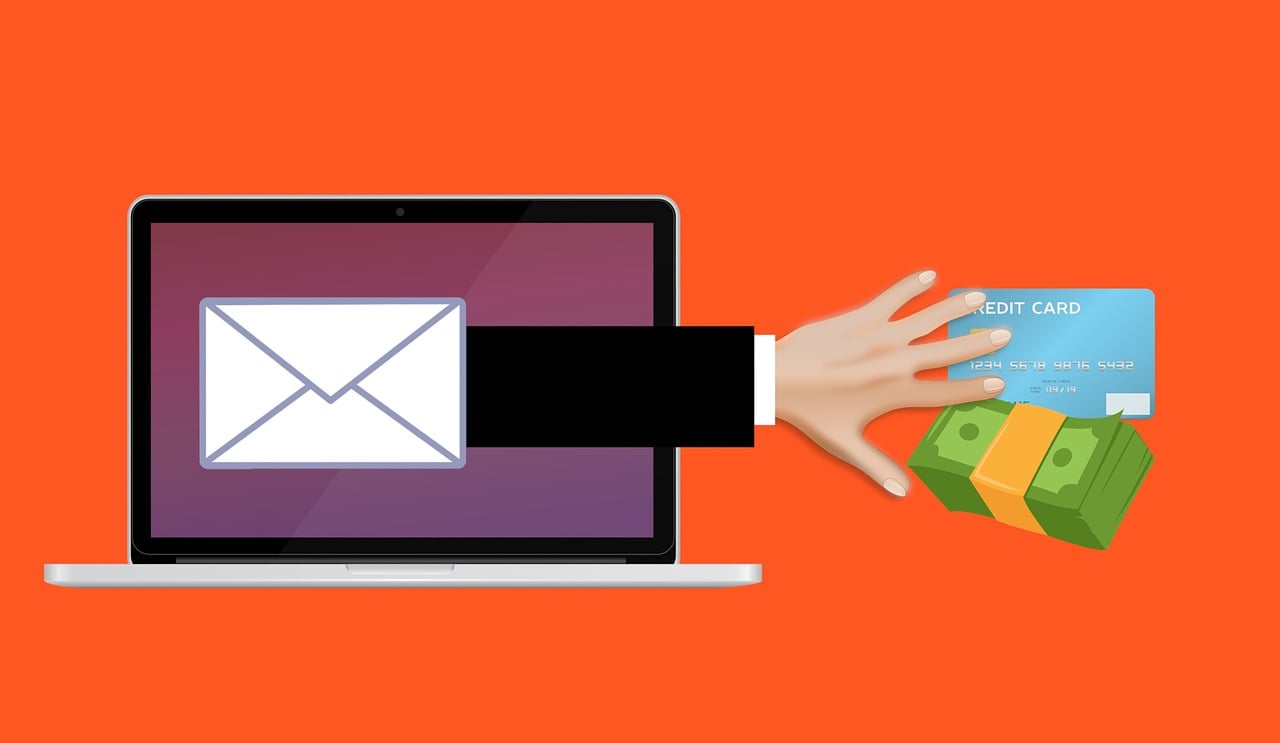
Freight invoice email scams have quietly become one of the most common cyber threats targeting businesses of all sizes. These emails look routine, appear urgent, and often seem like legitimate accounting or logistics messages. That familiarity is exactly what scammers use to trick recipients into opening malicious links or sharing sensitive information.
This article explains what this scam is, how it works, why it’s successful, and what to do if you fall victim. It serves as a complete guide that helps you recognize the warning signs before damage occurs.
Scam Overview
Freight invoice email scams are a category of phishing attack that targets employees in logistics, procurement, finance, transportation, and related industries. However, any employee with an email inbox can be a target. These scams rely on realistic invoice messages that pressure recipients to act quickly. The goal is simple. Trick the target into clicking a fraudulent link or downloading a malicious attachment. Once clicked, scammers can steal login credentials, take over email accounts, or deploy malware.
Despite their simplicity, these scams work extremely well. Businesses often deal with large volumes of invoices, shipping notifications, and logistics updates. Fraudsters take advantage of this natural workflow. They craft emails that look routine and recognizable. The scam messages usually include a subject line like “Freight Invoice,” “Shipment Notice,” “Invoice Attached,” or “Freight Charges Due.” These subjects are common enough that many recipients open them without a second thought.
The email itself often looks legitimate. It may include a company logo, a generic greeting, and formal language. However, when you look closer, you’ll notice subtle errors. Scammers intentionally mimic invoice formats because employees often receive similar emails daily. The scam is not always immediately obvious. That is part of what makes it effective.
These emails typically contain a button or link that claims to lead to a downloadable invoice. Instead of a real document, the link takes the victim to a fake login page. For example, a page imitating Microsoft Outlook, OneDrive, Dropbox, or another familiar service. The page demands the user’s email credentials to “unlock” or “view” the invoice. Once the victim enters their information, scammers instantly capture the login details and gain access to the victim’s email account.
With a compromised email account, cybercriminals can perform far more damaging actions. They might send further phishing attacks to colleagues, manipulate financial transactions, exfiltrate confidential documents, or impersonate the employee in internal communications. In some cases, attackers use the compromised email to reset passwords for other services linked to it.
Another variation of the scam uses malicious attachments instead of links. These attachments often include file types such as ZIP files, PDFs, Excel spreadsheets, or Word documents. When opened, they may deploy malware, ransomware, or remote access tools. The malware then gives attackers a foothold inside the company’s systems.
Cybercriminals typically cast a wide net. They mass-send these emails to thousands of recipients hoping enough people will engage. The success rate is surprisingly high because the messages appear routine. The sense of urgency, combined with the professional tone, encourages quick action. Fraudsters also use social engineering strategies, such as claiming the invoice link will expire after a short time. This tactic reduces the likelihood that the recipient will stop to think critically.
In some cases, fake freight invoice emails are customized for specific industries or companies. Attackers gather publicly available information from company websites, LinkedIn, and industry directories. They may learn which carriers or logistics partners the company uses. They may even tailor the email to match the format of legitimate messages. These targeted campaigns, known as spear-phishing, are especially dangerous because they appear extremely authentic.
The scam has grown rapidly with the expansion of global shipping and e-commerce. Logistics operations now involve large networks of carriers, brokers, and warehouses. Each shipment produces multiple email notifications. Employees are used to receiving updates with tracking numbers, delivery details, or freight charges. Because of this, fraudulent freight invoice messages blend seamlessly into normal operations.
This scam is also successful because many employees do not examine email senders closely. Fraudsters often use email addresses that look similar to genuine ones. For example, they may swap letters, add extra characters, or use domain names that appear trustworthy. At first glance, many recipients overlook these differences. Attackers also sometimes spoof email addresses completely, making the message appear as if it came from a genuine source.
A typical fraudulent invoice message includes spelling errors, awkward wording, and inconsistencies. But these signs are often missed when employees are busy or distracted. Scammers understand this and design their emails to appear rushed or time-sensitive. This creates pressure and reduces the chance that the target will notice the red flags.
The freight invoice scam also works because employees often assume that invoice emails are safe. Accounting, logistics, and operations teams regularly open attachments and links related to shipments. This familiarity creates a false sense of security. Many organizations do not strictly control how employees interact with invoices. As a result, attackers do not need sophisticated techniques. A simple imitation message with a deceptive link can be enough to compromise an entire network.
Cybercriminals behind these scams often operate in organized groups. They frequently update their techniques, using new templates, improved fake login pages, and more convincing sender addresses. They may even replicate branding from real logistics companies. Shipping firms such as DHL, FedEx, UPS, and freight brokers are common targets for imitation. Because these companies send legitimate invoices every day, recipients rarely question the authenticity.
In recent years, freight invoice phishing attacks have also been linked to ransomware operations. Attackers use phishing emails to gain initial access to a system, then deploy ransomware to encrypt files across the network. This can halt business operations entirely. Companies in logistics and supply chain sectors are appealing targets because disruptions can have widespread effects.
It is also important to note that freight invoice email scams affect more than just large companies. Small and medium-sized businesses are often targeted because they usually lack advanced cybersecurity measures. They may not have robust email filtering, employee training, or incident response plans. Fraudsters know this and exploit the vulnerability.
Overall, the freight invoice email scam continues to evolve. What appears to be a routine invoice can lead to data breaches, financial losses, system compromise, and long-term damage. Understanding the details of how this scam operates is the first step in preventing it.
How the Scam Works
A Step-By-Step Breakdown
This section provides a detailed look at how freight invoice email scams unfold. Each step reveals the techniques scammers use to manipulate the target and steal information.
Step 1: Attackers collect information about targets
Cybercriminals begin by gathering data from public sources. They may search company websites, LinkedIn profiles, and industry directories. They look for employees in logistics, accounting, purchasing, and operations. These roles are more likely to receive freight invoices or shipment notifications. Attackers also research the carriers and shipping partners the company regularly uses.
Public-facing email addresses are especially vulnerable. If an employee lists their email on a website or online profile, they become an easy target. Attackers may also purchase leaked email databases. These datasets provide thousands of potential victims in seconds.
The information collected during this phase is used to create targeted or semi-targeted scams. Even basic details can make a fake invoice email look more authentic.
Step 2: Scammers create a convincing email template
Next, fraudsters craft an email that closely resembles a typical freight invoice message. They often use:
• A familiar subject line • A simple greeting • A formal tone • Branding or logos to appear professional • A download link or button
The goal is to make the email look legitimate at a glance. Scammers commonly use phrases like “Freight Invoice,” “Shipment Charges,” “Bill of Lading,” or “Delivery Receipt.” These terms appear routine to most employees.
The body of the email is written with urgency. For example, the message may say that the invoice must be reviewed quickly or that the link will expire soon. This sense of urgency reduces the chances that the recipient will slow down and think critically.
Step 3: Attackers use deceptive sender addresses
Fraudsters typically manipulate the sender email address to look authentic. They may:
• Use similar-looking domains • Add subtle variations to a legitimate address • Spoof the address entirely
For instance, a real logistics provider might use support@shipping-company.com. A scammer might use support@shipping-cornpany.com, replacing the “m” with “rn.” At first glance, the addresses look identical.
Sender spoofing is also easy for attackers to perform. With spoofing, the email appears to come directly from a legitimate source. This makes the scam far more convincing.
Step 4: The email includes a malicious link or attachment
Inside the email, the target sees a button or link that claims to open the freight invoice. The link does not lead to a genuine invoice. Instead, it redirects the user to a fake login page or malware download.
There are two common attack methods:
Method A: Fake login page
The link opens a page that imitates:
• Microsoft Outlook • Office 365 • OneDrive • SharePoint • Dropbox • Google Drive • A carrier’s online portal
The page tells the user that they must sign in to view the invoice. Once the target enters their credentials, the scammers capture the email and password. The victim is often redirected to an empty page or error message afterward.
This type of attack is known as credential harvesting. It gives the attackers full access to the victim’s email account.
Method B: Malicious attachment
Instead of a link, the email may include a file such as:
• PDF • ZIP • DOCX • XLSX • HTML • IMG
Opening the file can trigger malware that installs silently on the target’s device. Possible malware types include:
This gives attackers access to the system or the entire network.
Step 5: Attackers gain access to the victim’s email account
Once scammers obtain login credentials, they immediately log into the victim’s account. They may:
• Read confidential communications • Download sensitive files • Reset passwords for linked services • Send phishing emails to colleagues • Redirect or manipulate financial transactions
In many cases, attackers set up forwarding rules that automatically send copies of emails to their own accounts. This allows them to monitor communications without detection.
Step 6: Attackers expand the attack inside the organization
With access to a legitimate email account, criminals begin impersonating the employee. They may send fraudulent payment requests or manipulate invoice amounts. For example, they might ask accounting to reroute payments to their own bank account.
They may also attack other employees by sending additional phishing messages from the compromised account. Because the messages come from a trusted internal source, recipients are more likely to fall for them.
This phase is where the most severe financial and data losses occur.
Step 7: Attackers steal data or deploy ransomware
Depending on their goals, scammers may:
• Harvest confidential data • Steal financial records • Exfiltrate intellectual property • Deploy ransomware across the network
Ransomware attacks can halt business operations for days or weeks. Companies may lose access to servers, documents, and communication tools. Attackers demand payment in cryptocurrency to restore access.
Step 8: Attackers cover their tracks
Cybercriminals often delete their login records or emails to avoid detection. They may hide forwarding rules inside the victim’s mailbox settings. By the time the company realizes something is wrong, significant damage may already be done.
Examples of How Freight Invoice Scam Emails May Look
Scam emails often appear routine at first glance. They typically include poor grammar, urgent language, and a link disguised as an invoice download. Here are several realistic examples that reflect how these phishing messages are commonly written.
Example 1: The “Urgent Freight Invoice” Email
Subject: Freight Invoice Due – Action Required From: account-report@freightbilling-support.com
Hello, Please find attached the Freight Invoice for shipment reference #982731. The invoice must be reviewed today to avoid additional charges. Use the link below to download and confirm the charges.
Download Invoice: View Invoice
Regards, Financial Department Note, failure to respond within 24hrs will affect your account status.
Key red flags in this example: • Suspicious domain in the link • Poor grammar and awkward wording • Pressure to act quickly • Generic sender and signature
Dear Customer, Attached is the freight invoice for the shipment delivered on 11/14. Review the attached ZIP file and confirm payment.
Attachment: Freight_Invoice_Document.zip
Please confirm immediately to prevent delays. Regards, Freight Support
Red flags: • ZIP attachment instead of standard invoice formats • No shipment details • Vague and rushed message • Suspicious domain not matching any known company
Example 4: Impersonation of a Real Company (Spoofed)
This document will expire in 72hrs. Thank you for choosing DHL.
Red flags: • Spoofed sender address • Fake “secure portal” link • Urgency tactic • No personalized shipment info
Example 5: The “Shared Cloud Document” Phishing Page
Subject: New Invoice Document Shared With You From: sharepoint-docs@fileupdates.net
A document has been shared with you: Freight_Billing_Report_2024.pdf
View the document: http://sharepoint-doc-access-verification.com
Note: You must verify your email credentials to open this file.
Best regards, Document Services
Red flags: • Request for credential verification • Fake SharePoint/OneDrive impersonation • Suspicious domain pretending to be Microsoft • Vague sender identity
Example 6: Targeted (Spear-Phishing) Version
Subject: Q4 Freight Invoice for [Your Company Name]From: linda.parker@transport-brokers.org
Hi [Your First Name], Here is the updated Q4 freight invoice for the pallets picked up last week. Your team requested a copy yesterday, so please review as soon as possible.
Let me know once you confirm. Linda Parker Transport Brokers North Region
Red flags: • Personalized information gathered from LinkedIn • False claim of a prior request • Fake professional signature • Deceptive but convincing URL
What To Do If You Have Fallen Victim to the Scam
If you opened a link, entered credentials, or downloaded a file from a freight invoice scam, take the following actions immediately.
1. Change your email password
Do this as soon as possible. Choose a strong password that you have never used before. This prevents attackers from continuing to access your account.
2. Enable multi-factor authentication (MFA)
If your email provider supports MFA, turn it on right away. This adds an extra layer of protection and blocks unauthorized logins.
3. Notify your IT department or security team
Report the incident immediately. Provide details about what you clicked, downloaded, or entered. Early reporting reduces the impact and helps your organization respond effectively.
4. Check your email account for suspicious activity
If you downloaded an attachment, your device may be infected. Use trusted security software to perform a comprehensive scan. If malware is detected, follow your IT team’s remediation instructions.
6. Reset passwords for linked accounts
If your email was compromised, attackers may have attempted to access systems connected to it. Reset passwords for:
• Banking portals • ERP systems • Cloud storage • Internal company platforms
Use unique passwords for each system.
7. Inform colleagues who may have received phishing emails
If the attacker impersonated you, your contacts may also be at risk. Notify affected colleagues and ask them not to open any suspicious messages sent from your account.
8. Monitor your accounts for unusual activity
Check for unauthorized:
• Password resets • Logins • Emails sent from your account • File changes
Continue monitoring regularly for several weeks.
9. Report the scam to authorities
Depending on your region, you may report the incident to:
• Local cybercrime units • National fraud reporting centers • Your country’s cybersecurity agency
Reporting helps authorities track fraud patterns and prevent widespread attacks.
10. Educate yourself and your team
Review phishing awareness materials or attend cybersecurity training. Understanding the warning signs significantly reduces the risk of future incidents.
Is Your Device Infected? Scan for Malware
If your computer or phone is slow, showing unwanted pop-ups, or acting strangely, malware could be the cause. Running a scan with Malwarebytes Anti-Malware Free is one of the most reliable ways to detect and remove harmful software. The free version can identify and clean common infections such as adware, browser hijackers, trojans, and other unwanted programs.
Malwarebytes works on Windows, Mac, and Android devices. Choose your operating system below and follow the steps to scan your device and remove any malware that might be slowing it down.
Malwarebytes for WindowsMalwarebytes for MacMalwarebytes for Android
Run a Malware Scan with Malwarebytes for Windows
Malwarebytes stands out as one of the leading and widely-used anti-malware solutions for Windows, and for good reason. It effectively eradicates various types of malware that other programs often overlook, all at no cost to you. When it comes to disinfecting an infected device, Malwarebytes has consistently been a free and indispensable tool in the battle against malware. We highly recommend it for maintaining a clean and secure system.
Download Malwarebytes
Download the latest version of Malwarebytes for Windows using the official link below. Malwarebytes will scan your computer and remove adware, browser hijackers, and other malicious software for free.
(The above link will open a new page from where you can download Malwarebytes)
Install Malwarebytes
After the download is complete, locate the MBSetup file, typically found in your Downloads folder. Double-click on the MBSetup file to begin the installation of Malwarebytes on your computer. If a User Account Control pop-up appears, click “Yes” to continue the Malwarebytes installation.
Follow the On-Screen Prompts to Install Malwarebytes
When the Malwarebytes installation begins, the setup wizard will guide you through the process.
You’ll first be prompted to choose the type of computer you’re installing the program on—select either “Personal Computer” or “Work Computer” as appropriate, then click on Next.
Malwarebytes will now begin the installation process on your device.
When the Malwarebytes installation is complete, the program will automatically open to the “Welcome to Malwarebytes” screen.
On the final screen, simply click on the Open Malwarebytes option to start the program.
Enable “Rootkit scanning”.
Malwarebytes Anti-Malware will now start, and you will see the main screen as shown below. To maximize Malwarebytes’ ability to detect malware and unwanted programs, we need to enable rootkit scanning. Click on the “Settings” gear icon located on the left of the screen to access the general settings section.
In the settings menu, enable the “Scan for rootkits” option by clicking the toggle switch until it turns blue.
Now that you have enabled rootkit scanning, click on the “Dashboard” button in the left pane to get back to the main screen.
Perform a Scan with Malwarebytes.
To start a scan, click the Scan button. Malwarebytes will automatically update its antivirus database and begin scanning your computer for malicious programs.
Wait for the Malwarebytes scan to complete.
Malwarebytes will now scan your computer for browser hijackers and other malicious programs. This process can take a few minutes, so we suggest you do something else and periodically check the status of the scan to see when it is finished.
Quarantine detected malware
Once the Malwarebytes scan is complete, it will display a list of detected malware, adware, and potentially unwanted programs. To effectively remove these threats, click the “Quarantine” button.
Malwarebytes will now delete all of the files and registry keys and add them to the program’s quarantine.
Restart your computer.
When removing files, Malwarebytes may require a reboot to fully eliminate some threats. If you see a message indicating that a reboot is needed, please allow it. Once your computer has restarted and you are logged back in, you can continue with the remaining steps.
Once the scan completes, remove all detected threats. Your Windows computer should now be clean and running smoothly again, free of trojans, adware, and other malware.
If your current antivirus allowed this malicious program on your computer, you may want to consider purchasing Malwarebytes Premium to protect against these types of threats in the future. If you are still having problems with your computer after completing these instructions, then please follow one of the steps:
Malwarebytes for Mac is an on-demand scanner that can destroy many types of malware that other software tends to miss without costing you absolutely anything. When it comes to cleaning up an infected device, Malwarebytes has always been free, and we recommend it as an essential tool in the fight against malware.
Download Malwarebytes for Mac.
You can download Malwarebytes for Mac by clicking the link below.
When Malwarebytes has finished downloading, double-click on the setup file to install Malwarebytes on your computer. In most cases, downloaded files are saved to the Downloads folder.
Follow the on-screen prompts to install Malwarebytes.
When the Malwarebytes installation begins, you will see the Malwarebytes for Mac Installer which will guide you through the installation process. Click “Continue“, then keep following the prompts to continue with the installation process.
When your Malwarebytes installation completes, the program opens to the Welcome to Malwarebytes screen. Click the “Get started” button.
Select “Personal Computer” or “Work Computer”.
The Malwarebytes Welcome screen will first ask you what type of computer are you installing this program, click either Personal Computer or Work Computer.
Click on “Scan”.
To scan your computer with Malwarebytes, click on the “Scan” button. Malwarebytes for Mac will automatically update the antivirus database and start scanning your computer for malware.
Wait for the Malwarebytes scan to complete.
Malwarebytes will scan your computer for adware, browser hijackers, and other malicious programs. This process can take a few minutes, so we suggest you do something else and periodically check on the status of the scan to see when it is finished.
Click on “Quarantine”.
When the scan has been completed, you will be presented with a screen showing the malware infections that Malwarebytes has detected. To remove the malware that Malwarebytes has found, click on the “Quarantine” button.
Restart computer.
Malwarebytes will now remove all the malicious files that it has found. To complete the malware removal process, Malwarebytes may ask you to restart your computer.
After scanning, delete any detected threats. Your Mac should now be free from adware, unwanted extensions, and other potentially harmful software.
If your current antivirus allowed a malicious program on your computer, you might want to consider purchasing the full-featured version of Malwarebytes Anti-Malware to protect against these types of threats in the future. If you are still experiencing problems while trying to remove a malicious program from your computer, please ask for help in our Mac Malware Removal Help & Support forum.
Run a Malware Scan with Malwarebytes for Android
Malwarebytes for Android automatically detects and removes dangerous threats like malware and ransomware so you don’t have to worry about your most-used device being compromised. Aggressive detection of adware and potentially unwanted programs keeps your Android phone or tablet running smooth.
Download Malwarebytes for Android.
You can download Malwarebytes for Android by clicking the link below.
In the Google Play Store, tap “Install” to install Malwarebytes for Android on your device.
When the installation process has finished, tap “Open” to begin using Malwarebytes for Android. You can also open Malwarebytes by tapping on its icon in your phone menu or home screen.
Follow the on-screen prompts to complete the setup process
When Malwarebytes will open, you will see the Malwarebytes Setup Wizard which will guide you through a series of permissions and other setup options. This is the first of two screens that explain the difference between the Premium and Free versions. Swipe this screen to continue. Tap on “Got it” to proceed to the next step. Malwarebytes for Android will now ask for a set of permissions that are required to scan your device and protect it from malware. Tap on “Give permission” to continue. Tap on “Allow” to permit Malwarebytes to access the files on your phone.
Update database and run a scan with Malwarebytes for Android
You will now be prompted to update the Malwarebytes database and run a full system scan.
Click on “Update database” to update the Malwarebytes for Android definitions to the latest version, then click on “Run full scan” to perform a system scan.
Wait for the Malwarebytes scan to complete.
Malwarebytes will now start scanning your phone for adware and other malicious apps. This process can take a few minutes, so we suggest you do something else and periodically check on the status of the scan to see when it is finished.
Click on “Remove Selected”.
When the scan has been completed, you will be presented with a screen showing the malware infections that Malwarebytes for Android has detected. To remove the malicious apps that Malwarebytes has found, tap on the “Remove Selected” button.
Restart your phone.
Malwarebytes for Android will now remove all the malicious apps that it has found. To complete the malware removal process, Malwarebytes may ask you to restart your device.
When the scan is finished, remove all detected threats. Your Android phone should now be free of malicious apps, adware, and unwanted browser redirects.
If your current antivirus allowed a malicious app on your phone, you may want to consider purchasing the full-featured version of Malwarebytes to protect against these types of threats in the future. If you are still having problems with your phone after completing these instructions, then please follow one of the steps:
Restore your phone to factory settings by going to Settings > General management > Reset > Factory data reset.
After cleaning your device, it’s important to protect it from future infections and annoying pop-ups. We recommend installing an ad blocker such as AdGuard. AdGuard blocks malicious ads, prevents phishing attempts, and stops dangerous redirects, helping you stay safe while browsing online.
The Bottom Line
Freight invoice email scams thrive because they blend into everyday business communications. They look routine, urgent, and harmless. Recognizing the warning signs can stop these attacks before they lead to data breaches, malware infections, or financial loss.
Always verify unfamiliar invoice messages, double-check sender details, and avoid clicking links when something feels off. Staying alert protects you, your colleagues, and your entire organization from a threat designed to slip through unnoticed.
FAQ: Freight Invoice Email Scam
What is a Freight Invoice Email Scam?
A Freight Invoice Email Scam is a type of phishing attack where cybercriminals send fake invoice messages that appear to be related to shipments, freight charges, or delivery documentation. The emails usually include a malicious link or attachment that steals login credentials or installs malware. These messages are designed to look legitimate, often imitating known logistics companies, internal departments, or freight brokers.
How can I recognize a fraudulent freight invoice email?
You can identify a scam email by looking for warning signs such as spelling mistakes, inconsistent formatting, unusual sender addresses, and links that do not match the company’s official domain. Many scam messages use urgency, for example stating that the invoice link will expire soon or that payment is overdue. If the message asks you to sign in with your company email to view the invoice, that is a major red flag.
Why do scammers use freight invoices for phishing attacks?
Scammers rely on freight invoices because they are common in logistics, finance, and operations environments. Employees frequently receive shipment notifications, delivery charges, and billing updates, so these emails blend seamlessly into normal business communication. This familiarity increases the chances that someone will open the link or download the file without questioning the legitimacy.
Are these emails targeted at specific industries?
Yes. Companies involved in shipping, freight forwarding, distribution, manufacturing, e-commerce, and retail are frequent targets. However, scammers also send mass phishing campaigns to businesses in every industry. Any organization that handles invoices or shipping paperwork is at risk of receiving these fraudulent messages.
What happens if I click a link in a fake freight invoice email?
If you click the link, you may be redirected to a fake login page designed to look like a legitimate service such as Microsoft Outlook, OneDrive, SharePoint, Dropbox, or a shipping carrier’s portal. Once you enter your login credentials, scammers steal them instantly. In some cases, the link may download malware onto your device, which can lead to deeper system compromise or ransomware infections.
Can attachments in fake invoice emails contain malware?
Yes. Many scam emails include attachments disguised as invoices, such as PDF, ZIP, DOCX, or XLSX files. Opening these files can trigger malware installation. Malware may include keyloggers, spyware, ransomware, or remote access tools. These programs give attackers control over your device or allow them to spread across your company’s network.
What should I do if I accidentally entered my email password?
Change your email password immediately and enable multi-factor authentication if it is available. Then notify your IT department or security team so they can check for suspicious activity, unauthorized logins, or forwarding rules added by attackers. The sooner the issue is reported, the easier it is to contain the damage.
Can scammers take over my email account from this scam?
Yes. Once attackers have your login credentials, they can log in and take complete control of your email. They may send phishing emails to coworkers, search through confidential files, reset passwords to other systems, or impersonate you to commit fraud. Attackers often create hidden forwarding rules so copies of your emails are sent to them automatically.
Why do fake invoice emails often contain spelling or grammar errors?
While some scam emails are carefully crafted, many include spelling mistakes or awkward phrasing because they are created by attackers who may not speak the recipient’s language fluently. These errors also help scammers filter out cautious recipients. People who ignore these mistakes are more likely to follow through with the scam.
Do scammers spoof real companies like DHL, FedEx, or UPS?
Yes. Spoofing well-known carriers is common because these companies send legitimate invoices every day. Scammers replicate logos and email formats to make their messages look credible. Even if the display name shows a real company, you should always check the underlying email address and hover over links to see where they actually lead.
Is it safe to open an invoice email if it comes from a trusted colleague?
Not always. If the colleague’s email was compromised, attackers may use it to send fake invoices internally. This is one of the reasons these scams are so effective. Internal messages are usually trusted. If something feels unusual or the email requests you to log in to view an invoice, verify the message directly with the colleague through another communication method.
How can I verify if a freight invoice email is legitimate?
You can verify legitimacy by contacting the sender through a trusted channel such as a company directory phone number or an internal communication platform. Do not use any contact information provided inside the suspicious email itself. Additionally, check for mismatched domains, unexpected attachments, unusual urgency, or login requests.
What preventative steps can businesses take against these scams?
Businesses can reduce risk by providing phishing awareness training, enabling multi-factor authentication, using advanced email filtering, restricting attachment types, and implementing regular security audits. Companies should also educate employees about common phishing indicators and encourage a culture where suspicious emails are reported immediately.
Are small businesses targeted by freight invoice scams?
Small and medium-sized businesses are often targeted because they typically have fewer cybersecurity resources. Attackers know that many smaller companies lack robust security controls and may not have dedicated IT support. This makes them easier targets for phishing and invoice fraud.
Can this scam lead to ransomware attacks?
Yes. Freight invoice phishing emails are a popular entry point for ransomware. Malware embedded in attachments or linked downloads can give attackers access to a company’s network, where they may deploy ransomware that encrypts files and demands payment. These attacks can halt operations and cause severe financial loss.
How can I safely check links in suspicious emails?
You can hover your mouse over the link without clicking it to see the actual destination URL. If the link does not match the company’s official website or looks unusual, do not click it. When in doubt, visit the company’s website manually by typing the address into your browser instead of clicking any link inside the email.
What should I do if a coworker receives the same scam email?
Notify your IT or security team immediately so they can investigate and block similar emails system-wide. Inform coworkers not to click the link or open any attachments. Early communication helps prevent widespread credential theft and reduces the risk of attackers gaining deeper access to the organization.
Can law enforcement help if I fall victim to this scam?
Yes. You can report the incident to local cybercrime units, national fraud reporting centers, or government cybersecurity agencies. While recovering funds or credentials is not always possible, reporting helps authorities track criminal activity and prevent similar attacks from spreading.
How frequently do freight invoice email scams occur?
These scams occur daily across industries. As global shipping and e-commerce continue to grow, scam frequency increases. Criminals update their methods constantly, creating new templates, fake portals, and more convincing impersonations of legitimate logistics companies.
What is the best way to protect my company from freight invoice phishing attacks?
The best protection strategy includes a combination of employee education, strong authentication requirements, modern email security tools, regular cybersecurity training, and clear reporting procedures. Encouraging employees to slow down and verify invoices can significantly reduce the risk of falling for these scams.
Thomas is an expert at uncovering scams and providing in-depth reporting on cyber threats and online fraud. As an editor, he is dedicated to keeping readers informed on the latest developments in cybersecurity and tech.