

If you are seeing a “this file contained a virus and was deleted” message, when trying to download a program using Internet Explorer 8, 9 or 10, then your computer is infected with a ZeroAccess rootkit.
![[Image: file contained a virus and was deleted Internet Explorer]](https://malwaretips.com/blogs/wp-content/uploads/mwt-media/03/03f8d9a5bd6ffd39fae3cddb1c110c1412c69131db9e0a6661d8aa1ca1d41996/4656a97d01eeb0be013ba27e6f00ecb7b635094807beb72d910caab60019fd21-600.webp "file contained a virus and was deleted infection")
The ZeroAccess trojan is a dangerous threat that has been circulating for several years. In the time that ZeroAccess has been in the wild there have been a number of revisions, with modifications to its functionality, infection strategy and its persistence mechanisms on an infected machine. However, the core purpose has remained: to assume full control of the machine by adding it to the ZeroAccess botnet and to monetize the new asset by downloading additional malware.
Primarily, Trojan ZeroAccess is a kernel-mode rootkit, similar in ethos to the TDL family of rootkits. It uses advanced techniques to hide its presence, is capable of functioning on both 32 and 64-bit flavors of Windows from a single installer, contains aggressive self defense functionality and acts as a sophisticated delivery platform for other malware.
Trojan ZeroAccess remains hidden on an infected machine while downloading more visible components that generate revenue for the botnet owners. Currently the downloaded malware is mostly aimed at sending spam and carrying out click fraud, but previously the botnet has been instructed to download other malware and it is likely that this will be the case again in the future.
The “program contained a virus and was deleted” trojan has been observed being distributed by exploits and programs that promote software-piracy, such as ‘keygens’ and ‘cracks’ (programs designed to bypass software licensing).
To protect itself from being removed, the ZeroAccess rootkit will prevent Internet Explorer 8, 9 and 10 users from downloading any piece of software that might lead to its removal.
When this happens, the Internet Explorer users will see a “filename.exe contained a virus and was deleted” message, which is obviously generated by this infection.
![[Image: program contained a virus and was deleted infection]](https://malwaretips.com/blogs/wp-content/uploads/mwt-media/f4/f43da90b328f3a8c983eb61965331f44b1a101689ee75c9b7dc57aa79455d89d/6bdc565a793af3a6e47e1d060ed3499be1a8317378fa6adf820b6d03b544fa64-968.webp "program contained a virus and was deleted infection")
The “file contained a virus and was deleted” infection, will only affect the Internet Explorer users, so if you are using Google Chrome or Mozilla Firefox, you should be able to download any piece of software without seeing this bogus alert.
In order to remove “[filename].exe contained a virus and was deleted” infection and stop this fake message from showing up and blocking software downloads you need to remove the ZeroAccess rootkit from your computer.
How to remove File contained a virus and was deleted virus (Virus Removal Guide)
Please perform all the steps in the correct order. If you have any questions or doubt at any point, STOP and ask for our assistance.
-
To remove File contained a virus and was deleted virus, follow these steps:
- STEP 1: Use ESETSirfefCleaner tool to remove File contained a virus and was deleted
- STEP 2: Use RKill to stop the File contained a virus and was deleted malicious processes
- STEP 3: Scan your computer with Malwarebytes Anti-Malware to remove File contained a virus and was deleted
- STEP 4: Double-check for malicious programs with HitmanPro
- (OPTIONAL) STEP 5: Use Zemana AntiMalware Portable to remove File contained a virus and was deleted
STEP 1: Use ESETSirfefCleaner tool to remove File contained a virus and was deleted
In this first step, we will use the ESETSirefefCleaner tool to remove the File contained a virus and was deleted from your computer.
- You can download ESETSirefefCleaner from the below link.
Download ESET Sirefef CleanerYour download starts right away.Unable to download “ESETSirefefCleaner.exe contained a virus and was deleted”.
More recent variants of Sirefef might prevent you from downloading this removal tool. If you cannot download the tool, follow the steps below:- Click Start → Computer → Local Disk (C:) → Program Files.
- Right-click the Windows Defender folder and select Rename from the context menu.
- Add a unique variation to the filename, such as .old (for example, Windows Defender.old).
- Click the link above to download the ESETSirefefCleaner tool.When the download is complete, make sure to rename the Windows Defender folder back to its original filename before running the ESET SirefefCleaner tool.
- Double-click on ESETSirefefCleaner.exe to start this utility. You may be presented with an User Account Control pop-up asking if you want to allow this to make changes to your device. If this happens, you should click “Yes” to continue.
- The message “Win32/Sirefef.EV found in your system” will be displayed if an infection is found. To remove File contained a virus and was deleted from your computer, press the Y key on your keyboard
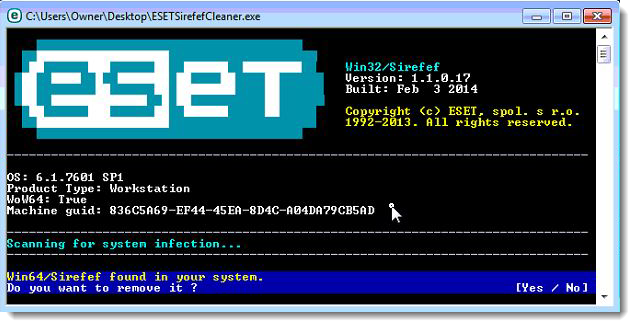
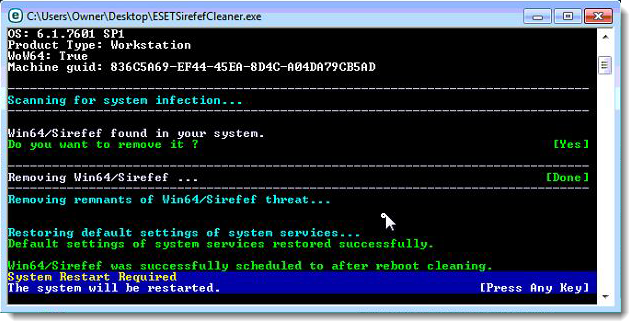
- Once the tool has run, you will be prompted to restore system services after you restart your computer. Press Y on your keyboard to restore system services and restart your computer.
- Once your computer has restarted, if you are presented with a security notification click Yes or Allow. and then continue wit the next step.
STEP 2: Use RKill to stop the File contained a virus and was deleted malicious processes
RKill is a program that will attempt to terminate all malicious processes associated with File contained a virus and was deleted, so that we will be able to perform the next step without being interrupted by this malicious software.
- You can download Rkill from the below link.
Download RKillOpens the download page in a new tab. - Double click on Rkill program to stop the malicious programs from running.
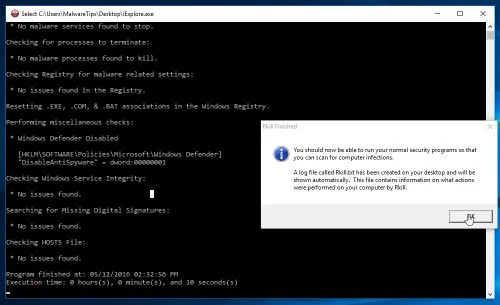
- RKill will now start working in the background, please be patient while this utiltiy looks for malicious process and tries to end them.
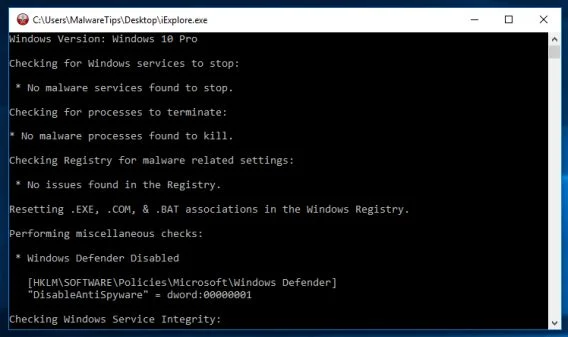
- When the Rkill tool has completed its task, it will generate a log. Do not reboot your computer after running RKill as the malware programs will start again.
STEP 3: Scan your computer with Malwarebytes Anti-Malware to remove File contained a virus and was deleted
Malwarebytes Anti-Malware is a powerful on-demand scanner which should remove the File contained a virus and was deleted virus from your machine. It is important to note that Malwarebytes Anti-Malware will run alongside antivirus software without conflicts.
- You can download download Malwarebytes Anti-Malware from the below link.
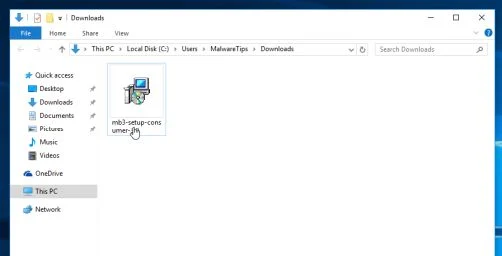
Download MalwarebytesFree official installer. Your download starts right away. - When Malwarebytes has finished downloading, double-click on the “mb3-setup-consumer” file to install Malwarebytes Anti-Malware on your computer.
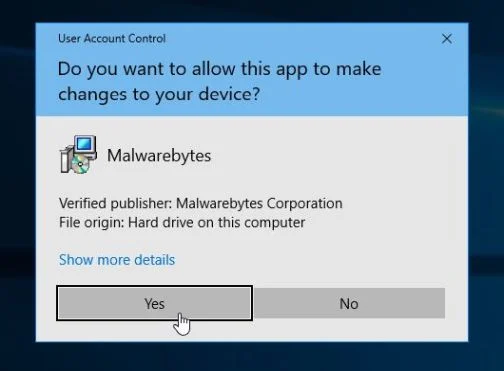
You may be presented with an User Account Control pop-up asking if you want to allow Malwarebytes to make changes to your device. If this happens, you should click “Yes” to continue with the installation.
- When the Malwarebytes installation begins, you will see the Malwarebytes Setup Wizard which will guide you through the installation process.
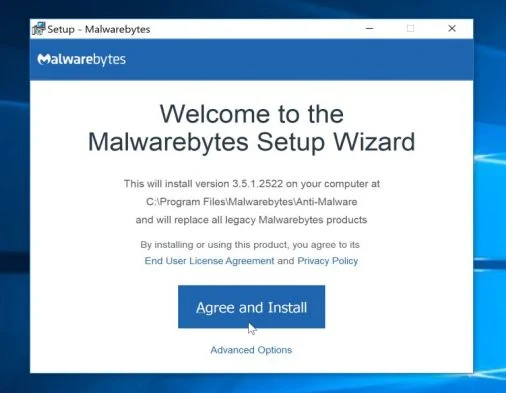
To install Malwarebytes Anti-Malware on your machine, keep following the prompts by clicking the “Next” button.
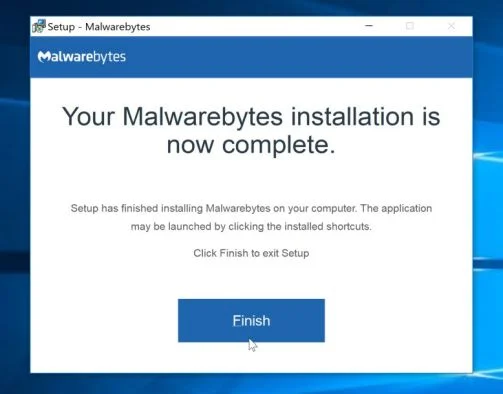
- Once installed, Malwarebytes will automatically start and update the antivirus database. To start a system scan you can click on the “Scan Now” button.
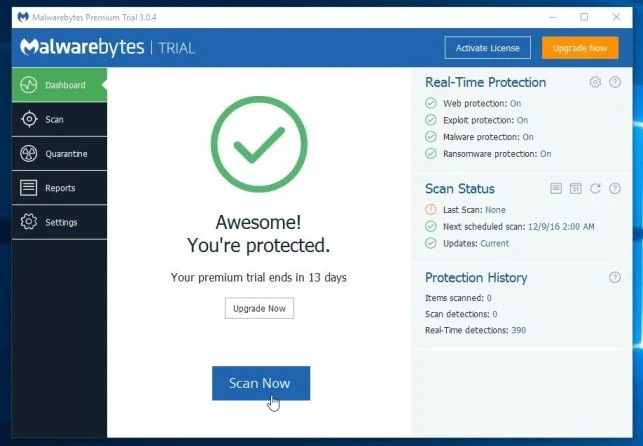
- Malwarebytes Anti-Malware will now start scanning your computer for malicious programs.
This process can take a few minutes, so we suggest you do something else and periodically check on the status of the scan to see when it is finished.
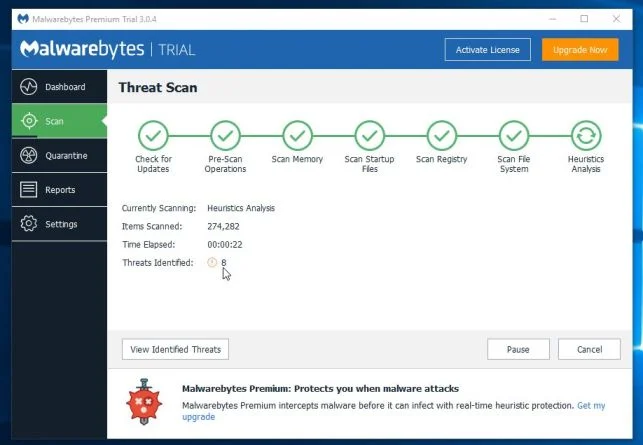
- When the scan has completed, you will be presented with a screen showing the malware infections that Malwarebytes Anti-Malware has detected.
To remove the malicious programs that Malwarebytes has found, click on the “Quarantine Selected” button.
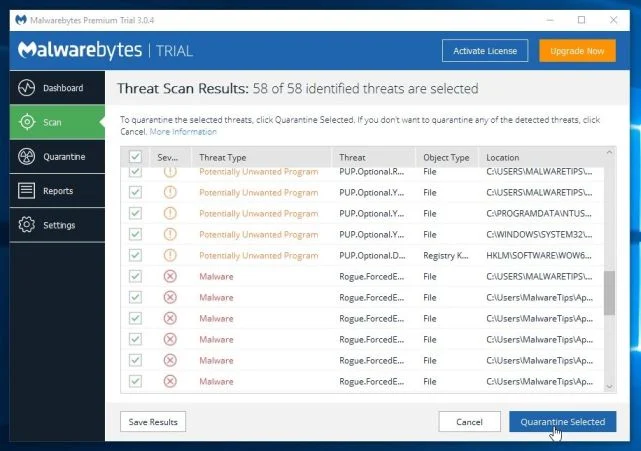
- Malwarebytes Anti-Malware will now quarantine all the malicious files and registry keys that it has found.
To complete the malware removal process, Malwarebytes may ask you to restart your computer.
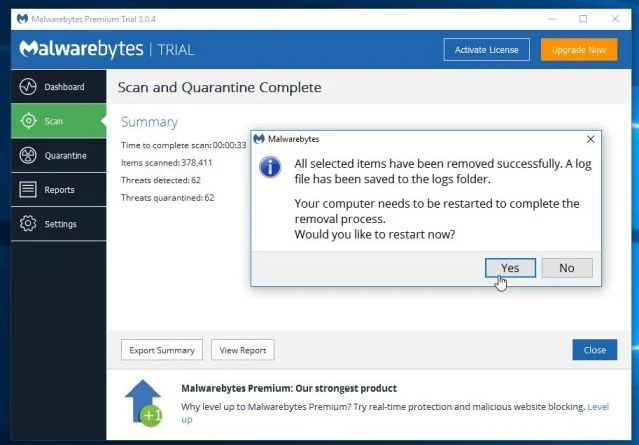
When the malware removal process is complete, you can close Malwarebytes Anti-Malware and continue with the rest of the instructions.
STEP 4: Double-check for malicious programs with HitmanPro
HitmanPro can find and remove malware, adware, bots, and other threats that even the best antivirus suite can oftentimes miss. HitmanPro is designed to run alongside your antivirus suite, firewall, and other security tools.
- You can download HitmanPro from the below link:
Download HitmanProOfficial Sophos download. Free scan, free 30-day trial to remove threats. - When HitmanPro has finished downloading, double-click on the “hitmanpro” file to install this program on your computer.
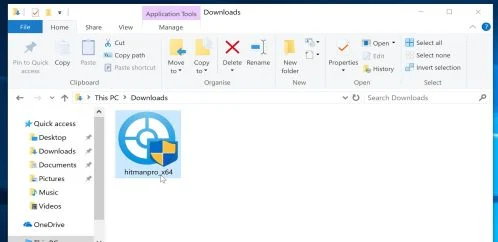
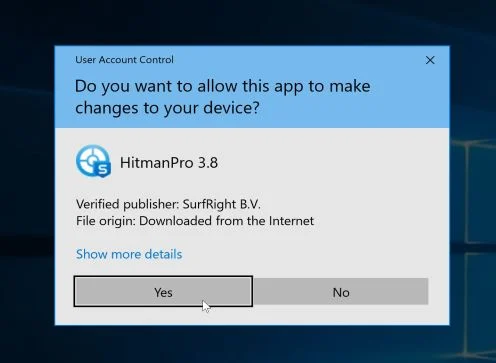
You may be presented with an User Account Control pop-up asking if you want to allow HitmanPro to make changes to your device. If this happens, you should click “Yes” to continue with the installation.
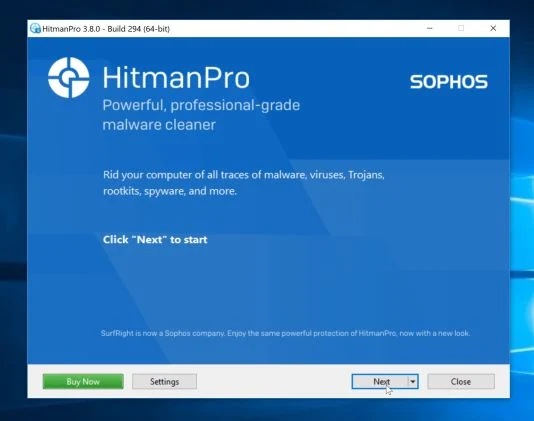
- When the program starts you will be presented with the start screen as shown below. Now click on the Next button to continue with the scan process.
- HitmanPro will now begin to scan your computer for malware.
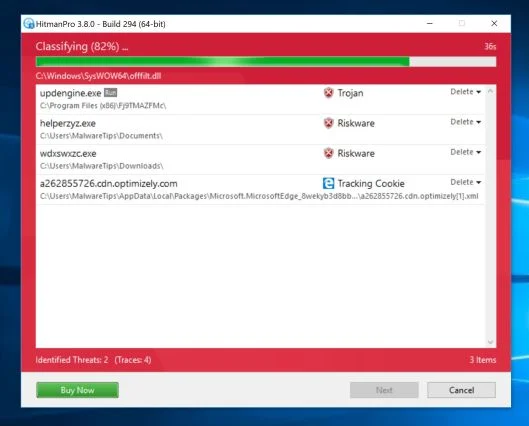
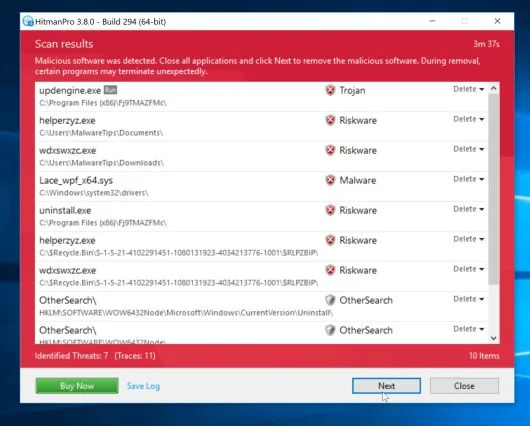
- When it has finished it will display a list of all the malware that the program found as shown in the image below. Click on the “Next” button, to remove malware.
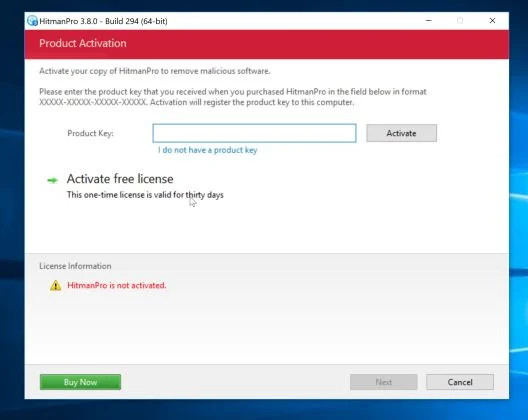
- Click on the “Activate free license” button to begin the free 30 days trial, and remove all the malicious files from your computer.
When the process is complete, you can close HitmanPro and continue with the rest of the instructions.
(OPTIONAL) STEP 5: Use Zemana AntiMalware Portable to remove File contained a virus and was deleted
This step should be performed only if your issues have not been solved by the previous steps.
- You can download Zemana AntiMalware Portable from the below link:
Download Zemana AntiMalwareOpens the download page in a new tab. - Double-click on the file named “Zemana.AntiMalware.Portable” to perform a system scan with Zemana AntiMalware Free.
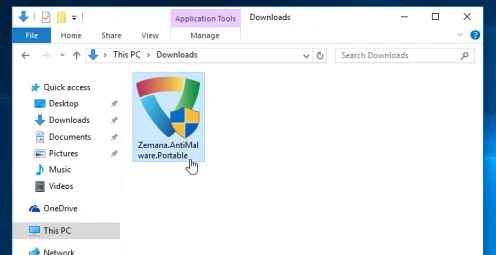
You may be presented with a User Account Control dialog asking you if you want to run this program. If this happens, you should click “Yes” to allow Zemana AntiMalware to run.
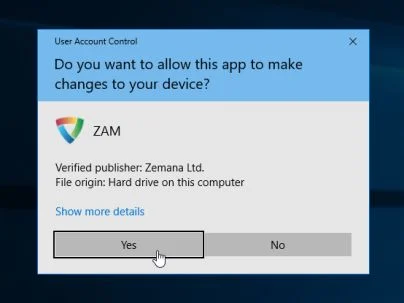
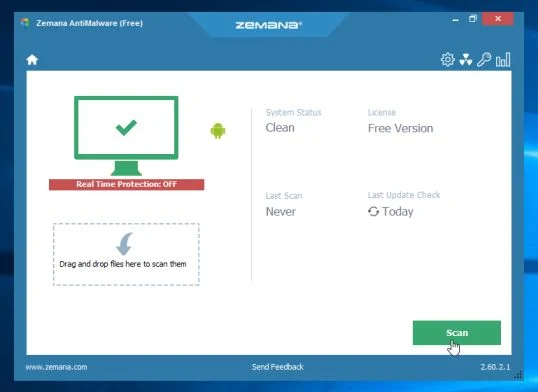
- When Zemana AntiMalware will start, click on the “Scan” button to perform a system scan.
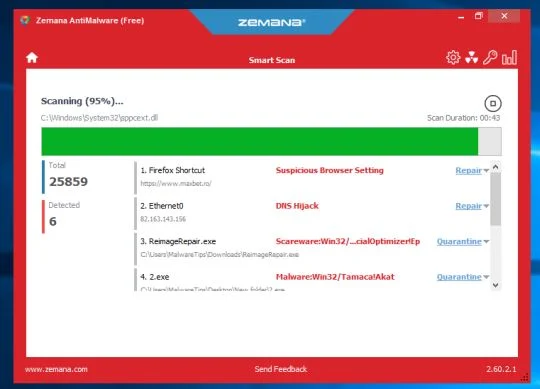
- Zemana AntiMalware will now scan your computer for malicious programs. This process can take up to 10 minutes.
- When Zemana has finished finished scanning it will show a screen that displays any malware that has been detected. To remove all the malicious files, click on the “Next” button.
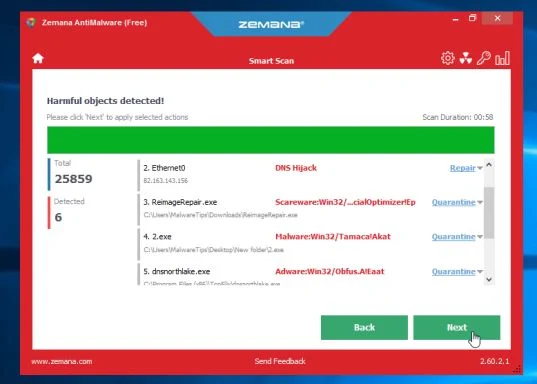
Zemana AntiMalware will now start to remove all the malicious programs from your computer.

Join the discussion
46 commentsShare your experience or ask a question about this article.
Your progress
Did these steps help?
Let us know how the guide worked for you.
Describe what you see and the step you reached. Keep passwords and other private information out.
Discussion
I legit can’t believe that my problem is fixed. 2-3 years after my problem started on my old laptop & I was about to give up. I came across this article & all I did was change the Windows Defender folder name & I no longer get the error messages. I saw someone else experienced the same success in the comments so I tried that before continuing the other steps. THANK YOU, THANK YOU, THANK YOU! I hope I can move forward without ever needing those other steps but at least I know the article is here if I need it!
Option 1 worked like a charm! I had to use Rkill instead of Comofix as it does not work with Windows 8.1 Also if you are within a domain there is no free option for HitmanPro (I skipped this step) Thank you for the guidance….
One of the most comprehensive collections of tools I have seen in a long time. Thank you for posting.
Finally!!!! I was 30-sec close to restoring my computer.. I’m no way near being a computer genius, so option 1 worked like a charm!! I’m SUPER ecstatic!! Thank you for your simple step-by-step process.. Truly appreciate it! You jus saved me $400.. Works like a charm ;)
Thank you so much…it worked!!!
Any tricks if you have 2 hard drives and multiple OS?
Thanks for the help, man!
Very grateful to you, Stilian, for what you’re doing. I think the Option 1 steps have cleared the Zero Access trojan from my laptop – it showed up early on in ComboFix. However, I made a stupid mistake with your instructions about renaming the Windows Defender file – I ran all the scans with the file renamed, and only went back to the normal name afterwards. So Defender still doesn’t have its full icon in Control Panel, and I still can’t download files in Internet Explorer (though I can at least open the Defender folder and see the list of files in it). I’ve tried giving it back its original name and re-running ComboFix (no problems reported) and Services Repair. But the problem isn’t solved. Is there anything more I can do?
Oh my goodness!!! My computer is free from this terrible virus. I followed Option one step by step and it worked like a charm. My firewall is turned on and everything. I have been working on this for a week now. Cannot thank you enough.
THANKS :) THIS HELPED HEAPS!!!!! Bless you!
Dear Stelian,
Thank you so much for this manual, it takes time but it soooo worth it!!
a million thanks, you are a life saver!!
Thank you soooo much!!! Worked a treat!! Long process but instructions were spot on and accurate. Highly recommended even for the not so computer literate out there.
Thanks again!!
thank you for your help should i delete the downloaded programs
In reply to bren
Hello,
Yes, you can delete/uninstall any utilites that we have used to remove this infection.
Stay safe!
I just rename the windows defender without doing the other steps and now I can download what I want !!
In reply to HM
Hello,
Please go ahead with the other steps as the infection is still present on your machine. This is a very serious piece of malware, so as soon as you get rid of it, the better it is.
Stay safe!
My troubles started with the FBI moneypak virus and I thought this “file deleted” started from that virus. So, when I fixed the FBI virus I thought I was OK. But I tried to download a day later and couldn’t. I tried RKILL and then ran malwarebytes. Ran it in safemode had to use a USB flash drive to run the programs. That didn’t fix the problem. Then I found your blog. Option 1 seemed to work I still had to use a USB flash drive to run COMBOFIX. Its took hours to run and I don’t think it turned off my internet access. At the end it wouldn’t completely shutdown. It was shutting down for hours. So I forced it and then it took a long time to do the report. I downloaded rougueKiller but when I double clicked on it, it wouldn’t run. So I ran Malwarebytes and found no threats. And every thing seems to be okay. I hope. I have Norton 360 and don’t really understand how I got this. But it fix the FBI moneypak and not the this.
Thanks for you Tips.
Hello Rick,
Indeed, this is one of the most stubborn infections to remove. The worst part is that the infection is very wide spread, and as you’ve seen, the removal process is time consuming.
Stay safe!
Thanks for this great information Stelian. I followed the plan step by step and it worked perfectly. One less headache to worry about. You da man!
Trying option 1 renamed windows defender as described, when I move to the next step Roguekiller it says the link contains a virus and was deleted, then go to step 4 run as described tick everything and remove then go to step 5 and hitmanpro has the original virus message hitmanPro.exe contained a virus and was deleted.
So the only one I can run is Malwarebytes but it does not seem to be removing the virus on its own. Any advice greatly appreciated
In reply to Mash
Hello,
Lets try to enable the Admin account, and clean up your computer from this account.
1.Open the Command Prompt window by clicking the Start button, clicking All Programs, clicking Accessories, and then right-click on the Command Prompt icon and select ““Run as administrator”
2.Now type the below command:
net user administrator /active:yes
3.You should see a message that the command completed successfully. Log out or restart your computer and you’ll now see the Administrator account as a choice.
4. After you have chose to login into the Administrator account, run a scan with all the tools from OPTION 1.
5. Once this process has been completer, you can then log back in into your regular account.
Stay safe!
Option 1 worked great for me. Disabling antivirus programs was harder than it sounds. I wasn’t sure if there might be some running I didn’t know about. Mcafee said it was disabled, but Combofix alerted me that it was not. I finally just went ahead and ran Combofix and ignored the warning. Luckily it ran with no problems although it took at least a half hour and wasn’t sure it was actually doing anything – just takes patience. The full Malwarebytes scan took about 4 hours. Before running I checked a thumb drive with Malwarebytes and it had the same 2 unremovable registry issues my hard drive had. I’ll need to check the drive I have my backup data on to see if it is also infected. I can just reformat the thumb drive, but I’m not sure how to apply option 1 to my backup drive. Maybe just connect it and rerun all of option 1?
Process worked great! Thanks for your support blog!