

If you are seeing a “this file contained a virus and was deleted” message, when trying to download a program using Internet Explorer 8, 9 or 10, then your computer is infected with a ZeroAccess rootkit.
![[Image: file contained a virus and was deleted Internet Explorer]](https://malwaretips.com/blogs/wp-content/uploads/mwt-media/03/03f8d9a5bd6ffd39fae3cddb1c110c1412c69131db9e0a6661d8aa1ca1d41996/4656a97d01eeb0be013ba27e6f00ecb7b635094807beb72d910caab60019fd21-600.webp "file contained a virus and was deleted infection")
The ZeroAccess trojan is a dangerous threat that has been circulating for several years. In the time that ZeroAccess has been in the wild there have been a number of revisions, with modifications to its functionality, infection strategy and its persistence mechanisms on an infected machine. However, the core purpose has remained: to assume full control of the machine by adding it to the ZeroAccess botnet and to monetize the new asset by downloading additional malware.
Primarily, Trojan ZeroAccess is a kernel-mode rootkit, similar in ethos to the TDL family of rootkits. It uses advanced techniques to hide its presence, is capable of functioning on both 32 and 64-bit flavors of Windows from a single installer, contains aggressive self defense functionality and acts as a sophisticated delivery platform for other malware.
Trojan ZeroAccess remains hidden on an infected machine while downloading more visible components that generate revenue for the botnet owners. Currently the downloaded malware is mostly aimed at sending spam and carrying out click fraud, but previously the botnet has been instructed to download other malware and it is likely that this will be the case again in the future.
The “program contained a virus and was deleted” trojan has been observed being distributed by exploits and programs that promote software-piracy, such as ‘keygens’ and ‘cracks’ (programs designed to bypass software licensing).
To protect itself from being removed, the ZeroAccess rootkit will prevent Internet Explorer 8, 9 and 10 users from downloading any piece of software that might lead to its removal.
When this happens, the Internet Explorer users will see a “filename.exe contained a virus and was deleted” message, which is obviously generated by this infection.
![[Image: program contained a virus and was deleted infection]](https://malwaretips.com/blogs/wp-content/uploads/mwt-media/f4/f43da90b328f3a8c983eb61965331f44b1a101689ee75c9b7dc57aa79455d89d/6bdc565a793af3a6e47e1d060ed3499be1a8317378fa6adf820b6d03b544fa64-968.webp "program contained a virus and was deleted infection")
The “file contained a virus and was deleted” infection, will only affect the Internet Explorer users, so if you are using Google Chrome or Mozilla Firefox, you should be able to download any piece of software without seeing this bogus alert.
In order to remove “[filename].exe contained a virus and was deleted” infection and stop this fake message from showing up and blocking software downloads you need to remove the ZeroAccess rootkit from your computer.
How to remove File contained a virus and was deleted virus (Virus Removal Guide)
Please perform all the steps in the correct order. If you have any questions or doubt at any point, STOP and ask for our assistance.
-
To remove File contained a virus and was deleted virus, follow these steps:
- STEP 1: Use ESETSirfefCleaner tool to remove File contained a virus and was deleted
- STEP 2: Use RKill to stop the File contained a virus and was deleted malicious processes
- STEP 3: Scan your computer with Malwarebytes Anti-Malware to remove File contained a virus and was deleted
- STEP 4: Double-check for malicious programs with HitmanPro
- (OPTIONAL) STEP 5: Use Zemana AntiMalware Portable to remove File contained a virus and was deleted
STEP 1: Use ESETSirfefCleaner tool to remove File contained a virus and was deleted
In this first step, we will use the ESETSirefefCleaner tool to remove the File contained a virus and was deleted from your computer.
- You can download ESETSirefefCleaner from the below link.
Download ESET Sirefef CleanerYour download starts right away.Unable to download “ESETSirefefCleaner.exe contained a virus and was deleted”.
More recent variants of Sirefef might prevent you from downloading this removal tool. If you cannot download the tool, follow the steps below:- Click Start → Computer → Local Disk (C:) → Program Files.
- Right-click the Windows Defender folder and select Rename from the context menu.
- Add a unique variation to the filename, such as .old (for example, Windows Defender.old).
- Click the link above to download the ESETSirefefCleaner tool.When the download is complete, make sure to rename the Windows Defender folder back to its original filename before running the ESET SirefefCleaner tool.
- Double-click on ESETSirefefCleaner.exe to start this utility. You may be presented with an User Account Control pop-up asking if you want to allow this to make changes to your device. If this happens, you should click “Yes” to continue.
- The message “Win32/Sirefef.EV found in your system” will be displayed if an infection is found. To remove File contained a virus and was deleted from your computer, press the Y key on your keyboard
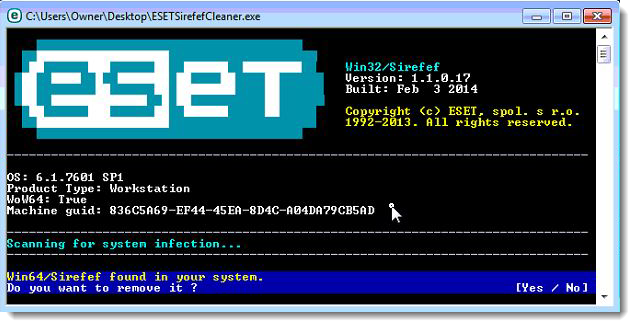
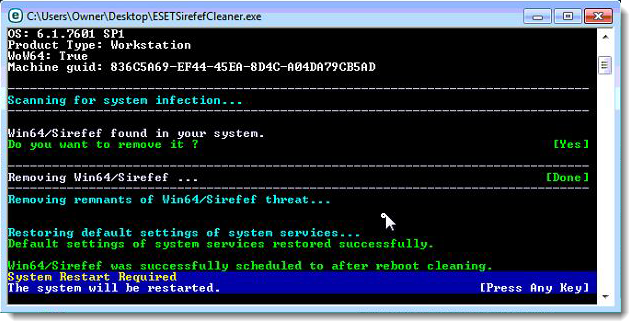
- Once the tool has run, you will be prompted to restore system services after you restart your computer. Press Y on your keyboard to restore system services and restart your computer.
- Once your computer has restarted, if you are presented with a security notification click Yes or Allow. and then continue wit the next step.
STEP 2: Use RKill to stop the File contained a virus and was deleted malicious processes
RKill is a program that will attempt to terminate all malicious processes associated with File contained a virus and was deleted, so that we will be able to perform the next step without being interrupted by this malicious software.
- You can download Rkill from the below link.
Download RKillOpens the download page in a new tab. - Double click on Rkill program to stop the malicious programs from running.
- RKill will now start working in the background, please be patient while this utiltiy looks for malicious process and tries to end them.
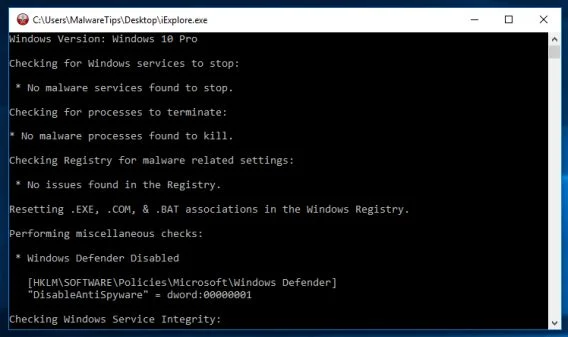
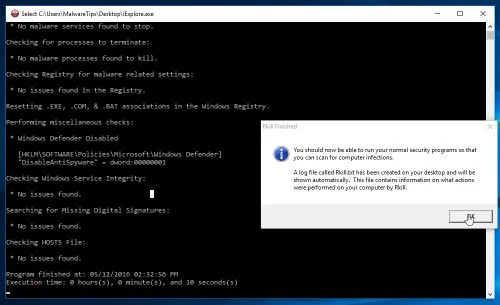
- When the Rkill tool has completed its task, it will generate a log. Do not reboot your computer after running RKill as the malware programs will start again.
STEP 3: Scan your computer with Malwarebytes Anti-Malware to remove File contained a virus and was deleted
Malwarebytes Anti-Malware is a powerful on-demand scanner which should remove the File contained a virus and was deleted virus from your machine. It is important to note that Malwarebytes Anti-Malware will run alongside antivirus software without conflicts.
- You can download download Malwarebytes Anti-Malware from the below link.
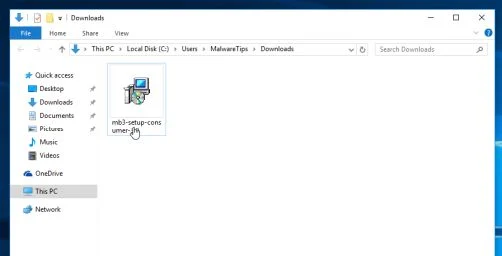
Download MalwarebytesFree official installer. Your download starts right away. - When Malwarebytes has finished downloading, double-click on the “mb3-setup-consumer” file to install Malwarebytes Anti-Malware on your computer.
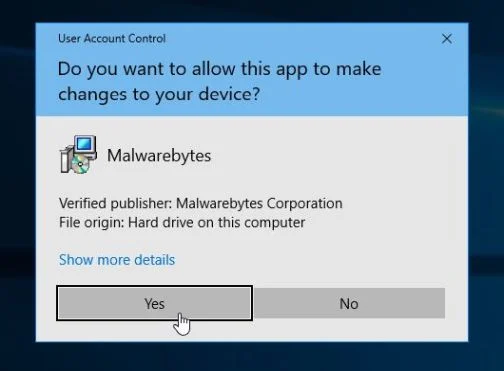
You may be presented with an User Account Control pop-up asking if you want to allow Malwarebytes to make changes to your device. If this happens, you should click “Yes” to continue with the installation.
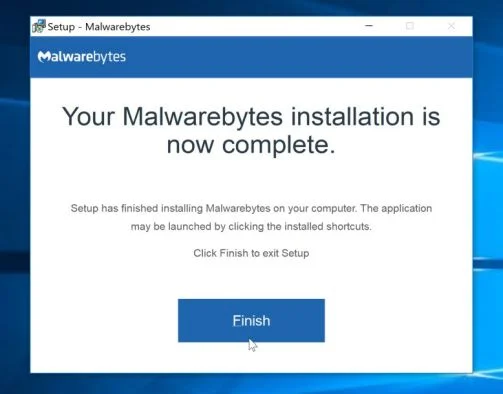
- When the Malwarebytes installation begins, you will see the Malwarebytes Setup Wizard which will guide you through the installation process.
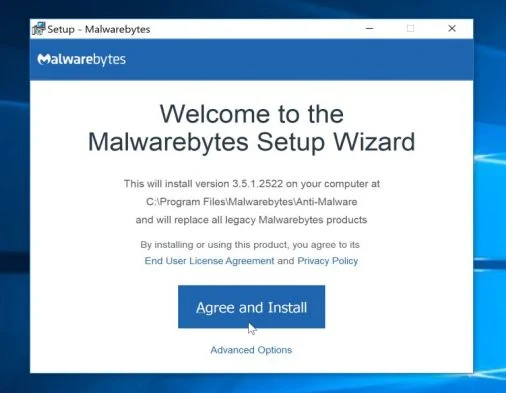
To install Malwarebytes Anti-Malware on your machine, keep following the prompts by clicking the “Next” button.
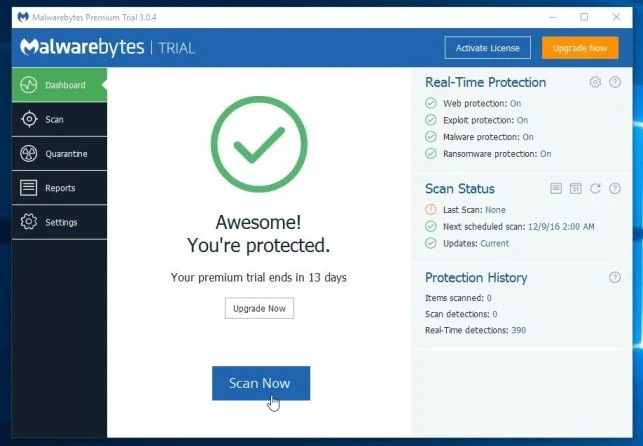
- Once installed, Malwarebytes will automatically start and update the antivirus database. To start a system scan you can click on the “Scan Now” button.
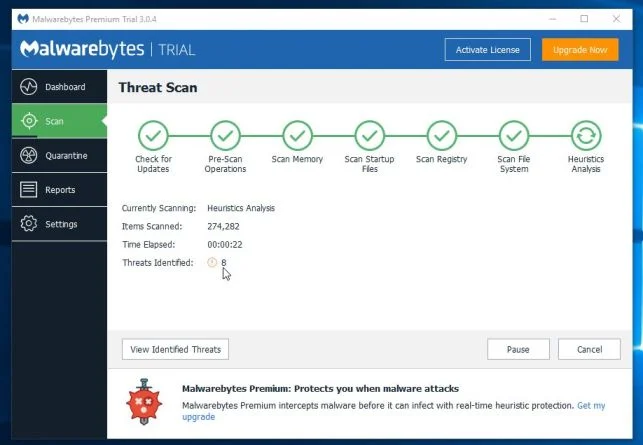
- Malwarebytes Anti-Malware will now start scanning your computer for malicious programs.
This process can take a few minutes, so we suggest you do something else and periodically check on the status of the scan to see when it is finished.
- When the scan has completed, you will be presented with a screen showing the malware infections that Malwarebytes Anti-Malware has detected.
To remove the malicious programs that Malwarebytes has found, click on the “Quarantine Selected” button.
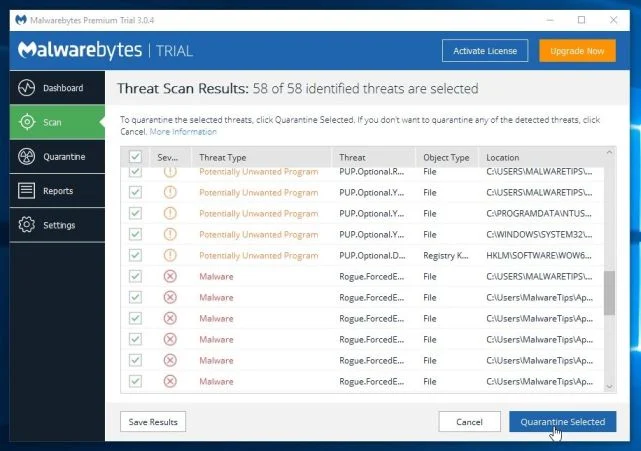
- Malwarebytes Anti-Malware will now quarantine all the malicious files and registry keys that it has found.
To complete the malware removal process, Malwarebytes may ask you to restart your computer.
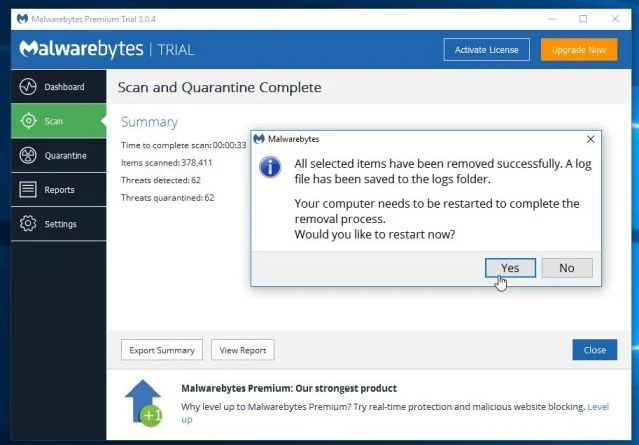
When the malware removal process is complete, you can close Malwarebytes Anti-Malware and continue with the rest of the instructions.
STEP 4: Double-check for malicious programs with HitmanPro
HitmanPro can find and remove malware, adware, bots, and other threats that even the best antivirus suite can oftentimes miss. HitmanPro is designed to run alongside your antivirus suite, firewall, and other security tools.
- You can download HitmanPro from the below link:
Download HitmanProOfficial Sophos download. Free scan, free 30-day trial to remove threats. - When HitmanPro has finished downloading, double-click on the “hitmanpro” file to install this program on your computer.
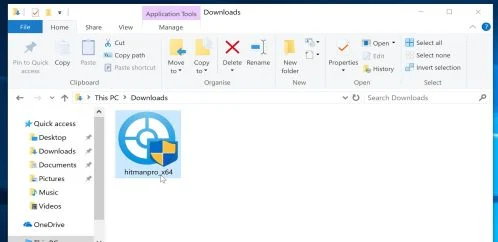
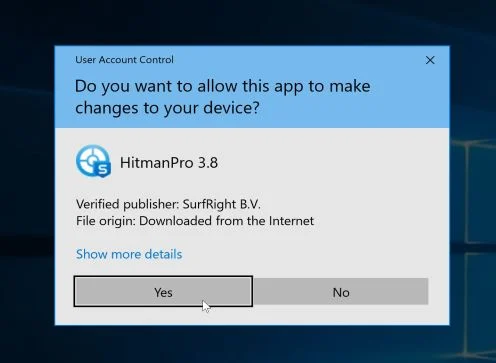
You may be presented with an User Account Control pop-up asking if you want to allow HitmanPro to make changes to your device. If this happens, you should click “Yes” to continue with the installation.
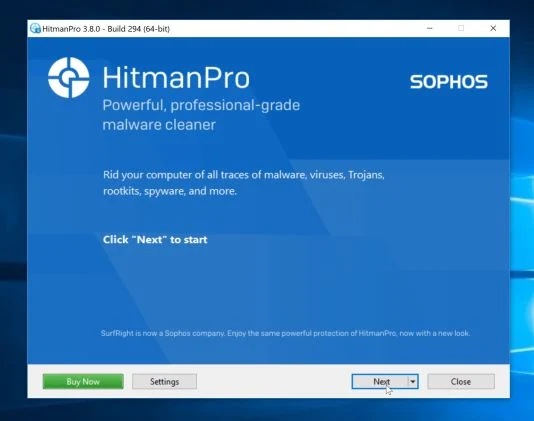
- When the program starts you will be presented with the start screen as shown below. Now click on the Next button to continue with the scan process.
- HitmanPro will now begin to scan your computer for malware.
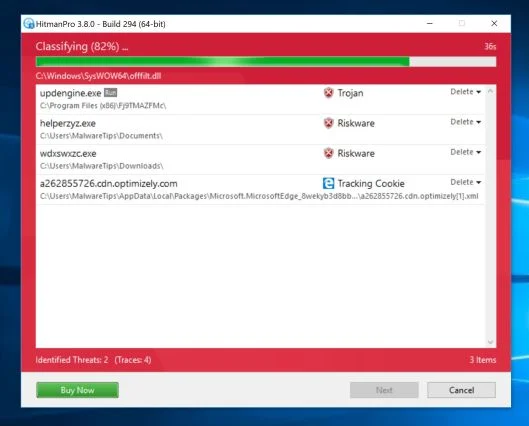
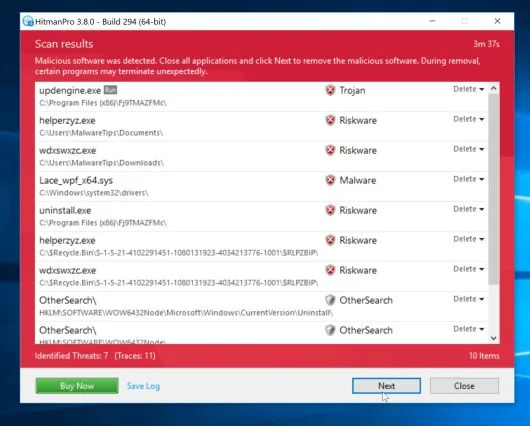
- When it has finished it will display a list of all the malware that the program found as shown in the image below. Click on the “Next” button, to remove malware.
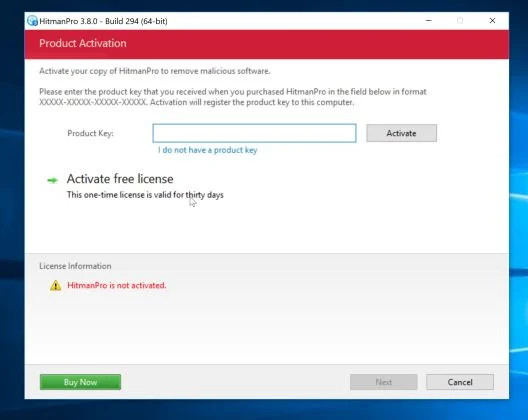
- Click on the “Activate free license” button to begin the free 30 days trial, and remove all the malicious files from your computer.
When the process is complete, you can close HitmanPro and continue with the rest of the instructions.
(OPTIONAL) STEP 5: Use Zemana AntiMalware Portable to remove File contained a virus and was deleted
This step should be performed only if your issues have not been solved by the previous steps.
- You can download Zemana AntiMalware Portable from the below link:
Download Zemana AntiMalwareOpens the download page in a new tab. - Double-click on the file named “Zemana.AntiMalware.Portable” to perform a system scan with Zemana AntiMalware Free.
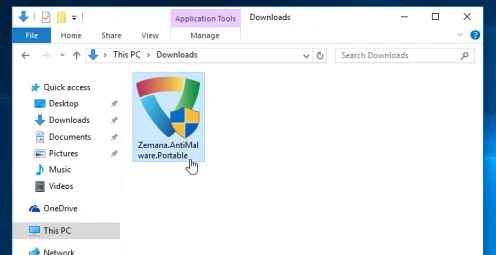
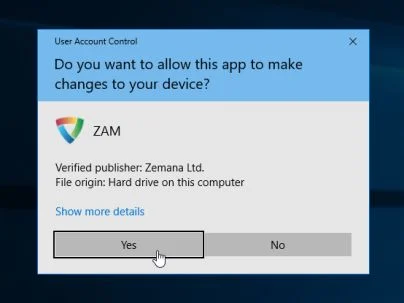
You may be presented with a User Account Control dialog asking you if you want to run this program. If this happens, you should click “Yes” to allow Zemana AntiMalware to run.
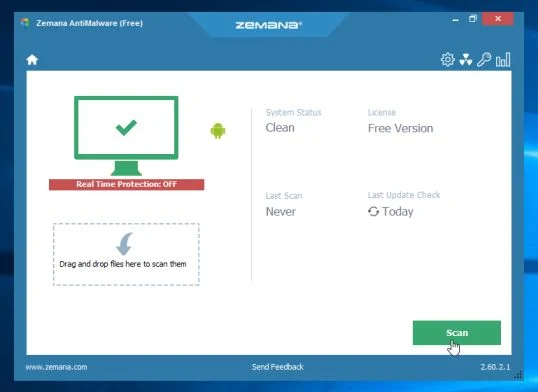
- When Zemana AntiMalware will start, click on the “Scan” button to perform a system scan.
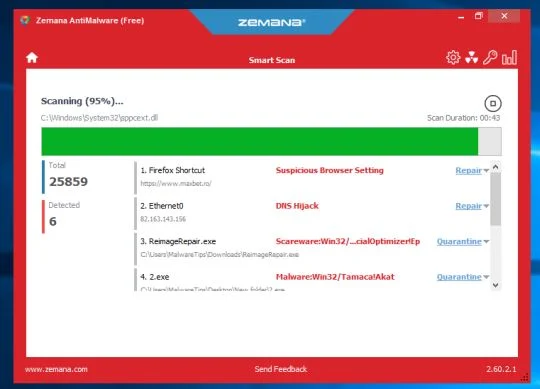
- Zemana AntiMalware will now scan your computer for malicious programs. This process can take up to 10 minutes.
- When Zemana has finished finished scanning it will show a screen that displays any malware that has been detected. To remove all the malicious files, click on the “Next” button.
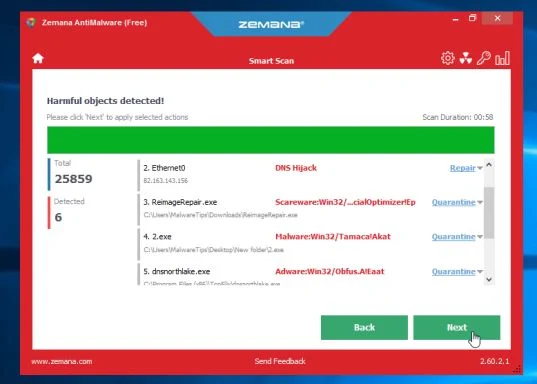
Zemana AntiMalware will now start to remove all the malicious programs from your computer.

Join the discussion
46 commentsShare your experience or ask a question about this article.
Your progress
Did these steps help?
Let us know how the guide worked for you.
Describe what you see and the step you reached. Keep passwords and other private information out.
Discussion
That did the trick! After spending hours researching this problem, you seem to be the only guy that really knew what victims were talking about and how to handle it. Thanks!
ComboFix worked great after a bunch others failed. Thanks much!
Hello Daniel,
Skip the Combofix scan for now, and go ahead with the other steps.
Stay safe!
Hello Ken,
I fixed the link, thank you! Now, HitmanPro has a free 30-days trial for home users, however if you are using a laptop from work you will need to buy this product.
Stay safe!
Hello,
Yes please follow the other steps. If you cannot download the utilities, you ca use a USB stick to transfer them to the infected computer.
ESET Service Repair and the other tools should fix your issues.
Stay safe!
Hello Lynn,
Yes, this is a very nasty infection so you will need all the tools from option 1.
Stay safe!
Hello Mark,
Yes, this infection can corrupt your video or audio drivers, and you will need to uninstall and reinstall to fix the problem.
Lets run a scan with ESETSirefefCleaner tool:
1.Click the link below to download the ESETSirefefCleaner tool, and save the file to your Desktop : http://download.eset.com/special/ESETSirefefCleaner.exe
2.From your Desktop, double-click ESETSirefefCleaner utility. If security notifications appear, click Continue or Run.
3.The message “Win32/Sirefef.EV found in your system” will be displayed If an infection is found. Press Y on your keyboard to remove the infection.
4.Once the tool has run, you will be prompted to restore system services after you restart your computer. Press Y on your keyboard to restore system services and restart your computer.
5.Once your computer has restarted, if you are presented with a security notification click Yes or Allow.
6.Click Yes at the ESET Services Repair tool window.
7.Once the ESET Services Repair process is complete, you will again be prompted to restart your computer, to do so click Yes.
Then, please perform a scan with HitmanPro, RogueKiller and Malwarebytes Anti-Malware. Let me know how your computer is running.
Option 2 HitmanPro Kickstart worked a treat to fix this problem where a couple of other USB bootable scanners had failed. A huge thanks to Stelian for this page and to Mark from SurfRight for that great little “Flying Kick Guy”.
Cheers.
Wow it actually worked, ok I dont normally write on these but this site deserves a big Thankyou. So THANKYOU!
Hello Steven,
Lets run a scan with ESETSirefefCleaner tool:
1.Click the link below to download the ESETSirefefCleaner tool, and save the file to your Desktop.
ESET SIREFEFCLEANER TOOL DOWNLOAD LINK : http://download.eset.com/special/ESETSirefefCleaner.exe
2.From your Desktop, double-click ESETSirefefCleaner utility. If security notifications appear, click Continue or Run.
3.The message “Win32/Sirefef.EV found in your system” will be displayed If an infection is found. Press Y on your keyboard to remove the infection.
4.Once the tool has run, you will be prompted to restore system services after you restart your computer. Press Y on your keyboard to restore system services and restart your computer.
5.Once your computer has restarted, if you are presented with a security notification click Yes or Allow.
6.Click Yes at the ESET Services Repair tool window.
7.Once the ESET Services Repair process is complete, you will again be prompted to restart your computer, to do so click Yes.
Then, please perform a scan with HitmanPro, RogueKiller and Malwarebytes Anti-Malware. Let me know how your computer is running.
Stelian-
thank you very much for your assistance. I went through the process noted under option 1 and my system appears to working fine again. Interestingly, the Malwarebytes application did not find any infected files and the HitmanPro only found tracking cookies. But all seems to be fine.
As an aside- I did call McAfee to see if they could help me originally, and the guy told me that I had an operating system problem as I was running an older version of Java and that my McAfee security software was not at all responsible for the infection. Then he tried to sell me a year’s worth of tech support for $190 and when I rejected that offer he tried to sell me a one time fix for $90. I won’t be renewing with them when my subscription is up.
Thanks again you- provide tremendous help.
I tried option 1 and it worked perfectly. Thanks for all of the help!
YES!!!! FINALLY!!!!!! Step 1 worked like a charm!! Thanks so much! You’re a true lifesaver!!
In reply to Yo!SheNice
Stay safe!
I did apply all instructions of OPTION 1 including ComboFix and I still have the problem during download with IE10, but not with Google Chrome!!
Is it a but with IE10? Your help would be greatly appreciated.
Thanks!
In reply to Michel Landry
Hello Michael,
What antivirus product are you using? By any chance is it for the AVG line?
In reply to Stelian Pilici
No, I am using Norton 360.
In reply to Michel
Click Start –> Computer –> Local Disk (C:) –> Program Files.
Right-click the Windows Defender folder and select Rename from the context menu.
Add a unique variation to the filename, such as .old (for example, Windows Defender.old).
After you have downloaded and run all the scans, make sure to rename the Windows Defender folder back to its original filename.
Stay safe!
Good instruction – but it dosent work – I get the same – contained a virus…. message when I try to download your recommended fixes!
In reply to kelly
Hello,
Do you have an USB stick? If yes, then copy the tools from this guide and run them on the infected machine… Is that easy…. :)
Stay safe!
Hello Mark,
Can you please run a scan with Combofix and post the logs here so that I can get an idea on what’s going on:
You can download ComboFix from here: http://download.bleepingcomputer.com/sUBs/ComboFix.exe
VERY IMPORTANT !!! Save as Combo-Fix.exe during the download.
ComboFix must be renamed before you download to your Desktop
Close any open browsers.
Very Important!!!> Temporarily disable your anti-virus, script blocking and any anti-malware real-time protection before performing a scan. They can interfere with ComboFix or remove some of its embedded files which may cause “unpredictable results”.
WARNING: Combofix will disconnect your machine from the Internet as soon as it starts
Please do not attempt to re-connect your machine back to the Internet until Combofix has completely finished.
If there is no internet connection after running Combofix, then restart your computer to restore back your connection.
1. Double click on ComboFix.exe & follow the prompts.
2. Accept the disclaimer and allow to update if it asks
3. When finished, it shall produce a log for you.
Notes:
Do not mouse-click Combofix’s window while it is running. That may cause it to stall.
Do not “re-run” Combofix. If you have a problem, reply back for further instructions.
If after the reboot you get errors about programs being marked for deletion then reboot, that will cure it.
Great job man! Used this on a customers computer via teamviewer and it worked like a champ.
In reply to Mike Delaney
Thanks for the info! It’s much appreciated!