

File Recovery is a malicious program that will display fake alerts, claiming that several hard drive errors and computer issues were detected on your machine.
In reality, none of the reported issues are real, and are only used to scare you into purchasing File Recovery and stealing your personal financial information.
Apart from the bogus alerts and warning,this rogue software has changed your desktop background to a solid black color,has hidden your files and folders and it’s causing browser redirects.
As part of its self-defense mechanism,File Recovery has disabled the Windows system utilities, including Task Manager and Windows Registry and is block you from running certain programs that could lead to its removal.
If your computer is infected with File Recovery virus,then you are seeing this images:
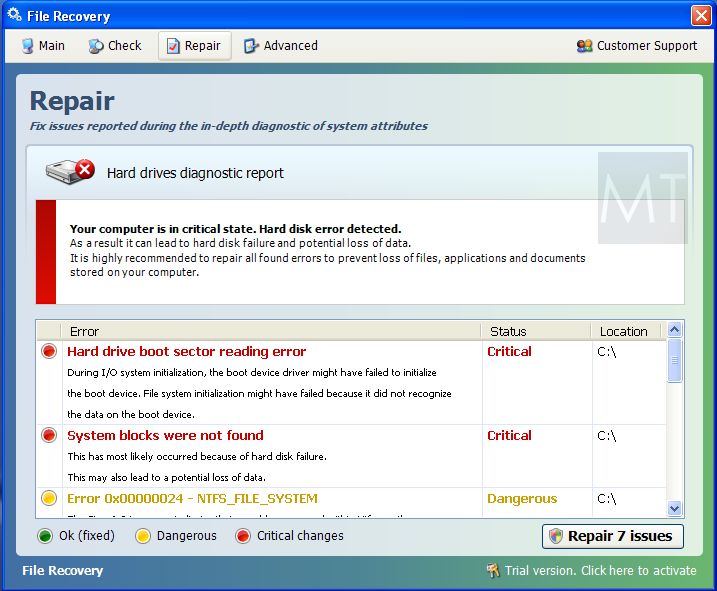
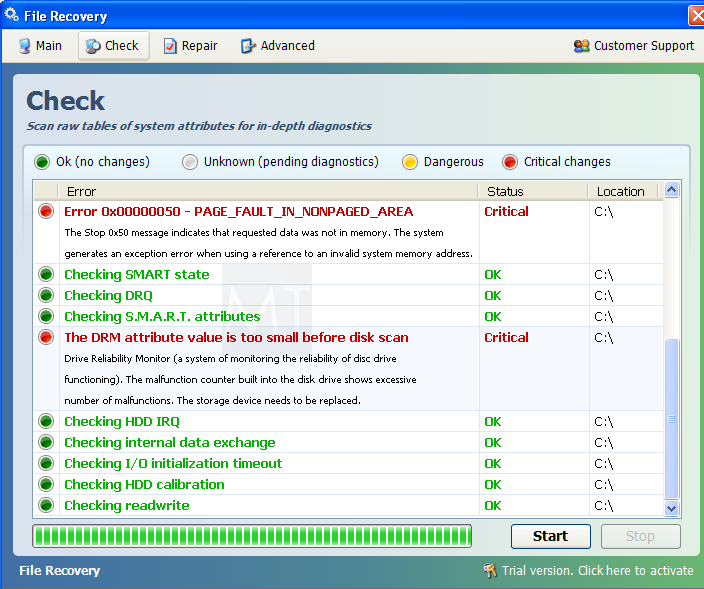
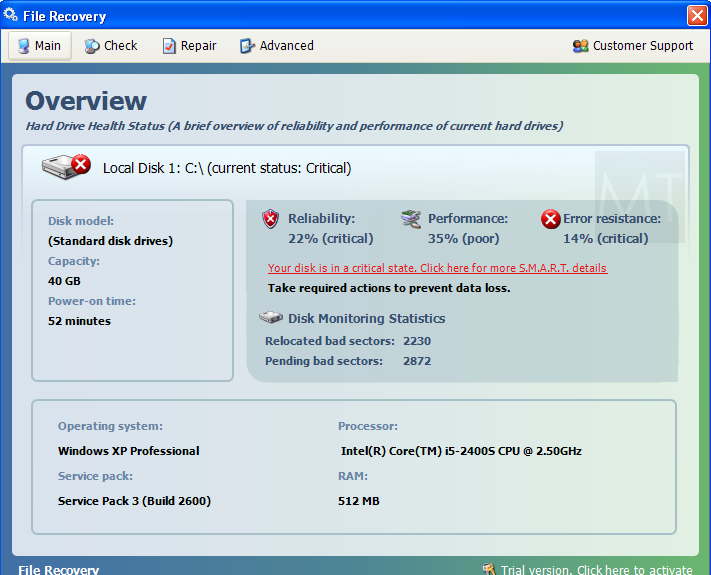
We strongly advise you to follow our File Recovery virus removal guide and ignore any alerts that this malicious software might generate.
Under no circumstance should you buy this rogue security software as this could lead to identity theft,and if you have, you should contact your credit card company and dispute the charge stating that the program is a scam and a computer virus.
Registration codes for File Recovery
As an optional step,you can use the following license key to register File Recovery virus and stop the fake alerts.
File Recovery activation code: 56723489134092874867245789235982
Please keep in mind that entering the above registration code will NOT remove File Recovery from your computer , instead it will just stop the fake alerts so that you’ll be able to complete our removal guide more easily.
File Recovery Removal Instructions
STEP 1 : Start your computer in Safe Mode with Networking
- Remove all floppy disks, CDs, and DVDs from your computer, and then restart your computer.
- Press and hold the F8 key as your computer restarts.Please keep in mind that you need to press the F8 key before the Windows start-up logo appears.
Note: With some computers, if you press and hold a key as the computer is booting you will get a stuck key message. If this occurs, instead of pressing and holding the “F8 key”, tap the “F8 key” continuously until you get the Advanced Boot Options screen. - On the Advanced Boot Options screen, use the arrow keys to highlight Safe Mode with Networking , and then press ENTER.
![[Image: Safemode.jpg]](//malwaretips.com/images/removalguide/safemode.jpg "Safe Mode with Networking screen")
![[Image: Safemode.jpg]](http://malwaretips.com/images/removalguide/safemode.jpg "Safe Mode with Networking screen")
STEP 2: Remove File Recovery malicious proxy server
File Recovery may add a proxy server which prevents the user from accessing the internet,follow the below instructions to remove the proxy.
- Start the Internet Explorer browser and if you are using Internet Explorer 9 ,click on the gear icon
![[Image: IE gear icon]](//malwaretips.com/images/removalguide/icongear.jpg "Gear Icon") (Tools for Internet Explorer 8 users) ,then select Internet Options.
(Tools for Internet Explorer 8 users) ,then select Internet Options.
![[Image: Internet-options-IE.png]](//malwaretips.com/images/removalguide/ie1.png "Internet Options in IE")
- Go to the tab Connections.At the bottom, click on LAN settings.
![[Image: Remove-proxy-server2.png]](//malwaretips.com/images/removalguide/ie2.png "Connections tab in Internet Explorer")
- Uncheck the option Use a proxy server for your LAN. This should remove the malicious proxy server and allow you to use the internet again.
![[Image: Remove-proxy-server3.png]](//malwaretips.com/images/removalguide/ie3.png "Uncheck the option Use a proxy server for your LAN")
![[Image: IE gear icon]](http://malwaretips.com/images/removalguide/icongear.jpg "Gear Icon") (Tools for Internet Explorer 8 users) ,then select Internet Options.
(Tools for Internet Explorer 8 users) ,then select Internet Options.![[Image: Internet-options-IE.png]](http://malwaretips.com/images/removalguide/ie1.png "Internet Options in IE")
![[Image: Remove-proxy-server2.png]](http://malwaretips.com/images/removalguide/ie2.png "Connections tab in Internet Explorer")
![[Image: Remove-proxy-server3.png]](http://malwaretips.com/images/removalguide/ie3.png "Uncheck the option Use a proxy server for your LAN")
If you are a Firefox users, go to Firefox(upper left corner) → Options → Advanced tab → Network → Settings → Select No Proxy
STEP 3: Run RKill to terminate known malware processes associated with File Recovery.
RKill is a program that will attempt to terminate all malicious processes associated with File Recovery virus,so that we will be able to perform the next step without being interrupted by this malicious software.
Because this utility will only stop File Recovery running process, and does not delete any files, after running it you should not reboot your computer as any malware processes that are configured to start automatically will just be started again.
- While your computer is in Safe Mode with Networking ,please download the latest official version of RKill.Please note that we will use a renamed version of RKILL so that File Recovery won’t block this utility from running.
Download RKillYour download starts right away. - Double-click on the iExplore.exe icon in order to automatically attempt to stop any processes associated with File Recovery.
![[Image: run-rkill-1.png]](//malwaretips.com/images/removalguide/rkill1.png "RKILL ICON")
- RKill will now start working in the background, please be patient while the program looks for various malware programs and tries to terminate them.
![[Image: run-rkill-2.png]](//malwaretips.com/images/removalguide/rkill2.png "RKILL Command prompt")
IF you are having problems starting or running RKill, you can download any other renamed versions of RKill from here. - When Rkill has completed its task, it will generate a log. You can then proceed with the rest of the guide.
![[Image: File Recovery virus rkill3.jpg]](//malwaretips.com/images/removalguide/rkill3.png "RKILL LOG")
![[Image: run-rkill-1.png]](http://malwaretips.com/images/removalguide/rkill1.png "RKILL ICON")
![[Image: run-rkill-2.png]](http://malwaretips.com/images/removalguide/rkill2.png "RKILL Command prompt")
![[Image: File Recovery virus rkill3.jpg]](http://malwaretips.com/images/removalguide/rkill3.png "RKILL LOG")
WARNING: Do not reboot your computer after running RKill as the malware process will start again , preventing you from properly performing the next step.
STEP 4: Remove File Recovery malicious files with Malwarebytes Anti-Malware FREE
- Download the latest official version of Malwarebytes Anti-Malware FREE.
Download MalwarebytesFree official installer. Your download starts right away. - Start the Malwarebytes’ Anti-Malware installation process by double clicking on mbam-setup file.
![[Image: Malwarebytes Installer]](//malwaretips.com/images/removalguide/malwarebytes-setup.png "Malwarebytes Anti-Malware Installer")
- When the installation begins, keep following the prompts in order to continue with the setup process. Do not make any changes to default settings and when the program has finished installing, make sure you leave both the Update Malwarebytes’ Anti-Malware and Launch Malwarebytes’ Anti-Malware checked. Then click on the Finish button. If Malwarebytes’ prompts you to reboot, please do not do so.
![[Image: Finishing Malwarebytes installation]](//malwaretips.com/images/removalguide/update-malwarebytes.png "Malwarebytes last setup screen")
- Malwarebytes Anti-Malware will now start and you’ll be prompted to start a trial period , please select ‘Decline‘ as we just want to use the on-demand scanner.
![[Image: Decline Malwarebytes trial]](//malwaretips.com/images/removalguide/malwarebytes-trial.png "Decline trial period in Malwarebytes Anti-Malware")
- On the Scanner tab,select Perform full scan and then click on the Scanbutton to start scanning your computer.
![[Image: Starting a full system sca]](//malwaretips.com/images/removalguide/start-scan-malwarebytes.png "Perform a Full System Scan with Malwarebytes Anti-Malware")
- Malwarebytes’ Anti-Malware will now start scanning your computer for File Recovery malicious files as shown below.
![[Image: Malwarebytes scanning for malicious files]](//malwaretips.com/images/removalguide/scan-malwarebytes.png "Malwarebytes Anti-Malware scanning for File Recovery virus")
- When the scan is finished a message box will appear, click OK to continue.
![[Image: Malwarebytes scan results]](//malwaretips.com/images/removalguide/results-malwarebytes.png "Malwarebytes when the system scan has finished")
- You will now be presented with a screen showing you the malware infections that Malwarebytes’ Anti-Malware has detected.Please note that the infections found may be different than what is shown in the image.Make sure that everything is Checked (ticked) and click on the Remove Selected button.
![[Image: Infections found by Malwarebytes]](//malwaretips.com/images/removalguide/detection-malwarebytes.png "Removing the infections found by Malwarebytes")
- Malwarebytes’ Anti-Malware will now start removing the malicious files.After completing this task it will display a message stating that it needs to reboot,please allow this request and then let your PC boot in Normal mode.
![[Image: Malwarebytes Installer]](http://malwaretips.com/images/removalguide/malwarebytes-setup.png "Malwarebytes Anti-Malware Installer")
![[Image: Finishing Malwarebytes installation]](http://malwaretips.com/images/removalguide/update-malwarebytes.png "Malwarebytes last setup screen")
![[Image: Decline Malwarebytes trial]](http://malwaretips.com/images/removalguide/malwarebytes-trial.png "Decline trial period in Malwarebytes Anti-Malware")
![[Image: Starting a full system sca]](http://malwaretips.com/images/removalguide/start-scan-malwarebytes.png "Perform a Full System Scan with Malwarebytes Anti-Malware")
![[Image: Malwarebytes scanning for malicious files]](http://malwaretips.com/images/removalguide/scan-malwarebytes.png "Malwarebytes Anti-Malware scanning for File Recovery virus")
![[Image: Malwarebytes scan results]](http://malwaretips.com/images/removalguide/results-malwarebytes.png "Malwarebytes when the system scan has finished")
![[Image: Infections found by Malwarebytes]](http://malwaretips.com/images/removalguide/detection-malwarebytes.png "Removing the infections found by Malwarebytes")
STEP 5: Double check your system for any left over infections with HitmanPro
- This step can be performed in Normal Mode ,so please download the latest official version of HitmanPro.
Download HitmanProOfficial Sophos download. Free scan, free 30-day trial to remove threats. - Double click on the previously downloaded fileto start the HitmanPro installation.
![[Image: HitmanPro Icon]](//malwaretips.com/images/removalguide/hpro1.png "HitmanPro Installer")
IF you are experiencing problems while trying to starting HitmanPro, you can use the “Force Breach” mode.To start this program in Force Breach mode, hold down the left CTRL-key when you start HitmanPro and all non-essential processes are terminated, including the malware process. (How to start HitmanPro in Force Breach mode – Video) - Click on Next to install HitmanPro on your system.
![[Image: Starting HitmanPro]](//malwaretips.com/images/removalguide/hitmanpro36-start.png "HitmanPro installation process")
- The setup screen is displayed, from which you can decide whether you wish to install HitmanPro on your machine or just perform a one-time scan, select a option then click on Next to start a system scan.
![[Image: HitmanPro installation screen]](//malwaretips.com/images/removalguide/hitmanpro36-installation.png "HitmanPro setup options")
- HitmanPro will start scanning your system for malicious files as seen in the image below.
![[Image: HitmanPron scanning for File Recovery virus]](//malwaretips.com/images/removalguide/hitmanpro36-scan.png "HitmanPro while scanning for File Recovery virus virus")
- Once the scan is complete,you’ll see a screen which will display all the malicious files that the program has found.Click on Next to remove this malicious files.
![[Image: HitmanPro scan results]](//malwaretips.com/images/removalguide/hitmanpro36-results.png "HitmanPro displaying scan results")
- Click Activate free license to start the free 30 days trial and remove the malicious files.
![[Image: Activate HitmanPro license]](//malwaretips.com/images/removalguide/hitmanpro36-activation.png "Activate the HitmanPro free 30 days trial to remove any detected infections")
- HitmanPro will now start removing the infected objects.If this program will ask you to restart your computer,please allow this request.
![[Image: HitmanPro Icon]](http://malwaretips.com/images/removalguide/hpro1.png "HitmanPro Installer")
![[Image: Starting HitmanPro]](http://malwaretips.com/images/removalguide/hitmanpro36-start.png "HitmanPro installation process")
![[Image: HitmanPro installation screen]](http://malwaretips.com/images/removalguide/hitmanpro36-installation.png "HitmanPro setup options")
![[Image: HitmanPron scanning for File Recovery virus]](http://malwaretips.com/images/removalguide/hitmanpro36-scan.png "HitmanPro while scanning for File Recovery virus virus")
![[Image: HitmanPro scan results]](http://malwaretips.com/images/removalguide/hitmanpro36-results.png "HitmanPro displaying scan results")
![[Image: Activate HitmanPro license]](http://malwaretips.com/images/removalguide/hitmanpro36-activation.png "Activate the HitmanPro free 30 days trial to remove any detected infections")
STEP 6 : Restore your shortcuts and remove any left over malicious registry keys
File Recovery has moved your shortcuts files in the Temporary Internet folder and added some malicious registry keys to your Windows installation , to restore your files we will need to perform a scan with RogueKiller.
- Please download the latest official version of RogueKiller.
Download RogueKillerOpens the download page in a new tab. - Double click on RogueKiller.exe to start this utility and then wait for the Prescan to complete.This should take only a few seconds and then you can click the Start button to perform a system scan.
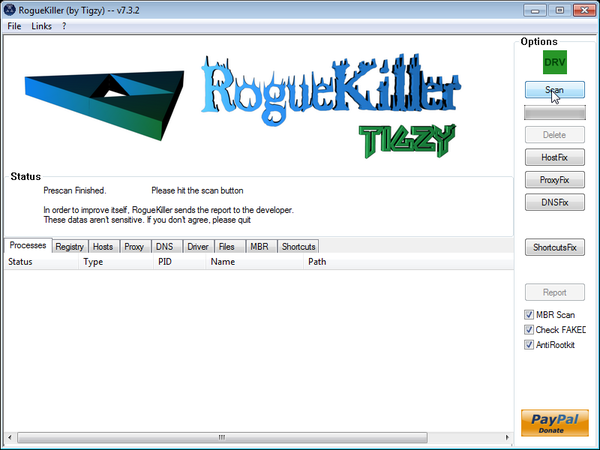
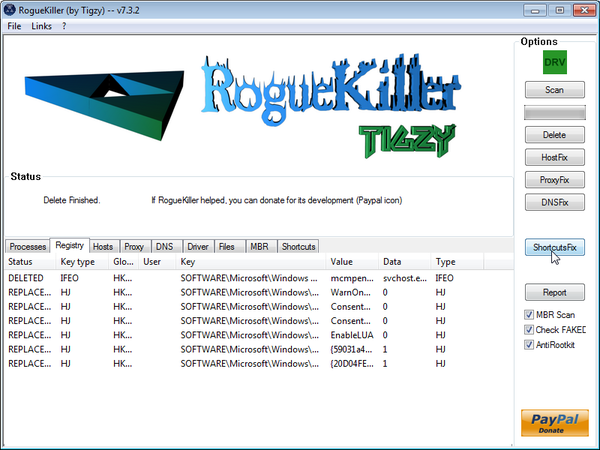
- After the scan has completed, press the Delete button to remove any malicious registry keys.
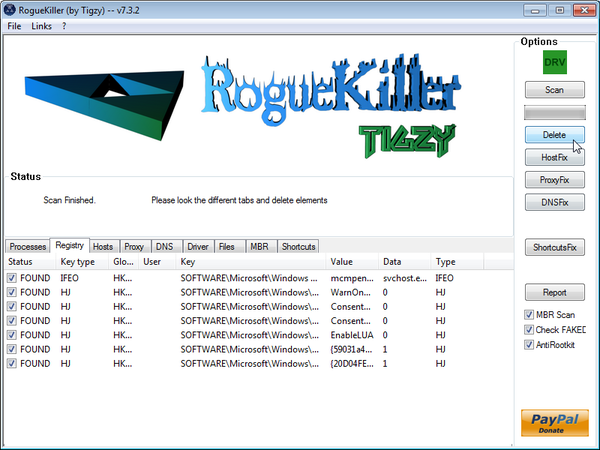
- Next we will need to restore your shortcuts, so click on the ShortcutsFix button and allow the program to run.
STEP 7: Unhide your files and folders
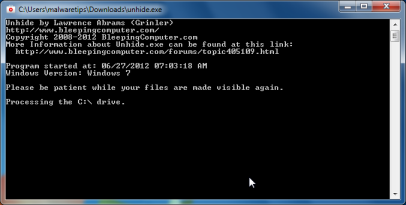
File Recovery modifies your file system in such a way that all files and folders become hidden, to restore the default settings , you’ll need to run the below program.
- Download the Unhide utility, to unhide your files and folders.
Download UnhideYour download starts right away. - Double-click on the Unhide.exe icon on your desktop and allow the program to run.The whole process should not take more than 10 minutes to complete,and at the end this utility will generate a report.
STEP 8: Get your desktop look back!
File Recovery changes your desktop background to a solid black color,to change it back to default one follow the below instruction.
- Windows XP : Click on the Start button and then select Control Panel. When the Control Panel opens, please click on the Display icon. From this screen you can now change your Theme and desktop background.
- Windows 7 and Vista : Click on the Start button and then select Control Panel. When the Control Panel opens, please click on the Appearance and Personalization category. Then select Change the Theme or Change Desktop Background to revert back to your original Theme and colors.

Join the discussion
468 commentsShare your experience or ask a question about this article.
Your progress
Did these steps help?
Let us know how the guide worked for you.
Describe what you see and the step you reached. Keep passwords and other private information out.
Discussion
Just a Thank You for this post. Tryed restore point befor finding your post. Wish i had found this blog first. I am all set. Thanks again Matt
Help I got rid of the stuff and got my files and desktop pic back but I’ve been stuck with one problem….. my internet is going as slow as molasses before the recovery file virus it was fast but now its slow please help!!!!!
In reply to Ben
Hello Ben,
Can you please run a scan with Combofix and Complete Internet Repairso that I can get an idea on what’s going on :
STEP 1 : Run a scan with Combofix
Download ComboFix from one of the following locations:
COMBOFIX DOWNLOAD LINK #1 (This link will automatically download Combofix on your computer)
COMBOFIX DOWNLOAD LINK #2 (This link will automatically download Combofix on your computer)
VERY IMPORTANT !!! Save as Combo-Fix.exe during the download.ComboFix must be renamed before you download to your Desktop
Notes:
STEP 2: Run a scan with Complete Internet Repair utility
Waiting for your reply to tell me if your machine is ok and the logs from this utilities.
In reply to Stelian Pilici
My internet is still slow
In reply to Ben
Can you please post here the Combofix log? :) You’ll be able to find it in C:\Combofix.txt
Thanks so much for your help!!!
I did have some problems trying to load some of the software to my PC, but was able to load them on to my laptop with no problem and then transferred the files to my PC with a thumb drive. All worked as you stated.
Thanks again!! Ken :)
OM Friggin’ G!
That was crazy! But I am almost as good as new. Just have to replace my wall paper and my side bar (clock and various other news and stocks), did not fully load up. Not sure if I just need to reset everything. Sort of PO’d that my virus checker (Trend Micro Titanium) didn’t catch this for the price I pay for it. Sheesh!
Thank you Thank you THANK YOU.
In reply to Monica
OH… and PS… YOU ROCK!
So, trying to boot to safe mode with networking in order to download the needed programs, but WinXP is yelling about activation. I know it was activated a few years ago when I built the PC. HELP!
In reply to Daniel
Hello Daniel,
Lets try to fix your computer,please run the below tools while in Normal Mode;
STEP 1: Run a scan with Malwarebytes Anti-Malware in Chameleon Mode in Norman mode:
STEP 2: Run a scan with RogueKiller
RogueKiller Download Link (This link will automatically download RogueKiller on your computer)
STEP 3 Please perform a scan with HitmanPro as seen on the guide.
If you are having problems starting this program please use the ForceBreach mode as described in the guide.
STEP 4: Run a scan with ESET Online Scanner:
ESET Online Scanner Download Link (This link will automatically download ESET Online Scanner on your computer.)
Waiting for your reply to tell me how everything is running!
Good luck…
Thank you Thank you Thank you… easy to follow step-by-step instructions. Laptop running good as new with file access restored. Cleanup and restoration took about 2 hours, but worth every minute. You rock!
Hey guys I just had to clear this up for one of my users, and well done on getting the correct tools to help. One tip I can leave for everyone is this virus relies on the internet to get its live updates so disconnect your network cable (make sure you download and save the tools to a jump drive on a different computer first) and open ‘Task Manager’ the process is R627O85S7KwoPp9.exe find it and END the task. This will allow you to continue on with the tools provided by this site and prevent the pest to manifest…….if you do this correctly you can skip straight to MalwareBytes.
In reply to T.J.
T.J. – I can’t find the process you listed in my task manager. Anything else I can look for. I did download the recommended tools to a flash drive. I have a wireless connection and I turned that off (external switch) prior to starting computer in safemode. Flash drive will install, but I can’t see a way to open it and launch programs. Thank you for help.
In reply to K
Hello K,
Just follow the guide…..it’s the easiest way to get rid of this infection :)
I have an HP laptop and everything was pretty successful until after the HitmanPro reboot and now I am getting the error “No Bootable Device”.
Have you seen this before?
In reply to Zach
I think mine wiped out the boot sector because Windows would recognize it as a new drive when I hooked it up to another PC using an HDD Adapter.
In reply to Zach
Hello Zach,
Please follow this steps: http://malwaretips.com/Thread-How-to-fix-no-bootable-device-%E2%80%93-insert-boot-disk-and-press-any-key
Hi,
Rkill won’t run. It says that Rkill has terminated. Can I jump in the Malwarebytes Anti-Malware (trial) Full system scan? Please, need reply thank you.
In reply to Ben
Hello Ben,
Yes of course,you can try to do the Malwarebytes scan if this product installed on your machine!
Thank you SO much! Our computer is ESSENTIAL to our business and these steps were SO clear, concise, and easy to follow! THANK YOU!!!!
Ohhh my gosh that was horrible! Thank you soooo very much!!!
This morning, I could not even boot my computer. After following the instruction, all my issues were fixed. The instructions were very helpful and easy to follow! Thanks for saving us from the “black”days!
Dude, You Rock !!!!!!
I lost everything…nearly…lol
Tried this and it worked wonders. I am at stage * and I have all my desktop Icons back.
Only thing that caused me some head ache was installing mallwarebytes. The Virus kept on killing the installaion just as it completed downloading. I noticed that the Malware Icon became visible as the error message came up and I took a chance in trying to run it as the error apeared. This worked and I updated and ran Malewarebytes while the error screen was still on.
Thanks again Buddy, you saved my arse.
In reply to Anton Wentzel
Stay safe Anton!:D
I can’t get past Step 2. I am unable to reestablish Internet connections necessary to proceed. When I go into the Internet Tools Options, the LAN use proxy box is already un-checked. Is there something else I’m missing or another way around this?
THanks
In reply to Brian
Hello Brian,
Can you please try to use the license key provided in the article to see if this infection will let you connect to the Internet.
If no,then we will need to transfer some files via an USB stick to the infected computer.
Waiting for your reply.
In reply to Stelian Pilici
Do you mean I should transfer RKill to the computer via a USB stick and run it that way? If so, I will look for an RKill link that doesn’t auto-run the files – so they can be saved and transferred.
In reply to Brian
I transferred RKill to the infected computer and ran it in safe mode. It took 14 seconds to complete the log and found nothing. Does this sound normal? Having trouble with this one, and I normally don’t have issues with killing off malware. Thanks.
Question: I already had malwarebytes on my computer. I did an update and ran a scan but it did not detect anything. Should I have uninstalled it and downloaded it again? or just move on to the next step?
In reply to Jodi
Hello Jodi,
No,just move on to the next step.Good luck!
Hi,
I decided to trust you on the false positives and carried on. My PC is now back.
Fantastic. Thank you so much. You are amazing.
However, the standard ID I use does not have a complete start menu list. Now, I have all standard user accounts on the D drive, separate to the admin ID on the C drive. I looked in smtmp and found folders called 1 which contained empty folders and 4 which is completely empty.
Could the incomplete start menu be due to the users being on the D drive?
I am not complaining, good grief no.
My pc is back working and I cannot thank you enough.
Thank goodness I found you.
Keep up the good work.
Best regards,
Joseph
Amazing I followed the instructions and it worked thanks alot its heaven sent had this problem for months legendary I didnt think it would work but it did now i can veiw by pictures from my smart phone on my p.c tuers!!!!!!!!!!
McAfee says the websites for roguekiller and unhide are dodgy when I try them.
Can you advise please?
I was doing ok up to that point.
Thanks
In reply to Joseph Key
Hello Joseph,
You can ignore the warning from McAfee as it’s only a false possitive.However,if you don’t want to do that ,you can use this two alternative tools:
1.ESET Online Scanner is similar to RogueKiller.Here are the instructions on how to perform a scan:
ESET Online Scanner Download Link (This link will automatically download ESET Online Scanner on your computer.)
2. Unhide Non System Files is similar to Unhide.exe.You can download this tool from here ,and just run it.
Good luck!
Everything worked great except File Recovery still shows up in my “All Programs” list with an uninstall option. What should I do?
Thanks for all your time & efforts!!!
In reply to Lucio
Hello Lucio,
HitmanPro and Malwarebytes should have removed this rogue antivirus,however for your peace of mind I would suggest that you perform a scan with the following utilities:
1.Run a scan with Kaspersky Virus Removal Tool
Click here to download the Kaspersky Virus Removal Tool.
2.Run a scan with Eset Online Scanner.
ESET Online Scanner Download Link (This link will automatically download ESET Online Scanner on your computer.)
As far as the left over shorcuts,you can just delete them ,as I’m sure that if you press them,nothing will load. Stay safe.
Thank you!!! My computer is alive and the programs work. Bless your heart for sharing this.