

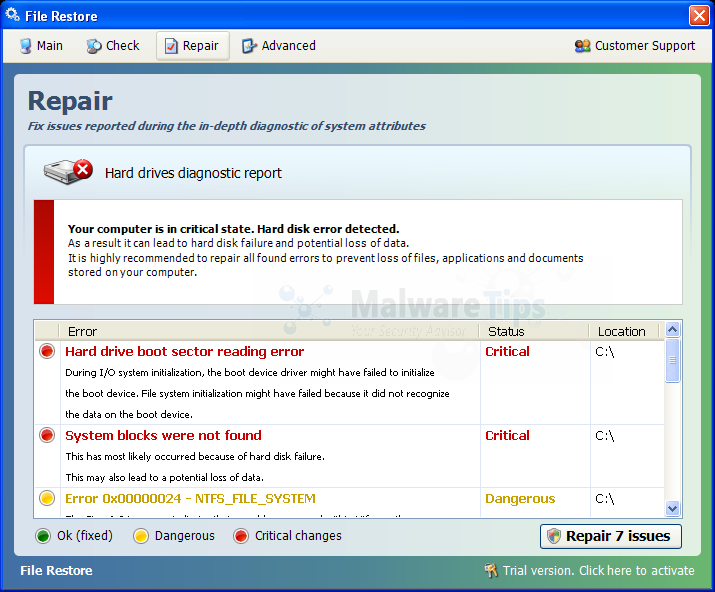
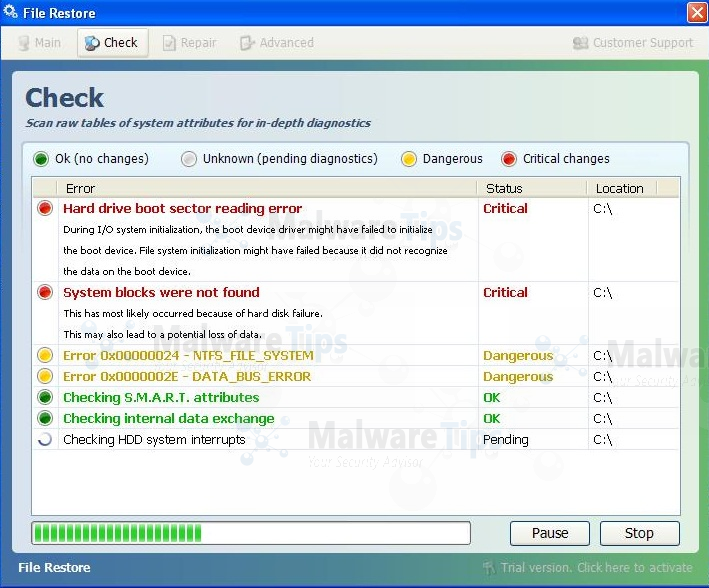
File Restore is a computer virus that will display bogus alerts, claiming that several hard drive errors and computer issues were detected on your machine.This alerts are professional looking pop-ups and when you click on them, you are advised to buy File Restore to fix the detected errors.Some of the bogus alerts you may see include:
Hard drive boot sector reading error
System blocks were not found
Error while relocating TARE sectors
Error 0 – DATA_BUS_ERROR
Error 0x00000078 – INACCESSIBLE_BOOT_DEVICE
Error 0x00000050 – PAGE_FAULT_IN_NONPAGED_AREA
The storage device has failed a self-test
The self-test procedure of the storage device has detected an irreparable errors.
SMART state is “Out of order” before the disk scan
Apart from the bogus alerts,as part of its self-defense mechanism,File Restore has disabled the Windows system utilities, including the Windows Task Manager and Registry Editor,and will block you from running certain programs that could lead to its removal.
File Restore has modified your Windows files associations,and now whenever you are trying to run a program with a .exe extension ,File Restore will display a bogus notification in which will report a hard river error,in an attempt to scare you.
Windows detected a hard drive problem.
A hard drive error occurred while starting the application.Windows cannot find notepad.exe. Make sure you typed the name correctly, and then try again. To search for a file, click the Start button, and then click Search.
Further more, File Restore has changed your desktop background to a solid black color,has hidden your files and folders and it’s causing browser redirects.
If your computer is infected with File Restore,then you are seeing this screens:
Registration codes for File Restore:
As an optional step,you can use the following license key to register File Restore and stop the fake alerts.
File Restore License Key: 08467206738602987934024759008355
Please keep in mind that entering the above registration code will NOT remove File Restore from your computer , instead it will just stop the fake alerts so that you’ll be able to complete our removal guide more easily.
File Restore Virus – Removal Instructions
STEP 1 : Start your computer in Safe Mode with Networking
- Remove all floppy disks, CDs, and DVDs from your computer, and then restart your computer.
- Press and hold the F8 key as your computer restarts.Please keep in mind that you need to press the F8 key before the Windows start-up logo appears.
Note: With some computers, if you press and hold a key as the computer is booting you will get a stuck key message. If this occurs, instead of pressing and holding the “F8 key”, tap the “F8 key” continuously until you get the Advanced Boot Options screen. - On the Advanced Boot Options screen, use the arrow keys to highlight Safe Mode with Networking , and then press ENTER.
![[Image: Safemode.jpg]](//malwaretips.com/images/removalguide/safemode.jpg "Safe Mode with Networking screen")
![[Image: Safemode.jpg]](http://malwaretips.com/images/removalguide/safemode.jpg "Safe Mode with Networking screen")
STEP 2: Run RKill to terminate known malware processes associated with File Restore.
RKill is a program that will attempt to terminate all malicious processes associated with File Restore virus,so that we will be able to perform the next step without being interrupted by this malicious software.
Because this utility will only stop File Restore running process, and does not delete any files, after running it you should not reboot your computer as any malware processes that are configured to start automatically will just be started again.
- While your computer is in Safe Mode with Networking ,please download the latest official version of RKill.Please note that we will use a renamed version of RKILL so that File Restore won’t block this utility from running.
Download RKillYour download starts right away. - Double-click on the iExplore.exe icon in order to automatically attempt to stop any processes associated with File Restore.
![[Image: run-rkill-1.png]](//malwaretips.com/images/removalguide/rkill1.png "RKILL ICON")
- RKill will now start working in the background, please be patient while the program looks for various malware programs and tries to terminate them.
![[Image: run-rkill-2.png]](//malwaretips.com/images/removalguide/rkill2.png "RKILL Command prompt")
IF you are having problems starting or running RKill, you can download any other renamed versions of RKill from here. - When Rkill has completed its task, it will generate a log. You can then proceed with the rest of the guide.
![[Image: File Restore virus rkill3.jpg]](//malwaretips.com/images/removalguide/rkill3.png "RKILL LOG")
![[Image: run-rkill-1.png]](http://malwaretips.com/images/removalguide/rkill1.png "RKILL ICON")
![[Image: run-rkill-2.png]](http://malwaretips.com/images/removalguide/rkill2.png "RKILL Command prompt")
![[Image: File Restore virus rkill3.jpg]](http://malwaretips.com/images/removalguide/rkill3.png "RKILL LOG")
WARNING: Do not reboot your computer after running RKill as the malware process will start again , preventing you from properly performing the next step.
STEP 3: Remove File Restore malicious files with Malwarebytes Anti-Malware FREE
Malwarebytes Anti-Malware is a powerful on-demand scanner which will detect and remove File Restore from your computer.
- Download the latest official version of Malwarebytes Anti-Malware FREE.
Download MalwarebytesFree official installer. Your download starts right away. - Start the Malwarebytes’ Anti-Malware installation process by double clicking on mbam-setup file.
![[Image: Malwarebytes Installer]](//malwaretips.com/images/removalguide/malwarebytes-setup.png "Malwarebytes Anti-Malware Installer")
- When the installation begins, keep following the prompts in order to continue with the setup process. Do not make any changes to default settings and when the program has finished installing, make sure you leave both the Update Malwarebytes’ Anti-Malware and Launch Malwarebytes’ Anti-Malware checked. Then click on the Finish button. If Malwarebytes’ prompts you to reboot, please do not do so.
![[Image: Finishing Malwarebytes installation]](//malwaretips.com/images/removalguide/update-malwarebytes.png "Malwarebytes last setup screen")
- Malwarebytes Anti-Malware will now start and you’ll be prompted to start a trial period , please select ‘Decline‘ as we just want to use the on-demand scanner.
![[Image: Decline Malwarebytes trial]](//malwaretips.com/images/removalguide/malwarebytes-trial.png "Decline trial period in Malwarebytes Anti-Malware")
- On the Scanner tab,select Perform full scan and then click on the Scanbutton to start scanning your computer.
![[Image: Starting a full system sca]](//malwaretips.com/images/removalguide/start-scan-malwarebytes.png "Perform a Full System Scan with Malwarebytes Anti-Malware")
- Malwarebytes’ Anti-Malware will now start scanning your computer for File Restore malicious files as shown below.
![[Image: Malwarebytes scanning for malicious files]](//malwaretips.com/images/removalguide/scan-malwarebytes.png "Malwarebytes Anti-Malware scanning for File Restore virus")
- When the scan is finished a message box will appear, click OK to continue.
![[Image: Malwarebytes scan results]](//malwaretips.com/images/removalguide/results-malwarebytes.png "Malwarebytes when the system scan has finished")
- You will now be presented with a screen showing you the malware infections that Malwarebytes’ Anti-Malware has detected.Please note that the infections found may be different than what is shown in the image.Make sure that everything is Checked (ticked) and click on the Remove Selected button.
![[Image: Infections found by Malwarebytes]](//malwaretips.com/images/removalguide/detection-malwarebytes.png "Removing the infections found by Malwarebytes")
- Malwarebytes’ Anti-Malware will now start removing the malicious files.After completing this task it will display a message stating that it needs to reboot,please allow this request and then let your PC boot in Normal mode.
![[Image: Malwarebytes Installer]](http://malwaretips.com/images/removalguide/malwarebytes-setup.png "Malwarebytes Anti-Malware Installer")
![[Image: Finishing Malwarebytes installation]](http://malwaretips.com/images/removalguide/update-malwarebytes.png "Malwarebytes last setup screen")
![[Image: Decline Malwarebytes trial]](http://malwaretips.com/images/removalguide/malwarebytes-trial.png "Decline trial period in Malwarebytes Anti-Malware")
![[Image: Starting a full system sca]](http://malwaretips.com/images/removalguide/start-scan-malwarebytes.png "Perform a Full System Scan with Malwarebytes Anti-Malware")
![[Image: Malwarebytes scanning for malicious files]](http://malwaretips.com/images/removalguide/scan-malwarebytes.png "Malwarebytes Anti-Malware scanning for File Restore virus")
![[Image: Malwarebytes scan results]](http://malwaretips.com/images/removalguide/results-malwarebytes.png "Malwarebytes when the system scan has finished")
![[Image: Infections found by Malwarebytes]](http://malwaretips.com/images/removalguide/detection-malwarebytes.png "Removing the infections found by Malwarebytes")
STEP 4 : Restore your shortcuts and remove any left over malicious registry keys
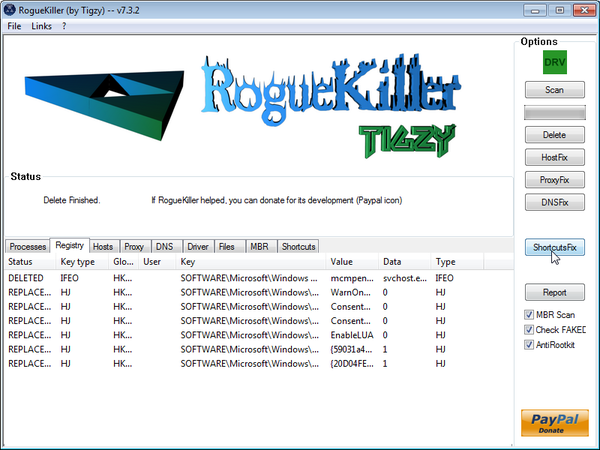
File Restore has moved your shortcuts files in the Temporary Internet folder and added some malicious registry keys to your Windows installation , to restore your files we will need to perform a scan with RogueKiller.
- This step can be performed in Normal Mode,download the latest official version of RogueKiller from the below link.
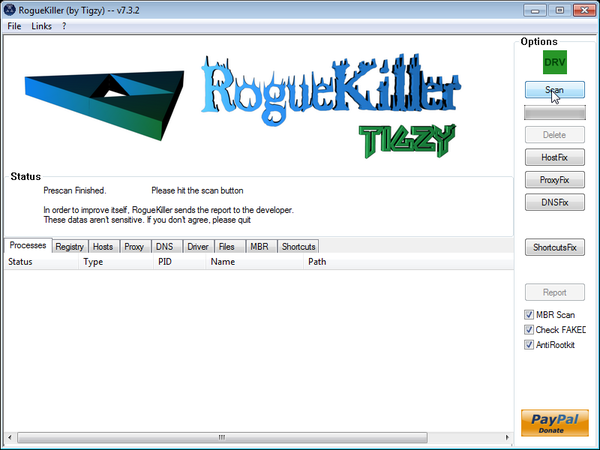
Download RogueKillerOpens the download page in a new tab. - Double click on RogueKiller.exe to start this utility and then wait for the Prescan to complete.This should take only a few seconds and then you can click the Start button to perform a system scan.
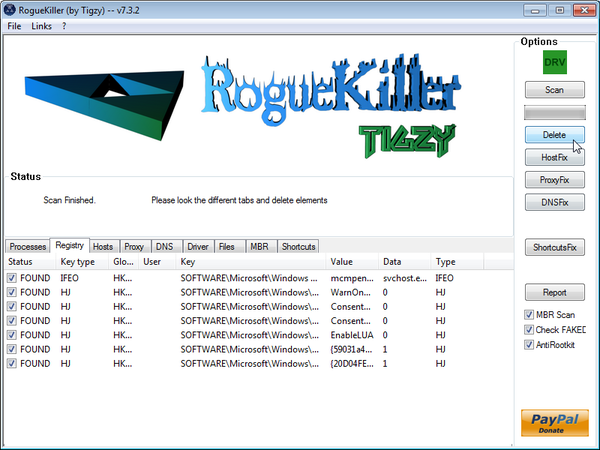
- After the scan has completed, press the Delete button to remove any malicious registry keys.
- Next we will need to restore your shortcuts, so click on the ShortcutsFix button and allow the program to run.
STEP 5: Remove File Restore rootkit with HitmanPro
In some cases File Restore will also install a ZeroAccess rootkit on the infected machines,to remove File Restore rootkit will need to perform a scan with HitmanPro.
- Download the latest official version of HitmanPro from the below link.
Download HitmanProOfficial Sophos download. Free scan, free 30-day trial to remove threats. - Double click on the previously downloaded fileto start the HitmanPro installation.
![[Image: HitmanPro Icon]](//malwaretips.com/images/removalguide/hpro1.png "HitmanPro Installer")
IF you are experiencing problems while trying to starting HitmanPro, you can use the “Force Breach” mode.To start this program in Force Breach mode, hold down the left CTRL-key when you start HitmanPro and all non-essential processes are terminated, including the malware process. (How to start HitmanPro in Force Breach mode – Video) - Click on Next to install HitmanPro on your system.
![[Image: Starting HitmanPro]](//malwaretips.com/images/removalguide/hitmanpro36-start.png "HitmanPro installation process")
- The setup screen is displayed, from which you can decide whether you wish to install HitmanPro on your machine or just perform a one-time scan, select a option then click on Next to start a system scan.
![[Image: HitmanPro installation screen]](//malwaretips.com/images/removalguide/hitmanpro36-installation.png "HitmanPro setup options")
- HitmanPro will start scanning your system for malicious files as seen in the image below.
![[Image: HitmanPron scanning for File Restore virus]](//malwaretips.com/images/removalguide/hitmanpro36-scan.png "HitmanPro while scanning for File Restore virus virus")
- Once the scan is complete,you’ll see a screen which will display all the malicious files that the program has found.Click on Next to remove this malicious files.
![[Image: HitmanPro scan results]](//malwaretips.com/images/removalguide/hitmanpro36-results.png "HitmanPro displaying scan results")
- Click Activate free license to start the free 30 days trial and remove the malicious files.
![[Image: Activate HitmanPro license]](//malwaretips.com/images/removalguide/hitmanpro36-activation.png "Activate the HitmanPro free 30 days trial to remove any detected infections")
- HitmanPro will now start removing the infected objects.If this program will ask you to restart your computer,please allow this request.
![[Image: HitmanPro Icon]](http://malwaretips.com/images/removalguide/hpro1.png "HitmanPro Installer")
![[Image: Starting HitmanPro]](http://malwaretips.com/images/removalguide/hitmanpro36-start.png "HitmanPro installation process")
![[Image: HitmanPro installation screen]](http://malwaretips.com/images/removalguide/hitmanpro36-installation.png "HitmanPro setup options")
![[Image: HitmanPron scanning for File Restore virus]](http://malwaretips.com/images/removalguide/hitmanpro36-scan.png "HitmanPro while scanning for File Restore virus virus")
![[Image: HitmanPro scan results]](http://malwaretips.com/images/removalguide/hitmanpro36-results.png "HitmanPro displaying scan results")
![[Image: Activate HitmanPro license]](http://malwaretips.com/images/removalguide/hitmanpro36-activation.png "Activate the HitmanPro free 30 days trial to remove any detected infections")
STEP 6: Unhide your files and folders
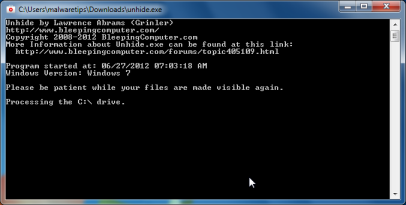
File Restore modifies your file system in such a way that all files and folders become hidden, to restore the default settings , you’ll need to run the below program.
- Download the Unhide utility, to unhide your files and folders.
Download UnhideYour download starts right away. - Double-click on the Unhide.exe icon on your desktop and allow the program to run.The whole process should not take more than 10 minutes to complete,and at the end this utility will generate a report.
STEP 7: Get your desktop look back!
File Restore changes your desktop background to a solid black color,to change it back to default one follow the below instruction.
- Windows XP : Click on the Start button and then select Control Panel. When the Control Panel opens, please click on the Display icon. From this screen you can now change your Theme and desktop background.
- Windows 7 and Vista : Click on the Start button and then select Control Panel. When the Control Panel opens, please click on the Appearance and Personalization category. Then select Change the Theme or Change Desktop Background to revert back to your original Theme and colors.

Join the discussion
81 commentsShare your experience or ask a question about this article.
Your progress
Did these steps help?
Let us know how the guide worked for you.
Describe what you see and the step you reached. Keep passwords and other private information out.
Discussion
Hello – I’ve been able to remove the File_Restore virus using your steps (thank you), but my files (like photo jpg or mp3) still have the abc or other ending and I cannot view them. Is there a way to get around this and get my files back?
Hi stelion do you have a proses for removing the system repair virus too
In reply to Mike
Hello Mike,
Yes, here is the System Repair Removal Guide
Stelian, thanks very much for the time and effort you put into this. Your solution worked wonderfully!
Everything was working until I ran Combofix. I followed all your instructions, but it has said preparing log report do not run any programs until ComboFix has finished for about an hour now. What should I do?
In reply to Alison Hogsed
Never mind. It just finished. Thanks so much!
Works perfectly ! THANK YOU !
Well, it took care of most of it. I still have a shortcut on my desktop. I sent it to recycle bin. I’ve scanned it, it says I have no malicious software. It still opens up when my computer boots, and it still shows the screen where it first became infected.
And my keys are not working very well. I have to really hit them. Please hlp.
In reply to rhona
Hello rhona,
Can you please run a scan with Combofix, and post the logs here so that I can get an idea on what’s going on:
STEP 1 : Run a scan with Combofix
Download ComboFix from the below link:
COMBOFIX DOWNLOAD LINK (This link will automatically download Combofix on your computer)
VERY IMPORTANT !!! Save as Combo-Fix.exe during the download.ComboFix must be renamed before you download to your Desktop
Please do not attempt to re-connect your machine back to the Internet until Combofix has completely finished.
If there is no internet connection after running Combofix, then restart your computer to restore back your connection.
Notes:
Excellent instructions. Thank you very much. 100% successful for me. My client will be very happy to have her computer back without having to go through a re-install of windows.
Hi Stelian,
¡Verdaderamente impresionante!!!
Ha funcionado a la perfección.
¡Muchas gracias!
Excellent job!
i’m saluting the genius for excellent job.
Ravishankar
Hi Stelian,
Thanks a million for these excellent guidance. We managed to remove the “restore file” virus fully with the steps you indicate, after failing to do so many times.
We appreciate your solidarity.
Fernando y Patricia
Thank you for that super informations and perfect tips!!
Everything works again!!
My files are not hidden. Should I install the program of step 6?
Thanks!
Shark1
In reply to shark1
Hello Shark,
No,if everything is ok , then you can skip that step.Stay safe!
WOW! something that actually works the way it’s supposed to and with very easy to follow instructions!
Thank you times ten !
Thanks for your help! Excellent!
I got to Download the Unhide utility and it says downloading at the top of the window but nothing happens. HELP…. Also I have had to do everything from AOL browser because I cannot get IE to contect to the Internet any suggestions? So far you have been a total lifesaver… Just if I can get past this last part and get IE to work again I will have it made… Thanks so much for posting this info… Jenny
In reply to Jenny Ham
Hello Jenny,
Did you run the HitmanPro and Malwarebytes scans?
Please press the Windows key + R at once,and in the Run box,type iexplore. This should open Internet Explorer and then you can download unhide.exe.
If it still does not work,then you can download this utility instead: http://www.tweaking.com/content/page/unhide_non_system_files.html
Thank you so much for such a wonderful blog.
Just wanted to say THANK YOU very much or your Awesome and Easy step by step instructions!! Was huge pain in the butt havin the virus but nice to know there is someone out there helping to defeat them!! Keep up the good work! Thanks again, Kirk
muchas gracias por tu ayuda, me sirvió muchísimo, te deseo lo mejor siempre y gracias por ayudarnos a luchar contra los virus.
Mil y mil gracias por tu ayuda me sirvió muchisimo, restaure todo Dios te bendiga , (thanks, thank you) God bless you
YOUR REVIEW WAS VERY VERY HALPFULL- I WISH YOU THE BEST! GOD BLESS YOU!
very well written steps. I followed step by step and purrrrfect!!! Thanx .