That’s the promise Goonview Private Instagram Viewer makes. Type a username, watch the sleek progress bar climb, and suddenly it looks like private posts are right there, just out of reach. Then the screen changes. The tone shifts. And one small button quietly asks you to do something first.
Most people don’t realize what just happened until it’s too late.
Before you hit “Verify Now,” here’s what you need to know about goonview.com, and why it keeps pulling people in.
Scam Overview
What the Goonview “Private Instagram Viewer” claims to do
The core promise is simple and designed to trigger curiosity:
View private Instagram profiles without following
Reveal private photos and videos
“Unlock” hidden content for any target username
Provide instant access after a short process
To make the claim feel real, Goonview uses a staged “tool” flow that often includes:
A prompt to enter a target Instagram username
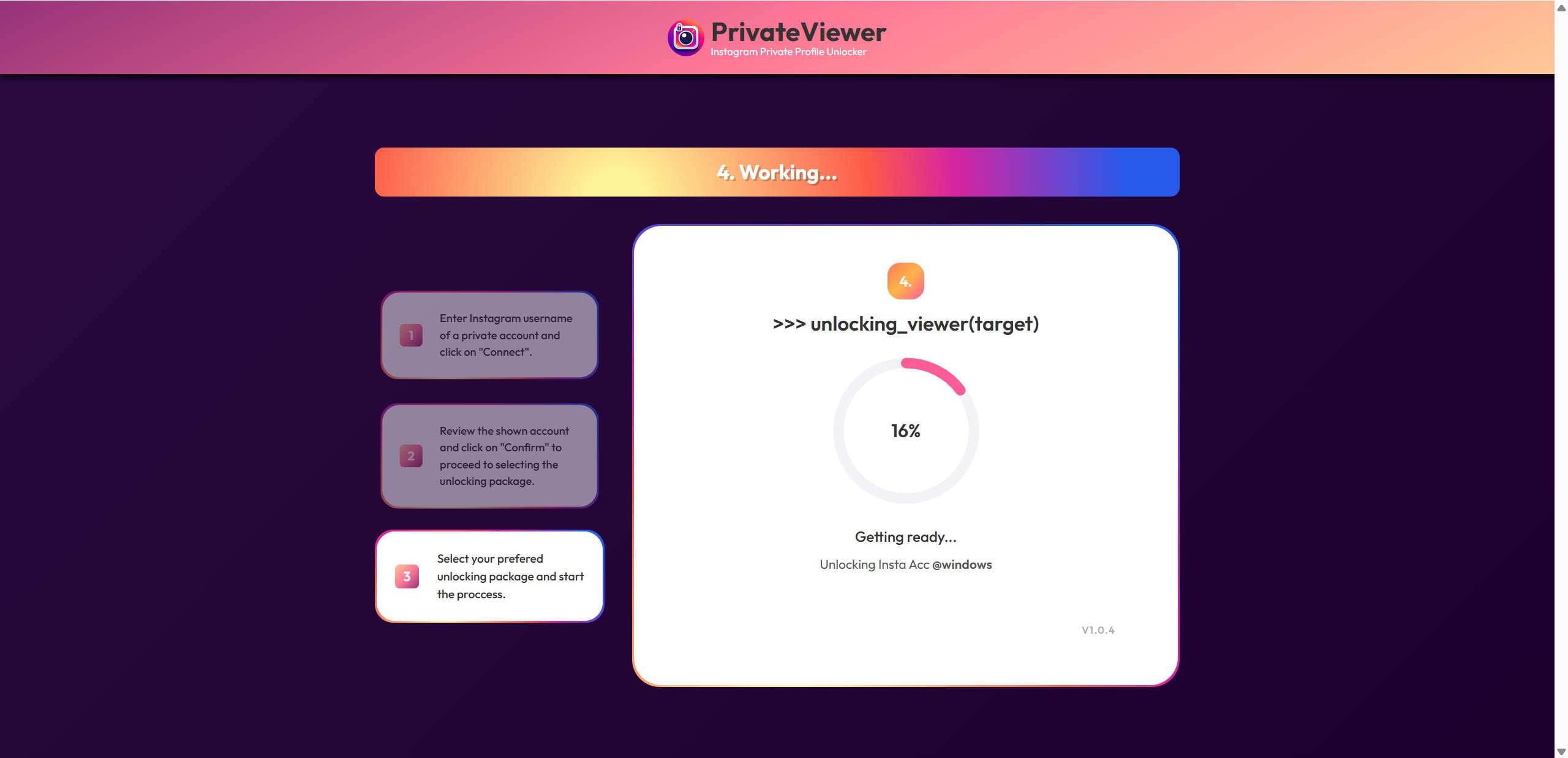
A “searching” screen that appears to query Instagram
A progress indicator that looks technical
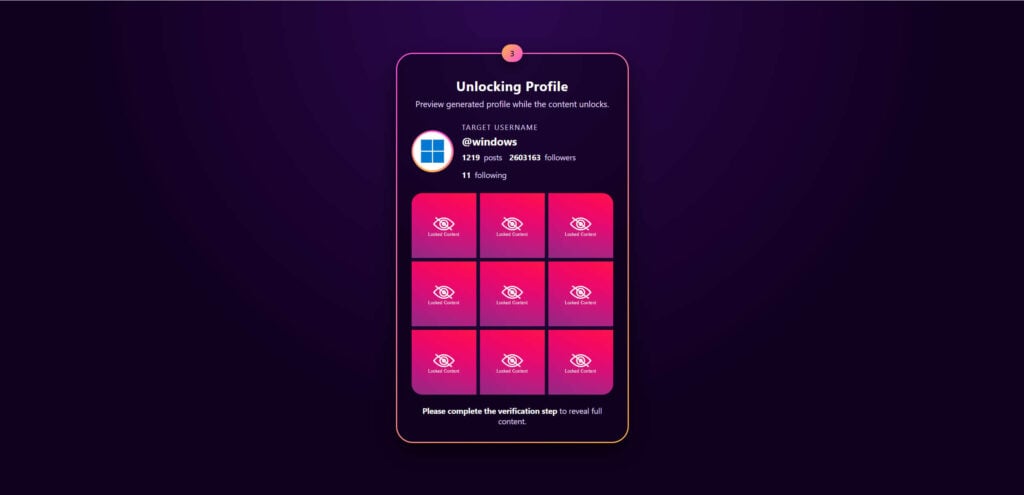
A grid of blurred or blocked thumbnails labeled as locked content
A final barrier that says something like “Please complete the verification step to reveal full content.”
This layout is not unique to Goonview. It is a common template used across affiliate-driven scam networks that rotate domain names constantly. The design looks modern, the animation feels “live,” and the site pushes you forward in a predictable funnel.
Why this scam is so common
The private Instagram viewer idea is popular because it sits at the intersection of curiosity and insecurity. People search for it when they:
Want to check a partner’s or ex’s private account
Want to see a competitor’s content
Want to view a private profile without requesting to follow
Are trying to “monitor” a teen’s activity in the wrong way
Believe there is a shortcut around Instagram’s privacy controls
Scammers know demand is high, so they build sites that target search terms such as:
“private Instagram viewer”
“view private Instagram account”
“Instagram private profile viewer”
“see private Instagram photos”
“Instagram viewer without following”
“unlock private Instagram profile”
The big lie: websites like Goonview cannot do this
Instagram’s private accounts are designed to prevent exactly what Goonview claims.
To see posts from a private account, you must be an approved follower. Instagram’s systems enforce this server-side. That matters because a random website cannot simply “request” private media from Instagram’s servers and bypass permission checks.
Even if a site shows a profile picture, follower counts, or public bio details, that does not prove access to private posts. Public details can be scraped from:
Public endpoints
Preview caches
Third-party data brokers
Previous public snapshots
Content that was public in the past
Data embedded in link previews
User-supplied screenshots
None of that equals “unlocking” private content in real time.
If a website claims it can unlock private Instagram posts without your approval, it is not offering a real viewer. It is offering a monetization funnel.
What the Goonview scam is really selling
Most versions of the goonview.com scam fall into one or more of these monetization categories:
Affiliate offer scams (the most common)
You are told to complete “human verification”
The site routes you to offers like app installs, trials, surveys, sweepstakes, or signups
The scammer gets paid for each completed action (CPA marketing)
Lead harvesting
You are asked for an email address, phone number, or personal details
Your data is sold to marketers or used for future scams
You may see increased spam, robocalls, and phishing attempts
Subscription traps
You are prompted to sign up for “free” trials that become paid subscriptions
You may be enrolled in recurring billing programs
Cancelling can be intentionally confusing
Tech support style escalation
Some flows push you to contact “support”
The goal is to upsell fake services or capture payment details
Malware or unwanted software distribution
Downloads are disguised as “unlock tools” or “viewer apps”
On mobile, this may lead to risky app installs or shady configuration profiles
On desktop, it may push browser extensions, adware, or fake security tools
Not every victim gets hit with all of these. The scam is often dynamic, with different offers depending on your country, device type, browser, and ad network.
Why the fake “unlock” interface is so convincing
Goonview’s flow typically uses psychological triggers that are extremely effective:
Progress illusion: A percentage counter and “decrypting” text create the feeling of real computation.
Commitment: Once you enter a username, you feel invested and want to finish.
Scarcity and urgency: “Unlocking… almost done” pressures you to act quickly.
Authority by design: Clean UI and “app-like” screens suggest legitimacy.
Choice manipulation: Even if there are multiple options, they all lead to the same verification wall.
Many scam sites also add “proof” elements like:
“Profiles Unlocked: 27,687” counters
Fake activity logs
Testimonials
Badges implying security or verification
These elements are cheap to implement, but powerful at reducing skepticism.
The “Human Verification” step is the core of the scam
The single most important moment in the Goonview Private Instagram Viewer scam is when it says:
“Content Locked”
“Complete verification”
“Verify now”
“Support us by downloading 2 apps”
“Complete one offer to prove you’re not a bot”
This is where the money is made.
Legitimate verification uses CAPTCHAs or standard authentication, not random app installs or surveys. If “verification” requires you to download sponsor apps, enter your phone number, or complete offers, it is not verification. It is monetization.
What can happen to victims
People often assume, “It’s just a fake site, no big deal.” The risk depends on what you did next.
Common outcomes include:
Installing low-quality apps that spam ads or demand excessive permissions
Being redirected to phishing pages
Signing up for trials that start charging later
Entering personal information that gets reused in other scams
Downloading unwanted extensions or adware on desktop
Seeing more scam ads because tracking scripts tag you as a high-conversion user
Even if you did not enter a password, the scam can still harm you through tracking, junk installs, and billing traps.
Why sites like goonview.com keep coming back
These scams are resilient because:
Domains are cheap and easy to replace
Templates are reused across many names
Affiliate networks provide endless offers
Victims often do not report, or they report too late
Search trends constantly generate new traffic
That is why you may see new variants like “privateviewer,” “insta unlock,” “IG view,” or “profile unlocker” with nearly identical flows.
How the Goonview Scam Works (Step by Step, Detailed)
This step-by-step walkthrough matches the most common experience on goonview.com and similar “private Instagram viewer” scam sites.
Step 1: The user finds Goonview through search, ads, or social media
Most victims arrive via:
Google searches for “private Instagram viewer”
TikTok, YouTube, or short-form videos promoting a “secret trick”
Spammy blog posts that rank for Instagram viewer keywords
Pop-up ads on streaming, gaming, or download sites
Redirect chains from shady ad networks
The scam’s success depends on visibility. SEO and ads do the heavy lifting.
Step 2: The landing page promises private Instagram access
The first page usually introduces the product as a “Private Instagram Viewer” and claims you can:
See private photos and videos
View content without following
Unlock instantly
You may also see a call-to-action button such as:
“View Profile Now”
“Start Process”
“Unlock Profile”
The page is designed to minimize reading and maximize clicking.
Step 3: You enter a “target username”
Goonview asks you to type an Instagram username. This does two things:
It increases commitment. You have “started” the process.
It personalizes the illusion. The next screens show the username you entered.
From here on, the site can display “Searching for @username” and make everything feel real.
Step 4: The scam simulates “searching” and “connecting”
This is the theatrical part.
You will often see:
“Searching for @username…”
“Establishing connection…”
“Fetching data…”
“Generating preview…”
Sometimes the site shows:
A profile avatar
Follower counts
Post counts
A grid of blurred tiles
This is not proof of access. It is a staged UI that can pull public metadata or display placeholders.
Step 5: The scam introduces “locked content” as a preview
A common trick is showing a grid of tiles labeled something like:
“Locked Content”
“Private Photos”
“Private Videos”
The grid is carefully designed to feel like there is real content behind it. This creates a powerful urge to complete the last step.
Step 6: The site claims it is “unlocking” or “decrypting” content
You may see progress indicators such as:
16%
43%
87%
Along with pseudo-technical text like:
“decrypting_story_chunks()”
“unlocking_viewer(target)”
“resolve_user()”
This is stage dressing. It is meant to signal “advanced technology” without explaining anything verifiable.
Step 7: The “Content Locked” or “Verification required” wall appears
This is the payoff moment for the scammer.
The site says access is blocked until you complete verification. It might claim:
“We need to verify you are not a bot”
“Complete one offer to unlock”
“Download 2 apps from our sponsors”
“Verification step required to reveal full content”
This is where the scam transitions from entertainment to extraction.
Step 8: You are redirected to third-party offers
When you click “Verify Now,” you usually leave Goonview and enter an offer funnel.
Offers may include:
Installing specific mobile apps
Signing up for sweepstakes like “Win a new phone”
Taking surveys
Providing an email address for “confirmation”
Subscribing to “free trial” services
Entering a phone number for “verification”
Downloading browser extensions or software
These offers often vary by region and device.
Step 9: The scam tracks completions and keeps you in a loop
Even if you complete an offer, one of three things typically happens:
You are sent back to Goonview, where it still says verification is incomplete.
You are pushed into another offer, “Just one more step.”
You are bounced through more redirects until you quit.
Why? Because the scam does not actually have anything to unlock. The “verification” is not connected to a real unlocking mechanism. It is only connected to the scammer’s revenue.
Step 10: The victim experiences real-world consequences
Depending on what you clicked or installed, consequences can include:
A phone full of intrusive ads (adware-like behavior)
New browser extensions you did not mean to install
Spam emails or SMS messages
Charges from subscriptions you forgot you accepted
Phishing attempts that use the email/phone you provided
Increased scam targeting because your device is now tagged by ad networks
In some cases, victims also report account compromise later, not because Goonview “unlocked” Instagram, but because the victim reused passwords, entered credentials on a phishing page, or installed risky software that captured data.
Why “Private Instagram Viewer” Sites Don’t Work
Instagram privacy is enforced on the server
The key point to understand is that private posts are not “hidden files” that a website can magically reveal. Access checks happen on Instagram’s servers. If you are not approved to follow a private account, the server does not give you the private posts.
What scammers use instead of real access
To fake results, scam sites may use:
Public profile metadata to look authentic
Cached previews or old snapshots (if available)
Generic placeholder images
Random blurred tiles that look like locked thumbnails
UI tricks that imply content exists even when none is retrieved
The scam is built on a believable misunderstanding
Many people assume:
“If it can show the profile and followers, it must be close to showing posts.”
Scammers exploit that assumption with a “just one last step” verification wall.
Key Warning Signs That Goonview Is a Scam
If you want a quick checklist to include in your article for strong SEO and readability, use these red flags:
Claims to view private Instagram accounts without following
Requires “human verification” through offers, surveys, or app installs
Uses fake progress bars and “decrypting” language
Shows “locked content” thumbnails as bait
Promises instant access with no Instagram login approval
Pushes you to download unrelated apps or games
Redirects you away from the original site repeatedly
Uses vague contact details or no real company information
Has no verifiable connection to Instagram or Meta
Makes money only if you keep clicking
What to Do If You Have Fallen Victim to the Goonview Scam
If you interacted with goonview.com, use the steps below. The right response depends on what you did, so this section is intentionally comprehensive.
1. Stop interacting with the site immediately
Close the tab. Do not click “Verify,” do not install anything else, and do not enter more information.
If the site keeps popping back up, do not engage with the page. Go straight to the cleanup steps below.
2. If you entered personal info, assume it may be reused
If you submitted an email address, phone number, name, or other details via offers, expect:
More spam
More scam attempts
More phishing messages that reference Instagram, “viewer access,” or “verification”
Be extra cautious with messages that try to pressure you into “confirming” anything.
3. Check for new app installs on your phone
If you installed apps because Goonview told you to “download 2 apps,” remove anything you installed during that time.
On Android:
Settings → Apps → Sort by “Recently installed”
Uninstall suspicious or unwanted apps
Review app permissions for any apps you keep
On iPhone:
Press and hold the app → Remove App
Also check Settings → General → VPN & Device Management (if present) for unknown profiles
If you see a configuration profile you do not recognize, remove it.
4. Check browser extensions on desktop
If you installed anything on a computer:
Chrome:
Menu → Extensions → Manage Extensions
Remove anything you did not intentionally install
Edge:
Menu → Extensions
Remove suspicious add-ons
Also check “On startup” settings and your default search engine, since adware often changes those.
5. Clear browser data to remove tracking and unwanted site permissions
At minimum, clear:
Cookies
Site data
Cached images and files
Also check site permissions:
Notifications (block anything suspicious)
Pop-ups and redirects (block)
Automatic downloads (block)
This reduces repeat redirects and kills tracking scripts.
6. Run a reputable malware scan
If you downloaded files or installed software, scan your device.
On Windows: use Windows Security plus a reputable second opinion scanner if possible
On Android: use a trusted mobile security scanner
On macOS: review Login Items and scan for unwanted apps
If your device is showing persistent pop-ups, browser redirects, or new toolbars, do not ignore it.
7. Review subscriptions and billing if you completed offers
A common outcome of “verification” offers is hidden subscriptions.
Check:
Google Play → Payments & subscriptions → Subscriptions
Apple ID → Subscriptions
Your email for “Welcome” or “Trial started” messages
Your bank or card statements for small test charges
Cancel anything you did not mean to start.
If you used a card on an unfamiliar site, consider contacting your bank to discuss next steps, especially if you see any suspicious activity.
8. Change passwords if you entered credentials anywhere
Goonview itself typically pushes offers rather than collecting Instagram logins directly, but victims sometimes get redirected to phishing pages that mimic Instagram.
If you typed your Instagram password, or you reused the same password elsewhere:
Change your Instagram password immediately
Change the password for your email account (very important)
Change passwords on any accounts that reuse that password
Use unique passwords going forward.
9. Enable two-factor authentication on Instagram
Two-factor authentication (2FA) helps even if someone gets your password.
In Instagram:
Settings and privacy → Accounts Center → Password and security → Two-factor authentication
Prefer an authenticator app if possible.
10. Check Instagram security activity
Look for:
Login alerts
Unknown devices
Unrecognized locations
If you see anything suspicious:
Log out of other devices
Change password
Enable 2FA
Review account email and phone number settings
11. Watch for follow-up scams
People who complete offers often get targeted again. Be wary of:
“Your private viewer is ready” emails
“Unlock completed” messages
Fake support chats offering to “finish” the unlock
Requests to pay a small fee to “activate access”
They are almost always further attempts to monetize you.
12. Report the scam to reduce harm to others
Reporting will not always remove the site instantly, but it helps.
Actions you can take:
Report the domain to your browser’s phishing or unsafe site reporting
Report suspicious ads that led you there
If the offers were deceptive, report them to the app store or platform involved
If you run a website or publish content about scams, consider adding the domain name plainly in text (like goonview.com) so search engines connect the warning to real user searches.
How to Protect Yourself From Similar “Instagram Viewer” Scams
Be skeptical of any “unlock private profile” claim
If it claims you can view private Instagram content without following, treat it as a scam by default.
Avoid verification steps that involve offers
Real verification uses:
CAPTCHA
Email verification
App-based authentication
It does not require:
“Download 2 apps”
“Complete a survey”
“Enter your phone number to unlock”
Keep installs and permissions tight
Install apps only from official app stores
Avoid random APK files
Review permissions, especially accessibility access on Android
Avoid browser extensions unless you truly need them
Use strong account security
Unique passwords for each account
2FA on Instagram and email
Security alerts enabled
If you need to see a private Instagram account, do it the only legitimate way
Send a follow request
Respect the answer if it is denied
That is not just safer. It is the only approach that actually works.
Is Your Device Infected? Scan for Malware
If your computer or phone is slow, showing unwanted pop-ups, or acting strangely, malware could be the cause. Running a scan with Malwarebytes Anti-Malware Free is one of the most reliable ways to detect and remove harmful software. The free version can identify and clean common infections such as adware, browser hijackers, trojans, and other unwanted programs.
Malwarebytes works on Windows, Mac, and Android devices. Choose your operating system below and follow the steps to scan your device and remove any malware that might be slowing it down.
Malwarebytes for WindowsMalwarebytes for MacMalwarebytes for Android
Run a Malware Scan with Malwarebytes for Windows
Malwarebytes stands out as one of the leading and widely-used anti-malware solutions for Windows, and for good reason. It effectively eradicates various types of malware that other programs often overlook, all at no cost to you. When it comes to disinfecting an infected device, Malwarebytes has consistently been a free and indispensable tool in the battle against malware. We highly recommend it for maintaining a clean and secure system.
Download Malwarebytes
Download the latest version of Malwarebytes for Windows using the official link below. Malwarebytes will scan your computer and remove adware, browser hijackers, and other malicious software for free.
(The above link will open a new page from where you can download Malwarebytes)
Install Malwarebytes
After the download is complete, locate the MBSetup file, typically found in your Downloads folder. Double-click on the MBSetup file to begin the installation of Malwarebytes on your computer. If a User Account Control pop-up appears, click “Yes” to continue the Malwarebytes installation.
Follow the On-Screen Prompts to Install Malwarebytes
When the Malwarebytes installation begins, the setup wizard will guide you through the process.
You’ll first be prompted to choose the type of computer you’re installing the program on—select either “Personal Computer” or “Work Computer” as appropriate, then click on Next.
Malwarebytes will now begin the installation process on your device.
When the Malwarebytes installation is complete, the program will automatically open to the “Welcome to Malwarebytes” screen.
On the final screen, simply click on the Open Malwarebytes option to start the program.
Enable “Rootkit scanning”.
Malwarebytes Anti-Malware will now start, and you will see the main screen as shown below. To maximize Malwarebytes’ ability to detect malware and unwanted programs, we need to enable rootkit scanning. Click on the “Settings” gear icon located on the left of the screen to access the general settings section.
In the settings menu, enable the “Scan for rootkits” option by clicking the toggle switch until it turns blue.
Now that you have enabled rootkit scanning, click on the “Dashboard” button in the left pane to get back to the main screen.
Perform a Scan with Malwarebytes.
To start a scan, click the Scan button. Malwarebytes will automatically update its antivirus database and begin scanning your computer for malicious programs.
Wait for the Malwarebytes scan to complete.
Malwarebytes will now scan your computer for browser hijackers and other malicious programs. This process can take a few minutes, so we suggest you do something else and periodically check the status of the scan to see when it is finished.
Quarantine detected malware
Once the Malwarebytes scan is complete, it will display a list of detected malware, adware, and potentially unwanted programs. To effectively remove these threats, click the “Quarantine” button.
Malwarebytes will now delete all of the files and registry keys and add them to the program’s quarantine.
Restart your computer.
When removing files, Malwarebytes may require a reboot to fully eliminate some threats. If you see a message indicating that a reboot is needed, please allow it. Once your computer has restarted and you are logged back in, you can continue with the remaining steps.
Once the scan completes, remove all detected threats. Your Windows computer should now be clean and running smoothly again, free of trojans, adware, and other malware.
If your current antivirus allowed this malicious program on your computer, you may want to consider purchasing Malwarebytes Premium to protect against these types of threats in the future. If you are still having problems with your computer after completing these instructions, then please follow one of the steps:
Malwarebytes for Mac is an on-demand scanner that can destroy many types of malware that other software tends to miss without costing you absolutely anything. When it comes to cleaning up an infected device, Malwarebytes has always been free, and we recommend it as an essential tool in the fight against malware.
Download Malwarebytes for Mac.
You can download Malwarebytes for Mac by clicking the link below.
When Malwarebytes has finished downloading, double-click on the setup file to install Malwarebytes on your computer. In most cases, downloaded files are saved to the Downloads folder.
Follow the on-screen prompts to install Malwarebytes.
When the Malwarebytes installation begins, you will see the Malwarebytes for Mac Installer which will guide you through the installation process. Click “Continue“, then keep following the prompts to continue with the installation process.
When your Malwarebytes installation completes, the program opens to the Welcome to Malwarebytes screen. Click the “Get started” button.
Select “Personal Computer” or “Work Computer”.
The Malwarebytes Welcome screen will first ask you what type of computer are you installing this program, click either Personal Computer or Work Computer.
Click on “Scan”.
To scan your computer with Malwarebytes, click on the “Scan” button. Malwarebytes for Mac will automatically update the antivirus database and start scanning your computer for malware.
Wait for the Malwarebytes scan to complete.
Malwarebytes will scan your computer for adware, browser hijackers, and other malicious programs. This process can take a few minutes, so we suggest you do something else and periodically check on the status of the scan to see when it is finished.
Click on “Quarantine”.
When the scan has been completed, you will be presented with a screen showing the malware infections that Malwarebytes has detected. To remove the malware that Malwarebytes has found, click on the “Quarantine” button.
Restart computer.
Malwarebytes will now remove all the malicious files that it has found. To complete the malware removal process, Malwarebytes may ask you to restart your computer.
After scanning, delete any detected threats. Your Mac should now be free from adware, unwanted extensions, and other potentially harmful software.
If your current antivirus allowed a malicious program on your computer, you might want to consider purchasing the full-featured version of Malwarebytes Anti-Malware to protect against these types of threats in the future. If you are still experiencing problems while trying to remove a malicious program from your computer, please ask for help in our Mac Malware Removal Help & Support forum.
Run a Malware Scan with Malwarebytes for Android
Malwarebytes for Android automatically detects and removes dangerous threats like malware and ransomware so you don’t have to worry about your most-used device being compromised. Aggressive detection of adware and potentially unwanted programs keeps your Android phone or tablet running smooth.
Download Malwarebytes for Android.
You can download Malwarebytes for Android by clicking the link below.
In the Google Play Store, tap “Install” to install Malwarebytes for Android on your device.
When the installation process has finished, tap “Open” to begin using Malwarebytes for Android. You can also open Malwarebytes by tapping on its icon in your phone menu or home screen.
Follow the on-screen prompts to complete the setup process
When Malwarebytes will open, you will see the Malwarebytes Setup Wizard which will guide you through a series of permissions and other setup options. This is the first of two screens that explain the difference between the Premium and Free versions. Swipe this screen to continue. Tap on “Got it” to proceed to the next step. Malwarebytes for Android will now ask for a set of permissions that are required to scan your device and protect it from malware. Tap on “Give permission” to continue. Tap on “Allow” to permit Malwarebytes to access the files on your phone.
Update database and run a scan with Malwarebytes for Android
You will now be prompted to update the Malwarebytes database and run a full system scan.
Click on “Update database” to update the Malwarebytes for Android definitions to the latest version, then click on “Run full scan” to perform a system scan.
Wait for the Malwarebytes scan to complete.
Malwarebytes will now start scanning your phone for adware and other malicious apps. This process can take a few minutes, so we suggest you do something else and periodically check on the status of the scan to see when it is finished.
Click on “Remove Selected”.
When the scan has been completed, you will be presented with a screen showing the malware infections that Malwarebytes for Android has detected. To remove the malicious apps that Malwarebytes has found, tap on the “Remove Selected” button.
Restart your phone.
Malwarebytes for Android will now remove all the malicious apps that it has found. To complete the malware removal process, Malwarebytes may ask you to restart your device.
When the scan is finished, remove all detected threats. Your Android phone should now be free of malicious apps, adware, and unwanted browser redirects.
If your current antivirus allowed a malicious app on your phone, you may want to consider purchasing the full-featured version of Malwarebytes to protect against these types of threats in the future. If you are still having problems with your phone after completing these instructions, then please follow one of the steps:
Restore your phone to factory settings by going to Settings > General management > Reset > Factory data reset.
After cleaning your device, it’s important to protect it from future infections and annoying pop-ups. We recommend installing an ad blocker such as AdGuard. AdGuard blocks malicious ads, prevents phishing attempts, and stops dangerous redirects, helping you stay safe while browsing online.
FAQ: Goonview Private Instagram Viewer Scam
What is goonview.com?
goonview.com is a scam site that claims to be a “Private Instagram Viewer” that can unlock private profiles, photos, or videos.
Can Goonview really view private Instagram accounts?
No. Private Instagram content cannot be unlocked by third-party websites. These sites use fake progress screens and “content locked” bait.
Why does it ask for “human verification”?
The “verification” step is how the scam makes money. It pushes you to download apps, complete surveys, or sign up for offers so scammers earn affiliate commissions.
Is it dangerous if I clicked Verify Now?
It can be. You may be redirected to subscription traps, phishing pages, or unwanted app installs.
What should I do if I installed something from the offers?
Uninstall recently added apps or extensions, clear browser data, and run a reputable malware scan. Also check for subscriptions in Google Play or Apple ID.
Will my Instagram account get hacked from visiting the site?
Seeing the site alone usually doesn’t hack you, but entering credentials on any redirected page or installing shady software can put accounts at risk. Change passwords and enable 2FA if you entered any sensitive info.
The Bottom Line
The Goonview Private Instagram Viewer scam on goonview.com is built to look like a real “private profile unlocker,” but it is not unlocking anything. It uses a staged process, fake progress screens, and a “Content Locked” wall to push you into human verification offers. Those offers generate money for scammers through installs, surveys, subscriptions, and lead collection.
If you clicked through, focus on damage control: uninstall anything you installed, clear browser data, review subscriptions, run a malware scan, and secure your Instagram with a password change and 2FA.
The most important takeaway is simple: private Instagram content is private by design. Any site claiming it can bypass that privacy is not offering a secret tool, it is offering a trap, and the safest move is to close the page and never come back.
Thomas is an expert at uncovering scams and providing in-depth reporting on cyber threats and online fraud. As an editor, he is dedicated to keeping readers informed on the latest developments in cybersecurity and tech.