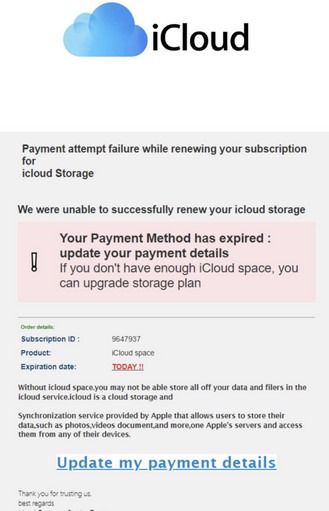
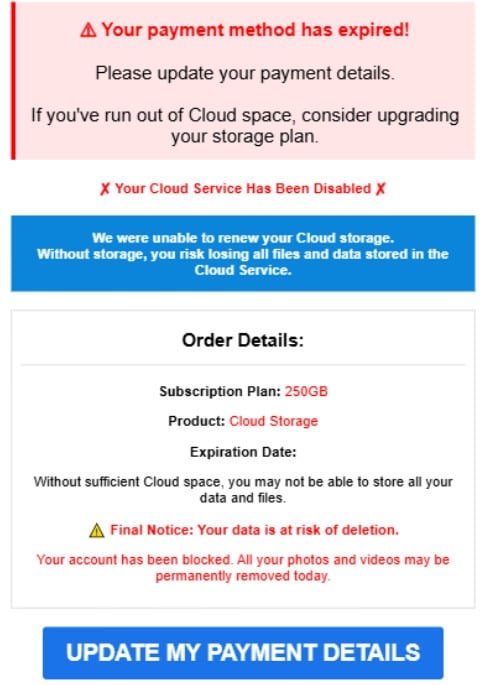
A big iCloud logo at the top. A “subscription renewal” message. A scary warning that your payment method has expired. Then a bright call to action that pushes you to “Update my payment details.”
If you rely on iCloud storage for photos, backups, and device syncing, that kind of email can trigger instant panic. Scammers know that, and they use it to rush you into clicking before you verify anything.
This article breaks down the “iCloud Payment Method Expired” email scam, explains exactly how it works, shows the red flags hidden in plain sight, and gives you a calm, step-by-step plan to protect your account, your photos, and your money.
Scam Overview
What this scam claims
This phishing email usually says something like:
A payment attempt failed while renewing your iCloud storage subscription
Your payment method has expired
Your iCloud storage may stop working or your data is at risk
You must update payment details immediately
Your expiration date is “TODAY!!” or something equally urgent
The message is built to create time pressure. Some versions also add extra fear by implying you will lose access to your photos, backups, or files if you do not act right now.
What the scam really is
This is not a real billing notice.
It is a phishing attempt that redirects you to a fake page where scammers try to steal:
Your iCloud login credentials (email and password)
Sometimes both in the same flow
The email often uses official-looking design and wording to mimic a real subscription renewal alert. The goal is to make you react emotionally instead of logically.
Why it works so well
This scam hits two powerful triggers:
Fear of losing irreplaceable memories Photos and videos are personal. Scammers exploit that emotional attachment.
Fear of losing device functionality iCloud storage impacts backups, syncing, and storage warnings. Many users have experienced real iCloud storage alerts, so the scam feels believable.
When someone is anxious, they are more likely to click quickly, especially on a phone where it is harder to inspect links.
Key red flags in the email
Even when the email looks polished, these scams usually expose themselves with a few consistent warning signs.
1) Urgency that feels extreme
“TODAY!!” is not a normal tone for legitimate billing communication.
Real providers do send notices, but they usually include a calmer timeline, clear account references, and instructions that point you back to official settings.
2) Generic or awkward wording
Phrases like “Payment attempt failure” and unnatural grammar are common in phishing templates.
Legitimate billing emails are typically reviewed and standardized. Scam emails often read like a template that has been rewritten many times.
3) A single big link that solves everything
Phishing emails love one-button solutions:
“Update my payment details”
“Verify now”
“Renew now”
Real services usually encourage you to check billing inside your account settings, not through a standalone email button.
4) Inconsistent details and weird formatting
Many versions include odd elements like:
Random “Subscription ID” numbers that do not match any real account view
Unusual spacing, inconsistent capitalization (icloud vs iCloud)
Vague product labels like “iCloud space”
Overly dramatic warnings about what will happen immediately
These are common signs of a phishing kit.
5) The link rarely goes to an Apple domain
This is the most important tell.
If you preview the link (hover on desktop, press and hold on mobile), you will often see a domain that is not associated with Apple. It may be a random website, a lookalike domain, or a compromised legitimate site hosting a phishing page.
Why scammers want your iCloud login
Credit card theft is one goal, but iCloud credentials can be even more valuable.
If an attacker gets into your iCloud account, they may attempt to:
Access photos, files, and synced notes
View backups depending on what is stored
Use your email for password resets on other services
Lock you out by changing account recovery settings
Launch more targeted scams using personal details found in your account
This is why any “update payment” page that asks you to sign in is a major danger sign.
Can they really delete your photos?
Not directly from an email.
A phishing email cannot delete anything by itself.
The danger comes from what happens after you click:
If you enter your Apple ID and password on a fake page, the attacker may try to access your account.
If you enter your card details, the attacker may use them for fraud.
The email is a trap door. The damage happens when you provide sensitive information.
How The Scam Works
Step 1: You receive a convincing “billing failure” email
The attacker sends a message that looks like a subscription renewal alert.
The content focuses on:
A failed payment attempt
An expired payment method
A deadline that is “today”
A strong call to action to update payment details
This creates a false emergency. Most victims click because they want to stop the problem before anything gets deleted or disabled.
Step 2: You click “Update my payment details”
The link in the email does not take you to a real Apple billing page.
It typically routes through one of these:
A phishing site built to imitate an iCloud sign-in or billing form
A chain of redirects that hides the final destination
A compromised website hosting a fake payment page
This is done to make the link harder to detect and easier to rotate when domains get blocked.
Step 3: The fake page asks for credentials, payment info, or both
There are a few common versions.
Version A: “Sign in to confirm”
The page asks for your Apple ID email and password.
If you enter it, the attacker collects your credentials. Some phishing kits immediately try those credentials on the real iCloud login in the background.
Version B: “Update billing to avoid losing storage”
The page asks for credit card information.
This often includes:
Card number
Expiration date
CVV
Billing address
Phone number
That is enough to attempt fraudulent charges.
Version C: Two-step collection
The most dangerous version collects both:
Sign in first
Then update payment details
This feels realistic and increases compliance.
Step 4: Some scams attempt real-time code theft
If you have two-factor authentication enabled, you may receive a legitimate sign-in code from Apple.
Scammers sometimes try to trick victims into entering that code on the phishing page.
If you type it in, the attacker may be able to complete the login in real time. This technique is often called “real-time phishing,” and it is one reason these scams can still succeed even when two-factor authentication is enabled.
Important rule: if you receive a code you did not request, do not share it.
Step 5: The scam site shows a fake success message
After you submit details, many phishing pages display:
“Payment updated”
“Your account is now safe”
“Verification complete”
This is theater. It is designed to reduce suspicion while the attacker already has your data.
Step 6: The attacker uses what they stole
If they stole your card data
They may:
Run small test charges to confirm the card works
Attempt larger purchases or subscriptions
Sell the card details to other criminals
Sometimes fraud appears days later, not instantly.
If they stole your iCloud credentials
They may attempt to:
Log into iCloud from a new device
Change password and recovery options
Access photos, notes, and files
Use your email to reset passwords on other accounts
Even if they cannot fully break in due to security prompts, the credentials can still be reused in attacks on other services if you reuse passwords.
Variants of the “iCloud Payment Method Expired” Email Scam
Scammers recycle the same core trick, but they constantly change the subject line, wording, layout, and the action button to bypass spam filters and catch different types of users. Below are realistic variants you can include in your article so readers recognize the scam even when it looks different.
This aims at people who recently changed phones or worry about backups.
Common phrasing:
“Your iPhone backup failed due to storage issues”
“Backup stopped because payment could not be processed”
“Your data may not be recoverable”
“Fix now to resume backup”
Common buttons:
“Resume Backup”
“Fix Storage”
“Update Payment”
Variant 10: “Two-step scam” that starts as security, ends as billing
This is a common flow: first it looks like security, then it asks for payment.
Common phrasing:
“Verify your account to continue using iCloud”
“Sign in to confirm your Apple ID”
Then: “Update payment details to restore storage access”
Common buttons:
“Continue”
“Verify”
“Update Payment”
Variant 11: “Localized language” versions
Many scams are translated poorly into the user’s language to widen reach.
Common traits:
Mixed language in the same email
Wrong capitalization of “iCloud”
Odd spacing and punctuation
Dates formatted inconsistently
Common buttons:
“Update Payment”
“Confirm”
“Continue”
Variant 12: “Fake support number” call-to-action
Some versions include a phone number instead of a button, leading to a scam call center.
Common phrasing:
“Call Apple Support immediately”
“Your account will be deleted within 24 hours”
“Case ID: [random number]”
“Do not ignore this message”
Common callouts:
“Support hotline”
“Billing department”
“Security team”
Common elements shared across most variants
Even when the wording changes, most versions include the same building blocks:
High urgency: “today,” “final reminder,” “immediate action”
Fear trigger: photos, backups, account lockout, deletion
A single action path: click a button or call a number
Generic greeting: “Dear user”
Vague product names: “iCloud space” or “Cloud+”
Random IDs: “Subscription ID” or “Reference number” that look official
What To Do If You Have Fallen Victim to This Scam
If you clicked or entered information, you can still shut this down. The key is to move quickly and focus on the highest-risk areas first.
1) If you only opened the email but did not click
You are likely fine.
Do this:
Delete the email
Mark it as phishing or spam in your email provider
Search for similar emails and remove them
2) If you clicked the link but did not enter anything
This is still a good time to clean up.
Do this:
Close the page immediately
Do not click around to “see if it is real”
Clear browser site data (cookies and cache)
Watch for follow-up emails or texts over the next few days
Most damage occurs when you submit details, not from a click alone.
3) If you entered your Apple ID password
Treat it as compromised.
Do this immediately:
Change your Apple ID password using official settings, not the email link.
Enable two-factor authentication if it is not already enabled.
Review trusted devices and remove anything you do not recognize.
Sign out of other sessions if the account security area provides that option.
Check account recovery phone numbers and emails to confirm they are yours.
Then do this next:
If you reused the same password anywhere else, change it there too.
Consider using a password manager and unique passwords going forward.
4) If you entered your credit card information
Assume the card details were captured.
Do this:
Call the number on the back of your card and report fraud.
Ask for a replacement card with a new number.
Review recent transactions for suspicious charges.
Dispute any unauthorized charges right away.
If the phishing page asked for a one-time bank code and you entered it, tell your bank. That detail matters.
5) If you entered both password and card details
Handle it in this order:
Secure your Apple ID first
Secure your payment card second
Secure your email account third
Why email? Because if your email is compromised too, attackers can intercept password reset links and security alerts.
6) Check your email account for sneaky changes
Many victims forget this step.
Attackers sometimes create hidden mail rules that:
Forward account alerts to another address
Auto-archive security warnings
Auto-delete password reset confirmations
Check your:
Forwarding settings
Filters and rules
Recovery email and phone number
Recent sign-ins if available
7) Watch for follow-up scams
Once scammers know you clicked, they may target you again with:
“Your payment update failed, try again”
“Your account will be deleted in 2 hours”
A phone number for “support” that leads to a scam call center
A text message version of the same warning
Treat any follow-up that creates panic as suspicious.
How to Verify a Real iCloud Billing Issue Safely
If you are unsure whether your iCloud storage payment actually failed, there is a safe way to check.
Use trusted paths only
Do not click the email button.
Instead:
Check subscription and storage status inside your device settings
Open the official settings panel for your account and billing
Type the official website address manually in your browser if needed
Signs it is real
A legitimate billing issue will show up in your account settings, not just in a random email.
You will typically see:
A clear subscription status
A billing message inside the account area
An option to update payment methods through the official interface
Signs it is fake
A scam will rely on:
Urgency and threats
A single external link
A page that asks for login or card details in an unusual flow
A domain that is not official
If you are unsure, the safest choice is to ignore the email and check from inside your device settings.
How to Spot iCloud Phishing Emails Faster
Here is a quick, practical checklist you can use the next time a message like this hits your inbox.
Email content red flags
“TODAY!!” style deadlines
Threats of immediate deletion or account blocking
Awkward language or weird capitalization (icloud instead of iCloud)
Vague product names like “iCloud space”
A single big button that demands urgent action
Sender red flags
The sender display name does not match Apple
The sender email address looks random or unrelated
Reply-to address differs from the sender
Link red flags
Hover preview shows a strange domain
The link uses shorteners or weird redirect chains
The destination is not an Apple-owned domain
On mobile, press and hold the link to preview it before tapping.
Why this scam keeps coming back
This phishing campaign is popular because it is cheap and effective.
Attackers can:
Reuse the same template across millions of emails
Swap domains quickly when one gets blocked
Adjust the branding slightly to target different users
Use stolen mailing lists from breaches or marketing databases
And because iCloud storage is so common, the message feels relevant to a wide audience.
Prevention Tips That Actually Help
Use two-factor authentication everywhere
Two-factor authentication is not perfect, but it blocks many basic account takeovers.
Enable it for:
Your Apple ID
Your email account
Any account tied to payments or sensitive data
Use unique passwords
If one password gets phished and you reuse it elsewhere, attackers gain access to multiple accounts.
A password manager makes unique passwords manageable.
Never update billing from an email link
This one habit defeats most billing phishing scams.
If you get a scary billing email, pause and verify inside account settings.
Turn on account alerts
Security alerts help you notice account changes quickly, especially if someone attempts to sign in from a new device.
Teach one simple rule to family members
If you want to protect less technical relatives, give them one clear rule:
If an email claims something urgent about photos, money, or passwords, do not click the button. Open settings and check there.
The Bottom Line
The “iCloud Payment Method Expired” email scam is designed to make you panic about losing storage, photos, and backups.
It is not a real subscription renewal notice. It is a phishing trap that leads to fake pages where criminals steal credit card data, Apple ID credentials, or both.
If you receive this email, do not click the link. Verify your iCloud status through official account settings. If you already clicked and entered information, act quickly: change passwords, enable two-factor authentication, contact your bank if card details were shared, and review your account security settings for suspicious changes.
Is Your Device Infected? Scan for Malware
If your computer or phone is slow, showing unwanted pop-ups, or acting strangely, malware could be the cause. Running a scan with Malwarebytes Anti-Malware Free is one of the most reliable ways to detect and remove harmful software. The free version can identify and clean common infections such as adware, browser hijackers, trojans, and other unwanted programs.
Malwarebytes works on Windows, Mac, and Android devices. Choose your operating system below and follow the steps to scan your device and remove any malware that might be slowing it down.
Malwarebytes for WindowsMalwarebytes for MacMalwarebytes for Android
Run a Malware Scan with Malwarebytes for Windows
Malwarebytes stands out as one of the leading and widely-used anti-malware solutions for Windows, and for good reason. It effectively eradicates various types of malware that other programs often overlook, all at no cost to you. When it comes to disinfecting an infected device, Malwarebytes has consistently been a free and indispensable tool in the battle against malware. We highly recommend it for maintaining a clean and secure system.
Download Malwarebytes
Download the latest version of Malwarebytes for Windows using the official link below. Malwarebytes will scan your computer and remove adware, browser hijackers, and other malicious software for free.
(The above link will open a new page from where you can download Malwarebytes)
Install Malwarebytes
After the download is complete, locate the MBSetup file, typically found in your Downloads folder. Double-click on the MBSetup file to begin the installation of Malwarebytes on your computer. If a User Account Control pop-up appears, click “Yes” to continue the Malwarebytes installation.
Follow the On-Screen Prompts to Install Malwarebytes
When the Malwarebytes installation begins, the setup wizard will guide you through the process.
You’ll first be prompted to choose the type of computer you’re installing the program on—select either “Personal Computer” or “Work Computer” as appropriate, then click on Next.
Malwarebytes will now begin the installation process on your device.
When the Malwarebytes installation is complete, the program will automatically open to the “Welcome to Malwarebytes” screen.
On the final screen, simply click on the Open Malwarebytes option to start the program.
Enable “Rootkit scanning”.
Malwarebytes Anti-Malware will now start, and you will see the main screen as shown below. To maximize Malwarebytes’ ability to detect malware and unwanted programs, we need to enable rootkit scanning. Click on the “Settings” gear icon located on the left of the screen to access the general settings section.
In the settings menu, enable the “Scan for rootkits” option by clicking the toggle switch until it turns blue.
Now that you have enabled rootkit scanning, click on the “Dashboard” button in the left pane to get back to the main screen.
Perform a Scan with Malwarebytes.
To start a scan, click the Scan button. Malwarebytes will automatically update its antivirus database and begin scanning your computer for malicious programs.
Wait for the Malwarebytes scan to complete.
Malwarebytes will now scan your computer for browser hijackers and other malicious programs. This process can take a few minutes, so we suggest you do something else and periodically check the status of the scan to see when it is finished.
Quarantine detected malware
Once the Malwarebytes scan is complete, it will display a list of detected malware, adware, and potentially unwanted programs. To effectively remove these threats, click the “Quarantine” button.
Malwarebytes will now delete all of the files and registry keys and add them to the program’s quarantine.
Restart your computer.
When removing files, Malwarebytes may require a reboot to fully eliminate some threats. If you see a message indicating that a reboot is needed, please allow it. Once your computer has restarted and you are logged back in, you can continue with the remaining steps.
Once the scan completes, remove all detected threats. Your Windows computer should now be clean and running smoothly again, free of trojans, adware, and other malware.
If your current antivirus allowed this malicious program on your computer, you may want to consider purchasing Malwarebytes Premium to protect against these types of threats in the future. If you are still having problems with your computer after completing these instructions, then please follow one of the steps:
Malwarebytes for Mac is an on-demand scanner that can destroy many types of malware that other software tends to miss without costing you absolutely anything. When it comes to cleaning up an infected device, Malwarebytes has always been free, and we recommend it as an essential tool in the fight against malware.
Download Malwarebytes for Mac.
You can download Malwarebytes for Mac by clicking the link below.
When Malwarebytes has finished downloading, double-click on the setup file to install Malwarebytes on your computer. In most cases, downloaded files are saved to the Downloads folder.
Follow the on-screen prompts to install Malwarebytes.
When the Malwarebytes installation begins, you will see the Malwarebytes for Mac Installer which will guide you through the installation process. Click “Continue“, then keep following the prompts to continue with the installation process.
When your Malwarebytes installation completes, the program opens to the Welcome to Malwarebytes screen. Click the “Get started” button.
Select “Personal Computer” or “Work Computer”.
The Malwarebytes Welcome screen will first ask you what type of computer are you installing this program, click either Personal Computer or Work Computer.
Click on “Scan”.
To scan your computer with Malwarebytes, click on the “Scan” button. Malwarebytes for Mac will automatically update the antivirus database and start scanning your computer for malware.
Wait for the Malwarebytes scan to complete.
Malwarebytes will scan your computer for adware, browser hijackers, and other malicious programs. This process can take a few minutes, so we suggest you do something else and periodically check on the status of the scan to see when it is finished.
Click on “Quarantine”.
When the scan has been completed, you will be presented with a screen showing the malware infections that Malwarebytes has detected. To remove the malware that Malwarebytes has found, click on the “Quarantine” button.
Restart computer.
Malwarebytes will now remove all the malicious files that it has found. To complete the malware removal process, Malwarebytes may ask you to restart your computer.
After scanning, delete any detected threats. Your Mac should now be free from adware, unwanted extensions, and other potentially harmful software.
If your current antivirus allowed a malicious program on your computer, you might want to consider purchasing the full-featured version of Malwarebytes Anti-Malware to protect against these types of threats in the future. If you are still experiencing problems while trying to remove a malicious program from your computer, please ask for help in our Mac Malware Removal Help & Support forum.
Run a Malware Scan with Malwarebytes for Android
Malwarebytes for Android automatically detects and removes dangerous threats like malware and ransomware so you don’t have to worry about your most-used device being compromised. Aggressive detection of adware and potentially unwanted programs keeps your Android phone or tablet running smooth.
Download Malwarebytes for Android.
You can download Malwarebytes for Android by clicking the link below.
In the Google Play Store, tap “Install” to install Malwarebytes for Android on your device.
When the installation process has finished, tap “Open” to begin using Malwarebytes for Android. You can also open Malwarebytes by tapping on its icon in your phone menu or home screen.
Follow the on-screen prompts to complete the setup process
When Malwarebytes will open, you will see the Malwarebytes Setup Wizard which will guide you through a series of permissions and other setup options. This is the first of two screens that explain the difference between the Premium and Free versions. Swipe this screen to continue. Tap on “Got it” to proceed to the next step. Malwarebytes for Android will now ask for a set of permissions that are required to scan your device and protect it from malware. Tap on “Give permission” to continue. Tap on “Allow” to permit Malwarebytes to access the files on your phone.
Update database and run a scan with Malwarebytes for Android
You will now be prompted to update the Malwarebytes database and run a full system scan.
Click on “Update database” to update the Malwarebytes for Android definitions to the latest version, then click on “Run full scan” to perform a system scan.
Wait for the Malwarebytes scan to complete.
Malwarebytes will now start scanning your phone for adware and other malicious apps. This process can take a few minutes, so we suggest you do something else and periodically check on the status of the scan to see when it is finished.
Click on “Remove Selected”.
When the scan has been completed, you will be presented with a screen showing the malware infections that Malwarebytes for Android has detected. To remove the malicious apps that Malwarebytes has found, tap on the “Remove Selected” button.
Restart your phone.
Malwarebytes for Android will now remove all the malicious apps that it has found. To complete the malware removal process, Malwarebytes may ask you to restart your device.
When the scan is finished, remove all detected threats. Your Android phone should now be free of malicious apps, adware, and unwanted browser redirects.
If your current antivirus allowed a malicious app on your phone, you may want to consider purchasing the full-featured version of Malwarebytes to protect against these types of threats in the future. If you are still having problems with your phone after completing these instructions, then please follow one of the steps:
Restore your phone to factory settings by going to Settings > General management > Reset > Factory data reset.
After cleaning your device, it’s important to protect it from future infections and annoying pop-ups. We recommend installing an ad blocker such as AdGuard. AdGuard blocks malicious ads, prevents phishing attempts, and stops dangerous redirects, helping you stay safe while browsing online.
FAQ
What is the iCloud “Payment Method Expired” email scam?
It’s a phishing email that pretends to be an iCloud storage renewal or billing notice. The message claims your payment method expired or a renewal failed, then pushes you to click a link to “update payment details.”
The real goal is to steal your credit card information, your Apple ID login credentials, or both.
Is the iCloud payment failure email real?
In most cases, no. Scammers copy the look of iCloud branding and use urgent language like “TODAY!!” or “final reminder” to rush you into clicking.
A legitimate billing notice will not rely on panic tactics or an external “update payment” button as the only solution.
Why does the email say my subscription renewal failed?
Because it’s the easiest story to make you act fast. Most people understand subscriptions renew automatically, so a “payment attempt failed” message feels plausible.
Scammers also know that many users have seen real storage warnings before, which makes the fake email feel familiar.
Will my photos actually be deleted if I ignore the email?
Not because of the email.
A phishing email cannot delete your iCloud photos. The danger is what happens if you click and enter information. If you give scammers your Apple ID password, they may try to access your account and cause real harm.
What happens if I click “Update my payment details”?
You are typically redirected to a fake page that looks like an iCloud sign-in or billing form. The page attempts to collect:
Apple ID email and password
Credit card number, expiration date, and CVV
Billing address and phone number
Sometimes a one-time code from your bank or a login code
Once submitted, the information goes to the scammers, not Apple.
Can a scam website have a padlock icon and still be dangerous?
Yes.
The padlock only means the connection is encrypted (HTTPS). Scammers can easily use HTTPS on fake websites. The real test is the domain name and whether you reached it safely by typing the official address yourself.
How can I quickly tell if an iCloud billing email is a scam?
Look for these common red flags:
Generic greeting like “Dear user”
Weird grammar or unnatural phrases like “Payment attempt failure”
Over-the-top urgency like “TODAY!!” or “immediate deletion”
A large button urging you to update payment details
Random “Subscription ID” or “Case ID” numbers that do not match your real account
Sender name or email address that does not clearly belong to Apple
Link preview shows a domain that is not an Apple domain
If you see more than one, treat it as phishing.
Why do these scam emails include random Subscription ID numbers?
It’s a credibility trick.
Scammers add numbers like “Subscription ID” or “Order ID” to make the email feel official. These IDs usually do not correspond to anything in your real iCloud account.
What should I do if I clicked the link but did not enter any information?
Close the page and do not return to it.
Then:
Clear browser site data (cookies and cache)
Run device and browser updates
Watch for follow-up phishing emails or texts
Most damage happens when you type and submit details.
What should I do if I entered my Apple ID password on the scam page?
Act immediately:
Change your Apple ID password using official settings, not the email link.
Enable two-factor authentication if it is not already enabled.
Review trusted devices and remove anything you do not recognize.
Check account recovery phone numbers and emails to ensure they are yours.
If you reused the password elsewhere, change it on those accounts too.
If you receive unexpected login prompts, do not approve them.
What if I entered my credit card details?
Treat your card details as stolen.
Do this:
Call the number on the back of your card and report fraud.
Ask for a replacement card with a new number.
Review transactions for small test charges and larger purchases.
Dispute unauthorized charges as soon as you see them.
If you also entered a one-time bank code, tell your bank right away.
What if the scam page asked for a verification code from Apple?
That can indicate a real-time phishing attempt.
If you entered a code, change your Apple ID password immediately and review your account for unknown devices or sessions. Do not share codes with anyone and do not approve login prompts you did not initiate.
How do I check if my Apple ID was accessed by someone else?
Use the official account security area on your device or through Apple’s official sign-in portal.
Check for:
Unfamiliar devices logged into your account
Security notifications you did not initiate
Changes to recovery phone number or email
New trusted devices or sign-in attempts
If you see anything suspicious, change your password again and sign out of other sessions.
How do I safely verify if my iCloud storage payment really failed?
Never verify through the email button.
Instead:
Check your subscription and payment method inside your device settings
Open your iCloud or Apple ID settings directly
If using a browser, type the official site address manually
If there is a real issue, it will show in your account settings without needing a link from an email.
Can this scam lead to identity theft?
It can, depending on what you entered.
Credit card details can lead to fraudulent charges. Apple ID access can expose private files, photos, contacts, and account recovery paths. If you entered personal information like address, phone number, or date of birth, scammers may also use it for more targeted scams later.
Do scammers target only iPhone users?
Mostly, but not exclusively.
Anyone with an email address can receive this scam. The message is designed to feel relevant to users who store photos in the cloud, even if they do not actively pay for storage.
Why do I keep getting iCloud phishing emails?
Your email address may be on marketing lists, old breach lists, or mass-targeted spam campaigns. Scammers send huge volumes and reuse templates that get clicks.
Reporting the email as phishing helps your provider block similar messages faster.
Should I reply to the email or click “unsubscribe”?
No.
Replying confirms your email address is active. Clicking “unsubscribe” in a phishing email can also lead to more scams. Delete it and report it instead.
How do I report this iCloud scam email?
Good options include:
Use your email provider’s “Report phishing” feature
Report it internally if it reached a work inbox
If money was stolen, report it to your bank immediately and follow local consumer or cybercrime reporting channels
Keeping a screenshot of the email can help if you need to document what happened.
Thomas is an expert at uncovering scams and providing in-depth reporting on cyber threats and online fraud. As an editor, he is dedicated to keeping readers informed on the latest developments in cybersecurity and tech.