

If you see the “Installed by Enterprise Policy” text when you are trying to remove a Chrome extension, then your browser is most likely infected with a browser hijacker or adware.

What is “Installed by Enterprise Policy”?
The “Installed by Enterprise Policy” policy is a legitimate tool that allows administrators to create policies that control how the Chrome browser operates on a computer. These policies are designed to make it easier for admins to manage the Chrome settings for all users in their organization.
the browser will now display this message whenever a group policy is configured for the browser.
Unfortunately, when it comes to Home users, malware programs are using this method to force extensions to be installed on Windows and Mac computers knowing that it will be difficult to remove. The reason why they are doing this is that because the malicious Chrome extension that is forcefully installed by group policies cannot be removed or disabled via Chrome’s Extensions page. When a user tries to right-click on the extension to remove it, the normal “Remove” option will not be available and instead, the Chrome user will see a dimmed out message that states “Installed by Enterprise Policy”.
Why am I seeing the “Installed by Enterprise Policy” text?
You are seeing the “Installed by Enterprise Policy” notice because your computer is either infected with a malicious program or you’re using a computer that is part of a business network.
This guide was written to help users remove malware from their devices, so if you’re using a computer that is part of a business network, you should talk with the administrator about the policies that are set on it.
When it comes to adware or browser hijackers, these malicious programs are bundled with other free software that you download off of the Internet. Unfortunately, some free downloads do not adequately disclose that other software will also be installed and you may find that you have installed adware without your knowledge.
Here are a few typical signs that you have adware or browser hijacker on your computer:
- You see the “Installed by Enterprise Policy” notice when you open your browser menu.
- Advertisements appear in places they shouldn’t be.
- Your web browser’s homepage has mysteriously changed without your permission.
- Your web browser’s search engine has mysteriously changed without your permission.
- Web pages that you typically visit are not displaying properly.
- Website links redirect to sites different from what you expected.
- Browser popups appear which recommend fake updates or other software.
- Other unwanted programs might get installed without your knowledge.
You should always pay attention when installing software because often, a software installer includes optional installs. Be very careful what you agree to install.
Always opt for the custom installation and deselect anything that is not familiar, especially optional software that you never wanted to download and install in the first place. It goes without saying that you should not install software that you don’t trust.
To check your computer for adware and remove it for free, please use the guide below.
Remove “Installed by Enterprise Policy” Chrome hijack (Virus Removal Guide)
This malware removal guide may appear overwhelming due to the number of steps and numerous programs that are being used. We have only written it this way to provide clear, detailed, and easy to understand instructions that anyone can use to remove malware for free.
Please perform all the steps in the correct order. If you have any questions or doubt at any point, stop and ask for our assistance.
- STEP 1: Use the Command Prompt to reset Chrome’s policies to default
- STEP 2: Uninstall the malicious programs from Windows
- STEP 3: Use Malwarebytes Free to remove “Installed by Enterprise Policy” adware
- STEP 4: Use HitmanPro to scan for malware and unwanted programs
- STEP 5: Double-check for malicious programs with AdwCleaner
- STEP 6: Reset the browser settings to remove “Installed by Enterprise Policy” policy
STEP 1 : Use the Command Prompt to reset Chrome’s policies to default
In this first step, we wil run use the command promopt to reset Chrome’s policies to default.
- Open the Command Prompt by pressing “Windows Key + X”, and click on “Command Prompt (Admin)” to open it in Administrator mode.
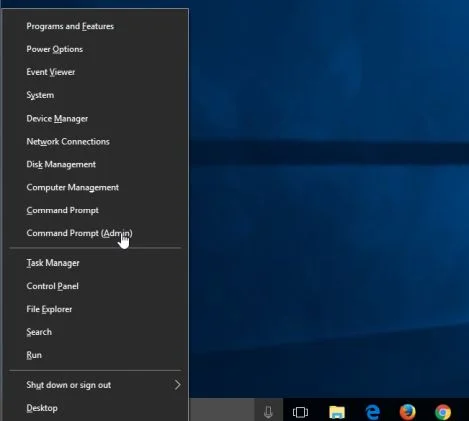 You can easily open the command prompt by typing “cmd” into the search box (Win + S), then right-click and choose Run as Administrator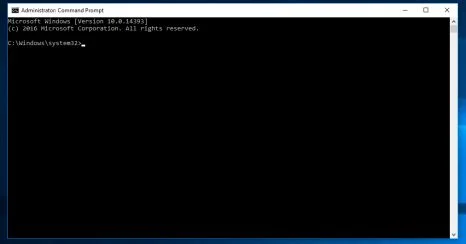
- In the Command prompt type (or copy/paste) the following commands:
- Type:rd /S /Q “%WinDir%\System32\GroupPolicyUsers”, then press “Enter”.
- Type:rd /S /Q “%WinDir%\System32\GroupPolicy”, then press “Enter”.
- Type: gpupdate /force, then press “Enter”.
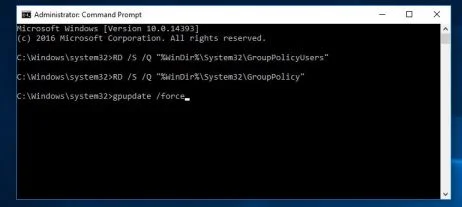 You should see the following notifications after the commands been run:
User Policy update has completed successfully.
Computer Policy update has completed successfully
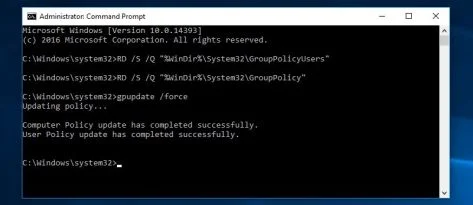
- The “Installed by enterprise policy” extension will now be removed from Chrome, and you should be able to remove the “Installed by enterprise policy” extension.
STEP 2: Uninstall the malicious programs from Windows
In this step, we will try to identify and remove any malicious program that might be installed on your computer.
-
Go to “Programs and Features”.
Windows 10
- On the Start
 menu, type Control Panel in the search box and select “Control Panel” from the results.
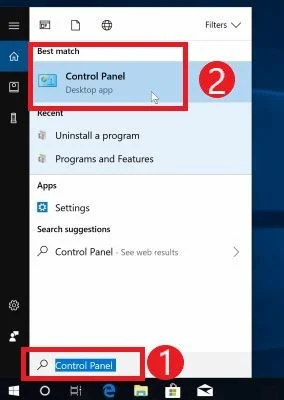
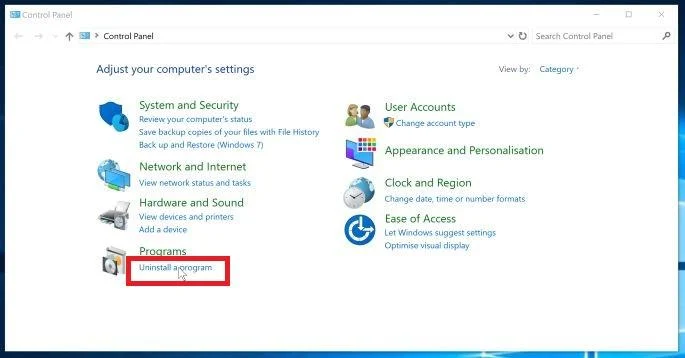
- When the “Control Panel” window opens click on the “Uninstall a program” option under the “Programs” category.
Windows 8
Right-click on the Start button in the lower-left corner and select “Programs and Features”. This will take you directly to your list of installed programs.
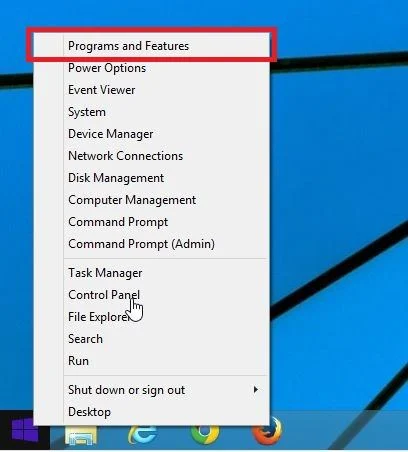
- If you can’t find the Programs and Features in the Start menu, type “programs and features” into the search bar at the bottom of the Start window, then click the “Programs and Features” result.
- If you don’t have a Start button, you are likely running Windows 8 instead of Windows 8.1. Press the Windows key + X to open the menu instead and select “Programs and Features”.
Windows 7
- Click on Start, then select “Control Panel”.Start by clicking on the Start button, then click on “Control Panel”.
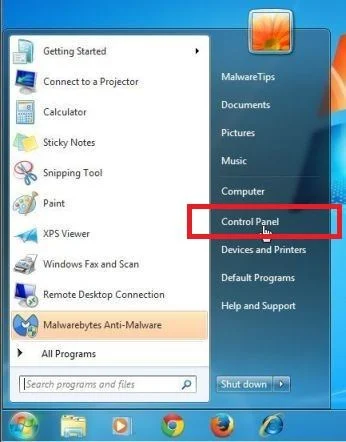 If you don’t see “Control Panel” here, type control panel into the search bar at the bottom of the Start window, then click the “Control Panel” result.
 - When the “Control Panel” appears, click on “Uninstall a Program” from the Programs category.
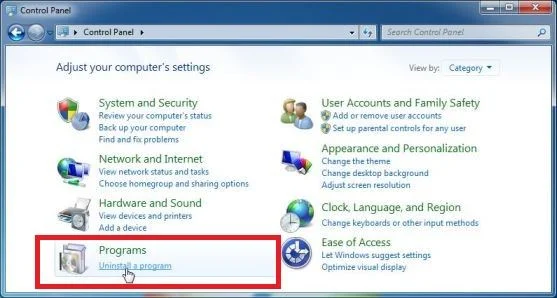
- On the Start
-
Find the malicious program and uninstall it.
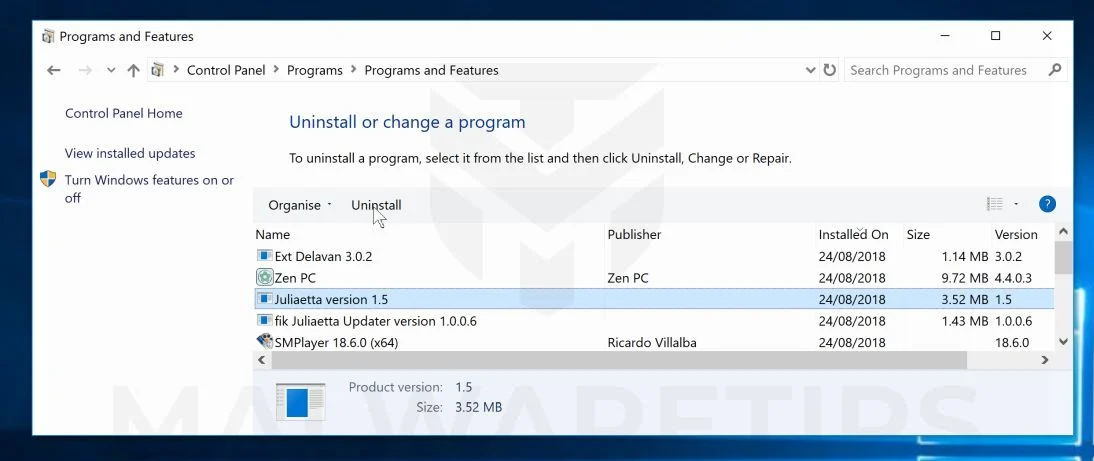
The “Programs and Features” screen will be displayed with a list of all the programs installed on your PC. Scroll through the list until you find the malicious program, then click to highlight it, then click the “Uninstall” button that appears on the top toolbar.
Look out for any suspicious program that could be behind all the drama – anything you don’t remember downloading or that doesn’t sound like a genuine program.
Here are some known malicious programs: PDFPoof, BatBitRst, MessengerNow, SearchAd, MyPrintableCoupons, Reading Cursors, ProMediaConverter, PDFOnline-express, See Scenic Elf, Clickware, Easy Speedtest, or WebDiscover.
The malicious program may have a different name on your computer. If you cannot find any malicious programs on your computer, you can continue with STEP 3.
-
Follow the on-screen prompts to uninstall the program.
In the next message box, confirm the uninstall process by clicking on Yes, then follow the prompts to uninstall the program.
Make sure to read all of the prompts carefully, because some malicious programs try to sneak things in hoping that you won’t read closely.
STEP 3: Use Malwarebytes Free to remove “Installed by Enterprise Policy” adware
Malwarebytes Free is one of the most popular and most used anti-malware software for Windows, and for good reasons. It is able to destroy many types of malware that other software tends to miss, without costing you absolutely nothing. When it comes to cleaning up an infected device, Malwarebytes has always been free and we recommend it as an essential tool in the fight against malware.
It is important to note that Malwarebytes Free will run alongside antivirus software without conflicts.
-
Download Malwarebytes Free.
You can download Malwarebytes by clicking the link below.
 Malwarebytes Free for WindowsScans and removes malware at no cost
Download MalwarebytesOfficial installer for Windows 11 and 10. Your download starts right away.Want real-time protection? See Malwarebytes Premium
-
Double-click on the Malwarebytes setup file.
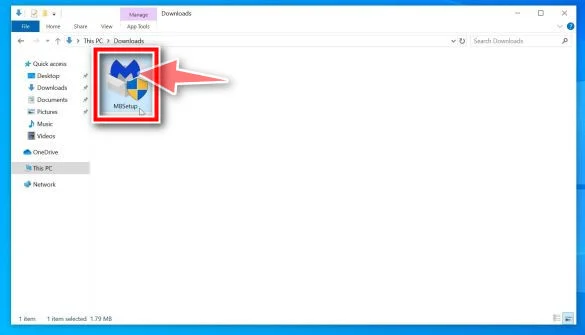
When Malwarebytes has finished downloading, double-click on the MBSetup file to install Malwarebytes on your computer. In most cases, downloaded files are saved to the Downloads folder.
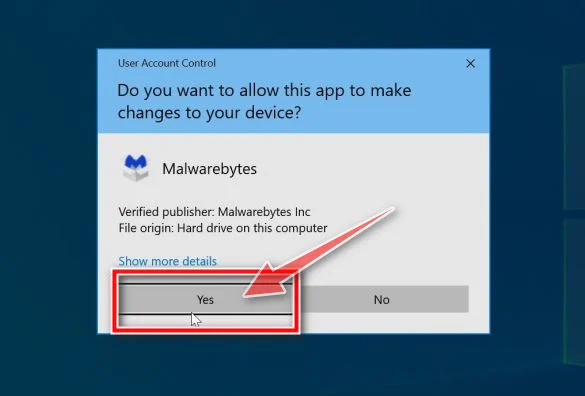
You may be presented with an User Account Control pop-up asking if you want to allow Malwarebytes to make changes to your device. If this happens, you should click “Yes” to continue with the Malwarebytes installation.
-
Follow the on-screen prompts to install Malwarebytes.
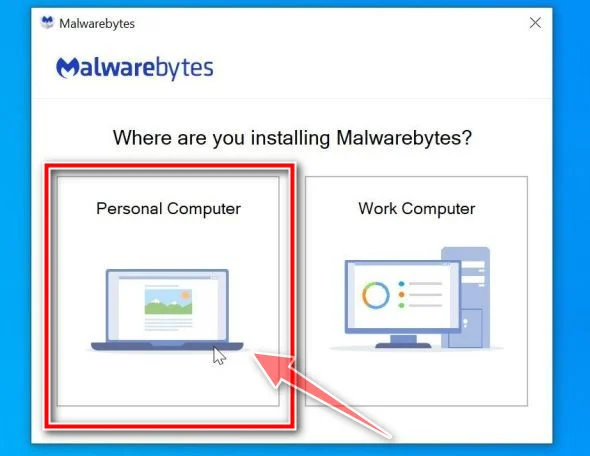
When the Malwarebytes installation begins, you will see the Malwarebytes setup wizard which will guide you through the installation process. The Malwarebytes installer will first ask you on what type of computer are you installing this program, click either Personal Computer or Work Computer.
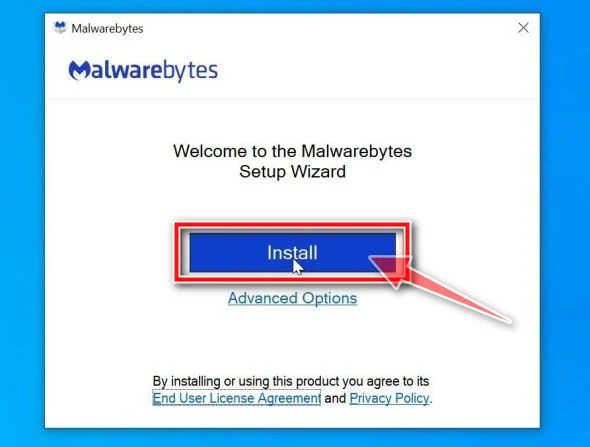
On the next screen, click “Install” to install Malwarebytes on your computer.
When your Malwarebytes installation completes, the program opens to the Welcome to Malwarebytes screen. Click the “Get started” button.
-
Select “Use Malwarebytes Free”.
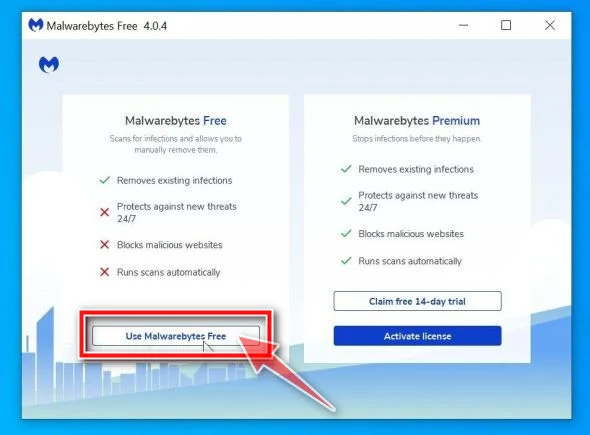
After installing Malwarebytes, you’ll be prompted to select between the Free and the Premium version. The Malwarebytes Premium edition includes preventative tools like real-time scanning and ransomware protection, however, we will use the Free version to clean up the computer.
Click on “Use Malwarebytes Free“.
-
Click on “Scan”.
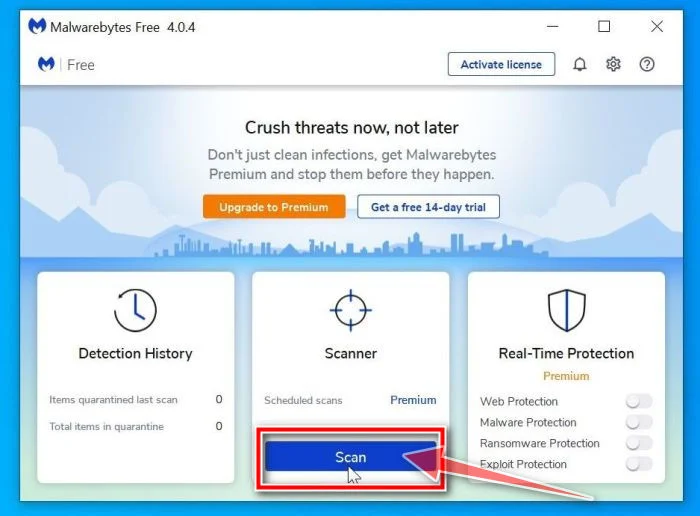
To scan your computer with Malwarebytes, click on the “Scan” button. Malwarebytes will automatically update the antivirus database and start scanning your computer for malware.
-
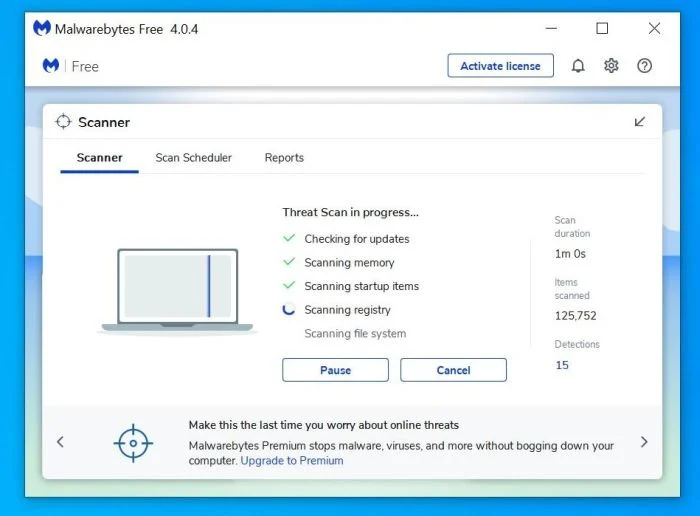
Wait for the Malwarebytes scan to complete.
Malwarebytes will scan your computer for adware and other malicious programs. This process can take a few minutes, so we suggest you do something else and periodically check on the status of the scan to see when it is finished.
-
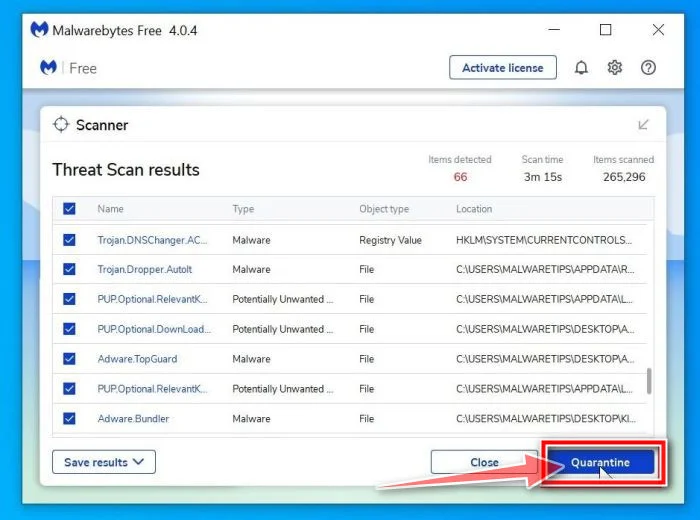
Click on “Quarantine”.
When the scan has completed, you will be presented with a screen showing the malware infections that Malwarebytes has detected. To remove the malicious programs that Malwarebytes has found, click on the “Quarantine” button.
-
Restart computer.
Malwarebytes will now remove all the malicious files and registry keys that it has found. To complete the malware removal process, Malwarebytes may ask you to restart your computer.
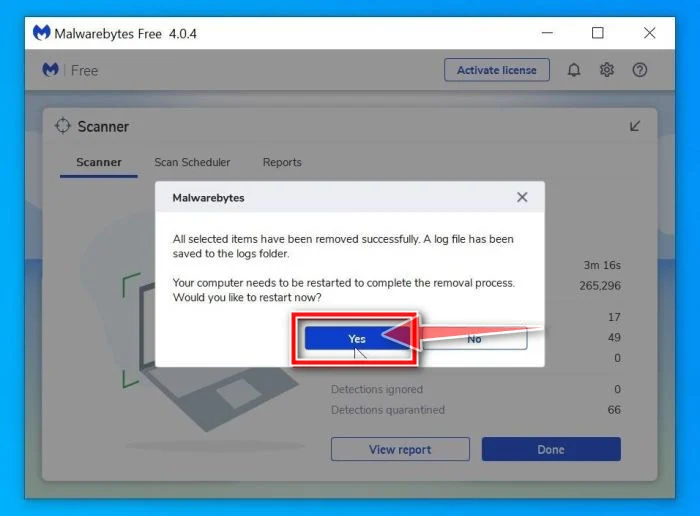
When the malware removal process is complete, you can close Malwarebytes and continue with the rest of the instructions.
STEP 4: Use HitmanPro to scan for malware and unwanted programs
HitmanPro is a second opinion scanner that takes a unique cloud-based approach to malware scanning. HitmanPro scans the behavior of active files and also files in locations where malware normally resides for suspicious activity. If it finds a suspicious file that’s not already known, HitmanPro sends it to their clouds to be scanned by two of the best antivirus engines today, which are Bitdefender and Kaspersky.
Although HitmanPro is shareware and costs $24.95 for 1 year on 1 PC, there is actually no limit in scanning. The limitation only kicks in when there is a need to remove or quarantine detected malware by HitmanPro on your system and by then, you can activate the one time 30-days trial to enable the cleanup.
-
Download HitmanPro.
You can download HitmanPro by clicking the link below.
 HitmanProSecond-opinion malware scanner from Sophos
Download HitmanProFree scan. Removing threats needs the free 30-day trial. Your download starts right away.
-
Install HitmanPro.
When HitmanPro has finished downloading, double-click on “hitmanpro.exe” (for 32-bit versions of Windows) or “hitmanpro_x64.exe” (for 64-bit versions of Windows) to install this program on your PC. In most cases, downloaded files are saved to the Downloads folder.
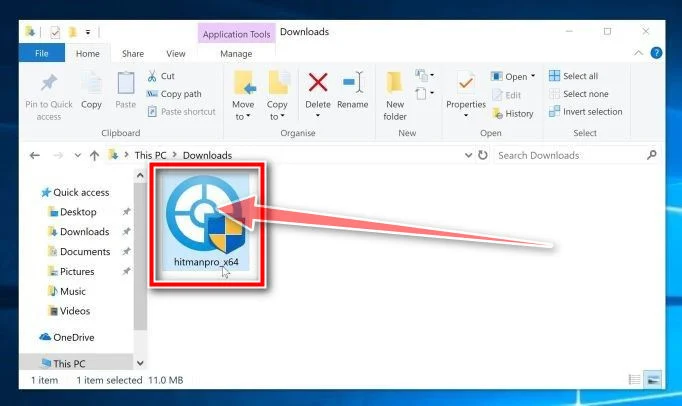
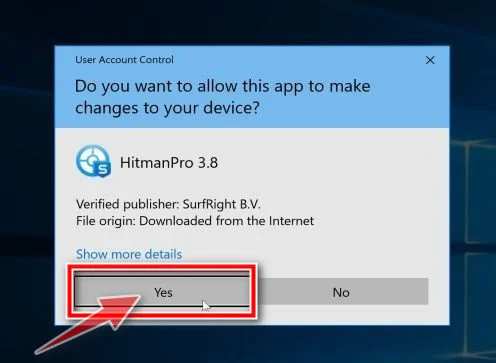
You may be presented with an User Account Control pop-up asking if you want to allow HitmanPro to make changes to your device. If this happens, you should click “Yes” to continue with the installation.
-
Follow the on-screen prompts.
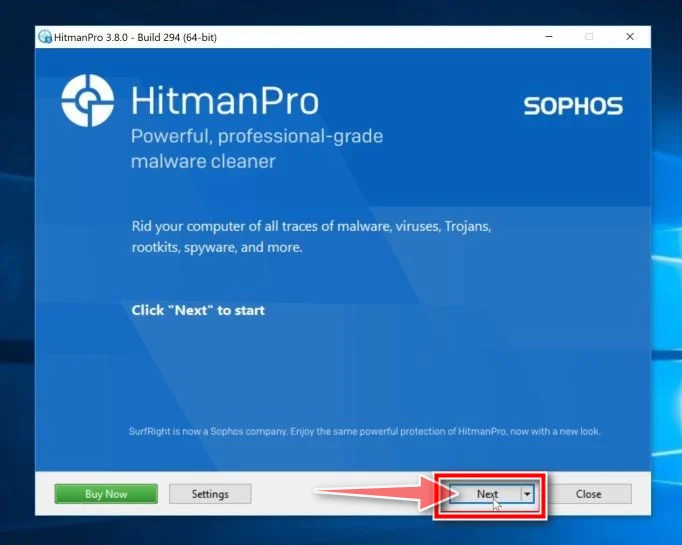
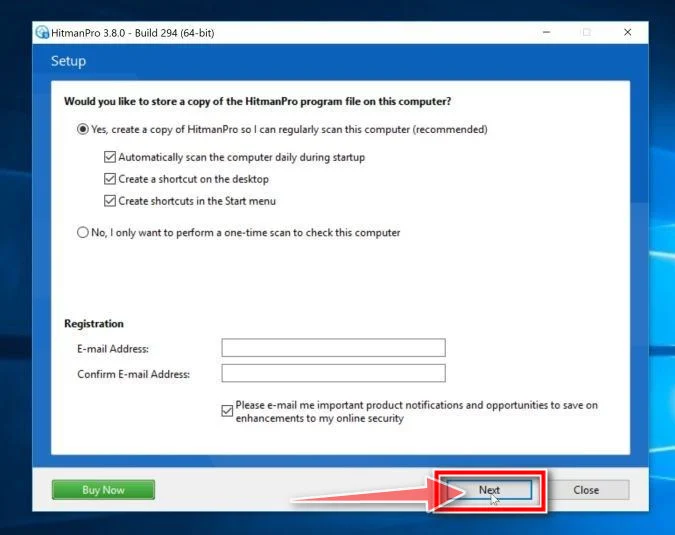
When HitmanPro starts you will be presented with the start screen as shown below. Click on the “Next” button to perform a system scan.
-
Wait for the HitmanPro scan to complete.
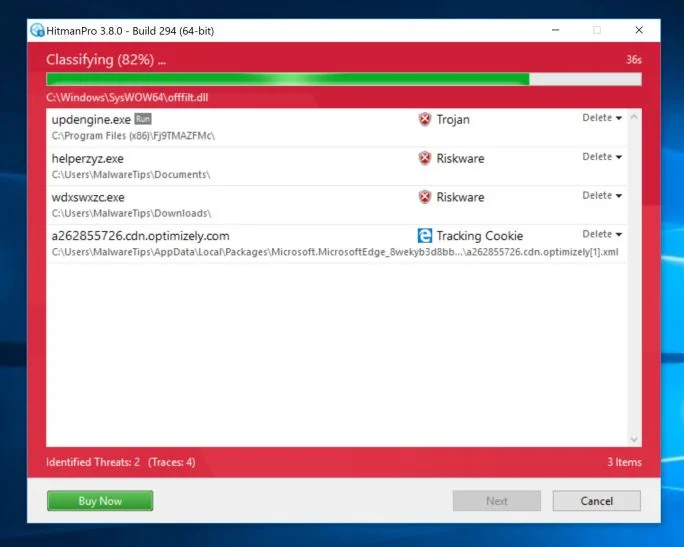
HitmanPro will now begin to scan your computer for malicious programs. This process will take a few minutes.
-
Click on “Next”.
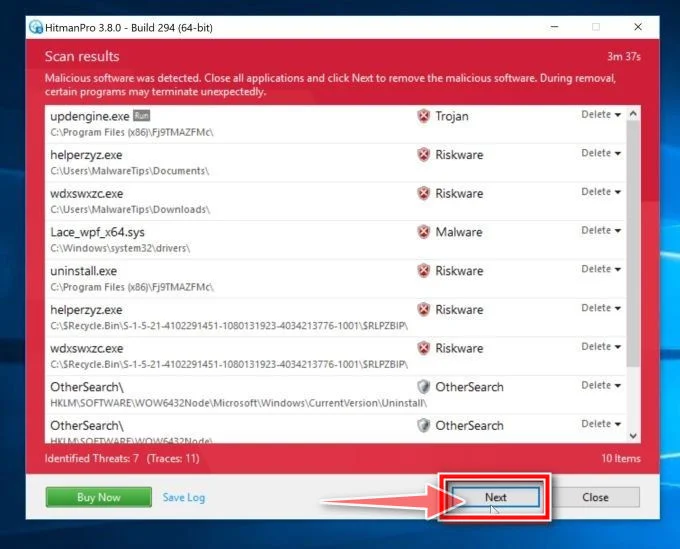
When HitmanPro has finished the scan, it will display a list of all the malware that the program has found. Click on the “Next” button to remove the malicious programs.
-
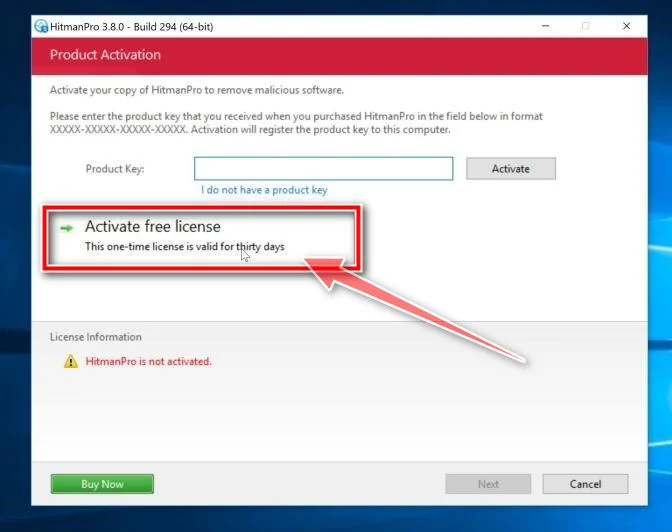
Click on “Activate free license”.
Click on the “Activate free license” button to begin the free 30 days trial and remove all the malicious files from your PC.
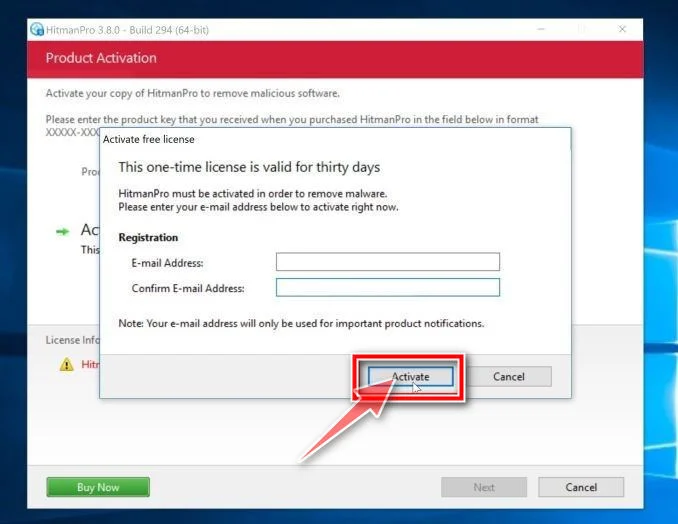
When the process is complete, you can close HitmanPro and continue with the rest of the instructions.
STEP 5: Double-check for malicious programs with AdwCleaner
AdwCleaner is a free popular on-demand scanner which can detect and remove malware that even the most well-known anti-virus and anti-malware applications fail to find.
While the Malwarebytes and HitmanPro scans are more than enough, we’re recommending AdwCleaner to users who still have malware related issues or just want to make sure their computer is 100% clean.
-
Download AdwCleaner.
You can download AdwCleaner by clicking the link below.
 Malwarebytes AdwCleanerRemoves adware and unwanted programs at no cost
Download AdwCleanerOfficial download. Your download starts right away.
-
Double-click on the setup file.
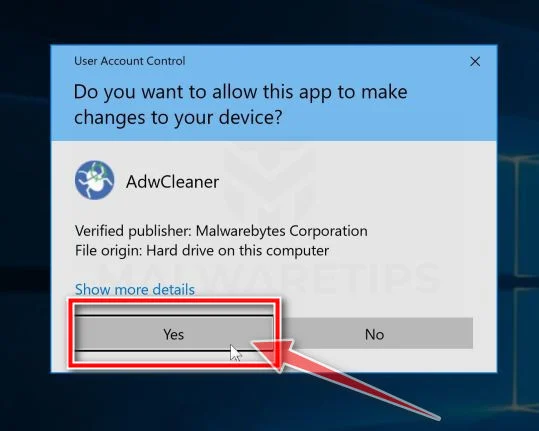
Double-click on the file named “adwcleaner_x.x.x.exe” to start AdwCleaner. In most cases, downloaded files are saved to the Downloads folder.
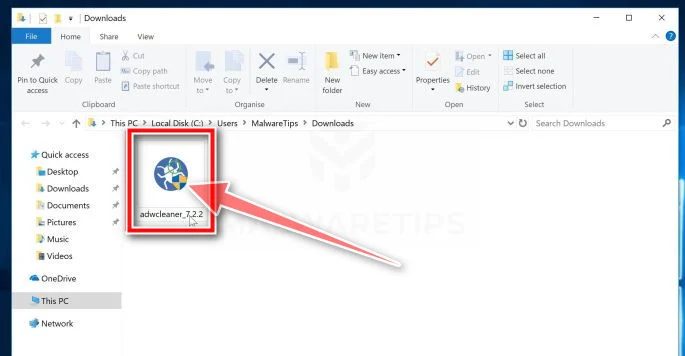
You may be presented with a User Account Control dialog asking you if you want to run this file. If this happens, you should click “Yes” to continue with the installation.
-
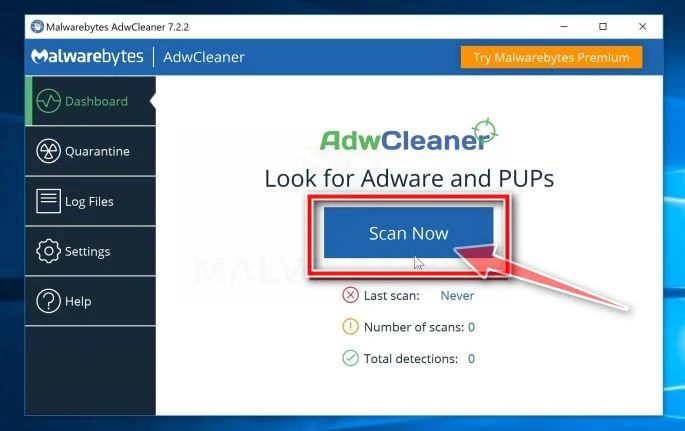
Click on “Scan Now”.
When AdwCleaner will start, click on the “Scan Now” button to perform a system scan.
-
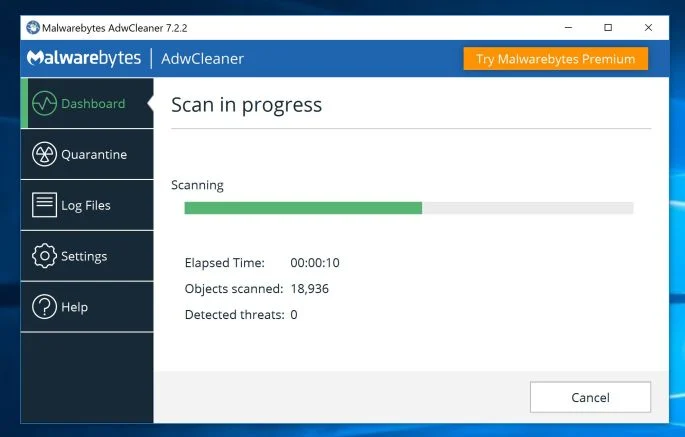
Wait for the AdwCleaner scan to complete.
AdwCleaner will now scan your PC for malicious files. This process can take a few minutes.
-
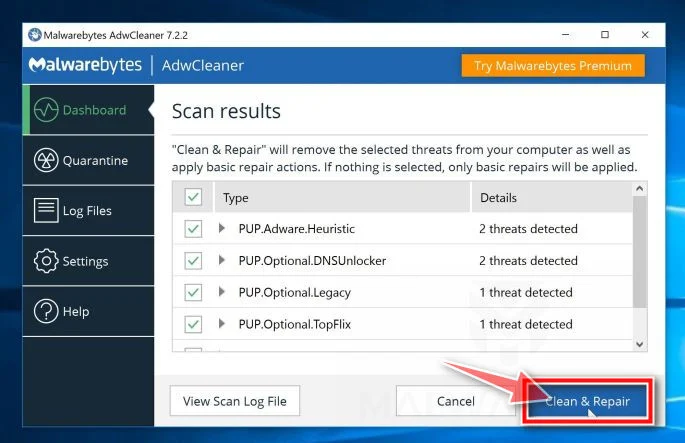
Click on “Clean & Repair”.
When AdwCleaner has finished it will display a list of all the malware that the program found. Click on the “Clean & Repair” button to remove the malicious files from your computer.
-
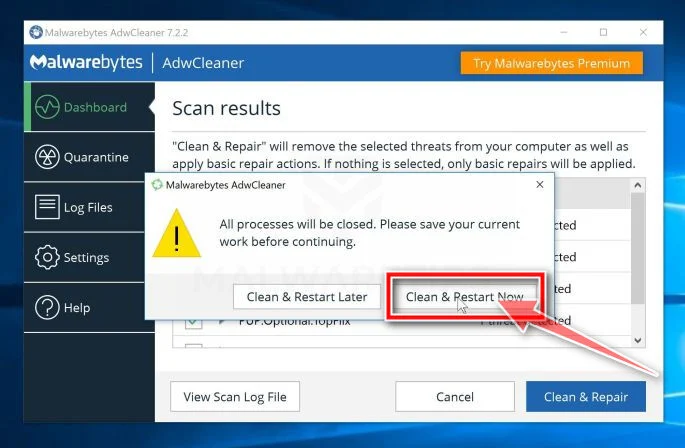
Click on “Clean & Restart Now”
When the malware removal process is complete, AdwCleaner may need to restart your device. Click on the “Clean & Restart Now” button to finish the removal process.
When the process is complete, you can close Adwcleaner and continue with the rest of the instructions.
STEP 6: Reset the browser settings to remove “Installed by Enterprise Policy”
Google Chrome
To reset Google Chrome and remove the “Installed by Enterprise Policy” policy, follow these steps:
-
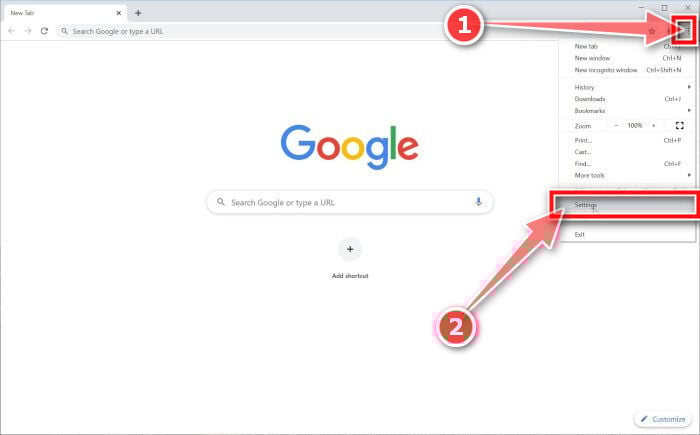
Click the menu icon, then click on “Settings”.
In the top right corner, click on Chrome’s main menu button, represented by three vertical dots. When the drop-down menu appears, click on “Settings“.
-
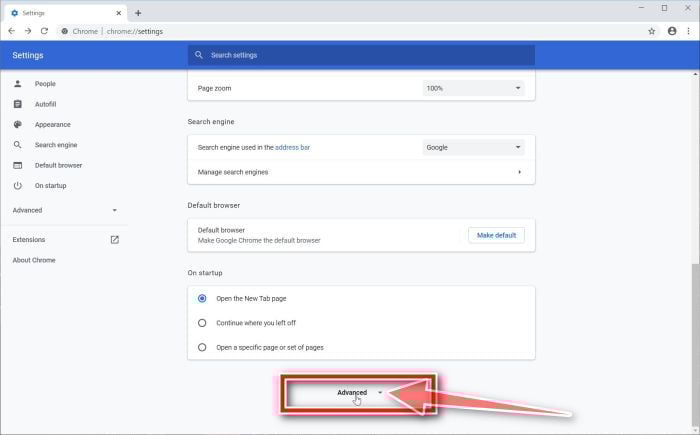
Click “Advanced”.
Chrome’s “Settings” should now be displayed in a new tab or window, depending on your configuration. Next, scroll to the bottom of the page and click on the “Advanced” link.
-
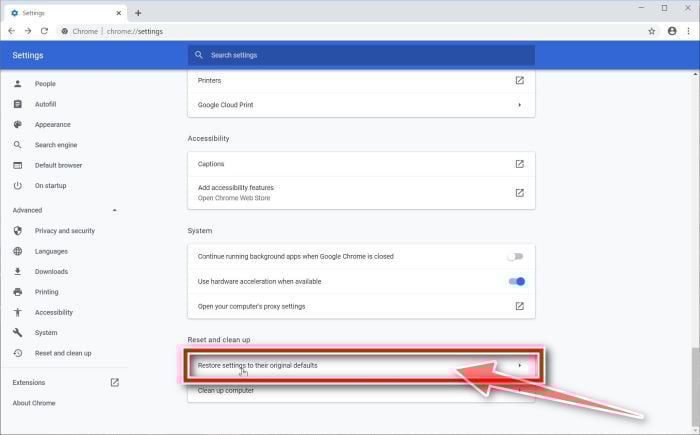
Click “Reset settings to their original defaults”.
Scroll down until the “Reset and clean up” section is visible, as shown in the example below. Click on “Reset settings to their original defaults“.
-
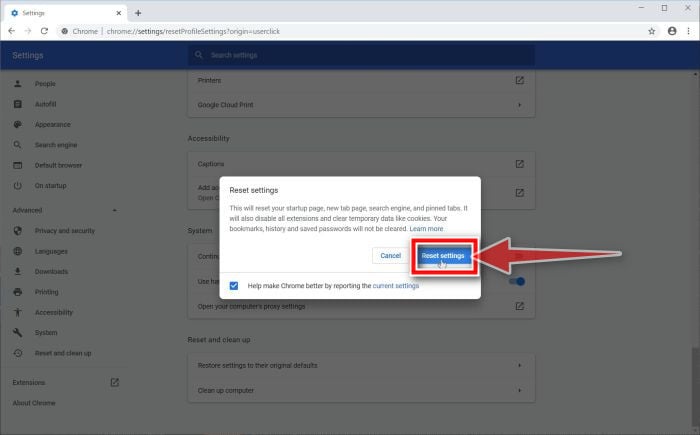
Click “Reset Settings”.
A confirmation dialog should now be displayed, detailing the components that will be restored to their default state should you continue on with the reset process. To complete the restoration process, click on the “Reset Settings” button.
Mozilla Firefox
-
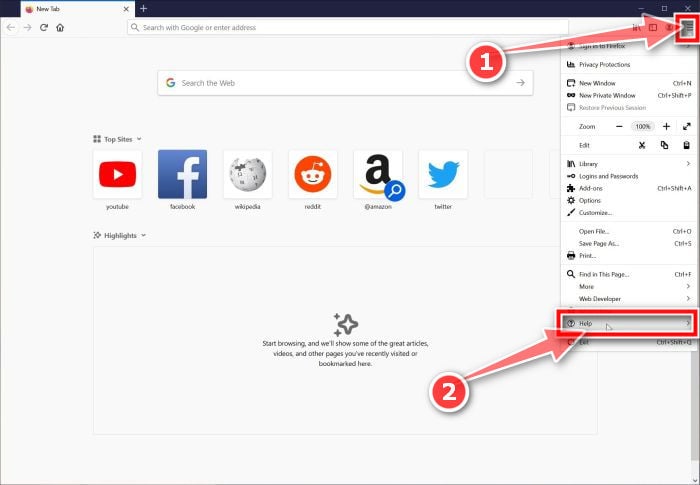
Click the menu icon, then click on “Help”.
Click on Firefox’s main menu button, represented by three horizontal lines. When the drop-down menu appears, select the option labeled “Help“.
-
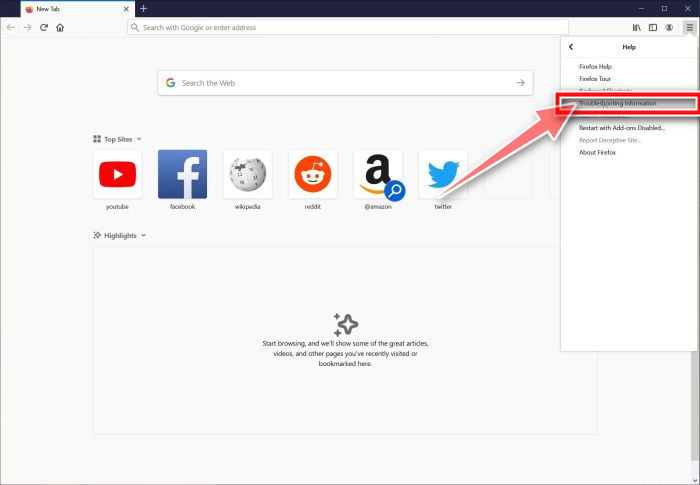
Click “Troubleshooting Information”.
From the Help menu, click on “Troubleshooting Information“.
-
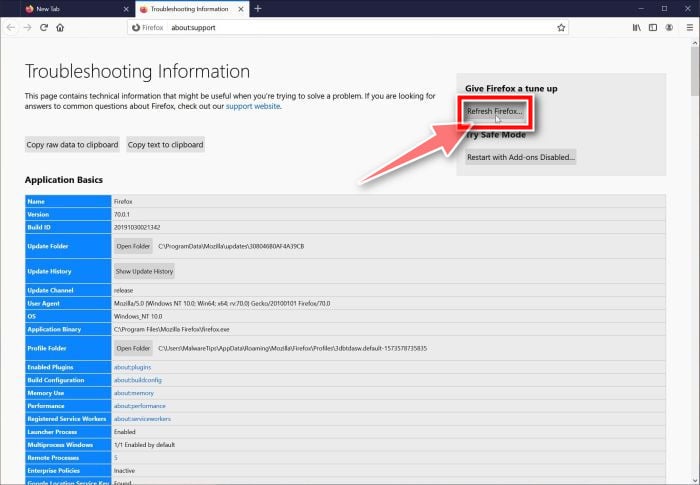
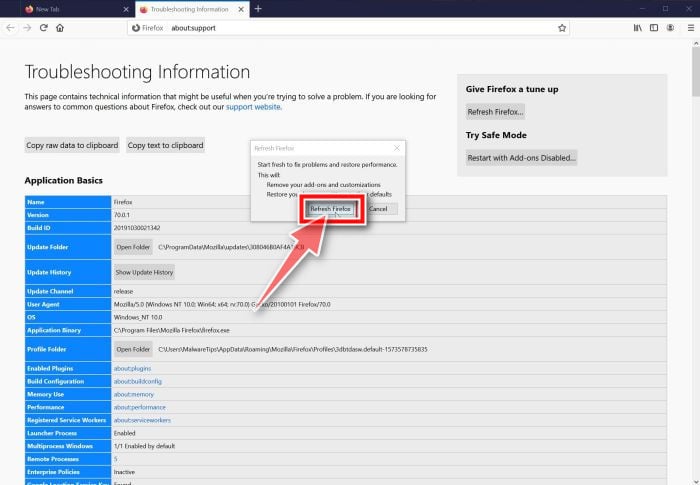
Click on “Refresh Firefox”
Click the “Refresh Firefox” button in the upper-right corner of the “Troubleshooting Information” page.
-
Confirm.
To continue, click on the “Refresh Firefox” button in the new confirmation window that opens.
-
Click “Finish”.
Firefox will close itself and will revert to its default settings. When it’s done, a window will list the information that was imported. Click on “Finish“.
Your old Firefox profile will be placed on your desktop in a folder named “Old Firefox Data“. If the reset didn’t fix your problem you can restore some of the information not saved by copying files to the new profile that was created. If you don’t need this folder any longer, you should delete it as it contains sensitive information.
Microsoft Edge
-
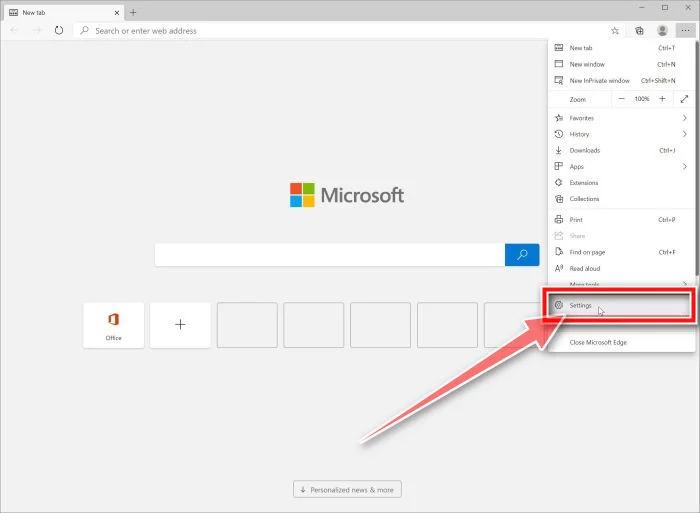
Open the “Settings” menu.
In the top right corner, click on Microsoft Edge’s main menu button, represented by three horizontal dots. When the drop-down menu appears, click on “Settings“.”.
-
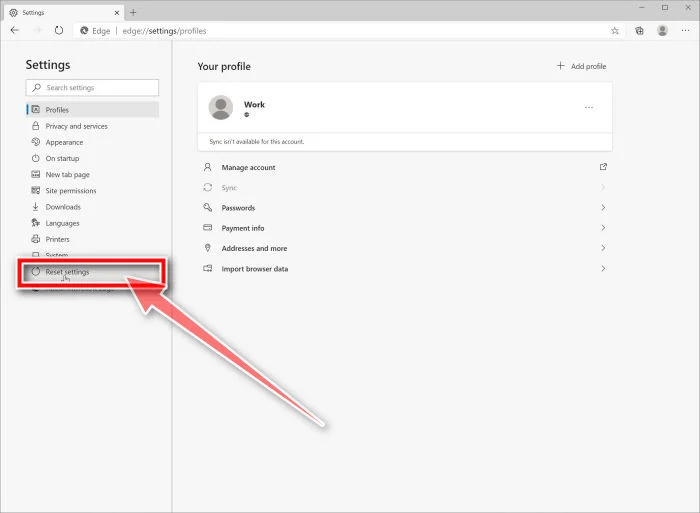
Click on “Reset Settings”.
On the left side of the window, click on “Reset Settings”.
-
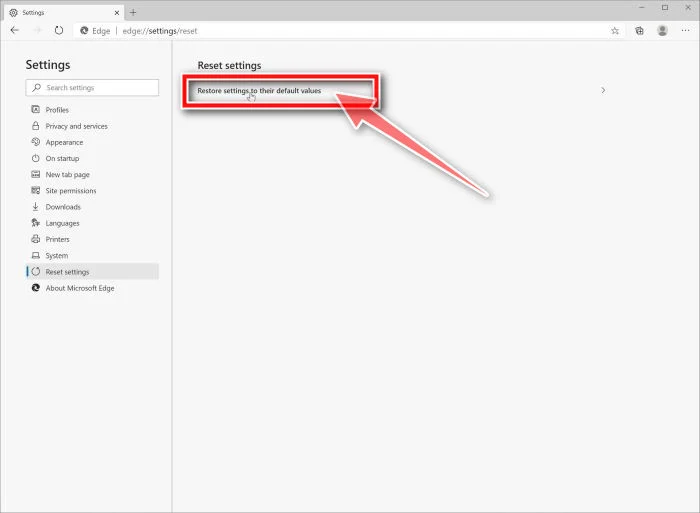
Click on “Restore settings to their default values”.
In the main window, click on “Restore settings to their default values”.
-
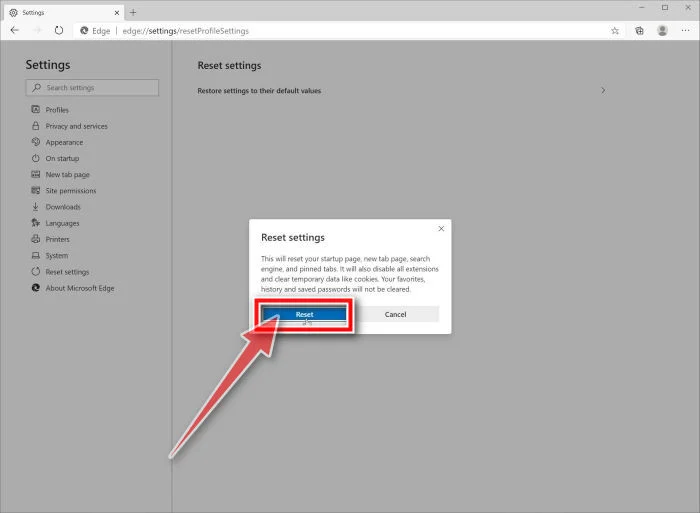
Click “Reset”.
A confirmation dialog should now be displayed, detailing the components that will be restored to their default state should you continue on with the reset process. To complete the restoration process, click on the “Reset” button.
Internet Explorer
-
Go to “Internet Options”.
Open Internet Explorer, click on the gear icon in the upper right part of your browser, then select “Internet Options“.
-
Select the “Advanced” tab, then click “Reset”
In the “Internet Options” dialog box, select the “Advanced” tab, then click on the “Reset” button.
-
Click on “Reset”.
In the “Reset Internet Explorer settings” section, select the “Delete personal settings” checkbox, then click on the “Reset” button.
-
Click on “Close”.
When Internet Explorer has completed its task, click on the “Close” button in the confirmation dialogue box.
Your computer should now be free of the “Installed by Enterprise Policy” malicious program. If your current antivirus allowed this malicious program on your computer, you may want to consider purchasing the full-featured version of Malwarebytes Anti-Malware to protect against these types of threats in the future.
If you are still having problems with your computer after completing these instructions, then please follow one of the steps:
- Run a computer scan with ESET Online Scanner
- Ask for help in our Windows Malware Removal Help & Support forum.

Join the discussion
167 commentsShare your experience or ask a question about this article.
Your progress
Did these steps help?
Let us know how the guide worked for you.
Describe what you see and the step you reached. Keep passwords and other private information out.
Discussion
Command Prompt worked..
In reply to glitch
Good to hear – the Command Prompt step is the one that fixes most of these, since the damage is usually to the network or proxy settings rather than to the browser.
One thing worth doing afterwards: run a full scan with something like Malwarebytes, because whatever changed those settings is often still present even once the symptom is gone. And if you had to run any command as administrator, make sure User Account Control is switched back on if you disabled it.
thankyou! the command prompt worked on me! thanks a lot!
f—– malware extensions
In reply to Rainiere Reyes
Ha – the sentiment is understood. Glad the Command Prompt step did it; that is usually the one that works, because the damage is to the network or proxy settings rather than to the browser itself.
One thing worth doing afterwards: run a full scan, since whatever made the change is often still sitting on the machine even after the symptom disappears, and check the extensions list for anything you do not remember installing.
thank you so much.it is very helpful.guys if you are facing same problem then go for this solution.this great.
In reply to Aakhyan Singh
Thank you, Aakhyan. I am glad the policy-removal steps worked, and your confirmation helps other readers facing the same locked-extension message.
As everyone is saying, thank you, only 3 commands in the command prompt did the trick.. THANK YOU!!
In reply to Tim N Hana
Excellent news. Those commands remove the unwanted policy entries that prevent Chrome from offering a normal uninstall button. Thank you for confirming that the short method worked.
I can not thank this guide enough. Just the Option 1 and it’s gone. I did not even have to remove it myself, it’s like after the Computer Policy has been updated, it just removed itself. Awesome! Thank you for the guide author! Heaven sent you are indeed!
In reply to Tatay Chronicles
Thank you for the very kind words. Once the malicious policy is removed and Chrome refreshes its configuration, the locked extension can disappear automatically, exactly as you observed. I am glad the first option was enough.
Thanks a whole lot! This helped me get rid of Search Solutions extension, which came with a bunch of other hijacking software when I installed the SCAR program. Great Job!
This is most helpful – i could not remove easycalendar from Chrome with malware software, but I used the “manual removal option” above and it did the trick! thank you
Thanks A ton this helped me out a lot finally got that damn Easy Calendar Removed !
Option 2 is the one that worked to remove it
When I go to “chrome://policy/” the ID of the extension is followed by this link “https://clients2.google.com/service/update2/crx”. Everytime I delete the folder and shut down Chrome and reload it popus up again. I can’t find it on the registry and malware bytes comes back as clean. Can I assume that I have removed it and it’s just a weird glitch which keeps it there on my extensions? The extension I’m trying to get rid of is EasyCalender. Thanks
Thanks for the very useful article.
Hi Stelian,
Thank you for this article.
A download installed malware on my computer. Using the above tips I seem to have got rid of most of it.However, I cannot seem to get rid of the Easy Calendar extension.
The Registry Editor can’t seem to find the ID but it is listed and active among my extensions.
I have deleted the data in the C:UsersUsernameAppDataLocalGoogleChromeUser DataDefaultExtensions folder but every time I restart my computer it is back.
Then when I run Malwarebytes and ADWCleaner it will pick up more malware. Any ideas on how I can find the source and delete it permanently?
Thanks!
Hey Stelian, I just used adwcleaner to scan and delete the malwares but right after the software was done deleting the folders, I cannot get on the internet, it keeps saying unable to connect to the internet: Google chrome can’t display webpage cause your computer isn’t connected to the internet. I checked all wires of modem and all ok, my internet connection showing excellent. Please help, now I can’t even go on line to search for help with my laptop, have to use my phone
In reply to ron
Hello Ron,
Did you follow “STEP 4: Restore the default proxy settings to your machine” ??
Thank you very much! Finally i’ve got rid of lanschool extension
In reply to Andy
which method did you use
Thank you so much!!!
Hello! Please help me.. :c I recently deleted one of my Maps in my Bookmarks. However, I read some forums and I tried to recover to an earlier version. Sadly, this didn’t work, because none of my earlier versions have that Map in them.. Apparently.. Is there any way to fix this? There was a lot of Bookmarks in this Folder D:
In reply to Saskia
Hello Saskia,
Lets try to fix your PC:
1.Please download ZOEK by Smeenk and save it to your desktop (preferred version is the *.exe one) from here: http://hijackthis.nl/smeenk/
2. Right-click on Zoek icon and select “Run as Administrator” to start the tool.
Wait patiently until the main console will appear, it may take a minute or two.
3. In the main box please paste in the following script (between the lines):
—————————————————–
createsrpoint;
autoclean;
emptyalltemp;
ipconfig /flushdns;b
——————————————————-
4.Make sure that Scan All Users option is checked.
5. Push Run Script and wait patiently. The scan may take a couple of minutes.
When this program will finish the clean-up it will ask you to restart your computer.
Let me know if this fixed your issue or not!
In reply to Stelian Pilici
txs. the Zoek scan removed the ‘Enterprise’ extension “Easy Calendar”
Thanks, this was great Malwarebytes Anti-Malware Free did its job. YOU ARE AWESOME!
Please Help Me! I have a Minimum Price Malware in my computer. in the Control Panel under the ‘Uninstall a program’ instead of uninstalling it I double clicked it and it has disappeared from the list..these annoying ads continue to appear and I dont know what to do..Please Help
In reply to RVR
Hello RVR,
Lets try to fix your PC:
1.Please download ZOEK by Smeenk and save it to your desktop (preferred version is the *.exe one) from here: http://hijackthis.nl/smeenk/
2. Right-click on Zoek icon and select “Run as Administrator” to start the tool.
Wait patiently until the main console will appear, it may take a minute or two.
3. In the main box please paste in the following script (between the lines):
—————————————————–
createsrpoint;
autoclean;
emptyalltemp;
ipconfig /flushdns;b
——————————————————-
4.Make sure that Scan All Users option is checked.
5. Push Run Script and wait patiently. The scan may take a couple of minutes.
When this program will finish the clean-up it will ask you to restart your computer.
Let me know if this fixed your issue or not!
Thank you very much. Worked perfectly!!! The Malwarebytes Anti-Malware Free was the right thing (didn’t use the HitManPro). MANY MANY THANKS! YOu Rock.
When I try to delete it in regedit it says “unable to delete all specified values”. Please help. Thanks.
In reply to haru
Hello Haru,
Lets try to fix your PC:
1.Please download ZOEK by Smeenk and save it to your desktop (preferred version is the *.exe one) from here: http://hijackthis.nl/smeenk/
2. Right-click on Zoek icon and select “Run as Administrator” to start the tool.
Wait patiently until the main console will appear, it may take a minute or two.
3. In the main box please paste in the following script (between the lines):
—————————————————–
createsrpoint;
autoclean;
emptyalltemp;
ipconfig /flushdns;b
——————————————————-
4.Make sure that Scan All Users option is checked.
5. Push Run Script and wait patiently. The scan may take a couple of minutes.
In reply to Stelian Pilici
This worked for me!!!
WOW,thanks so much!!!!!!!!!
This really helped a lot!
I really appreciate it.