

Live Security Platinum is a computer virus which will display fake security alerts,reporting that malware has been detected on your computer.This alerts are professional looking pop-ups and when you click on them, you are advised to buy Live Security Platinum in order to remove the detected threats.
In reality, none of the reported issues are real, and are only used to scare you into buying Live Security Platinum and stealing your personal financial information.
Apart from the bogus alerts,as part of its self-defense mechanism,Live Security Platinum has disabled the Windows system utilities, including the Windows Task Manager and Registry Editor,and will block you from running certain programs that could lead to its removal.
Further more,this rogue antivirus has modified your Windows files associations so now you can’t run files that end in a .exe extension.
If your computer is infected with Live Security Platinum,then you are seeing this images:
![[Image: Live Security Platinum virus]](https://malwaretips.com/blogs/wp-content/uploads/mwt-media/8d/8d0044536d0835e91d351e1b2fe9f7f90422445ba0926d467671159d514efce4/ec7ab6a87a4d14c1d45a4570faf896d97195bbc00dc7466191212413dd35a71f-752.webp "Live Security Platinum virus")
![[Image: Live Security Platinum Alert]](https://malwaretips.com/blogs/wp-content/uploads/mwt-media/c4/c47e0ff047503a542769aff22325ef759373cadfb36812f839f416eced7454dc/43c1944386ca50c6c585142e0e9c123015719d88e9a0932162f9a0b49d2c33a5-490.webp "Live Security Platinum fake alert")
![[Image: Live Security Platinum Activation request]](https://malwaretips.com/blogs/wp-content/uploads/mwt-media/82/82f1bbd43d5fdece2b14dc611f2ef0ecc29a8ddb86bb057196adb8b8b39a0d96/cfc3b2312c3ea444c23bbd13068b3a46fcaef12f7f357d0247f0f90c9d0b3fb1-480.webp "Live Security Platinum activation")
![[Image: Live Security Platinum Warning]](https://malwaretips.com/blogs/wp-content/uploads/mwt-media/fd/fd439b1d67b4dc99271f67f6a07b1e91bb7612527e5cf7ba8cdb59cc0035d27c/4133e5b962d56c3ea24903de6f9e169506451b0449354ff3e74d4fc461bab3a8-497.webp "Live Security Platinum fake warning")
Registration codes for Live Security Platinum
As an optional step,you can use the following license key to register Live Security Platinum and stop the fake alerts.
Live Security Platinum license key: AA39754E-715219CE
Please keep in mind that entering the above registration code will NOT remove Live Security Platinum from your computer , instead it will just stop the fake alerts so that you’ll be able to complete our removal guide more easily.
Live Security Platinum Removal Guide
STEP 1 : Start your computer in Safe Mode with Networking
- Remove all floppy disks, CDs, and DVDs from your computer, and then restart your computer.
- Press and hold the F8 key as your computer restarts.Please keep in mind that you need to press the F8 key before the Windows start-up logo appears.
Note: With some computers, if you press and hold a key as the computer is booting you will get a stuck key message. If this occurs, instead of pressing and holding the “F8 key”, tap the “F8 key” continuously until you get the Advanced Boot Options screen. - On the Advanced Boot Options screen, use the arrow keys to highlight Safe Mode with Networking , and then press ENTER.
![[Image: Safemode.jpg]](//malwaretips.com/images/removalguide/safemode.jpg "Safe Mode with Networking screen")
![[Image: Safemode.jpg]](http://malwaretips.com/images/removalguide/safemode.jpg "Safe Mode with Networking screen")
STEP 2: Remove Live Security Platinum malicious proxy server
Live Security Platinum may add a proxy server which prevents the user from accessing the internet,follow the below instructions to remove the proxy.
- Start the Internet Explorer browser and if you are using Internet Explorer 9 ,click on the gear icon
![[Image: IE gear icon]](//malwaretips.com/images/removalguide/icongear.jpg "Gear Icon") (Tools for Internet Explorer 8 users) ,then select Internet Options.
(Tools for Internet Explorer 8 users) ,then select Internet Options.
![[Image: Internet-options-IE.png]](//malwaretips.com/images/removalguide/ie1.png "Internet Options in IE")
- Go to the tab Connections.At the bottom, click on LAN settings.
![[Image: Remove-proxy-server2.png]](//malwaretips.com/images/removalguide/ie2.png "Connections tab in Internet Explorer")
- Uncheck the option Use a proxy server for your LAN. This should remove the malicious proxy server and allow you to use the internet again.
![[Image: Remove-proxy-server3.png]](//malwaretips.com/images/removalguide/ie3.png "Uncheck the option Use a proxy server for your LAN")
![[Image: IE gear icon]](http://malwaretips.com/images/removalguide/icongear.jpg "Gear Icon") (Tools for Internet Explorer 8 users) ,then select Internet Options.
(Tools for Internet Explorer 8 users) ,then select Internet Options.![[Image: Internet-options-IE.png]](http://malwaretips.com/images/removalguide/ie1.png "Internet Options in IE")
![[Image: Remove-proxy-server2.png]](http://malwaretips.com/images/removalguide/ie2.png "Connections tab in Internet Explorer")
![[Image: Remove-proxy-server3.png]](http://malwaretips.com/images/removalguide/ie3.png "Uncheck the option Use a proxy server for your LAN")
If you are a Firefox users, go to Firefox(upper left corner) → Options → Advanced tab → Network → Settings → Select No Proxy
STEP 3: Repair your Windows Registry from Live Security Platinum malicious changes.
Smart Fortress 2012 has changed your Windows registry settings so that when you try to run a executable file (ending with .exe ) , it will instead launch the infection rather than the desired program.
- Download the registryfix.reg file to fix the malicious registry changes from Live Security Platinum.
Download RegistryFix.regOpens the download page in a new tab. - Double-click on registryfix.reg file to run it. Click “Yes” for Registry Editor prompt window,then click OK.
![[Image: fix registry]](https://malwaretips.com/blogs/wp-content/uploads/mwt-media/eb/ebb442be105de3ba699098a7eabfd9a0d16dc8095665c269a2522c8688db35b2/26385b223113f019b2e1203ccb53c22dd9afebee09d707d7218c37072ce252ce-429.webp "Live Security Platinum - Virus Removal Guide 1")
STEP 4: Run RKill to terminate known malware processes associated with Live Security Platinum.
RKill is a program that will attempt to terminate all malicious processes associated with Live Security Platinum,so that we will be able to perform the next step without being interrupted by this malicious software.
Because this utility will only stop Live Security Platinum running process, and does not delete any files, after running it you should not reboot your computer as any malware processes that are configured to start automatically will just be started again.
- While your computer is in Safe Mode with Networking ,please download the latest official version of RKill.Please note that we will use a renamed version of RKILL so that Live Security Platinum won’t block this utility from running.
Download RKillYour download starts right away. - Double-click on the iExplore.exe icon in order to automatically attempt to stop any processes associated with Live Security Platinum.
![[Image: run-rkill-1.png]](//malwaretips.com/images/removalguide/rkill1.png "RKILL ICON")
- RKill will now start working in the background, please be patient while the program looks for various malware programs and tries to terminate them.
![[Image: run-rkill-2.png]](//malwaretips.com/images/removalguide/rkill2.png "RKILL Command prompt")
IF you are having problems starting or running RKill, you can download any other renamed versions of RKill from here. - When Rkill has completed its task, it will generate a log. You can then proceed with the rest of the guide.
![[Image: Live Security Platinum rkill3.jpg]](//malwaretips.com/images/removalguide/rkill3.png "RKILL LOG")
![[Image: run-rkill-1.png]](http://malwaretips.com/images/removalguide/rkill1.png "RKILL ICON")
![[Image: run-rkill-2.png]](http://malwaretips.com/images/removalguide/rkill2.png "RKILL Command prompt")
![[Image: Live Security Platinum rkill3.jpg]](http://malwaretips.com/images/removalguide/rkill3.png "RKILL LOG")
WARNING: Do not reboot your computer after running RKill as the malware process will start again , preventing you from properly performing the next step.
STEP 5: Remove Live Security Platinum malicious files with Malwarebytes Anti-Malware FREE
- Download the latest official version of Malwarebytes Anti-Malware FREE.
Download MalwarebytesFree official installer. Your download starts right away. - Start the Malwarebytes’ Anti-Malware installation process by double clicking on mbam-setup file.
![[Image: Malwarebytes Installer]](//malwaretips.com/images/removalguide/malwarebytes-setup.png "Malwarebytes Anti-Malware Installer")
- When the installation begins, keep following the prompts in order to continue with the setup process. Do not make any changes to default settings and when the program has finished installing, make sure you leave both the Update Malwarebytes’ Anti-Malware and Launch Malwarebytes’ Anti-Malware checked. Then click on the Finish button. If Malwarebytes’ prompts you to reboot, please do not do so.
![[Image: Finishing Malwarebytes installation]](//malwaretips.com/images/removalguide/update-malwarebytes.png "Malwarebytes last setup screen")
- Malwarebytes Anti-Malware will now start and you’ll be prompted to start a trial period , please select ‘Decline‘ as we just want to use the on-demand scanner.
![[Image: Decline Malwarebytes trial]](//malwaretips.com/images/removalguide/malwarebytes-trial.png "Decline trial period in Malwarebytes Anti-Malware")
- On the Scanner tab,select Perform full scan and then click on the Scanbutton to start scanning your computer.
![[Image: Starting a full system sca]](//malwaretips.com/images/removalguide/start-scan-malwarebytes.png "Perform a Full System Scan with Malwarebytes Anti-Malware")
- Malwarebytes’ Anti-Malware will now start scanning your computer for Live Security Platinum malicious files as shown below.
![[Image: Malwarebytes scanning for malicious files]](//malwaretips.com/images/removalguide/scan-malwarebytes.png "Malwarebytes Anti-Malware scanning for Live Security Platinum")
- When the scan is finished a message box will appear, click OK to continue.
![[Image: Malwarebytes scan results]](//malwaretips.com/images/removalguide/results-malwarebytes.png "Malwarebytes when the system scan has finished")
- You will now be presented with a screen showing you the malware infections that Malwarebytes’ Anti-Malware has detected.Please note that the infections found may be different than what is shown in the image.Make sure that everything is Checked (ticked) and click on the Remove Selected button.
![[Image: Infections found by Malwarebytes]](//malwaretips.com/images/removalguide/detection-malwarebytes.png "Removing the infections found by Malwarebytes")
- Malwarebytes’ Anti-Malware will now start removing the malicious files.After completing this task it will display a message stating that it needs to reboot,please allow this request and then let your PC boot in Normal mode.
![[Image: Malwarebytes Installer]](http://malwaretips.com/images/removalguide/malwarebytes-setup.png "Malwarebytes Anti-Malware Installer")
![[Image: Finishing Malwarebytes installation]](http://malwaretips.com/images/removalguide/update-malwarebytes.png "Malwarebytes last setup screen")
![[Image: Decline Malwarebytes trial]](http://malwaretips.com/images/removalguide/malwarebytes-trial.png "Decline trial period in Malwarebytes Anti-Malware")
![[Image: Starting a full system sca]](http://malwaretips.com/images/removalguide/start-scan-malwarebytes.png "Perform a Full System Scan with Malwarebytes Anti-Malware")
![[Image: Malwarebytes scanning for malicious files]](http://malwaretips.com/images/removalguide/scan-malwarebytes.png "Malwarebytes Anti-Malware scanning for Live Security Platinum")
![[Image: Malwarebytes scan results]](http://malwaretips.com/images/removalguide/results-malwarebytes.png "Malwarebytes when the system scan has finished")
![[Image: Infections found by Malwarebytes]](http://malwaretips.com/images/removalguide/detection-malwarebytes.png "Removing the infections found by Malwarebytes")
STEP 6: Double check your system for any left over infections with HitmanPro
- This step can be performed in Normal Mode ,so please download the latest official version of HitmanPro.
Download HitmanProOfficial Sophos download. Free scan, free 30-day trial to remove threats. - Double click on the previously downloaded fileto start the HitmanPro installation.
![[Image: HitmanPro Icon]](//malwaretips.com/images/removalguide/hpro1.png "HitmanPro Installer")
IF you are experiencing problems while trying to start HitmanPro, you can use the Force Breach mode.To start HitmanPro in Force Breach mode, hold down the left CTRL-key when you start HitmanPro and all non-essential processes are terminated, including the malware process. (How to start HitmanPro in Force Breach mode – Video) - Click on Next to install HitmanPro on your system.
![[Image: Starting HitmanPro]](//malwaretips.com/images/removalguide/hitmanpro36-start.png "HitmanPro installation process")
- The setup screen is displayed, from which you can decide whether you wish to install HitmanPro on your machine or just perform a one-time scan, select a option then click on Next to start a system scan.
![[Image: HitmanPro installation screen]](//malwaretips.com/images/removalguide/hitmanpro36-installation.png "HitmanPro setup options")
- HitmanPro will start scanning your system for malicious files as seen in the image below.
![[Image: HitmanPron scanning for Live Security Platinum]](//malwaretips.com/images/removalguide/hitmanpro36-scan.png "HitmanPro while scanning for Live Security Platinum virus")
- Once the scan is complete,you’ll see a screen which will display all the malicious files that the program has found.Click on Next to remove this malicious files.
![[Image: HitmanPro scan results]](//malwaretips.com/images/removalguide/hitmanpro36-results.png "HitmanPro displaying scan results")
- Click Activate free license to start the free 30 days trial and remove the malicious files.
![[Image: Activate HitmanPro license]](//malwaretips.com/images/removalguide/hitmanpro36-activation.png "Activate the HitmanPro free 30 days trial to remove any detected infections")
- HitmanPro will now start removing the infected objects.If this program will ask you to restart your computer,please allow this request.
![[Image: HitmanPro Icon]](http://malwaretips.com/images/removalguide/hpro1.png "HitmanPro Installer")
![[Image: Starting HitmanPro]](http://malwaretips.com/images/removalguide/hitmanpro36-start.png "HitmanPro installation process")
![[Image: HitmanPro installation screen]](http://malwaretips.com/images/removalguide/hitmanpro36-installation.png "HitmanPro setup options")
![[Image: HitmanPron scanning for Live Security Platinum]](http://malwaretips.com/images/removalguide/hitmanpro36-scan.png "HitmanPro while scanning for Live Security Platinum virus")
![[Image: HitmanPro scan results]](http://malwaretips.com/images/removalguide/hitmanpro36-results.png "HitmanPro displaying scan results")
![[Image: Activate HitmanPro license]](http://malwaretips.com/images/removalguide/hitmanpro36-activation.png "Activate the HitmanPro free 30 days trial to remove any detected infections")
STEP 7: Remove the left over malicious registry keys and files
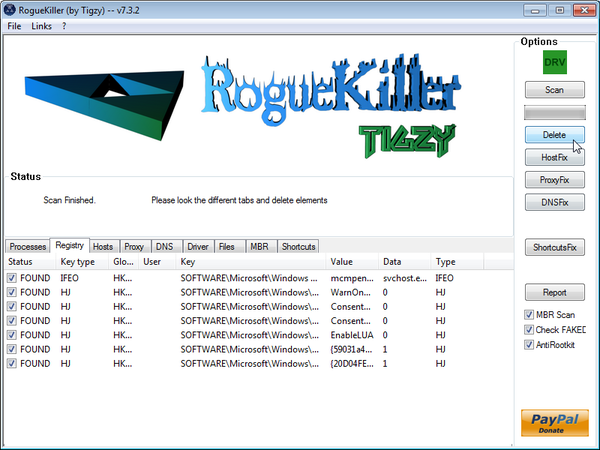
Live Security Platinum has sadded some malicious registry keys to your Windows installation , to remove this malicious changes we need to run a scan with RogueKiller.
- Please download the latest official version of RogueKiller.
Download RogueKillerOpens the download page in a new tab. - Double click on RogueKiller.exe to start this utility and then wait for the Prescan to complete.This should take only a few seconds and then you can click the Start button to perform a system scan.
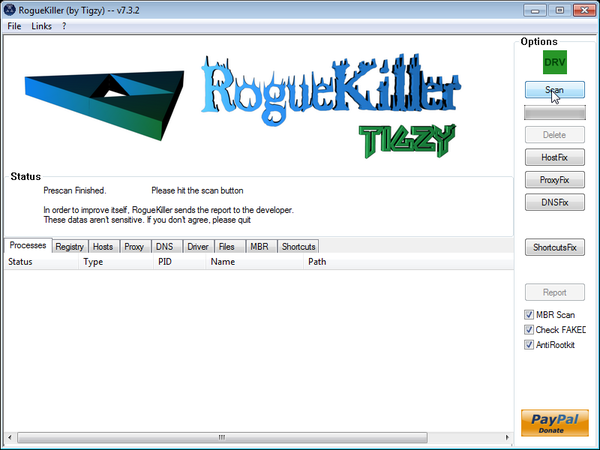
- After the scan has completed, press the Delete button to remove any malicious registry keys.
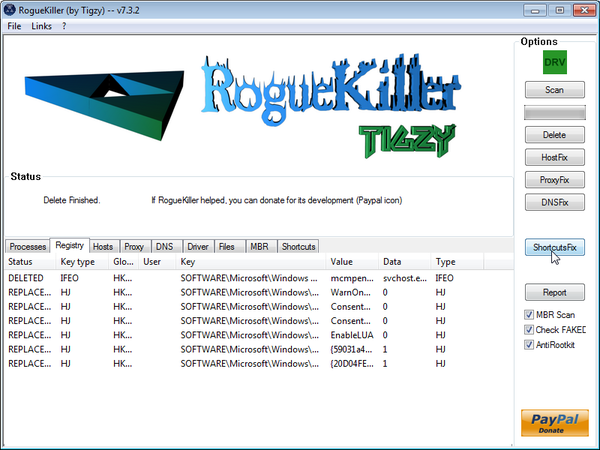
- Next we will need to restore your shortcuts, so click on the ShortcutsFix button and allow the program to run.

Join the discussion
386 commentsShare your experience or ask a question about this article.
Your progress
Did these steps help?
Let us know how the guide worked for you.
Describe what you see and the step you reached. Keep passwords and other private information out.
Discussion
Many thanks. Your clear and accurate instrutions allowed me to fix my wifes computer.
Your an absouloute Star!
Thanks so much for this – very easy to follow and sorted it out perfectly.
In reply to Phil
Thank God for people like you!
Hi,
Malwarebytes run successfully and removed several viruses from my PC.
Hitman Pro displayed that there were 55 traces found but no threats on my computer and at the end when I proceeded to delete it displayed message “Delete Failed” for every cookie.
Everything now is running fine in my computer but not sure if “Delete failed” for those cookies will have any impact on my system.
Please suggest.
Please refer the HitmanPro Logs at following link.
htxps://docs.google.com/open?id=0B6WRmbnqyjZ4QUtMbnBUOFpHU1k
Many thanks in advance.
In reply to Manish Kumar
Hello Kumar,
The HitmanPro log looks good…..those cookies are harmless….
As an additional step, you can run the following steps:
STEP 1: Run a scan with RogueKiller
RogueKiller Download Link (This link will automatically download RogueKiller on your computer)
STEP 2: Run a scan with ESET Online Scanner:
ESET Online Scanner Download Link (This link will automatically download ESET Online Scanner on your computer.)
Stay safe!
In reply to Stelian Pilici
RogueKiller found nothing but ESET found one threat and removed it.
Below is from ESET:
C:\Users\manish\AppData\Local\temp\hdD50A.tmp a variant of Win32/Kryptik.AKYH trojan cleaned by deleting – quarantined
Thanks a lot for your help in removing thhe threat and making my PC safe. It is very easy to follow and sorted it out perfectly. You are an absouloute Star!
thank you :)
very thanks for your helps. this is really helpful
Thanks a million Stelian for the clear and easy instructions. Worked like a charm!
Hi
I followed the steps and everything seemed to go fine up to installing HitmanPro. I wasn’t able to launch do to the virus stopping me. And every time I tried Force Breach I got blue screen. So I tried launch HitmanPro in Safe Mode which seemed to work, it scanned and removed a couple of files. But after when I reboot in Normal Mode I still have the virus, Live Security Premium.
Any ideas?
Many thanks
/Lucas
In reply to Lucas
Hello Lucas,
Can you please run a scan with Combofix,RogueKiller and ESET online scanner and post the logs here :
STEP 1 : Run a scan with Combofix
Download ComboFix from one of the following locations:
COMBOFIX DOWNLOAD LINK #1 (This link will automatically download Combofix on your computer)
COMBOFIX DOWNLOAD LINK #2 (This link will automatically download Combofix on your computer)
VERY IMPORTANT !!! Save as Combo-Fix.exe during the download. ComboFix must be renamed before you download to your Desktop
———————————————————–
———————————————————–
———————————————————–
Notes:
STEP 2: Run a scan with RogueKiller
RogueKiller Download Link (This link will automatically download RogueKiller on your computer)
STEP 3: Run a scan with ESET Online Scanner:
ESET Online Scanner Download Link (This link will automatically download ESET Online Scanner on your computer.)
Next,please run HitmanPro and Malwarebytes as seen on the guide.
Waiting for your reply to tell me if your machine is ok and the logs from this utilities.
thank you. YOU ARE A LEGEND. MUACKSSSS!
worked perfectly for me!
Superb. Fixed my daughter’s laptop and she will be hugely relieved.
Many thanks
Andy
Hey
I followed all directions, but I still have the virus, the pop-ups with 30+ infections. This is after Malwarebytes and Hitman Pro. Under uninstall programs, the little shield icon is no longer there, but I still get the pop-ups and I can see half of my apps shutdown before I can click and run them. Any help would be great!
In reply to Greg Jackson
Hello Greg,
Can you please run a scan with Combofix,RogueKiller and ESET online scanner and post the logs here :
STEP 1 : Run a scan with Combofix
Download ComboFix from one of the following locations:
COMBOFIX DOWNLOAD LINK #1 (This link will automatically download Combofix on your computer)
COMBOFIX DOWNLOAD LINK #2 (This link will automatically download Combofix on your computer)
VERY IMPORTANT !!! Save as Combo-Fix.exe during the download. ComboFix must be renamed before you download to your Desktop
———————————————————–
———————————————————–
———————————————————–
Notes:
STEP 2: Run a scan with RogueKiller
RogueKiller Download Link (This link will automatically download RogueKiller on your computer)
STEP 3: Run a scan with ESET Online Scanner:
ESET Online Scanner Download Link (This link will automatically download ESET Online Scanner on your computer.)
Next,please run HitmanPro and Malwarebytes as seen on the guide.
Waiting for your reply to tell me if your machine is ok and the logs from this utilities.
I am so bummed. I have an older computer. It is running Windows XP. It is a Latitude D610, and now matter what I tried, I cannot get the Wireless network working in Safemode. I live where we only have wireless network, no land-line network.
I downloaded Malwarebytes via a friends computer and we put it on a thumb drive. I installed it (from Safemode) on my infected PC, but because I cannot connect to the network with this computer, I cannot get the maleware updates.
I ran a full scan twice with the Malewarebytes I downloaded from your link above. It found two infected files, which I removed. However as soon as I powered up the PC in still had the virus. I am really bummed.
I was running AVG on my laptop, with the latest virus definition files, but it still got infected. I am at my wits end. I sure hope you can help.
Thanks,
Elicia
In reply to Elicia
Hello Elicia,
Can you please run a scan with Combofix,RogueKiller and ESET online scanner and post the logs here :
STEP 1 : Run a scan with Combofix
Download ComboFix from one of the following locations:
COMBOFIX DOWNLOAD LINK #1 (This link will automatically download Combofix on your computer)
COMBOFIX DOWNLOAD LINK #2 (This link will automatically download Combofix on your computer)
VERY IMPORTANT !!! Save as Combo-Fix.exe during the download. ComboFix must be renamed before you download to your Desktop
———————————————————–
———————————————————–
———————————————————–
Notes:
STEP 2: Run a scan with RogueKiller
RogueKiller Download Link (This link will automatically download RogueKiller on your computer)
STEP 3: Run a scan with ESET Online Scanner:
ESET Online Scanner Download Link (This link will automatically download ESET Online Scanner on your computer.)
Next,please run HitmanPro and Malwarebytes as seen on the guide.
Waiting for your reply to tell me if your machine is ok and the logs from this utilities.
You may have very well just saved my computer!! I was worn’t worried until the Malwarebytes didn’t get rid of it but that second scan by that last system REALLY did the trick!!!
I can’t thank you enough sir!!
Regards, Rocky Chael
Brilliant. The clearest instructions I’ve seen. Thanks very much.
Hello,
I did everything, and I was able to remove the virus, but now everytime i start my pc i get the mesg:
Application failed to intialize: 0x800106ba. A problem caused this program’s service to stop. to start the service, restart your computer or search help and support for how to start a service mannually.
I got the msg from Windows Defender (which is acting razy and not letting do anything).
Also my PC is kind of slow right now.. PLEASE HELP!
In reply to Chafic Katergi
Can you please follow this steps:
1. Click the Start buton
2. Type “cmd” in the Search Box and then press Enter
3. Right-click “cmd.exe” and select “Run as administrator”
4. Click “Continue” on the “User Account Control” Window
5. In the command prompt type the following command
sc create BITS binpath= “c:\windows\system32\svchost.exe -k netsvcs” start= delayed-auto6.Restart your computer and check if the problem is solved.
Waiting for your reply to tell me if your machine is ok and the logs from this utilities.
In reply to Stelian Pilici
Hi, when I type in the command:-
sc create BITS binpath= “c:\windows\system32\svchost.exe -k netsvcs” start= delayed-auto
ll that happens is I get the sc usage instructions appear in the terminal. – ie Description, Usage, Options etc I am copying and pasting it from the webpage so I should have the syntax correct…. any ideas???
In reply to chris
Chris, you need to type this command … do not copy/paste the command…
Hello Stelian,
Thank you so much, You are a legend.
Cheers Clinton
I really appreciate this online guide. I am not tech-savvy at all and your tutorial was EXTREMELY helpful. The step-by-step guide showed me exactly what I needed to do. You are…AWESOME!
Hi, i followed everything and it seems to be gone…. can you please check my combofix log to confirm? Thanks in advance!
In reply to ben lockwood
Hello,
I need you open Malwarebytes Anti-Malware and go to the More Tools tab,click on Run Tool and then browse to c:\windows\F896D02690164122B9BD957FF092FFE9.TMP.
Hi Stelian it looks like you have helped alot of people with this problem, im hoping you can now help me. I have done everything upto the RKILL install, Problem being the laptop will not download the file, it downloads approx 1.3mb out of 1.5mb before it is stoped by internet explorer-securty warning it says the file has been blocked because it does not have a valid digital signature that verifies its publisher, I have also tryed the other link you posted but all the other named versions show the same problem on my laptop, is there anyway i can turn this off so i can complete the download Kind regards Stuart
In reply to Stuart
Hello Stuart,
You can accept that notification and ignore the warning…
Alternatively you can follow this guide:
STEP 1: Run a scan with Malwarebytes Anti-Malware in Chameleon Mode in Norman mode:
STEP 2: Run a scan with RogueKiller
RogueKiller Download Link (This link will automatically download RogueKiller on your computer)
STEP 3 Please perform a scan with HitmanPro as seen on the guide.
If you are having problems starting this program please use the ForceBreach mode as described in the guide.
STEP 4: Run a scan with ESET Online Scanner:
ESET Online Scanner Download Link (This link will automatically download ESET Online Scanner on your computer.)
Waiting for your reply to tell me how everything is running!
Good luck…
In reply to Stelian Pilici
All is good! THX!
In reply to Stuart
I followed all your steps but still get a “congratualtions your sytem will be locked message” It appears on a notepad entiled “How to decrpyt files” I can not access my files. all the scans say their are no threats. ideas?
Thank you so much!!!!!!!!!!!!! Everything was easy to follow and the virus is completely gone!!