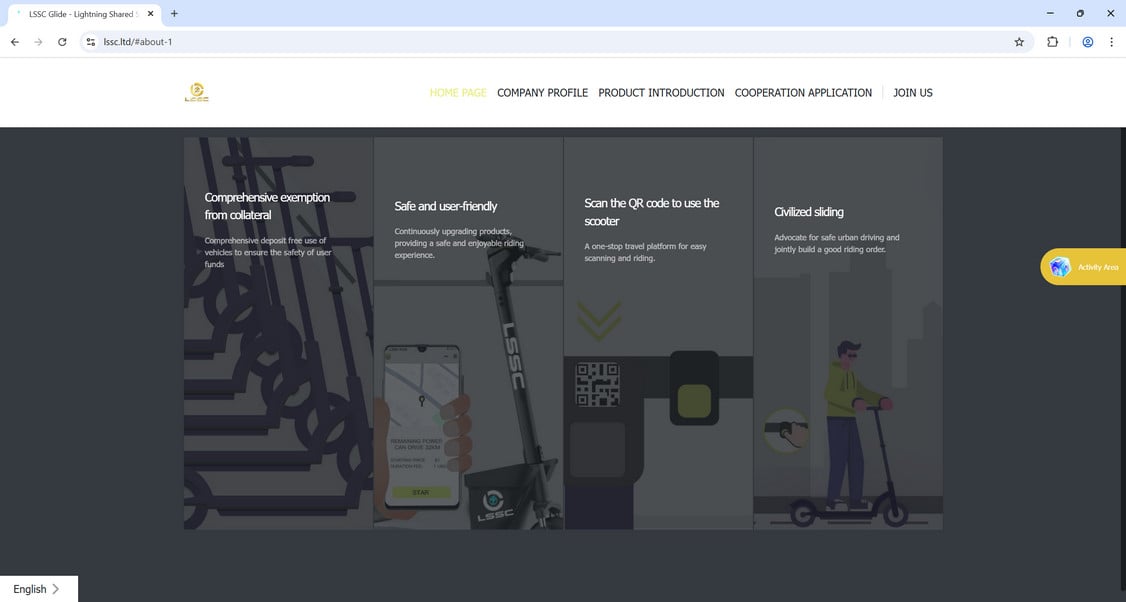
If you’ve received messages about investing in scooter rentals through LSSC (also known as Lightning Shared Scooter Company, LSSC.ltd, LSSC6.com, or LSSCC.cc), you need a reality check—quickly. This scam targets hopeful investors with promises of easy, daily money from an electric scooter “profit-sharing scheme.” That may sound exciting, but caution is essential. This article breaks down the truth of LSSC’s operation: what it promises, how it works, how victims fall in, and what to do afterward.
Overview
The Lightning Shared Scooter Company markets itself as a Hong Kong–based electric scooter rental business offering investors a slice of what it calls its “profit-sharing model.” You hear that phrase and imagine a network of scooters generating revenue. Yet credible evidence shows there are no scooters, no visible operations, and likely no underlying business at all.
Regulatory bodies have issued explicit warnings about LSSC’s legitimacy. The British Columbia Securities Commission (BCSC) put LSSC on its Investment Caution List. The BCSC stated LSSC is not registered with them—meaning it isn’t recognized as a lawful entity to sell securities or advise investors. That’s a serious red flag.
Similarly, the Autorité des marchés financiers (AMF) in Québec has warned that Lightning Shared Scooters Co., Ltd. is not registered with its regulator—meaning it’s unauthorized to solicit investments in that jurisdiction. The Alberta Securities Commission (ASC) echoes the same concern: LSSC is not registered to trade securities in Alberta.
On the consumer complaint front, Better Business Bureau Scam Tracker lists LSSC as operating suspiciously like a Ponzi‑style investment scheme. Users are led to purchase “virtual scooters” to earn “rental” income, but there’s no real product, and returns appear to come solely from new investors’ contributions.
Local law enforcement agencies have also taken note. The Salinas (California) Police Department is investigating LSSC after reports of individuals being lured into investing.(Facebook) News coverage details stories of victims losing thousands. One Orlando TV station reported a person claiming to have invested around $12,000 in LSSC.
A deep-dive article posted recently describes how LSSC used social media, WhatsApp, and messaging groups to spread promises of daily passive income and “upgrade opportunities” amidst a carnival‑like atmosphere. Users are encouraged to act immediately, upgrade tiers, and refer others—classic tactics to drive urgency and recruitment.
Reddit voices confirm this is more than just marketing manipulation. One user explained: “This is a ponzi scheme targeting immigrant communities. The fact that it’s an affinity scam preying on people more likely to be financially…”
All these pieces combine to paint a clear picture: LSSC is not a legitimate scooter rental business. It is a sophisticated Ponzi‑style fraud, targeting emotion, trust, and expectations of easy profit.
How the Scam Works
1. Initial Contact & Hype Generation
Scammers identify their targets through social media posts, WhatsApp chains, faith-based or community groups, and private invites. They draw you in with high-pressure language: limited-time upgrades, exclusive access, and guaranteed daily returns.
2. “Investment” via App or Website
You sign up via one of LSSC’s changing domains—like lssc-ltd, lssc6.com, or related names. The platform behaves like an investment portal where you deposit money (often via cryptocurrency, such as USDC or USDT) to “purchase scooters” that supposedly generate rental income.
3. Fake Dashboard & Early Payouts
Once funds are in, you’re granted access to a dashboard showing your “scooter fleet” and daily earnings. Initially, some small payouts may be issued to build your trust and encourage more investment and referrals. This is a common lure in Ponzi schemes.
4. Upgrade Pressure & Referral Incentives
Success hinges on recruiting new users and upgrading to higher tiers. The message: more scooters = more earnings. Referral bonuses are emphasized, and social proof—like “friends getting paid”—is displayed to amplify pressure.
5. Regulatory Warnings Ignored
While regulators like BCSC, ASC, and AMF issue warnings, users inside the scheme may ignore them. These warnings often come too late for participants already financially involved.
6. Withdrawal Delays & Excuses
At a certain point, withdrawal requests are delayed or blocked with vague reasons: “verification processing,” “peak user load,” or “security hold.” Meanwhile, the platform fares better in appearance, while actual funds dry up.
7. Collapse & Domain Disappearance
As fewer new funds arrive, the scheme collapses. Websites go offline, teams vanish, and excuses vanish with them. Victims are left with phishing links, defunct apps, and lost crypto.
8. Scattered Warnings & Rebranding
Authorities, media, and consumer forums begin to publish warnings. Meanwhile, operators quickly rebrand under new names or domains to restart the con elsewhere.
What to Do If You Have Fallen Victim to the LSSC Scam
If you’ve invested in LSSC—or are worried someone you know has—act fast. Here are clear, actionable steps:
Stop All Payments Immediately Do not invest more, upgrade further, or recruit others. More money only deepens losses.
Document Everything Screenshot your dashboard, transaction history, referral messages, domain names, app downloads, and any correspondence.
Report to Law Enforcement File a complaint with your local police. In the U.S., use the FBI’s Internet Crime Complaint Center (IC3). If you’re in Canada, report to provincial securities commissions.
Submit Complaints to Regulators Report fraud to the Better Business Bureau Scam Tracker and regulators like BCSC, ASC, AMF, or similar bodies in your region.
Contact Your Crypto Platform If you funded via crypto, inform exchanges or wallet providers. If possible, freeze transactions.
Warn Your Community Share your experience on Reddit (e.g., r/Scams), local forums, and social media. Your story may help others.
Monitor for Further Scams Be vigilant—scammers often use stolen identities to launch new cons.
Consult Professional Advice If you invested substantial funds, a legal or financial adviser may help with potential reclamation strategies.
Seek Support Psychological and peer support help manage stress and shame—scam victims are not alone.
Is Your Device Infected? Scan for Malware
If your computer or phone is slow, showing unwanted pop-ups, or acting strangely, malware could be the cause. Running a scan with Malwarebytes Anti-Malware Free is one of the most reliable ways to detect and remove harmful software. The free version can identify and clean common infections such as adware, browser hijackers, trojans, and other unwanted programs.
Malwarebytes works on Windows, Mac, and Android devices. Choose your operating system below and follow the steps to scan your device and remove any malware that might be slowing it down.
Malwarebytes for WindowsMalwarebytes for MacMalwarebytes for Android
Run a Malware Scan with Malwarebytes for Windows
Malwarebytes stands out as one of the leading and widely-used anti-malware solutions for Windows, and for good reason. It effectively eradicates various types of malware that other programs often overlook, all at no cost to you. When it comes to disinfecting an infected device, Malwarebytes has consistently been a free and indispensable tool in the battle against malware. We highly recommend it for maintaining a clean and secure system.
Download Malwarebytes
Download the latest version of Malwarebytes for Windows using the official link below. Malwarebytes will scan your computer and remove adware, browser hijackers, and other malicious software for free.
(The above link will open a new page from where you can download Malwarebytes)
Install Malwarebytes
After the download is complete, locate the MBSetup file, typically found in your Downloads folder. Double-click on the MBSetup file to begin the installation of Malwarebytes on your computer. If a User Account Control pop-up appears, click “Yes” to continue the Malwarebytes installation.
Follow the On-Screen Prompts to Install Malwarebytes
When the Malwarebytes installation begins, the setup wizard will guide you through the process.
You’ll first be prompted to choose the type of computer you’re installing the program on—select either “Personal Computer” or “Work Computer” as appropriate, then click on Next.
Malwarebytes will now begin the installation process on your device.
When the Malwarebytes installation is complete, the program will automatically open to the “Welcome to Malwarebytes” screen.
On the final screen, simply click on the Open Malwarebytes option to start the program.
Enable “Rootkit scanning”.
Malwarebytes Anti-Malware will now start, and you will see the main screen as shown below. To maximize Malwarebytes’ ability to detect malware and unwanted programs, we need to enable rootkit scanning. Click on the “Settings” gear icon located on the left of the screen to access the general settings section.
In the settings menu, enable the “Scan for rootkits” option by clicking the toggle switch until it turns blue.
Now that you have enabled rootkit scanning, click on the “Dashboard” button in the left pane to get back to the main screen.
Perform a Scan with Malwarebytes.
To start a scan, click the Scan button. Malwarebytes will automatically update its antivirus database and begin scanning your computer for malicious programs.
Wait for the Malwarebytes scan to complete.
Malwarebytes will now scan your computer for browser hijackers and other malicious programs. This process can take a few minutes, so we suggest you do something else and periodically check the status of the scan to see when it is finished.
Quarantine detected malware
Once the Malwarebytes scan is complete, it will display a list of detected malware, adware, and potentially unwanted programs. To effectively remove these threats, click the “Quarantine” button.
Malwarebytes will now delete all of the files and registry keys and add them to the program’s quarantine.
Restart your computer.
When removing files, Malwarebytes may require a reboot to fully eliminate some threats. If you see a message indicating that a reboot is needed, please allow it. Once your computer has restarted and you are logged back in, you can continue with the remaining steps.
Once the scan completes, remove all detected threats. Your Windows computer should now be clean and running smoothly again, free of trojans, adware, and other malware.
If your current antivirus allowed this malicious program on your computer, you may want to consider purchasing Malwarebytes Premium to protect against these types of threats in the future. If you are still having problems with your computer after completing these instructions, then please follow one of the steps:
Malwarebytes for Mac is an on-demand scanner that can destroy many types of malware that other software tends to miss without costing you absolutely anything. When it comes to cleaning up an infected device, Malwarebytes has always been free, and we recommend it as an essential tool in the fight against malware.
Download Malwarebytes for Mac.
You can download Malwarebytes for Mac by clicking the link below.
When Malwarebytes has finished downloading, double-click on the setup file to install Malwarebytes on your computer. In most cases, downloaded files are saved to the Downloads folder.
Follow the on-screen prompts to install Malwarebytes.
When the Malwarebytes installation begins, you will see the Malwarebytes for Mac Installer which will guide you through the installation process. Click “Continue“, then keep following the prompts to continue with the installation process.
When your Malwarebytes installation completes, the program opens to the Welcome to Malwarebytes screen. Click the “Get started” button.
Select “Personal Computer” or “Work Computer”.
The Malwarebytes Welcome screen will first ask you what type of computer are you installing this program, click either Personal Computer or Work Computer.
Click on “Scan”.
To scan your computer with Malwarebytes, click on the “Scan” button. Malwarebytes for Mac will automatically update the antivirus database and start scanning your computer for malware.
Wait for the Malwarebytes scan to complete.
Malwarebytes will scan your computer for adware, browser hijackers, and other malicious programs. This process can take a few minutes, so we suggest you do something else and periodically check on the status of the scan to see when it is finished.
Click on “Quarantine”.
When the scan has been completed, you will be presented with a screen showing the malware infections that Malwarebytes has detected. To remove the malware that Malwarebytes has found, click on the “Quarantine” button.
Restart computer.
Malwarebytes will now remove all the malicious files that it has found. To complete the malware removal process, Malwarebytes may ask you to restart your computer.
After scanning, delete any detected threats. Your Mac should now be free from adware, unwanted extensions, and other potentially harmful software.
If your current antivirus allowed a malicious program on your computer, you might want to consider purchasing the full-featured version of Malwarebytes Anti-Malware to protect against these types of threats in the future. If you are still experiencing problems while trying to remove a malicious program from your computer, please ask for help in our Mac Malware Removal Help & Support forum.
Run a Malware Scan with Malwarebytes for Android
Malwarebytes for Android automatically detects and removes dangerous threats like malware and ransomware so you don’t have to worry about your most-used device being compromised. Aggressive detection of adware and potentially unwanted programs keeps your Android phone or tablet running smooth.
Download Malwarebytes for Android.
You can download Malwarebytes for Android by clicking the link below.
In the Google Play Store, tap “Install” to install Malwarebytes for Android on your device.
When the installation process has finished, tap “Open” to begin using Malwarebytes for Android. You can also open Malwarebytes by tapping on its icon in your phone menu or home screen.
Follow the on-screen prompts to complete the setup process
When Malwarebytes will open, you will see the Malwarebytes Setup Wizard which will guide you through a series of permissions and other setup options. This is the first of two screens that explain the difference between the Premium and Free versions. Swipe this screen to continue. Tap on “Got it” to proceed to the next step. Malwarebytes for Android will now ask for a set of permissions that are required to scan your device and protect it from malware. Tap on “Give permission” to continue. Tap on “Allow” to permit Malwarebytes to access the files on your phone.
Update database and run a scan with Malwarebytes for Android
You will now be prompted to update the Malwarebytes database and run a full system scan.
Click on “Update database” to update the Malwarebytes for Android definitions to the latest version, then click on “Run full scan” to perform a system scan.
Wait for the Malwarebytes scan to complete.
Malwarebytes will now start scanning your phone for adware and other malicious apps. This process can take a few minutes, so we suggest you do something else and periodically check on the status of the scan to see when it is finished.
Click on “Remove Selected”.
When the scan has been completed, you will be presented with a screen showing the malware infections that Malwarebytes for Android has detected. To remove the malicious apps that Malwarebytes has found, tap on the “Remove Selected” button.
Restart your phone.
Malwarebytes for Android will now remove all the malicious apps that it has found. To complete the malware removal process, Malwarebytes may ask you to restart your device.
When the scan is finished, remove all detected threats. Your Android phone should now be free of malicious apps, adware, and unwanted browser redirects.
If your current antivirus allowed a malicious app on your phone, you may want to consider purchasing the full-featured version of Malwarebytes to protect against these types of threats in the future. If you are still having problems with your phone after completing these instructions, then please follow one of the steps:
Restore your phone to factory settings by going to Settings > General management > Reset > Factory data reset.
After cleaning your device, it’s important to protect it from future infections and annoying pop-ups. We recommend installing an ad blocker such as AdGuard. AdGuard blocks malicious ads, prevents phishing attempts, and stops dangerous redirects, helping you stay safe while browsing online.
FAQ: LSSC Scooter Investment Scam
What is LSSC or Lightning Shared Scooter Company?
LSSC, also known as the Lightning Shared Scooter Company, claims to be a Hong Kong-based electric scooter rental platform that offers investors a share of the company’s profits by renting out virtual scooters. In reality, LSSC has been identified by multiple financial watchdogs as a suspected Ponzi-style investment scam with no real scooter operations or legitimate rental services.
Is LSSC a legitimate company?
No, LSSC is not a legitimate business. Despite its polished website and app interface, there is no public evidence of any real scooter rentals, city partnerships, or functioning operations. Multiple securities commissions—including those in British Columbia, Alberta, and Québec—have issued public warnings stating that LSSC is not registered to trade or advise on securities.
How does the LSSC scooter scam work?
LSSC lures investors by promoting a “daily passive income” opportunity. Here’s how the scam typically unfolds:
You sign up and invest money by “purchasing” digital scooters.
The platform shows fake earnings on a dashboard.
You’re encouraged to recruit others and “upgrade” to higher tiers.
Small initial payouts build trust.
Withdrawals eventually get blocked or delayed.
The scam collapses once new investor funds run dry.
What are the warning signs of the LSSC scam?
No real scooter fleet or city operation
No app on official app stores
Heavy focus on referrals and rank upgrades
Lack of transparency about the team or company ownership
Yes. LSSC operates like a Ponzi scheme, where returns paid to earlier investors come from the money of newer investors, not from actual business profits. When new investments slow down, payouts stop, and the entire system collapses.
Are there any government warnings about LSSC?
Yes. Several regulators have issued official warnings about LSSC:
British Columbia Securities Commission (BCSC)
Alberta Securities Commission (ASC)
Autorité des marchés financiers (AMF) in Québec
These agencies confirm that LSSC is not registered and is illegally offering investment opportunities. This places LSSC on multiple investment caution lists.
How do people find out about LSSC?
LSSC spreads through WhatsApp, Telegram, Facebook groups, and community forums, especially in immigrant and tight-knit communities. Promoters often use emotional appeals and the promise of “financial freedom” to convince others to invest and recruit friends or family.
Can I get my money back from LSSC?
Unfortunately, recovering money from LSSC is very difficult, especially if cryptocurrency was used. However, victims are encouraged to:
Gather and save all evidence
Report the scam to law enforcement
Notify their crypto exchange or wallet provider
File a complaint with securities regulators
Join support communities for scam victims
How do I report the LSSC scooter scam?
You can report LSSC to:
FBI Internet Crime Complaint Center (IC3.gov)
Better Business Bureau Scam Tracker (bbb.org)
Securities regulators in your country or province
Local police or cybercrime unit
Be sure to include:
Screenshots of the app or website
Wallet transaction IDs
Invite messages and referral links
Communication history
Are there real scooter rental investment platforms?
No reputable scooter-sharing companies offer public investment schemes like LSSC. Trusted micromobility companies (like Lime, Bird, or Tier) do not ask individuals to purchase scooters or earn daily returns. Any business promising “guaranteed daily income” from scooter rentals should be treated as a major red flag.
What should I do if I referred someone to LSSC?
If you’ve referred others to LSSC, you should:
Inform them immediately about the scam
Encourage them to stop investing and withdraw funds
Share resources and contact information for reporting
Take responsibility and act fast to prevent more losses
Why is LSSC still online if it’s a scam?
Scammers often host their platforms on offshore servers and change domain names frequently. Even if one version of the site is taken down, clones or rebranded versions quickly replace it. This tactic makes it harder for authorities to shut the operation down entirely.
The Bottom Line
The Lightning Shared Scooter Company (LSSC) is not a legitimate investment opportunity—it is a Ponzi-style scam masquerading as an electric scooter rental business. With no physical assets, unverifiable operations, changing domains, and strong regulatory warnings from BCSC, ASC, and AMF, the evidence is clear. If you have been approached, steer clear. If you’ve already invested, act swiftly: document, report, warn others, and protect your finances and community.
Thomas is an expert at uncovering scams and providing in-depth reporting on cyber threats and online fraud. As an editor, he is dedicated to keeping readers informed on the latest developments in cybersecurity and tech.