

If your computer is locked, and you are seeing an “Your computer has been locked!” notification that pretends to be from the Metropolitan Police, then your computer is infected with a piece of malware known as Trojan Urausy.
![[Image: Metropolitan Police lock screen virus]](https://malwaretips.com/blogs/wp-content/uploads/mwt-media/59/5902d989956978f03557871cdcf80c3095e5a9eff8262e2f60534ad709c5d2df/1dab8318d8d5e8da03610d0b9bc2328488c837b71d61f416287db2a74522435e-717.webp "Metropolitan Police lock screen virus")
How did the “Metropolitan Police” virus got on my computer?
The Metropolitan Police virus is distributed through several means. Malicious websites, or legitimate websites that have been hacked, can infect your machine through exploit kits that use vulnerabilities on your computer to install this Trojan without your permission of knowledge.
Another method used to propagate this type of malware is spam email containing infected attachments or links to malicious websites. Cyber-criminals spam out an email, with forged header information, tricking you into believing that it is from a shipping company like DHL or FedEx. The email tells you that they tried to deliver a package to you, but failed for some reason. Sometimes the emails claim to be notifications of a shipment you have made. Either way, you can’t resist being curious as to what the email is referring to – and open the attached file (or click on a link embedded inside the email). And with that, your computer is infected with the Metropolitan Police virus.
The threat may also be downloaded manually by tricking the user into thinking they are installing a useful piece of software, for instance a bogus update for Adobe Flash Player or another piece of software.
The Metropolitan Police virus is also prevalent on peer-to-peer file sharing websites and is often packaged with pirated or illegally acquired software.
What is the “Metropolitan Police ” ransomware?
The Metropolitan Police virus is part of the Troj/Urausy Ransomware family of computer infections that target computers in United Kingdom.
When installed the Metropolitan Police virus will display a bogus notification that pretends to be from Metropolitan Police and National Security Agency, and states that your computer has been blocked due to it being involved with the distribution of pornographic material, SPAM and copyrighted content.
The Metropolitan Police virus will lock you out of your computer and applications, so whenever you’ll try to log on into your Windows operating system or Safe Mode with Networking, it will display instead a lock screen asking you to pay a non-existing fine of $300 in the form of an Ukash or MoneyGram Xpress voucher. The malware’s authors prefer these payment services because transactions made through them cannot be reversed and are hard to trace.
Furthermore, to make this alert seem more authentic, this virus also has the ability to access your installed webcam, so that the bogus Metropolitan Police notification shows what is happening in the room.
Am I infected with the “Metropolitan Police” virus?
If your computer is infected with the Metropolitan Police ransomware, this infection will display a localized webpage that covers the entire desktop of the infected computer and demands payment for the supposed possession of illicit material. The message displayed by this ransomware infection can be localized depending on the user’s location, with text written in the appropriate language.
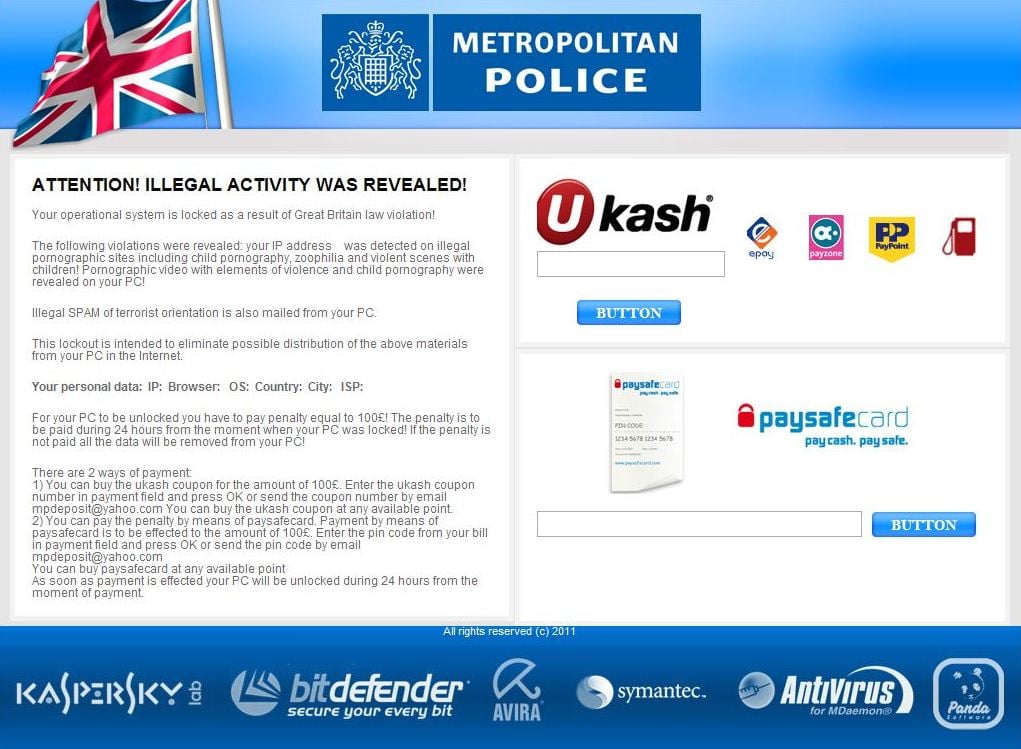
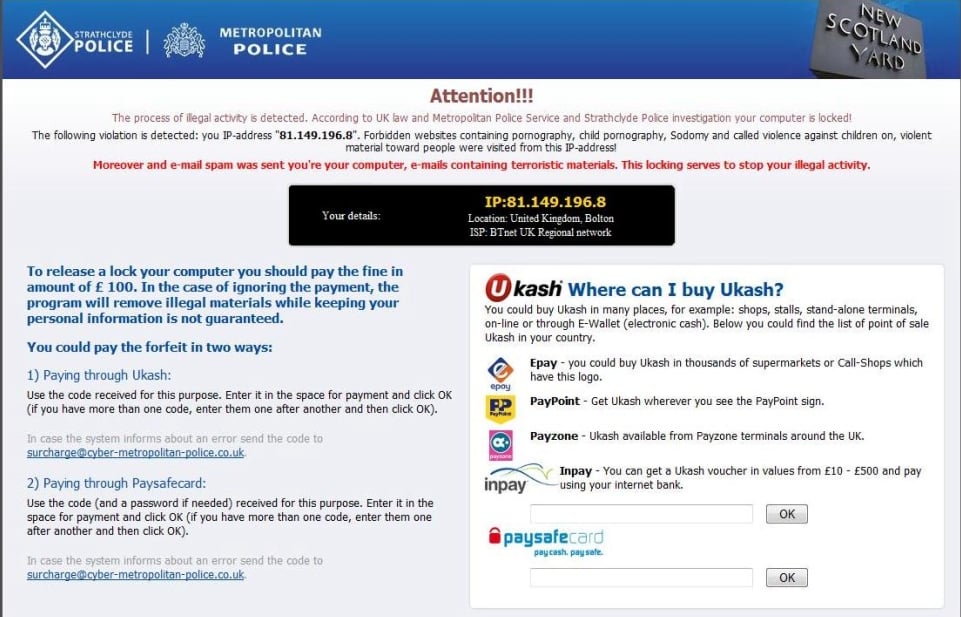
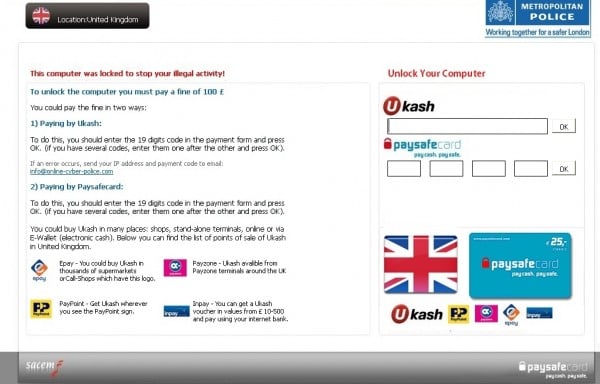
Cyber criminals often updated the design of this lock screen, however you should always keep in mind that the Metropolitan Police will never lock down your computer or monitor your online activities.
The Metropolitan Police lock screen is a scam, and you should ignore any alerts that this malicious software might generate.
Under no circumstance should you send an $300 Ukash or MoneyGram Xpress voucher to these cyber criminals, and if you have, you can should request a refund, stating that you are the victim of a computer virus and scam.
How to remove the “Metropolitan Police” virus (Removal Guide)
This page is a comprehensive guide, which will remove the Metropolitan Police infection from your your computer. Please perform all the steps in the correct order. If you have any questions or doubt at any point, STOP and ask for our assistance.
The Metropolitan Police virus will start automatically when you login to your computer and display its screenlocker so that you are unable to access your computer, therefore we will need to remove this infection by using any of the below methods:
OPTION 1: Remove Metropolitan Police virus with with HitmanPro Kickstart
OPTION 2: Remove Metropolitan Police lock screen virus with System Restore
OPTION 3: Remove Metropolitan Police virus with Kaspersky Rescue Disk
OPTION 1: Remove Metropolitan Police virus with HitmanPro Kickstart
HitmanPro.Kickstart is the solution against police ransomware and other persistent malware that has taken your computer hostage or prevents normal computer use.
As the Metropolitan Police ransomware infection has locked you out of your computer, we will need to create a bootable USB drive that contains the HitmanPro Kickstart program.
We will then boot your computer using this bootable USB drive and use it to clean the infection so that you are able to access Windows normally again.
To perform this step, you will also need a USB drive, which will have all of its data erased and will then be formatted. Therefore, only use a USB drive that does not contain any important data.
- Using a “clean” (non-infected) computer, please download HitmanPro Kickstart from the below link.
Download HitmanProOfficial Sophos download. Free scan, free 30-day trial to remove threats. - Once HitmanPro Kickstart has been downloaded, please insert the USB flash drive that you would like to erase and use for the installation of HitmanPro Kickstart. Then double-click on the file named HitmanPro.exe (for 32-bit versions of Windows) or HitmanPro_x64.exe (for 64-bit versions of Windows).
To create a bootable HitmanPro USB drive, please follow the instructions from this video:
- Now, remove the HitmanPro Kickstart USB drive and insert it into the computer infected with the Metropolitan Police virus.
- Once you have inserted the HitmanPro Kickstart USB drive, turn off the infected computer and then turn it on. As soon as you power it on, look for text on the screen that tells you how to access the boot menu.
![[Image: Windows Boot Menu screens]](//malwaretips.com/blogs/wp-content/uploads/2013/06/windows-boot-manager.jpg "Windows Boot Menu screens")
The keys that are commonly associated with enabling the boot menu are F10, F11 or F12. - Once you determine the proper key (usually the F11 key) that you need to press to access the Boot Menu, restart your computer again and start immediately tapping that key. Next, please perform a scan with HitmanPro Kickstart as shown in the video below.
- HitmanPro will now reboot your computer and Windows should start normally.Then please download Malwarebytes Anti-Malware and HitmanPro, and scan your computer for any left over infections as seen below.
![[Image: Windows Boot Menu screens]](http://malwaretips.com/blogs/wp-content/uploads/2013/06/windows-boot-manager.jpg "Windows Boot Menu screens")
OPTION 2: Remove Metropolitan Police lock screen virus with System Restore
System Restore helps you restore your computer’s system files to an earlier point in time. It’s a way to undo system changes to your computer without affecting your personal files, such as e‑mail, documents, or photos.
Because the Metropolitan Police virus will not allow you to start the computer in Windows regular mode, we will need to start System Restore from the Safe Mode with Command Prompt mode.
STEP 1: Restore Windows to a previous state using System Restore
- Reboot your computer into Safe Mode with Command Prompt. To do this, turn your computer off and then back on and immediately when you see anything on the screen, start tapping the F8 key on your keyboard.
![[Image: F8 key]](https://malwaretips.com/blogs/wp-content/uploads/mwt-media/7b/7bfe81c611d48e45998c85234b21a111c419d163368a8828a4042c2c1d3cb431/7ca9c0c8c1c47c23e9c1581974ebb6a803ce5e47d7a875a2822fb33bd1da0e34-410.webp "Windows F8 key")
If you are using Windows 8, the trick is to hold the Shift button and gently tap the F8 key repeatedly, this will sometimes boot you into the new advanced “recovery mode”, where you can choose to see advanced repair options. On the next screen, you will need to click on the Troubleshoot option, then select Advanced Options and select Windows Start-up Settings. Click on the Restart button, and you should now be able to see the Advanced Boot Options screen. - Using the arrow keys on your keyboard, select Safe Mode with Command Prompt and press Enter on your keyboard.
![[Image: Starting computer in Safe Mode with Command Prompt]](https://malwaretips.com/blogs/wp-content/uploads/mwt-media/ec/ec5f955ce7e8c53c9aa46e3550b558df79761ebdbcb28c68c6f7d2d4bcabd77b/67f5c065727c743c5c242670ebaa59ea51da5330c43f36d1a5be3b8143616853-600.webp "Advanced Boot Options screen")
- At the command prompt, type rstrui.exe, and then press ENTER.
![[Image: Start System Restore to remove lock screen virus]](https://malwaretips.com/blogs/wp-content/uploads/mwt-media/1f/1f8dc26b8d3fae2a9ab62df19881b6dd3edf568c16ec2c5e6e36a834a5570222/d1d8e993cf1f92994121747fedab53e3f57424bc322e4226aa9f94ed919ae5d1-668.webp "rstrui.exe command in Safe Mode with Command Prompt")
Alternatively, if you are using Windows Vista, 7 and 8, you can type: C:\windows\system32\rstrui.exe , and press Enter. And if you are a Windows XP user, type C:\windows\system32\restore\rstrui.exe, then press Enter. - System Restore should start, and you will display also a list of restore points. Try using a restore point created just before the date and time the Metropolitan Police lock screen virus has infected your computer.
![[Image: Restore settings to remove ransomware]](https://malwaretips.com/blogs/wp-content/uploads/mwt-media/1f/1ff0f376f2db5c08243fb4644df5c95d26b6e404c710209af6218c37238708a3/e1c9e35934b9f6ba83c09ab6dcc6135d124f7f01745fb149e31805b708f6d3aa-570.webp "Restore your computer's system files to an earlier point in time")
- When System Restore has completed its task, start your computer in Windows regular mode, and perform a scan with Malwarebytes Anti-Malware and HitmanPro, as seen in the next step.
STEP 2: Remove Metropolitan Police virus with Malwarebytes Anti-Malware Free
- You can download Malwarebytes Anti-Malware Free from the below link, then double-click on the icon named mbam-setup.exe to install this program.
Download MalwarebytesFree official installer. Your download starts right away. - When the installation begins, keep following the prompts in order to continue with the setup process, then at the last screen click on the Finish button.
![[Image: Malwarebytes Anti-Malware final installation screen]](https://malwaretips.com/blogs/wp-content/uploads/mwt-media/47/471448d4dd5aa1d55ea545effccf0ac9c8ccb5a29622da4e38ac677b5d8c37b5/9f473303c15a00262451cc5a56b904de929157b59e19e3cfb2c03ec88f643390-402.webp "Malwarebytes Anti-Malware installation screen")
- On the Scanner tab, select Perform quick scan, and then click on the Scan button to start searching for the Metropolitan Police malicious files.
![[Image: Malwarebytes Anti-Malware Quick Scan]](https://malwaretips.com/blogs/wp-content/uploads/mwt-media/1e/1eb209597ca2f06e596fd060345ac7e3100355f1ec8fc8ea2d9dec7abbb05ea0/3afba9b0b97b56945ffc33817ac48f7433c799241a22e422966180b76473a906-521.webp "Run a Quick Scan with Malwarebytes Anti-Malware")
- Malwarebytes’ Anti-Malware will now start scanning your computer for Metropolitan Police virus as shown below.
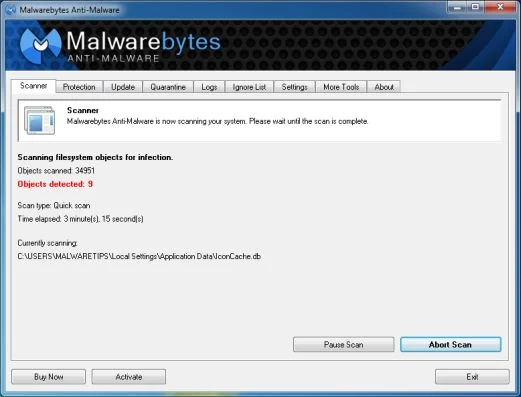
- When the Malwarebytes Anti-Malware scan has finished, click on the Show Results button.
![[Image: Malwarebytes Anti-Malware scan results]](https://malwaretips.com/blogs/wp-content/uploads/mwt-media/84/84c62dd46289424dbc686abc53672cb0810111920c8c0bbd69e973844d0a9ab0/a4c04aa700e641f47afec9965f79ff346740668e5952955ccbe5b4c3658b5897-521.webp "Malwarebytes when the system scan has completed")
- You will now be presented with a screen showing you the computer infections that Malwarebytes Anti-Malware has detected. Make sure that everything is Checked (ticked), then click on the Remove Selected button.
![[Image: Malwarebytes Anti-Malwar removing Metropolitan Police virus]](https://malwaretips.com/blogs/wp-content/uploads/mwt-media/d8/d86b6a8bac0e4ece9fd2d259a83db71487943f6b04b567edb0e9adcc3200f492/4eb94651b0e34cc99689c56dc71cd0a49444498ed05c5803ea55fda1cfee1b1f-521.webp "Malwarebytes Anti-Malwar removing Metropolitan Police virus")
STEP 3: Double-check for the Metropolitan Police virus with HitmanPro
- You can download HitmanPro from the below link:
Download HitmanProOfficial Sophos download. Free scan, free 30-day trial to remove threats. - Double-click on the file named HitmanPro.exe (for 32-bit versions of Windows) or HitmanPro_x64.exe (for 64-bit versions of Windows). When the program starts you will be presented with the start screen as shown below.
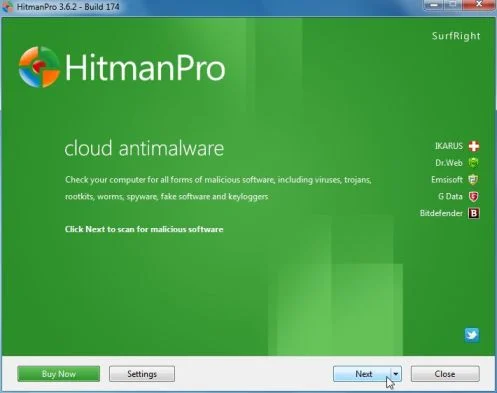
Click on the Next button, to install HitmanPro on your computer.
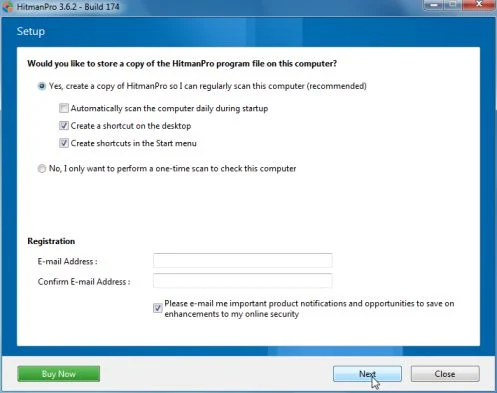
- HitmanPro will now begin to scan your computer for Metropolitan Police malicious files.
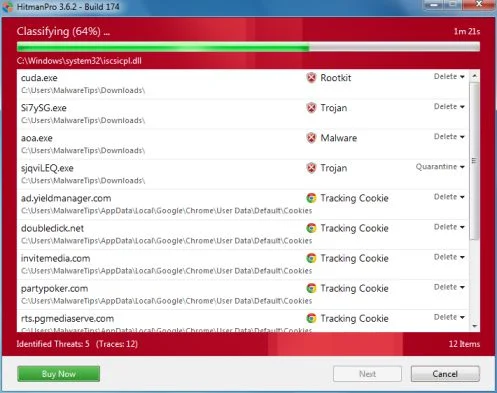
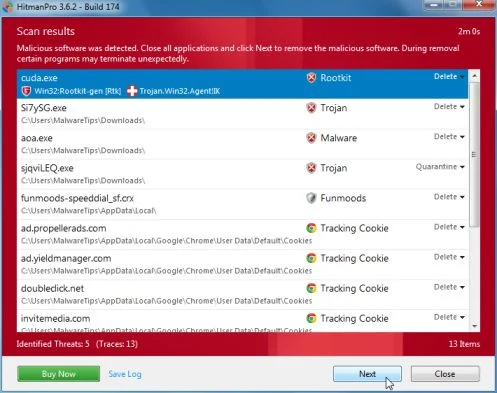
- When it has finished it will display a list of all the malware that the program found as shown in the image below. Click on the Next button, to remove Metropolitan Police virus.
- Click on the Activate free license button to begin the free 30 days trial, and remove all the malicious files from your computer.
![[Image: HitmanPro 30 days activation button]](https://malwaretips.com/blogs/wp-content/uploads/mwt-media/7f/7f063c87fa029d8cd40df3f7faf43765ba1bb9e82c8d5a64c8a49de788018196/2a8400863f3c81fd7d6411e20166dfacdf0bc73e14522edea93a637003240dc1-497.webp "HitmanPro free 30 days trial")
OPTION 3: Remove Metropolitan Police virus with Kaspersky Rescue Disk
If any of the above methods did not clean your infected computer, we can use a Kaspersky Rescue Disk Bootable to clean the Windows registry and to perform a system scan to remove the Metropolitan Police virus.
To create a bootable Kaspersky Rescue Disk, we will need the following items:
- A clean (non-infected) computer with Internet access
- A blank DVD or CD
- A computer with a DVD or CD burner
STEP 1: Download and create a bootable Kaspersky Rescue Disk CD
- You can download Kaspersky Rescue Disk utility from link below:
Download Kaspersky Rescue DiskOpens the download page in a new tab. - To create the bootable rescue disk, we will need to use the ImgBurn program. You can download ImgBurn from the below link, then install this program.
Download ImgBurnOpens the download page in a new tab. - Insert your blank DVD or CD in your burner, then start ImgBurn and click on the Write image file to disc button.
- Under Source click on the Browse for file button, then navigate to the location where you previously saved the Kaspersky Rescue Disk utility (kav_rescue_10.iso), then click on the Write button.
![[Image: Bootable Kaspersky Rescue CD]](https://malwaretips.com/blogs/wp-content/uploads/mwt-media/15/15f1f4ac50c7c4b5d5003d9b017245318853d59e27101621c589ba7c177012d4/cbc48ec38f5b713f46172229d07236dea95d7c7ee2dddeca2da1edb2540e9bb3-545.webp "Creating Kaspersky Rescue Disk bootable CD")
That’s it, ImgBurn will now begin writing your bootable Kaspersky Rescue Disk.
STEP 2: Start your computer using the Kaspersky Rescue Disk
- Once you’ve got the Kasperky Rescue Disk in hand, insert it into the infected computer, and turn off and then turn it on again.
- As soon as you power it on, you will see a screen that tells you to press any key to enter the menu, so please tap any key to boot your machine from the Kaspersky Rescue Disk.
![[Image: Starting infected computer from Kaspersky Rescue Disk]](https://malwaretips.com/blogs/wp-content/uploads/mwt-media/b7/b74e4eb1adf86a5eeeaec5192b1eae0362ce12921684602d426dc2a0167ac3dc/d61afe738972b215fef6ddd0fd56bdafb092d9ab1a16d902cb1e0bbada9efe99-650.webp "Starting infected computer from Kaspersky Rescue Disk")
- In the next screen, you will need to chose a language, then you click on Kaspersky Rescue Disk. Graphic Mode and press ENTER, to start the Kaspersky Rescue Disk.
![[Image: Kaspersky Rescue Disk Graphic Mode screen]](https://malwaretips.com/blogs/wp-content/uploads/mwt-media/d2/d2b5ce8e9855ed0ccec481c038ab3c354278ae1d7b4f9bc8e898a54ef08df304/e92c54797352eebde8e13c0354126d655983c2f975e30434381468255df40a98-650.webp "Kaspersky Rescue Disk Graphic Mode screen")
STEP 3: Scan your system with Kaspersky Rescue Disk
- Within a few short seconds you should see the full working environment, with the Kaspersky Rescue Disk screen front and center as shown below.
![[Image: Kaspersky Rescue Disk scanner]](https://malwaretips.com/blogs/wp-content/uploads/mwt-media/ca/ca8ea6050bb72cfb2b88116c3c644be8e3ee43f7c3b589017a544dcc81a8a6e6/087407af0217e26484d69b7d8c5d5859220083f45c7edef44dc36cf48ac80ce0-896.webp "Kaspersky Rescue Disk scanner")
- Switch tabs over to the My Update Center, and then click the Start update button to load the latest anti-virus definitions. Please be patience while this process its completed.
![[Image: Updating Kaspersky Rescue Disk antivirus definitions]](https://malwaretips.com/blogs/wp-content/uploads/mwt-media/82/82b05aa5b81f5d9d25572e3573638090ba12a230e3c0be1d54b92e86c8226635/c74f22b2fd375f37967c4092a1c489197a24c2cdbc4f571ba521736fc2c10e26-824.webp "Updating Kaspersky Rescue Disk antivirus definitions")
- Switch back over to the Objects Scan tab, select the drives you want to scan, and then click the Start Objects Scan button.
![[Image: Kaspersky Rescue Disk scan]](https://malwaretips.com/blogs/wp-content/uploads/mwt-media/d1/d110635f176372a72fbb9ce85d5c891351c001da96152da37a154f3dd2607efc/ea69d5d902b9bcdc3a546a4898a06d57fd8545ba35b5f4f6d3e8a9d8eb5b99d3-748.webp "Kaspersky Rescue Disk scan")
- When Kaspersky Antivirus will detect the Metropolitan Police virus, you’ll be prompted to select an action. When this happens, please select Quarantine or Delete to remove this infection from your computer.
![[Image: Kaspersky Rescue Disk prompt]](//malwaretips.com/blogs/wp-content/uploads/2013/06/Kaspersky-Rescue-Disk-alarm.png "Kaspersky Rescue Disk when detecting malware")
- When the antivirus scan has completed, you can restart back into Windows regular mode, by clicking on the Kaspersky Start button
![[Image: Kaspersky Rescue Disk Restart button]](https://malwaretips.com/blogs/wp-content/uploads/mwt-media/cd/cd717730f5b93c2fa22dddf5e4fea511a91584739d4ca9ed7262b489952e0e44/cab896c6574a4b9ff7d45084a95ab408cd92bb078b3a819bb362ac18d95e389a-34.webp "Kaspersky Rescue Disk Restart button") (lower left corner), and selecting Restart.
(lower left corner), and selecting Restart.
Once your computer will start in Windows regular more, download Malwarebytes Anti-Malware and HitmanPro, and scan your computer for any left over infections.
![[Image: Kaspersky Rescue Disk prompt]](http://malwaretips.com/blogs/wp-content/uploads/2013/06/Kaspersky-Rescue-Disk-alarm.png "Kaspersky Rescue Disk when detecting malware")
Your computer should now be free of the Metropolitan Police infection. If your current anti-virus solution let this infection through, you may want to consider purchasing the PRO version of Malwarebytes Anti-Malware to protect against these types of threats in the future, and perform regular computer scans with HitmanPro.
If you are still experiencing problems while trying to remove Metropolitan Police Ukash virus from your machine, please start a new thread in our Malware Removal Assistance forum.

Join the discussion
55 commentsShare your experience or ask a question about this article.
Your progress
Did these steps help?
Let us know how the guide worked for you.
Describe what you see and the step you reached. Keep passwords and other private information out.
Discussion
Thank you so much. I had a nasty version of this today that jammed my computer from 11am to 3pm. It was driving me nuts. I tried everything and this was the only thing to help. I had done a previous restore just two hours before, but that only made it worse, so was so pleased to see that your way fixed everything.
I’m now back on my laptop, with access to my passwords, websites, files and I’m using the malware program you suggested. Already it’s caught 12 items. Am going to switch to an old laptop for a while, until I can be sure the virus is totally gone, but looks like your advice did the trick. Now to install your suggested malware on all my computers, to make sure this can’t ever happen again.
Thanks so much.
In reply to Elaine White
Stay safe Elaine! :)
Thank you!
I have found an even easier way, as I followed the instructions about using HitMan etc, but still could not get in with any mode, so they may have found a way round this, what i did find when i got in was that the computer would not recognise any USB devices, including a mouse, so that could be a reason that HitMan would not work.
Ok so it was simple with the version of this virus i had, when you logged-off for a few seconds you see the desktop and i mean a few seconds, not enough to type in any CMD prompts or run something, so what i needed was to stop the computer from logging off after i had clicked log-off and its simple hear is what i did.
So you do the old Ctrl, Alt, Delete, get up the logoff screen, hit the log off button and as soon as at starts to log off (before the desktop disappears) repeatedly tap the escape key (Esc) this stops the log off process and behold you should now see you desktop, then as above people said, download and scan your computer with a good AV and spywere e.g. malwarebytes, spybot etc (the more scanning the better)
Hope this helps some people :-)
In reply to Gman
I had BT on the phone for about an hour on two consecutive evenings evenings. The first guy tried the alternative boot up options without success and ended up suggesting I’d have to reinstall the oprating system, thereby losing all my files.
I thought about it and realised I could still get into the computer via a different users account (this was on a home desktop pc for which I am the Administrator). The second BT technician suspected that running Anti Virus software through a non-administrator account may not solve the problem. He was able to download Hitman Pro and run it but, as he predicted, it failed to detect the Met Virus.
I had another look at this forum and tried Gman’s advice above. I won’t say it was an instant success but I followed his instructions after the virus appears on screen: ‘Ctrl, Alt, Delete, get up the logoff screen, hit the log off button and as soon as at starts to log off (before the desktop disappears) repeatedly tap the escape key (Esc) this stops the log off process and behold you should now see you desktop’; I then quickly opened a couple of programmes using the taskbar icons at the bottom of the screen; a window appeared giving the option to cancel the log off command, which I did. This allowed me into my account and follow Maverick’s advice(see full instructions in thread below):
‘Go to Start Up Run and in the box, type msconfig (you then have to open this programme)
Go to Startup
Click Disableall
Click Apply
and then Ok
You will get a message restart your Computer click it
Pop up virus message will appear and then your computer will reboot while showing you the message saving your settings.’
This doesn’t remove the virus alone. Maverick follows this by telling you to run AV software to remove the virus. As I already had Hitman Pro installed I had to get back into my account again using the method described above, which took several attempts as it kept logging off without the ‘Cancel’ option. However, persistence paid off, I was able to run Hitman Pro and cleared the virus. In retrospect, I realised I could have run Hitman Pro BEFORE restarting the computer, thereby avoiding the frustration of trying to get past the vius a 2nd time.
I finished up following Maverick’s last bit of advice: ‘After removing the virus through antivirus , do not forget to create a restore point and run msconfig and enable the important processes’. You can find instructions for doing this by typing ‘Restore Point’ in the Windows Help menu.
Thanks to all you guys; a grewat example of collaborative assistance.
In reply to Gman
This method worked for me – well done and thank you so much for sharing xxx
Tried all options. Cant access any of the safe modes, managed to get the kickstart to start running a scan but it is stuck on 99% classifying. Any ideas?
In reply to Alastair
Hello Alastair,
Hello Siva,
Please try one more time to scan with HitmanPro Kickstart.
If it still doesn’t work,you’ll need to create a Kaspersky Rescue CD as seen HERE: http://malwaretips.com/blogs/remove-police-trojan/ , on Method 3.
If everything fails, then you’ll need to create an account on our forums and a member of the staff will help you (with more advanced tools) to remove this nasty virus: http://malwaretips.com/Forum-Malware-Removal-Assistance
Good Luck!
In reply to Alastair
turn your wifi of to run the comand prompt in safe mode it worked for me
Couldent get to command prompt in safe mode so was stuck. Option 3 worked a treat … many thanks
Malwarebytes didn’t seem to remove the virus, but HitmanPro did (touch wood)
I did try all steps no luck. I even forced delete the virus c:\del “…” /f but still came back, why?
In reply to Hemen
Hello Hemen,
Are you able to boot in Safe Mode with Networking?
IF yes, then please run a scan with the following tools:
STEP 1: Run a scan with RogueKiller
RogueKiller Download Link (This link will automatically download RogueKiller on your computer)
STEP 2: Run a scan with Kaspersky Virus Removal Tool
Click here to download the Kaspersky Virus Removal Tool.
Waiting for your reply…..
Thanks loads…The second worked well for me :)
My good friend Zara told me the steps and it worked! I’m eternally grateful to her! And to this site WHOOP! Thanks!
Thank you, thank you! Method 2 worked for us :)
Apparently removed virus using these two programs, but can’t open a whole range of files – .docs .mp3 etc Any help greatly received
In reply to hag
Hello Hag,
It seems like your variant of the virus has encrypted your files? What extension are they?
Please ignore previous post, I have it sorted :)
The Met Police virus changed the parameter SHELL in key: HKEY_LOCAL_MACHINE\SOFTWARE\Microsoft\Windows NT\CurrentVersion\Winlogon
It was pointing at a BAT file which was running wgsdgsdgdsgsd.exe (already removed by Hitman)
Changing the parameter to explorer.exe resolved the issue.
Thanks for the pointers
After running Hitman and successfully killing the malware I was left with a new problem. Once logged in (any account) got a prompt “There was a problem starting c:\users..\ wgsdgsdgdsysd.exe” I think this is one of the files removed by Hitman. Can Ctrl+Alt+Del and run from there run task Manager then msconfig, regedit etc. So Far can’t get round this. Any advice?
Was able to log in as a different user and them perform System Restore from the settings there. Seems fine now.
Thank you!
Hi
It worked for me.
Easy to follow and simple.
Thank u very much.
bloody fantastic easy to follow and did the job well a big big thankyou Stelian
Thank you so much! I absolutely panicked when I saw this because I have a massive exam tomorrow and really needed my laptop. My laptop was back running in about twenty minutes, amazing. Thanks again!
Brilliant advice I am no expert but found the steps very easy to follow, its so refreshing to know that there are good guys out there to help fix these problems!
I ran a full McAfee scan which identified and fixed 2 viruses, but did not remove them!
So ran Malwarebytes scan as advised and this did exactly what it said on the tin!
Thanks again!
Excellent advice thanks! Within an hour of the virus infecting my desktop pc, I had completely removed it!
Thank you thank you thank you!!!!
I was so worried about it but googled it on my phone and found this! Everything now works perfectly!
AMAZINGGGGG