

If you are seeing advertisements from OffersWizard within Internet Explorer, Firefox or Google Chrome, then your computer is infected with an adware or a potentially unwanted program.
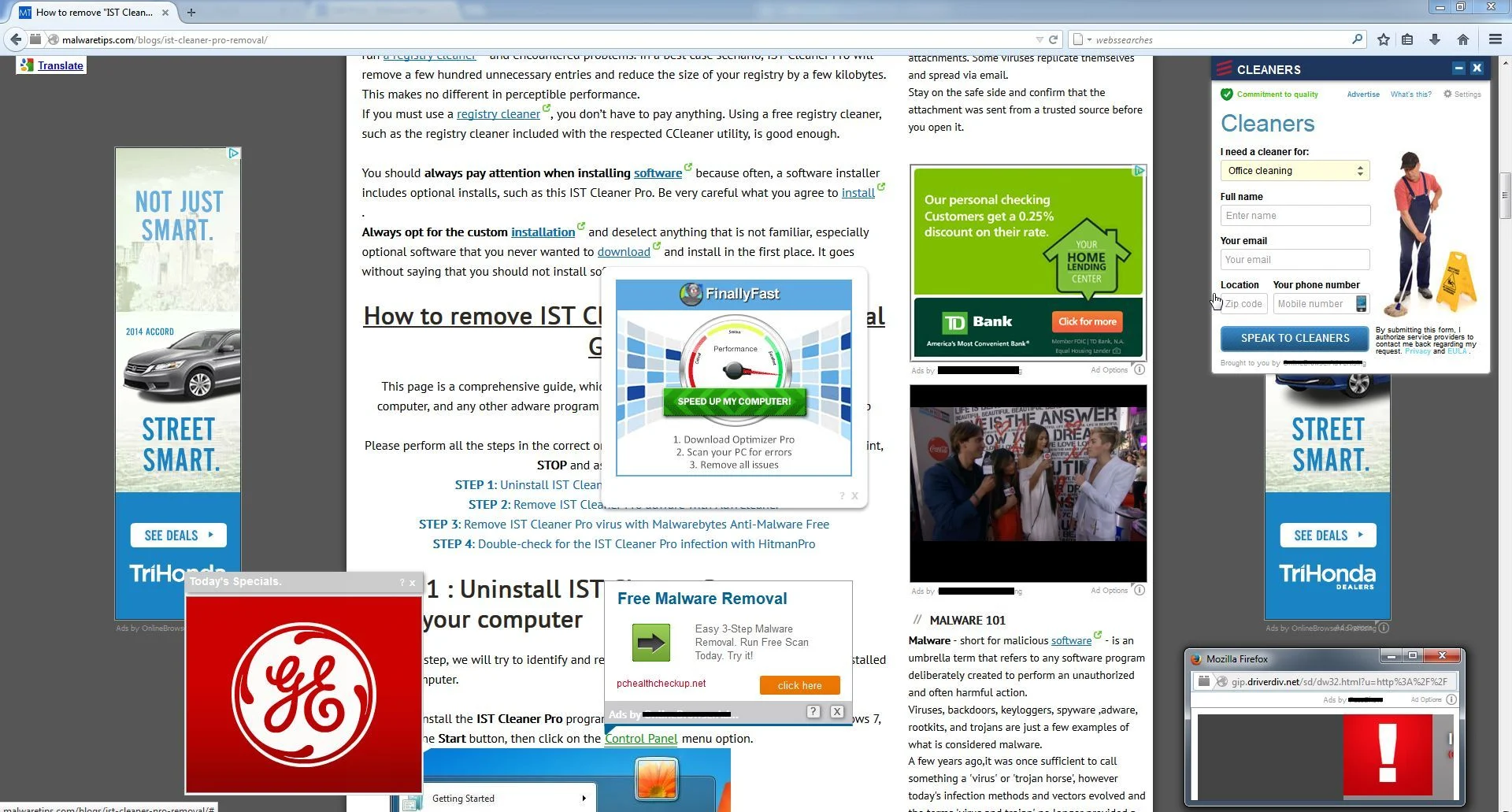
The OffersWizard infection is designed specifically to make money. It generates web traffic, collects sales leads for other dubious sites, and will display advertisements and sponsored links within your web browser.
OffersWizard it’s technically not a virus, but it does exhibit plenty of malicious traits, such as rootkit capabilities to hook deep into the operating system, browser hijacking, and in general just interfering with the user experience. The industry generally refers to it as a “PUP,” or potentially unwanted program.
OffersWizard is an ad-supported (users may see additional banner, search, pop-up, pop-under, interstitial and in-text link advertisements) cross web browser plugin for Internet Explorer, Firefox and Chrome, and distributed through various monetization platforms during installation.
OffersWizard is typically added when you install another free software (video recording/streaming, download-managers or PDF creators) that had bundled into their installation this adware program. When you install these free programs, they will also install OffersWizard as well. Some of the programs that are known to bundle OffersWizard include 1ClickDownload, Superfish, Yontoo and FBPhotoZoom. Very often users have no idea where did it come from, so it’s not surprising at all that most of them assume that OffersWizard is a virus.
Once installed, the OffersWizard browser extension will highlight words on the websites that you are visiting transforming them into hyperlinks. These OffersWizard links are placed inside your text (hence the name), and they come with a double underline to differentiate them from normal links. Once the user rolls the mouse over the link the advertising will pop. Should the user click on the OffersWizard links the browser extension developer will get an affiliate revenue.
OffersWizard will also display advertising banners on the webpages that you are visiting, and as you browse Internet, it will show coupons and other deals available on different websites.
These OffersWizard ads will be shown as boxes containing various coupons that are available or as underlined keywords, which when clicked will display an advertisement that states it is brought to you by OffersWizard.
You should always pay attention when installing software because often, a software installer includes optional installs, such as this OffersWizard adware. Be very careful what you agree to install.
Always opt for the custom installation and deselect anything that is not familiar, especially optional software that you never wanted to download and install in the first place. It goes without saying that you should not install software that you don’t trust.
How to remove “OffersWizard” (Virus Removal Guide)
This page is a comprehensive guide, which will remove “OffersWizard” virus from your computer, and any other adware program that may have been installed during the setup process.
Please perform all the steps in the correct order. If you have any questions or doubt at any point, STOP and ask for our assistance.
STEP 1: Uninstall OffersWizard program from your computer
STEP 2: Remove “Ads by OffersWizard” virus from Internet Explorer, Firefox and Google Chrome
STEP 3: Remove OffersWizard adware from Internet Explorer, Firefox and Google Chrome with AdwCleaner
STEP 4: Remove “Ads by OffersWizard” virus with Malwarebytes Anti-Malware Free
STEP 5: Double-check for the “OffersWizard” malware with HitmanPro
STEP 1 : Uninstall OffersWizard program from your computer
In this first step, we will try to identify and remove any malicious program that might be installed on your computer.
- To uninstall the OffersWizard program from Windows XP, Windows Vista or Windows 7, click the “Start” button, then click on the “Control Panel” menu option.
![[Image: Control Panel in Windows Start Menu]](https://malwaretips.com/blogs/wp-content/uploads/mwt-media/2d/2d76784813a7733957a212adec26bb11ca6cd5be870dfee75be994d414fbf747/3c4d9ab64170f4f3465df4070126b8a3ca364f6f2a7e7fc45dda6db8f04fad1d-433.webp "Control Panel in Windows Start Menu")
If you are using Windows 8, simply drag your mouse pointer to the right edge of the screen, select Search from the list and search for “control panel” .Or you can right-click on a bottom left hot corner (formerly known as the Start button) and select Control Panel from there.
![[Image: Type Control Panel in Windows 8 search box]](https://malwaretips.com/blogs/wp-content/uploads/mwt-media/70/70a8c57fd8759511a33bc3369e01415058ca8817d6e5ea1bc1a80e7598251849/3584e203ec75135df53ad0a2ccc7e8576207bfa03cb088116f8ec5843d8e7268-668.webp "Type Control Panel in Windows 8 search box")
- When the “Control Panel” window opens click on the “Uninstall a program” option under “Programs” category. This option is shown by the arrow in the image below. If you are using the “Classic View” of the Control Panel, then you would double-click on the “Programs and Features” icon instead.
![[Image: Uninstall a program]](https://malwaretips.com/blogs/wp-content/uploads/mwt-media/2a/2a46a9e643eeeb764fb164177551c571817a8b4d4fe8141504dca801f8abc8cc/f2a64da5c9bbae588b1c04059e9f6a1e9a413554048666c6db3aa65196a7b99a-557.webp "Click on Uninstall a program")
- When the “Programs and Features” or the “Uninstall a Program” screen is displayed, scroll through the list of currently installed programs and uninstall Network System Driver (note: Will show a fake notification when you try to uninstall it. Uninstall this program as the warning is NOT real), Discount Cow, V-bates, PriceMeter, Supra Savings, weDownload Manager, PureLead, Search Assist, Re-Markable, Zombie Alert, Wajam, Coupon Server, Lollipop, HD-Total-Plus, BlockAndSurf, Safe Saver, SupTab, Search Protect, Lollipop, Software Updated Version, DP1815, Video Player, Convert Files for Free, Plus-HD 1.3, BetterSurf, Trusted Web, PassShow, LyricsBuddy-1, PureLeads, Media Player 1.1, RRSavings, Feven Pro 1.2, Websteroids, Savings Bull, TidyNetwork, Search Snacks, MyPC Backup, Re-markit and any other recently installed unknown program from your computer.
To view the most recently installed programs, you can click on the “Installed On” column to sort your program by the installation date. Scroll though the list, and uninstall any unwanted or unknown programs.
![[Image: Uninstall OffersWizard from Windows]](https://malwaretips.com/blogs/wp-content/uploads/mwt-media/b1/b1efb88b3209d296fcdc1558dde52e7fc35471fb9fdfce441fc959d7a1a173fa/6d60aa38264f2dcb564de2c24016e424dca803eaba8c3c580c9e313fa32f82d9-963.webp "Uninstall OffersWizard from Windows")
Depending on what program has installed the OffersWizard adware infection, the above program may have a different name or not be installed on your computer. If you cannot find any unwanted or unknown programs on your machine, then you can proceed with the next step.
If you are having issues while trying to uninstall the OffersWizard program, you can use Revo Uninstaller to completely remove this unwanted program from your machine.
STEP 2: Remove “OffersWizard” Ads from Internet Explorer, Firefox and Google Chrome
Remove “Ads by OffersWizard” virus from Internet Explorer
You can reset Internet Explorer settings to return them to the state they were in when Internet Explorer was first installed on your PC.
- Open Internet Explorer, click on the “gear icon”
![[Image: icongear.jpg]](//malwaretips.com/images/removalguide/icongear.jpg "Remove OffersWizard ads (Virus Removal Guide) 2") in the upper right part of your browser, then click again on Internet Options.
in the upper right part of your browser, then click again on Internet Options.
![[Image: Internet Options in Internet Explorer]](https://malwaretips.com/blogs/wp-content/uploads/mwt-media/52/522e9c30de2b8b1009dec93b1735a5e5ec22f4d7d2e025c30c251ca96799dec2/45442bf30d44812b12c1d4152796bddfd0d05542d55e7c907b8edde3ac50c4d7-625.webp "Click on the Gear Icon then on Internet Options")
- In the “Internet Options” dialog box, click on the “Advanced” tab, then click on the “Reset” button.
![[Image: Reset Internet Explorer]](https://malwaretips.com/blogs/wp-content/uploads/mwt-media/89/89e96623f76134cd3bfd7a5579d40fefa7118a81811be6e9888bb8b92ac84adf/ca946d49c693e69239029b3c145713bf590c959486dc4af7bbae81db5ec5a627-613.webp "In the Advanced tab click on the Reset button")
- In the “Reset Internet Explorer settings” section, select the “Delete personal settings” check box, then click on “Reset” button.
![[Image: Reset Internet Explorer to its default settings to remove OffersWizard]](https://malwaretips.com/blogs/wp-content/uploads/mwt-media/f2/f240d9aad8df73300edecc78c67f33cd5fccb1f5732245b8d5990b4524313abb/c2ef750ff5d9642431fc10968d9e8699c75c0b149affcf506387fa0c948e4874-626.webp "Click on the Reset button to revert IE to its default settings")
- When Internet Explorer has completed its task, click on the “Close” button in the confirmation dialogue box. You will now need to close your browser, and then you can open Internet Explorer again.
![[Image Reset Internet Explorer settings]](https://malwaretips.com/blogs/wp-content/uploads/mwt-media/22/22bcd4ddf7b1a0aac3fcb25d72a4d24b8d1748a2ee365e4f52181e6d57a4ef94/7d992d833ea0dbef9fbfdfbe664c145a6a794975aa5980dfbdde3369647953b4-621.webp "Click on the Close button")
![[Image: icongear.jpg]](http://malwaretips.com/images/removalguide/icongear.jpg "Remove OffersWizard ads (Virus Removal Guide) 2") in the upper right part of your browser, then click again on Internet Options.
in the upper right part of your browser, then click again on Internet Options.Remove “Ads by OffersWizard” virus from Mozilla Firefox
If you’re having problems with Firefox, resetting it can help. The reset feature fixes many issues by restoring Firefox to its factory default state while saving your essential information like bookmarks, passwords, web form auto-fill information, browsing history and open tabs.
- In the upper-right corner of the Firefox window, click the Firefox menu button (
![[Image: Firefox Menu button]](https://malwaretips.com/blogs/wp-content/uploads/mwt-media/6f/6f648cb445905efd8b48fc51022903baf5a0db5eb5c8478d587f29d3dc216d6c/03f95ff9f91ad81d0407ba6842827f193c40eb3d4b407eda9f698f330de02814-16.webp "Firefox Menu button") ), the click on the “Help” (
), the click on the “Help” (![[Image: Firefox Help button]](https://malwaretips.com/blogs/wp-content/uploads/mwt-media/da/dad9a8056176398d90be70e0b13e0181d2f95a3cd817a0f9bd296d3e00b47109/feab1435cad07dba7dbf1e08f210872708ea08865694c59cfbac294ba8583f2a-16.webp "Firefox Help button") ) button.
) button.
![[Image: Click on the Menu button then Help]](https://malwaretips.com/blogs/wp-content/uploads/mwt-media/b3/b377cb8cff0bee416c3d3119f3b297121b11a191b03960f59042d04eaf1b024f/e6666aaf95fdc45769a3ad8643bf420b9a6bbfb926d8f9f5c085273ceab43042-639.webp "Click on the Menu button then question mark button")
- From the Help menu, choose Troubleshooting Information.
![[Image: Troubleshooting Information in Firefox]](https://malwaretips.com/blogs/wp-content/uploads/mwt-media/69/69762affb073db88c58031bb0921652382117b19b00bddaf65ff209f7f251209/02317ac4d0bd202b13a64cc831d8b76e93d8de421c502f4e620fbe4ddc59ff3a-635.webp "Troubleshooting Information in Firefox")
- Click the “Reset Firefox” button in the upper-right corner of the “Troubleshooting Information” page.
![[Image: Reset Firefox to its default settings to remove OffersWizard]](https://malwaretips.com/blogs/wp-content/uploads/mwt-media/71/71b1ebcca7d6b615ce3847771661140188cc56e13ef5a22c4e7e81b496117d17/3c21366391fc1ca103f62493d5f9e237d72648b740577a599cd03a125d63bf06-642.webp "Reset Firefox to its default settings")
- To continue, click on the “Reset Firefox” button in the new confirmation window that opens.
![[Image: Click on the Reset Firefox button]](https://malwaretips.com/blogs/wp-content/uploads/mwt-media/54/54ef1813bb040e2ebcfc2633c0583795c99e285d9fed97ca760618dbfc71a704/7c01c1595c602bbdad2a46e822b7761992e499c61b42e52bc1a239371b8f2b9c-637.webp "Click on the Reset Firefox button")
- Firefox will close itself and will revert to its default settings. When it’s done, a window will list the information that was imported. Click on the “Finish“.
Note: Your old Firefox profile will be placed on your desktop in a folder named “Old Firefox Data“. If the reset didn’t fix your problem you can restore some of the information not saved by copying files to the new profile that was created. If you don’t need this folder any longer, you should delete it as it contains sensitive information.
Remove “Ads by OffersWizard” virus from Google Chrome
- Click on the “Chrome menu button” (
 ) on the browser toolbar, select “Tools“, and then click on “Extensions“.
![[Image: Extensions menu in Chrome]](https://malwaretips.com/blogs/wp-content/uploads/mwt-media/1c/1c68c16920f484963bbe8ff043b167d0fd55ae1900a2bfe0c693e4d447fdab0a/cad1479a0948ac24f8071e061e8d55d39af0e00415dd4cb6bcaa9a4930f5e208-647.webp "Extensions menu in Chrome")
- In the “Extensions” tab, remove the OffersWizard any other unknown extensions by clicking the trash can
![[Image: Remove an extension from Chrome]](https://malwaretips.com/blogs/wp-content/uploads/mwt-media/15/15312192a9e993d0b47828bcc4a4243b8327edfe01567c83ac4ac59042b1ed49/ef971b5a6abccddf090910da018056c4845ae3d8fc7de8265833328ba64c0041-20.webp "Remove an extension from Chrome") icon.
icon.
Basically, if you have not installed an extensions then you should remove it from your web browser.
If you cannot remove the OffersWizard extension, and under the trash can you can see the “Installed by enterprise policy” text, then you will need to follow our “Remove Installed by enterprise policy extension from Chrome” guide.
![[Image: Remove OffersWizard Chrome extensions]](https://malwaretips.com/blogs/wp-content/uploads/mwt-media/a5/a5c767054b8b935f5b0fb337b18b2bca9fcd4dbd7ac324bf97a953ae3207d46c/882d8dc7b7d656403866dfbe1e839511db2e9fbd6a3c89c438f413506717cf6d-1159.webp "Remove OffersWizard Chrome extensions")
STEP 3: Remove OffersWizard adware from Internet Explorer, Firefox and Google Chrome with AdwCleaner
The AdwCleaner utility will scan your computer and web browser for the “OffersWizard” malicious files, browser extensions and registry keys, that may have been installed on your computer without your knowledge.
- You can download AdwCleaner utility from the below link.
Download AdwCleanerFree official download. Nothing to install. - Before starting AdwCleaner, close all open programs and internet browsers, then double-click on the AdwCleaner icon.
If Windows prompts you as to whether or not you wish to run AdwCleaner, please allow it to run. - When the AdwCleaner program will open, click on the “Scan” button as shown below.
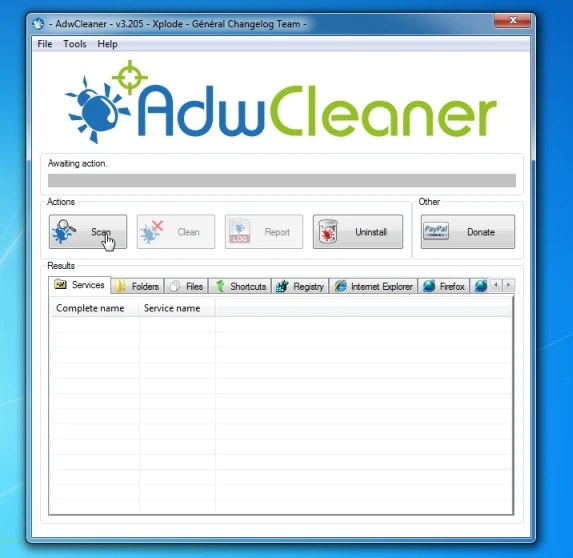
AdwCleaner will now start to search for the “OffersWizard” malicious files that may be installed on your computer. - To remove the “OffersWizard” malicious files that were detected in the previous step, please click on the “Clean” button.
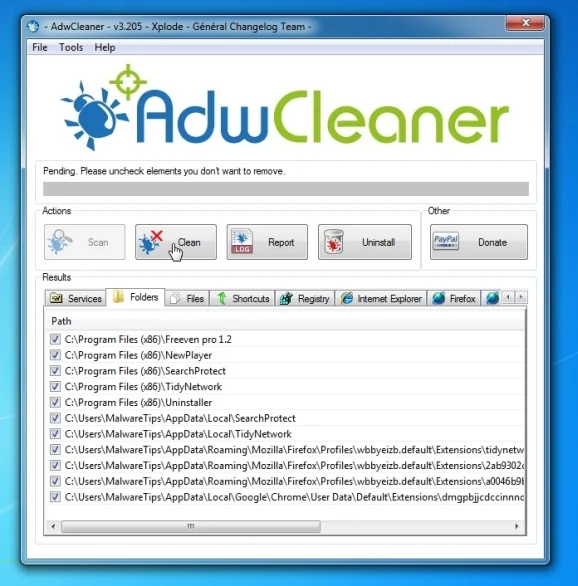
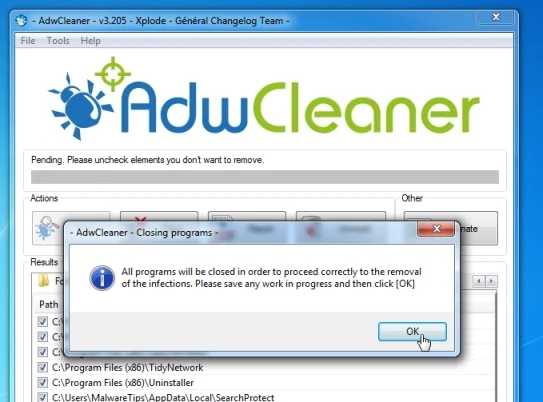
- AdwCleaner will now prompt you to save any open files or documents, as the program will need to reboot the computer. Please do so and then click on the OK button.
STEP 4: Remove “OffersWizard” virus with Malwarebytes Anti-Malware Free
Malwarebytes Anti-Malware Free uses industry-leading technology to detect and remove all traces of malware, including worms, Trojans, rootkits, rogues, dialers, spyware, and more.
It is important to note that Malwarebytes Anti-Malware works well and should run alongside antivirus software without conflicts.
- You can download download Malwarebytes Anti-Malware from the below link.
Download MalwarebytesFree official installer. Your download starts right away. - Once downloaded, close all programs, then double-click on the icon on your desktop named “mbam-setup-consumer-2.00.xx” to start the installation of Malwarebytes Anti-Malware.
![[Image: Malwarebytes Anti-Malware setup program]](https://malwaretips.com/blogs/wp-content/uploads/mwt-media/0d/0d753e667804c3aa3748bd016ccce9f8c0536bca429616a55ddea37ce384d555/74812df3e35a7a41ae873b6e22a7fb179f2700fbf6cbc82e74ed61a37d0d6123-107.webp "Malwarebytes Anti-Malware setup program")
 You may be presented with a User Account Control dialog asking you if you want to run this file. If this happens, you should click “Yes” to continue with the installation.
 - When the installation begins, you will see the Malwarebytes Anti-Malware Setup Wizard which will guide you through the installation process.
![[Image: Malwarebytes Anti-Malware Setup Wizard]](https://malwaretips.com/blogs/wp-content/uploads/mwt-media/81/81f935c9428354bb149215e48688f631cd5a5a62faf74d6225001b0453bbca8c/3602f8514cc23acd6cec36061a527c508f9573cd46ecc90aafece3dffc434679-538.webp "Malwarebytes Anti-Malware Setup Wizard")
To install Malwarebytes Anti-Malware on your machine, keep following the prompts by clicking the “Next” button.
![[Image: Malwarebytes Anti-Malware Final Setup Screen]](https://malwaretips.com/blogs/wp-content/uploads/mwt-media/3f/3f231d4b2d8a4d2cb17315dde7a7d4c6dbb851d93ed482418611fe613fbbb864/40e783e7159f9b1c16e350eca98c1e5cad9302d6dc0e6754bd2d411d5fc77489-528.webp "Malwarebytes Anti-Malware Final Setup Screen")
- Once installed, Malwarebytes Anti-Malware will automatically start and you will see a message stating that you should update the program, and that a scan has never been run on your system. To start a system scan you can click on the “Fix Now” button.
![[Image: Click on the Fix Now button to start a scan]](https://malwaretips.com/blogs/wp-content/uploads/mwt-media/39/397642932bd225caef10b38b171def1df393a996003d19b4582dc7dec15bbc3e/6c2e1886cbfe35a01245fd55aaabfccb552b8dc515622a4a40d2858a31263188-669.webp "Remove OffersWizard ads (Virus Removal Guide) 3")
Alternatively, you can click on the “Scan” tab and select “Threat Scan“, then click on the “Scan Now” button.
![[Image: Malwarebytes Anti-Malware Threat Scan]](https://malwaretips.com/blogs/wp-content/uploads/mwt-media/ae/aeade34915168b750f843b5f3215b01aaafc8fb09f7157e906e5f685c835a53e/4738036de2b70a9d95be56eb778635095ad7aff3af404c23b34aba00978013ec-645.webp "Malwarebytes Anti-Malware Threat Scan")
- Malwarebytes Anti-Malware will now check for updates, and if there are any, you will need to click on the “Update Now” button.
![[Image: Click on Update Now to update Malwarebytes Anti-Malware]](https://malwaretips.com/blogs/wp-content/uploads/mwt-media/78/7855ebe97b523c19228fcf3cb4daf63cdf9e67b06707b53f04a66d553e0998f8/487f55b5cf520d201e56fc23748091c41fbc1ab50607e7ce74b3dce76effe458-650.webp "Click on Update Now to update Malwarebytes Anti-Malware")
- Malwarebytes Anti-Malware will now start scanning your computer for the OffersWizard virus. When Malwarebytes Anti-Malware is scanning it will look like the image below.
![[Image: Malwarebytes Anti-Malware while performing a scan]](https://malwaretips.com/blogs/wp-content/uploads/mwt-media/0c/0c19f7f54697a59603912b4420035538035ecae8dc8a53dd2a4b5caa76738d3a/35ef1e0dee50f5ed4291828f5d220c3d3902541957d9998c2f9293a533d8e77e-642.webp "Malwarebytes Anti-Malware while performing a scan")
- When the scan has completed, you will now be presented with a screen showing you the malware infections that Malwarebytes’ Anti-Malware has detected. To remove the malicious programs that Malwarebytes Anti-malware has found, click on the “Quarantine All” button, and then click on the “Apply Now” button.
![[Image: Remove OffersWizard with Malwarebytes Anti-Malware]](https://malwaretips.com/blogs/wp-content/uploads/mwt-media/be/be4965ad0a96322fa2aaa6250cf65d0e07ea43d68f3ae5cc5f1849e7d93b0001/a491bcef2bfe10e87fa16b978b3c01704c837db4581c754a9db57ec7e5975947-804.webp "Remove the malware that Malwarebytes Anti-Malware has detected")
Please note that the infections found may be different than what is shown in the image. - Malwarebytes Anti-Malware will now quarantine all the malicious files and registry keys that it has found. When removing the files, Malwarebytes Anti-Malware may require a reboot in order to remove some of them. If it displays a message stating that it needs to reboot your computer, please allow it to do so.
![[Image: Malwarebytes Anti-Malware removing OffersWizard]](https://malwaretips.com/blogs/wp-content/uploads/mwt-media/11/118f4e52c9890302751ff1c1547809138d36300a08e80d62862e73250993d3bc/0d2ff1aed2aa2f9c2d364e3d68485b8d6395b9de8e66742485ee519c65496e7e-651.webp "Malwarebytes Anti-Malware asking to reboot your computer")
After your computer will restart, you should open Malwarebytes Anti-Malware and perform another “Threat Scan” scan to verify that there are no remaining threats
STEP 5: Double-check for the “OffersWizard” malware infection with HitmanPro
HitmanPro is a second opinion scanner, designed to rescue your computer from malware (viruses, trojans, rootkits, etc.) that have infected your computer despite all the security measures you have taken (such as anti-virus software, firewalls, etc.). HitmanPro is designed to work alongside existing security programs without any conflicts. It scans the computer quickly (less than 5 minutes) and does not slow down the computer.
- You can download HitmanPro from the below link:
Download HitmanProOfficial Sophos download. Free scan, free 30-day trial to remove threats. - Double-click on the file named “HitmanPro.exe” (for 32-bit versions of Windows) or “HitmanPro_x64.exe” (for 64-bit versions of Windows). When the program starts you will be presented with the start screen as shown below.
![[Image: HitmanPro start-up screen]](https://malwaretips.com/blogs/wp-content/uploads/mwt-media/17/179226529eaacb1be41384d6652aeed130dbb2fe0c863731b2a019c54fd397ad/21db3c233c08ed0f2bb2649265ffa195d20b3094deac4f98a2f630d13ea2cffe-598.webp "HitmanPro startup screen (Click Next)")
Click on the “Next” button, to install HitmanPro on your computer.
![[Image: HitmanPro setup options]](https://malwaretips.com/blogs/wp-content/uploads/mwt-media/db/db3fc79f21e090f20a9361e6d61977165b6b6eff9eb4b78c91e08ce80a65efe6/cf5150e1a5e0321ab326deba7824b44b76433fcf80dd6fa25ebf2e1f45f18cb8-594.webp "HitmanPro installation options (Click Next)")
- HitmanPro will now begin to scan your computer for OffersWizard malicious files.
![[Image: HitmanPro scanning for malware]](https://malwaretips.com/blogs/wp-content/uploads/mwt-media/98/988a6c1b94f8fe64a616506fa24ac6811b607b4907e7edb545787819f319ce8f/7b8dd5a3b737d213ae2693572466b5f4e9487bc2f04e82c95089e0041c932ef7-594.webp "HitmanPro scanning for OffersWizard pop-up virus")
- When it has finished it will display a list of all the malware that the program found as shown in the image below. Click on the “Next” button, to remove OffersWizard virus.
![[Image: HitmanPro scan results]](https://malwaretips.com/blogs/wp-content/uploads/mwt-media/10/1062728333b2406d51dde014190952550042472f9aadf5aef891f04cf8f56bf5/be41d2989197ce644e79cf3f8c45f5bc82dd27b6c77845d3910ac46e68c5e02b-591.webp "HitmanPro scan results (Click Next)")
- Click on the “Activate free license” button to begin the free 30 days trial, and remove all the malicious files from your computer.
![[Image: HitmanPro Activate Free License]](https://malwaretips.com/blogs/wp-content/uploads/mwt-media/6a/6a182cc86c5bb0da6e2a397c95427a596e7ce9a67c23eb1cfc96900695f39048/482f7d1f786a4b4ac381f1ff27ec73e252b78cdc0c255a550749bb178d4309d1-594.webp "Click on the Activate free license button")
Your computer should now be free of the OffersWizard adware infection. If your current anti-virus solution let this infection through, you may want to consider purchasing the Premium version of Malwarebytes Anti-Malware to protect against these types of threats in the future, and perform regular computer scans with HitmanPro.
If you are still experiencing problems while trying to remove OffersWizard adware from your machine, please start a new thread in our Malware Removal Assistance forum.

Join the discussion
61 commentsShare your experience or ask a question about this article.
Discussion
Worked.. Its so useful.. Thanks..
In reply to I. M. Dwijantika
You are very welcome. I am glad the instructions removed the unwanted ads successfully.
Just to say thank you. It worked and it was simple and clear!!!
Hello,
Please go ahead with the AdwCleaner and Malwarebytes scan…
The ADW Cleaner is not downloading and it is showing 502 Bad Gateway?? could you help me please??
In reply to Karuna Gupta
Hello Karuna,
Lets try to fix your PC:
1.Please download ZOEK by Smeenk and save it to your desktop (preferred version is the *.exe one) from here: http://hijackthis.nl/smeenk/
2. Right-click on Zoek icon and select “Run as Administrator” to start the tool.
Wait patiently until the main console will appear, it may take a minute or two.
3. In the main box please paste in the following script (between the lines):
—————————————————–
createsrpoint;
autoclean;
emptyalltemp;
ipconfig /flushdns;b
——————————————————-
4.Make sure that Scan All Users option is checked.
5. Push Run Script and wait patiently. The scan may take a couple of minutes.
When this program will finish the clean-up it will ask you to restart your computer.
Let me know if this fixed your issue or not!
not only does it uninstall office wizard, it also uninstalls many other virus for example, i had like 5 virus on my computer and no matter what i did it didnt work, then i tried this then ALL the virus were gone, you are a god Stelian Pilici thank you u saved my surfing experience.
There is a program called “Network System Driver” Uninstall it and remove extension from browsers it will Surely Remove this adware.
Thanks Mr Palici
YOU DA BEST
Thanks a zillion Stelian, Offerswizzard had made my surfing miserable. Last night I tried steps suggested at other websites, but they didn’t help. Then to my luck, I went through your tutorial. I tried uninstalling Network Systems Driver but I guess it didn’t do it properly. Then I used the softwares u suggested- Adwclean, Mawarebytes and Hitman pro one by one. I remember when I restarted the computer right away last night I was could see the OffersWizard Ad. Of course I didn’t surf any further. But then I started the computer today and OMG it’s gone. May be it required shutting down completely and then starting or something else. Thank you so much, U R LIFE SAVER.
Yep this article, will definitely help you as long as you follow the instructions carefully and reboot every time these programs listed here ask you.
Great.. Thanks..
Great Thanks :)
Hi Stelian,
I had malicious ads from offerwizard and mediaads installed on my pc. I tried all kinds of malware,adware and virus programs to remove these but none of them worked. The ads were taking over my computer and making my surfing a misery. I came across your site in google and i did try your recommendation to remove these program without any luck. I then scrolled down your page and visited the Hitman Pro site. I installed the software and it removed all the ads from my computer. What i liked about this program is that it uses cloud scanning to consult with other adware, malware and virus tools to determine if the program is malicious and then recommends it’s removal. . I have not found this feature in other adware, malware removal programs. It found over 77 malicious programs on my computer where as the previous softwares i used stated it was clean. I would like to thank you for featuring this software in your article. My computer is now clean and ad free because of you. I’m going to purchase the paid version as i’m currently using the free one at the moment. Thank you so much for your help.
Thank you very much , you helped me remove it…
ADW Cleaner helped me remove this…. You rock stealian. I had been spending hours on this trying to remove finally your step by step solution worked. Kudos….
Thanks heaps man, you a truly a great person, stupid OffersWizard aka Network System Driver, finally no more ads :)
THANK YOU STELIAN! Your advice has been really helpful and those awful ads no longer hound me now! BYE OFFERSWIZARD!!!
You are an incredible human being, thanks for the help
You are a legend. Thank you so much, my Firefox isn’t lagging or showing ads anymore ;)
OMG THANX!! God dammit stupid offerswizard aka Network System Driver. Uninstall it, all the pop ups will be gone for good!