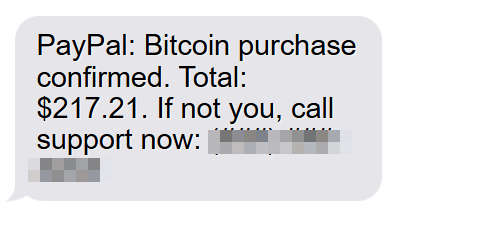
“PayPal: Bitcoin purchase confirmed.” “Your account will be charged $217.21.” “Didn’t authorize? Reply Y or call support now.”
Even if you know you did not buy crypto, your body still reacts. Your brain jumps straight to damage control, and that split-second panic is exactly what the scam is designed to trigger.
Because once you are worried, you are easier to rush. And when you are rushed, you are more likely to click, reply, or call.
This is the PayPal Bitcoin text scam in a nutshell: a fake “purchase confirmation” message that is built to feel urgent, personal, and expensive enough to scare you into doing what the scammer wants next.
Scam Overview
PayPal Bitcoin text scams are a type of smishing, which is phishing delivered by SMS or messaging apps. The scam pretends to be a security alert or a purchase receipt, and it claims a Bitcoin purchase was made through PayPal.
The hook is simple: if you believe a crypto purchase is happening right now, you will try to stop it fast.
The scammer knows that most people will not calmly open the PayPal app, check their activity, and report the message. They are betting that a portion of recipients will react first.
What these PayPal Bitcoin scam texts usually look like
The exact wording changes constantly, but most “purchase confirmation” texts fall into a few familiar formats.
Format A: The fake receipt
“PayPal: Your Bitcoin purchase is complete.”
“Receipt ID: ###### Amount: $217.21”
“If this wasn’t you, call PayPal Support at (###) ###-####”
Format B: The pending charge warning
“PayPal Alert: A Bitcoin order of $217.21 is pending.”
“Cancel within 30 minutes to avoid being charged.”
“Your account will be limited unless you verify now.”
“Reply YES to confirm identity.”
Format D: The “helpful” support shortcut
“PayPal Support: We noticed a crypto purchase.”
“To dispute, call now.”
“Agent is waiting.”
Notice what all four have in common: they try to make the phone feel like the fastest solution. Either click the link, reply to the message, or call the number.
That is the trap.
Why text scams feel more believable than email
Text messages hit you differently than email.
Email is often processed like paperwork. You skim, you hesitate, you think, “I’ll check later.”
Texts feel like real-time communication. They create the impression that something is happening right now, and you are expected to respond right now.
That’s one reason government and consumer protection agencies keep warning people that scam texts are designed to push quick action and quick clicks. The FTC specifically advises people to report spam texts and not engage.
There is also a practical reason: on a phone screen, it is harder to inspect details. A suspicious link can look harmless. A fake support number looks like a normal support number. The small screen makes it easier for scammers to hide the clues.
Why the scam uses Bitcoin and not something simpler
Scammers could claim you bought headphones, a gift card, or a subscription. So why Bitcoin?
Because Bitcoin pushes a very specific set of emotions:
Irreversibility: People believe crypto is final and cannot be undone.
Fear of the unknown: Many recipients do not feel confident about crypto, so they panic faster.
High stakes: A Bitcoin purchase sounds like a serious compromise, not a minor billing error.
Shame factor: Some victims feel embarrassed, which makes them less likely to ask for help.
This combination makes Bitcoin an excellent lever for social engineering.
The “specific amount” trick: why $217.21 works
Scammers love totals that look real.
Round numbers look like marketing. Exact numbers look like accounting.
A total like $217.21 feels like it came from a real payment system with tax, fees, and a ledger behind it. It feels too specific to be invented, which is exactly why scammers use it.
They may also add fake details to increase believability:
“Invoice ID”
“Transaction ID”
“Merchant reference”
A name and location that sounds like a real vendor
Specific details are not proof. They are props.
A crucial distinction: legitimate PayPal texts do exist
A lot of victims get stuck on one question: “Does PayPal ever send texts?”
Yes, PayPal can send SMS messages for security features, especially two-factor authentication and login verification. PayPal’s help pages even mention examples of short codes used for these messages, such as 729725 or 72975.
That is why this scam is so effective. It hides inside a true statement.
Here is the safer way to think about it:
A real PayPal security text is usually about you logging in or a verification code.
A scam text often claims a purchase happened, then pushes you to call a number or click a link.
If you receive a PayPal security code when you are not trying to log in, PayPal recommends you log into your account and change your password.
The key is how you respond: do not use links or phone numbers that arrived inside a suspicious text. Verify through the official app or by navigating to PayPal yourself.
The most common payoff: getting you to call “support”
Many PayPal Bitcoin scams are “callback” scams. Instead of relying only on a link, they steer you into a phone call.
Why?
Because phone calls are easier to control than websites.
A scammer can:
Interrupt you
Talk over your doubts
Create urgency
Give you step-by-step instructions that lead to theft
PayPal’s own guidance on suspicious messages is clear: do not click links in unusual texts, do not call listed numbers, and forward suspicious messages to PayPal instead.
How scammers get your phone number in the first place
This part bothers people, and it’s understandable.
You might think, “If they texted me, they must have my PayPal account.”
Often, they do not.
Scammers commonly send messages to huge lists of numbers, hoping some recipients use PayPal and will panic. Phone numbers can be collected from data breaches, leaked marketing lists, public sources, random number generation, or purchased lists traded in underground markets.
Sometimes scammers do target people who have been exposed in a breach, but you should not assume that a text proves your PayPal account is compromised.
Treat it as a warning sign, not as evidence.
What PayPal tells you to do with suspicious texts
PayPal’s security center provides direct instructions for dealing with suspicious SMS messages: do not click links, forward the text to PayPal, block the sender, and delete the message.
PayPal also reinforces similar guidance in its newsroom tips about fraud prevention, including forwarding suspicious texts to the same reporting address.
That is important because it gives you a safe path that does not involve engaging with the scammer at all.
A second reporting channel: your mobile carrier and the FTC
Even if you report the text to PayPal, you should also report it as spam through your carrier ecosystem.
In the United States, the FTC recommends copying the message and forwarding it to 7726 (SPAM), which helps wireless providers identify and block similar messages.
The FCC also notes that several mobile providers allow reporting unwanted texts by forwarding them to 7726.
This is a small action that helps reduce the number of scam texts circulating.
If you use an iPhone, you can report junk directly in Messages
Apple provides built-in options to report spam messages in the Messages app, including reporting junk for iMessage, and in some cases SMS, MMS, or RCS depending on carrier and region.
That does not solve the entire problem, but it helps clean up your inbox and improves filtering over time.
The red flags that matter most
If you remember nothing else, remember these.
A PayPal Bitcoin text is almost certainly a scam if it includes one or more of the following:
It claims a Bitcoin purchase you do not recognize
It pushes urgency: “within 30 minutes,” “today,” “final notice”
It tells you to call a “support” number
It includes a link that you are pressured to tap
It asks you to reply with YES, Y, or similar confirmations
It threatens account suspension, limitation, or loss of access
It contains awkward phrasing or unusual capitalization
Real security notifications can feel urgent too, but they should never require you to trust a random link or number in the message.
How The Scam Works
This section walks through the most common PayPal Bitcoin “purchase confirmation” text scam flow, step by step.
Not every scam uses every step, but the structure is consistent. Once you recognize the pattern, you can spot it faster.
Step 1: The text arrives and creates an emergency
You receive a text that pretends to be from PayPal.
It usually contains:
A scary claim: “Bitcoin purchase confirmed” or “pending”
A dollar amount: often $200 to $1,000+
A next step: call, click, or reply
The message is designed to hijack your attention. It does not want you to think. It wants you to move.
At this point, the scammer does not need your trust. They only need your fear.
Step 2: The scam gives you a “fast fix” path
The text usually offers one of these “solutions”:
Solution A: Call support
You are told to call a number to cancel the charge.
Solution B: Tap a link
You are told to tap a link to dispute or verify.
Solution C: Reply to confirm
You are told to reply YES, Y, or CONFIRM.
All three are dangerous, but for different reasons.
Calling gives the scammer a live channel to manipulate you. Clicking can lead to credential theft or malware. Replying confirms your number is active, and sometimes triggers more targeted scams.
PayPal’s guidance for suspicious texts is straightforward: do not click links, and forward the message to PayPal instead.
Step 3A: The callback version (the most common “support number” trap)
If you call the number, you are connected to someone who pretends to be PayPal support.
They often sound calm, professional, and helpful. That is part of the script.
Here is what typically happens next.
The scammer confirms your fear
They restate what the text claimed:
“Yes, there is a Bitcoin purchase.”
“Yes, it is $217.21.”
“Yes, it is processing now.”
They want you to feel relief that someone “real” is helping you.
Then they move quickly to the next stage.
The scammer asks for “verification”
To “protect your account,” they may ask for:
Your name
Your email address
Your phone number
A one-time code sent to your phone
Your PayPal login details
The most dangerous item on that list is the one-time code.
If the scammer can get you to read a code out loud, they can potentially access your account. That is exactly why two-factor authentication exists.
PayPal notes that it will send SMS codes for login verification when two-factor authentication is enabled. If you get those messages unexpectedly, PayPal recommends changing your password.
A scammer will weaponize that same mechanism by triggering a login attempt and then asking you for the code.
The scammer escalates urgency and pressure
Once you hesitate, the scammer applies pressure:
“If we don’t stop this now, it will finalize.”
“We only have a small window to cancel.”
“I need that code immediately.”
This is not customer support behavior. This is coercion.
The scammer pivots to “securing your device”
In many cases, the scammer will try to get remote access to your phone or computer.
They may say:
“We need to open a secure refund form.”
“We will guide you through removing the hacker.”
“We need to verify your device is safe.”
Then they instruct you to install an app or tool. On a computer, this might be remote desktop software. On a phone, it could be a screen-sharing tool or a remote support app.
Once they have access, they can:
Watch you log in
Capture passwords
Change account recovery settings
Redirect payments
This is how “a fake $217.21 Bitcoin purchase” turns into a much bigger loss.
Step 3B: The link version (fake PayPal pages and lookalike domains)
If the text includes a link, it will often lead to a page designed to look like PayPal.
The page usually asks you to:
Log in
Confirm your identity
“Dispute” the Bitcoin charge
Here’s what makes these pages so dangerous:
They capture your login credentials
If you enter your PayPal email and password, the scammer receives them instantly.
From there, the scammer may try to log in right away, while you are still on the page.
If you have two-factor authentication enabled, the scammer will try to trick you into giving them the code. Sometimes the fake page will ask for it. Sometimes they will call you and ask for it.
They use lookalike URLs and shortened links
On a phone, many people only glance at the first few characters of a link.
Scammers take advantage of that by using:
URL shorteners
Domains that contain “paypal” in the middle
Slight misspellings
Subdomains that look legitimate at a glance
You might see a link that begins with something like “paypal” but is not actually PayPal at all.
The safest approach is not to inspect the link perfectly. The safest approach is to not use it.
Open the PayPal app or type the address yourself.
Step 3C: The reply version (YES, Y, or CONFIRM)
Some scam texts ask you to reply with a letter or a word.
This creates two problems.
First, it confirms that your number is active. That can increase future targeting.
Second, it can trigger automated follow-ups:
More texts
A phone call
A second link
A more aggressive support pitch
It can also condition you psychologically. Once you reply once, the scammer assumes you are willing to engage again.
Step 4: The “verification code” trap in detail
This is the point where many careful people still get caught.
Here is how it often plays out:
You call or click.
The scammer asks for your email and says they are “checking the account.”
The scammer initiates a login attempt on PayPal using your email.
PayPal sends a real security code to your phone.
The scammer says: “Read me the code so I can cancel the Bitcoin transaction.”
If you share the code, you are handing them the key.
Even though the code arrived from a real PayPal short code, the request to share it is the scam.
If you receive a PayPal code when you are not logging in, PayPal’s help guidance is to log in and change your password.
Step 5: The scammer tries to move money in a hard-to-reverse way
Once the scammer has access or trust, they try to get paid.
Common payment methods they push include:
Crypto transfers
Gift cards
Bank transfers
Peer-to-peer payments that are difficult to reverse
They may also attempt to:
Add a new email address to your PayPal account
Add a new bank account or card
Change your password and recovery settings
Send money from your PayPal balance
If they gained remote access, they may have you do it yourself while they “guide” you, which can complicate disputes later.
Step 6: The scam ends with cleanup and silence
Once money moves, scammers often disappear quickly.
They may:
Hang up suddenly
Stop replying
Block you
Tell you the “refund will take 24 to 48 hours” and then vanish
After that, the victim is left trying to reverse actions, secure accounts, and understand what happened.
This is why the best defense is to never engage in the first place.
Step 7: What you should do instead of reacting to the text
If you get a PayPal Bitcoin purchase confirmation text, the safe sequence is:
Do not click.
Do not call.
Open PayPal through the official app or by navigating to PayPal yourself.
Check Activity and Resolution Center if needed.
Report the text to PayPal.
PayPal provides steps to forward suspicious texts to its phishing reporting address and then block and delete the message.
If you need PayPal support, PayPal instructs customers to use the Contact option at the bottom of any PayPal page to reach the right support path, instead of relying on numbers in messages.
What To Do If You Have Fallen Victim to This Scam
If you already clicked, replied, called, or shared information, you are not alone. These scams are built to rush people and overwhelm them.
Work through the steps below calmly. You do not need to do everything at once, but you should start quickly with the highest-impact actions.
Stop engaging immediately
Hang up if you are on a call.
Do not reply to additional texts.
Do not click further links.
If you installed any remote access or screen-sharing app, remove it
Disconnect from Wi-Fi or mobile data first.
Uninstall the app they told you to install.
Restart your device.
Change your PayPal password from a clean device
Use the PayPal app or type PayPal’s website yourself.
Choose a long, unique password you have never used elsewhere.
Turn on two-factor authentication if it is not enabled
This makes it harder for stolen passwords to be used.
If you already use it, keep it enabled.
Check your PayPal Activity for real transactions
Look for payments you do not recognize.
Look for added emails, cards, or bank accounts.
Look for new addresses.
Report unauthorized transactions through PayPal’s Resolution Center
PayPal’s fraud reporting guidance directs users to report unauthorized activity in the Resolution Center.
Secure your email account immediately
Change your email password.
Enable two-factor authentication on your email.
Review recent sign-ins and connected devices.
Your email is the reset key for PayPal and many other accounts.
If you shared a one-time code, assume the scammer tried to log in
Change your PayPal password again.
Review account recovery options.
Consider changing your email password again as well.
Contact your bank or card issuer if money moved or card details were exposed
Tell them you were targeted by a phishing or impersonation scam.
Ask about blocking charges, replacing cards, and monitoring for fraud.
Forward the suspicious text to PayPal for investigation
PayPal instructs users to forward suspicious texts to its phishing reporting address and then block and delete the sender.
Report the scam text to your carrier
In the U.S., the FTC recommends forwarding spam texts to 7726 (SPAM).
The FCC notes that several providers support reporting by forwarding to 7726.
Use your phone’s built-in reporting tools
On iPhone, Apple provides options to report junk messages in the Messages app.
Report the scam to the Federal Trade Commission
If you lost money or shared sensitive information, file a report with Internet Crime Complaint Center
The FBI advises victims of cyber-enabled fraud to report to IC3 as soon as possible.
If identity information was exposed, use IdentityTheft.gov
It provides step-by-step recovery guidance and reporting support.
Watch for follow-up scams
After you engage once, scammers may target you again.
Be cautious of “refund help,” “chargeback services,” or anyone promising recovery for an upfront fee.
Document what happened
Screenshot the text.
Save the phone number used.
Note dates, times, and what you shared.
This helps with PayPal disputes, bank investigations, and official reports.
If you are not sure how far it went, use this quick self-check
You only received the text
You are likely safe.
Report it and delete it.
You clicked the link but entered nothing
Run a security scan.
Change PayPal and email passwords if you feel unsure.
Monitor PayPal Activity.
You entered your PayPal login
Change PayPal password immediately.
Secure email account.
Review Activity and settings.
You shared a verification code
Treat it as an urgent account takeover risk.
Change passwords and review recovery settings immediately.
You sent money
Contact PayPal and your bank right away.
File reports with the FTC and IC3.
Text message variants victims commonly receive
Below are realistic wording patterns scammers use for PayPal Bitcoin “purchase confirmation” text scams. The details change (amount, “case ID,” phone number, link), but the structure stays the same.
Variant 1: Simple “purchase confirmed” receipt
These are short, blunt, and meant to cause instant panic.
“PayPal: Bitcoin purchase confirmed. Total: $217.21. If not you, call support now: (###) ###-####”
“Payment approved: BTC order $217.21. Dispute? Call (###) ###-####”
“Your crypto purchase has been completed. Amount $217.21. Cancel: (###) ###-####”
Variant 2: “Pending charge” with a countdown
These push urgency by claiming there is a short window to stop the charge.
“Alert: Bitcoin charge $217.21 is pending. Cancel within 30 minutes: (###) ###-####”
“Pending transaction: $217.21 BTC. If unauthorized, confirm now: [link]”
“Authorization in progress. $217.21 will be charged today. Stop it here: [link]”
Variant 3: “Suspicious activity detected”
These pretend to be security alerts, often using words like “fraud,” “risk,” or “unusual login.”
Same scam, different channel, often formatted like a support chat.
“Your PayPal account has a pending BTC charge of $217.21. Click to cancel: [link]”
“We detected unauthorized crypto purchase. Contact support now: (###) ###-####”
“Confirm your details to prevent charge and secure your account: [link]”
Fast pattern to recognize across all variants
If the message does any of the following, treat it as a scam attempt:
Pushes you to call a number in the message
Pushes you to tap a link to “cancel” or “verify”
Asks you to reply YES, Y, or send a code
Uses urgent time pressure (15 minutes, 30 minutes, today)
Threatens account limitation or suspension
Is Your Device Infected? Scan for Malware
If your computer or phone is slow, showing unwanted pop-ups, or acting strangely, malware could be the cause. Running a scan with Malwarebytes Anti-Malware Free is one of the most reliable ways to detect and remove harmful software. The free version can identify and clean common infections such as adware, browser hijackers, trojans, and other unwanted programs.
Malwarebytes works on Windows, Mac, and Android devices. Choose your operating system below and follow the steps to scan your device and remove any malware that might be slowing it down.
Malwarebytes for WindowsMalwarebytes for MacMalwarebytes for Android
Run a Malware Scan with Malwarebytes for Windows
Malwarebytes stands out as one of the leading and widely-used anti-malware solutions for Windows, and for good reason. It effectively eradicates various types of malware that other programs often overlook, all at no cost to you. When it comes to disinfecting an infected device, Malwarebytes has consistently been a free and indispensable tool in the battle against malware. We highly recommend it for maintaining a clean and secure system.
Download Malwarebytes
Download the latest version of Malwarebytes for Windows using the official link below. Malwarebytes will scan your computer and remove adware, browser hijackers, and other malicious software for free.
(The above link will open a new page from where you can download Malwarebytes)
Install Malwarebytes
After the download is complete, locate the MBSetup file, typically found in your Downloads folder. Double-click on the MBSetup file to begin the installation of Malwarebytes on your computer. If a User Account Control pop-up appears, click “Yes” to continue the Malwarebytes installation.
Follow the On-Screen Prompts to Install Malwarebytes
When the Malwarebytes installation begins, the setup wizard will guide you through the process.
You’ll first be prompted to choose the type of computer you’re installing the program on—select either “Personal Computer” or “Work Computer” as appropriate, then click on Next.
Malwarebytes will now begin the installation process on your device.
When the Malwarebytes installation is complete, the program will automatically open to the “Welcome to Malwarebytes” screen.
On the final screen, simply click on the Open Malwarebytes option to start the program.
Enable “Rootkit scanning”.
Malwarebytes Anti-Malware will now start, and you will see the main screen as shown below. To maximize Malwarebytes’ ability to detect malware and unwanted programs, we need to enable rootkit scanning. Click on the “Settings” gear icon located on the left of the screen to access the general settings section.
In the settings menu, enable the “Scan for rootkits” option by clicking the toggle switch until it turns blue.
Now that you have enabled rootkit scanning, click on the “Dashboard” button in the left pane to get back to the main screen.
Perform a Scan with Malwarebytes.
To start a scan, click the Scan button. Malwarebytes will automatically update its antivirus database and begin scanning your computer for malicious programs.
Wait for the Malwarebytes scan to complete.
Malwarebytes will now scan your computer for browser hijackers and other malicious programs. This process can take a few minutes, so we suggest you do something else and periodically check the status of the scan to see when it is finished.
Quarantine detected malware
Once the Malwarebytes scan is complete, it will display a list of detected malware, adware, and potentially unwanted programs. To effectively remove these threats, click the “Quarantine” button.
Malwarebytes will now delete all of the files and registry keys and add them to the program’s quarantine.
Restart your computer.
When removing files, Malwarebytes may require a reboot to fully eliminate some threats. If you see a message indicating that a reboot is needed, please allow it. Once your computer has restarted and you are logged back in, you can continue with the remaining steps.
Once the scan completes, remove all detected threats. Your Windows computer should now be clean and running smoothly again, free of trojans, adware, and other malware.
If your current antivirus allowed this malicious program on your computer, you may want to consider purchasing Malwarebytes Premium to protect against these types of threats in the future. If you are still having problems with your computer after completing these instructions, then please follow one of the steps:
Malwarebytes for Mac is an on-demand scanner that can destroy many types of malware that other software tends to miss without costing you absolutely anything. When it comes to cleaning up an infected device, Malwarebytes has always been free, and we recommend it as an essential tool in the fight against malware.
Download Malwarebytes for Mac.
You can download Malwarebytes for Mac by clicking the link below.
When Malwarebytes has finished downloading, double-click on the setup file to install Malwarebytes on your computer. In most cases, downloaded files are saved to the Downloads folder.
Follow the on-screen prompts to install Malwarebytes.
When the Malwarebytes installation begins, you will see the Malwarebytes for Mac Installer which will guide you through the installation process. Click “Continue“, then keep following the prompts to continue with the installation process.
When your Malwarebytes installation completes, the program opens to the Welcome to Malwarebytes screen. Click the “Get started” button.
Select “Personal Computer” or “Work Computer”.
The Malwarebytes Welcome screen will first ask you what type of computer are you installing this program, click either Personal Computer or Work Computer.
Click on “Scan”.
To scan your computer with Malwarebytes, click on the “Scan” button. Malwarebytes for Mac will automatically update the antivirus database and start scanning your computer for malware.
Wait for the Malwarebytes scan to complete.
Malwarebytes will scan your computer for adware, browser hijackers, and other malicious programs. This process can take a few minutes, so we suggest you do something else and periodically check on the status of the scan to see when it is finished.
Click on “Quarantine”.
When the scan has been completed, you will be presented with a screen showing the malware infections that Malwarebytes has detected. To remove the malware that Malwarebytes has found, click on the “Quarantine” button.
Restart computer.
Malwarebytes will now remove all the malicious files that it has found. To complete the malware removal process, Malwarebytes may ask you to restart your computer.
After scanning, delete any detected threats. Your Mac should now be free from adware, unwanted extensions, and other potentially harmful software.
If your current antivirus allowed a malicious program on your computer, you might want to consider purchasing the full-featured version of Malwarebytes Anti-Malware to protect against these types of threats in the future. If you are still experiencing problems while trying to remove a malicious program from your computer, please ask for help in our Mac Malware Removal Help & Support forum.
Run a Malware Scan with Malwarebytes for Android
Malwarebytes for Android automatically detects and removes dangerous threats like malware and ransomware so you don’t have to worry about your most-used device being compromised. Aggressive detection of adware and potentially unwanted programs keeps your Android phone or tablet running smooth.
Download Malwarebytes for Android.
You can download Malwarebytes for Android by clicking the link below.
In the Google Play Store, tap “Install” to install Malwarebytes for Android on your device.
When the installation process has finished, tap “Open” to begin using Malwarebytes for Android. You can also open Malwarebytes by tapping on its icon in your phone menu or home screen.
Follow the on-screen prompts to complete the setup process
When Malwarebytes will open, you will see the Malwarebytes Setup Wizard which will guide you through a series of permissions and other setup options. This is the first of two screens that explain the difference between the Premium and Free versions. Swipe this screen to continue. Tap on “Got it” to proceed to the next step. Malwarebytes for Android will now ask for a set of permissions that are required to scan your device and protect it from malware. Tap on “Give permission” to continue. Tap on “Allow” to permit Malwarebytes to access the files on your phone.
Update database and run a scan with Malwarebytes for Android
You will now be prompted to update the Malwarebytes database and run a full system scan.
Click on “Update database” to update the Malwarebytes for Android definitions to the latest version, then click on “Run full scan” to perform a system scan.
Wait for the Malwarebytes scan to complete.
Malwarebytes will now start scanning your phone for adware and other malicious apps. This process can take a few minutes, so we suggest you do something else and periodically check on the status of the scan to see when it is finished.
Click on “Remove Selected”.
When the scan has been completed, you will be presented with a screen showing the malware infections that Malwarebytes for Android has detected. To remove the malicious apps that Malwarebytes has found, tap on the “Remove Selected” button.
Restart your phone.
Malwarebytes for Android will now remove all the malicious apps that it has found. To complete the malware removal process, Malwarebytes may ask you to restart your device.
When the scan is finished, remove all detected threats. Your Android phone should now be free of malicious apps, adware, and unwanted browser redirects.
If your current antivirus allowed a malicious app on your phone, you may want to consider purchasing the full-featured version of Malwarebytes to protect against these types of threats in the future. If you are still having problems with your phone after completing these instructions, then please follow one of the steps:
Restore your phone to factory settings by going to Settings > General management > Reset > Factory data reset.
After cleaning your device, it’s important to protect it from future infections and annoying pop-ups. We recommend installing an ad blocker such as AdGuard. AdGuard blocks malicious ads, prevents phishing attempts, and stops dangerous redirects, helping you stay safe while browsing online.
The Bottom Line
A PayPal Bitcoin “purchase confirmation” text is designed to feel like an emergency, but it is not proof that anything was purchased.
The scam works by pushing you to click a link, reply to the message, or call a fake support number. Once you engage, the scammer tries to steal access, extract verification codes, or move money in ways that are hard to reverse.
If you receive one of these texts, slow down. Verify inside the PayPal app, report the message, and move on. If you already interacted, you can still take control by securing your PayPal and email accounts, reporting the scam, and monitoring for unauthorized activity.
FAQ
Is a “PayPal Bitcoin purchase confirmation” text proof that money was spent?
No. These texts are built to trigger panic, not to confirm a real transaction. The safest way to verify is to open the PayPal app or type PayPal’s website yourself and check your recent activity, not by using anything inside the text message.
Does PayPal ever send legitimate text messages?
Yes. PayPal can send SMS for login verification when two-factor authentication is enabled. PayPal notes that these messages can come from short codes such as 729725 or 72975, and if you receive a login code when you are not trying to sign in, you should log in and change your password.
If the text comes from a short code, does that mean it is automatically safe?
Not automatically. Treat any unexpected “purchase” or “security” text as suspicious until you verify in the official app. The safest rule is simple: do not click links, do not call numbers, and do not share any codes.
The text says “reply Y/YES to confirm.” Should I reply?
No. Replying can confirm your number is active and may lead to more scam attempts. Instead, report and delete the message, then verify your account activity inside the app if you are concerned.
The text includes a phone number to “cancel” the charge. What should I do?
Do not call it. Scam campaigns often rely on getting you into a phone conversation where they pressure you into sharing information, codes, or even installing remote access tools. PayPal’s guidance for suspicious messages is to avoid calling any listed phone numbers.
The text includes a link to “dispute” or “stop” the Bitcoin charge. Should I tap it?
No. Links in scam texts often lead to lookalike pages designed to steal your login details or push you into a fake support flow. PayPal advises not clicking links in suspicious texts and to report them instead.
What if I clicked the link but did not enter anything?
Close the page and do not interact further. Then open PayPal normally and check your activity. If you are worried, change your PayPal password and run a security scan on your device.
What if I entered my PayPal password on a page from the text?
Change your PayPal password immediately, then secure your email account too. Email access can allow password resets. After that, review your PayPal activity for anything you do not recognize.
What if I shared a 6-digit verification code with “support”?
Treat it as urgent. A verification code is meant to confirm a login attempt. PayPal explains that these codes are used to complete the two-factor authentication step before an account can be accessed. If you shared one, change your password right away and review account settings and recent activity.
What if the scam shows up as an invoice or money request in my account?
Do not pay it. PayPal specifically warns that invoice and money request scams can include phone numbers and links in the note and tells users not to call the number or open suspicious URLs. You can report unwarranted invoices by logging in through the app or website.
How do I report a suspicious PayPal text message?
PayPal provides steps to forward suspicious texts to phishing@paypal.com, then block the sender and delete the message.
Should I also report the text to my mobile carrier?
Yes. In the U.S., the Federal Trade Commission recommends copying the message and forwarding it to 7726 (SPAM), which helps wireless providers spot and block similar messages.
Does forwarding to 7726 really do anything?
It can. The Federal Communications Commission notes that several mobile providers allow reporting unwanted texts by forwarding them to 7726 (SPAM).
How do I report spam texts on an iPhone?
Apple provides built-in options in Messages to report spam or junk, depending on message type and carrier support.
I do not even have a PayPal account. Why did I get this text?
Scammers send these messages in bulk to huge lists of phone numbers. Sometimes a number was entered by mistake, sometimes it is random targeting, and sometimes it comes from leaked marketing lists. Either way, you should not engage. Report and delete, and do not click anything.
Will PayPal ever ask me to confirm a purchase by texting back a code or password?
A legitimate login code is meant to be entered by you during sign-in, not read aloud to someone or sent back to a stranger. If anyone asks for a code, assume it is a scam and secure your account.
What is the safest way to check whether anything actually happened?
Open the PayPal app directly and review recent activity. If you see anything you do not recognize, use PayPal’s official reporting and resolution steps, not contact details from the text.
Thomas is an expert at uncovering scams and providing in-depth reporting on cyber threats and online fraud. As an editor, he is dedicated to keeping readers informed on the latest developments in cybersecurity and tech.