

System Progressive Protection is a computer virus,which will report that malware was detected on your machine however if you try to remove this infections, it will state that you need to buy this product before being able to do so.Here are some of the bogus alerts that you may encounter:
Spyware.IEMonster activity detected. This is spyware that attempts to steal passwords from Internet Explorer, Mozilla Firefox, Outlook and other programs.
Click here to remove it immediately with System Progressive Protection.System Progressive Protection Warning
Your PC is still infected with dangerous viruses. Activate antivirus protection to prevent data loss and avoid theft of your credit card details.Warning: Your computer is infected
Detected spyware infection!
Click this message to install the last update of security software.
System Progressive Protection is a scam,and all its alerts and warnings are just an attempt to scare into buying this product and stealing your credit card details.
When System Progressive Protection is first installed, it will make changes to Windows so that when you launch an executable, this rogue antivirus will be started instead and a pop-up message saying that the .exe file is infected and cannot execute will be displayed.
Warning!
Application cannot be executed. The file notepad.exe infected.
Please activate your antivirus software.
System Progressive Protection will also hijack your web browser so that it display a security warning whenever you attempt to visit a website. The text of this warning is:
Warning! The site you are trying visit may harm your computer!
Your security setting level puts your computer at risk!
Activate System Progressive Protection, and enable safe web surfing (recommended).
Ignore warnings and visit that site in the current stat (not recommended).
If this happens,you can safely click on Ignore warnings and visit that site in the current stat (not recommended),so that you’ll be able to visit the desired site.
If your computer is infected with System Progressive Protection,then you are seeing this screens:
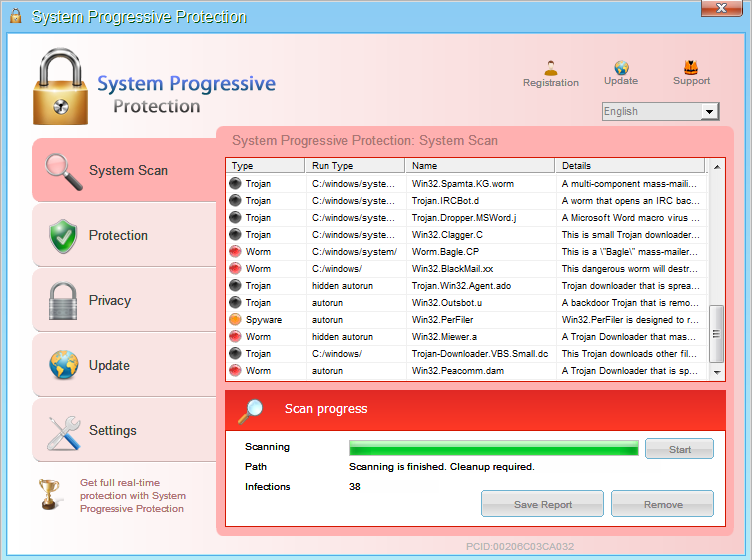
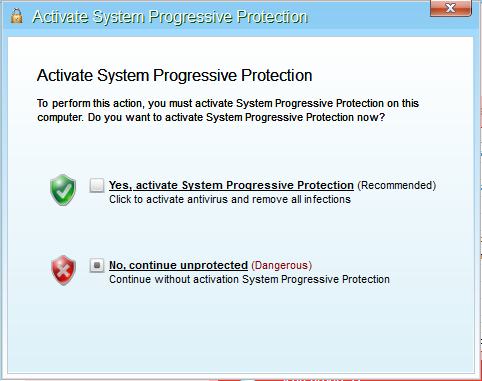
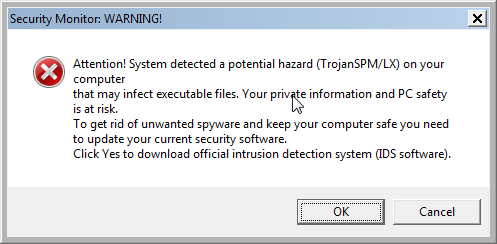
We strongly advise you to ignore any alerts that System Progressive Protection might generate and proceed with this removal guide as soon as possible.
Under no circumstance should you buy System Progressive Protection as this could lead to identity theft,and if you have, you should contact your credit card company and dispute the charge stating that the program is a scam and a computer virus.
Registration codes for System Progressive Protection
As an optional step,you can use the following license key to register System Progressive Protection and stop the fake alerts.
System Progressive Protection license key: AA39754E-715219CE
Please keep in mind that entering the above registration code will NOT remove System Progressive Protection from your computer , instead it will just stop the fake alerts so that you’ll be able to complete our removal guide more easily.
System Progressive Protection Removal Guide
STEP 1 : Start your computer in Safe Mode with Networking
- Remove all floppy disks, CDs, and DVDs from your computer, and then restart your computer.
- Press and hold the F8 key as your computer restarts.Please keep in mind that you need to press the F8 key before the Windows start-up logo appears.
Note: With some computers, if you press and hold a key as the computer is booting you will get a stuck key message. If this occurs, instead of pressing and holding the “F8 key”, tap the “F8 key” continuously until you get the Advanced Boot Options screen. - On the Advanced Boot Options screen, use the arrow keys to highlight Safe Mode with Networking , and then press ENTER.
![[Image: Safe Mode with Networking]](data:image/gif;base64,R0lGODlhAQABAAAAACH5BAEKAAEALAAAAAABAAEAAAICTAEAOw== "Start your computer in Safe Mode with Networking")
![[Image: Safe Mode with Networking]](http://malwaretips.com/blogs/wp-content/uploads/2013/01/safemode.jpg "Start your computer in Safe Mode with Networking")
STEP 2: Run RKill to terminate known malware processes associated with System Progressive Protection.
RKill is a program that will attempt to terminate all malicious processes associated with System Progressive Protection,so that we will be able to perform the next step without being interrupted by this malicious software.
Because this utility will only stop System Progressive Protection running process, and does not delete any files, after running it you should not reboot your computer as any malware processes that are configured to start automatically will just be started again.
- While your computer is in Safe Mode with Networking ,please download the latest official version of RKill.Please note that we will use a renamed version of RKILL so that System Progressive Protection won’t block this utility from running.
RKILL DOWNLOAD LINK (This link will automatically download RKILL renamed as iExplore.exe) - Double click on iExplore.exe to start RKill and stop any processes associated with System Progressive Protection.
- RKill will now start working in the background, please be patient while the program looks for various malware programs and tries to terminate them.
IF you are having problems starting or running RKill, you can download any other renamed versions of RKill from here. - When Rkill has completed its task, it will generate a log. You can then proceed with the rest of the guide.
![[Image: RKILL Program]](http://malwaretips.com/blogs/wp-content/uploads/2013/01/rkill-run-as-admin.jpg "Double Click on iExplore.exe")
![[Image: RKILL stoping malware]](http://malwaretips.com/blogs/wp-content/uploads/2013/01/rkill-program.jpg "RKill while killing System Progressive Protection malicious process")
![[Image: RKill Report]](http://malwaretips.com/blogs/wp-content/uploads/2013/01/rkill-report.jpg "RKill Log")
WARNING: Do not reboot your computer after running RKill as the malware process will start again , preventing you from properly performing the next step.
STEP 3: Remove System Progressive Protection malicious files with Malwarebytes Anti-Malware FREE
Malwarebytes Anti-Malware is a powerfull on-demand scanner which will remove System Progressive Protection malicious files from your computer.
- You can download Malwarebytes Anti-Malware Free from the below link,then double click on it to install this program.
MALWAREBYTES ANTI-MALWARE DOWNLOAD LINK(This link will open a download page in a new window from where you can download Malwarebytes Anti-Malware Free) - When the installation begins, keep following the prompts in order to continue with the setup process.
DO NOT make any changes to default settings and when the program has finished installing, make sure you leave both the Update Malwarebytes’ Anti-Malware and Launch Malwarebytes’ Anti-Malware checked,then click on the Finish button.
- On the Scanner tab,select Perform quick scan and then click on the Scan button to start scanning your computer.
- Malwarebytes’ Anti-Malware will now start scanning your computer for System Progressive Protection malicious files as shown below.
- When the Malwarebytes scan will be completed,click on Show Result.
- You will now be presented with a screen showing you the malware infections that Malwarebytes’ Anti-Malware has detected.Please note that the infections found may be different than what is shown in the image.Make sure that everything is Checked (ticked) and click on the Remove Selected button.
- After your computer will restart in Normal mode, open Malwarebytes Anti-Malware and perform a Full System scan to verify that there are no remaining threats
![[Image: Malwarebytes Anti-Malware final installation screen]](http://malwaretips.com/blogs/wp-content/uploads/2013/01/malwarebytes-installation.jpg "Malwarebytes Anti-Malware final installation screen")
![[Image: Malwarebytes Anti-Malware Quick Scan]](http://malwaretips.com/blogs/wp-content/uploads/2013/01/malwarebytes-quick-scan.jpg "Run a Quick Scan with Malwarebytes Anti-Malware")
![[Image: Malwarebytes Anti-Malware scanning for System Progressive Protection]](http://malwaretips.com/blogs/wp-content/uploads/2013/01/malwarebytes-scan.jpg "Malwarebytes Anti-Malware scanning for System Progressive Protection")
![[Image: Malwarebytes Anti-Malware scan results]](http://malwaretips.com/blogs/wp-content/uploads/2013/01/malwarebytes-scan-results.jpg "Malwarebytes when the system scan has completed")
![[Image:Malwarebytes removing virus]](http://malwaretips.com/blogs/wp-content/uploads/2013/01/malwarebytes-virus-removal.jpg "Click on Remove Selected to get rid of System Progressive Protection")
STEP 4: Remove System Progressive Protection rootkit with HitmanPro
In some cases,System Progressive Protection will also install a rootkit on victims computer.To remove this rootkit we will use HitmanPro.
- Download HitmanPro from the below link,then double click on it to start this program.
HITMANPRO DOWNLOAD LINK (This link will open a new web page from where you can download HitmanPro)
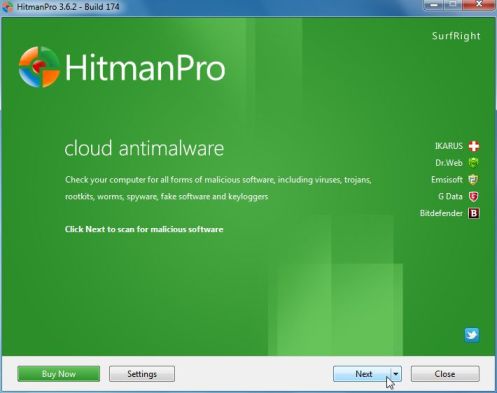
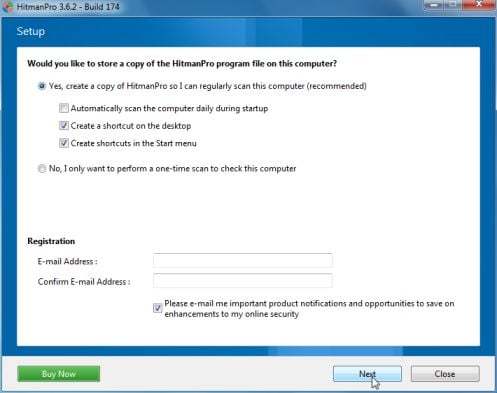
IF you are experiencing problems while trying to start HitmanPro, you can use the Force Breach mode.To start HitmanPro in Force Breach mode, hold down the left CTRL-key when you start HitmanPro and all non-essential processes are terminated, including the malware process. (How to start HitmanPro in Force Breach mode – Video) - HitmanPro will start and you’ll need to follow the prompts (by clicking on the Next button) to start a system scan with this program.
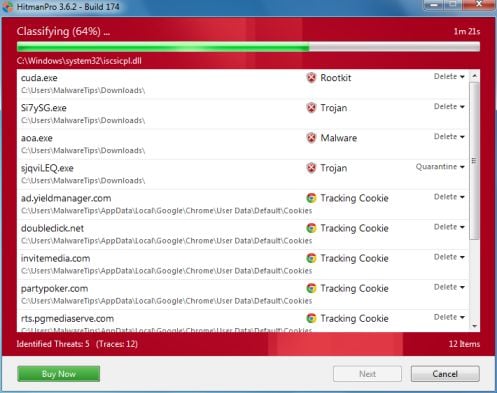
- HitmanPro will start scanning your computer for System Progressive Protection malicious files as seen in the image below.
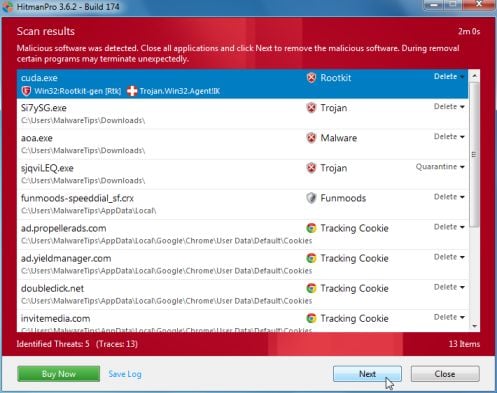
- Once the scan is complete,you’ll see a screen which will display all the infected files that this utility has detected, and you’ll need to click on Next to remove this malicious files.
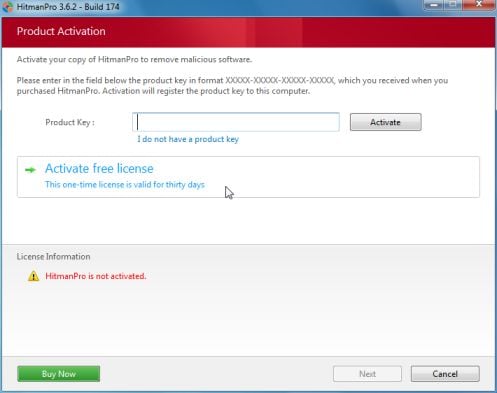
- Click Activate free license to start the free 30 days trial and remove all the malicious files from your computer.
That’s it, System Progressive Protection should be completely removed from your computer!
We strongly recommend that you build up your malware defenses by starting a new thread in Security Configuration Wizard forum and keep installed on your machine all the on-demand scanners that we’ve used in this article to perform regular scans with them.









Wow…just wow. This was extremely helpful, thanks for this. I was afraid I’d have to lose all my music and files! Thanks again
Thanks alot! extremely helpful. I’ll be sure to do my part. Cheers!
Thanks!
worked for me!!! Great Job.
Thank you very much Stellian, heart attack averted! Keep up the good work.
Thanks. Very useful.
Thank you for this: in the ugly world of computer spammers, internet scams etc., this page restores a bit of my faith in humanity. I followed the steps one by one, and that system protect nonsense has gone. I greatly appreciate your work.
thanks alot
I am no genius on a computer, but at least when I got this nasty piece of work I recognised it as a scam. A bit of very careful research got me to your site, which looked like the safest and the best. It seems my judgement was correct, and now you’re in my bookmarks for future emergencies. Thank you for really clear and inrelligent communication.
Or you can go into safe mode run RegEdit find the file in windows run once delete the folder (a string of numbers) then restart and use any normal virus removal.
Hello,
This is just one possibility, however the less knowldgeble users might delete something that wasn’t supposed to be removed… So for the most of the users I recommend the guide from this page.Anyaway thank you! :)
Thank you very much for the help. It seems to have worked for me.
In my case at least I believe the site responsible for this virus was one called ” Daily Bible Quotes “. This was actually an App I got from Facebook back in August 2012. I installed a browser add-on from them. When I was doing the scan this name came up as the “Vendor” and the browser add-on bar was removed. This Vendor was the same name as the ones with the virus.
Maybe someone with the really good computer skills could investigate the site and if they are responsible take them down!!!
Tom
Worked perfectly!
Lifesaver! Extremely important files were in danger until I found your page. Bravo!!!!!!!